You have a photo of your mom, a photo of yourself, and an ocean between you. Ten years ago that was just a sad fact. Today it is a prompt. An AI hug video maker takes still pictures of two people (or one group photo) and animates them into a short clip where they step toward each other and embrace. It takes about a minute, it costs nothing on many platforms, and the best results are honestly moving.
This article looks at how these makers work, which free online tools and phone apps people use most, what the output looks like in real situations, and how to build a hug clip yourself with an image-to-video model on PicassoIA. You will also see the mistakes that make a hug look stiff or strange, and how to avoid them.
What an AI Hug Video Maker Does
A hug video maker is an image-to-video tool with a very specific job. You feed it one or two photos. It detects the people, estimates their bodies, and generates a few seconds of motion in which they move closer, wrap their arms around each other, and hold the embrace. Most tools output a 5 to 10 second clip, often with a gentle camera drift and sometimes with background music.
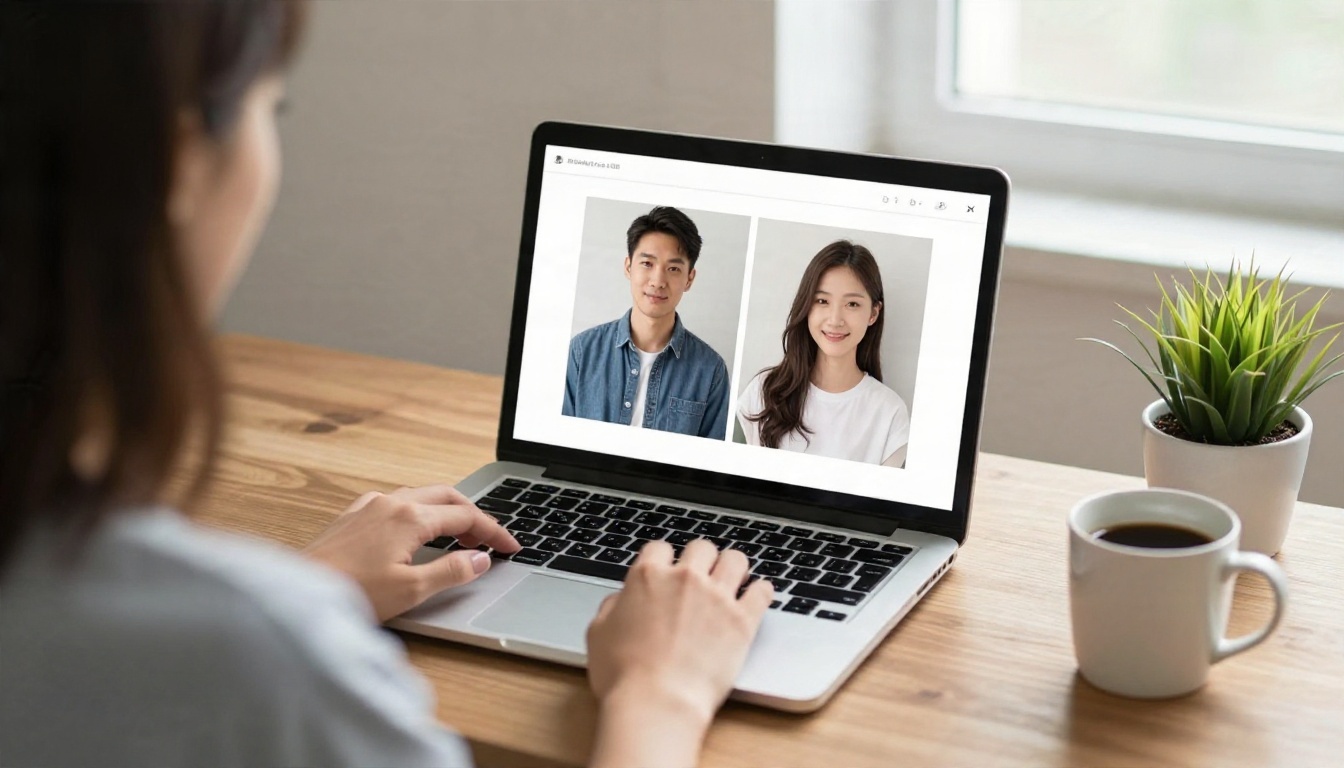
From Two Photos to One Moment
There are two input styles. The first is one photo with two people, such as a wedding picture or a selfie. The tool keeps the scene and only animates the bodies. The second is two separate photos, where the tool places both people into a shared frame and then makes them embrace. The second style is more flexible, but the lighting and scale of the two photos need to be similar or the result looks like a cut-and-paste job.
Why Hugs Are Hard for AI
A hug is one of the toughest motions for a video model. Two bodies overlap, arms wrap behind backs, faces tilt and disappear, and hands have to land somewhere believable. Early tools often produced melting limbs or extra fingers. Current models handle this far better because they were trained on larger sets of human interaction footage, but contact points are still where errors show up first.
💡 Quick rule: the closer your source photos are to a natural standing pose, facing the camera or slightly toward each other, the cleaner the hug will be.
Search for this topic and you will find a long list of browser-based makers. Most follow the same recipe: upload, pick a hug template, wait, download. The differences lie in watermarks, daily limits, export quality and how well the tool handles two separate photos.
Browser-Based Hug Makers
Here is how the most visible names compare, based on what their own pages describe. Free limits change often, so treat this as a snapshot and check each site before you commit.
| Tool | Input style | Free tier notes | Best for |
|---|
| CapCut | Photo plus text prompt | Free exports can carry a watermark | Social clips with edits |
| Fotor | One group photo or two photos | Limited free credits | Quick, simple output |
| Vidu | Template with an uploaded character image | Free template access | Short animated hugs |
| YouCam Video | One photo of two people or two photos | Browser-based, desktop friendly | Couple and family photos |
| FlexClip | Photos and text prompts | Free editing extras like music | Clips with filters and soundtrack |
| insMind | Two separate photos or one group photo | Free starter use | Realistic, simple results |
| Lanta AI | One or two photos | Starting credits | Testing the idea |
| MyEdit and PowerDirector | "Warm Hug" template | App version available | Template lovers |
What "Free" Really Means
Free usually means one of four things: a watermark on the export, a daily credit cap, a lower resolution such as 480p, or a queue that slows down at peak hours. None of these is a problem if you only want a quick clip for a message. They matter if you plan to post on a channel or print a memory video for a family event.

Best Apps for Phone Users
Most hug videos are made on a phone, because that is where the photos live. You have two routes: dedicated hug apps and general video editors that include a hug template or an image-to-video feature.
Template Apps
Template apps are the fastest path. You choose a hug effect, pick the photos from your gallery, and tap generate. They are built for speed and shareable output, so expect a vertical 9:16 clip, trending music and a watermark unless you pay. Template apps work best with clear, front-facing portraits and give you little control over how the hug actually unfolds.
Editors with Hug Effects
General editors such as CapCut or PowerDirector give you more freedom. You can trim the clip, add a title, layer a voice message, and match the music to the moment the arms close. If you plan to turn the hug into a birthday greeting or a farewell tribute, an editor gives you the polish that a pure template app cannot.
💡 Tip: generate the hug itself in a dedicated video model, then bring the clip into an editor for music and captions. You get better motion and better finishing.
Real Examples and Use Cases
The technology is fun, but the reason it spreads is emotional. Here are the situations where hug videos actually land.
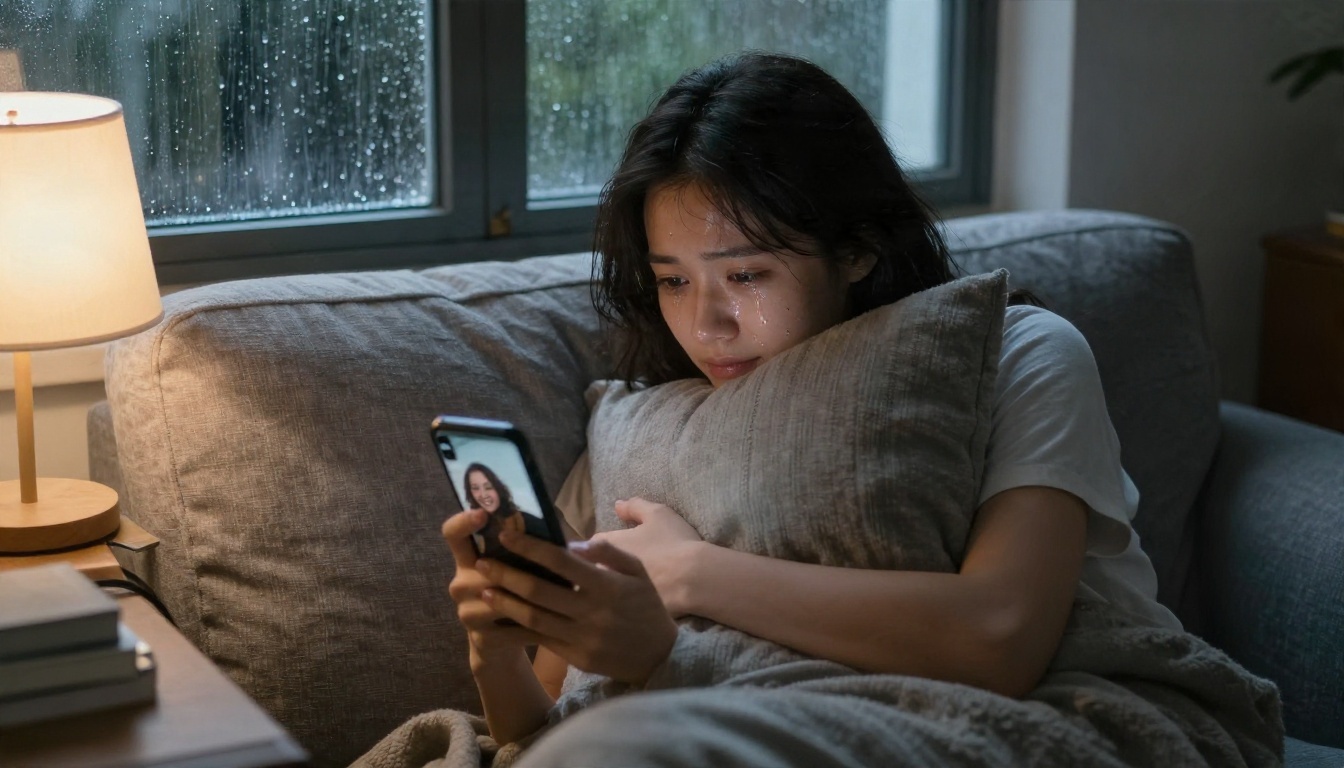
Families Across Distance
Parents who live in another country, students abroad, soldiers on long deployments. A photo of each person, merged into one embrace, makes a gift that a text message cannot. People often send these on birthdays and holidays, and the reaction is usually a mix of laughing and crying.
Grandparents and Grandchildren
A grandmother and a grandson who live three time zones apart can appear together in one kitchen scene. If you already have a real photo of the two of them, animating it into a slow, warm embrace is a kind gesture that costs a few minutes.

Couples and Anniversaries
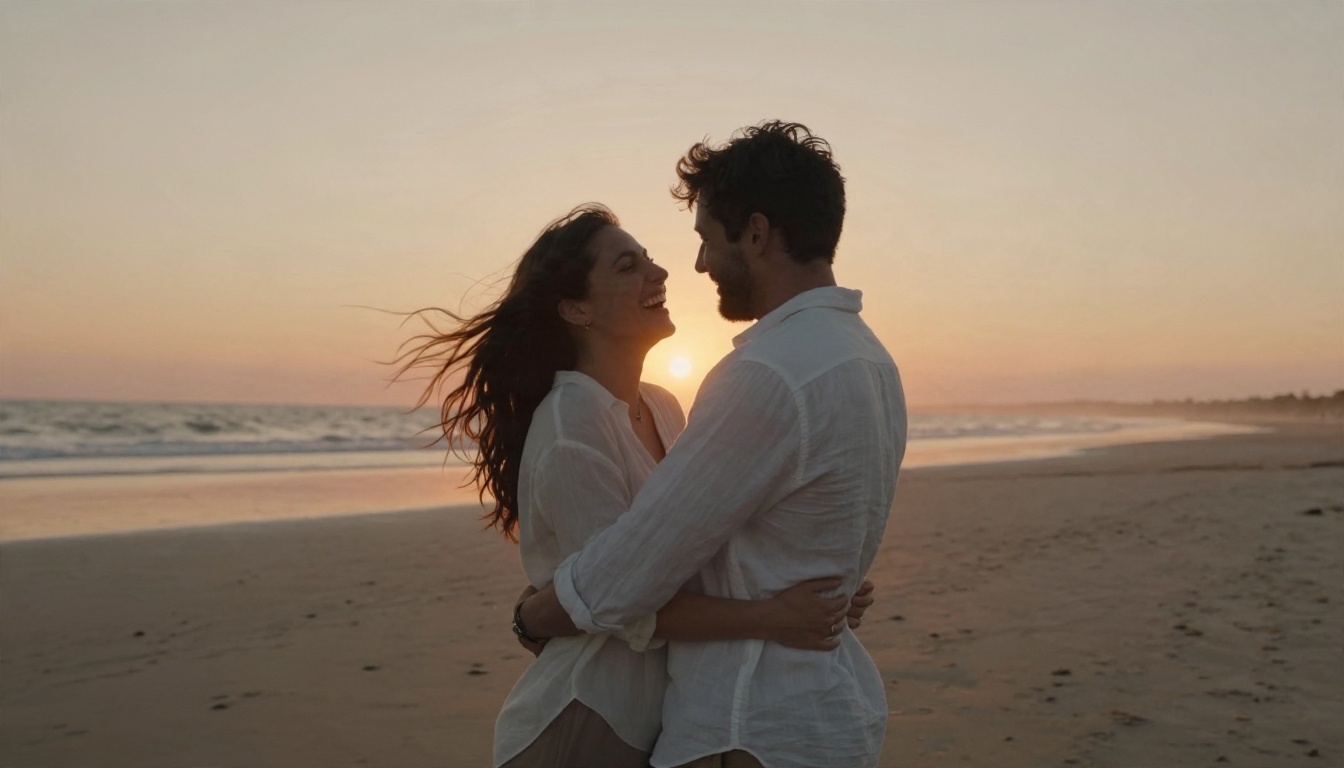
Couples use hug clips for anniversaries, long-distance relationship milestones and wedding slideshows. A beach, a sunset and a lift-and-spin are the classic combination, and image-to-video models handle that kind of wide, open scene very well because the background is simple.
Remembering Someone
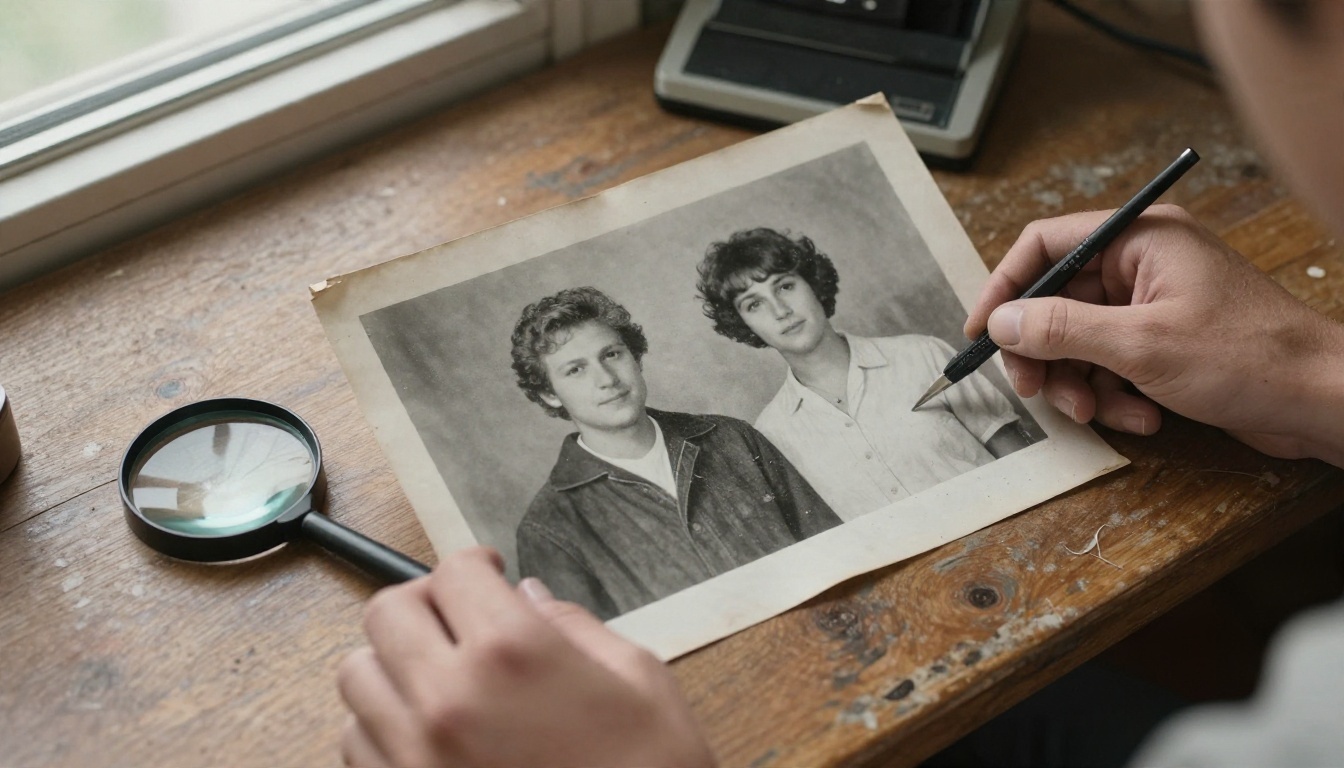
This is the most delicate use. Some people animate an old photograph so that they can see a relative who has passed away in one more gentle moment. It can be comforting, but it deserves care. Keep it private or share it only with the family members who would welcome it, and avoid using photos of people who would not have wanted it.
Group Hugs and Pets
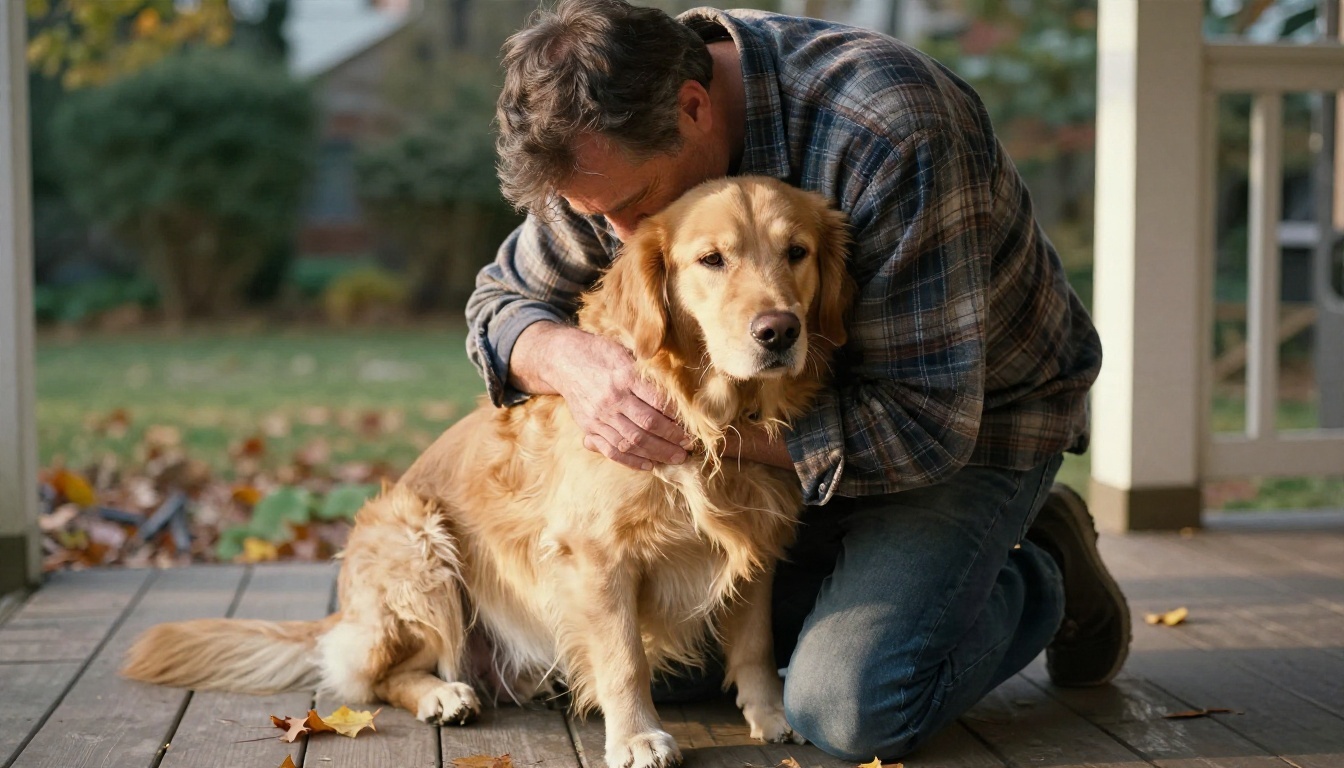
Siblings at a party, a team after a win, a dog and its owner on the porch. Group scenes are harder because more arms need to find more shoulders, but short, simple prompts help. Pet hugs are a surprise favorite: the fur and body shape give the model a lot of visual cues, and the results tend to look warm and natural.

How to Use Wan 2.5 I2V on PicassoIA
Template tools are quick, but they lock you into one motion. If you want control over pace, camera, mood and length, an image-to-video model works better. Wan 2.5 I2V is a strong fit for hug clips: it animates a still photo from a text prompt, supports 5 or 10 second durations, offers 480p, 720p and 1080p output, and can sync an audio file of up to 30 seconds. There is also a faster variant, Wan 2.5 I2V Fast, for quick tests.
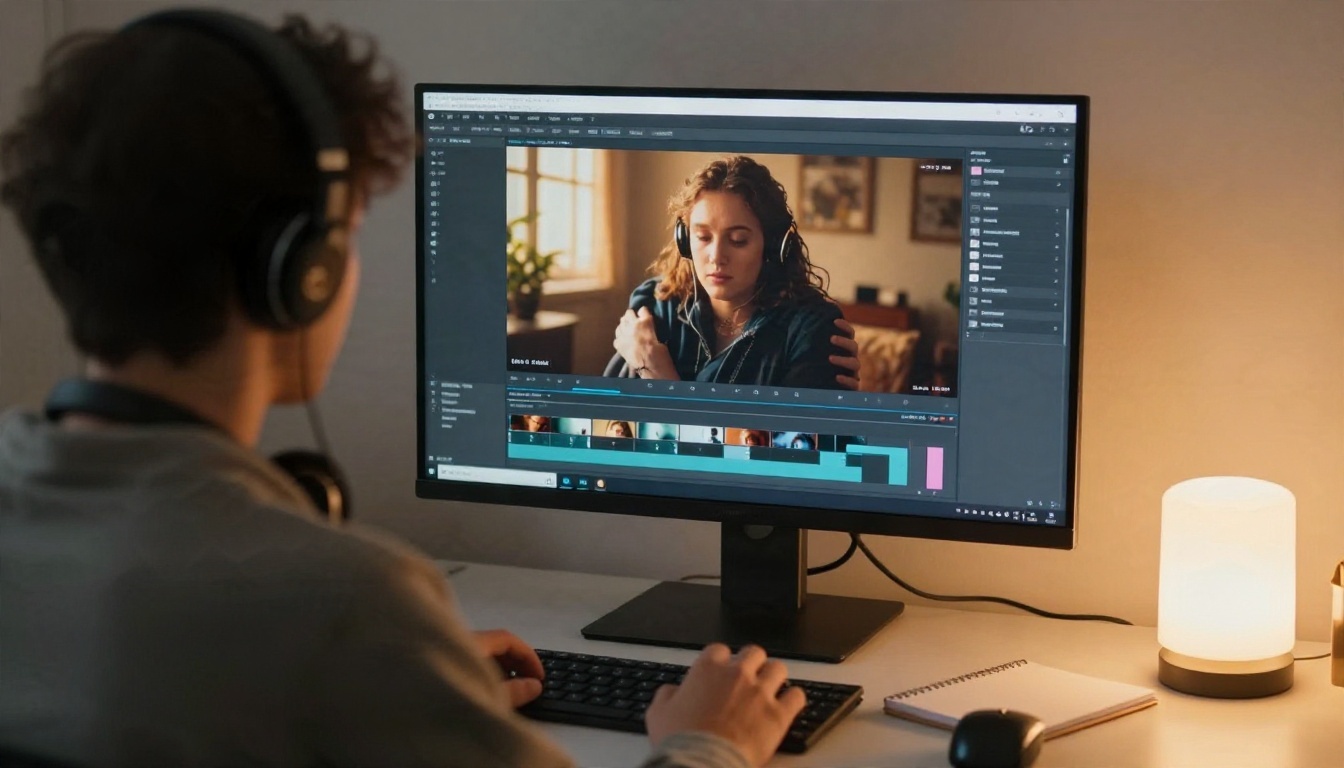
Step by Step Workflow
- Prepare the source image. Use a single photo that already contains both people, standing close, facing each other or the camera. If you only have two separate portraits, first combine them into one shared scene with an image model such as Nano Banana Pro. Ask it to place both people side by side in matching light.
- Open the model page and upload the image in the Image field. This field is required.
- Write the motion prompt. Describe what happens in order. Example: "The two people turn toward each other, step closer and embrace warmly. Her arms wrap around his shoulders, his hand rests on her back. Slow camera push-in, soft golden light, natural movement."
- Choose duration and resolution. Start with 5 seconds at 720p. Move to 10 seconds or 1080p only once the motion looks right.
- Fill the negative prompt. Add things like "extra fingers, distorted faces, warped arms, blurry, flickering" to steer the output away from the usual glitches.
- Leave prompt expansion on for your first tries. It rewrites a short prompt into a richer one. Turn it off if the model starts inventing details you did not ask for.
- Set a seed once you find a version you like. The same seed with a small prompt edit lets you adjust the hug without losing everything that worked.
- Generate, review and download. Check hands and faces at full screen before you share it.
Prompt Tips That Work
| Do this | Avoid this |
|---|
| Describe the order of motion: turn, step, embrace, hold | Only writing "people hugging" |
| Mention where hands land: shoulders, back, head | Leaving arm placement open |
| Add one camera move: slow push-in or gentle orbit | Stacking three camera moves |
| Name the light: warm window light, golden hour | Vague words like "nice lighting" |
| Keep the clip to one emotion: tender, joyful, relieved | Mixing sad and comedic moods |
💡 Pro habit: generate three versions with different seeds and keep the best one. A hug clip is cheap to repeat, and the difference between the first and third try is often large.
Other Models Worth Testing
Different models have different strengths for human contact scenes. If one result looks stiff, run the same source image through another model and compare.
A practical workflow is to draft with a fast, free model, pick the best pose and timing, and then render the final version with a higher quality model. If your clip has no sound, you can add synced effects such as rustling fabric or room tone with Video To SFX v1.5.
Common Mistakes and Fixes
Most failed hug videos come from the same handful of problems. They are all fixable.
Mismatched Photos
When two separate photos have different lighting, camera height or sharpness, the pair never looks like it shares a room. Pick pictures taken in similar light and at similar distance, or use an image model to rebuild them into one coherent scene before animating.
Faces Turned Away
If one person is shown in profile or looking down, the model has little face data to work with and may invent features as the head turns. Choose photos where both faces are clearly visible at least at a three-quarter angle.
Overlong Prompts
More words do not mean better motion. A prompt with ten different instructions confuses the model, and the hug turns into a blur. Two or three sentences describing one clear action is plenty.
Ignoring the Last Frame
Many clips look great for four seconds and then fall apart as the hug settles. Watch the final second for stretching arms or shifting faces. If it breaks, trim the clip in an editor or regenerate with a prompt that says "they hold the embrace, calm and still."
Expecting a Perfect First Try
Even the best model can produce a hand with the wrong number of fingers. Plan to make several attempts. Seeds, small prompt edits and a different model are your three levers.
Make Your Own Hug Video
You do not need an expensive editing suite or a film crew to create a warm, believable hug clip. Pick two photos that mean something to you, choose a model, write a short and specific motion prompt, and let it run. Try Wan 2.5 I2V for control, Seedance 2.5 Lite for free experiments, or Kling v3 when you want the smoothest body motion.
Open PicassoIA, upload your first photo and generate a 5 second test today. Send it to someone who needs it. If you want to try other styles after that, from cinematic reunions to animated family portraits, browse the full catalog at picassoia.com/en/all-models and keep experimenting until the clip feels just like the moment you remember.


