You have one good photo and you want it to move. Maybe it's a product shot for a shop listing, a portrait you'd like to bring to life, or a landscape that deserves a slow camera drift. The last thing you want is a registration form, a credit card prompt and a watermark stamped across the result. So you type "free image to video, no sign up" into a search bar and hope for the best.
The good news: tools like that exist. The less good news: "free" and "no sign up" mean very different things from one site to the next, and the fine print decides whether you get a usable clip or a frustrating dead end. This article lays out what actually happens when you animate a photo without an account, what limits you'll hit, what the results look like, and where to go when a free anonymous tool stops being enough.
What "No Sign Up" Really Means
The phrase gets used loosely. Before you spend ten minutes on a site, it helps to know which of the three common meanings you're dealing with.
Anonymous vs. Free Account
Truly anonymous tools let you upload an image, press a button and download a file with no email at all. Soft sign up tools let you run one or two generations anonymously, then ask you to register. Free account tools advertise "free" but require a login before the first run, which is the opposite of what you searched for.
From a round of research on tools currently marketed this way (CapCut Web, Upsampler, LoreMotion and imgtovideoai among them), the pattern is consistent. Some offer a genuine no account path, one reportedly allows a single anonymous generation before inviting you to register, and several mention fair use policies or occasional rate limits. Policies change often, so treat any claim you read, including this one, as a snapshot rather than a promise.

Where the Catch Hides
When a tool costs nothing to the user, something else pays the bill. Usually it's one of these:
- Watermarks on the exported file, removed only with credits or a subscription.
- Short clips, typically a few seconds, so the output feels more like an animated still than a scene.
- Lower resolution, often 480p or 720p, with higher quality reserved for paid plans.
- Queues, where anonymous users wait behind paying customers.
- Daily caps, which reset after a set number of hours.
💡 Quick test: before investing time in a tool, check whether the download button is active on the very first result. Some sites let you generate for free, then lock the export behind credits.
How Free Image to Video Works
Every image to video generator does roughly the same thing. It reads your photo as the first frame, then predicts how the pixels would move over the next few seconds, guided by a short text prompt you provide. The model fills in physics, parallax, hair movement, water, clouds and camera motion.
Most free tools run lighter versions of larger models. That's fine for simple motion like drifting clouds or a gentle zoom. It gets shakier with hands, fast action and crowds.
Pick the Right Source Photo
Your input matters more than your settings. A weak photo gives a weak video no matter how many times you press generate.
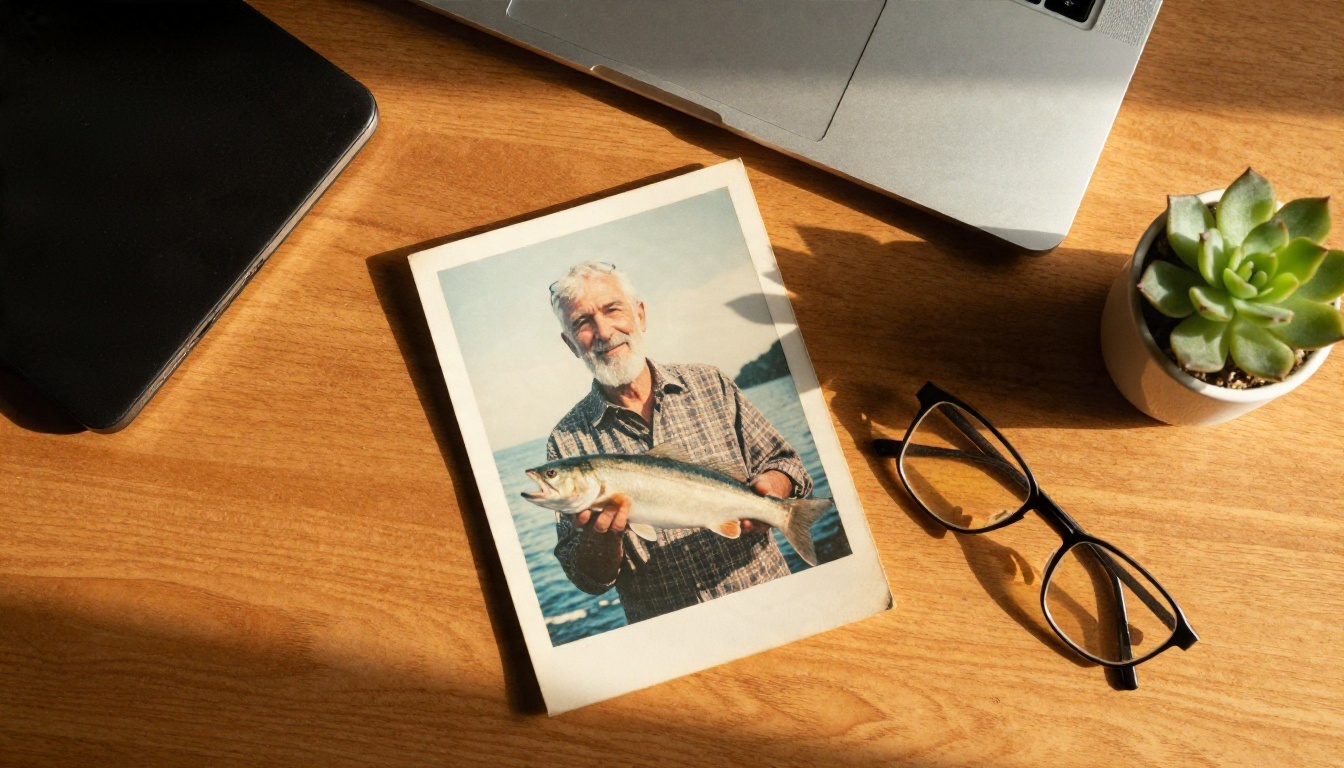
What works well:
- Sharp focus on the main subject, with no motion blur.
- Clear depth, meaning a foreground, a midground and a background the model can separate.
- Simple composition, with one subject and room around it.
- Good light, since harsh shadows and blown highlights often flicker in motion.
- A landscape or 16:9 crop, because most free tools produce wide output.
What tends to fail: busy crowds, heavily filtered selfies, group shots with overlapping limbs, and images with embedded text or logos, which the model may warp mid clip.
Write a Motion Prompt
A photo already tells the model what's in the frame. Your prompt should only describe what moves and how the camera behaves. Compare these two:
| Weak prompt | Strong prompt |
|---|
| "A beautiful woman on a hill" | "Wind moves her hair and scarf, slow push in toward her face, warm sunlight flickers softly" |
| "Coffee cup" | "Steam rises slowly from the cup, camera drifts left to right, shallow focus stays on the rim" |
| "Ocean cliff" | "Waves roll against the rocks, clouds drift slowly, grass bends in the wind, camera rises gently" |
Keep it to one subject motion and one camera move. Asking for five things at once is the fastest way to get a melted, wobbling result.
Here's a realistic picture of what to expect from free anonymous generators. Specific numbers vary by site and change often, so use this as a framework for judging any tool you try.
| Limit | Typical free no account tool | What it means for you |
|---|
| Clip length | 3 to 5 seconds | Enough for a social loop, short for storytelling |
| Resolution | 480p to 720p | Fine for phones, soft on a large monitor |
| Watermark | Often present unless on a paid tier | Problem for client or shop use |
| Daily runs | A few per day, sometimes one | Plan your best photos first |
| Audio | Usually none | Add music separately |
| Queue time | Seconds to many minutes | Peak hours hurt most |
| Commercial use | Frequently unclear or restricted | Read the terms before publishing ads |
Watermarks and Resolution
A watermark is not always a deal breaker. If you're testing an idea, previewing a motion style or making a private mood board, it hardly matters. If the clip goes on a storefront, in a client deck or into an ad, it matters a lot.
Resolution is the quieter limit. A 480p clip looks acceptable on a phone but falls apart when someone watches it full screen. If your end goal is a website hero or a YouTube upload, you'll likely need to step up from the anonymous tier.
Queue Times and Daily Caps
Anonymous users sit at the back of the line. A tool that returns a clip in 20 seconds at 7 a.m. might need ten minutes on a Friday afternoon. Daily caps work the same way: you may get a handful of runs, then see a message asking you to wait or register.

💡 Save your runs. Test your motion prompt with a throwaway image first, then spend your limited free generations on the photos that matter.
Real Examples of Results
The same prompt style behaves differently depending on subject. These three source images show the kinds of photos that animate well, and what motion to ask for.
Landscape: The Easiest Win
Landscapes are forgiving. Clouds, water and grass all have natural, repetitive motion that models predict accurately, and nobody notices a slightly odd wave.
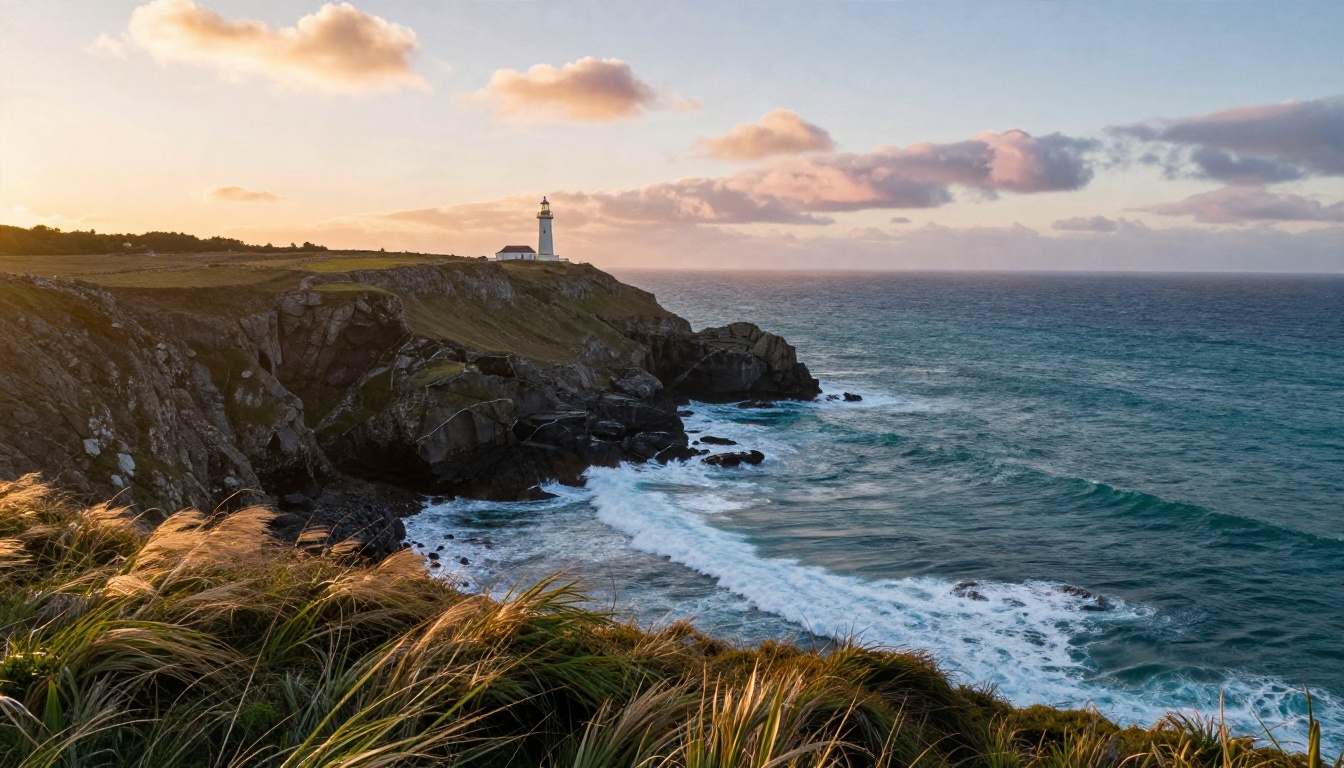
Prompt that works: "Waves roll against the rocks, clouds drift slowly to the right, tall grass bends in the breeze, camera rises gently over the cliff."
Expect: smooth water, convincing cloud drift, and a subtle parallax between foreground grass and the distant lighthouse.
Product Shot: Small Motion, Big Impact
Product animation sells. A tiny movement like rising steam, a rotating reflection or a slow dolly can make a static listing feel premium.

Prompt that works: "Steam curls slowly upward from the espresso, camera pushes in toward the cup rim, shallow depth of field, warm light flickers softly."
Expect: believable steam, stable cup geometry, and clean edges. Avoid asking the cup to move, since objects that change shape are where free models slip.
Portrait: Powerful but Riskier
Portraits are the most emotional use case and the most error prone. Faces can drift, eyes may blink oddly, and hands often deform.
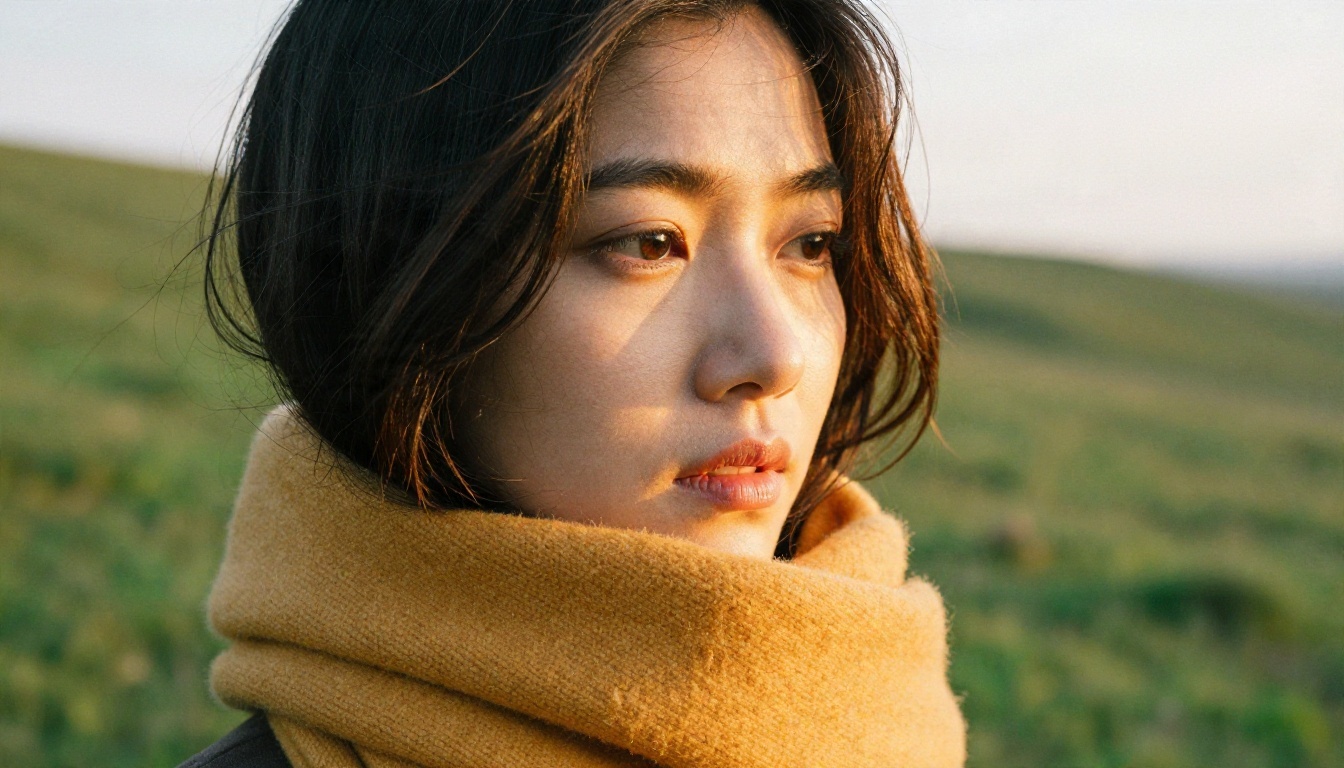
Prompt that works: "Wind moves her hair and scarf, she blinks once and looks toward the camera, very slow push in."
Expect: lovely hair and fabric motion. Keep expressions subtle, because big smiles or speech often distort the face on lighter models.
💡 Rule of thumb: nature moves easily, objects move carefully, and faces need the most restraint.
Free Models on PicassoIA
If anonymous tools feel limiting, PicassoIA offers several video models that handle image to video, including options built to be free. Check each model page for its current limits, since those can change.
Free and Unlimited Options
PicassoIA Video is positioned as a free, unlimited AI video generator from text or image, which makes it the natural starting point when you want to test many photos without watching a counter. Seedance 2.5 Lite is another free and unlimited option, and it supports clips up to 10 seconds, noticeably longer than the 3 to 5 seconds typical of anonymous web tools.
For quick experiments, both are good places to run the same photo with two or three different prompts and compare.
When to Step Up
Free tiers are ideal for testing. When you need more fidelity, longer shots, audio or sharper motion, these models are worth trying:
How to Animate a Photo Step by Step
This workflow works on PicassoIA Video and nearly every other image to video model. If you want the longest free clip, swap in Seedance 2.5 Lite.
- Open the model page and choose image to video input.
- Upload your photo. Use the sharpest version you have, ideally in the aspect ratio you plan to publish.
- Write a motion prompt with one subject movement and one camera move.
- Set the duration. Start short, since a shorter clip drifts less from the original photo.
- Generate and review. Look at faces, hands and edges first, since that's where artifacts show up.
- Adjust one thing at a time. Change the prompt or the camera move, not both, so you can tell what helped.
- Download the best take and trim it in any editor if you need a loop.
Mobile Is Fine Too
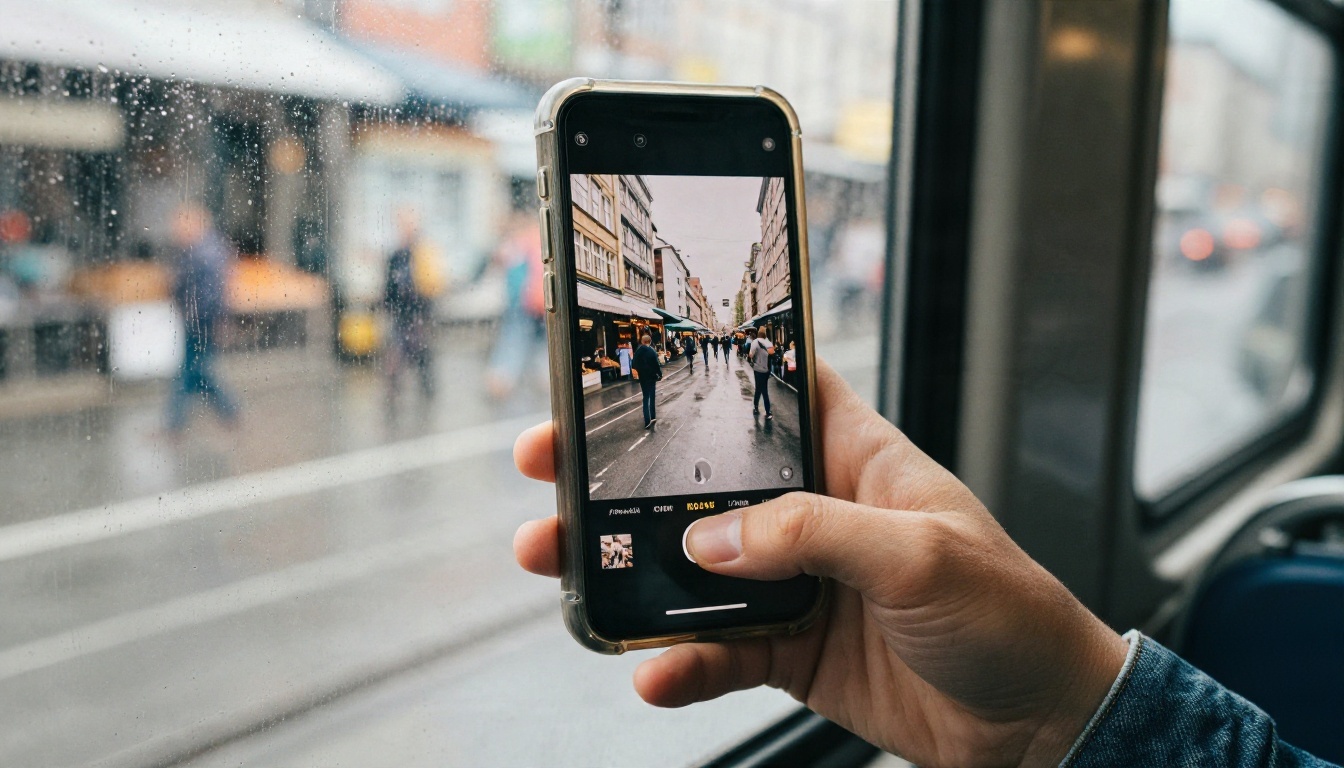
You don't need a desktop. Everything above works in a phone browser, and for social content it's often the faster path: pick a photo from your camera roll, upload, prompt, post.
If you need the starting image itself, you can generate it first with a text to image model such as Seedream 4.5 or Qwen Image 3, then send the result straight into a video model. That gives you full control over composition before any motion is added.
Mistakes That Waste Your Free Runs
Free generations are precious. These are the errors that burn them fastest.
- Overloaded prompts. "She smiles, turns, walks, wind blows, camera spins" produces mush. One action, one camera move.
- Low quality source images. Compression artifacts get amplified in motion. Upload the original, not a screenshot of a screenshot.
- Ignoring aspect ratio. If you crop later, you may cut off the part that moves.
- Expecting speech. Most anonymous tools produce silent clips and cannot make a face talk convincingly.
- Skipping the terms. If the clip is for a client or an ad, confirm that commercial use is allowed.
- Chasing perfection on try one. Plan for two or three attempts per photo.
💡 Budget your attempts. If a tool gives you five free runs a day, use two on tests, two on your best photo, and keep one in reserve.
Try It With Your Own Photos
Pick one picture you already love, a landscape if you want an easy first win, and give it a single clear motion prompt. Run it on a free tool, compare the result with a second attempt, and notice what the model gets right and where it stumbles. Within three or four generations you'll have a feel for what works.
When you're ready for longer clips, audio or higher resolution, head to PicassoIA's full model collection and try PicassoIA Video, Seedance 2.5 Lite or Kling v3 Video on the same photo. Seeing three models animate one image side by side is the fastest way to find the one that fits your style.

Your next photo is one prompt away from becoming a video. Start experimenting with PicassoIA today.


