You have two photos. Maybe a couple who live in different cities, maybe a wedding portrait that never had a video, maybe an old picture of grandparents who were never filmed together. You want a five second clip where the two people lean in and share a gentle kiss, and you want it without paying for software or learning a timeline editor. That is now a normal job for an image to video model, and this article shows the exact route: how to combine two separate photos into one believable frame, how to animate it, and which prompts keep the result natural instead of uncanny.
Everything below is built around one idea: the model animates what it can see. Give it a clean, shared starting frame and a calm, specific motion prompt, and the kiss looks warm and real. Give it two mismatched snapshots and a vague request, and you get melted faces. Let's fix that before you spend a single credit.
💡 Quick answer: merge both people into one image, animate that image with a short, slow prompt, keep the clip to 5 seconds, then upscale or trim if needed. Free models on Picasso IA can do every step.
How an AI Kiss Video Works
An AI kiss video is not a filter pasted over your photos. A video generation model takes a still image as the first frame, reads your text prompt, and predicts how every pixel should move over the next few seconds. The model has seen millions of clips of people leaning toward each other, so it knows how heads tilt, how hair falls, and how shoulders shift. Your job is to give it a frame where that motion is easy to predict.
The Two Photo Problem
Most image to video models accept one starting image. Two separate portraits are two images. That is why many first attempts fail: people upload one photo, type "they kiss," and the model invents a stranger. The reliable fix is a short preparation step where both people end up in the same frame, standing close, facing each other or at a gentle three quarter angle.
Some newer models also accept a first frame and a last frame. In that case you can supply a "before" image and an "after" image and let the model fill in the motion between them. This works well when both frames already share the same background and lighting.
What Counts as Believable Motion
Real kisses are small. Heads tilt a few degrees, eyes close, shoulders lean, a hand settles on a cheek. Models trained on cinematic footage reproduce exactly this when you ask for it plainly. They struggle when you ask for fast rotations, spinning cameras, or three things happening at once.
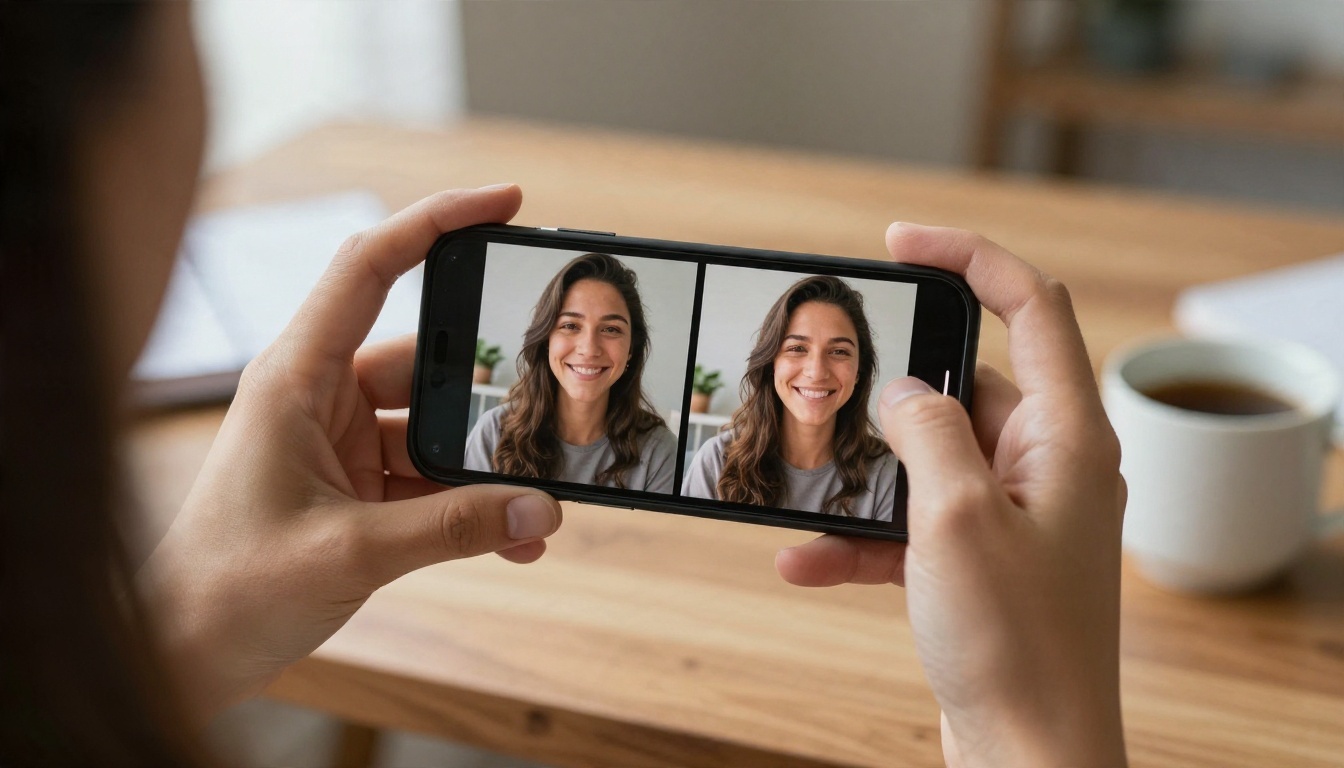
Pick Two Photos That Work
The quality of the final clip is decided before you generate anything. A sharp source gives the model a stable identity to hold onto for five seconds. A blurry or heavily filtered source gives it room to drift.
Photo Checklist
Run both photos through this list:
- Face is clearly visible, not covered by sunglasses, a hand, or a heavy shadow
- Resolution of at least 1000 pixels on the long side
- Eyes open and facing roughly forward or at a gentle angle
- Even, soft lighting with no harsh split shadows across the face
- Similar framing: both shoulders up or both waist up, not one close-up and one full body
- No heavy beauty filters, which smooth skin until the model has no texture to track
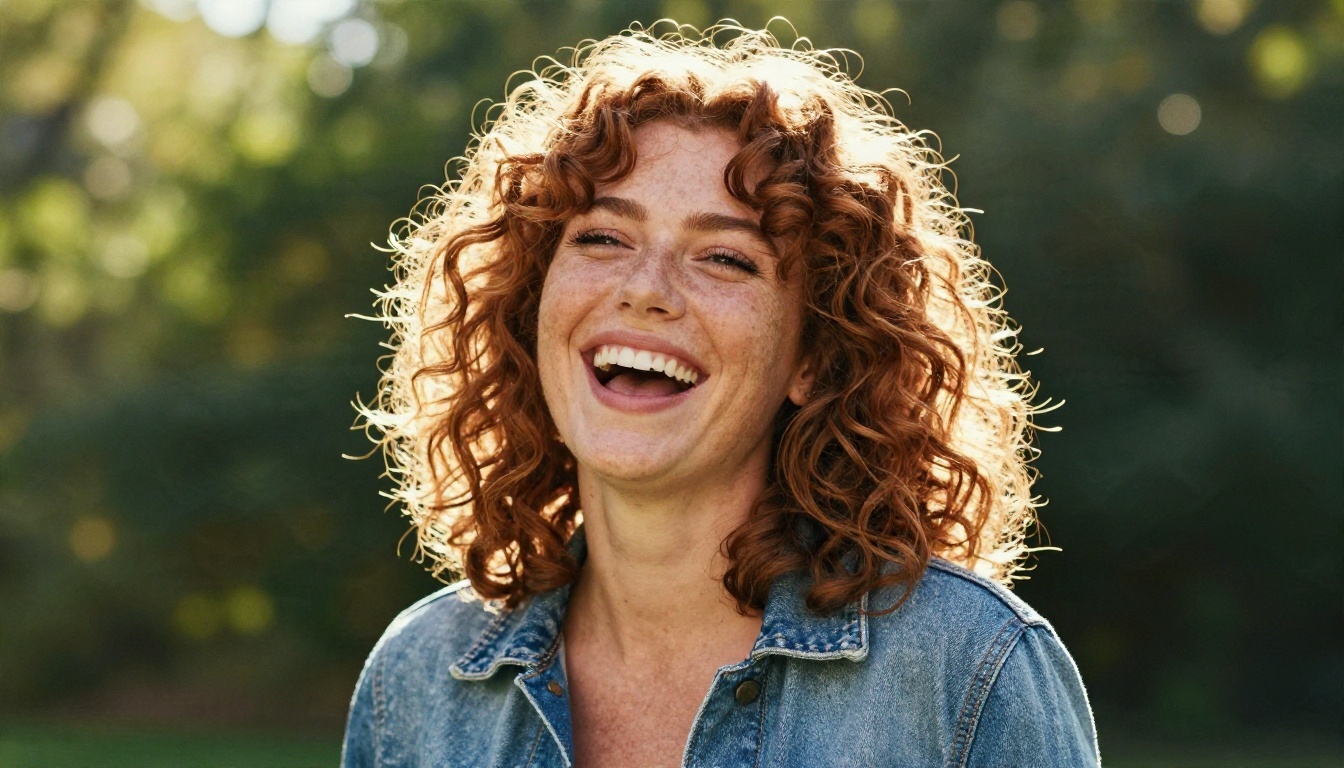
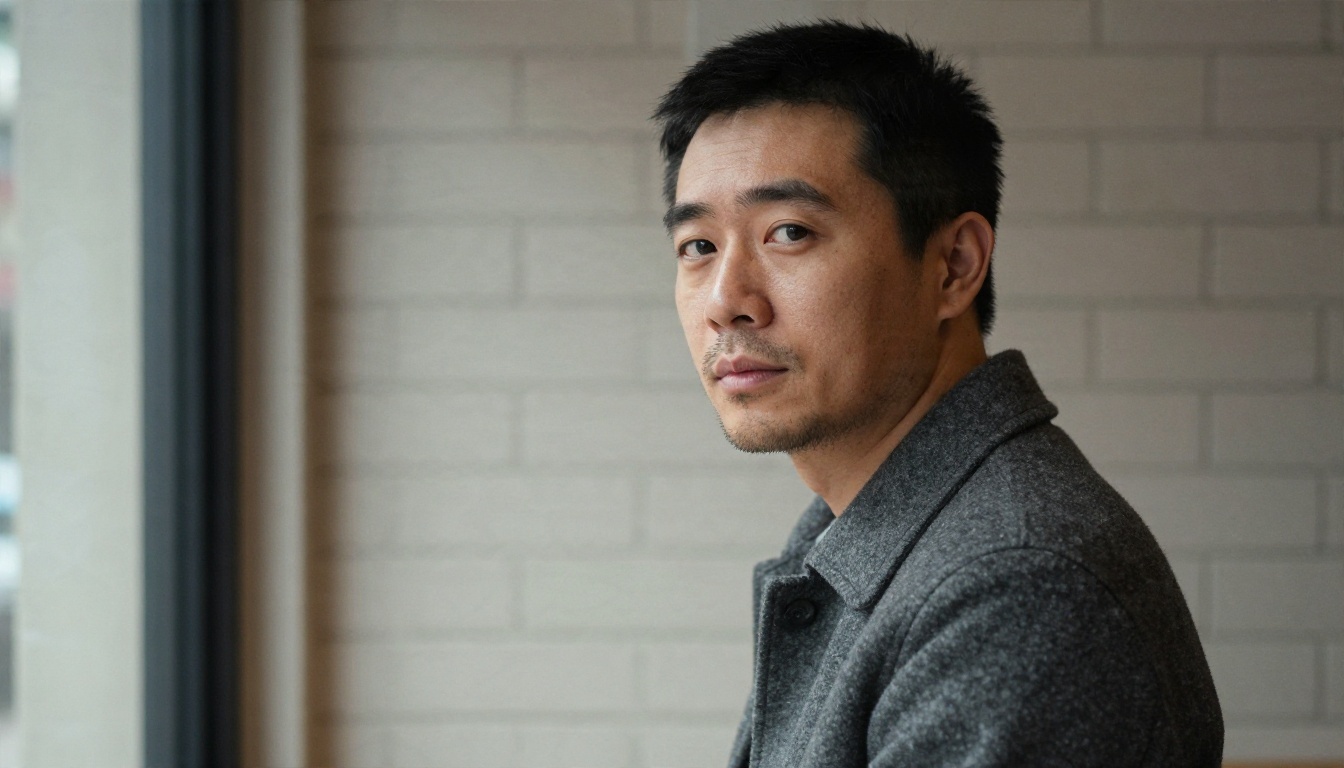
The two portraits above are a good example. Different locations, but soft, directional daylight on both faces, clear skin texture, and similar head size in the frame. That match matters more than most people expect, because the model has to believe they share one space.
Lighting and Angle Match
If one person is lit from the left and the other from the right, the merged frame will look pasted. Choose photos where the light direction agrees, or correct it in the merge step by describing a single light source in your prompt.
| Source Photo Issue | What Goes Wrong | Quick Fix |
|---|
| Sunglasses or hat shadow | Eyes get invented | Pick another photo |
| Heavy filter | Plastic skin, flicker | Use the original file |
| Very different head sizes | Scale mismatch in merge | Crop both to shoulders up |
| Low resolution | Soft, wobbling faces | Upscale first |
| Side lit vs. front lit | Pasted look | Describe one light source |
Free Online Steps, Start to Finish
Here is the whole workflow in order. It takes about ten minutes the first time and under five once you have a prompt you like.
Step 1: Merge Both People Into One Frame
Open an image editing model that accepts multiple reference images. Nano Banana is a strong choice because it can take two portraits as inputs and place both people into a single scene while keeping each face recognizable. Nano Banana Pro gives higher resolution output if you plan to upscale later, and Nano Banana 2 Lite is the faster, lighter option for quick tests.
Upload both photos, then use a prompt like this:
Place the two people from the reference photos together in one photograph, standing close and facing each other at a gentle three quarter angle, shoulders up, soft natural window light from the left, plain softly blurred background, realistic skin texture, 85mm portrait look.
Generate three or four versions and choose the one where both faces still look like the real people. That frame becomes your starting image.
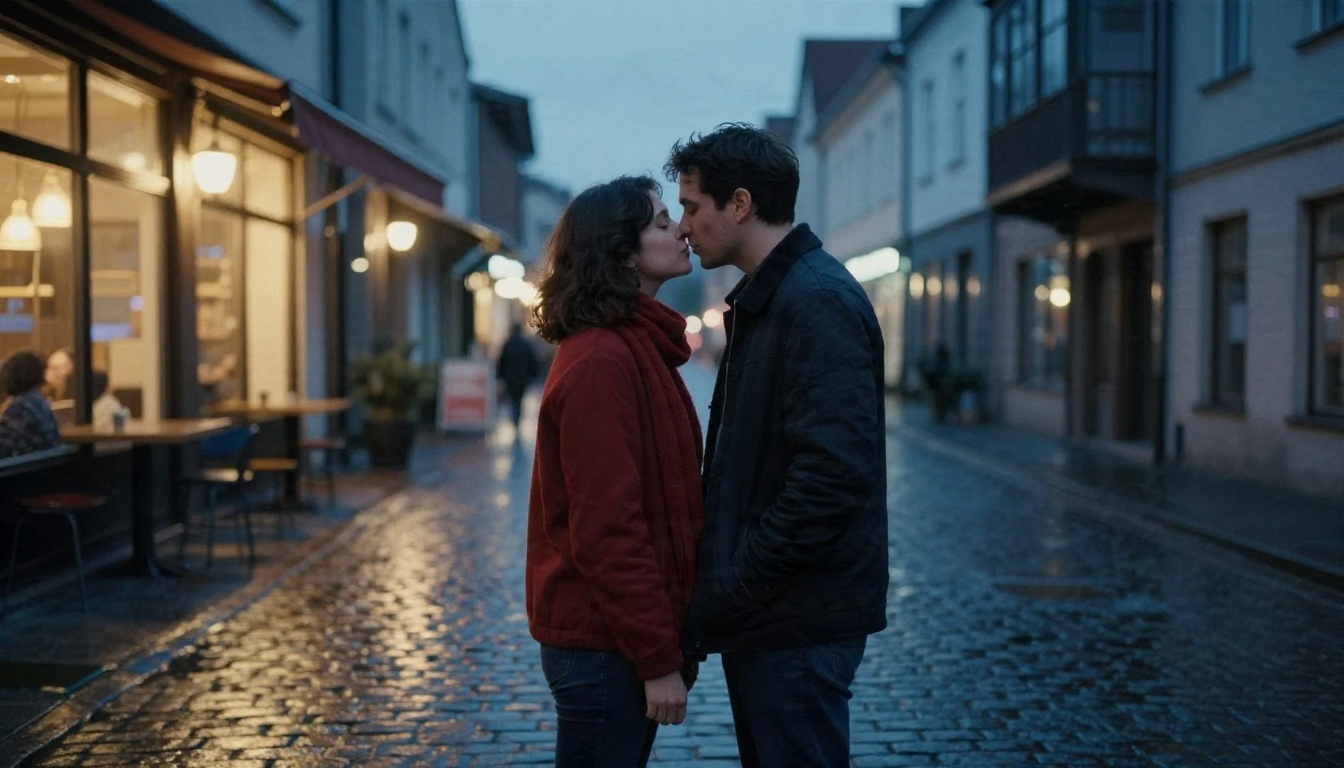
The frame above is the ideal starting point. The couple is close, faces are visible in profile, there is one clear light source, and the pose already implies the next second. The model has very little to guess.
Step 2: Choose a Free Video Model
Open an image to video model and upload your merged frame. For a free route, Seedance 2.5 Lite is a good first pick because it is free and unlimited on Picasso IA and supports clips up to 10 seconds. For a 5 second kiss, the default length is plenty.
Step 3: Write a Slow, Specific Motion Prompt
Describe the motion in the order it happens. Start with the pose, then the movement, then the camera. A tested pattern:
Two people stand close, facing each other. Over five seconds they slowly lean together and share a soft, closed mouth kiss. Eyes close gently, heads tilt a few degrees, one hand rests on the other's cheek. Locked camera with a very slight push in. Warm natural light, realistic skin, no sudden movement.
Step 4: Generate, Review, Repeat
Watch the clip three times. First for faces, then for hands, then for the background. If something warps, change one thing in the prompt and regenerate. Changing five things at once teaches you nothing.
Step 5: Trim and Upscale
If the first or last half second looks unstable, trim it in any basic editor. If the clip looks soft, run it through a video upscaler before posting.
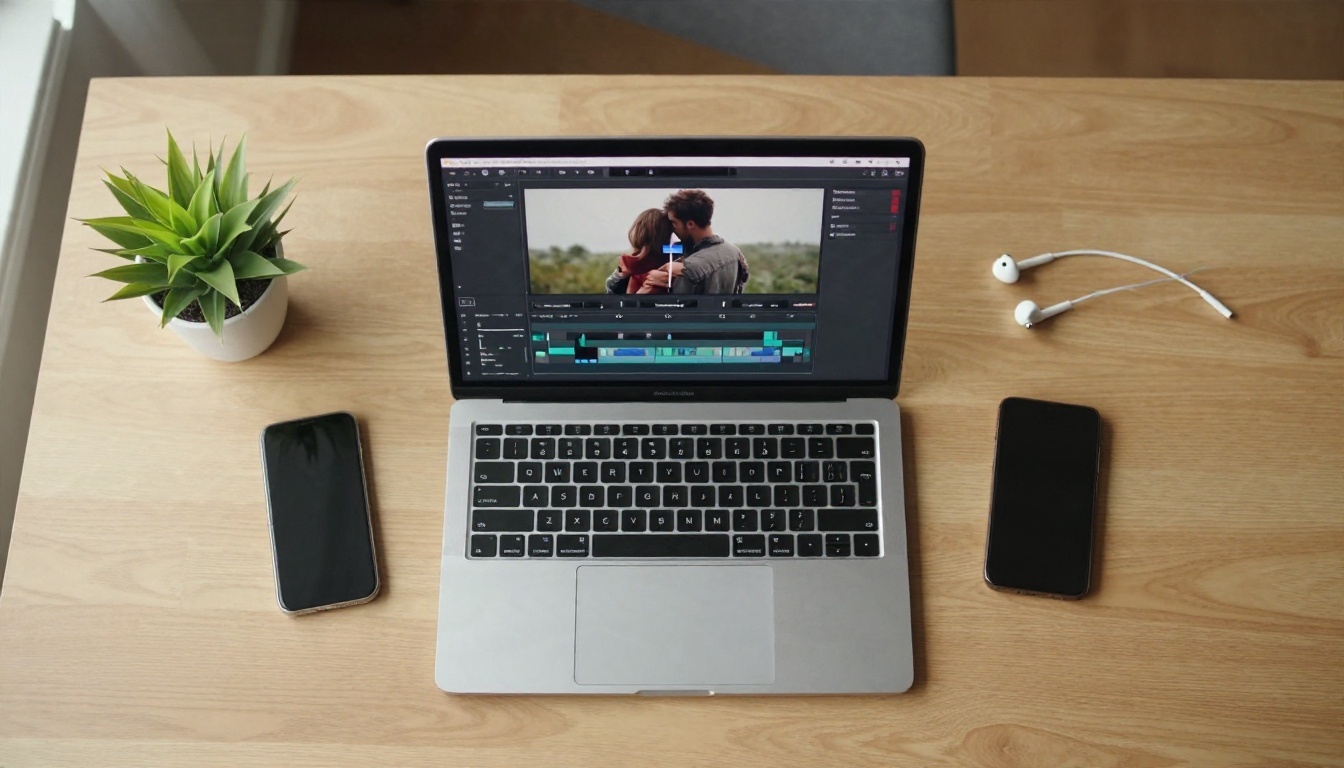
How to Use Seedance 2.5 Lite on PicassoIA
Since this is the free, no limit route, here is the exact sequence on the platform.
- Open the model page for Seedance 2.5 Lite and choose image to video if a mode selector is shown.
- Upload your merged frame from the editing step. A clean 16:9 or 9:16 image works best, depending on whether the clip is for a widescreen player or a vertical feed.
- Paste your motion prompt. Keep it under about 80 words. Long prompts tend to dilute the one motion you care about.
- Set the duration to 5 seconds. Short clips hold identity better than long ones.
- Generate and compare. Run at least three versions with the same image but slightly different wording, then keep the best.
- Save the file and trim it if the first frames feel jumpy.
💡 Tip: keep a text note with your best prompt. Reusing a prompt that worked on one couple is the fastest way to get consistent results on the next.
Prompt Ideas That Actually Work
Prompts are where most quality is won or lost. The patterns below keep motion small, which is exactly what makes a kiss look real.
Romantic and Soft
- "They lean in slowly, noses brushing, and share a gentle kiss. Soft golden hour light, slight handheld sway, shallow depth of field."
- "She tilts her head and kisses his cheek, then smiles at him. Locked camera, warm window light."
- "Foreheads touch, eyes close, then a brief tender kiss. Slow push in, quiet atmosphere."
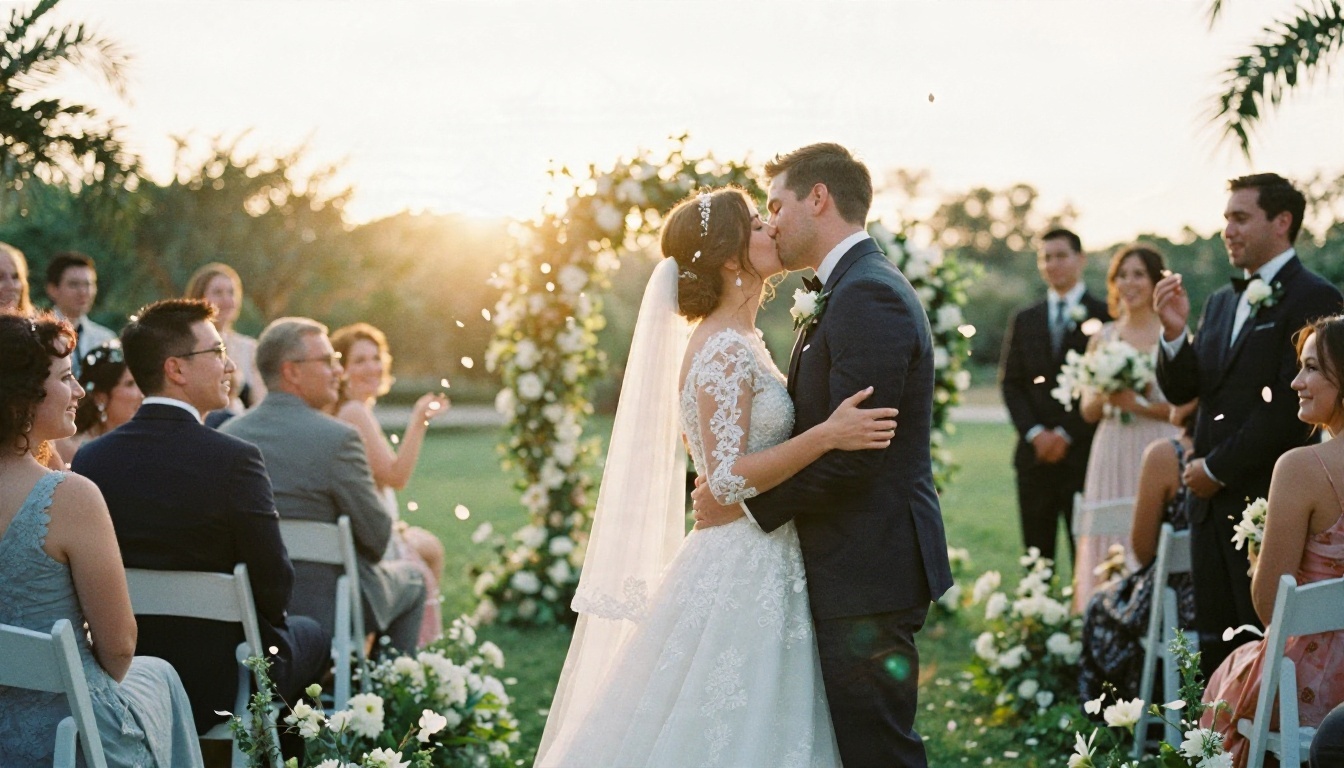
Wedding and Celebration
- "The couple shares a short kiss as petals drift down in the background. Gentle camera drift, bright afternoon light."
- "Bride and groom turn toward each other, a brief kiss, then they laugh. Stable camera, natural color."
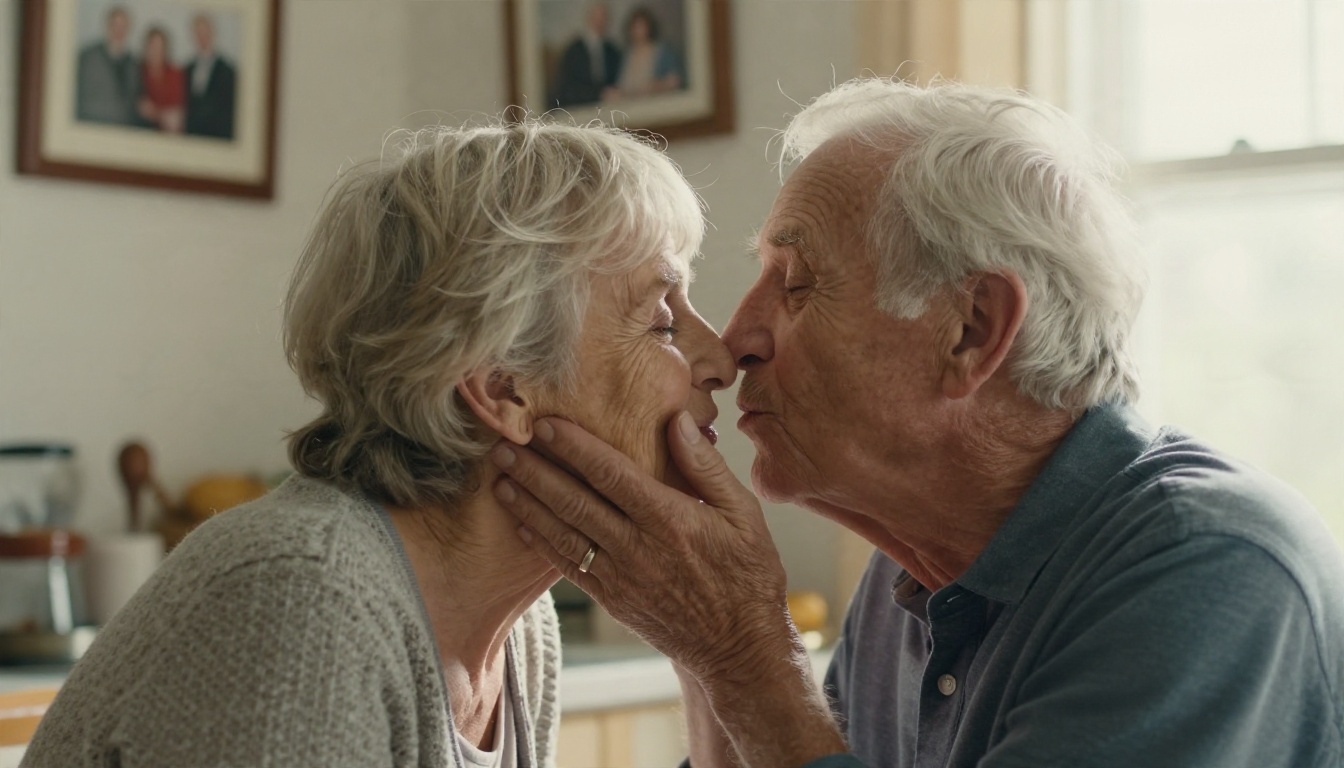
Older Couples and Memory Photos
- "The older man kisses his wife softly on the cheek and she smiles. Warm kitchen light, no camera movement."
- "They look at each other, lean together, and share a quiet kiss. Gentle, slow, realistic."
Words to Add and Words to Avoid
| Add These | Avoid These |
|---|
| slowly, gently, softly | quickly, suddenly, dramatic |
| closed mouth kiss, cheek kiss | passionate, intense, wild |
| locked camera, slight push in | spinning, orbit, whip pan |
| realistic skin, natural light | glowing, magical, sparkles |
| eyes close, head tilts a few degrees | head turns 90 degrees |
Best Models for Kiss Clips
Different models suit different goals. This table is based on how each one tends to behave with close, two person footage.
| Model | Best For | Notes |
|---|
| Seedance 2.5 Lite | Free, unlimited testing | Up to 10 seconds, good identity hold |
| Wan 2.7 I2V | Faithful animation of a still | Stays close to the source frame |
| Kling v3 Video | Cinematic realism | Strong faces and natural body motion |
| Hailuo 2.3 Fast | Quick photo animation | Good for rapid prompt iteration |
| Veo 3.1 Fast | Clips with sound | Native audio for ambient atmosphere |
| Pixverse v6 | Stylish social clips | Cinematic look with AI audio |
When to Switch Models
Start with the free model. If faces drift, try Wan 2.7 I2V, which tends to stay close to the original image. If you want a more filmic, polished look for a gift or anniversary, step up to Kling v3 Video. If you want ambient sound such as street noise or soft room tone, Veo 3.1 Fast handles audio in the same pass. Sound effects can also be added afterward with Video To SFX v1.5.
Fix Common Problems Fast
Even good prompts sometimes fail. Here is how to read the problem and correct it.
Faces Look Stiff or Change Mid Clip
This usually means the starting frame had a weak identity signal. Use a sharper merged image, crop closer to the faces, and shorten the clip. Also remove any instruction that asks for large head rotation.
Hands Warp or Gain Extra Fingers
Hands are the hardest part of any video model. Either keep them out of frame by cropping to shoulders up, or describe a simple hand position such as "one hand resting on the cheek." Avoid interlocking fingers, which models handle badly.
The Kiss Never Happens
If the two people hover near each other and nothing else occurs, your prompt is too passive. Use a clear verb and a timing cue: "in the last two seconds, they share a soft kiss." Models respond well to explicit sequencing.
Background Flickers
Busy backgrounds with fine patterns, such as foliage or brick, can shimmer. Use a softly blurred background in the merge step, or choose a plain wall. You can also ask for "locked camera" to reduce drift.
Skin Looks Plastic
This comes from over-filtered source photos. Start from the original file, and add "natural skin texture, fine pores, film grain" to the merge prompt.
Use Real People Responsibly
Kiss videos involve real faces, so a few rules keep the project safe and respectful.
- Get consent. Only animate photos of people who have agreed, or of yourself and your own partner.
- Never target private individuals without their knowledge, and never pass a clip off as real footage in a way that could mislead.
- Label shared clips as AI generated when posting publicly.
- Keep it tasteful. A gentle, closed mouth kiss is what these models handle best, and it is what most people actually want for anniversaries, weddings and memorials.
💡 Memorial use: many people animate old photos of parents or grandparents. Keep the motion small and warm. Slow, simple movement feels respectful and reads as real.
Where to Use Your Clip
Once you have a good five second video, it fits several places naturally:
- Anniversary messages sent privately to a partner
- Wedding slideshows and save the date reels
- Long distance relationship gifts, combining two people who have never been in the same frame
- Family memory videos that bring old portraits to life
- Short social posts in vertical 9:16 format
For vertical posts, generate the merged frame in 9:16 from the start. Cropping a 16:9 video later throws away detail and often cuts one of the faces.
Make Your First Kiss Video Today
You now have the whole route: pick two clean portraits, merge them into one frame with Nano Banana, animate with Seedance 2.5 Lite, and keep the prompt slow and specific. Try three prompt variations from the lists above, compare them side by side, and keep the one that feels most like the real people.
If the first result is close but not perfect, do not start over. Change one phrase, regenerate, and compare. After two or three rounds most people have a clip they are happy to share.
Ready to try it with your own photos? Open Picasso IA, upload your two portraits, and create your first clip in a few minutes. You can also browse every available image and video model at picassoia.com/en/all-models to find the one that suits your style.


