You have one good photo of a couple, and you want five seconds of video where they lean in and kiss. That is the entire job of an AI kiss video generator, and the free options available today are good enough to do it without melting faces or inventing a third hand. The catch is that most first attempts fail for boring reasons: a weak source photo, a vague prompt, or a model that was never built for two faces this close together. This article sorts the free apps worth your time, shows how to prepare the photo, walks through one full setup on Picasso IA, and gives you 12 prompts to paste in.
What a Kiss Video Generator Does
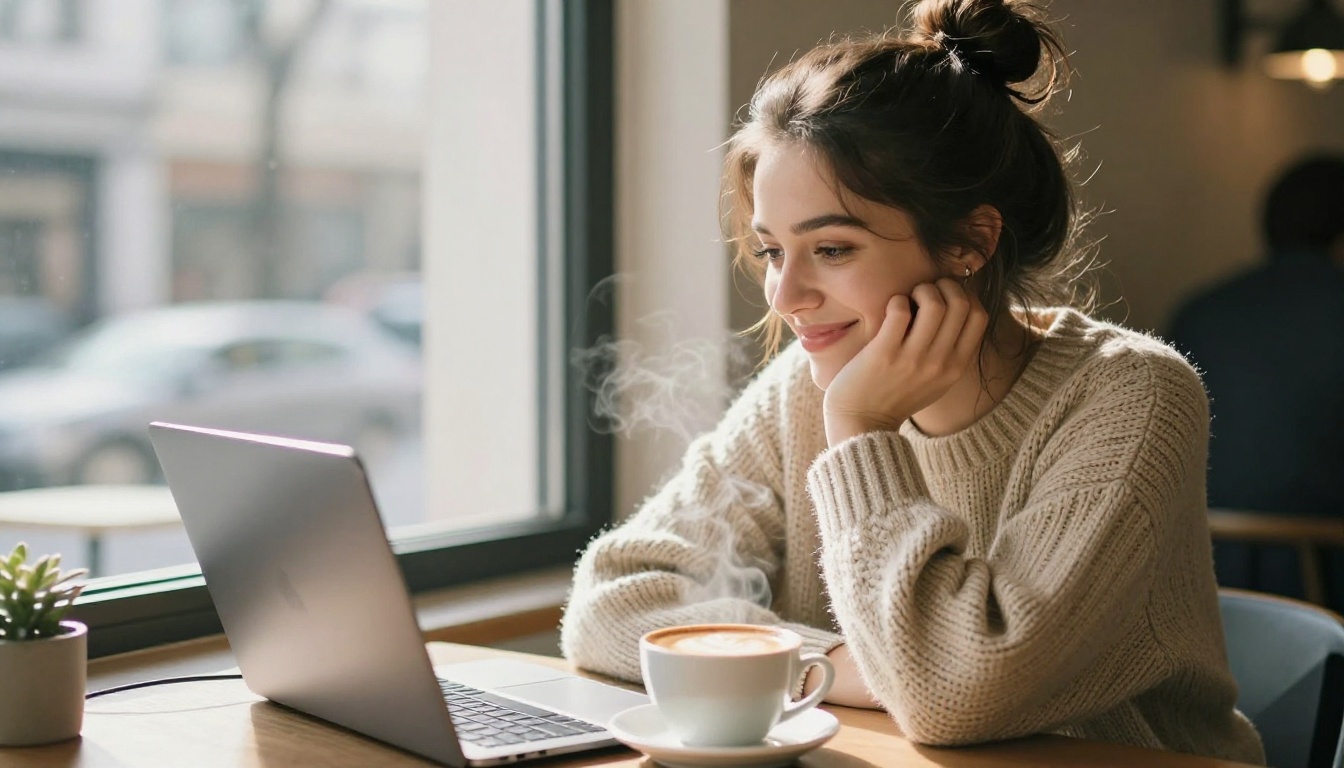
An AI kiss video generator is an image-to-video model pointed at one specific motion: two faces moving together, a soft contact, a short hold, and a gentle pull apart. You provide a starting frame and a sentence describing the motion. The model predicts what happens next, which is roughly 120 frames for a five second clip at 24 fps.
From Still Photo to Motion
There are two ways to make the clip, and they behave very differently:
- Text to video: you describe the couple and the scene in words. The model invents both faces, so you get a stranger couple on every run.
- Image to video: your photo becomes frame one, and the prompt only describes what changes. The faces, clothes, and room stay yours.
For kiss videos, image to video wins almost every time. It keeps the identity of both people stable, and that is the first thing viewers judge. Some models also accept a last frame, a second image that tells the model where the motion should end. Seedance 2.5 Lite does this, and it is the most reliable trick for a clean kiss, as the setup steps below show.
Why Kisses Trip Up Models
A kiss is one of the hardest scenes you can ask for, and it helps to know why before you blame the app:
- Overlap: two faces occupy the same space, so the model has to guess what sits behind each one.
- Identity drift: as the heads tilt and turn, features can swap or smear between the two people.
- Speed: a prompt that asks for a quick lunge usually produces a smear. Slow reads as real.
- Small details: a hand on a jaw, hair across a cheek, and fingers on a shoulder are where extra digits appear.
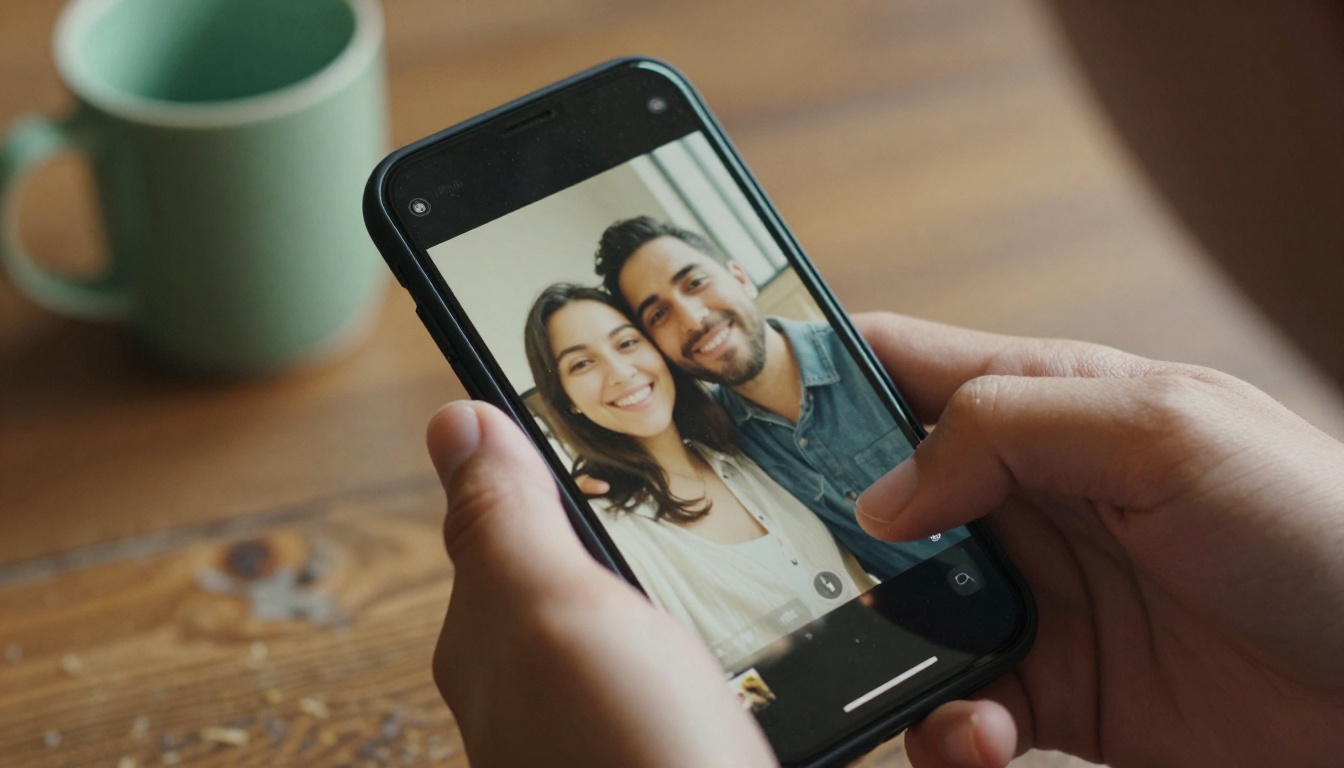
Every fix in this article comes back to one idea: give the model less to invent. A clean photo, a short motion, and a single camera move beat a long, busy prompt.
Best Free Apps Compared
"Free" means different things from one tool to the next. Some offer unlimited runs, some give a daily allowance, and some add a watermark. Here is the honest split for the models on Picasso IA: two are listed as free and unlimited, and the rest run on credits but earn a spot for specific looks.
Free and Unlimited Picks
Picasso IA Video is the platform's own text and image to video model, listed as free and unlimited. Every clip is a fixed 5 seconds at 24 fps, with synchronized audio, a choice of 480p or 720p, and a seed you can lock. Because the format never changes, it is the easiest place to practice a prompt.
Seedance 2.5 Lite is the lighter edition of Seedance 2.5 and runs without limits for Wonder members. It offers 5 or 10 second clips, renders at 480p and 720p, accepts an opening frame and an optional closing frame, and generates audio in sync. That closing frame option is why it anchors the walkthrough below.

💡 Tip: Iterate on the free unlimited models until the motion looks right. Spend credits on a paid model only for the final take.
Credit-Based Models Worth a Look
| Model | What its listing highlights | Pick it when |
|---|
| Kling v3 Video | Cinematic video generation | You want smooth camera work around the couple |
| Hailuo 2.3 Fast | Fast photo animation | You are testing many photos quickly |
| Wan 2.7 I2V | Animating any image | Your source photo is not a standard portrait |
| Veo 3.1 Lite | Native audio | You want ambient sound in the first render |
| Pixverse v6 | Cinematic video with AI audio | You want a polished, social-ready look |
| Grok Imagine Video 1.5 | Image to video with audio | You want a second opinion on the same photo |
| Seedance 2.5 | Videos up to 30 seconds | You want a long, slow scene |
Run the same photo and the same prompt through two models and compare the results. Each one handles contact differently, and the winner changes from photo to photo.
Prepare the Source Photo
The photo decides more of the result than any setting does. A strong starting frame can rescue a mediocre prompt, but the reverse almost never works.
Pick the Right Starting Frame
Run your photo through this checklist before you upload it:
- Both faces visible: three-quarter or profile views, turned toward each other.
- Close, not touching: about a hand-width of space between the faces gives the model room to close the gap.
- Eyes open, no sunglasses: the model needs to see the features it will keep consistent.
- Clear mouths: no hands, drinks, or hair across the lips.
- Even light: soft window light beats harsh noon sun and mixed colored bulbs.
- Sharp and large: at least 1080 pixels on the long side, with no heavy filters.
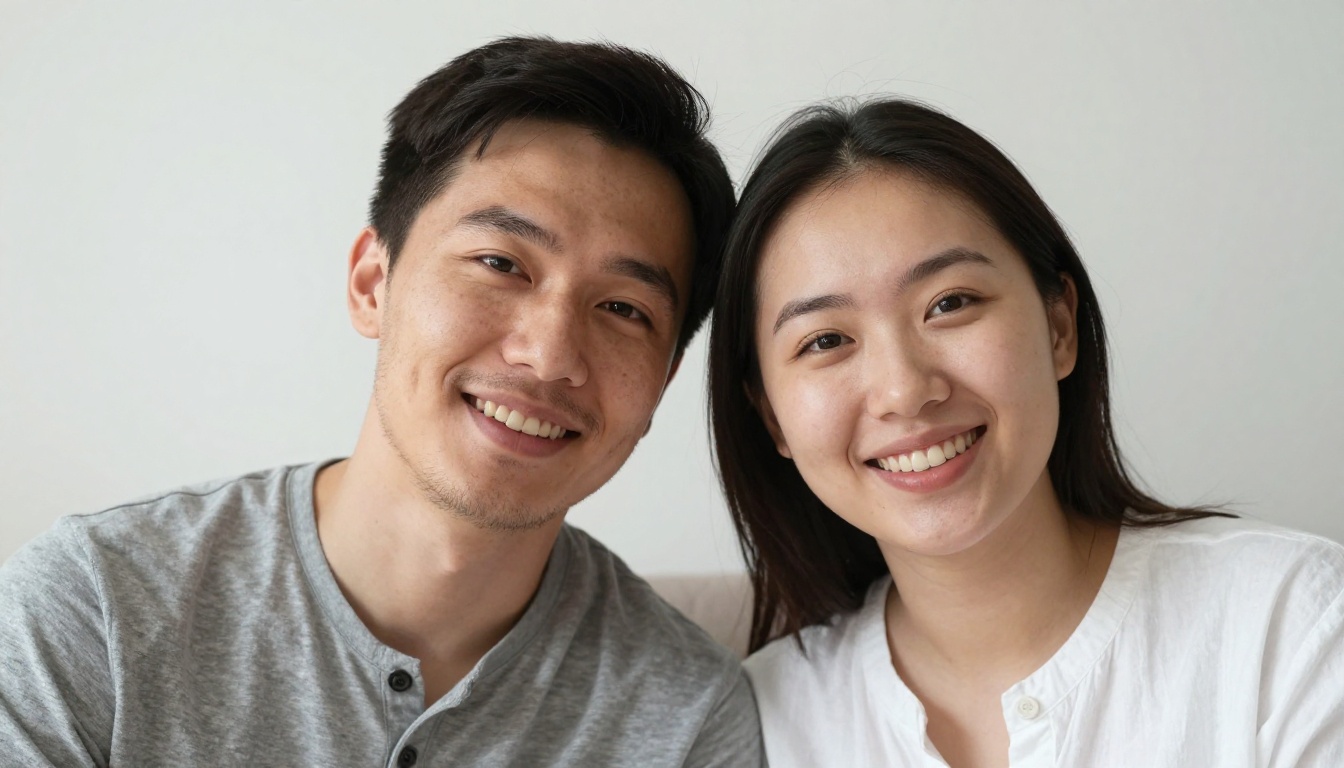
If your photo already shows the couple pressed together with overlapping faces, skip it. There is nothing left for the model to animate, and the result will look like a glitch.
Make the Photo With AI Instead
No couple photo? Generate a fictional one. Seedream 4.5 and Picasso IA Image both turn a text description into a clean portrait you can use as frame one. Then open Picasso IA Image Editor Pro to fix small problems such as a stray hand, a distracting background, or uneven light before the photo goes into the video model.
A starting-frame prompt to adapt:
Two adults in their late twenties facing each other in soft window light, faces a hand-width apart, warm natural smiles, shallow depth of field, photorealistic portrait, 16:9.
Use Seedance 2.5 Lite on PicassoIA
Follow these steps for your first clip:
- Open Seedance 2.5 Lite in the text-to-video collection.
- Upload your source photo as the input image. It becomes the opening frame, and the clip inherits its aspect ratio, so the aspect ratio setting is ignored.
- Optional: upload a last frame image, such as a second photo of the same couple already kissing. It requires an input image, and the clip then animates from the first frame to the last one.
- Paste a prompt from the next section into the prompt box.
- Choose 720p for a final render or 480p for fast drafts.
- Pick a duration of 5 seconds for a quick kiss or 10 seconds for a slower build.
- Leave Save audio on for synchronized sound, or switch it off for a silent clip.
- Press generate, watch the result, and lock the seed when a take works so you can reproduce it.
If you prefer a fixed format, Picasso IA Video follows the same flow and always returns a 5 second clip.
Settings Worth Changing
| Setting | Suggested value | Why |
|---|
| Resolution | 480p for drafts, 720p for finals | Drafts render faster, so you can test more prompts |
| Duration | 5 seconds | Shorter clips leave less room for drift |
| Seed | Lock it after a good take | Lets you re-run with small prompt edits |
| Save audio | On, then replace if needed | Built-in sound is a starting point, not a final mix |
| Last frame | Use it for the kiss itself | Anchors where the motion ends |
💡 The closing frame must show the same two people, so use a real second photo whenever you have one. A mismatched last frame forces the model to morph between two different faces.
12 Kiss Prompts to Copy

Most prompts fail because they describe a mood instead of a motion. Use this order: who and their starting pose, then the movement in sequence, then one camera move, then the light. Models follow chronological descriptions best, so write what happens first, second, and third.
Soft and Romantic
- "A couple stands face to face in soft window light. She tilts her chin up, he lowers his head, and they share a slow, closed-mouth kiss. The camera holds a steady medium close-up. Warm tones, shallow depth of field."
- "A man brushes a strand of hair from her cheek, then leans in and kisses her gently. She smiles against his lips. Slow push-in from a medium shot to a close-up. Quiet afternoon light, natural skin texture."
- "Two people laugh at a private joke with their foreheads touching. The laughter fades, they open their eyes, then share a soft kiss. Static camera in profile view, morning light through sheer curtains."
- "She rests both hands on his chest and rises onto her toes. He cradles her jaw and kisses her. The camera drifts a few centimeters sideways. Soft backlight, a gentle breeze moving her hair."
Cinematic Scenes
- "At the water's edge at dusk, the couple walks barefoot, stops, turns toward each other, and kisses as small waves wash over their ankles. Low tracking shot, then a slow arc around them. Golden rim light, sea haze."
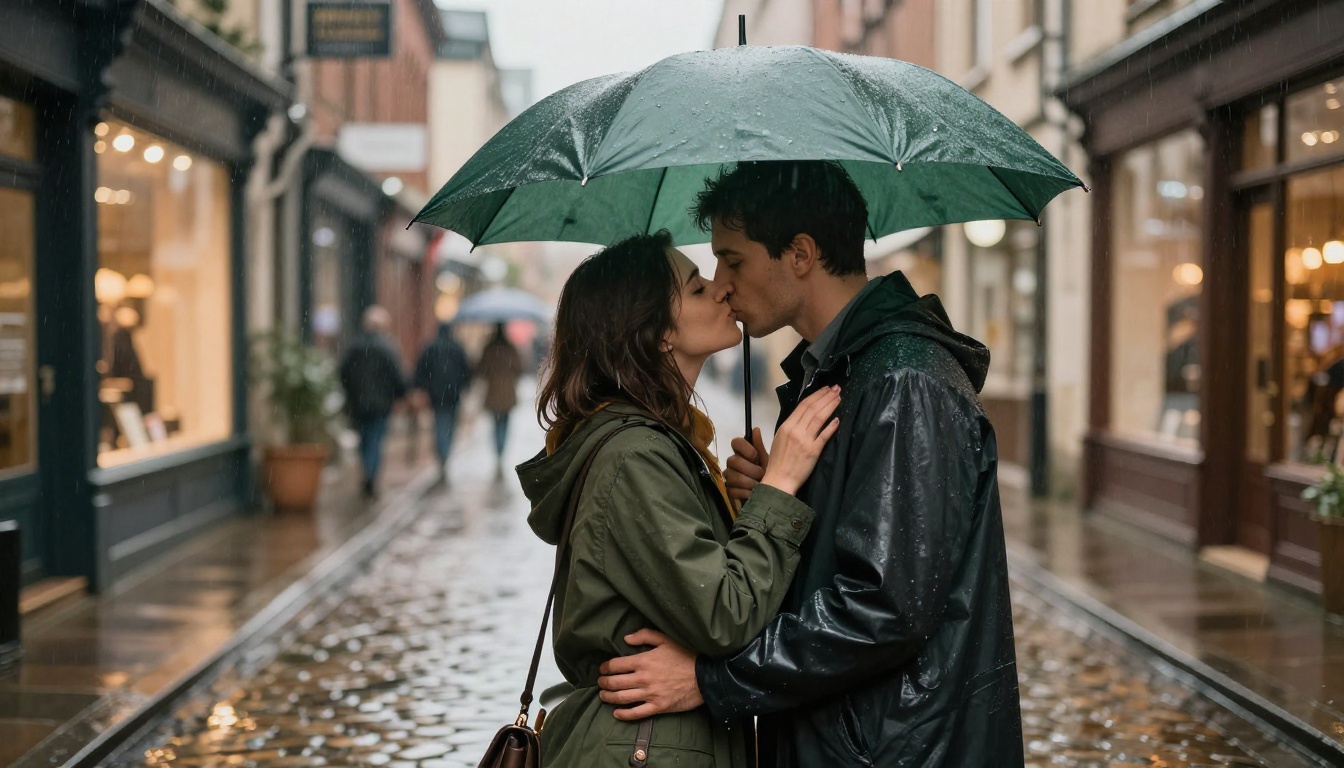
- "Under a dark green umbrella in light rain, he draws her closer by the coat lapel and they kiss. Raindrops bead on the canopy. The camera starts wide across the street and dollies in slowly. Overcast light, wet cobblestones."
- "On a rooftop at sunset, the couple slow dances for a few steps, then stops and kisses. The city skyline stays softly blurred behind them. Slow orbit at eye level. Warm golden light, gentle film grain."
- "On a station platform as a train pulls away behind them, she runs the last few steps into his arms and they kiss. A handheld camera follows from the side, then settles. Soft daylight, motion blur in the background."
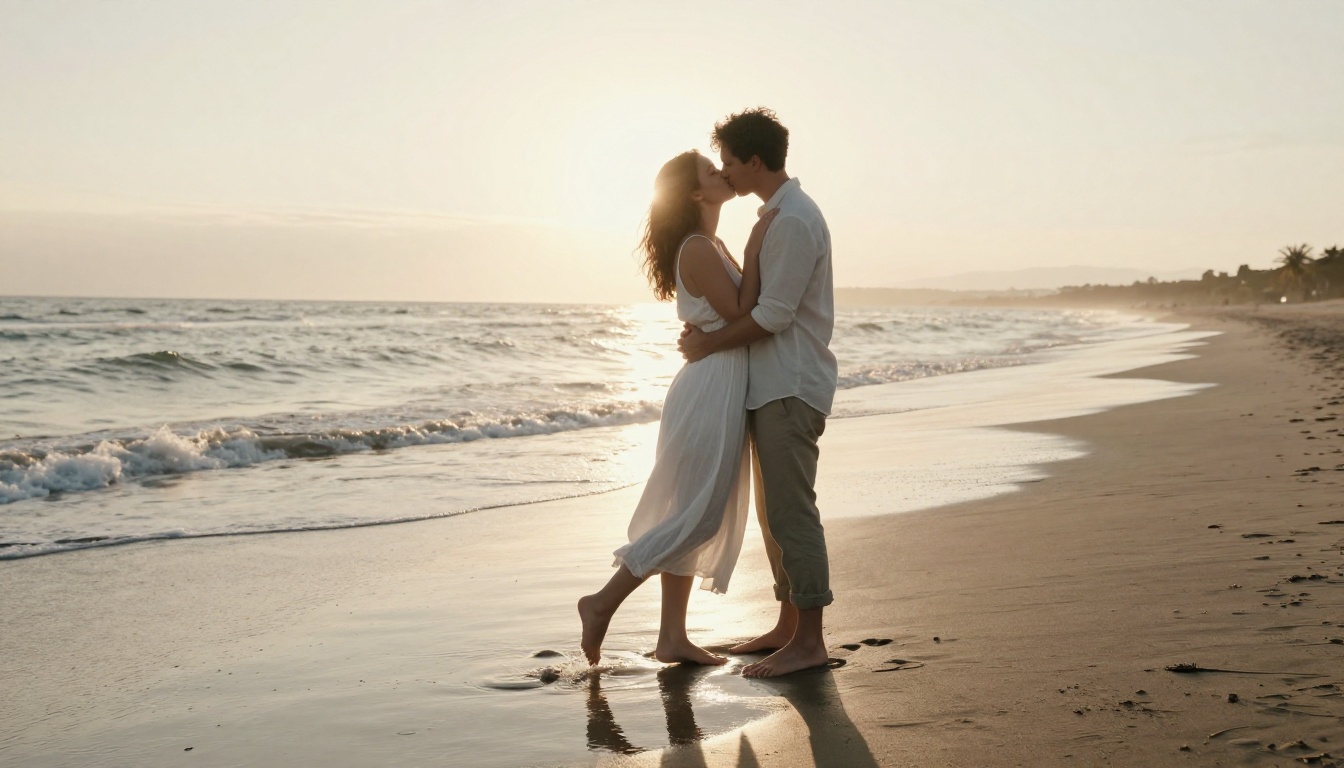
Wide scenes like prompts 5 and 7 are forgiving because the faces are small in the frame. Close-ups like prompts 1 and 2 look best but demand the cleanest source photo.
Playful and Casual
- "In a sunny kitchen, she gives him a quick kiss on the cheek. He turns, surprised, grins, then kisses her forehead. Static camera, morning light, flour dusting the counter."
- "Two friends pose for a mirror selfie in a bright bedroom. One leans over and gives the other a quick peck on the cheek, and both burst out laughing. Handheld phone-style camera."
- "At a candlelit table, he lifts her hand and kisses her knuckles. She smiles and leans across to kiss him. Slow push-in, shallow depth of field, warm tungsten glow."
- "A couple sits on a park bench under falling autumn leaves. She rests her head on his shoulder, looks up, and they share a short kiss as a leaf lands in her hair. Static wide shot, soft overcast light."
💡 Keep every kiss closed-mouth and brief. It reads as more natural and gives the model less to get wrong.
Fixing Blurry Faces and Glitches
Most failures repeat, so the fixes do too. Use this table as a quick diagnosis:
| Problem | Likely cause | Fix |
|---|
| Faces smear at contact | Motion too fast, or the camera is moving too | Add "slow, gentle", drop the camera move, keep the clip at 5 seconds |
| Features swap between people | Identity drift | Use a sharper photo, add a last frame, or try another model |
| Extra fingers | Hands overlapping the faces | Specify one simple hand placement, such as "hand resting on shoulder" |
| Lips look unnatural | Open-mouth or long kiss | Ask for a brief, closed-mouth kiss |
| Audio feels random | Auto-generated sound | Switch off Save audio and add your own music |
Faces Melt at Contact
This is the most common failure, and it usually has one of four causes. Work through them in order: shorten the motion, hold the camera still, add a last frame, and only then switch models. Re-run with the same seed after each change. If you change three things at once, you will never know which one fixed it.
Hands, Hair, and Sound
Hands and hair are small details that models fumble. Give each a single, simple job: "his hand rests on her shoulder" or "her hair is tucked behind her ear". Avoid prompts that ask for hands to move across faces. For sound, the generated audio is a convenient draft, but a short royalty-free music bed usually feels more intentional once the clip is in an editor.
Where Kiss Videos Make Sense
Anniversary Surprises
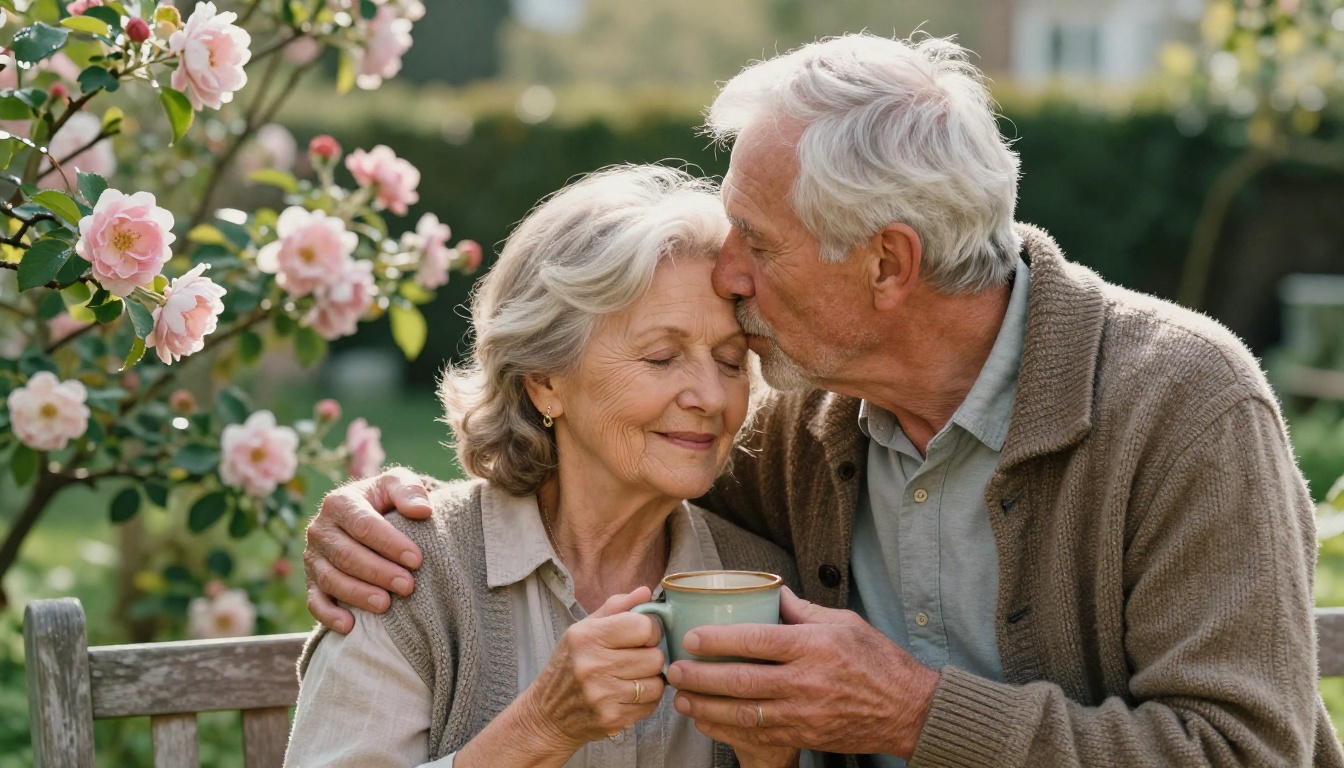
A favorite photo of two people who have been together for decades turns into a five second clip with a forehead kiss, a laugh, and a small camera push-in. Play it on a phone at the dinner table or drop it into a slideshow. Gentle motion works better than drama here: keep the prompt to one action.
Long-Distance Couples
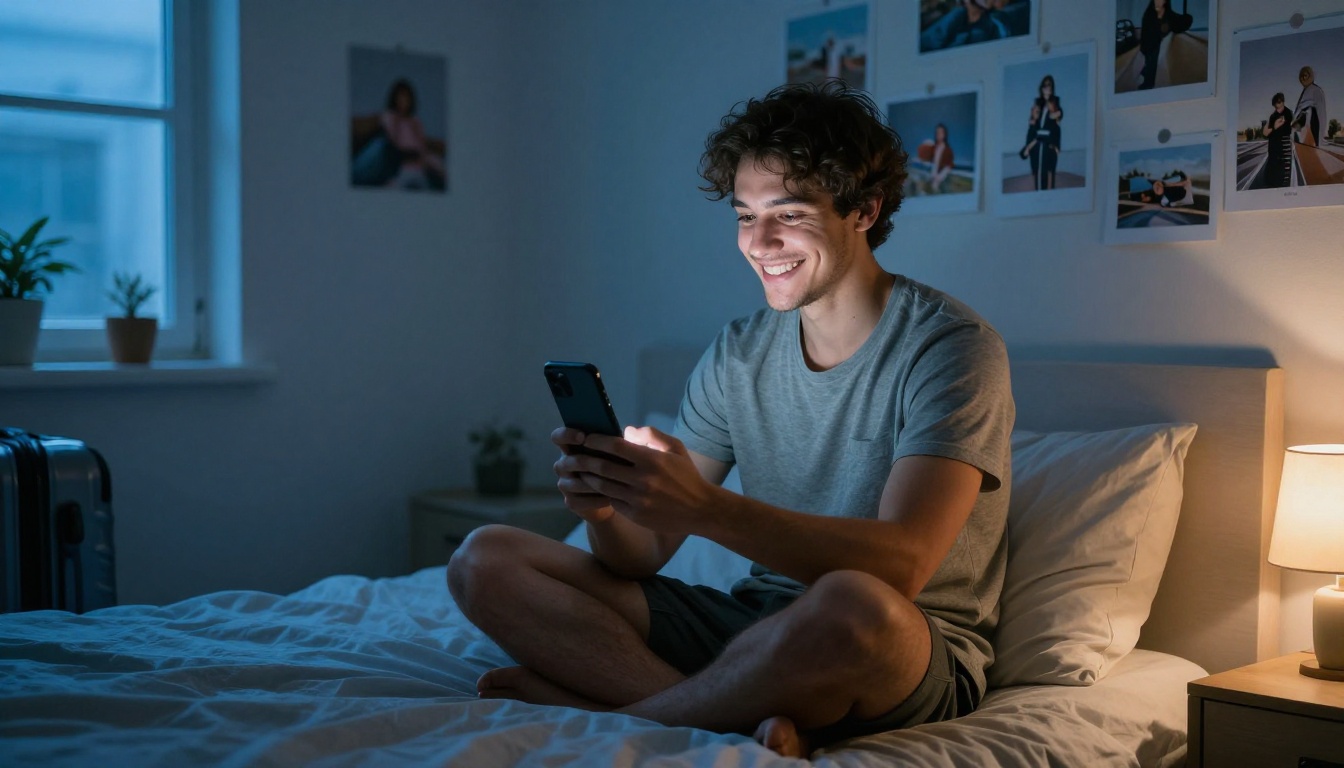
Couples who live far apart often trade photos from the last visit. Turning one of those photos into a short clip gives you something warmer than a still to send before a video call. Both people should be happy with it, so show your partner the result before you post it anywhere.
Consent Comes First
A kiss video is a realistic clip of real faces, which makes consent the first rule, not an afterthought:
- Use your own photos or photos of people who have clearly said yes.
- Never animate classmates, coworkers, exes, or public figures into romantic scenes.
- Label AI videos when you share them. Many platforms now ask for it, and it keeps the clip from being mistaken for real footage.
- Keep it tasteful. Closed-mouth, brief, and non-explicit also matches what most models and platforms allow.
Try Your First Kiss Video
Pick one photo, open Picasso IA Video or Seedance 2.5 Lite, paste prompt 1 from the list above, and press generate. Your first take will probably be close but not perfect. Adjust one thing, run it again, and by the third attempt you will know exactly how your photo behaves.
No photo handy? Create the starting frame with Seedream 4.5 or Picasso IA Image, then send it straight into a video model. Start with a free unlimited run, change the prompt, lock the seed on a take you like, and keep refining until the lean, the contact, and the pause all feel natural.
Ready to try more? Browse every video and image model at picassoia.com/en/all-models and make your first clip today.


