You scroll past a photo on Instagram and a small gray line sits under the username: AI info. Is the picture fake? Did someone generate it from a text prompt, or just remove a stray power line with a retouching tool? The AI label on Instagram answers a much narrower question than most people assume, and that gap causes constant confusion for viewers and creators alike. This article explains the AI label Instagram meaning in plain terms: what the tag says, how Meta decides to attach it, how it behaves on feed posts, Stories and Reels, and what to do when you want to add it yourself or when it shows up uninvited.
💡 Short version: The label means Instagram found a sign that AI helped create or edit the content, either inside the file or because the poster said so. It does not mean the content is false, harmful or fully synthetic.
What the AI Label Actually Means
Instagram's AI label is a transparency tag. Meta attaches it to photos, videos and audio that were made or changed with artificial intelligence tools, so viewers get a hint about what they are looking at. It is small, it usually sits near the account name or inside the post menu, and tapping it opens a short explanation page. Think of it as a footnote, not a headline.
From "Made with AI" to "AI info"
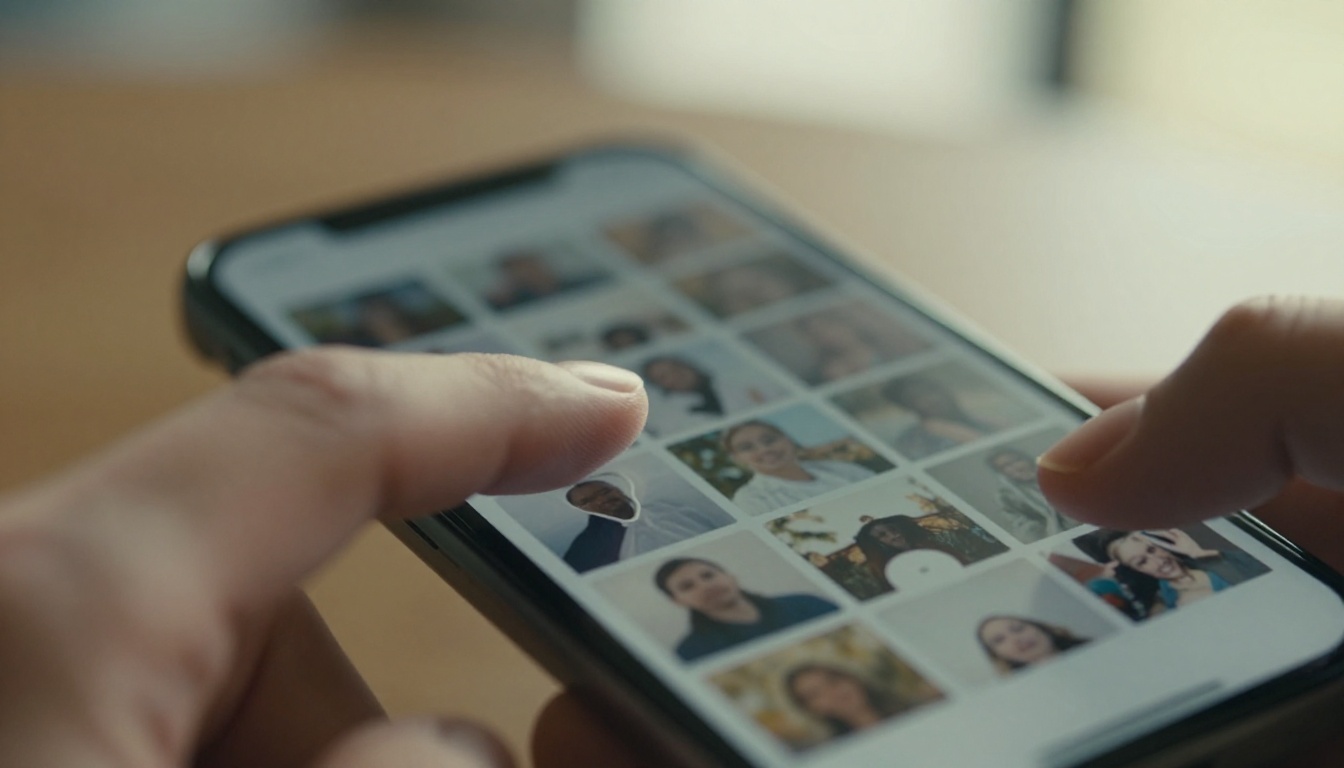
The first version arrived in spring 2024 under the name "Made with AI". Photographers pushed back almost immediately. Real photos that had gone through ordinary editing picked up the tag, because some editing tools write AI-related information into the file even when the change is tiny. In July 2024 Meta renamed the tag "AI info", wording broad enough to include both fully generated images and lightly edited ones.
That rename is the best clue for reading the label correctly. It is an information tag, not a verdict. Here is how the different wordings line up:
| Wording | What it suggests | Typical trigger |
|---|
| Made with AI (older wording) | Content created with AI | File signals or disclosure |
| AI info | Content made or edited with AI in some way | File signals or the poster's own disclosure |
| Imagined with AI | Image produced by Meta's own AI image feature | Meta AI image generation |
| AI creator | Account that mostly posts AI-generated content | Optional, chosen by the account owner |
Wording and placement change between app versions, and the account-level creator tag is still rolling out, so expect small differences on your own phone.
What the tag does not say
Most misreadings come from expecting too much of two words. The label does not tell you:
- That the content is untrue. An AI-assisted photo of a real wedding is still a real wedding.
- How much AI was involved. A portrait generated from nothing and a photo with one AI-assisted object removal can carry the same label.
- That a fact check happened. Fact-checking labels are a separate system with a separate meaning.
- That unlabeled content is real. No label only means Instagram saw no signal and nobody disclosed.
If you remember one thing, make it this: the label describes the process, never the truth of what the picture shows.
How Instagram Spots AI Content
Instagram has two routes to the label, and they work independently. One reads the file. The other trusts the person posting.

Hidden file signals
Most image and video files carry invisible information about where they came from. Two standards matter here: C2PA content credentials and the IPTC metadata field that records a file's digital source type. When a generator or editor writes "this was made by AI" into those fields, Instagram can read it during upload. Meta has said it looks for these signals from tools made by companies such as Google, OpenAI, Microsoft, Adobe, Midjourney and Shutterstock.
Picture a small ingredients list stored inside the file. If it is there, Instagram reads it. If it is not, there is nothing to read.
💡 Reality check: Screenshots, re-exports and some editing apps strip metadata. That makes detection imperfect in both directions: honest creators using standard tools get labeled, while a screenshot of the very same image may pass without a tag.
Your own disclosure
The second route is self-disclosure. Meta asks people to say so when they share photorealistic video or realistic-sounding audio that was created or altered with AI. When you flip the disclosure switch on the share screen (steps below), Instagram adds the label whether or not the file carries any signal.
| Route | Who triggers it | Strength | Weak spot |
|---|
| File signals | The tool that made the file | Works without the poster doing anything | Lost when metadata is stripped |
| Disclosure | The poster | Works on any file | Depends on honesty |
Regulators are pushing in the same direction. The EU has written transparency duties for AI-generated content into its AI Act, which is one reason platforms keep tightening how they mark synthetic media.
AI Label on Feed Posts
Feed posts are where the label is most visible and most argued about. Everything above applies, plus a few quirks worth knowing before you hit publish.

Where the tag appears
On a feed post, "AI info" normally appears in the header near the account name. For content that was lightly edited, Meta has described placing the label in the post's menu (the three dots) instead. Meta has also said it may add a more prominent label when content is digitally created or altered and carries a particularly high risk of materially deceiving the public. Tap the tag and Instagram shows a short note saying the content may have been made or edited with AI.
Why real photos get flagged
Here is the complaint that reshaped the label. Real photographs get tagged because the editing software wrote AI information into the file. Common triggers include generative fill, AI object removal, AI sky replacement and some automatic portrait retouching.

| Edit | Likely to trigger the label? |
|---|
| Crop, brightness, color grading | Usually no |
| AI noise reduction or upscaling | Sometimes, depends on the tool |
| Generative fill or AI object removal | Often |
| Face swap or AI avatar | Yes |
| Fully generated image | Yes |
If you shoot real photos, the practical fix is simple: know which of your editing tools write AI information, and decide whether a given edit is worth the tag. Removing metadata on purpose to dodge the label is a poor idea. If the content really is AI-made, the disclosure request still applies, and a label that Instagram adds later looks worse than one you chose.
AI Label on Stories and Reels
Short-lived and vertical formats follow the same logic as feed posts, with different practical effects.
Stories: short life, small tag
A Story disappears after 24 hours and fills the whole screen, so there is little room for a tag and little time for anyone to read it. The rules behind it are unchanged: Instagram looks for signals in the file you upload and honors your disclosure. Content made with Instagram's own AI creative tools in Stories, such as AI backgrounds or restyle effects, sits inside the same system.
Because a Story is easy to swipe past, a viewer may never notice the tag. If you share an AI-generated image in a Story, add your own visible note, like a plain text sticker saying "AI-generated". It costs you nothing and removes any doubt.
Reels: video and audio count too

Reels raise the stakes because video and sound are harder to question. Meta's disclosure request names both: photorealistic video and realistic-sounding audio. A clip generated with a video model such as Veo 3.1 or Seedance 2.0 falls in the first group. An AI voice that sounds like a real person is the clearest case of the second. A purely instrumental track from a music model is a grayer area, so when in doubt, disclose.
| Format | Lifespan | Main risk |
|---|
| Feed post | Stays until deleted | Real photos flagged by editing metadata |
| Story | 24 hours | Tag is small and easy to miss |
| Reel | Stays until deleted | Generated clips and synthetic voices draw scrutiny |
Placement can differ by app version, so treat the table as the logic of each format, not a pixel-exact layout.
How to Add the Label Yourself
Adding the label takes about ten seconds, and it protects you from a tag that Instagram applies on its own terms.
Step by step on the share screen

- Prepare your content. Upload the original export from your generator or editor, not a screenshot, so the file keeps its signals.
- Reach the share screen. This is the last screen before publishing, where you write your caption.
- Open the extra options. Scroll to the More options section at the bottom (some versions group it under a settings heading).
- Switch on "Add AI label". The toggle may be worded slightly differently depending on your version.
- Publish. The tag now shows on the live post.
- Forgot it? Open the post's three-dot menu and look for an edit option. Availability varies, so if you do not see one, add a short note to the caption.
💡 Menus move. Instagram changes wording and placement often. Treat these steps as the usual path and confirm them in your own app before a big campaign.
What you must disclose
Meta's request centers on realistic content. As a working rule, label it when:
- A video looks filmed but was generated or altered with AI.
- A voice or sound effect sounds recorded but was synthesized.
- An image looks like a photograph of a real event, person or place that never existed or never happened.
- A real person's face, voice or body was swapped or recreated.
You rarely need the tag for obvious illustrations, stylized artwork, basic filters or ordinary color correction. When unsure, add it. A label on something that did not need one costs less than a missing label on something that did.
What Happens If You Skip It
Meta has said it may apply penalties when people fail to disclose realistic AI content. Even without penalties, skipping disclosure means Instagram can still attach the label itself when it detects file signals, and a tag you did not choose can look like something you tried to hide.
Trust beats a clean feed
Viewers react worse to getting "caught" than to an upfront label. A creator who writes "made with AI" in the open reads as confident. A creator whose post gets flagged by the platform reads as evasive. Comment sections are quick to notice the difference, and trust, once dented, is slow to rebuild.
Brands and ads
Advertisers face tighter expectations. Meta has required disclosure when ads about social issues, elections or politics contain photorealistic AI content, and AI-generated people in promotions draw close attention from audiences. Brand teams should build the label step into their approval checklist instead of leaving it to the last minute, and keep the original files so the record is clear.
Creating AI Visuals Worth Labeling
If you plan to post AI images, video or music, the label is one step in a bigger workflow. Picasso IA puts image, video and music models in one place, so you can produce all three and handle the disclosure yourself.
Pick the right model
A simple workflow
- Open a model page. Start with Seedream 5 Pro for a still or Veo 3.1 for a clip.
- Write a photographic prompt. Subject, light direction, lens and mood work better than vague adjectives. For example: "A woman reading on a morning train, window light from the left, 50mm lens, shallow depth of field, Kodak Portra 400 grain."
- Choose a vertical ratio. 9:16 suits Stories and Reels, and 4:5 suits feed posts, as long as the model offers it.
- Sharpen the final. Run stills through Topaz Image Upscale when you need extra detail.
- Upload the original file. Skip screenshots so the file information survives.
- Switch on the AI label. Then publish.
💡 Soundtrack tip: For Reels, generate a short track with Lyria 3 and note which tool made it. If a track uses a synthetic voice, disclose it.
Make Your Own Images Today

The AI label is not a punishment and it is not a badge of shame. It is a short, honest note that lets your audience judge the work with the right context. The creators who handle it well tend to treat it as part of the craft, the same way a photographer credits a lens or a retoucher mentions a tool.
The fastest way to get comfortable with it is to try the whole loop once. Open Picasso IA, pick a model from the table above, generate a first image, add a short clip and a track if you want a Reel, then publish with the AI label switched on. Watch how it looks on your own account and how your followers respond. After one round, the label stops feeling like a hurdle and starts feeling like a habit. Your next post is one prompt away.


