You have a logo. Maybe you made it last week, maybe you are still sketching it. Either way, it sits there as a flat file while every competitor opens their videos with a clean, animated sting that lasts four seconds and sticks in memory. The gap between those two things used to cost a motion designer's day rate. Today it costs a few prompts. An AI logo generator with animation lets you design the mark, bring it to life, add sound, and export a video intro without opening After Effects.
This article walks through the whole chain: how to generate a logo that actually animates well, which motion styles look professional, how to run the image-to-video step on PicassoIA, and how to avoid the mistakes that make AI intros look cheap.
💡 Quick answer: Generate a simple, high-contrast logo on a plain background, feed it to an image-to-video model with a short motion prompt, add a 5 second music bed, and export. Total time for a first draft is about 15 minutes.
What an Animated Logo Really Is
An animated logo is a short clip, usually 3 to 8 seconds, where your mark appears, moves, and settles into its final position. That is it. No story, no characters, no voiceover required. Think of the quick brand moment at the start of a podcast video or the closing frame of a product ad.
Logo Sting vs Full Intro
People use these terms loosely, so here is a clean split:
| Type | Length | Purpose | Typical Placement |
|---|
| Logo sting | 2 to 4 seconds | Brand recognition | End of a video, transitions |
| Video intro | 5 to 10 seconds | Sets tone, introduces the channel | Start of YouTube videos, webinars |
| Brand opener | 10 to 20 seconds | Tells a mini story | Websites, pitch decks, events |
Most creators and small businesses only need the first two. A five second clip is the sweet spot, which also happens to match the fixed clip length of many image-to-video models.
Why Motion Beats a Static Mark
A still logo is information. A moving logo is a feeling. When the mark slides in with a soft camera push, a bit of depth, and a matching sound, viewers register it as a brand instead of a graphic. It also fills a practical gap: platforms like YouTube Shorts, Instagram Reels, and TikTok reward video-first assets, and a static PNG simply gets skipped.

Small shops benefit most. A bakery, a barber, a landscaping crew: they all post video now, and a consistent opening clip makes a scrappy phone recording look like a real brand.
Build the Logo First
The animation step is only as good as the source image. A cluttered logo with thin lines, tiny text, and gradients will shimmer, warp, or melt once a video model starts moving pixels around. You want the opposite: bold shapes, strong contrast, a lot of clean space.
Models That Draw Clean Marks
For generating the mark itself, two PicassoIA options stand out:
- Seedream 4.5 gives sharp 4K output and handles simple geometric prompts very well. It is a strong first pick when you want crisp edges.
- Nano Banana Pro is excellent when you need legible short text inside the logo, such as a single brand word, and when you want to edit an existing design by describing the change.
- Nano Banana is the lighter option for quick edits like swapping a color or tweaking a shape.
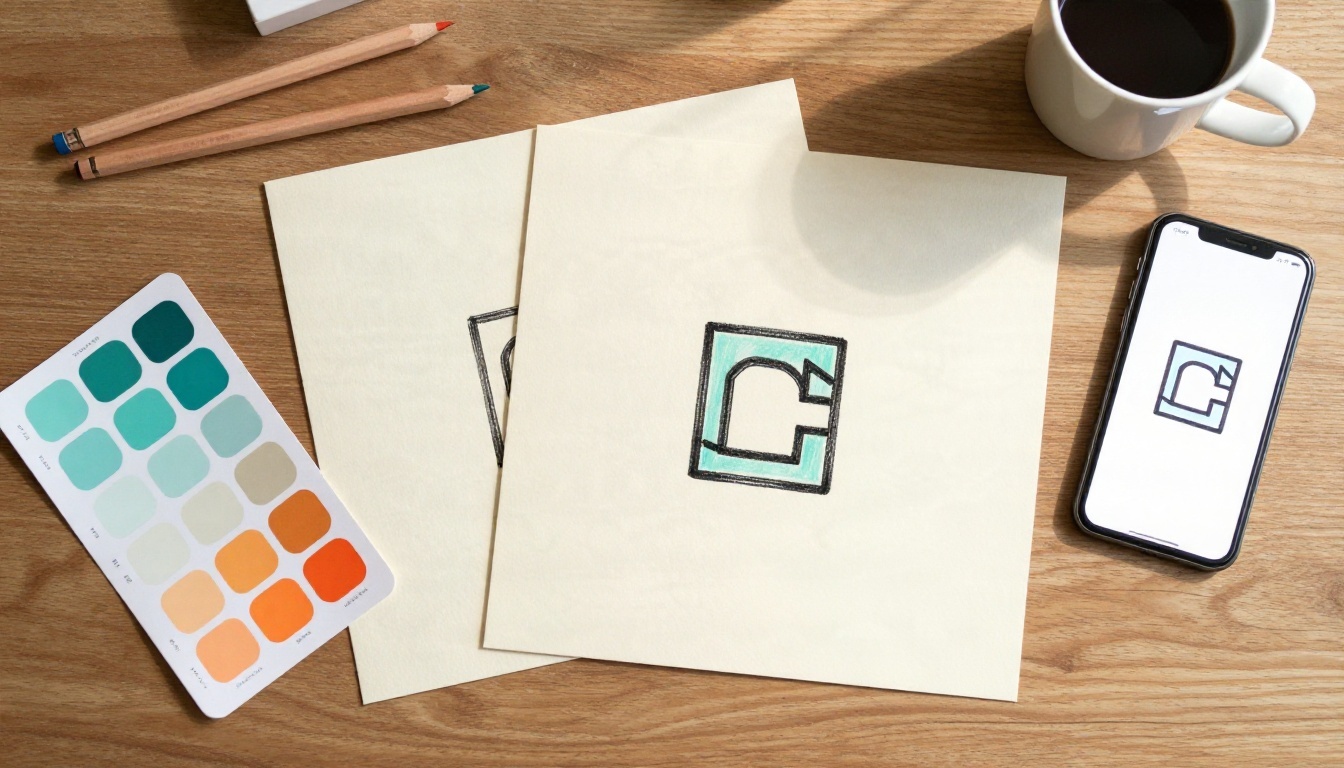
If you already have a sketch, photograph it and use it as a reference. If you are starting from nothing, describe the idea in plain words and iterate.
Prompts That Produce Clean Marks
Use this simple structure: shape + subject + style + color + background. Here are three prompts that work as starting points:
- "Minimalist logo mark of a mountain peak made from two overlapping triangles, flat vector style, deep teal and cream, centered on a plain white background, lots of empty space around it."
- "Simple circular badge logo of a coffee bean with a leaf, bold rounded shapes, warm brown and off-white, solid light gray background, no gradients, no small details."
- "Modern monogram logo with a single bold letter M built from thick strokes, navy blue, centered on a matte beige background."
Notice what is missing: shadows, textures, 3D bevels, glow. Those fight with the motion step. You can always add depth later through camera movement.
💡 Rule of thumb: If you cannot recognize the logo when you shrink it to the size of a thumbnail, it will not survive animation either.
Strip the Background
A transparent or solid-color background gives you more control in the editor. Run the logo through Remove Background to get a clean cutout. You can then place it over any scene, a textured wall, a gradient, a photo, before animating. For product-style cutouts with tricky edges, Product Cutout is also worth a try.
Animate the Logo
Here is where the AI logo generator with animation workflow earns its name. Instead of building keyframes by hand, you hand a still image to an image-to-video model and describe the motion in a sentence or two.
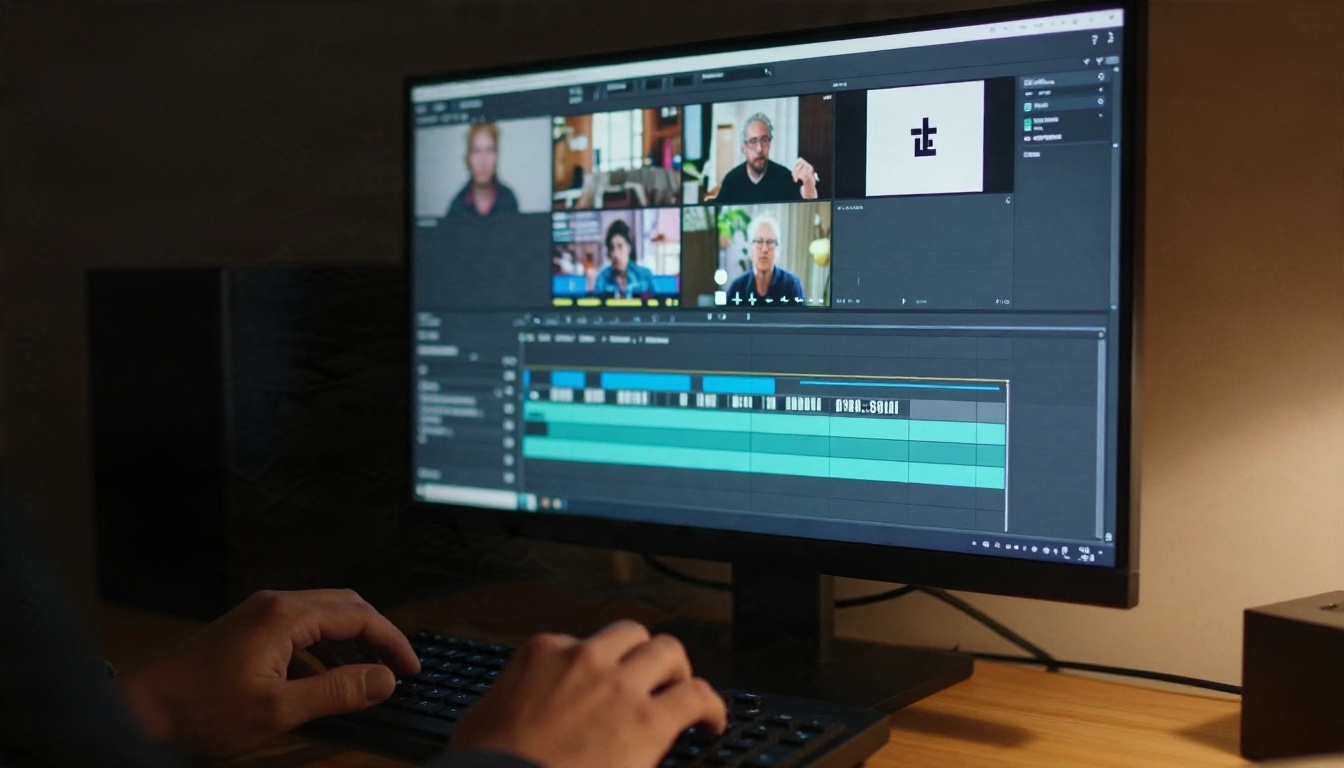
Pick the Right Motion Style
Not every logo wants the same movement. Match the motion to the brand personality:
| Motion Style | Feels Like | Best For | Prompt Phrase |
|---|
| Slow push-in | Premium, calm | Law, finance, luxury, wellness | "slow cinematic dolly-in toward the logo" |
| Soft reveal | Clean, modern | Tech, consulting, SaaS | "logo fades in as soft light sweeps across the surface" |
| Gentle float | Friendly, light | Kids brands, bakeries, pets | "logo floats slightly with a subtle bobbing motion" |
| Fabric or paper unfold | Handmade, organic | Crafts, cafes, boutiques | "paper unfolds to reveal the logo, soft shadows" |
| Camera orbit | Dynamic, bold | Gaming, sports, fitness | "camera orbits slowly around the logo, shallow depth of field" |
Pick one. Intros that try to combine a spin, a zoom, a flicker, and a bounce usually look chaotic.
Which Video Models Work Best
Several models on PicassoIA can turn a still image into motion:
- Wan 2.5 I2V Fast is built to animate any image quickly, which makes it ideal for testing five or six motion ideas in one sitting.
- Kling v3 Video delivers cinematic camera work and smooth physics when you want a more polished result.
- Veo 3.1 Fast produces 1080p clips with native audio, useful when you want sound baked in from the start.
- LTX 2.5 Fast is a speedy option for rapid drafts.
How to Use Wan 2.5 I2V Fast on PicassoIA
This is the easiest place to start. The steps are the same for most image-to-video models on the platform, so you can swap in another one later.
- Open the model page. Go to Wan 2.5 I2V Fast on PicassoIA.
- Upload your logo image. Use the cleaned version from the earlier step. A square or 16:9 file with generous padding around the mark gives the model room to move.
- Write a short motion prompt. One or two sentences is enough. Example: "Slow cinematic dolly-in toward the logo, soft daylight sweeps across the surface, the mark stays sharp and centered, subtle depth of field."
- Set the aspect ratio to match where the clip will live: 16:9 for YouTube, 9:16 for Reels, Shorts, and TikTok.
- Generate and review. Watch for edge wobble, letter distortion, or color drift. If the shape warps, simplify the prompt or reduce the amount of movement you ask for.
- Iterate. Run three or four variations with different motion phrases. Keep the best one.
💡 Prompt tip: Add the phrase "the logo stays sharp and keeps its exact shape" to your prompt. It tells the model to treat the mark as a fixed object and move the camera or light instead.
Put the Logo in a Scene
A plain background is safe, but a scene adds personality. Instead of animating the flat logo, generate a photorealistic setting where the logo naturally lives: engraved on a wooden board, painted on a shop window, embroidered on a canvas tote, printed on a ceramic mug. Then animate that photo with a gentle camera move. The result looks like a real object, not a graphic, and the model has an easier time because the logo is anchored in physical space.
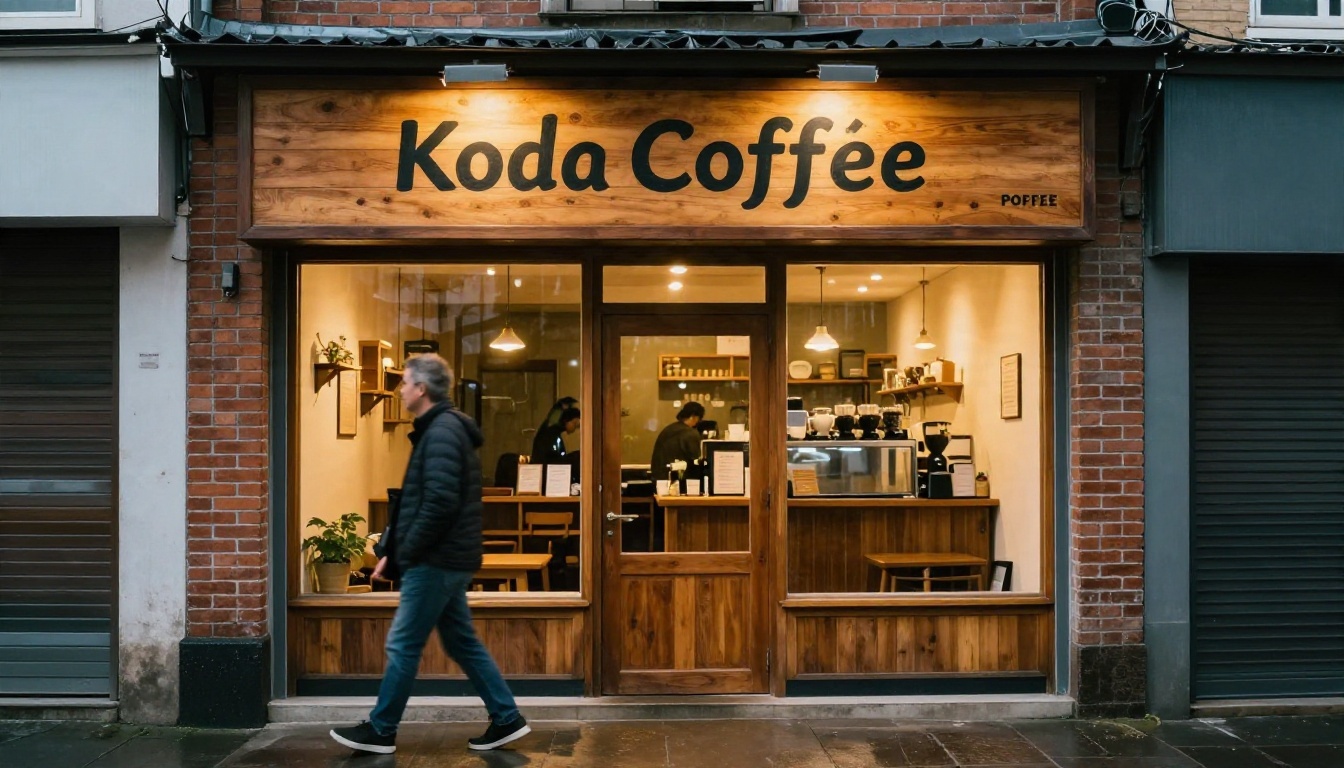
A slow push toward a glowing shop window at dusk, with the painted sign in the frame, can say more about a cafe than any spinning 3D letter ever could.
Add Sound That Fits
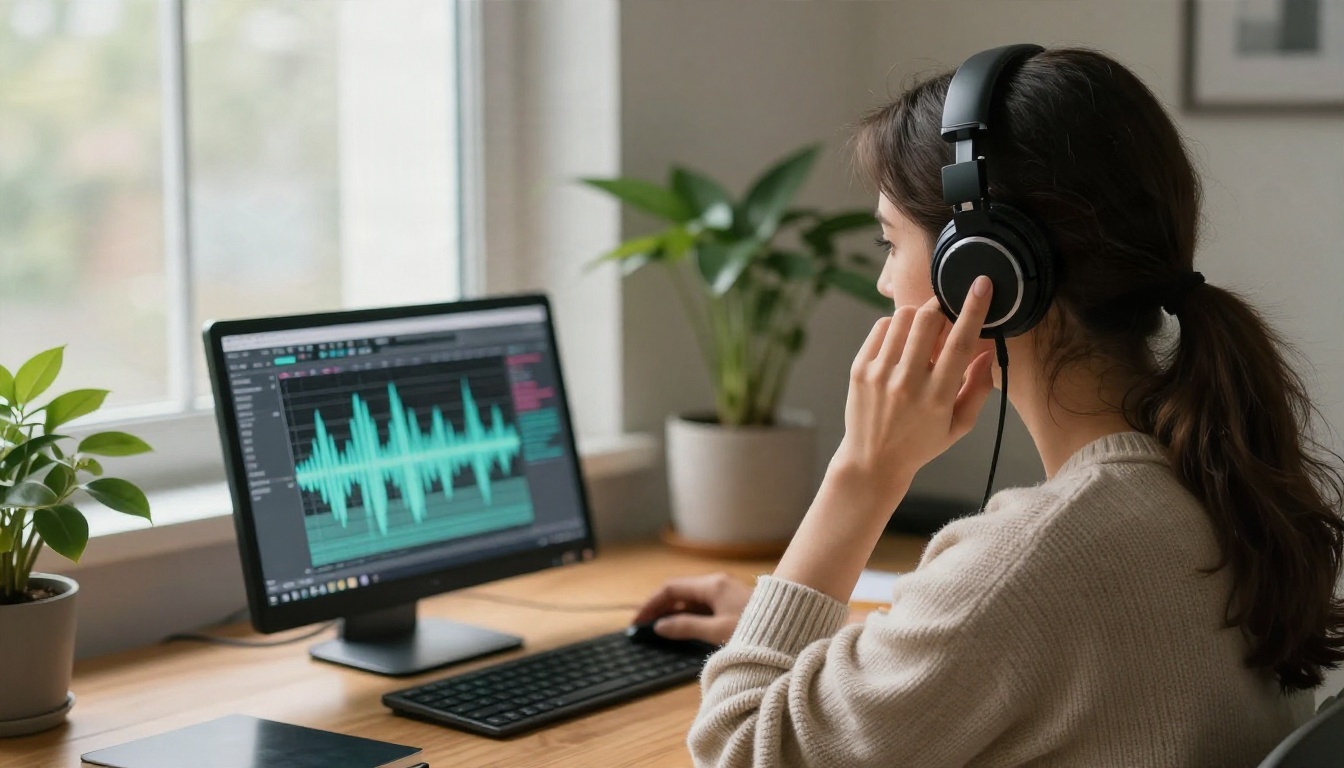
Half of what makes an intro feel professional is audio. A silent logo animation feels unfinished. A four second whoosh with a soft landing note feels intentional.
Music Beds in Seconds
Generate a custom track instead of hunting through stock libraries. Music composes songs from a text prompt, while Music 2.6 generates full songs you can trim to fit. For longer tracks, Lyria 3 Pro is another option.
Good prompts are short and specific:
- "5 second warm acoustic sting, soft guitar pluck, gentle resolve on the last beat."
- "4 second modern brand sound, airy pad swell, clean low pulse, quiet ending."
- "6 second playful ukulele and marimba jingle, light and upbeat."
Match the sound to the motion. A slow push-in wants a rising swell. A bouncy float wants a short plucked note.
Add a Voice Line (Optional)
Some brands finish the intro with a spoken tagline. With v2 Multilingual you can generate that line in 30+ languages, which is handy if you publish the same intro for several markets. Keep it to five words or fewer. "Fresh bread, every morning." is plenty.
The Free Video Intro Workflow
Here is the whole process in order, so you can follow it start to finish.
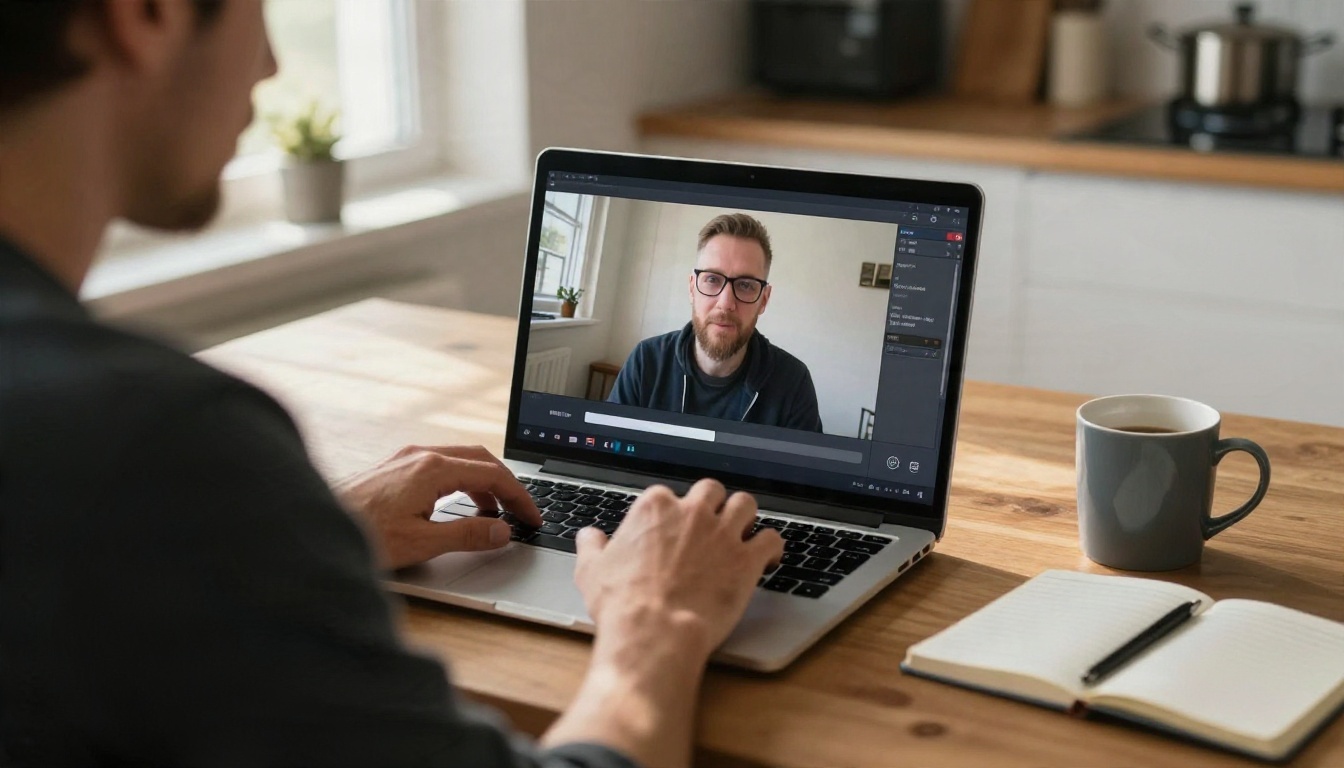
Step-by-Step Checklist
- Generate the logo with Seedream 4.5 or Nano Banana Pro. Choose a flat, bold, high-contrast design.
- Clean the background with Remove Background if you want a transparent version or a custom scene.
- Pick one motion style from the table above.
- Animate with an image-to-video model. Generate 3 or 4 versions.
- Choose the best clip and trim it to between 3 and 6 seconds.
- Add music from Music or Music 2.6 and line it up with the movement.
- Export at the resolution of your main videos, usually 1080p.
- Save versions in 16:9 and 9:16 so you are ready for every platform.
Timing That Feels Right
Pace matters more than people expect. Here is a simple breakdown for a five second intro:
| Second | What Happens |
|---|
| 0 to 1 | Scene fades in, ambient sound starts quietly |
| 1 to 3 | Main motion: push-in, reveal, or float |
| 3 to 4 | Logo settles, sound peaks |
| 4 to 5 | Hold on the final frame, music tail fades |
That last hold is the part most people skip. Give the logo at least one full second to just sit there so the viewer can read it.
💡 Viewer attention: Nobody wants to sit through a long intro before the content starts. Anything beyond 6 seconds at the start of a video risks drop-off. Save the longer version for the website or a pitch deck.
Mistakes That Ruin AI Intros
Most bad animated logos fail for the same handful of reasons. Skip these and you are already ahead.
Too Much Detail in the Source
Thin outlines, tiny taglines, and fine textures flicker when moved. Simplify the logo first. If it needs a tagline, add it later in your video editor as a text layer instead of asking the model to animate it.
Asking for Five Effects at Once
"Spinning, glowing, exploding, zooming, and bouncing" is not a motion prompt, it is a recipe for mush. One idea per clip. If you want a second effect, generate a second clip and cut them together.
Letting the Logo Warp
If the shape deforms, try these fixes in order:
- Add "the logo keeps its exact shape" to the prompt.
- Switch the movement to the camera instead of the logo itself.
- Use a plainer background with fewer elements.
- Try a different model, since each one handles fine shapes a bit differently.
Ignoring Sound
A silent clip feels like a draft. Even a quiet ambient tone helps.
Wrong Aspect Ratio
A 16:9 intro cropped to vertical cuts off half the mark. Generate separate versions from the start instead of cropping afterward.

If you work with a team, show the draft to someone who has never seen the logo. If they cannot say what the brand is in the final second, the hold is too short or the mark is too busy.
Where to Use Your Animated Logo
Once you have the clip, it works harder than you might expect.
| Platform | Best Format | Ideal Length | Notes |
|---|
| YouTube | 16:9, 1080p | 3 to 5 seconds | Place at the start or as an end card |
| Instagram Reels | 9:16 | 2 to 3 seconds | Keep the mark in the center safe area |
| TikTok | 9:16 | 2 to 3 seconds | Start with content, use the sting at the end |
| Website hero | 16:9, looped | 4 to 6 seconds | Mute by default, keep file size small |
| Email signature | Short loop | 2 to 3 seconds | Keep the file very small |
| Presentations | 16:9 | 4 to 6 seconds | Place on the title slide |
| Product videos | 16:9 or 1:1 | 3 seconds | Use as an outro |
Keep Branding Consistent
Use the same intro everywhere. Brand recognition builds from repetition, not variety. Save the project files, the prompts, and the winning seed or settings so you can reproduce the clip later when you refresh the design.
Build a Small Set
Once the first clip works, make small variations: a light version for white backgrounds, a dark version for night-mode content, and a short 2 second version for transitions. Three clips cover almost every situation.
Make Your Own Logo Intro Today
The only way to find out which motion suits your brand is to try a few. Start by generating a clean mark with Seedream 4.5, animate it with Wan 2.5 I2V Fast or Kling v3 Video, and finish it with a custom track from Music. Run three different motion styles, pick the winner, and publish it on your next video.
Picasso IA puts image generation, video generation, background removal, music, and voice in one place, so you do not have to jump between five different tools. Browse every available model at picassoia.com/en/all-models, then open your first project and see what your logo looks like in motion. Your next upload could start with a brand moment people actually remember.


