You go live, start talking, and somewhere in the chat a viewer types: "Any captions?" If you have no answer, that person leaves. Live captioning used to mean hiring a stenographer and paying by the hour. Today a phone, a laptop and a free app can put words on the screen within a couple of seconds. The catch is that "words on the screen" and "words that are right" are two different things, and the gap between them is where creators get burned.
This article looks at live captioning for creators from a practical angle. We will look at what a professional provider such as Ai-Media sells, which free alternatives and apps get you most of the way, what accuracy figures really mean, and where automatic captions fall apart. You will also see a workflow that mixes live captions with a clean-up pass afterwards, so the recording you publish is correct even if the live version was messy.
Why Live Captions Matter for Creators
Captions are not a niche feature. They are a basic part of how people watch video, and live content is where they are most often missing.
Viewers Who Rely on Captions
Deaf and hard of hearing viewers cannot follow a stream without text. For them, a live broadcast with no captions is simply closed. In several countries, public institutions, universities and large employers also have legal obligations to caption live events, and creators who work with those clients inherit the requirement.
Viewers Who Simply Prefer Them
A much bigger group watches with the sound off or low: commuters, people in open offices, parents with a sleeping baby nearby, and non-native speakers who follow written words more easily than fast speech. Captions keep these people watching. Many creators notice that viewers stay longer on videos where the text is readable, and the effect is strongest on mobile.
💡 Quick check: open your last stream replay with the sound muted. If you cannot follow it, a large part of your audience cannot either.
Ai-Media is a captioning company that offers both human-delivered captions and an automatic captioning product for live and recorded video. The search term "AI Media live captioning" usually points to this kind of service: someone, or something, listens to your audio in real time and sends text back to the player or the meeting platform.
Human Captioners vs Automatic Captions
The two approaches behave very differently.
| Feature | Human live captioner | Automatic (AI) captions |
|---|
| Typical accuracy claim | 98 percent or higher | Often quoted in the 85 to 95 percent range in good audio |
| Delay | A few seconds | One to three seconds, sometimes less |
| Handles names and jargon | Yes, with a preparation sheet | Only if the model happens to know them |
| Punctuation and speaker labels | Usually correct | Inconsistent |
| Cost | Charged per hour, often with minimums | Free to low monthly fee |
| Scheduling | Must be booked in advance | Always available |
The accuracy ranges above come from vendor claims and review pages, so treat them as rough orientation rather than a benchmark. Your own audio will decide the real result.
When Paying Makes Sense
Hiring a human captioner is worth it in a few situations:
- Paid events and conferences where attendees expect accessibility support.
- Content for institutions such as universities, government bodies or large companies that require a stated accuracy level.
- Technical or medical talks full of terms that automatic systems often get wrong.
- High-stakes announcements where a wrong word could cause real confusion.
For a weekly stream, a gaming channel or a chatty podcast, the budget rarely makes sense. That is where free alternatives step in.
Free Alternatives That Work Today
You do not need a subscription to get live text on screen. The tools below are free or have generous free tiers, and most run on hardware you already own.
Built-In Phone and Computer Captions
Most modern devices ship with a live caption feature:
- Android Live Caption turns on from the volume controls and captions almost any audio playing on the phone, including calls and videos.
- Google Live Transcribe on Android is made for conversations. It listens through the microphone and shows text in real time, which is handy for in-person interviews.
- Windows 11 Live Captions adds a caption bar at the top of the screen for system audio and the microphone.
- iPhone and Mac Live Captions do something similar on recent Apple software, with language support that depends on the device.
- Chrome Live Caption captions audio and video playing in the browser.
These tools are fast and private because much of the processing happens on the device. The limits are real, though. Many support only a handful of languages, they rarely identify speakers, and most do not let you export a transcript. They are best as a personal aid, or as a quick check of how an AI hears your voice.
Platform Captions in Meetings and Streams
If your audience watches on a platform, use its own captions first. YouTube can generate automatic captions on live streams in supported languages, and meeting tools such as Google Meet, Zoom and Microsoft Teams offer live captions in webinars. They cost nothing extra and viewers can switch them on with one click.
The trade-off is control. You cannot usually adjust the vocabulary, the style or the delay, and the quality varies by language. If your channel is in a less common language, test it before you promise anything to your audience.
Open Source and Plugin Options
Technical creators have more choices. Community plugins for streaming software can run an open speech recognition model locally and push the text into an overlay, so captions are burned into the picture for everyone. There are also free desktop caption apps aimed at streamers, some with a monthly hour cap on the free plan. Because these projects change often, check each one's current language support, update history and system requirements before you build a show around it.
💡 Tip: captions burned into the video cannot be turned off by viewers. If you use an overlay, keep the text short, high contrast and away from your face cam.
Real Accuracy, Not Marketing Numbers
Every tool claims to be accurate. Few explain how that number was measured.
What Word Error Rate Tells You
Accuracy is usually expressed through word error rate, or WER. It counts substituted, missing and extra words against a correct transcript. A 5 percent WER sounds excellent, yet in a 10-minute talk of 1,500 words it still means about 75 wrong words. If three of those are names or numbers, the captions can mislead.
Another trap: most published figures come from clean studio recordings with one speaker. A comparison table from a vendor will often rank that vendor first. Treat any single percentage as a marketing statement until you test it on your own voice.
Latency Matters as Much as Accuracy
Live captions are a trade between speed and correctness. Systems that show words instantly often rewrite them a second later as more context arrives. That flicker is distracting. Systems that wait a few seconds produce steadier text but lag behind the speaker. For fast banter, viewers tolerate a lag better than constant rewriting.
Here is a simple way to test any tool:
- Record yourself reading a short script that includes your channel name, two guest names and a few technical words.
- Run the live captions while you read it at your normal pace.
- Count the errors and note the delay with a stopwatch.
- Repeat with background music or a second voice.
Ten minutes of testing tells you more than any comparison chart.
Where AI Captions Break Down
Automatic captions fail in predictable ways. Knowing the patterns lets you plan around them.
Accents, Names, and Jargon
Speech models are trained on huge amounts of audio, but the training data is uneven. Strong regional accents, code-switching between languages and fast speech all raise the error rate. Proper nouns are the worst offenders: your channel name, a guest's surname, a product or a game character. Slang and brand names may come out as similar-sounding common words, which can change the meaning of a sentence.
A few habits help:
- Spell out unusual names the first time, or show them on screen.
- Slow down slightly on numbers and dates.
- Keep a short glossary and, where the tool allows it, add custom vocabulary.
Noise and Crosstalk
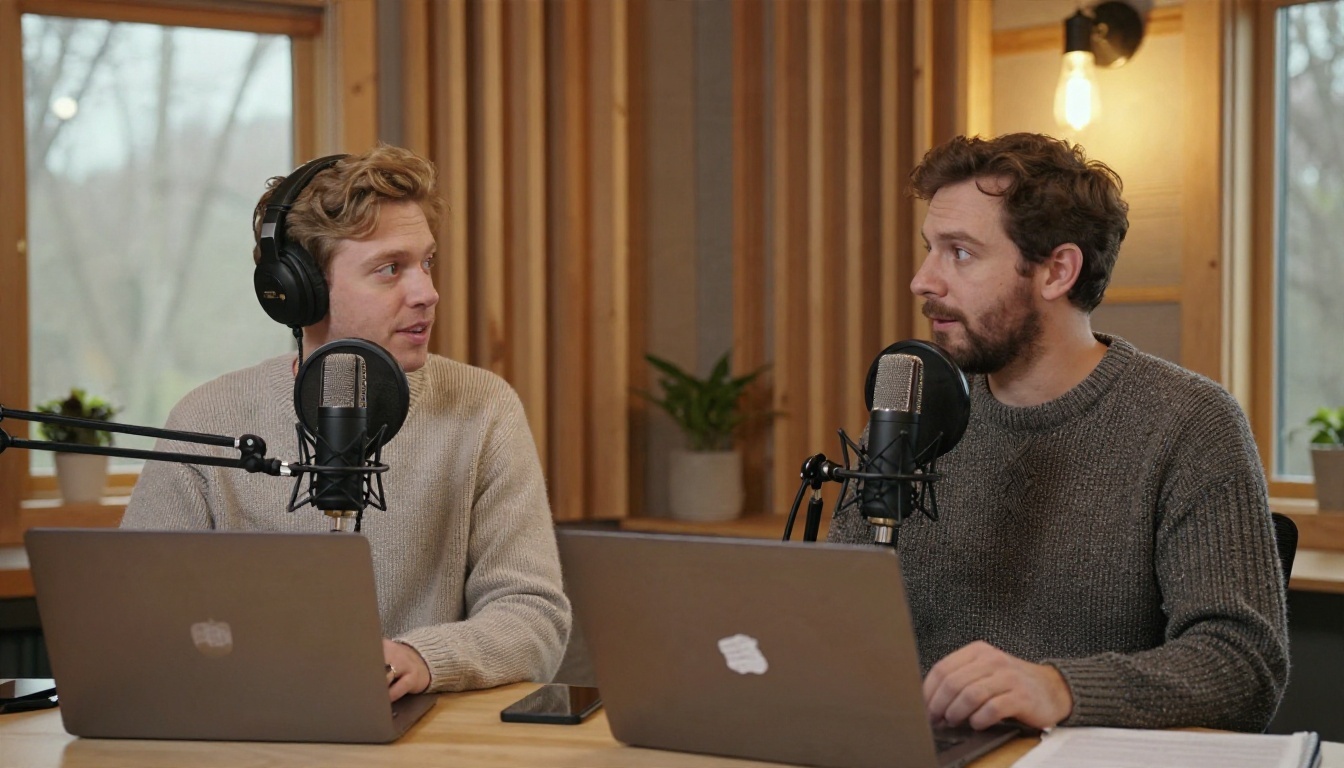
Two people talking at once confuse even strong systems. Background music, game audio and room echo do the same. Podcasters with a co-host face an extra problem: most free live tools do not label who is speaking, so a heated exchange becomes one long block of text.
💡 Rule of thumb: a dedicated microphone close to the mouth does more for caption accuracy than any setting inside the captioning app.
What Free Tools Rarely Offer
Be realistic about the gaps. Free live captioning tools generally lack:
- Reliable speaker identification.
- Export of a time-coded transcript or subtitle file.
- Support for mixed-language speech.
- A written accuracy commitment you can show to a client.
- Any kind of support if something breaks mid-show.
If your work depends on those things, that is the signal to look at a paid service or a hybrid setup.
A Practical Caption Workflow
You do not have to choose between free and paid. Most creators do best with layers.
Tidy the Audio First
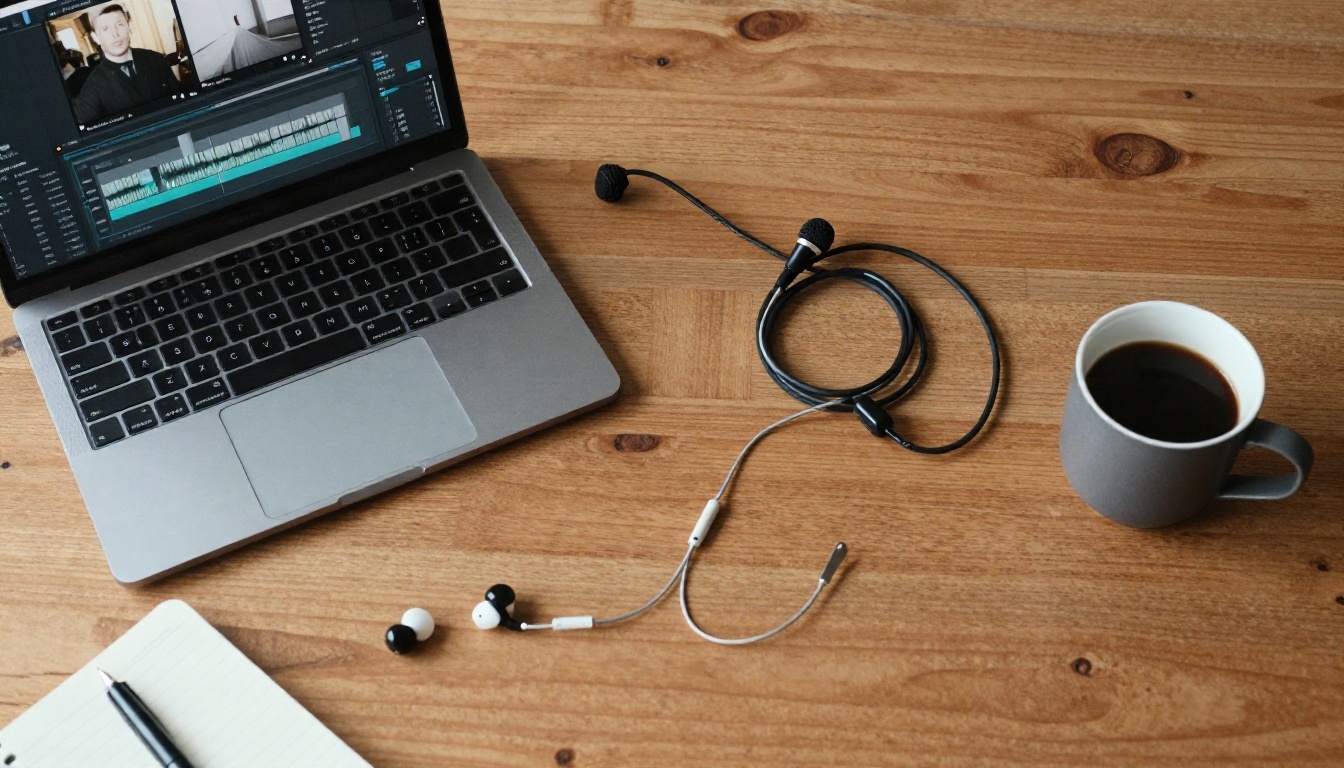
Captions are only as good as the sound that feeds them. Before the show:
- Place the microphone about a hand's width from your mouth, slightly off-axis.
- Lower the game, music or video audio so your voice sits clearly on top.
- Use a separate audio track for the caption source if your software allows it, so the speech engine hears your voice and not the soundtrack.
- Mute notifications and any speaker that could feed back into the microphone.
Test With a Rehearsal
Run a five-minute rehearsal on the same platform you will broadcast on. Check how the captions look on a phone, since that is where most viewers will read them. Adjust font size, contrast and placement. If you work with guests, ask them to read their name and company out loud so you see how it is transcribed, then prepare a correction for the post-show version.
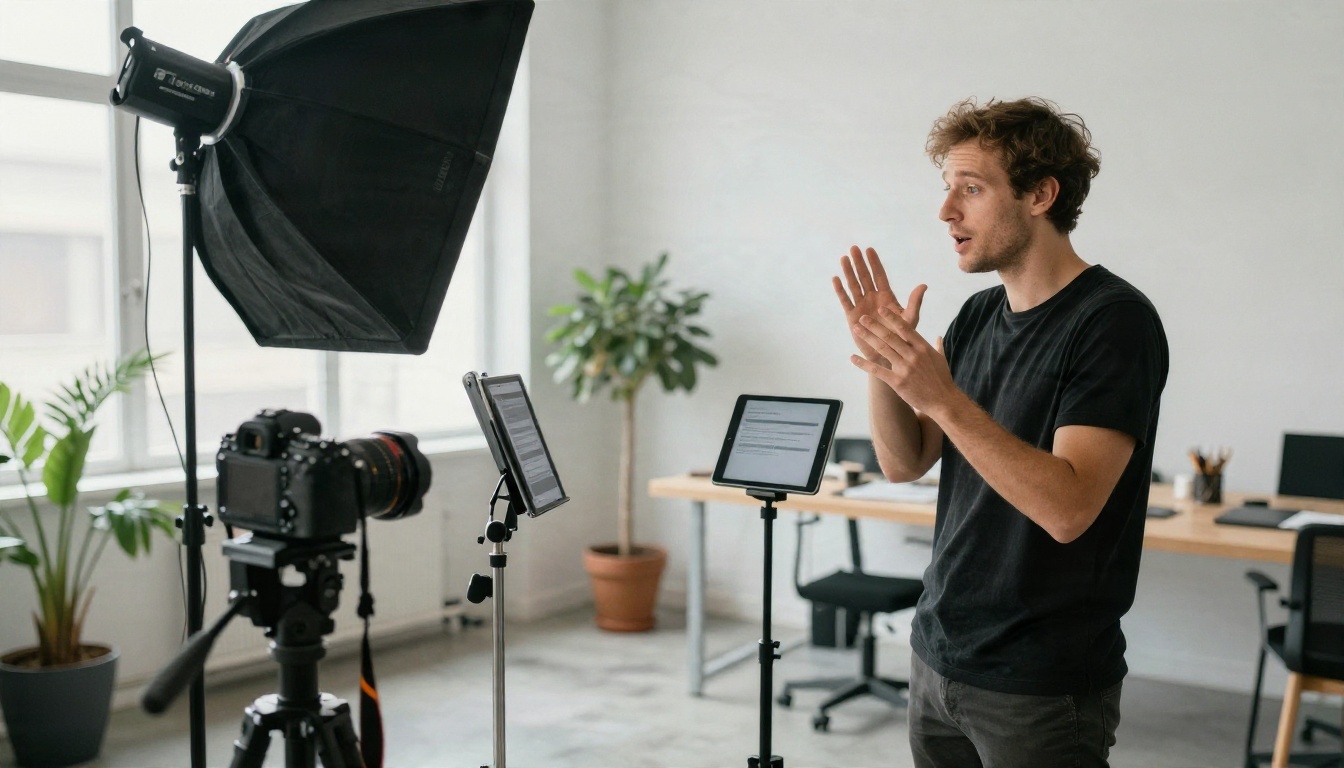
A tablet or second screen showing the live captions beside your camera also lets you see what viewers see. If the text turns to nonsense, you can slow down, repeat a name, or rephrase on the spot.
Choose Your Setup by Situation
| Situation | Suggested setup |
|---|
| Weekly solo stream | Platform auto captions plus a post-stream fix |
| Podcast recorded live | Local transcription for the recording, cleaned up before publishing |
| Webinar for paying clients | Platform captions as backup, human captioner for the main session |
| Public event or conference | Booked human captioning with a prepared term list |
| Quick in-person chat | Phone-based live transcription, no setup |
Fix Captions After the Stream
Live captions are for the moment. The replay is what lasts. The recording gets watched, clipped, searched and quoted for months, so errors in it cost you far more than errors in the live version.
Transcribe the Recording
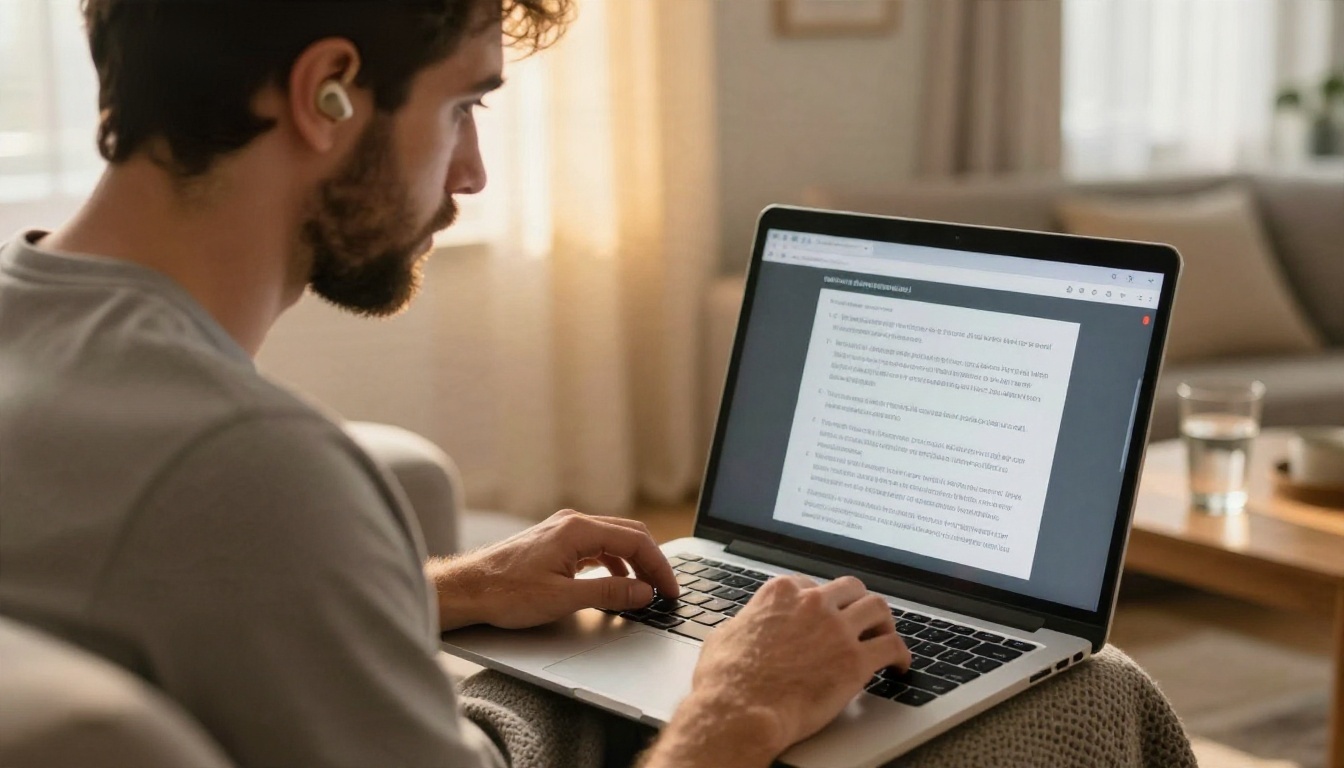
This is where PicassoIA helps. It does not replace a live captioner, because its speech-to-text models work on recorded audio and video files rather than a live feed. What they do well is produce a clean, readable transcript from the finished recording, which you can turn into subtitles, show notes or blog posts.
Three speech-to-text models on the platform are worth a look:
- GPT 4o Transcribe is a strong choice for long, varied recordings where you want the most careful result.
- GPT 4o Mini Transcribe is a lighter option when you process many episodes and want faster, cheaper runs.
- Gemini 3 Pro is useful when the audio is messy or you also want the model to reason about what was said, such as summarizing a session.
The process is straightforward:
- Export the audio from your stream recording. A clean mono voice track works best.
- Open one of the models above and upload the file.
- Pick the spoken language if the tool asks for it.
- Run the transcription and read the output next to the audio.
- Correct names, numbers and brand terms, then export the text.
If a segment sounds unclear, try the same file on a second model and compare. Differences between two transcripts show you exactly where to listen closely.
Edit What the Machine Got Wrong
Even a strong transcript needs a human pass. Read it once with the audio playing at normal speed, and fix these items first:
- Names and titles of guests, products and places.
- Numbers, prices and dates, which are easy to mishear.
- Homophones such as "their" and "there", or similar-sounding technical terms.
- Sentence breaks, so subtitles do not run across several lines.
Keep a running glossary file and paste it at the top of your notes for every session. It speeds up the next review and keeps spelling consistent across episodes.
💡 Time saver: fix the transcript once, then reuse it for subtitles, a blog post, a newsletter and short social clips.
Accessibility Is Not Only Captions
Captions are one piece. If you want your content to reach everyone, also publish a text transcript, describe important visuals out loud, and make sure the caption text has enough contrast against the picture. A viewer who is deaf, a viewer with low vision and a viewer on a noisy train all benefit from the same effort.
Try It on Your Next Recording
Here is the short version. Use the free built-in tools for quick, private captions. Use platform captions for your live audience. Book a human captioner when the stakes are high or a client requires it. Whatever you choose live, treat the recording as the version of record and give it a proper transcript.
Pick one recent stream or episode, upload the audio to GPT 4o Transcribe, and see how many errors you find in the first five minutes. Then try the same file with Gemini 3 Pro and compare. Once your transcripts are clean, you can go further with Picasso IA: create thumbnails, cover art and promo visuals for each episode with the image models on the platform. Browse everything available at picassoia.com/en/all-models and start experimenting with your own content today.


