You finish a one hour call, open your free AI note taker, and find a message waiting: "You have reached your monthly transcription limit." The meeting is gone from your head, the notebook is blank, and the upgrade button is glowing at you. That is the quiet catch behind most AI meeting notes free offers. The tools work, often impressively, but the free tier is a sample, not a service.
This article lays out what free AI meeting note tools actually give you, where the walls are, and what to do when you hit them. You will also see a practical alternative: record the audio yourself, run it through speech to text, and let a language model write the summary. It costs less, works with any platform, and keeps you in control of your data.
What Free AI Meeting Notes Really Are
Every product in this space does the same three jobs. It records or ingests audio, converts speech to text, and then asks a language model to condense that transcript into a summary with action items. The free version usually keeps all three jobs but restricts how much, how long, or how often.

The three moving parts
Here is the pipeline in plain terms:
- Capture: a bot joins your call, an app records your screen audio, or you upload a file.
- Transcription: a speech to text model turns the audio into a timestamped transcript, usually with speaker labels.
- Summarization: a large language model reads the transcript and produces a recap, decisions and tasks.
Once you see the pipeline, the limits make sense. Each step costs the vendor compute, and the free plan is where they decide how much of that compute to give away.
Who gets the most from free plans
Free tiers fit light users best: a freelancer with three client calls a week, a student recording lectures, or a manager who wants notes from one weekly sync. Heavy users run into walls fast. If you sit in more than ten hours of meetings per month, you will probably hit a cap on at least one tool.
💡 Quick test: add up your meeting hours for a typical month. If the total is under five hours, a free tier can work. Above fifteen, plan for a workaround from day one.
The market moves quickly, so treat the numbers below as a snapshot and check each pricing page before committing. Based on comparisons published in 2026, the same three names come up again and again.

Fathom: the generous one
Fathom is repeatedly described as the most generous free option, with unlimited recordings and transcriptions and instant summaries for individuals. Reviews disagree on the exact terms, so confirm which features sit behind the paid wall, such as deeper integrations or team features. It is the first tool most people should test.
Otter: live transcripts with a meter
Otter is known for live transcription while the meeting is happening. The free plan carries a monthly minute allowance, and one 2026 comparison puts it around 300 minutes. That sounds like a lot until you realize it equals five one hour meetings.
Fireflies: strong integrations, storage ceilings
Fireflies connects to many calendars and productivity apps. Its free plan limits how much you can store, with one source citing roughly 800 minutes of storage. Once the archive fills, older content becomes harder to search or keep.
Quick comparison
| Tool | Free plan strength | Typical catch |
|---|
| Fathom | Unlimited recordings reported | Some features paid, terms vary by source |
| Otter | Live transcript, easy sharing | Monthly minute cap (around 300 reported) |
| Fireflies | Wide app integrations | Storage cap (around 800 minutes reported) |
| DIY pipeline | No platform restrictions | You set up the workflow once |
Limits Nobody Mentions Upfront
The pricing page lists minutes and storage. The painful limits live in the fine print and in how the tool behaves during your actual call.

Minute caps and the cliff effect
A cap is not a gentle slope. When you run out, the tool often stops recording entirely, and the call you needed most is the one that never gets transcribed. Meetings are not predictable. A quarterly review or a client crisis lands right when your allowance is empty.
Storage and search limits
Some tools keep your transcripts only for a limited archive depth on free accounts. You might have a summary from six months ago but no ability to search the raw text. If your work depends on finding who promised what, that is a real cost.
The bot in the room
Most meeting assistants send a participant into your call by default. Everyone sees "Notetaker" in the attendee list. Some clients are comfortable with that, others are not, and a few organizations block bots outright. For sensitive calls, you may spend more time explaining the bot than you saved by having notes.
Feature gating on summaries
Free plans often give you a short summary but gate action items, custom templates, CRM sync, or export formats. You get the headline but not the follow up list that makes notes useful.
💡 Check before you commit: try the tool on one real meeting, then see whether you can export the transcript as plain text. If export is locked, you are renting your own notes.
Privacy: The Part That Costs More Than Money
Free usually means something else is paying. Comparison articles warn that on some free tiers, your content may be used to improve the vendor's models unless you opt out. I did not verify each provider's policy, so read the data section yourself.

What to check in a privacy policy
Look for answers to these questions:
- Is audio or transcript content used for model training, and can you opt out?
- How long is the recording stored, and can you delete it permanently?
- Where is data processed, and who are the subprocessors?
- Does a participant joining your call trigger consent requirements in your region?
Consent matters more than the tool
Recording laws differ by country and state. In many places, you must tell participants that a call is being recorded or transcribed. A polite sentence at the start of the meeting, "I'm recording this for notes, is that fine?", solves most problems and builds trust.
When to skip AI notes entirely
Legal strategy sessions, medical conversations, HR disputes, and anything covered by an NDA deserve extra care. In these cases, either get written permission, use a local workflow, or take notes by hand.
Build Your Own Free Notes Workflow
Here is the alternative that avoids caps, bots and platform lock in. Instead of relying on one product that does everything, you separate the pipeline into pieces and pick the best tool for each.

Step one: record the audio yourself
Use your phone, your computer's built in recorder, or the recording function inside your meeting software. Save it as a standard audio file. There is no bot, no extra attendee, and nobody sees a third party in the room.
Step two: transcribe with a speech to text model
PicassoIA offers speech to text models you can run on an uploaded file. GPT 4o Transcribe is built for accuracy on real conversations with accents and cross talk. GPT 4o Mini Transcribe is a lighter, faster option when you transcribe a lot of short calls. Gemini 3 Pro also handles audio and is useful when you want the same model to reason about the content afterward.
Step three: summarize with a language model
Paste the transcript into a large language model and ask for a structured recap. Strong choices on the platform include Claude Sonnet 5 for careful, well organized writing, Gemini 3.5 Flash for speed on long transcripts, and GPT 5.4 for balanced reasoning and drafting. For privacy minded teams that prefer smaller open weight models, Granite 4.1 8B is a lightweight option for chat and structured text.
Why this beats a bundled tool
| Factor | Bundled free tool | Separate pipeline |
|---|
| Minute limits | Capped monthly | Based on the file you upload |
| Bot in the call | Common default | None needed |
| Summary format | Fixed template | Any prompt you write |
| Platform | Specific apps supported | Any audio source |
| Export | Often limited | Plain text, always yours |
How to Use GPT 4o Transcribe on PicassoIA
This is the fastest way to turn a recorded call into a clean transcript without installing anything.
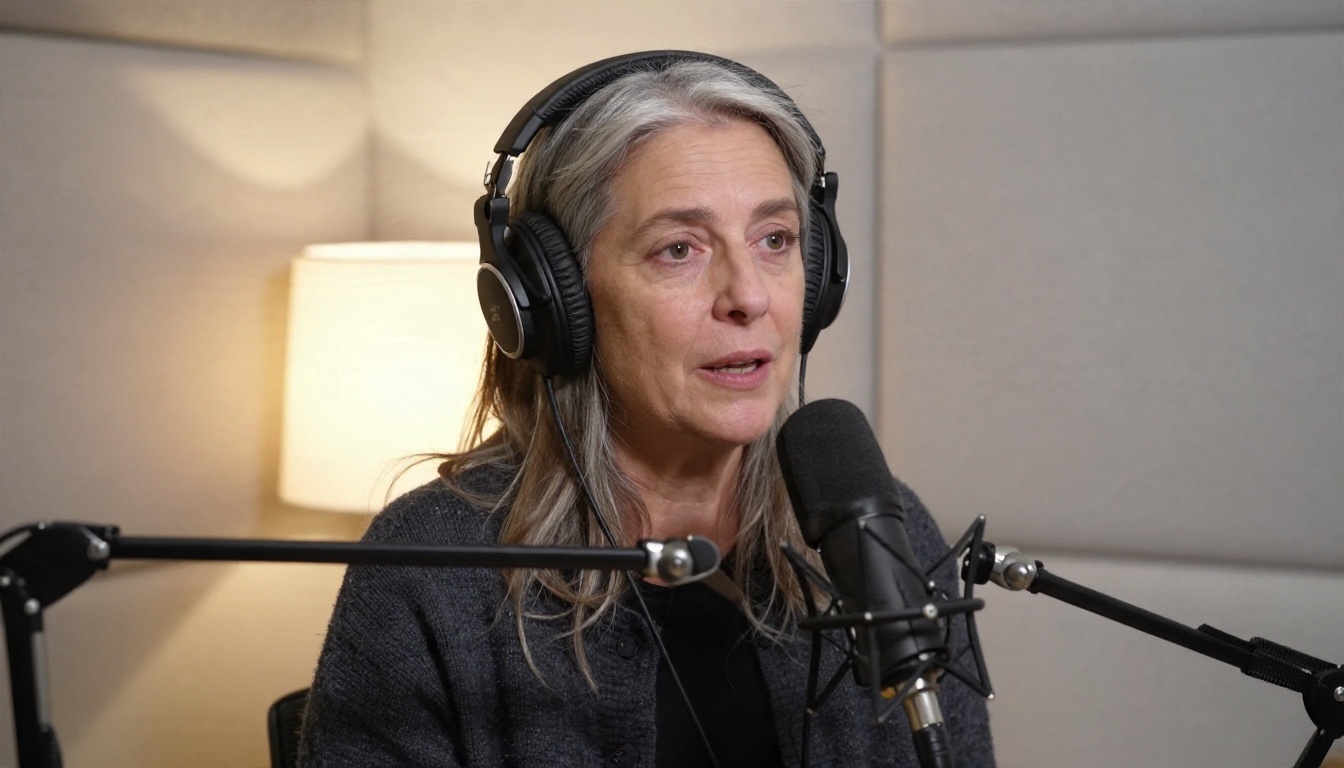
Step by step
- Open the model page. Go to GPT 4o Transcribe on PicassoIA.
- Upload your audio. Choose the recording from your device. Standard formats such as MP3, WAV and M4A are the safest choice.
- Set the language if the option is offered. Naming the spoken language usually improves accuracy, especially for non English calls or mixed language meetings.
- Add context in the prompt field if available. A line like "Product planning meeting, names include Priya, Marcus and Elena" helps the model spell proper nouns correctly.
- Run the transcription. Wait for the text to appear, then copy it into a document or directly into your language model of choice.
- Review quickly. Skim for names, numbers and dates. Those are the details most likely to need a manual fix.
Parameter tips
- Split very long recordings into 20 to 30 minute chunks. Smaller files process faster and make it easier to fix errors.
- Clean audio beats a smarter model. A phone placed near the speaker outperforms a laptop microphone across the room.
- Use the lighter model for drafts. Run GPT 4o Mini Transcribe when you only need a quick reference and switch to the larger one for records you plan to keep.
💡 Recording tip: Ask participants to state their name the first time they speak. It gives the model, and you, a clear anchor for who said what.
Prompts That Turn Transcripts Into Notes
A transcript alone is a wall of text. The value comes from the instructions you give the language model. Save these as templates and reuse them.

The action item prompt
"Read this meeting transcript. List every decision made, every task assigned with the owner's name and deadline if stated, and any open question that nobody answered. Use bullet points and keep each item under 20 words."
The executive summary prompt
"Write a five sentence summary of this meeting for someone who was not there. Lead with the outcome, then the reason behind it, then the next step. Avoid filler."
The client follow up prompt
"Draft a short email to the client based on this transcript. Thank them, recap what we agreed on, and list the next steps with dates. Keep a warm and professional tone."
Handling long transcripts
If the transcript is very long, ask the model to summarize in sections first, then merge those summaries into one final recap. This reduces dropped details. Gemini 3.5 Flash is a good fit for this because it moves quickly through large blocks of text.
Who Should Pick What
The right setup depends on how often you meet and how sensitive the conversations are.

Light weekly meetings
Start with a free bundled tool such as Fathom. It is the least effort, and you can judge whether the summaries fit your style. Keep the DIY pipeline in reserve for the weeks you hit a cap.
Interviews, lectures and podcasts
Here the DIY route wins. You control the recording, no bot is needed, and you can run longer files through a speech to text model. Students recording lectures and journalists transcribing interviews tend to prefer this for exactly that reason.

Sensitive or regulated work
Use your own pipeline, get consent in writing, and keep transcripts in storage you control. Delete audio after the transcript is checked. If your organization has a data policy, follow it before testing any tool.
Decision table
| Your situation | Best starting point |
|---|
| Under 5 hours of meetings monthly | Free bundled tool |
| Frequent calls with many clients | DIY pipeline for flexibility |
| Lectures, interviews, podcasts | Speech to text plus LLM summary |
| Bot not allowed on calls | Record locally, transcribe separately |
| Confidential content | Own workflow, explicit consent |
Common Mistakes to Avoid
Most disappointments with free AI notes come from the same handful of errors.
- Trusting the summary blindly. Models sometimes assign a task to the wrong person or merge two decisions. Spend two minutes checking names and dates.
- Skipping consent. A quick announcement protects you and keeps participants comfortable.
- Poor audio. Echo, background noise and overlapping speech hurt every model. Fix the microphone first.
- Waiting until the cap hits. Decide your backup before you need it, not after a crucial meeting is lost.
- Leaving transcripts scattered. Pick one folder and a consistent naming pattern such as date and project name.
Try Your Own Notes Pipeline on PicassoIA
Free meeting note tools are a fine place to start, and for light use they may be all you ever need. The moment you hit a minute cap, a storage wall, or an uncomfortable bot in the call, a flexible pipeline pays off. Record the audio, transcribe it with GPT 4o Transcribe or Gemini 3 Pro, then shape the transcript with Claude Sonnet 5 or GPT 5.4.
Pick one recent recording, run it through the steps above, and compare the result with what your current free tool produced. Tweak the prompt until the output reads like notes you would write yourself. PicassoIA also offers image, video, voice and music models, so the same account that handles your transcripts can create visuals for your presentations and recaps. Browse everything at picassoia.com/en/all-models and start building the workflow that fits the way you work.


