You hum a hook into your phone while the kettle boils. Two days later it is still stuck in your head, but you cannot play an instrument and a blank text box asking you to "describe your song" feels like the wrong tool. Words are a clumsy way to describe a groove. Audio is not. That is why a good AI music generator from audio is more useful than one that only takes typed prompts: you hand it sound, and it hands back music.
This article covers three ways to start from audio: a reference track that sets the mood, an existing song that gets restyled in a different genre, and a rough recording of your own voice that becomes the backbone of a new arrangement. You will see what each approach does well, where it falls short, and how to run the process on PicassoIA with real settings.
What "From Audio" Really Means
The phrase gets used loosely, so it helps to separate the jobs. Some tools listen to a clip and borrow its tempo, mood and instrumentation. Others keep the melody and lyrics of a song and rebuild everything around them. A third group reads your voice recording as the raw material. These are different workflows with different results.
Three Kinds of Audio Input
| Input type | What the model takes from it | Best for |
|---|
| Reference track | Mood, pace, instrument palette, energy curve | Starting a new song in a familiar vibe |
| Existing song | Melody, structure, sometimes the lyrics | Genre swaps, alternate versions, demos |
| Your own recording | Melody line, phrasing, rhythm of your delivery | Turning a hummed idea into a produced track |
Most frustration comes from picking the wrong row. If you want your hummed hook to survive, a reference-style generator will only give you something "in the neighbourhood". If you want a fresh song with the same atmosphere as a track you love, a restyle model that preserves melody will copy too much.
Audio Versus Text Prompts
Text prompts are great for exploring ideas from zero. Audio is better when you already have something specific in your head. Research tools like Meta's open-source MusicGen showed early on that a short melody clip can steer the harmony of a generated piece, and commercial services have since built upload features on the same idea. The quality of the match varies a lot between products, and some uploads work more as loose inspiration than as strict conditioning. So test with a short clip before you commit hours to one approach.
💡 Tip: Treat text and audio as a pair. Audio carries the melody and feel, text carries the instructions: genre, instruments, vocal tone, tempo. The best results use both.
Reference Tracks: Borrow the Feel
A reference track answers a question that is hard to type: "make it feel like this". Think of the way a producer plays a client three songs before the session starts. The goal is not to copy the song. It is to agree on a target.
What a Reference Does and Doesn't Copy
A well-chosen reference tends to influence:
- Tempo and rhythmic feel, such as a lazy shuffle versus a driving four-on-the-floor pulse
- Sonic palette, like warm tape-saturated guitars versus glossy synth pads
- Energy shape, meaning how quickly the song builds and where it drops back
- Vocal character, for example breathy and close versus belted and wide
It rarely reproduces the exact melody or chord changes, and that is a feature. You get a new composition that sits in the same world, which also keeps you further from sounding like a copy of someone else's record.
Pick a Clean Reference
Short, clean clips behave better than long dense ones. A 15 to 30 second excerpt with one clear musical idea works far better than a full mix with a spoken intro, a crowd and a key change. Before you upload:
- Trim to the most representative section, usually a verse or a chorus.
- Avoid heavy talking or applause over the music.
- Prefer high-quality files: WAV or a good MP3, not a screen recording of a streaming app.
- Use one reference at a time so the model does not average two moods into mush.
If you only need atmosphere and you have no audio to hand, Lyria 3 accepts up to 10 reference images and turns their mood into a 30-second music clip. It is a neat workaround when the "reference" in your head is a photograph rather than a song.
Restyle a Song, Keep the Melody
This is the workflow people usually mean when they search for AI "covers". You upload a song, describe the target style, and the model returns a new version: different voice, different instruments, different genre, same tune underneath.
On PicassoIA, the tool for this is MiniMax's song restyle model. You give it a publicly accessible MP3 or WAV link plus a text description of the style you want. The original melodic structure carries through while the arrangement is rebuilt from scratch.
Genre Swaps That Work
Some conversions land more naturally than others. These tend to work well:
- Pop ballad to gritty rock, with electric guitar riffs and heavy drums
- Upbeat acoustic song to slow R&B, with a smooth vocal and groovy bass
- Dense studio track to stripped-down piano and voice
- Dance track to ambient version, useful for video scenes that need a quieter bed
Radical jumps, such as a fast punk song into a slow jazz waltz, can still work but expect to run several attempts and adjust the wording. Short, concrete descriptions beat poetic ones. "Hard rock, electric guitar riffs, powerful drums" gives the model more to act on than "something with fire in it".
Writing New Lyrics
By default the generated singer performs the original song's words. If you want different ones, the model accepts a lyrics field of up to 3,000 characters, with section tags such as [verse], [chorus] and [bridge] to mark the structure. Use \n for line breaks.
Two practical rules save a lot of retries:
- Match the syllable count of the original lines. The melody is fixed, so a line with twice as many syllables gets crushed or rushed.
- Keep the section order the same as the source song, otherwise phrases land on the wrong part of the tune.
💡 Tip: Don't have the lyrics typed out? Run the song through a speech-to-text model such as GPT 4o Transcribe, then edit the transcript and paste it into the lyrics field.
Your Own Voice as the Starting Point
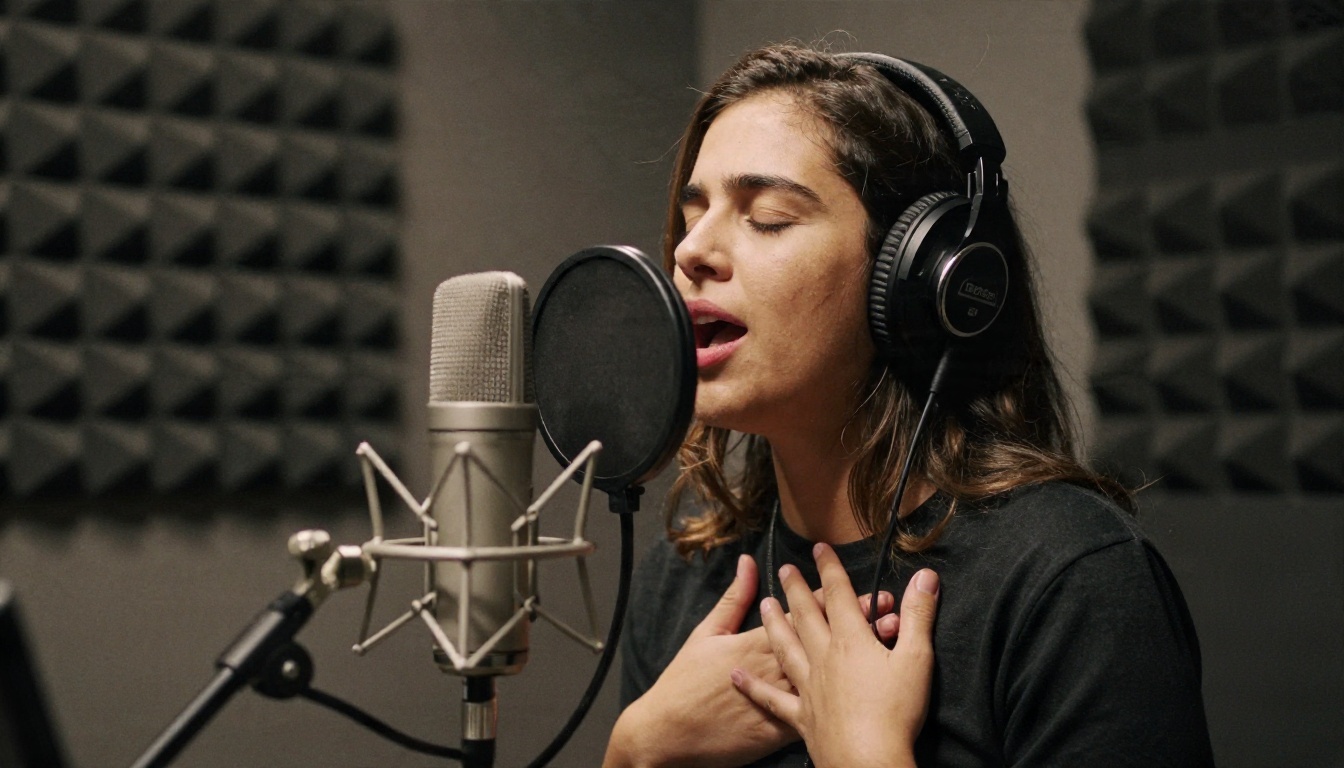
This is the most personal version of the workflow, and the one with the most misunderstandings. The honest picture: you can feed in a recording of you singing or humming a melody, and a restyle model will rebuild the track around that melody. What you should not expect is a guaranteed, exact copy of your timbre coming back out. In the PicassoIA restyle tool the voice is generated according to your text description, for example "warm female vocal" or "raspy male vocal", while the tune and phrasing come from your recording.
Record a Clean Demo
You do not need a studio. A phone in a quiet room is enough if you follow a few habits:
- Sing close to the microphone, about a hand's width away, so the room echo stays low.
- Keep a steady tempo. Tap your foot or use a metronome click in one earbud.
- Sing the actual melody, not a vague outline. Models follow what they hear.
- Use real words or clear syllables like "la" or "da" rather than mumbling.
- Export as WAV or MP3, then upload the file somewhere that produces a public link.
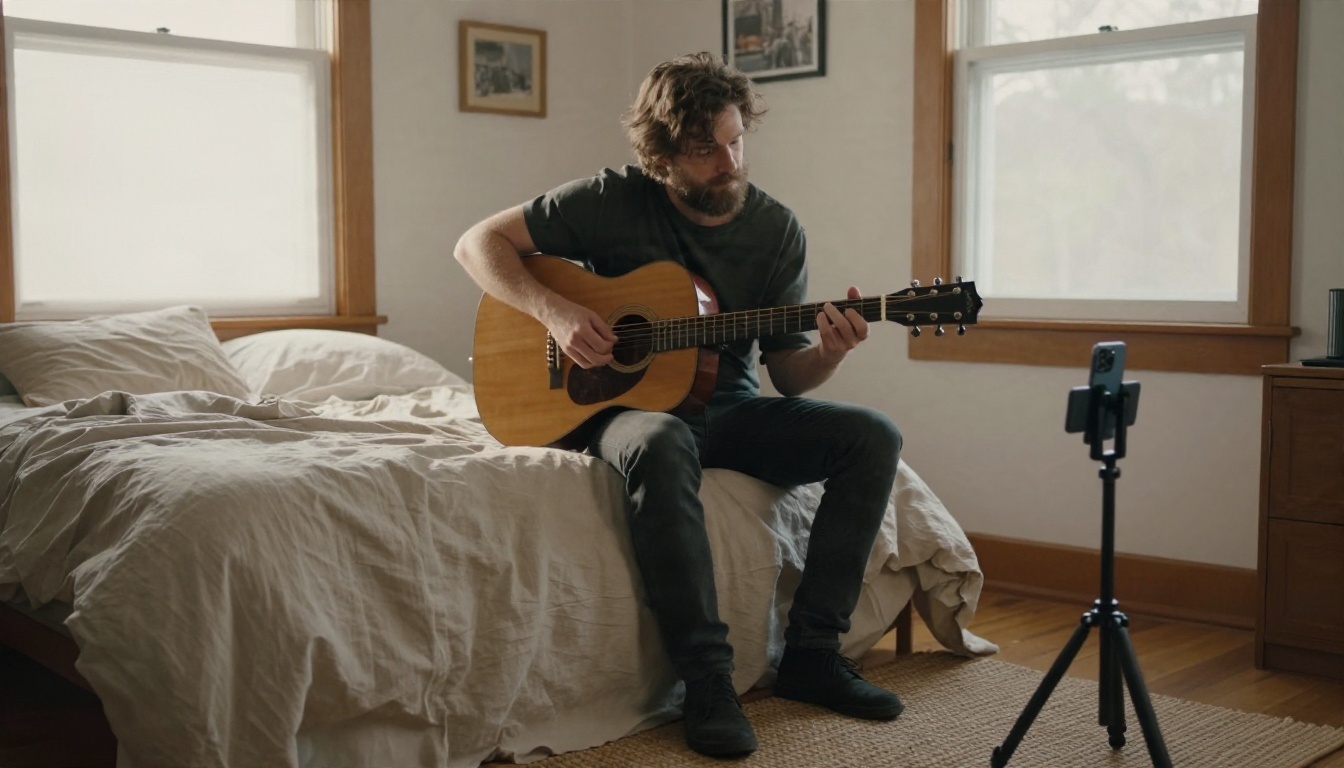
A guitar or piano accompaniment helps because it gives the model chords as well as a tune. If you play, record both and keep the guitar quieter than the voice.
What About Voice Cloning?
Voice cloning is a separate field. PicassoIA lists clone-capable speech models such as Qwen3 TTS and Chatterbox, and they are very good at spoken output: narration, intros, voice-over for a lyric video. They are text-to-speech tools, not singing converters. A sensible combined workflow is to build the song with the restyle model, then use a cloned speaking voice for the spoken intro or the podcast-style ident that sits in front of it.
💡 Tip: Only clone a voice you own or have written permission to use. This applies to your friends, your clients and especially to public figures.
How to Use the Restyle Model on PicassoIA
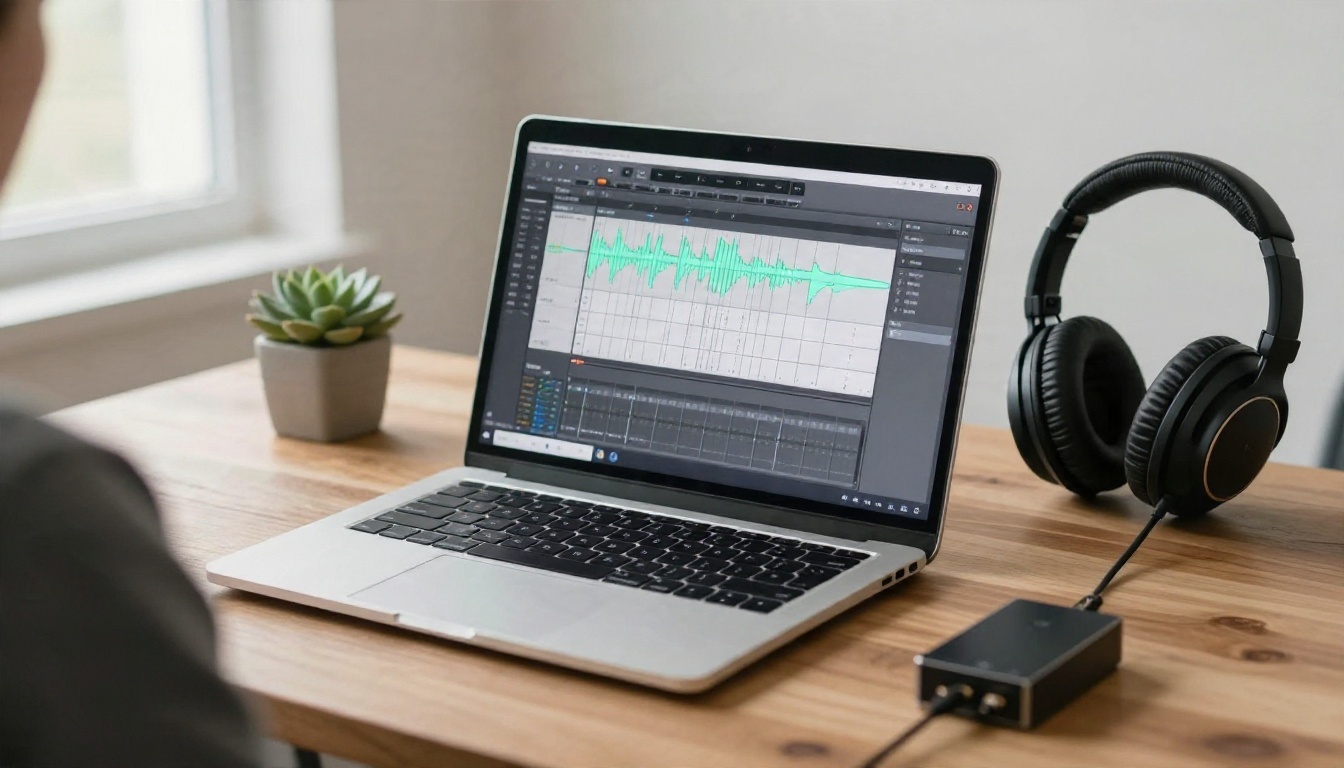
The tutorial below uses the MiniMax song restyle model, because it is the one built for audio-in, audio-out work.
Step by Step
- Open the model page and sign in to your PicassoIA account.
- Prepare your audio. It must be a publicly accessible MP3 or WAV link. Trim it to the section you care about first.
- Paste the link into the audio URL field.
- Write the style prompt. Name the genre, the main instruments and the vocal tone. You have up to 2,000 characters, but 15 to 30 words is usually the sweet spot.
- Add lyrics if needed. Leave the field empty to keep the original words, or paste new ones with
[verse] and [chorus] tags.
- Choose the output format. MP3, WAV or PCM are available. Pick WAV if you plan to edit the result further.
- Set quality. Sample rate goes up to 44.1 kHz and bitrate up to 256 kbps, which is the sensible default for most projects.
- Generate, listen, adjust. Change one thing at a time so you know which edit caused which result.
Settings Worth Knowing
| Setting | Options | Recommendation |
|---|
| Audio format | MP3, WAV, PCM | WAV for editing, MP3 for sharing |
| Sample rate | 16000 to 44100 Hz | 44100 for music |
| Bitrate | 32000 to 256000 | 256000 unless file size matters |
| Prompt | Up to 2,000 characters | Short, concrete, genre first |
| Lyrics | Up to 3,000 characters | Match syllables to the source |
Prompt Examples to Copy
R&B version, smooth vocal, groovy bass, soft drumsHard rock, electric guitar riffs, powerful drums, raw male vocalLo-fi acoustic, fingerpicked guitar, intimate female vocal, tape warmthCinematic orchestral, strings and piano, slow build, emotional vocal
Picking the Right Model
Not every job starts with an upload. PicassoIA has several music models, and each suits a different starting point.
| Model | Starts from | Best use |
|---|
| MiniMax song restyle | Your audio file plus a text prompt | Genre swaps, alternate versions, demo polish |
| Lyria 3 | Text or up to 10 images | Quick 30-second clips with a specific mood |
| Lyria 3 Pro | Text prompt | Longer, full-length songs |
| Music 2.6 | Lyrics and style text | Full songs with vocals |
| Music 2.5 | Lyrics and style text | Full songs with vocals, earlier generation |
| ElevenLabs Music | Text prompt | Compositions from a plain description |
| Stable Audio 2.5 | Text prompt | Instrumental beds and textures |
A practical pipeline many creators settle on looks like this:
- Draft with a text model such as Music 2.6 to find a direction you like.
- Download the best result and trim a strong section.
- Feed it to the restyle model to try three or four alternate genres.
- Keep the version that feels right, and use the others as b-sides or scene variants.
If you already have a hummed melody, skip step 1 and go straight to the restyle tool.
Common Mistakes to Avoid
- Uploading a noisy file. Background chatter and room echo get baked into the arrangement. Record again rather than hoping the model will clean it up.
- Asking for too much in one prompt. Five genres in one sentence give you a muddle. Pick one.
- Rewriting lyrics with the wrong rhythm. If a phrase sounds rushed, count syllables against the original line.
- Ignoring tempo. If the demo wobbles, the output wobbles. Use a click.
- Expecting one pass to be final. Treat each generation as a draft and iterate.
Rights, Credit and Disclosure
Restyling a song you did not write is a legal grey area in many places, and the rules are shifting. Several large record companies have reached licensing settlements with AI music startups, and regulators in the EU and some US states are moving toward labelling requirements for synthetic audio. This is general background, not legal advice, so check the details for your country before you publish.
Some simple habits keep you on safe ground:
- Use your own songs or material you are licensed to rework.
- Label AI-assisted tracks clearly when you upload them to streaming platforms or social media.
- Do not imitate a real artist's voice or present a generated vocal as theirs.
- Keep your source files and prompts, so you can show how a track was made.
Make Your First Track Today
The fastest way to see how this works is to run one short experiment. Hum eight bars into your phone, trim the file, paste the link into the MiniMax song restyle model and ask for a genre you would never normally try. In a few minutes you will hear your own melody dressed in a way you had not imagined, and that usually sparks the next idea.
When you want to branch out, try Lyria 3 Pro for full-length drafts, add a spoken intro with a cloned voice you own, or build a matching visual for the release. Browse everything PicassoIA offers across music, voice, image and video at picassoia.com/en/all-models, and start creating with Picasso IA today.


