You type a sentence, press a button, and a photo appears. No email, no password, no "verify your account" pop-up. That is what most people mean when they search for AI no filter no sign up, and it is a fair thing to want. The catch is that "free", "no filter" and "no sign up" are three separate promises, and very few tools keep all three at once.
This article sorts the real options from the marketing. You will see what each promise actually means, where free tools quietly run out of road, which prompts give you realistic results on the first try, and what to do when a no-login page hits its ceiling.
What "No Filter" Really Means
Three kinds of filters
When someone says a generator has "no filter", they usually mean one of three different things, and mixing them up is the fastest way to be disappointed.
- Prompt filters block certain words before anything is generated. You get an error message instead of an image.
- Output filters look at the finished picture and blur or reject it if it trips a classifier.
- Style filters are the opposite: Instagram-like presets that tint the picture. These are unrelated to safety, but they confuse search results constantly.
A tool with "no filter" in the marketing might drop only the first kind. It might drop both. It might drop neither and simply use a looser threshold than a big mainstream assistant. There is no universal standard, so the only honest test is to try a prompt that sits in your actual use case.
💡 Tip: Test with a mildly edgy but legal prompt, such as a swimwear editorial or a moody boudoir portrait. If the tool refuses that, it will refuse nearly everything you care about.
Why people want fewer restrictions
The reasons are mostly ordinary. Photographers want glamour and swimwear shots without being lectured. Novelists want a character portrait that looks lived in. Fashion hobbyists want a bikini mockup. Others are tired of a mainstream tool refusing a harmless prompt because one word looked suspicious.
Fewer restrictions should not be confused with no rules. Legal limits stay in place no matter which site you use, and a later section covers them in plain terms.
The sign-up wall
"No sign up" is easier to check. Open the page in a private window. If a text box and a button load, you are in. If a modal asks for an email before the first image, it fails the test, even if the headline says otherwise.
Plenty of sites sit in between: your first few images are anonymous, then a prompt appears asking you to register. That is a freemium model, not a no-login model, and it is worth knowing before you invest an hour in one platform.
Free Generators You Can Open Today

Browser tools without accounts
Based on recent roundups published through 2026, a few names come up again and again. Perchance is the one most often described as genuinely open, with no account and no stated cap. Craiyon also runs without an email or a login, though its output leans toward illustration and is rarely photorealistic. Raphael AI is frequently recommended when realism matters, and its own marketing describes unlimited use without an account.
Treat that last claim with care. Most of those roundups are written by vendors or by sites with an interest in promoting a tool, and none of them are independent lab tests. Limits change quietly, sometimes weekly.
Where free tiers break
Other tools in the same lists are only partly open. Some allow roughly ten generations per day behind a registration step. Others let you generate but attach a watermark or lock the download button until you sign in.
Here is a quick way to compare the typical patterns you will run into:
| Access pattern | Sign up needed | Typical cap | Watermark | Realism |
|---|
| Fully open browser tool | No | Soft, often undisclosed | Rare | Varies, often stylized |
| Anonymous trial, then sign up | After a few images | Few images per session | Sometimes | Good |
| Free account with daily credits | Yes | Around 10 per day | Often | Very good |
| Paid plan | Yes | Credit based | No | Best |
| Unlimited editor on a platform | Yes, free account | Generous | No | Very good |
None of these rows is "better" in absolute terms. The right one depends on how many pictures you need and how much you care about quality.
💡 Tip: A no-login page is perfect for testing one idea. It is a poor place to build a project with 40 consistent images.
The Real Limits Behind "Unlimited"

Queue time is the hidden price
"Unlimited" almost never means "instant". Free anonymous traffic gets lower priority than paying users, so a tool that renders in four seconds for a subscriber may take 40 seconds, or several minutes, for you. At busy hours the queue can stall entirely.
That is a fair trade for occasional use. It becomes painful the moment you need ten variations of one scene.
Resolution, watermarks and ratios
Free tiers also trim the output itself. Watch for these four trims:
- Low resolution, often around 512 or 768 pixels, which looks fine on a phone and soft on a monitor.
- Locked aspect ratios, usually square only.
- Small corner watermarks that are easy to spot once you start posting.
- Compressed downloads, which show banding in skies and skin.
If you plan to print, publish or post a portfolio, check the actual file size before you build on any tool.
Privacy and data
A page that asks nothing about you may still log your prompts, store your images, or use them to improve a model. Anonymous does not mean private. Do not upload photos of real people to a tool when you cannot see its policy, and never type personal details into a prompt.
Prompts That Work Without an Account
A tool with no login usually has no style presets, no negative prompt field, and no seed control. That means your sentence does all the work. Here is how to write one that holds up.
A portrait formula that works
Use this order, and keep each piece short:
Subject + action + setting + light + lens + texture.
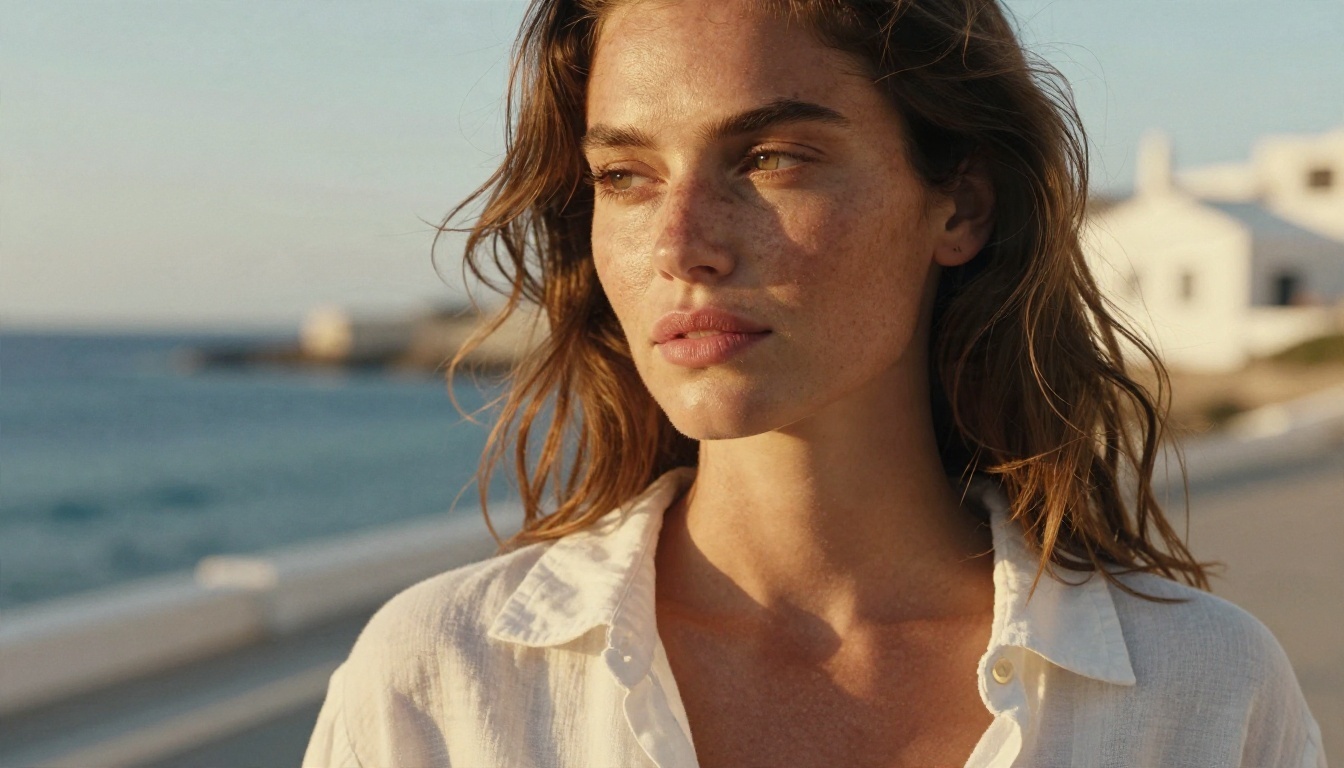
Example: "Close-up portrait of a woman with light freckles on a seaside terrace, white linen shirt, golden hour backlight, 85mm lens, shallow depth of field, visible skin pores, film grain."
That one sentence tells the model who is in the picture, where she is, how the light behaves, what camera made it, and how real the skin should look. The lens and the texture words matter most, because they push the result away from the glossy, plastic look that gives AI pictures away.
Glamour and swimwear without crossing lines
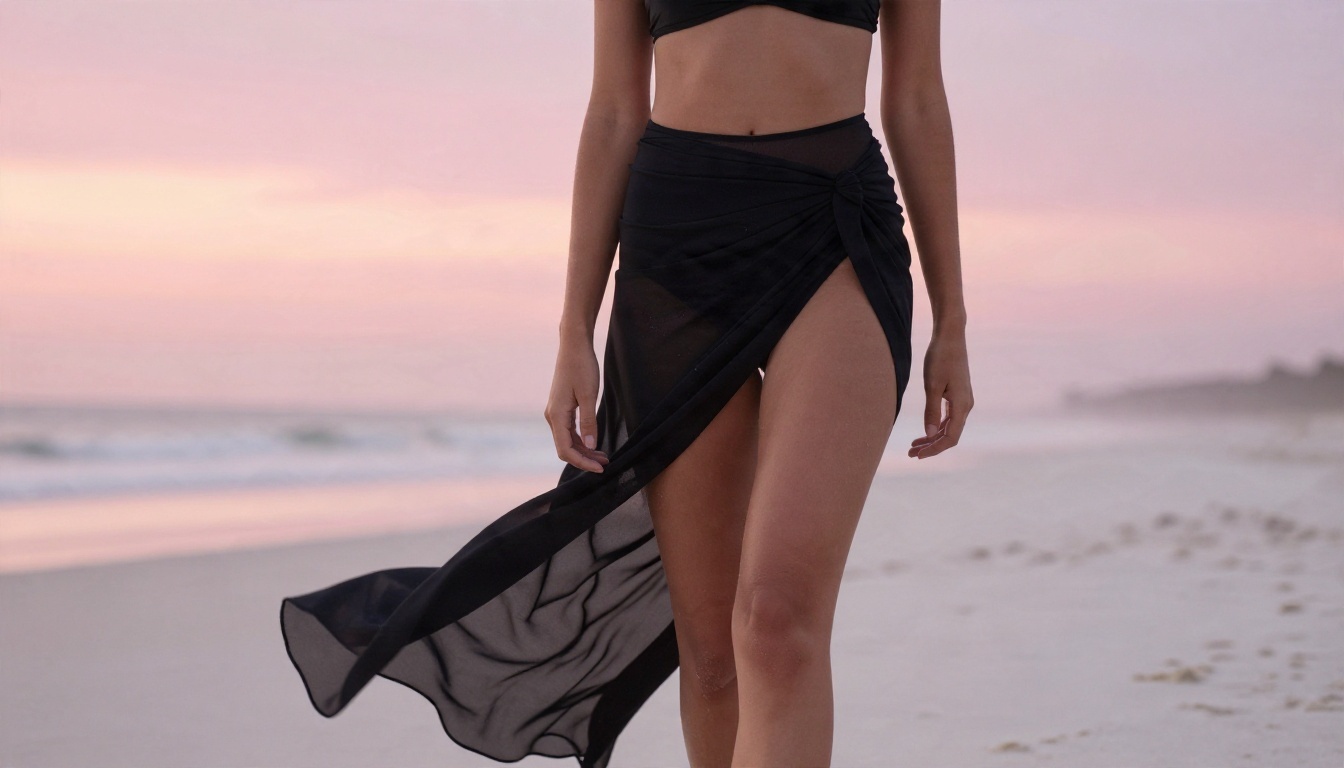
Tasteful glamour is the most common reason people search for fewer restrictions, and it is also where prompts go wrong. Describe the fabric, the light and the location rather than listing body parts. A tailored black swimsuit on a quiet beach at sunrise gives a model plenty to work with, and it tends to pass filters that a blunt prompt would trip.
Try this one: "Low-angle fashion editorial, model in a tailored black swimsuit and sheer beach wrap on white sand at sunrise, pink and amber backlight, 35mm lens, sea mist, natural skin sheen, film grain."
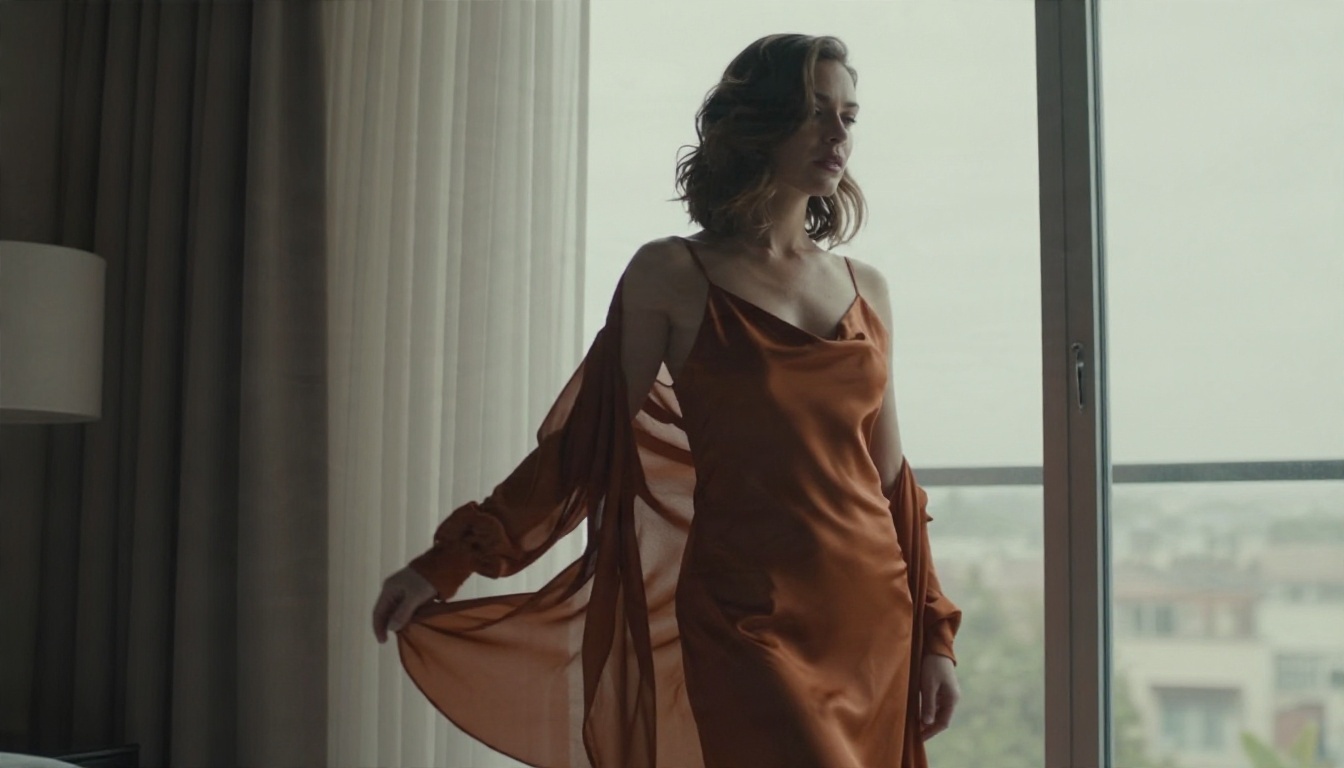
The same logic works indoors. A satin slip dress by a tall window, soft side light, sheer curtains in motion: this is boudoir photography language, and it reads as artistic to both people and classifiers.
Three common mistakes
- Stacking adjectives. "Stunning, beautiful, perfect, amazing" adds nothing. One concrete detail beats five adjectives.
- Skipping the light. Without a direction and a time of day, models default to flat studio lighting.
- Asking for text inside the image. Most free tools garble letters. Keep text to one short word or add it later in an editor.
💡 Tip: Keep a notes file of prompts that worked. On a no-login page you cannot save history, so your clipboard is your only archive.

How to Use Seedream 4.5 on PicassoIA
When free anonymous tools reach their ceiling, the natural next step is a model that gives you sharper output and room to iterate. Seedream 4.5 is the one to start with. It produces detailed, photorealistic images up to 4K, handles skin, fabric and light convincingly, and follows long prompts closely. It is also a good fit for glamour, fashion and portrait work.
Step by step
- Open the Seedream 4.5 page on PicassoIA.
- Paste a prompt built with the formula above: subject, action, setting, light, lens, texture.
- Choose a 16:9 ratio for landscape scenes or 3:4 for portraits.
- Pick the highest resolution offered, then generate.
- Compare the result with your intent. Change one detail at a time, such as the light direction or the lens, and run it again.
Parameter tips
- Be specific about lighting. "Soft window light from the left" is better than "good lighting".
- Name a lens. 85mm for portraits, 35mm for environment shots, 100mm macro for close detail.
- Add texture words. "Visible pores", "linen weave", "film grain" all add believability.
- Keep the prompt under about 120 words. Past that, details start to compete with each other.
Unlimited editing with Image Editor Pro
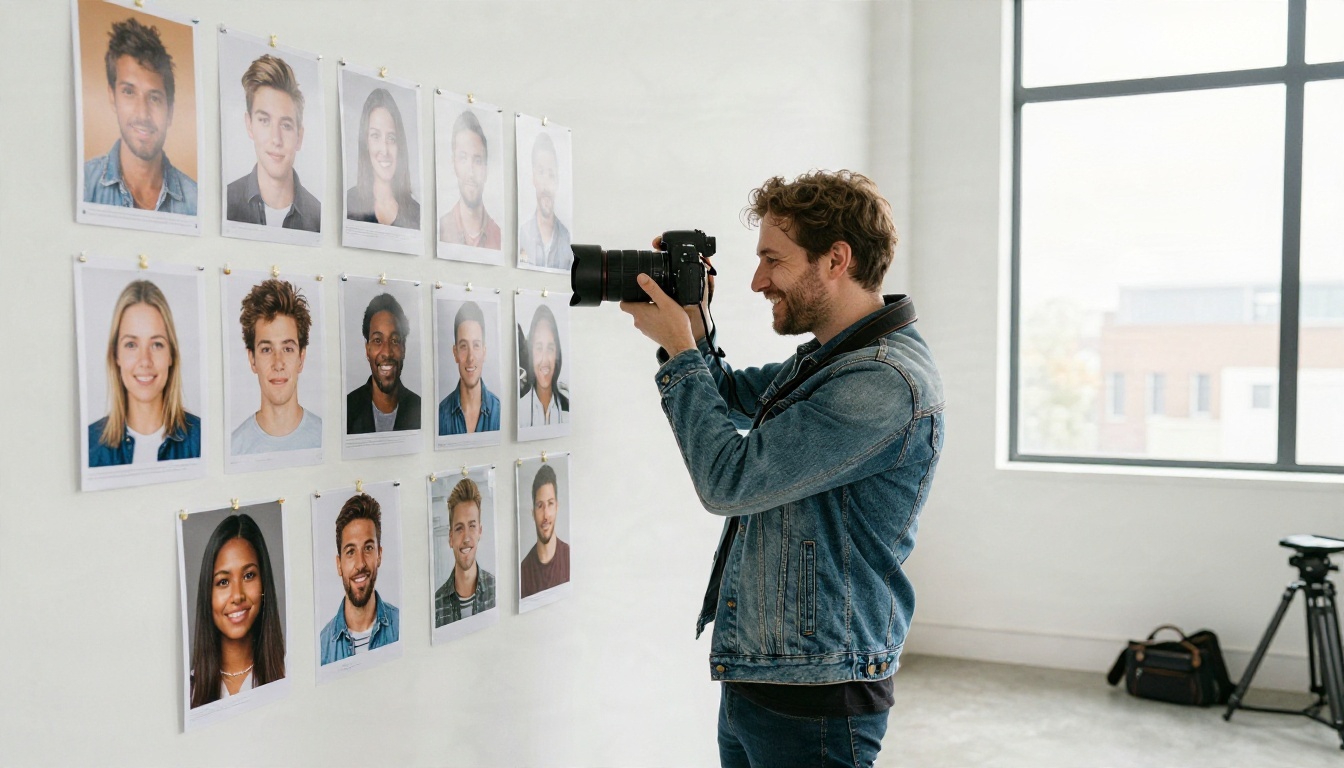
If your main frustration is the per-day cap, the PicassoIA Image Editor Pro is built for that situation. It offers unlimited generations, so you can try twenty versions of a prompt without watching a counter, and it works for editing existing images as well as creating new ones. For anyone who wanted "no filter" mostly to avoid refusals on ordinary glamour and fashion prompts, it is the most practical place to experiment.
Fast alternatives worth testing
Different models suit different jobs, so it pays to keep a short list.
| Model | Best for | Link |
|---|
| Seedream 4.5 | Sharp photorealistic portraits and fashion | Open |
| Image Editor Pro | Unlimited tries and photo edits | Open |
| Z Image Turbo | Very fast drafts | Open |
| Flux 2 Klein 9B Base LoRA | Styled looks and custom styles | Open |
| Nano Banana Pro | Editing, 4K and consistent subjects | Open |
A workflow many people settle on: draft quickly with Z Image Turbo, pick the best composition, then rebuild it in Seedream 4.5 for the final render. If you need to edit an existing picture, Nano Banana is a good tool for changing one element without redoing everything.
💡 Tip: Save the seed or the exact prompt of your best draft. Reusing it in a higher quality model keeps the composition you liked.
Rules That Still Apply
"No filter" describes a tool's settings. It does not describe the law, and it does not describe common sense.
- No real people without consent. Do not generate or edit images that imitate a real person, whether a celebrity, a coworker or an ex.
- Nobody under 18, ever. This is absolute and applies to every tool, every prompt and every style.
- No explicit content from these workflows. Aim for suggestive, artistic and attractive, not pornographic. It keeps your work shareable and your accounts safe.
- Check usage rights. Free tools sometimes restrict commercial use. Read the terms before you sell prints or use an image in an ad.
- Label AI images when it matters. Many platforms now ask for disclosure, and it protects your credibility.
Respecting those lines is not a limitation on your creativity. It is what lets you publish, share and keep using a tool for a long time.
Pick a Prompt and Run It
The best no-login generators are fine for a quick test, and the worst of them are fine for nothing. Use them to try an idea, then move to a tool where you control resolution, ratio and iteration.
Here is a simple plan for your next ten minutes:
- Copy the portrait formula from this article and write one prompt for a subject you care about.
- Run it on any open no-login page and note the speed and quality.
- Run the same prompt in Seedream 4.5 and compare the skin, light and fabric detail.
- Open the Image Editor Pro and try five variations without worrying about a counter.
When you want to see everything available, from fast drafts to 4K portrait models, browse the full catalog at picassoia.com/en/all-models. Write a prompt, press generate, and see what your own idea looks like as a photograph.


