You type a prompt, wait a minute, and get five seconds of footage. Then the clip ends, the watermark appears, or the tool asks for a card number. That is the experience most people have with AI NSFW video tools, and it is why the search for a free generator never really stops. The good news is that the limits are predictable once you know where they come from: clip length, resolution, audio and the way each model treats suggestive content.
This article sorts the free options by what they actually let you do, shows the exact length caps of the models available on PicassoIA, and gives you the settings and prompt formulas that make short clips look like real footage instead of a melting slideshow. Everything here stays in the suggestive, non-explicit lane: swimwear, lingerie, boudoir and glamour, the kind of imagery that works on every platform and does not trip filters.
💡 Quick answer: For free, unlimited short clips, start with Picasso IA Video (5 seconds) or Seedance 2.5 Lite (5 or 10 seconds). For longer shots, step up to Seedance 2.5, which goes up to 30 seconds.
Why Length Is the Real Limit
Most people assume the biggest barrier is content filtering. In practice it is duration. Video models spend a huge amount of compute on every second of footage, so free tiers cut clips short to keep the service running.
What "Free" Actually Means
The word free hides three very different deals:
- Free with a counter. A handful of generations per day, then you wait or pay.
- Free with a watermark. Unlimited clips, but with a logo burned across the frame.
- Free and unlimited. No per-clip cost and no daily counter, usually restricted to a lighter model or a membership tier.
Check the model page before you commit. For example, the Seedance 2.5 Lite page states that Elite and Infinite members run it without a per-clip cost or a daily counter, while the Picasso IA Video page describes the model as free and unlimited for 5-second clips. Read the fine print for your own account level.
Why Short Clips Dominate
A five-second clip is not a flaw. It is the sweet spot where motion stays coherent. Longer clips give the model more time to drift: faces change, fabric shifts colour, hands multiply. That is why even the best tools make you work in short beats and stitch them together later. We will cover how to beat that limit in a later section.
Free Generators Worth Using
Here are the models that matter for glamour and swimwear footage, ordered from the easiest free option to the longest clip.
Picasso IA Video
Picasso IA Video is the simplest entry point. You describe a scene, or upload a photo as the first frame, and get a fixed 5-second clip at 24 fps with synchronized audio.
- Text-to-video or image-to-video in one step
- Resolutions: 480p (fastest) and 720p (sharper)
- Aspect ratios: 16:9, 9:16, 1:1, 4:3, 3:4, 3:2, 2:3, or match your input image
- Optional seed for repeatable results
- Audio can be switched off for a silent clip
Because the format is fixed, results are predictable. That makes it the best tool for testing a prompt before you spend time on a longer render.
Seedance 2.5 Lite
Seedance 2.5 Lite is the lightweight edition of Seedance 2.5, tuned for volume. You choose 5 or 10 seconds, render at 480p or 720p, and iterate without watching a credit counter. It accepts a first frame and an optional last frame, so you can decide where the shot starts and where it ends.
Seedance 2.5 for Longer Shots
When 10 seconds is not enough, Seedance 2.5 produces up to 30-second videos in one generation. A few specs from its model page:
- Native audio: dialogue, sound effects and music in the same render
- Up to 30 reference images to keep a face, outfit or location consistent
- First and last frame control
- Prompts up to 2000 characters
- 480p or 720p output, MP4 or MOV
Reference images are the big win for glamour work. Upload three or four stills of the same person in the same swimsuit and the model keeps that look across every shot.
Other Models Worth Testing
Different models have different strengths in motion, skin and fabric. These are all on PicassoIA and worth a side-by-side test with the same starting image:
💡 Content rules differ by model. Keep prompts suggestive and tasteful: swimwear, lingerie, wet-look, boudoir lighting. Explicit material is blocked by most hosted generators and is outside what this article covers.
Length and Resolution at a Glance
This table uses the numbers published on each model page. Where a page does not state a firm cap, treat the figure as "check the model page" rather than assuming.
| Model | Max clip length | Resolution | Audio | Free access |
|---|
| Picasso IA Video | 5 seconds (fixed) | 480p, 720p | Yes, optional | Free and unlimited |
| Seedance 2.5 Lite | 5 or 10 seconds | 480p, 720p | Yes, optional | Unlimited for Elite and Infinite members |
| Seedance 2.5 | Up to 30 seconds | 480p, 720p | Yes, dialogue and music | Check the model page |
| Veo 3.1 | Short clips | Up to 1080p | Yes | Check the model page |
Settings That Change the Result
Four settings do almost all the work. Everything else is minor.
Resolution: 480p or 720p
480p renders fastest and is perfect for testing a prompt. 720p is sharper and shows skin texture, wet fabric and hair strands far better. A good routine: test at 480p, then re-render the winner at 720p with the same seed.
Aspect Ratio
Match the platform where the clip will live:
| Platform | Best ratio |
|---|
| Feed posts and websites | 16:9 or 4:3 |
| Reels, Shorts, Stories | 9:16 |
| Square previews | 1:1 |
| Portrait photo look | 3:4 or 2:3 |
When you supply a first-frame image, the clip inherits its aspect ratio and ignores the setting. Crop your still first.
Seed
Lock a seed when you like a result and want a variation with only the prompt changed. Leave it empty for a fresh take every run. Seeds are not a guarantee of identical output on every model, but they bring runs much closer together.
Audio
Most of these models render synchronized sound by default: waves, wind, room tone, music. Turn audio off if you plan to add your own soundtrack, or if you want a clean silent loop for a website header.
Start With a Strong Still
Text-to-video is a gamble. Image-to-video is a plan. When you begin from a still you already like, the model only has to invent motion, not the face, outfit and lighting at the same time.
For that first frame, Seedream 4.5 is the model to lead with. It produces sharp, photorealistic 4K stills with natural skin and fabric detail, which gives the video model a clean opening frame. Write the still like a photographer: subject, outfit, location, light direction and lens.
Then polish it. PicassoIA Image Editor Pro offers unlimited generations, so you can fix a hand, change a swimsuit colour, soften a background or tweak the crop without paying per edit. Because it is unlimited and fast, you can run ten variations of the first frame before you spend a single video render.
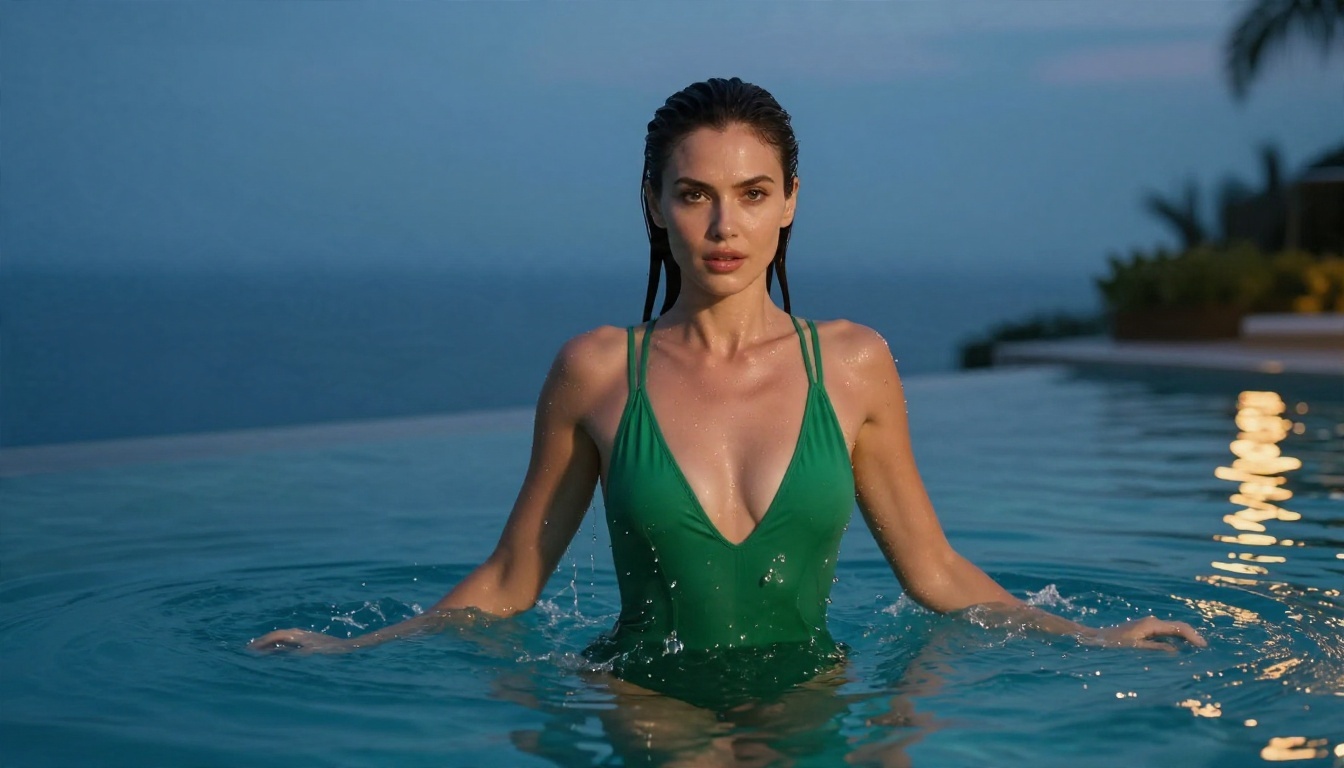
💡 First-frame checklist: one subject, clear face, hands visible and natural, simple background, light coming from one direction, and room in the frame for the subject to move.
How to Make a Clip Step by Step
This workflow works on Seedance 2.5 Lite and, with a few fewer options, on Picasso IA Video.
- Create the still. Generate a 16:9 or 9:16 image in Seedream 4.5 and fix any flaws in PicassoIA Image Editor Pro.
- Open the video model. Go to the Seedance 2.5 Lite page and upload the still as the Input image.
- Write the motion prompt. Describe what moves and how the camera behaves, in time order (see the formula below).
- Pick duration. Choose 5 to test, 10 for the final shot.
- Pick resolution. Start at 480p, then switch to 720p for the version you keep.
- Set audio. Leave Save audio on for ambience, off for a silent clip.
- Generate and compare. Run at least three variations. Change the seed, not the whole prompt.
- Optional last frame. Upload a second image as the Last frame image so the clip ends exactly where you want.
Prompts That Actually Work
Video models respond best to cinematic, chronological descriptions. Write what happens first, what happens next, and what the camera does.
The Motion Prompt Formula
[Subject + starting pose] → [motion over time] + [camera movement] + [light and atmosphere]
Here are three that work well with glamour stills:
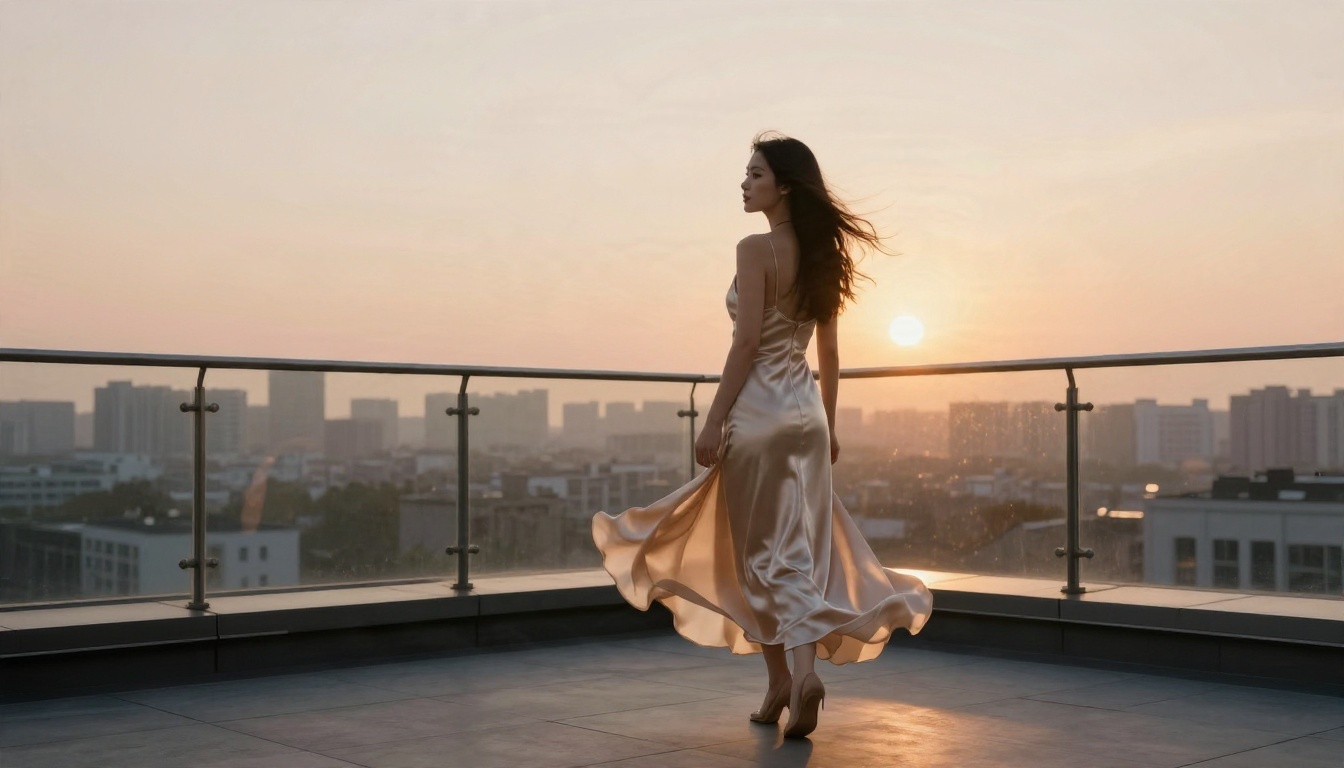
- "A woman in a champagne slip dress stands at a rooftop railing at sunrise. Wind lifts the hem and her hair as she turns her head toward the camera and smiles. Slow dolly-in, warm golden backlight, soft city ambience."
- "A woman in a white bikini lies on a beach towel. She stretches one arm overhead and rolls onto her side. Gentle waves foam at the edge of the frame. Slow overhead drift, bright midday sun, sound of surf."
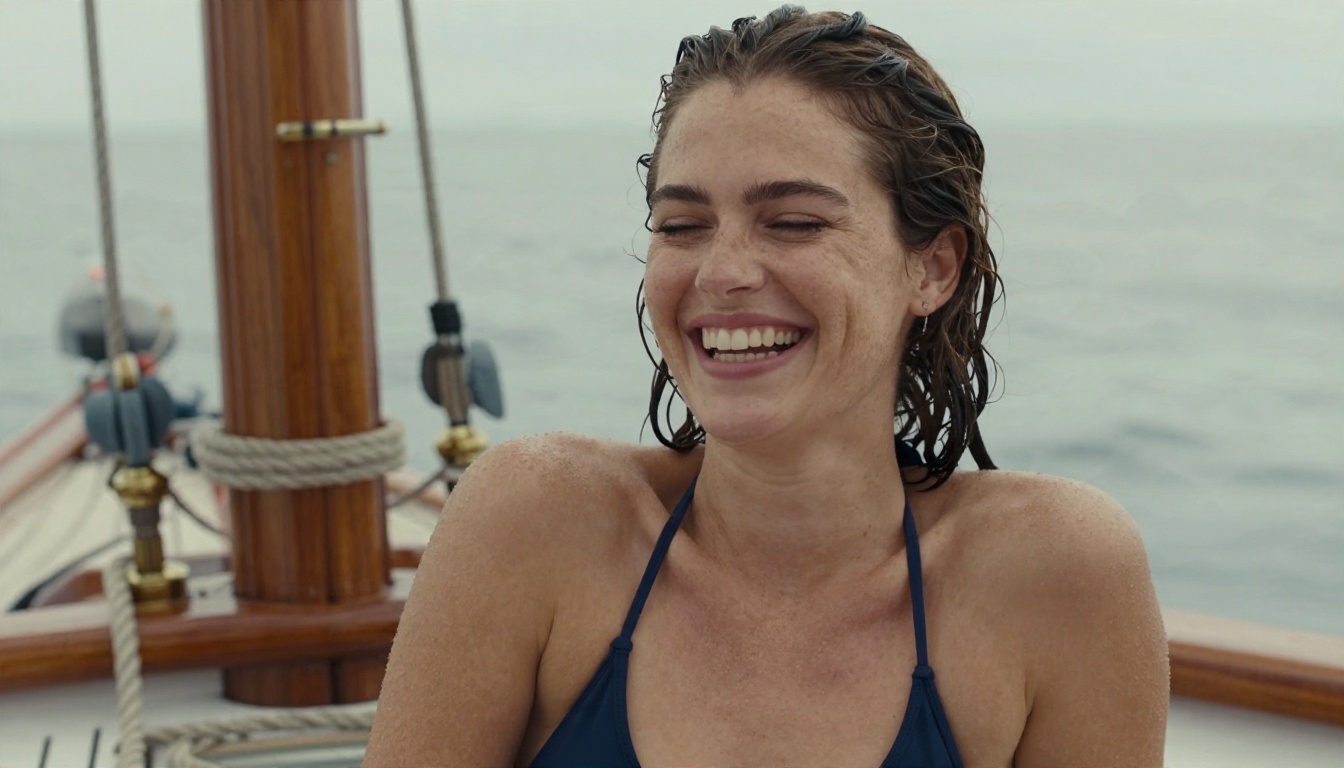
- "A woman in a navy bikini top laughs on a sailboat deck, sea spray on her shoulders. She pushes wet curls back with one hand. Handheld, slight sway, overcast soft light, rope creaking, gulls."
3 Common Mistakes
- Stacking too many actions. Five seconds is room for one or two movements. Ask for a walk, a turn and a dance and you get mush.
- Forgetting the camera. If you do not describe the camera, you get a static shot or a random drift. Name it: slow dolly-in, gentle pan left, locked-off tripod.
- Changing the still and the prompt together. When a result is close, adjust only one thing: the seed, a motion word, or the duration.
Beating the Length Limit
A 5-second cap does not mean a 5-second project. Two methods turn short clips into longer sequences.
Chain Clips With the Last Frame
Take the final frame of clip one, save it as an image, and use it as the first frame of clip two. Seedance 2.5 Lite and Seedance 2.5 both accept an opening image, and Seedance 2.5 Lite lets you add a closing image as well. The subject, outfit and light carry over, so the joins are nearly invisible.
Cut Between Different Angles
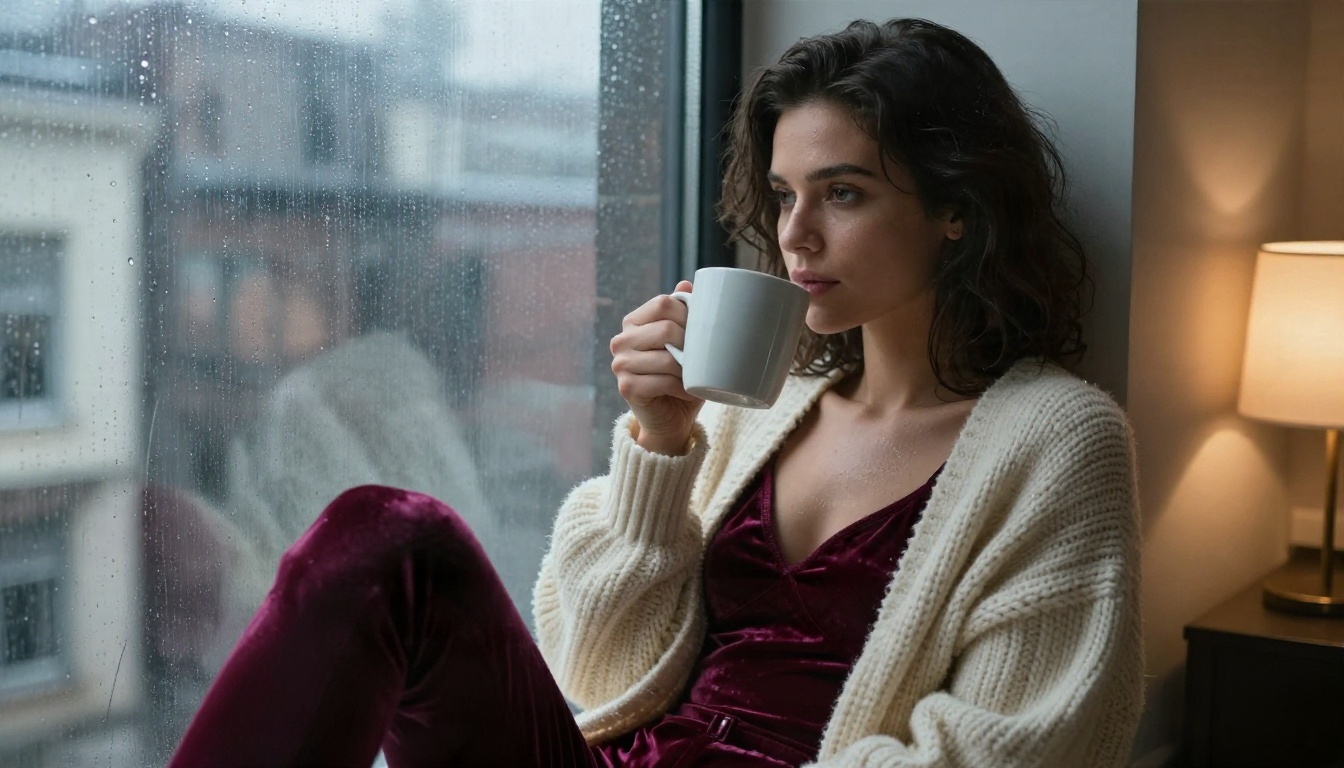
Real edits rarely hold on one angle for more than three or four seconds. Generate a wide shot, a close-up and a low-angle shot from three separate stills, then cut them together in any editor. Add one music track under all of them and the sequence feels deliberate, not like a collection of AI clips.
💡 Need more than 10 seconds in one take? Use Seedance 2.5 with reference images so the character stays consistent across the longer shot.
Fixing Common Problems
| Problem | Likely cause | Quick fix |
|---|
| Face drifts mid-clip | Weak first frame or long duration | Use a sharper still, shorten to 5 seconds |
| Fabric changes colour | Too many actions in the prompt | Describe one movement only |
| Hands look wrong | Hands hidden or tiny in the still | Fix them in Image Editor Pro before animating |
| Clip looks flat | Missing camera direction | Add a named camera move and a light direction |
| Output rejected | Prompt too explicit | Rewrite as swimwear or boudoir glamour |
Make Your First Clip Today
You now have the full recipe: a sharp first frame from Seedream 4.5, a quick polish in PicassoIA Image Editor Pro, and motion from Picasso IA Video, Seedance 2.5 Lite or Seedance 2.5 when you need a longer take.
Pick one still, write one motion sentence, and render it at 480p. If it looks right, run it again at 720p with the same seed. Ten minutes from now you could have your first clip, and an unlimited editor to refine the next one.
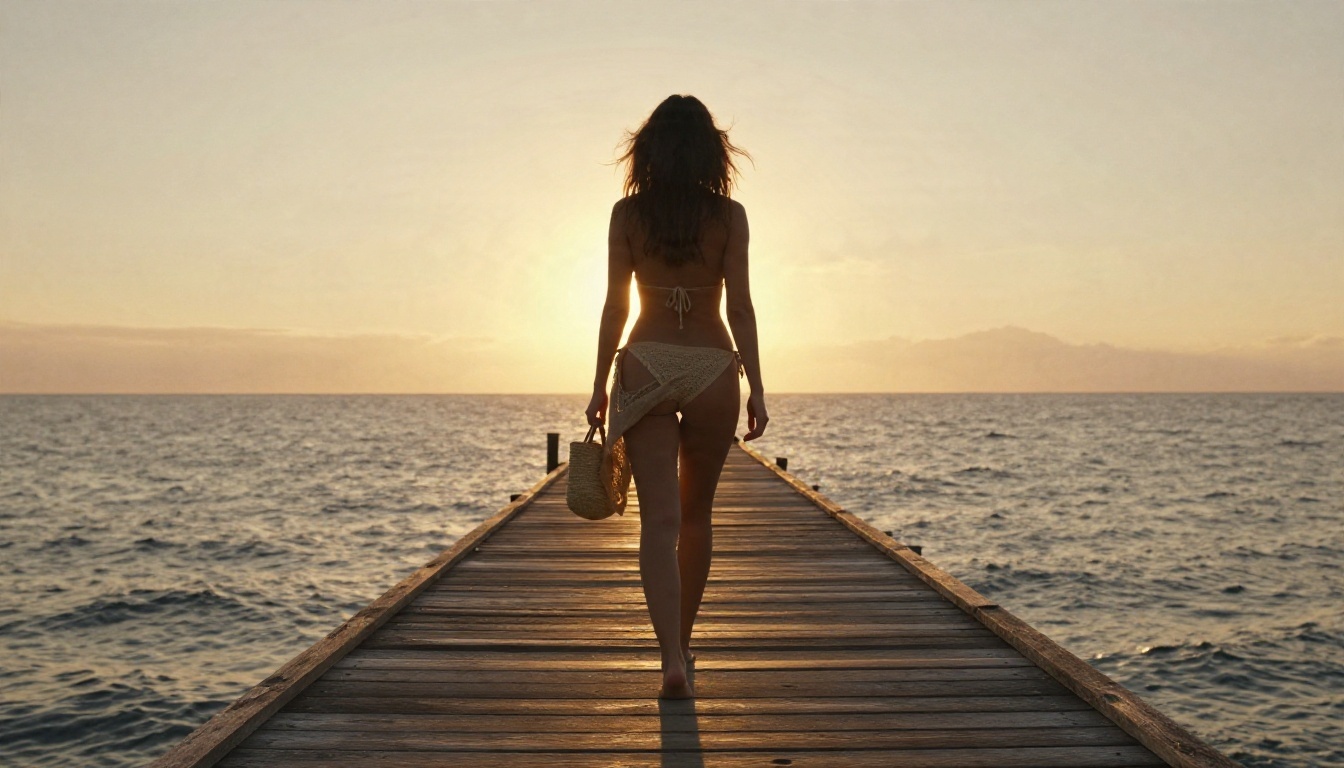
Browse every available image and video model, and test them side by side, at picassoia.com/en/all-models.


