You have a blazer, a pair of jeans and zero idea what to wear on Friday. Or you are a designer who needs fifty styled looks by tomorrow and no budget for a photo shoot. An AI outfit generator free to use can solve both problems in about a minute: you type a description, or upload a photo, and a believable outfit appears on a believable person. The catch is that "free" covers a wide range of tools, and most of them produce plastic looking fabric, melted hands and clothes that never existed. This article sorts the real options, gives you prompts that work, and shows actual examples so you know what to expect before you spend a single minute.

What an Outfit Generator Does
An outfit generator is any AI tool that produces clothing combinations as images. Some invent a person wearing the outfit. Others take your photo and change what you are wearing. A few simply suggest combinations from a wardrobe list. Knowing which type you need saves a lot of wasted attempts.
Text to outfit
You describe the look in words and the model draws a person wearing it. This is the most flexible method because nothing limits you to existing products. You can ask for a mustard knit sweater with a plaid skirt, and the model will build it. It is ideal for mood boards, lookbooks, social posts and fashion concepts.
Photo to outfit
You upload a picture of yourself, a mannequin or a model, then tell the AI to swap the clothes. The face, pose and background stay the same while the garments change. This works like a virtual fitting room and is the closest thing to trying on clothes without a changing booth.
Wardrobe suggestion apps
Some apps skip image generation completely. You photograph your closet and they recommend combinations. They are useful for daily planning but they will not show you a look you do not already own, which is the main reason people search for a generator in the first place.
💡 Quick rule: if you want ideas you do not own yet, use text to outfit. If you want to see a look on your own body, use photo to outfit.
Free Online Options Compared
Free tools usually fall into four groups. Each one trades something: quality, control, privacy or resolution.
| Option type | Best for | Typical free limit | Realism |
|---|
| Text to image models | Lookbooks, concepts, inspiration | Daily credits or limited resolution | High with good prompts |
| Image editing models | Changing clothes on your own photo | Fewer edits per day | High if the source photo is clean |
| Virtual try-on apps | Shopping previews of listed items | Catalog only | Medium |
| Wardrobe planners | Daily mix and match from owned items | Item count caps | Not applicable |
Text to image models
Modern image models handle fabric far better than the generators of a couple of years ago. On PicassoIA, Nano Banana is a strong starting point because it follows clothing descriptions closely and also edits existing images. Seedream 4.5 produces sharp 4K results with clean stitching and believable skin, which matters when the garment is the star. GPT Image 2 is useful when your prompt is long and full of specific details, such as five garments in five colors.
Image editing models
If you already have a photo, an editing model is the better choice. Flux Kontext Fast changes a specific element while leaving everything else untouched, and Qwen Image Edit Plus handles multi step instructions such as "replace the jacket with a denim one and change the shoes to white sneakers".
Try on and wardrobe apps
Retail try-on widgets only show items from one store, so they work for a purchase decision and nothing else. Wardrobe planners are handy but limited to what you already own. Neither replaces a real generator when you want fresh ideas.
What free actually means
Expect one of three models: a daily credit allowance, a lower resolution output, or a watermark. Read what each platform includes before building a workflow around it. The practical test is simple: generate the same prompt on two tools and compare the fabric closely. Fabric is where weak models fail first.
Prompts That Actually Work
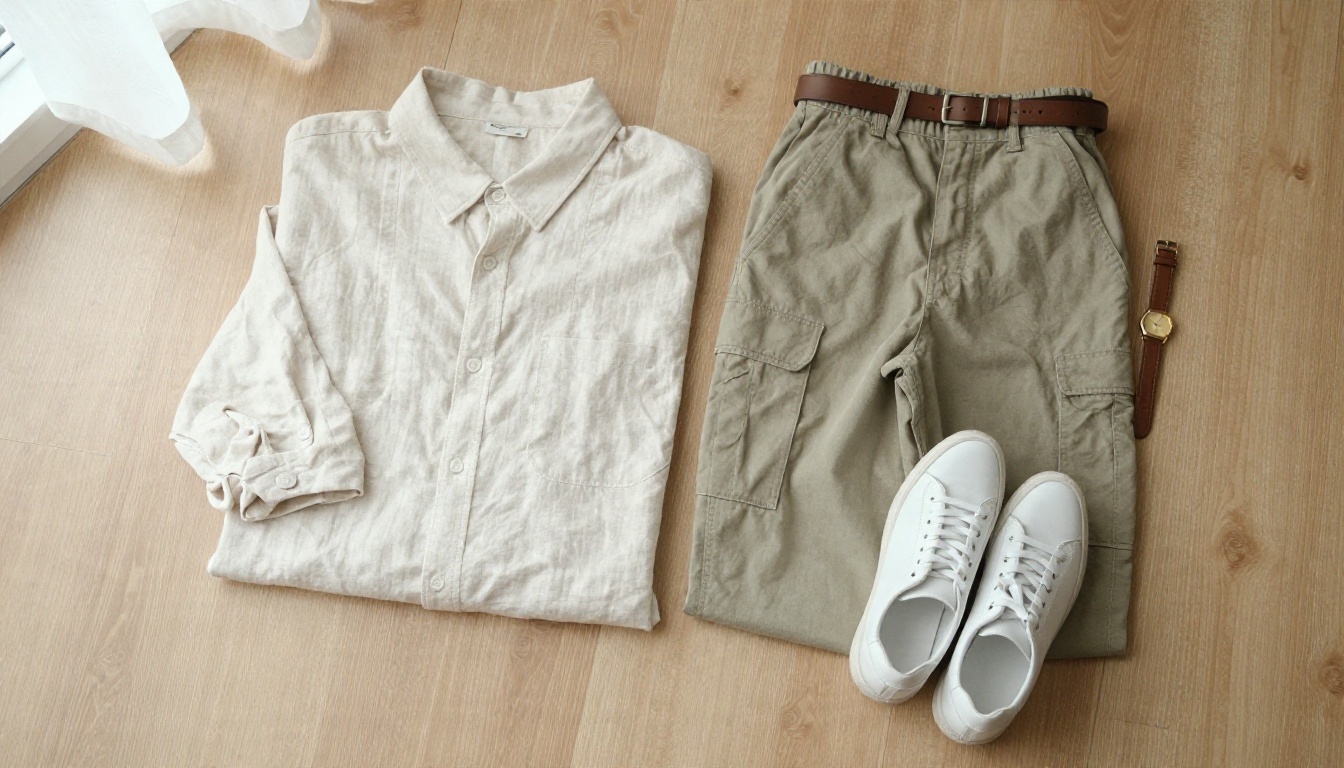
Most bad outfit images come from vague prompts. "A stylish outfit" gives the model nothing to build on, so it invents something generic. Specific words about cut, material, color and setting produce specific clothing.
The five part formula
Use this order, because models weigh early words more heavily:
- Subject: who is wearing it (a woman in her twenties, a man in his forties).
- Garments: every piece, with color, fabric and fit.
- Setting: where the photo happens.
- Light: direction and quality.
- Camera: lens, angle and distance.
Here is a template you can copy and edit:
A woman in her late twenties wearing an oversized camel wool coat, cream ribbed turtleneck, straight leg dark indigo jeans and brown leather ankle boots, standing on a quiet street in autumn, soft overcast daylight, 50mm lens at f/2, eye level, visible wool texture, natural skin, film grain.
Fabric words that change everything
Models respond strongly to material names. Compare these pairs:
- "jacket" vs. "waxed cotton field jacket with brass snaps"
- "dress" vs. "emerald satin midi dress with a bias cut"
- "sweater" vs. "chunky oatmeal cable knit cardigan"
- "pants" vs. "pleated wool trousers with a high waist"
The second version in each pair gives the model texture, structure and shape in one phrase.
Lighting and lens keep it believable
Clothing looks real when the light behaves like real light. Say where it comes from ("window light from the left", "golden hour backlight") and name a lens. A longer lens such as 85mm flattens the face and blurs the background, which keeps attention on the outfit. A wide 24mm lens from a low angle makes a full length outfit look dramatic.
💡 Tip: add "natural skin texture, film grain" to every prompt. It pushes the model away from the glossy, airbrushed look that makes AI outfits obvious.
Examples With Their Prompts
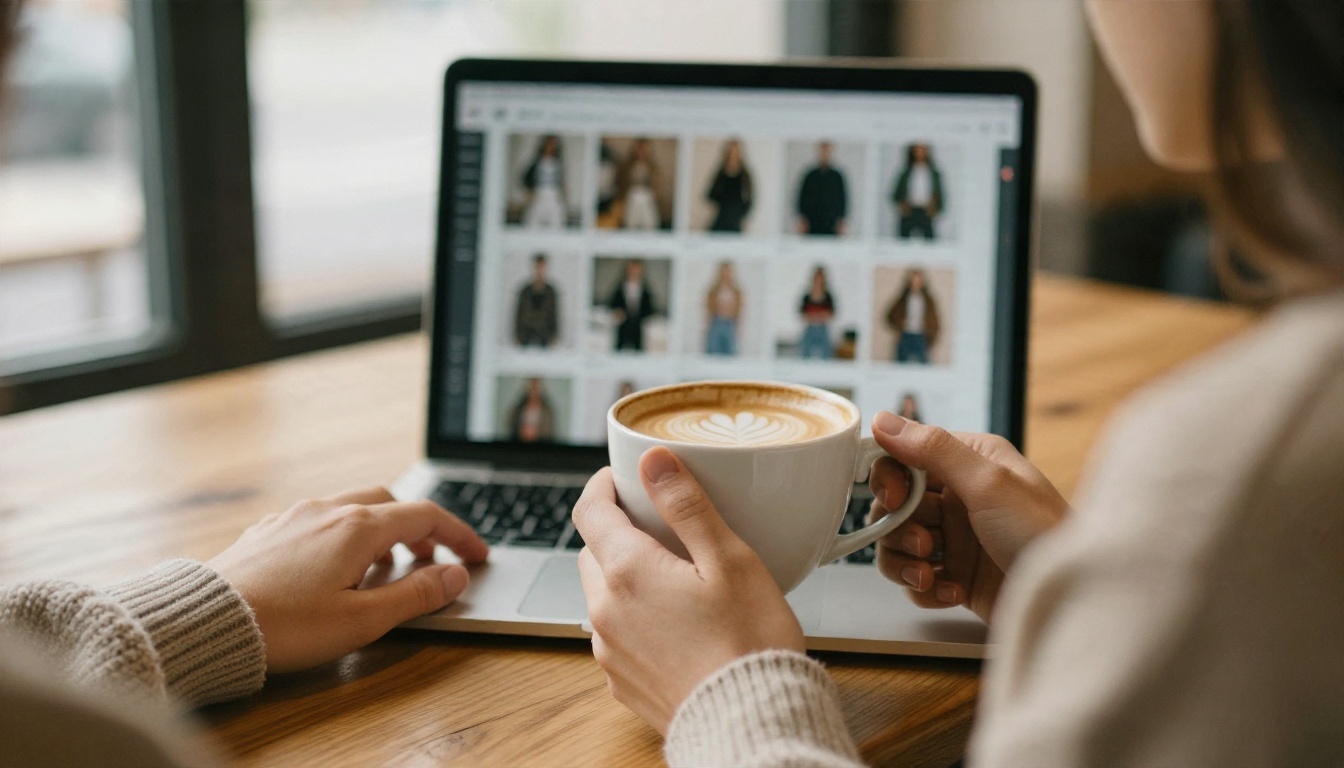
Seeing the result next to the words that created it is the fastest way to improve. Each example below follows the formula above.
Autumn tailoring
A low angle shot works well for long coats because it stretches the silhouette.
A man in a charcoal wool overcoat, grey turtleneck and black trousers walking across a quiet cobblestone plaza in autumn, golden hour backlight, fallen leaves, 24mm lens, low angle, wool fibers and leather shoe grain visible, film grain.
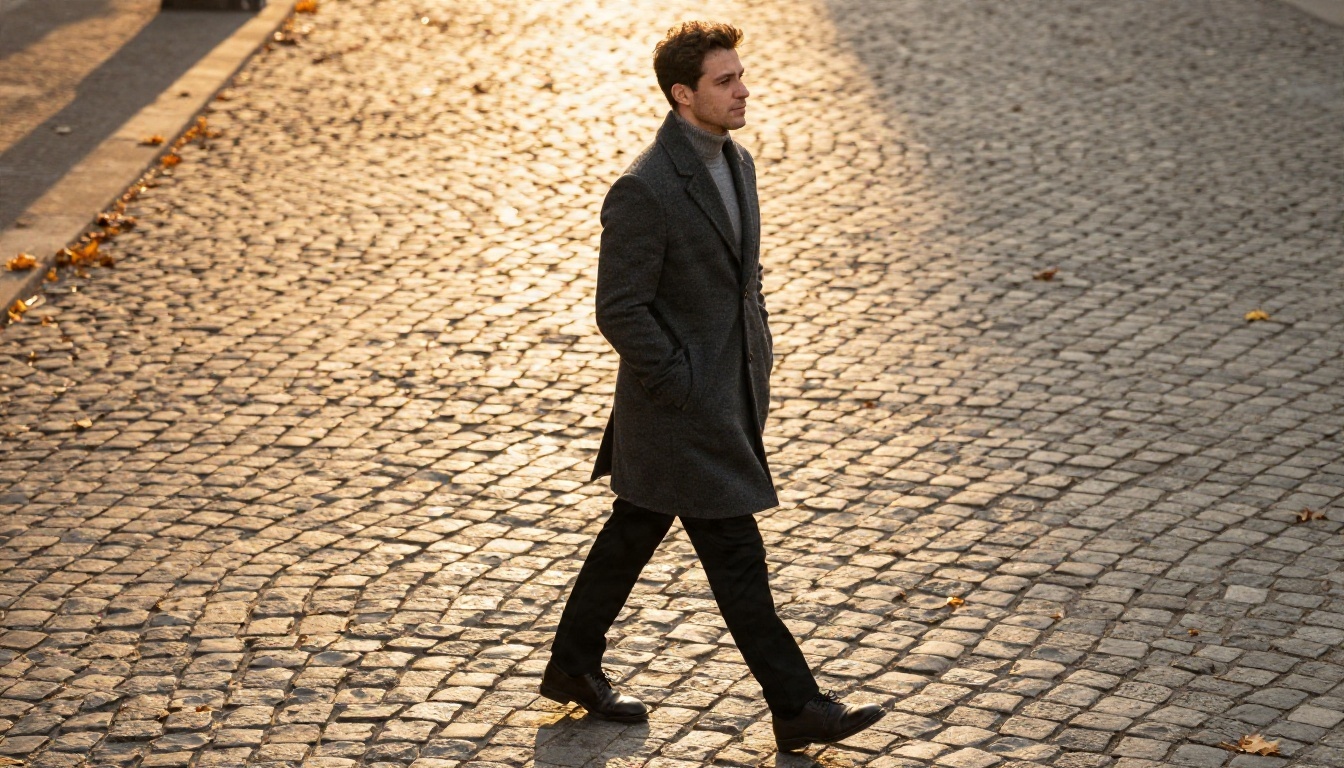
The backlight gives the coat a soft rim, and the model has rendered the wool as a real woven surface instead of a flat gray shape.
Evening and occasion wear
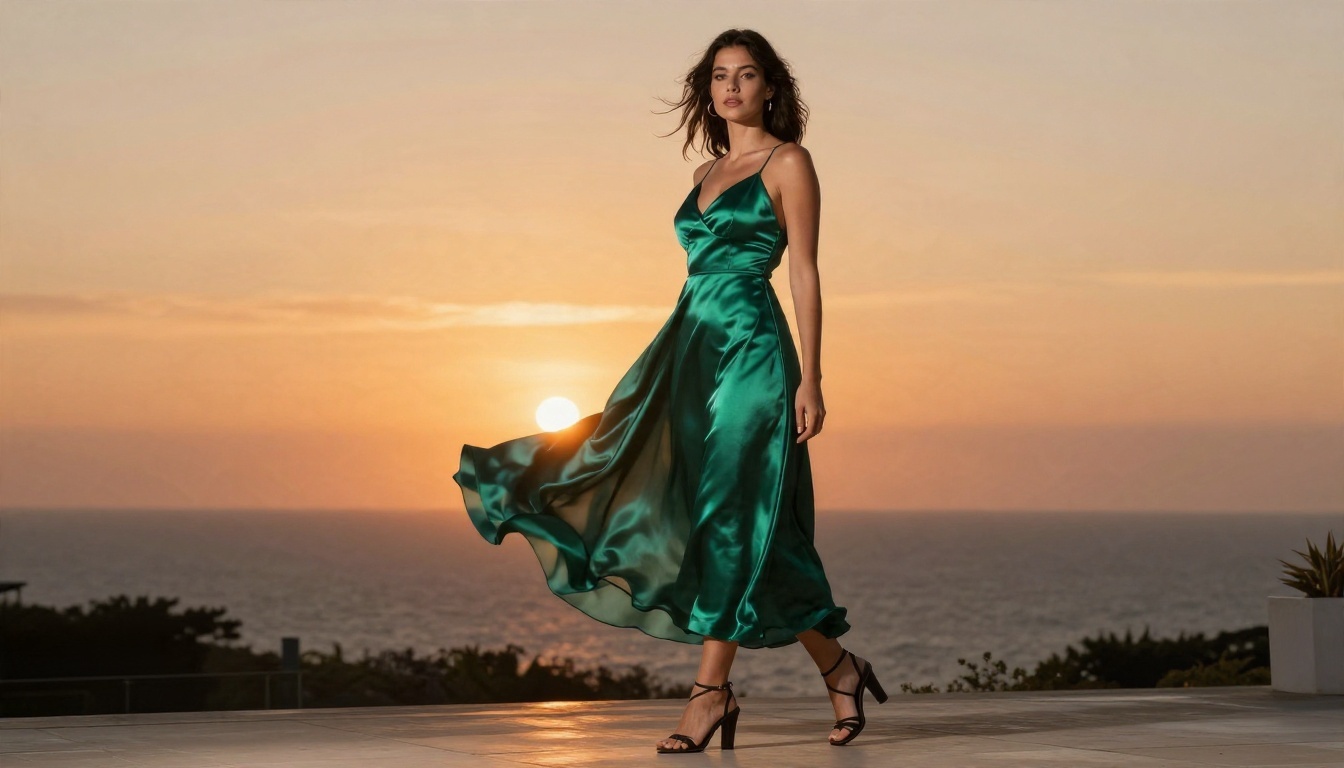
Flowing fabric is a good stress test. If the dress moves naturally and the sheen looks right, the model understands materials.
A woman in a flowing emerald satin midi dress and strappy sandals on a seaside terrace at sunset, wind moving the fabric, warm orange light from the left, 70mm lens, three quarter angle, satin sheen, soft sea haze, film grain.
Streetwear
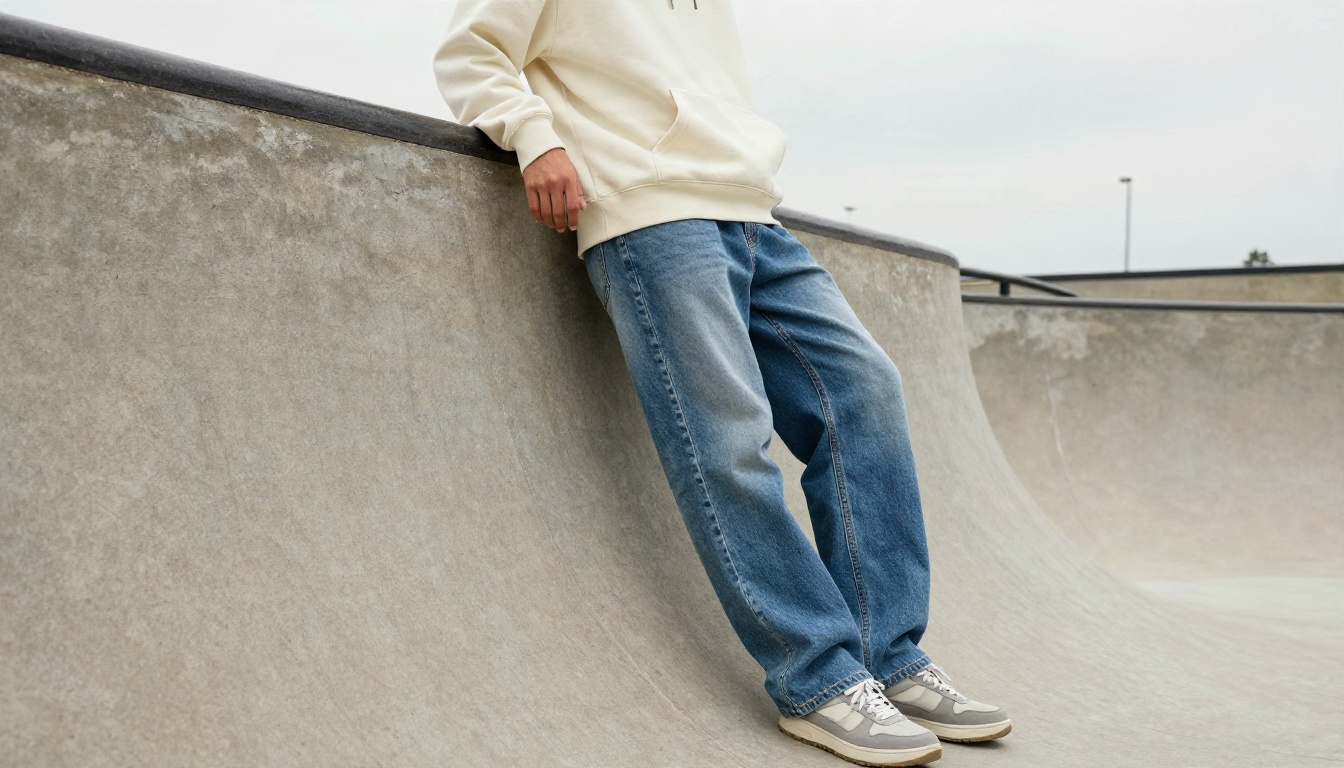
Oversized shapes need a clear description of proportions. "Boxy hoodie" and "wide leg washed jeans" tell the model what silhouette you want.
A young man in a boxy off-white hoodie, wide leg washed jeans and chunky grey sneakers leaning on a concrete wall at a skate park, overcast diffused daylight, 50mm lens, slightly high angle, cotton fleece texture, faded denim, film grain.
Workwear and smart looks
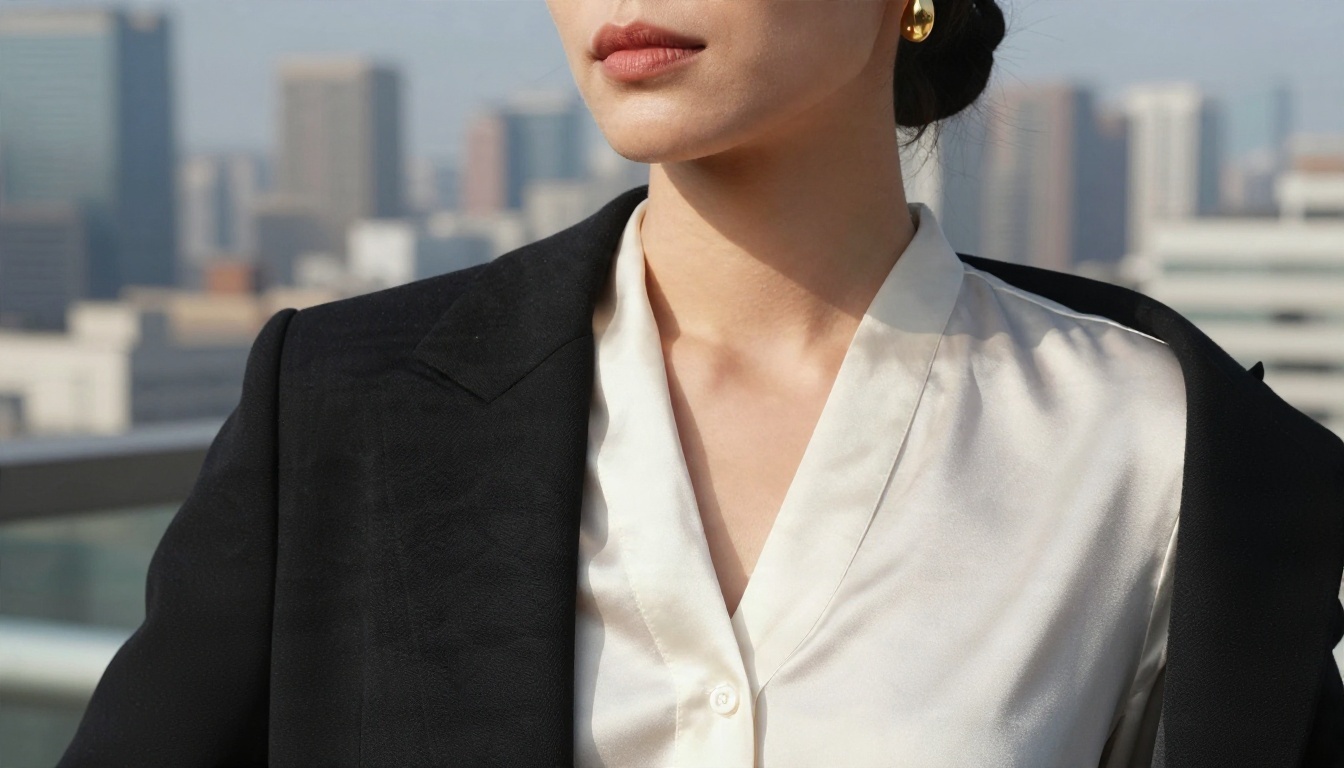
Professional outfits depend on fine detail: collar shape, lapel width, jewelry scale. A close crop makes those details visible.
A woman in a black tailored blazer and ivory silk blouse with small gold stud earrings on a rooftop terrace, city skyline blurred behind, crisp midday light from above left, 100mm lens, silk sheen and wool suiting weave, fine skin pores, film grain.
Vintage and layered styling
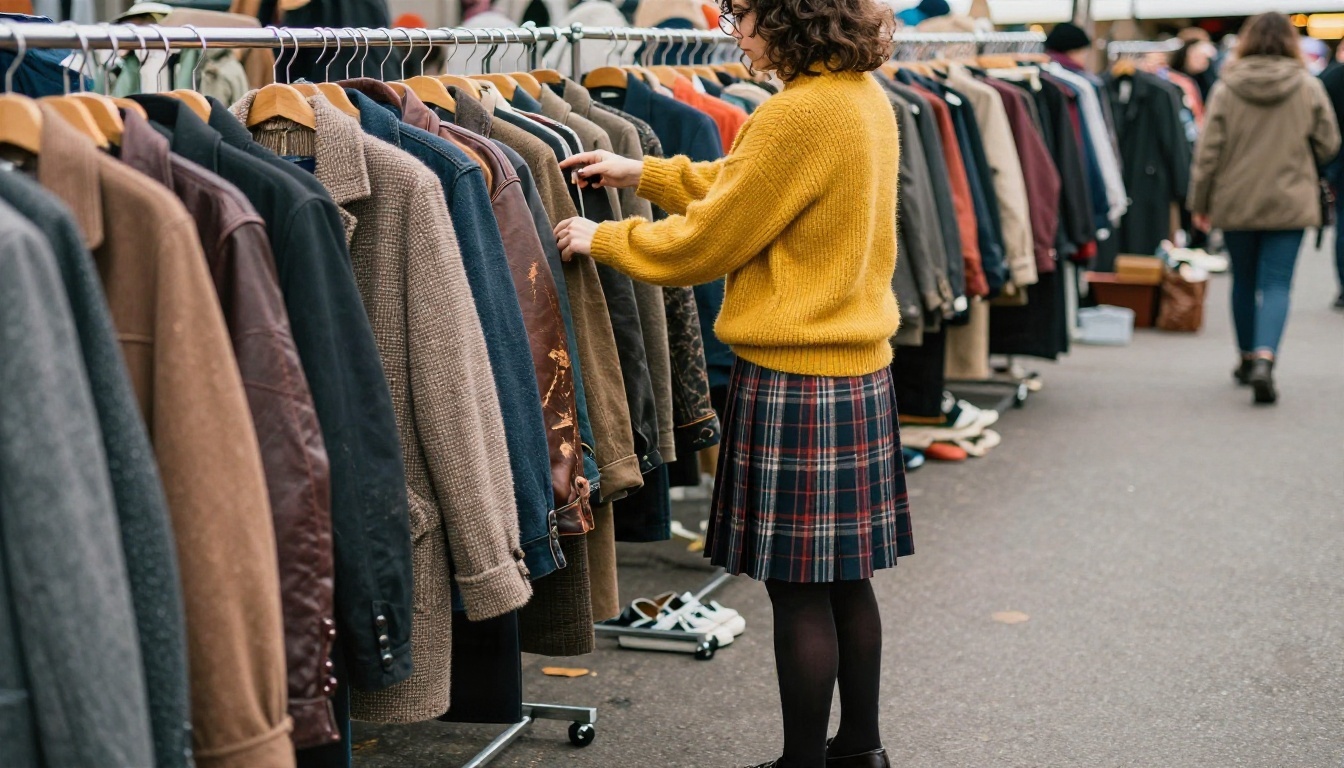
Layered outfits with patterns are harder. List each layer in order from inside to outside, and name the pattern.
A woman in a mustard yellow knit sweater, pleated plaid skirt, dark tights and brown loafers browsing a vintage clothing market, racks of coats behind her, overcast soft light, 28mm lens, slightly high angle, wool knit texture, worn leather, film grain.
How to Use Nano Banana on PicassoIA
Nano Banana handles both text to outfit and photo to outfit in the same tool, so it covers most use cases in one place. Here is the workflow.
Step by step
- Open the model page. Go to the Nano Banana page on PicassoIA.
- Choose your input. For a new look, write a prompt only. For a try on, upload your photo as the reference image.
- Write the prompt with the five part formula. Name every garment, its color and fabric, then the setting, light and lens.
- Pick 16:9 for lookbooks or 3:4 for portraits. Full length outfits often fit better in a vertical frame, while wide frames suit environmental fashion scenes.
- Generate and compare. Run two or three variations. Change one thing at a time, such as the coat color, so you can see what caused the difference.
- Save the best result and refine it with an edit prompt.
Parameter tips
| Setting | Recommendation |
|---|
| Prompt length | 40 to 80 words, specific nouns first |
| Aspect ratio | 3:4 for full body, 16:9 for scene shots |
| Reference photo | Well lit, full body, plain background |
| Iterations | 3 variations per idea, then edit the winner |
When to switch models
If you need higher resolution for a catalog page, try Nano Banana Pro or Seedream 5 Pro. For a quick draft run where speed matters more than detail, Nano Banana 2 Lite is a lighter option.
Change Clothes on Your Own Photo
Photo editing is where an outfit generator becomes personal. Instead of imagining a stranger in a trench coat, you see yourself in it.
Pick a good source photo
Use a sharp, evenly lit, full body shot. Stand straight with arms slightly away from the torso so the model can see where sleeves and hems begin. Busy backgrounds and crossed arms cause errors because the model has to guess what is hidden.
Write an edit prompt, not a new prompt
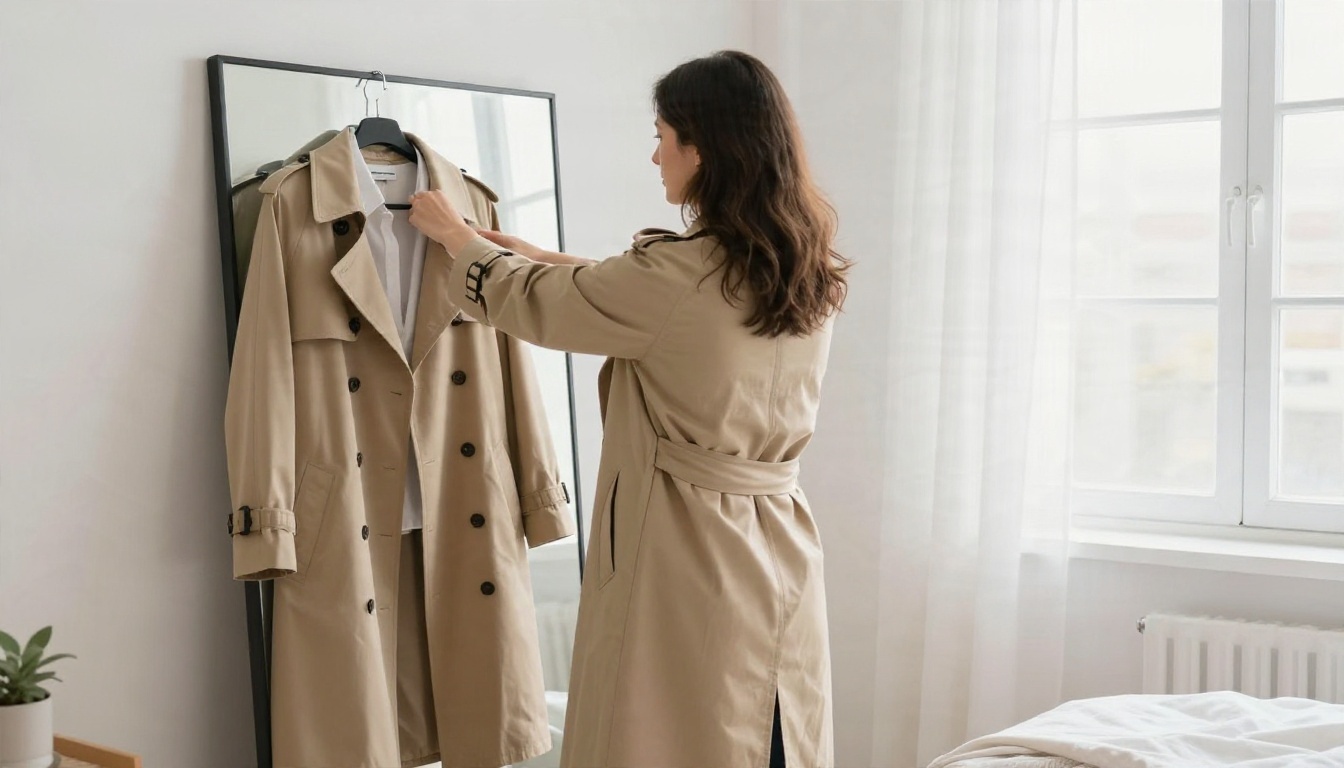
Edit prompts describe the change only. For example: "Replace the grey hoodie with a beige trench coat over a white shirt. Keep the face, pose, background and lighting identical." The last sentence matters. Without it, models sometimes alter the face or the room.
Both Flux Kontext Fast and Qwen Image Edit Plus follow this style of instruction well, so you can compare how each one treats fabric folds and shadows.
Fix small problems in a second pass
A button in the wrong place or a strange collar rarely needs a new image. Run a second edit that names only that flaw: "Fix the left collar so it lies flat." Small, precise edits are more reliable than long corrections.
💡 Workflow shortcut: generate the base outfit with a text prompt, pick the best image, then use an edit model to adjust the color or swap one item. This gives you a whole colorway set from a single result.
Common Mistakes to Avoid
Even with strong models, a few habits lower the quality of outfit images.
Stacking too many items
Ten garments in a single prompt confuse the model. Stay with three to five visible pieces: top, bottom, outerwear, shoes, and one accessory.
Skipping the fabric
If you do not name a material, the model picks the most common one, which is usually a shiny generic cotton. A single fabric word per garment fixes this.
Forgetting the person
Clothes need a body to hang on. Describe build, posture and expression in a few words. A relaxed shoulder or a slight turn changes how a coat drapes.
Ignoring hands and shoes
Hands and footwear are common failure points. Keep hands in pockets, holding a phone or a coffee cup, and ask for a three quarter crop if shoes keep coming out distorted.
Using the wrong style words
Terms like "digital art", "hyper stylized" or "fantasy" move the output away from photography and make fabric look painted. If you want a believable catalog or social post, write "RAW photograph, natural light, film grain" and keep it consistent across a series.
| Mistake | Fix |
|---|
| Vague prompt | Name cut, color and fabric for each piece |
| Overloaded outfit | Limit to 3 to 5 items |
| Plastic skin and fabric | Add "natural texture, film grain" |
| Face changes during edit | Add "keep the face and pose identical" |
| Distorted hands | Place hands in pockets or holding an object |
Build Your First Outfit Today
You do not need a stylist, a studio or a paid subscription to test an idea. Pick one look from the examples above, copy the prompt, change the colors to match your taste, and run it in Nano Banana on Picasso IA. Then upload a photo of yourself and ask for the same outfit with an edit prompt. In ten minutes you will have a small lookbook, a clear sense of what suits you and a prompt formula you can reuse for any season.
Try a few variations: swap the coat for a denim jacket, move the scene from a city street to a beach, change the light from golden hour to overcast. Every small change teaches you how the model reads fashion language, and that is what turns a free tool into a reliable creative habit. Open Picasso IA, write your first outfit prompt and see what you can create.


