You open the wardrobe, stare at forty garments, and still wear the same jeans and the same grey sweater. It happens to almost everyone, and it is exactly the problem an AI outfit generator that uses your own clothes is built to solve. Instead of scrolling shop pages for things you do not own, you give the AI a photo of what is already hanging in your closet, and it suggests combinations you probably never tried.
This article shows how that works in practice, what you can do for free, how to photograph your wardrobe so the AI reads it correctly, and which prompts give looks you would actually wear on a Tuesday. It also includes a step by step tutorial using a model available on PicassoIA.
The phrase "AI outfit generator" gets used for very different things, so it helps to separate them before you waste an afternoon on the wrong one.
Wardrobe Photo In, Outfits Out
The version most people want is simple. You upload a picture of your closet, a flat lay on the bed, or a few photos of individual garments. The AI identifies pieces such as a camel coat, striped top, light wash jeans or white sneakers, then produces outfit images or text suggestions that combine them.
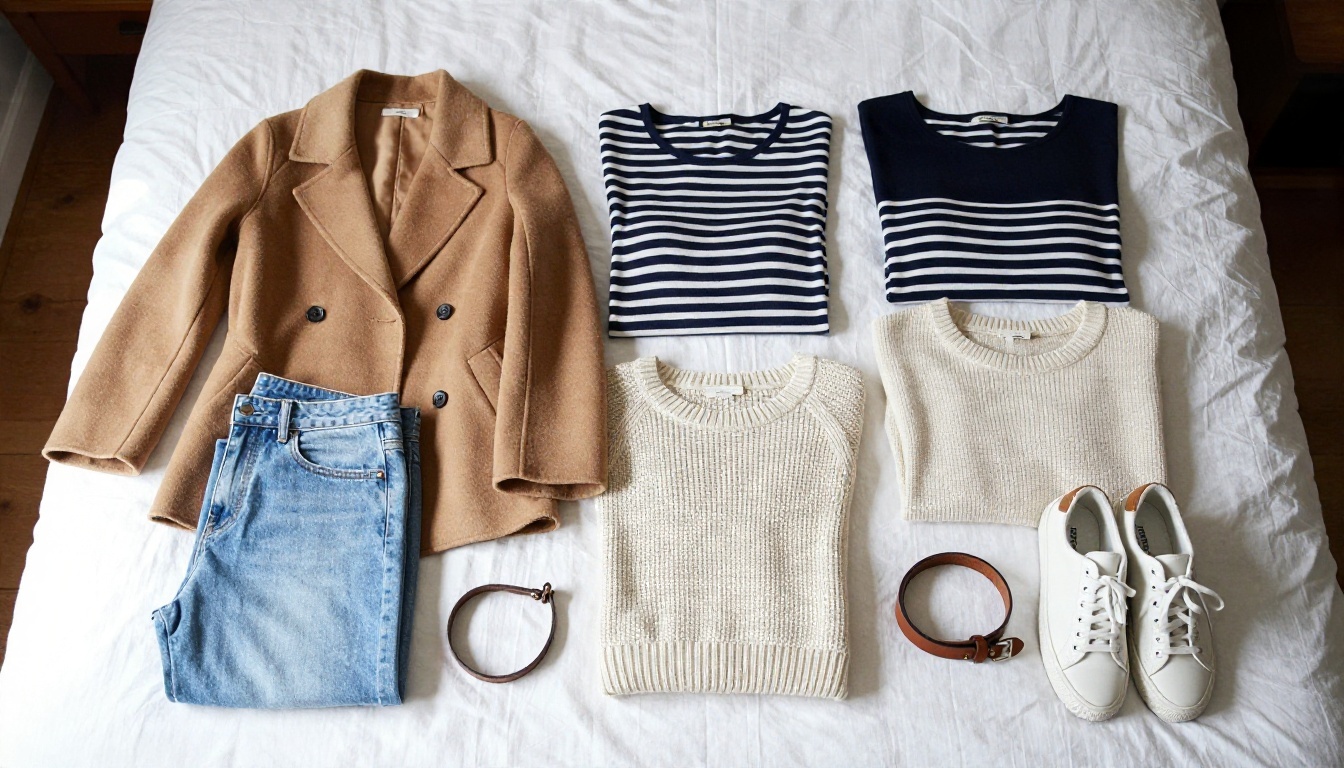
A flat lay like this one is the ideal input. Every piece is visible, nothing overlaps, and the colors are true to life.
Two Types of Generators
Most tools fall into one of two camps:
| Type | What you get | Best for |
|---|
| Text based stylist | A written list such as "navy blazer + white tee + straight jeans" | Quick daily ideas |
| Image based generator | A picture of a person wearing a combination of your pieces | Seeing proportions and color balance |
| Hybrid | Both a visual and a short explanation | Planning a week or a trip |
An image generator or editor is the more satisfying option because you can see whether the olive knit really works with the rust scarf before you get dressed.
💡 Tip: Think of the AI as a stylist friend who has never seen your closet in person. The better the photo, the better the advice.
Can You Do It for Free?
Yes, with limits. Plenty of dedicated wardrobe apps offer a free tier, and general image models let you try the idea with no subscription at all. What "free" means changes from one tool to another, so check the current terms before you commit.
What Free Usually Means
- A daily or monthly cap on generated images
- Lower resolution outputs, fine for a phone screen
- A watermark on some outputs
- A limit on how many garments you can store in a digital closet
For deciding what to wear, none of those limits matter much. You are not publishing a magazine spread. You want to see a combination, judge it in two seconds, and move on.
Honest Limits
AI does not know your body, your climate or your office dress code unless you say so. It also sometimes invents details: an extra button, a slightly different collar, a belt that was never in your photo. Treat generated images as a visual sketch, not a product catalog. If a result looks off, regenerate or tighten the prompt.
💡 Tip: If a tool places your pieces on a generic model, expect small differences in fit. That is normal. Judge colors and silhouette, not exact tailoring.
Photograph Your Closet the Right Way
Bad input is the number one reason people get weak results. The AI cannot style what it cannot see.
The Flat Lay Method
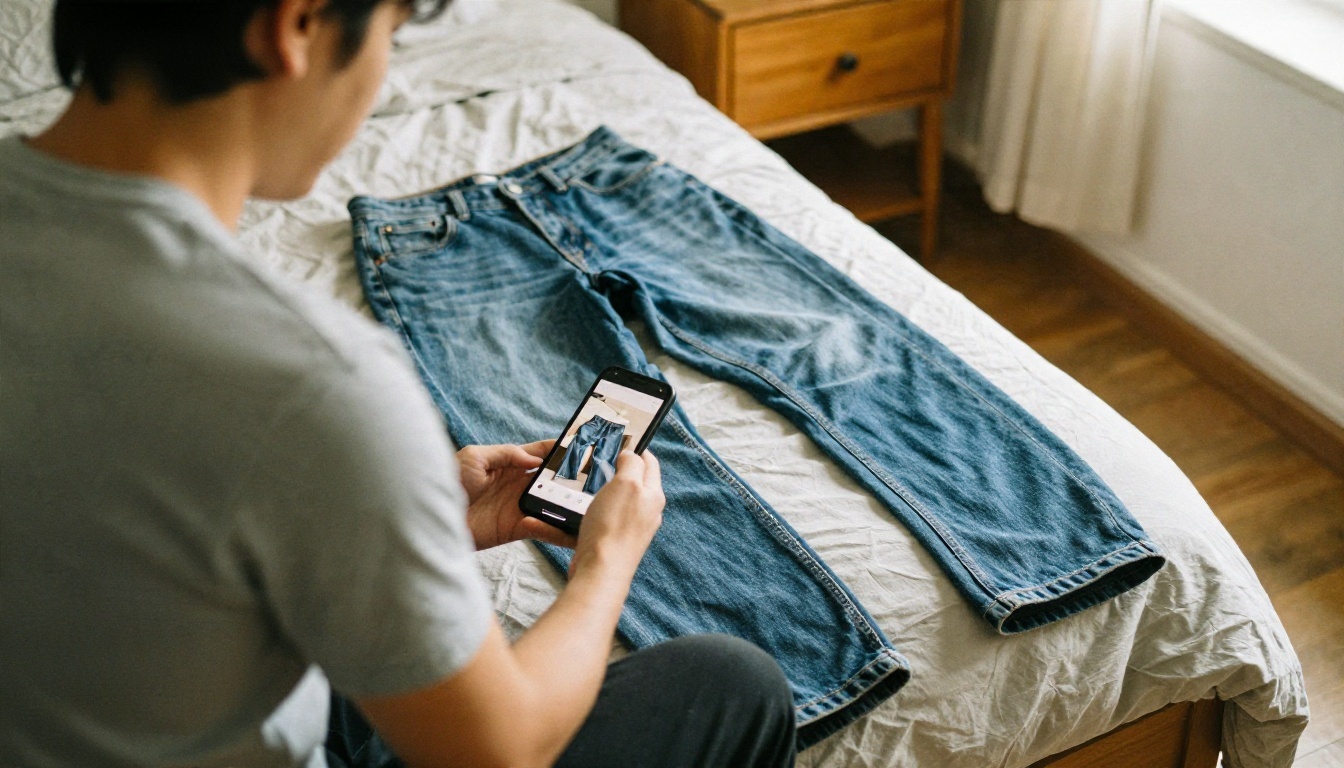
Lay 8 to 15 pieces on a plain bed or floor. Shoot from directly above, hold the phone parallel to the surface, and keep a little space between items. Include one piece per category: top, bottom, layer, shoes, accessory. A mix like that gives the AI room to combine.
Rail and Shelf Shots
If a flat lay feels like too much work, photograph the hanging rail straight on. Pull the hangers apart so each garment shows its full front. Fabrics with strong texture, like wool and denim, read well in this kind of shot.
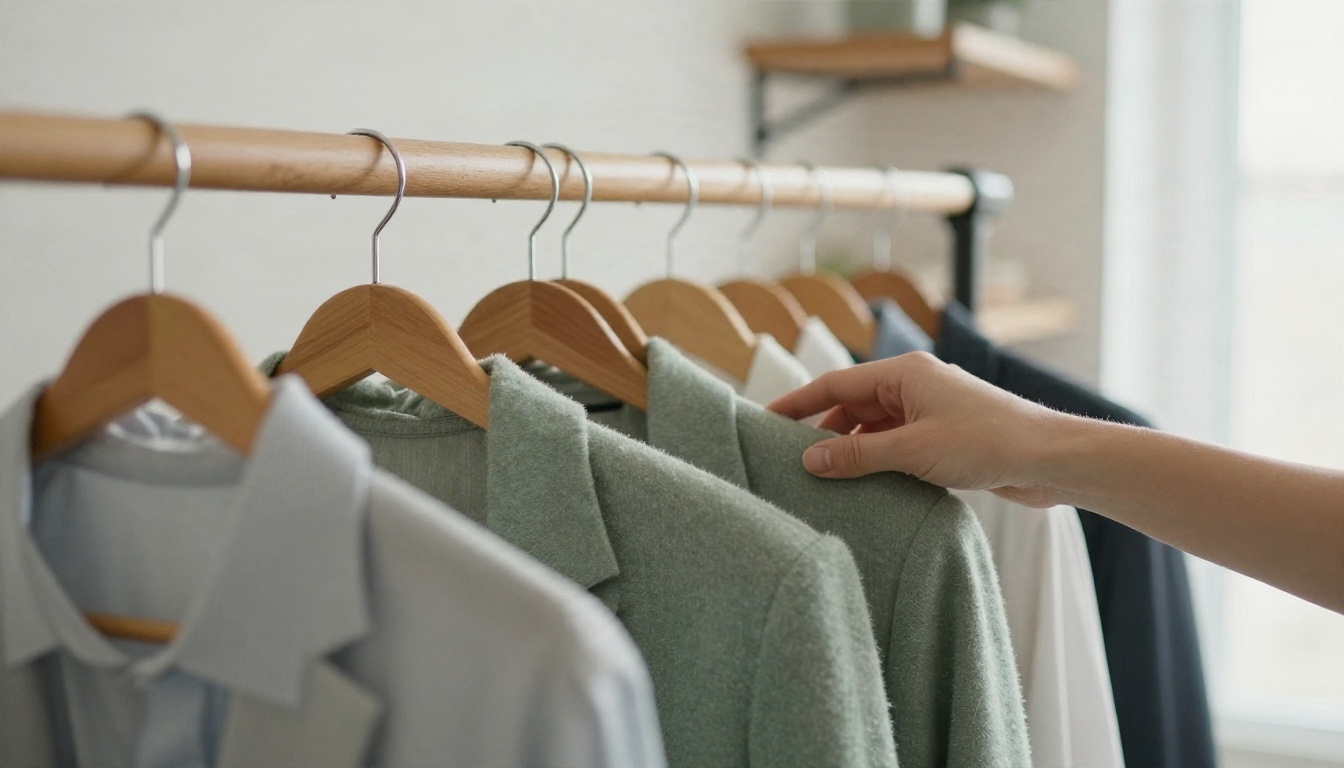
Shoot shoes and bags separately. They often hide at the bottom of a closet photo and get ignored by the AI.
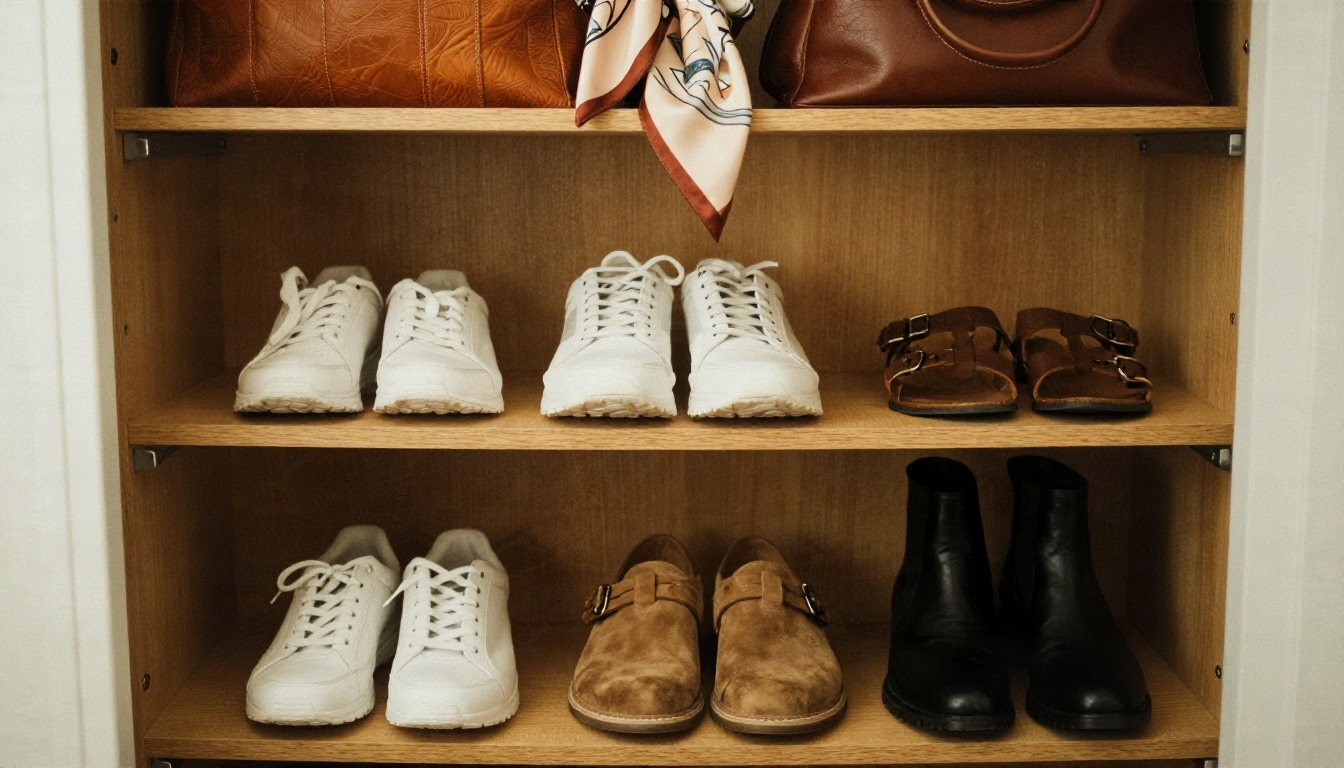
Lighting Rules
Daylight from a window beats any bulb. Warm yellow indoor lighting shifts whites toward cream and navy toward black, and the AI then bases its color matching on the wrong colors. A few quick rules:
- Shoot near a window, with the light coming from the side.
- Turn off warm bulbs while you photograph.
- Avoid your own shadow falling across the clothes.
- Take the photo at the same distance for each batch.
- Keep the background plain and uncluttered.
How to Use Nano Banana on PicassoIA
If you want to try this today, Nano Banana is a practical place to start. It can both edit and generate images, which suits an outfit workflow: you bring a photo and describe the look you want to see. For higher resolution results, Nano Banana Pro is the heavier option, and Nano Banana 2 Lite is the faster, lighter one.
Step by Step
- Open the model page for Nano Banana on PicassoIA.
- Upload your wardrobe photo as the reference image. A flat lay works best.
- Write a short prompt naming the pieces you want to see worn together, for example: "A woman in a camel wool coat, striped navy top, light wash jeans and white sneakers, standing in a sunlit street, full length, natural light."
- Pick an aspect ratio that suits the output. Portrait suits a single outfit, landscape suits a lineup of pieces.
- Generate, review the result, and regenerate with one change at a time.
A Prompt Template That Works
Use this structure and replace the brackets:
A [gender or neutral term] wearing [top] with [bottom], [shoes] and [layer or accessory], from the clothes in the reference photo. [Setting]. Natural daylight, realistic fabric texture, full length.
Name each garment by color and fabric. "Cream knit sweater" gives the AI much more to work with than "sweater."
Parameter Tips
- Change one thing per round. If you swap the shoes, the coat and the setting at once, you will not know which change helped.
- Mention fabric. Linen, wool, denim and silk each hang differently, and the AI renders them accordingly.
- Say what to leave out. "No hat, no scarf" stops the model from adding things you do not own.
- Keep the setting simple. A plain hallway or street keeps attention on the clothes.
💡 Tip: Save the prompts that produced your favorite looks. After a week you will have a personal style library you can reuse by swapping one garment.
Prompts That Produce Wearable Outfits
A fashion model in a studio is not your goal. You want a believable person in a believable place wearing something you could put on at 7:45 a.m.
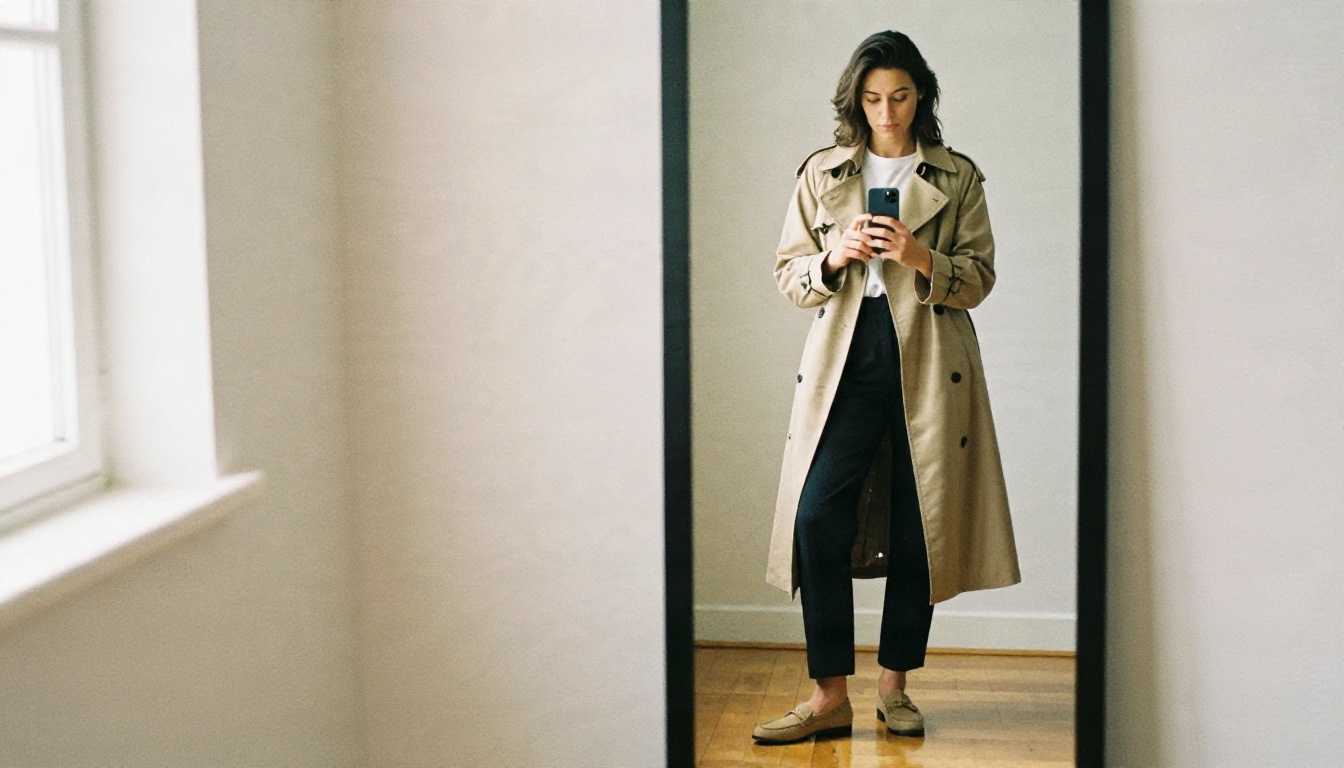
Occasion Prompts
Build the occasion into the prompt and the AI will lean toward the right formality:
| Occasion | Prompt addition | What to expect |
|---|
| Office | "smart casual, neat, muted palette" | Blazer or knit with tailored trousers |
| Weekend | "relaxed, comfortable, layered" | Denim, tees, sneakers |
| Dinner | "elegant but simple, one statement piece" | One accent item against neutrals |
| Travel day | "comfortable for a long flight, layers" | Soft knits, easy trousers, slip on shoes |
| Rainy day | "waterproof layer, boots, dark tones" | Practical outerwear and closed shoes |
Color Prompts
Color is where AI helps most. People tend to repeat the same two palettes because they are safe. Ask for a color idea directly: "olive green knit with rust scarf and navy trousers" or "all neutral tones with one pop of red."
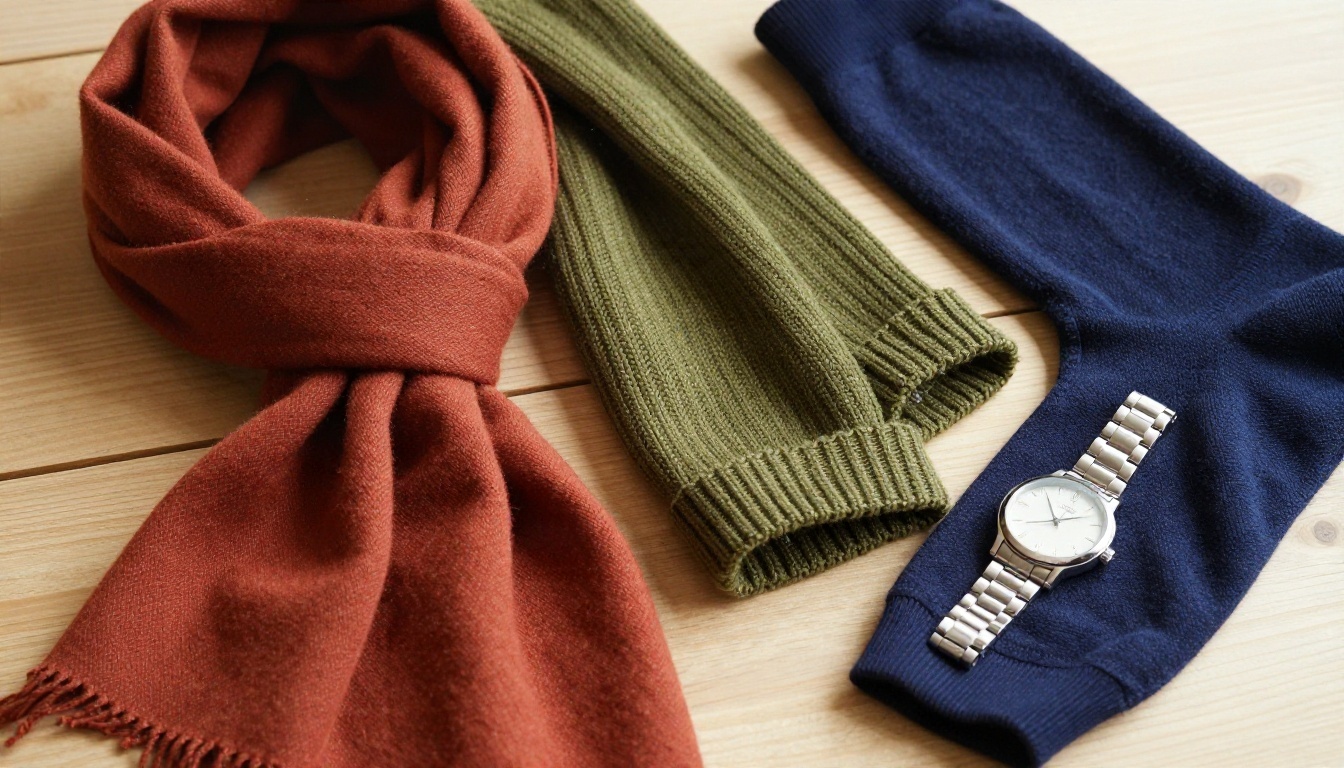
A good rule when a color combination feels risky: keep two neutrals and one accent. If the AI gives you three loud colors, ask it to calm one of them down.
💡 Tip: Try asking for the same outfit in three different color temperatures: warm, cool and neutral. You will quickly see which one suits your skin tone and the rest of your closet.
Other Models Worth Trying
No single model is best for every closet. Several on PicassoIA handle photo editing and image generation, and each has its own strength.
| Model | Good for | Link |
|---|
| Nano Banana | Editing from a reference photo and generating new looks | Nano Banana |
| Seedream 4.5 | Sharp, detailed 4K outfit images | Seedream 4.5 |
| Qwen Image Edit Plus | Changing specific clothing in an existing photo | Qwen Image Edit Plus |
| GPT Image 2 | Following long, detailed prompts | GPT Image 2 |
A simple way to work: generate the first idea with Nano Banana, then switch to Qwen Image Edit Plus if you want to change one detail, such as swapping the shoes, without redoing the whole picture. Use Seedream 4.5 when you want a polished, high resolution version of the look you chose.
You can browse everything else on the PicassoIA models page.
Real Life Uses
The idea sounds like a novelty until you use it for a specific problem.
Packing for a Trip
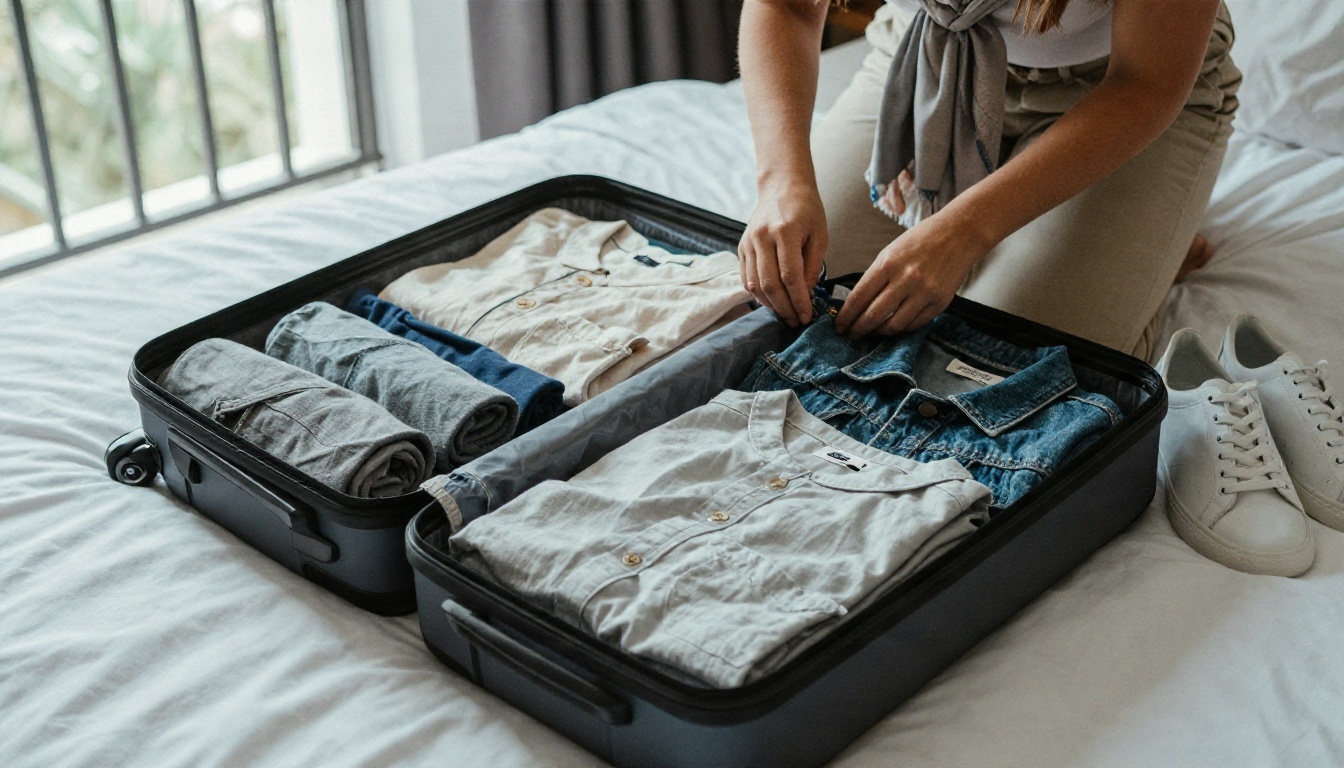
Photograph what you plan to bring, then ask the AI to build five or six outfits using only those pieces. You find out quickly whether the beige chinos work with more than one top. If a garment only appears in one outfit, leave it at home.
A Man's Wardrobe, Simplified
Men's wardrobes tend to be smaller and more repetitive, which makes AI suggestions easy to act on. A handful of shirts, two pairs of jeans and one jacket can produce a surprising number of distinct looks once you ask for different layering or footwear.
Finding the Gaps
After a week of generating outfits, patterns show up. If every good result needs the same white shirt, that is your most valuable piece. If three garments never appear in any outfit, they probably do not belong in your closet. This is the least obvious benefit and perhaps the most useful. You buy less, and what you buy fits more of what you own.
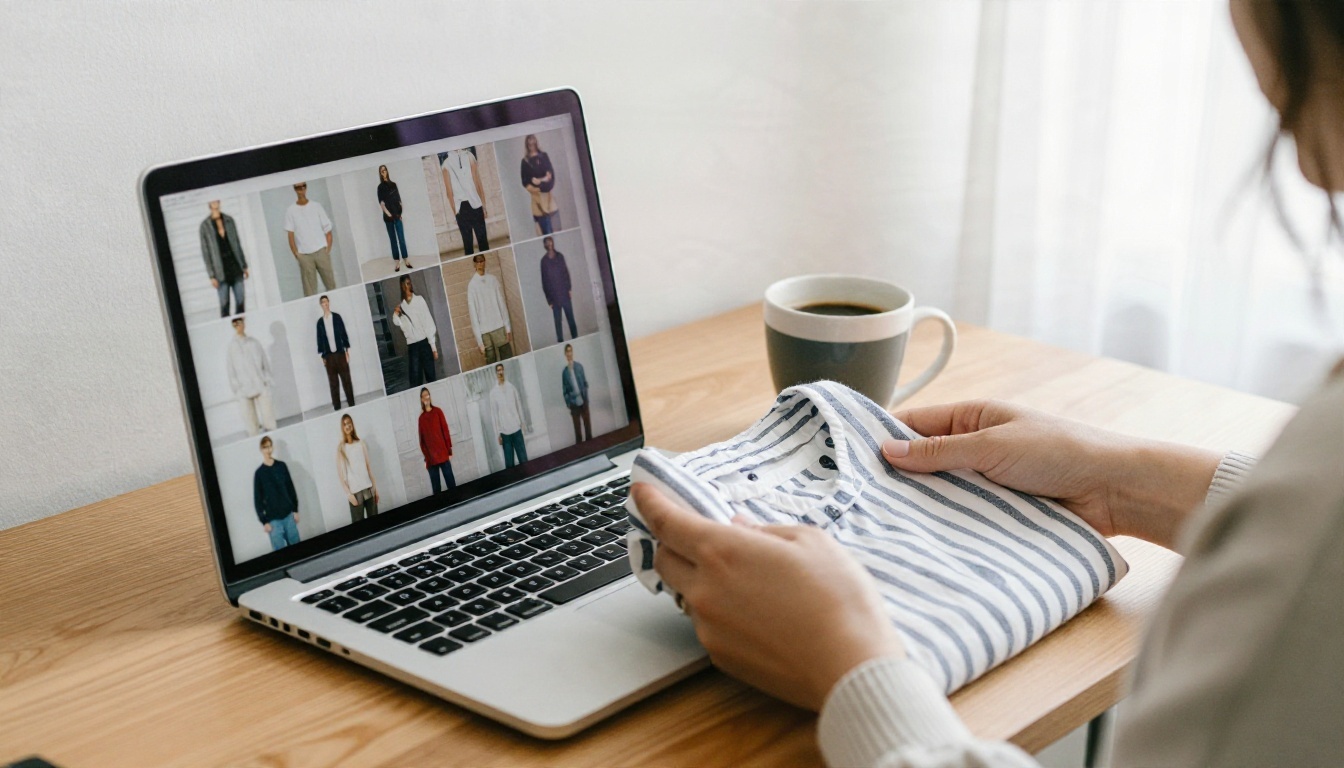
A simple digital wardrobe, even just a folder of your best generated outfits sorted by occasion, makes this easier over time.
Common Mistakes to Avoid
- Uploading a messy photo. A crowded rail with overlapping hangers confuses the AI.
- Describing the clothes vaguely. "Nice top" gives it nothing. "Cream ribbed knit, crew neck" does.
- Expecting exact replication. The AI interprets garments, so small details may change.
- Changing everything at once. You lose track of what worked.
- Ignoring the weather. Add the season or temperature to the prompt, otherwise you may get a linen shirt in January.
Try It on Your Own Closet
The best test takes ten minutes. Lay out a dozen pieces, take one photo in daylight, open a model on PicassoIA, and ask for three outfits. If one of them surprises you, you have already got more from your wardrobe than you did this morning.
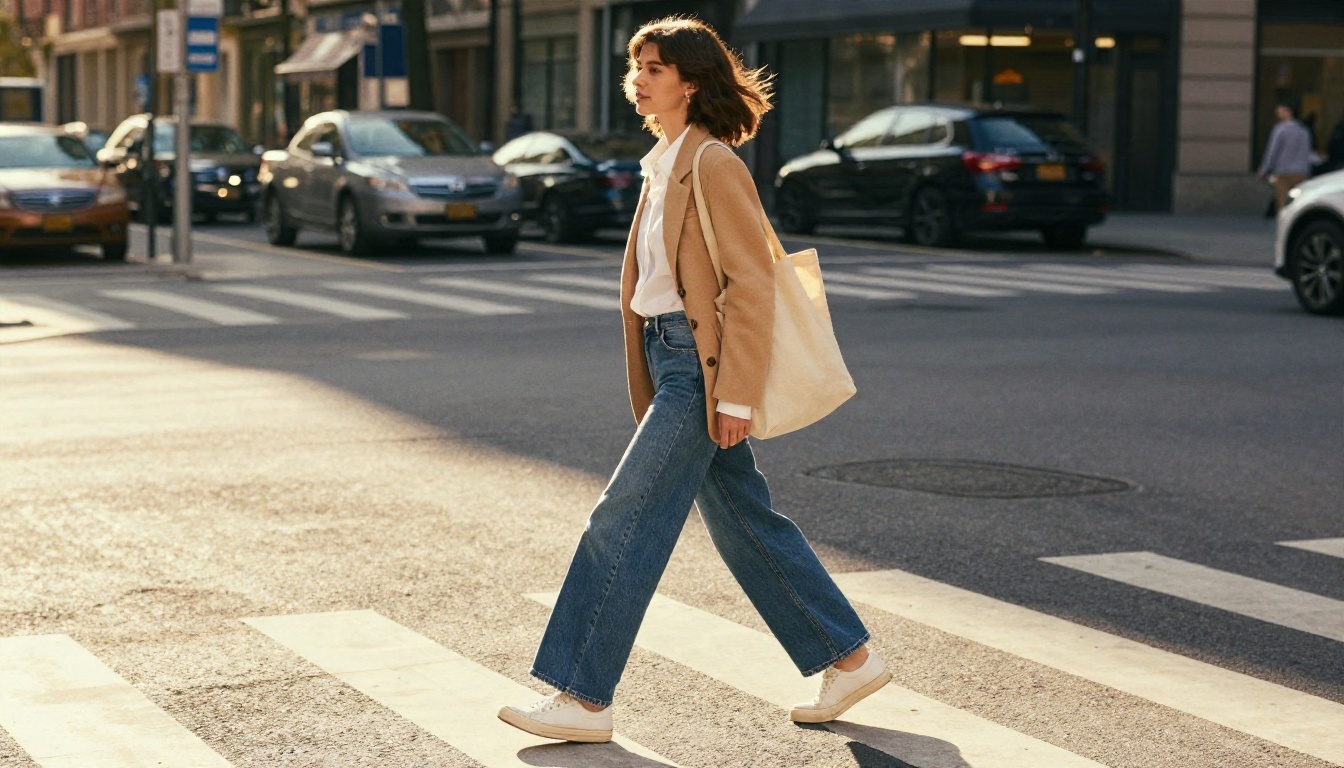
Start with Nano Banana for a quick first look, then try Seedream 4.5 for a sharper version of the outfit you like best. Experiment with different prompts, different settings and different color ideas, and keep the combinations that feel like you. Open Picasso IA, upload your first closet photo, and see what your own clothes can do.


