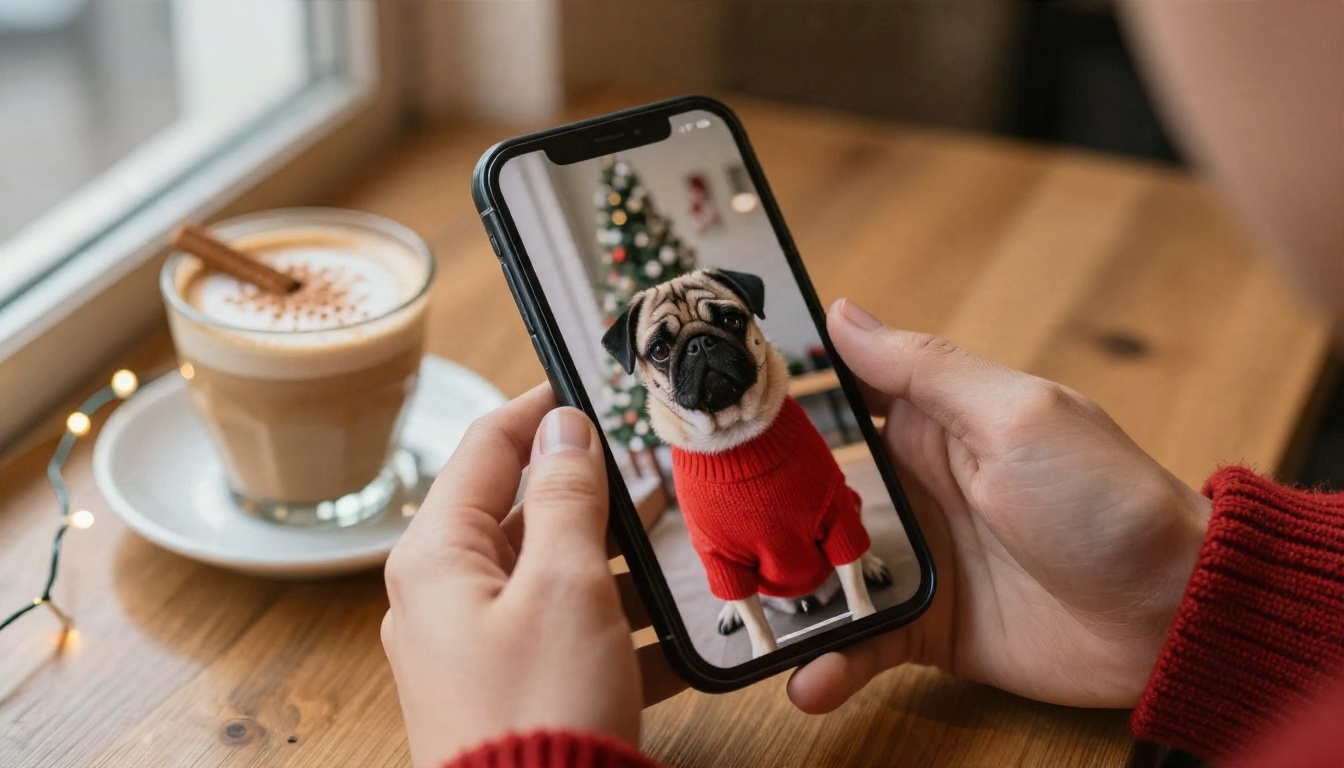
Anyone who has tried to put a Santa hat on a cat knows how that ends: flattened ears, a blurry tail, and a photo that goes straight into the trash. An AI pet Christmas photo skips all of that. You describe the scene, the AI builds it, and your dog, cat or rabbit looks calm, festive and perfectly lit. No bribery with treats, no ruined sweaters, no 40 failed attempts.
This article shows you how to make one for free online, which prompts actually produce realistic fur and believable lighting, and how to turn the results into cards your family will keep on the fridge. Christmas is under two months away, so there is plenty of time to get it right.
Why Pet Christmas Photos Work
Pets are the most shared subject in holiday photos. A card with a dog in a scarf beats a card with a stiff family lineup almost every time, because people react to faces with real emotion. The problem is that animals do not take direction.
The Problem With Real Shoots
A real pet shoot has a short window. Most animals tolerate a costume for under a minute, indoor lighting in December is dim and yellow, and phone cameras struggle with dark fur. Add a moving tree, reflective baubles and a restless puppy, and you get motion blur and red eyes.
Older pets, rescue animals and pets that have passed away add another layer. Many people want a festive portrait of an animal that can no longer sit by a tree, or one that is afraid of strangers. AI handles those cases gently.
What AI Changes
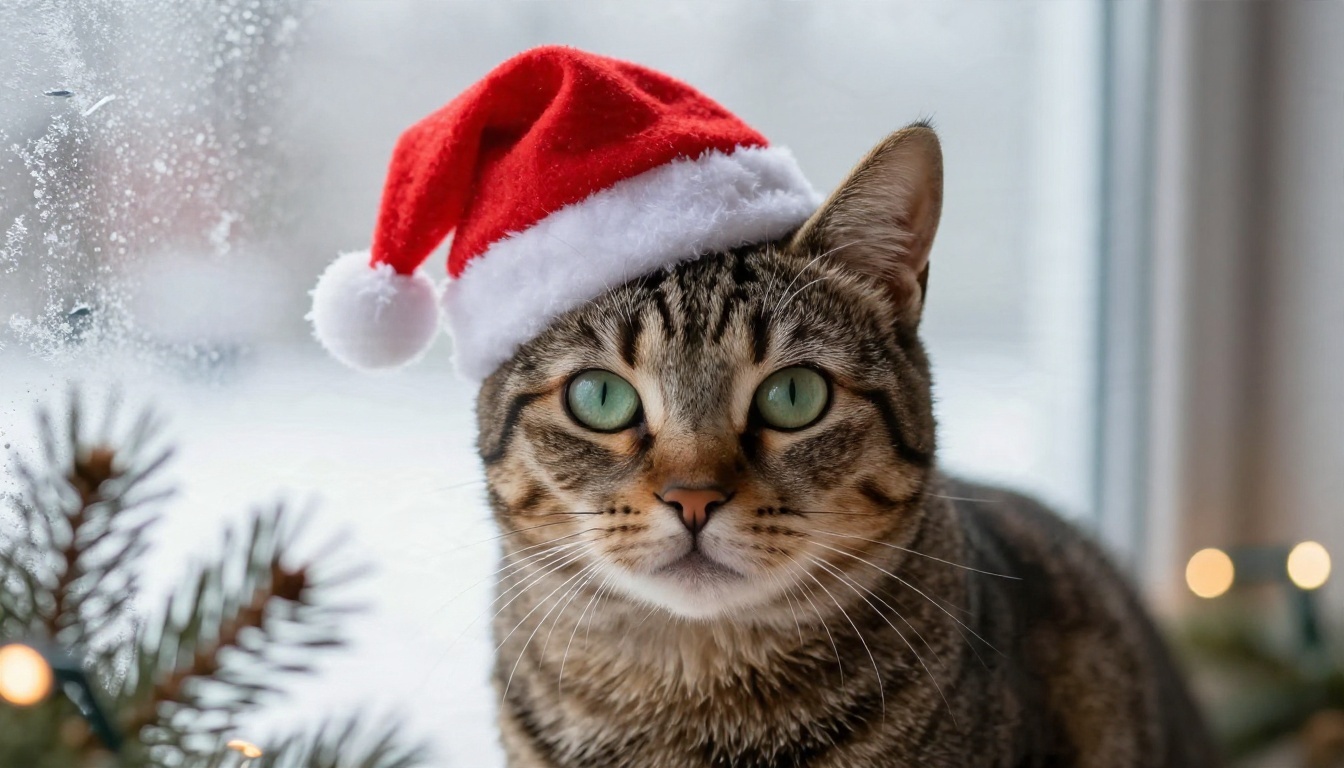
With a good text-to-image model you control the scene, the lighting, the lens and the mood in one sentence. You can place a pug in a cafe, a husky among gifts or a corgi on a family sofa. If you upload a reference photo and use an editing model, the result keeps your pet's real markings, the white sock on the left paw, the notched ear, the exact shade of ginger.
💡 Tip: The more your prompt reads like a photographer's shot list, the less your result looks like AI. Name the lens, the light direction and the surface textures.
How the Free Online Maker Works
There are two routes, and both run in a browser with nothing to install.
Route one: text to image. You write a prompt, choose a 16:9 or 4:5 ratio and get a brand new photo of a pet that matches the breed and colors you describe. This is the fastest way to get a clean, polished portrait, and it suits generic cards where the pet only needs to look like a golden retriever or a tabby.
Route two: photo edit mode. You upload a picture of your own pet and ask the model to place it in a Christmas setting, add a scarf or change the background. Models such as Nano Banana and Flux Kontext Fast are built for this kind of instruction-based editing, so the face and markings stay recognizable.
Text to Image for Fresh Portraits
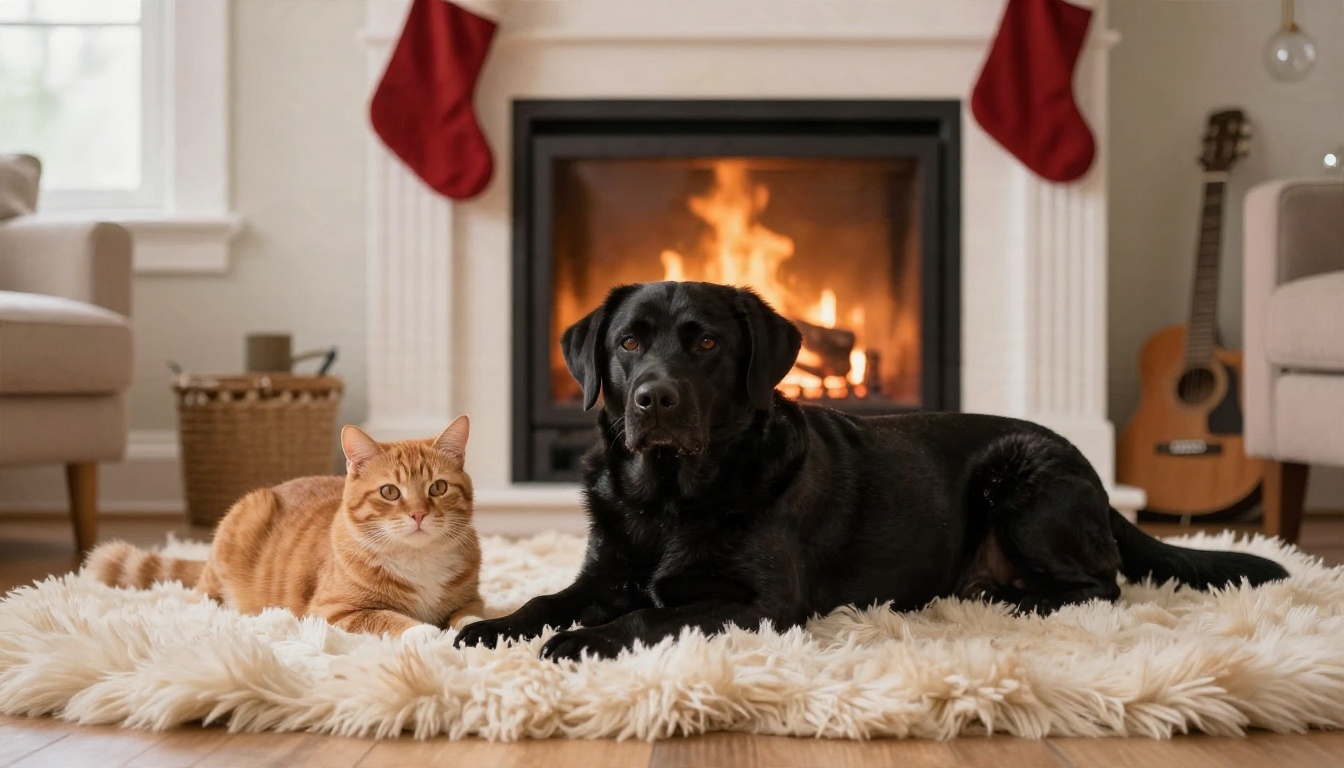
Pick this route when you want an original scene. Describe the animal first, then the setting, then the light, then the camera. A short example: a black labrador and a ginger cat on a cream wool rug, stone fireplace, warm amber firelight from the right, 50mm lens at floor level, film grain.
Seedream 4.5 is a strong pick here because it renders fur, knit fabric and glass with convincing detail and follows long prompts closely.
Photo Edit for Your Own Pet
Pick this route when the pet must look like your pet. Upload a clear, front-facing photo in decent light, then write an instruction such as: keep the dog exactly the same, place him in front of a decorated Christmas tree with warm fairy lights, add a small red scarf.
Short, direct instructions work best. Ask for one or two changes per pass rather than ten, and run a second edit if you want more.
How to Use Seedream 4.5 on PicassoIA
Here is a simple workflow that gives realistic results on the first or second try.
- Open the model page. Go to Seedream 4.5 on PicassoIA and sign in. New accounts can try the model before paying for anything.
- Write the subject first. Start with breed, color, age and expression: a three-year-old golden retriever with soft brown eyes, calm expression.
- Add the setting. Name three or four physical objects: a spruce tree, glass baubles, kraft paper presents, a stone fireplace. Specific objects beat the word "festive."
- Set the light. Say where it comes from: warm firelight from the right, cool window light from the left. This one line adds the most realism.
- Name the camera. Write 85mm f/1.8, shallow depth of field, Kodak Portra 400 film grain. The model reads this as a photography style.
- Pick the ratio. Use 16:9 for banners and email headers, 4:5 for printed cards and social posts, 1:1 for avatars.
- Generate, then adjust. Change one detail at a time. If the fur looks smooth, add "individual strands of fur, natural texture." If the background is cluttered, remove two objects.
If you want a faster, lighter option, Nano Banana 2 Lite is quick for drafts. For high-resolution final images, Nano Banana Pro produces 4K output that holds up in print.
💡 Tip: Do your testing at a small size, then upscale the winner. A two-step process saves time and keeps the final photo sharp.
Prompts You Can Copy Today
These prompts are written for photorealistic output. Swap the breed, colors and props for your own pet. Each one follows the same pattern: subject, setting, light, lens, texture.
Cozy Fireplace Portrait
A golden retriever sitting calmly in front of a decorated Christmas tree in a cozy living room, wearing a small knitted red and cream scarf, warm white fairy lights and hand-blown glass baubles blurred behind, amber firelight from the right, cool window light from the left, 85mm f/1.8 lens at eye level, Kodak Portra 400 film grain, visible knit stitches and individual fur strands.
This is the classic. It works for nearly every dog breed and for most cats too. For a cat, replace the scarf with a plain velvet ribbon, since cats in bulky clothing tend to look stiff in AI images, just as they do in real life.
Snow Day Adventure
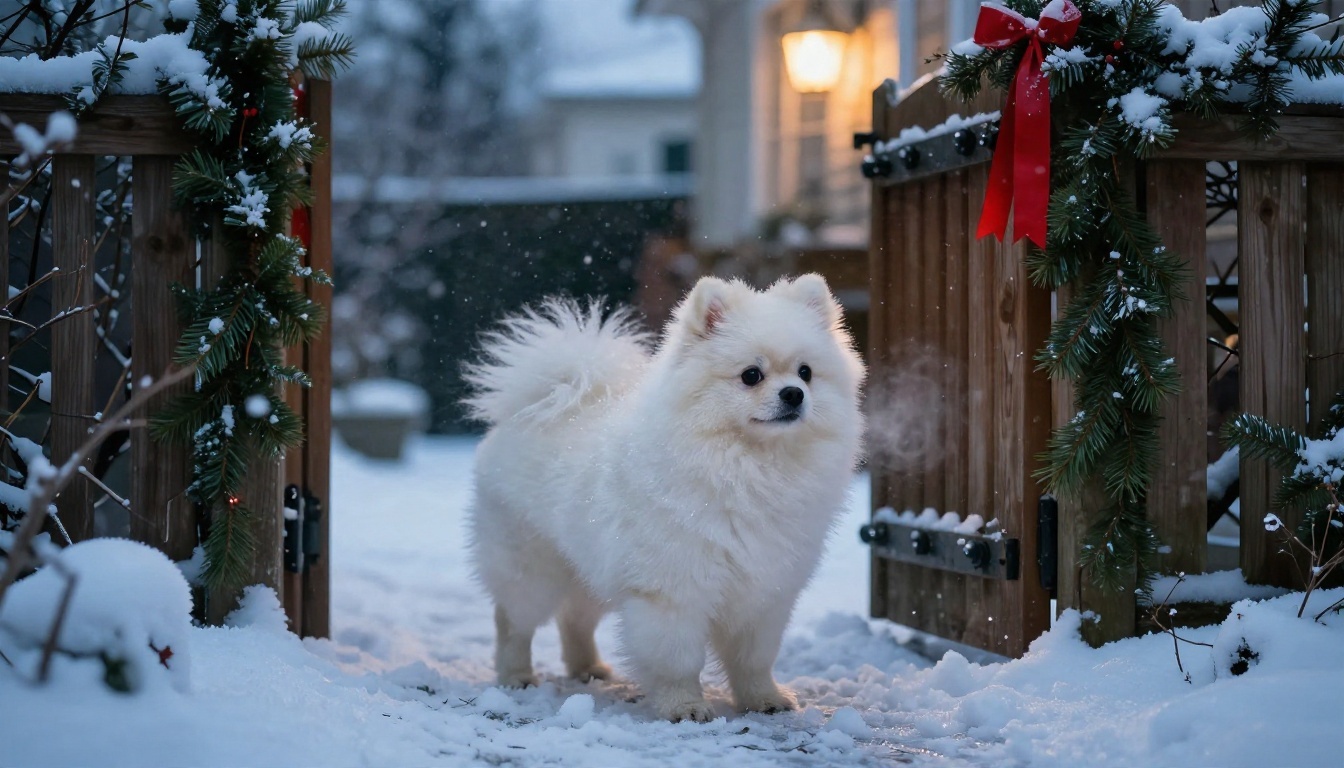
A fluffy white pomeranian puppy standing on a snowy garden path beside a wooden gate wrapped with evergreen garland and a red ribbon, tiny snowflakes in the air, soft blue-hour light with a warm porch lamp behind, low-angle shot, 35mm f/2 lens, wet snow crystals on fur.
Outdoor scenes give you a cooler color palette that contrasts nicely with a red card border. A low angle makes small dogs look bold and heroic, which is great for humor.
Santa Hat Close-Up
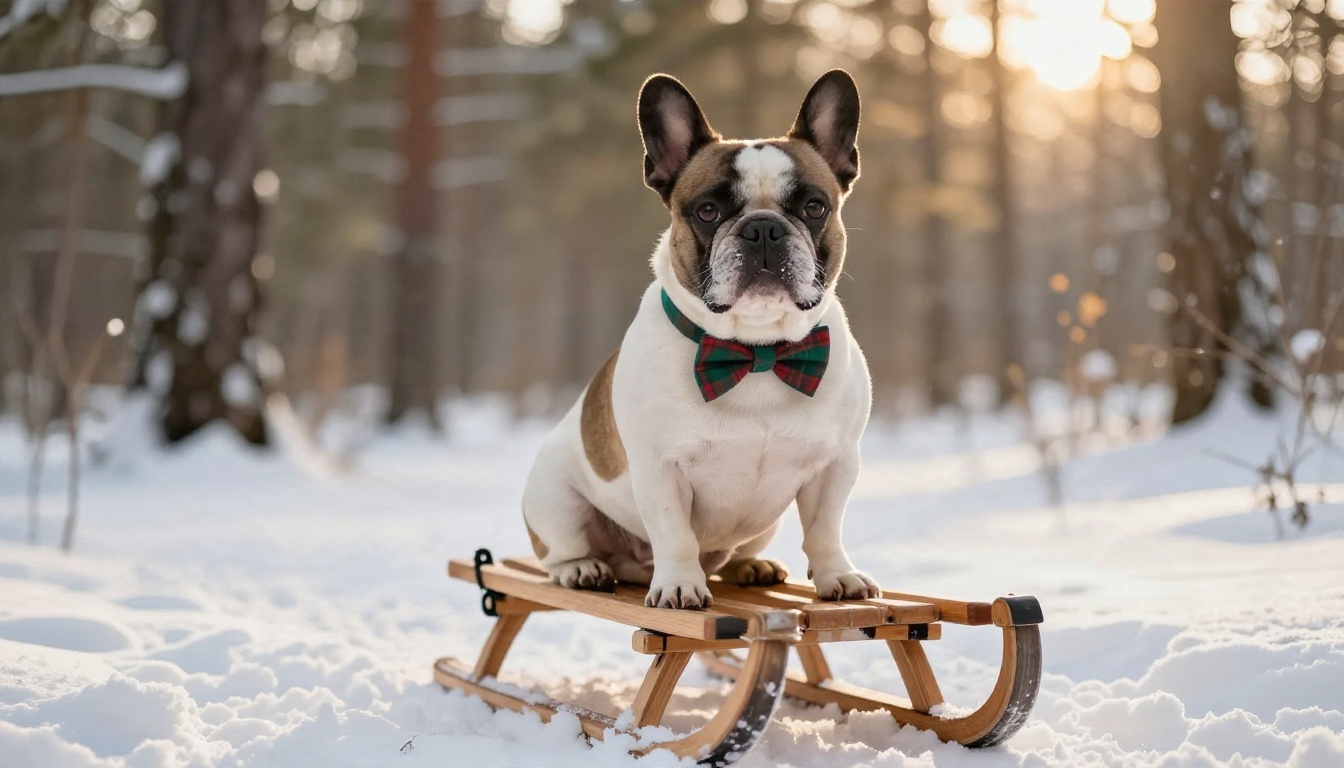
Close-up of a tabby cat wearing a tiny red felt Santa hat on a frosted windowsill, soft overcast winter daylight from the left, green eyes with sharp catchlights, pine branches and warm string lights blurred behind, 85mm f/1.8 lens, fine whiskers, film grain.
Close-ups hide the messy parts of a scene and put all the attention on the face. They also tend to give the best realism, because the model has fewer elements to get wrong.
Gift Pile Puppy
Macro close-up of a husky puppy peeking out from a pile of presents wrapped in kraft paper and red ribbon, one blue eye and one brown eye, a ribbon curl on its ear, warm lamp light from the right, Christmas tree lights blurred behind, 100mm macro f/2.8, paper creases and fur strands visible.
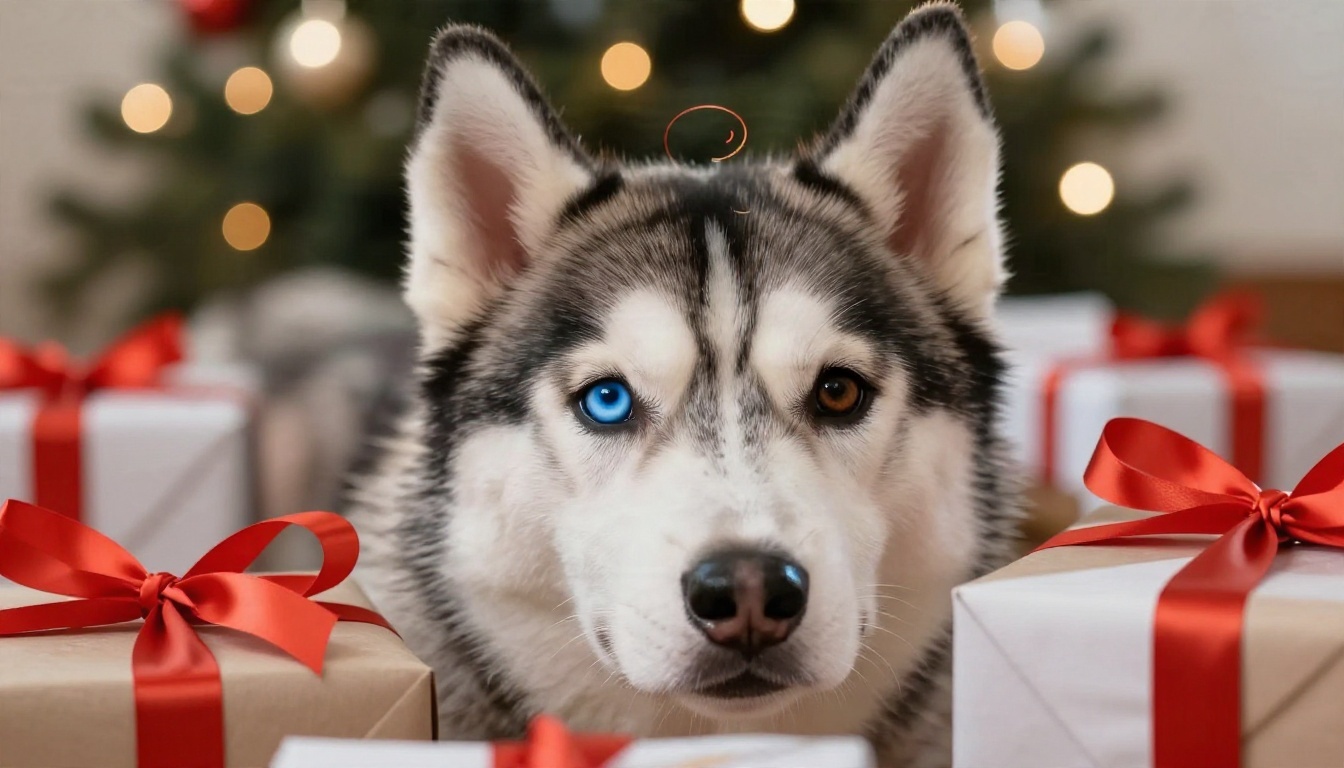
💡 Tip: Name unusual details like heterochromia or a ribbon curl. Specific, odd details make an image feel photographed rather than generated.
Card Ideas Worth Printing
A good image deserves a good format. These are the card layouts people actually send.
Classic Photo Card
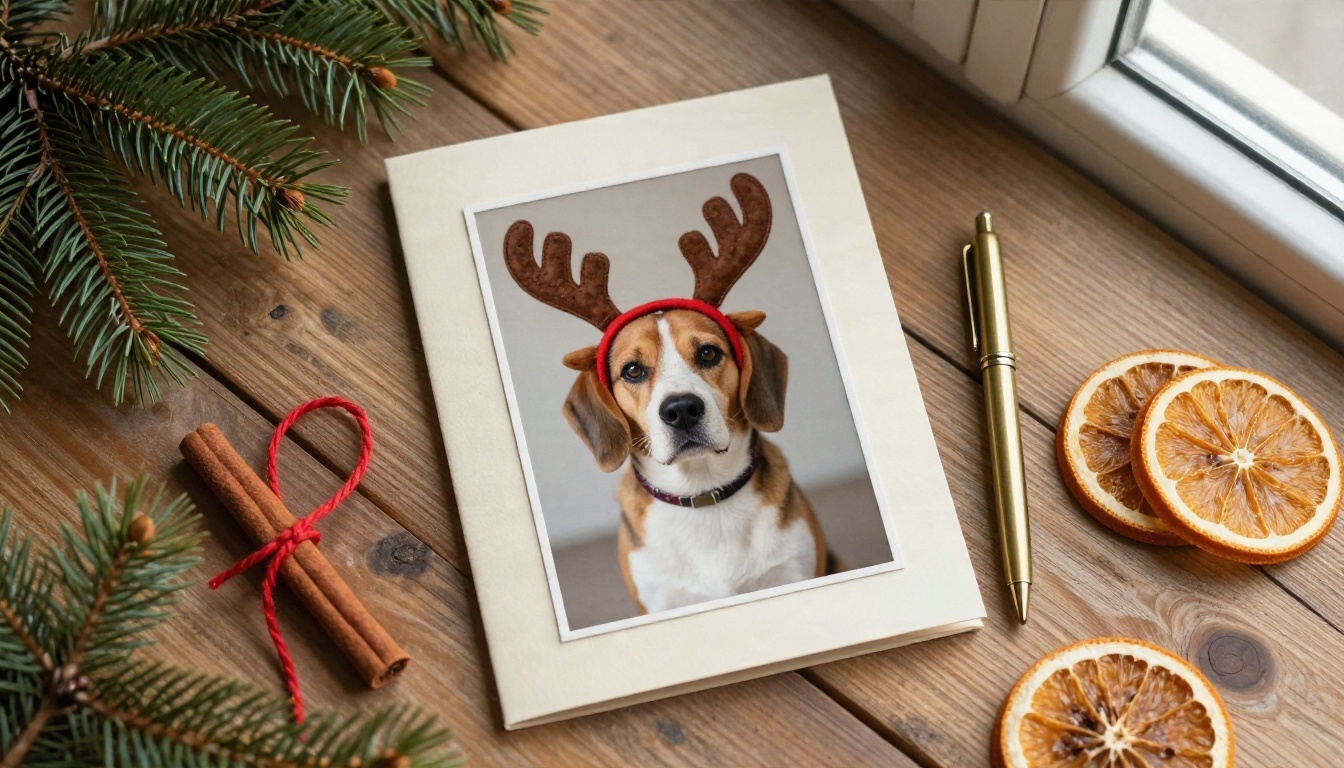
Use a 5x7 inch vertical card with the pet portrait filling the front and a short message inside. Cream cardstock with a matte finish looks warmer than glossy paper, and it suits film-style images. A handwritten line such as "From all of us, including the one with the tail" adds personality that a template cannot.
Family and Pet Portrait
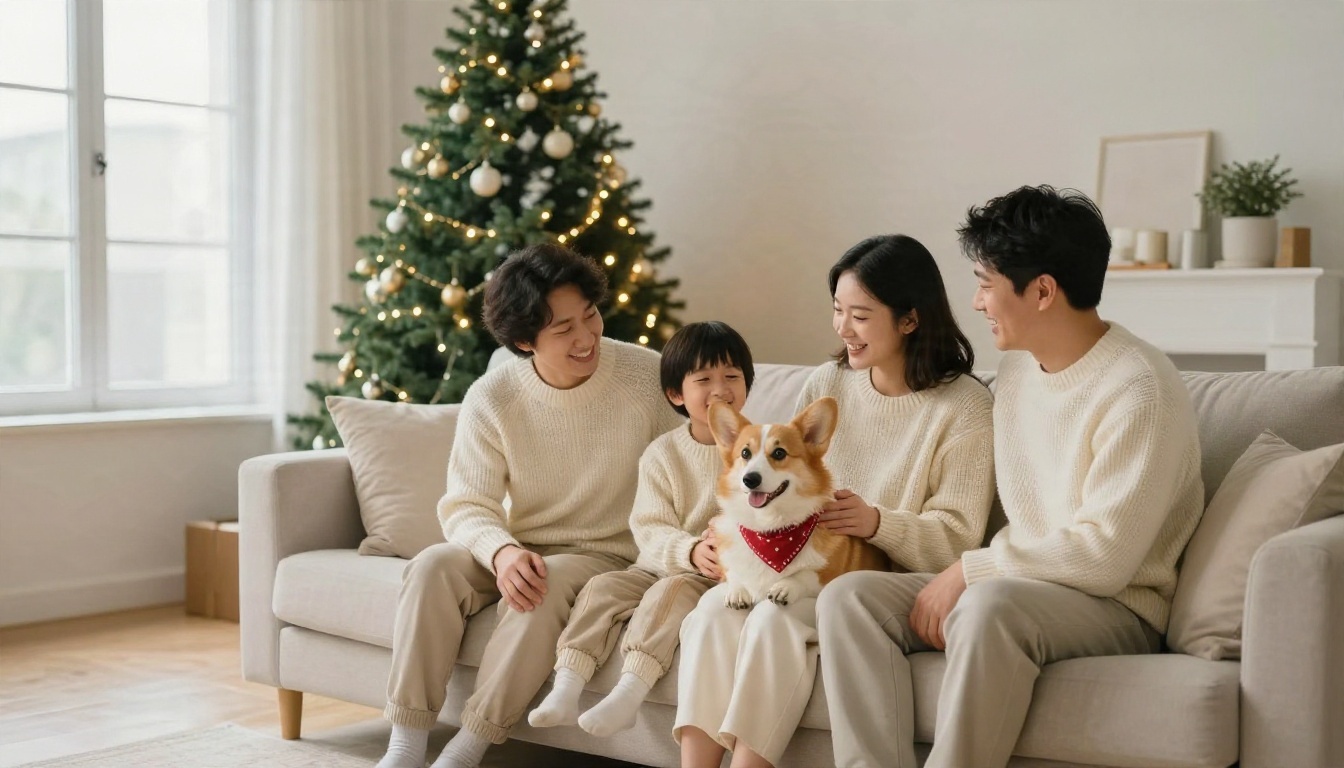
Group scenes make the strongest cards for relatives who rarely see your pet. A family on a sofa with a corgi in a bandana feels warm and personal. If you are using an edit model, upload one clear photo of each person and the pet, then ask the model to place everyone in a single living room scene. Check faces carefully, since groups are the hardest case for any image model.
Pet Gallery and Digital Cards
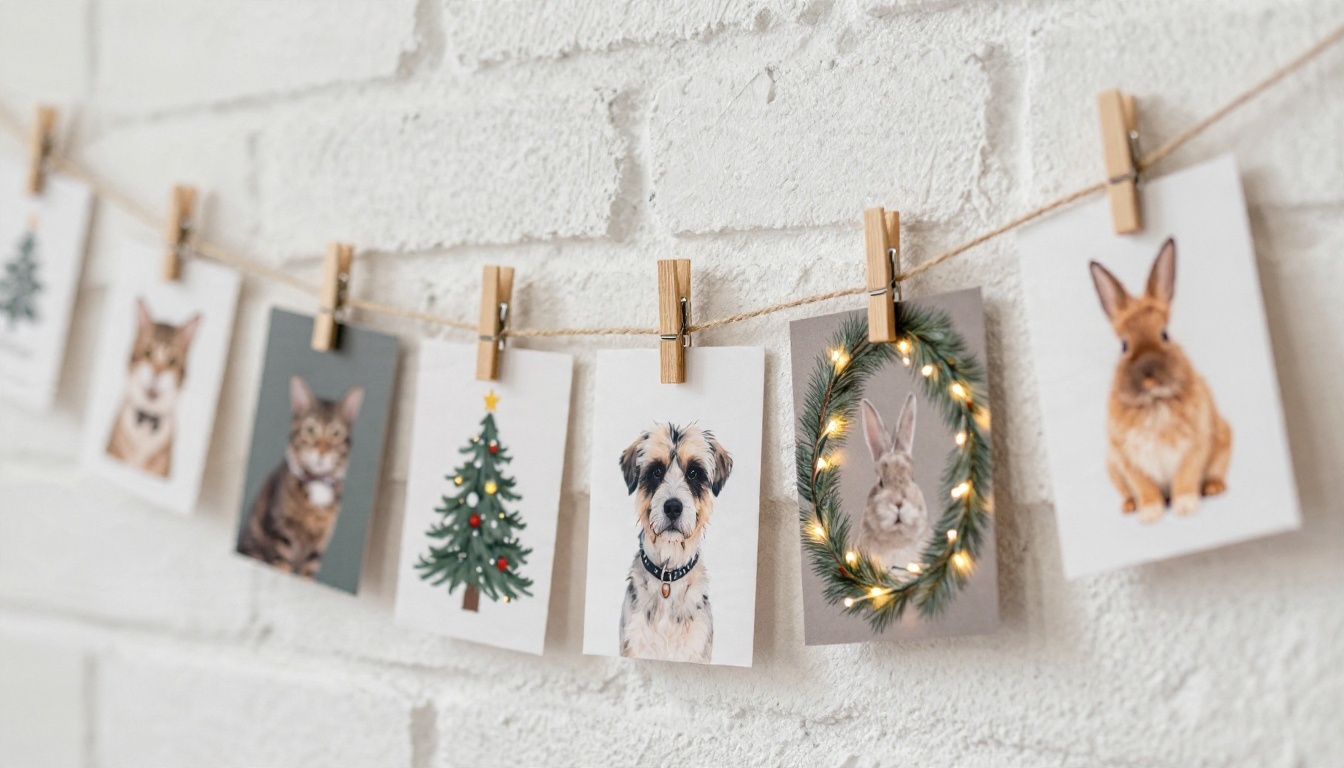
If you have several animals, or want to give a gift to a friend with a different pet each year, make a small series. Print five or six portraits and clip them on a jute string across a wall with fairy lights. It doubles as decor and as a card display.
For digital cards, use the 16:9 version as an email header or a text message image. These are small files that load quickly and look sharp on a phone screen.
Mistakes That Ruin the Result
Most failed pet portraits come from the same handful of problems. Here is how to spot and fix them.
| Problem | What it looks like | Quick fix |
|---|
| Plastic fur | Smooth, airbrushed coat with no depth | Add "individual strands of fur, natural coat texture, film grain" |
| Too many props | Cluttered scene, odd objects merging | Limit the scene to 3 or 4 named objects |
| Flat lighting | No shadows, the pet looks pasted in | State the light direction and add a second, softer fill |
| Wrong eyes | Glassy, mismatched or overly bright eyes | Add "natural catchlight, soft brown eyes, calm expression" |
| Costume overload | Stiff clothing, strange anatomy | Choose one accessory: a scarf, a bow tie or a hat |
| Bad crop for print | Ears or paws cut off in the card frame | Generate at 4:5 and leave space around the head |
Another common mistake is writing mood words only. "Magical, festive, cozy, beautiful" tells the model almost nothing. Replace them with things a camera can see: kraft paper, pine needles, amber firelight, cream wool.
Which Model Should You Pick?
Different jobs call for different tools. This table sums up the models mentioned above, all available on PicassoIA.
| Goal | Best pick | Why |
|---|
| Realistic original portrait | Seedream 4.5 | Strong fur, fabric and light detail |
| Edit a photo of your own pet | Nano Banana | Keeps markings while changing the scene |
| Quick instruction edits | Flux Kontext Fast | Fast one-step changes like adding a scarf |
| 4K print-ready output | Nano Banana Pro | High resolution for large cards |
| Fast drafts | Nano Banana 2 Lite | Cheap, quick tests before the final run |
| Sharper final file | P Image Upscale | Upscales a favorite for printing |
For a printed card, a sensible chain is: draft with Nano Banana 2 Lite, finalize with Seedream 4.5, then upscale with Clarity Pro Upscaler for a crisp 300 dpi print.
💡 Tip: Print one test card at home before ordering a batch. Screens run bright, and paper often runs darker, so shadows may look heavier than expected.
Make Your Own Pet Christmas Photo
Pick a prompt from the list above, swap in your pet's breed and colors, and run it on PicassoIA. Try one outdoor snow scene and one indoor fireplace scene, then pick your favorite. If you have a good photo of your pet, upload it to an edit model and ask for a Christmas tree, a scarf or a new background.
Change one detail per round, keep your prompts short and visual, and save every version you like. By the third or fourth attempt, you will have a portrait that looks like a real photographer visited your home on Christmas Eve. Open Seedream 4.5 today, test a few prompts, and have your cards ready well before the holiday post rush. You can also browse every available model at picassoia.com/en/all-models to find the style that suits your pet best.


