Losing a pet leaves a silence in the house that no one prepares you for. The food bowl, the collar on the hook, the spot on the sofa that still looks slightly dented. Many people now fill a little of that silence with a short film: one favorite photo, brought gently to life, set to soft music. An AI pet memorial video takes a still image of your dog, cat, rabbit or horse and adds small, believable movement, a slow blink, a tail swish, wind in the fur. It does not bring anyone back. It gives you a few seconds of warmth you can watch, share and keep.
This article walks through what these videos can and cannot do, shows realistic examples, hands you prompts you can paste today, compares free apps, and shows a full workflow on PicassoIA.
What an AI Pet Memorial Video Is
How It Actually Works
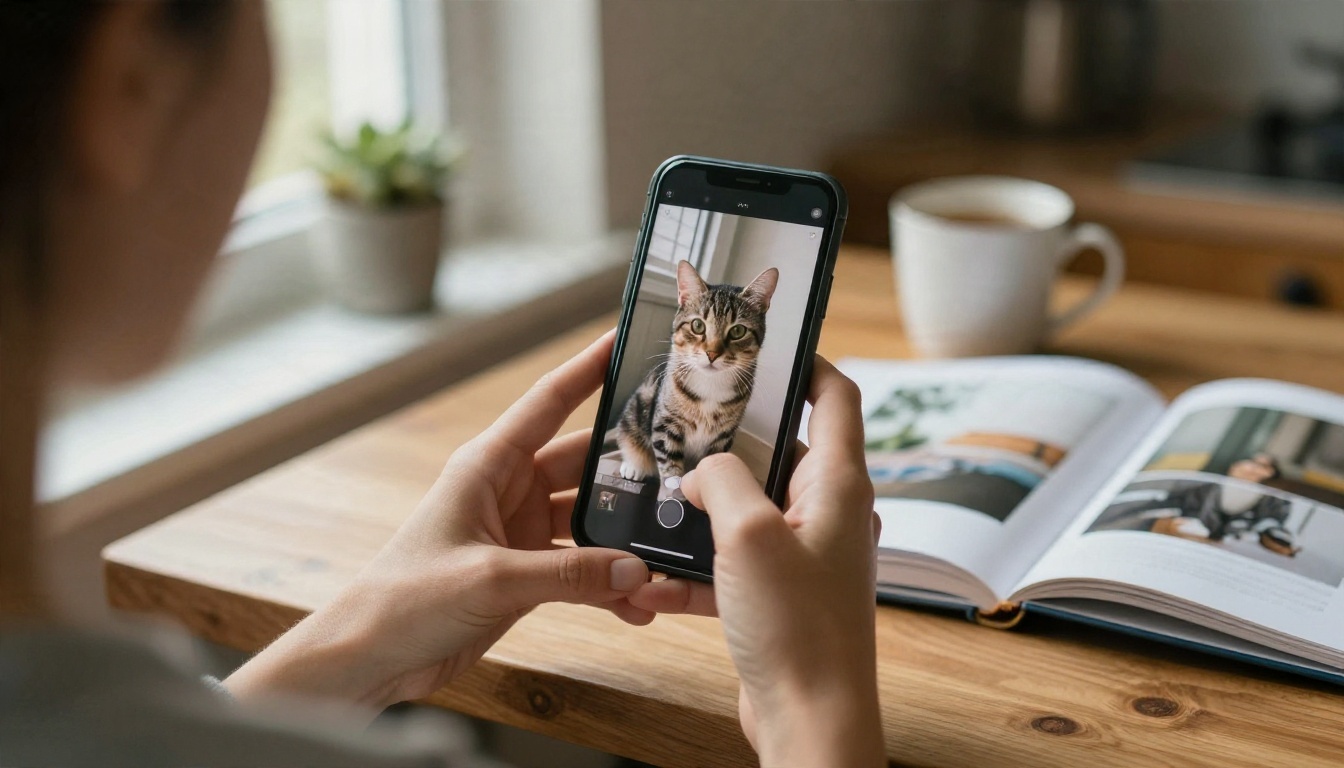
You upload a photograph. A video model studies the shape of the animal, the light, the background and the depth in the frame. Then it predicts how those pixels would move over a few seconds, and renders a short clip. This is called image-to-video. You steer it with a short text prompt that describes the motion you want.
Modern models like Kling v3 Video, Wan 2.7 I2V and Veo 3.1 Fast are good at subtle motion. They keep the face of the animal stable, and they respect fur direction and lighting. Some also produce native audio such as ambient birdsong or a soft breeze.
What It Can and Cannot Do
Be realistic about the result. It works best for small, calm gestures. It struggles with fast running, complex interactions and anything that requires the model to invent parts of the animal that were never visible in the photo.
| Works well | Works poorly |
|---|
| Slow blink and head tilt | Full sprints across a room |
| Wind in the fur and whiskers | Two animals playing together |
| Gentle breathing while resting | Tricks, fetching, jumping |
| Soft light changes at dusk | Rare breeds with unusual markings |
| A slow camera push toward the face | Text appearing on collars or tags |
💡 Tip: If the source photo is blurry, fix it first. A sharp, well-lit portrait gives the video model far more to work with than a dark phone snapshot from a party.
Examples That Feel Real
These scenes are the ones families ask for most often. Each starts from a single still and uses only a few seconds of motion.
The Meadow Run
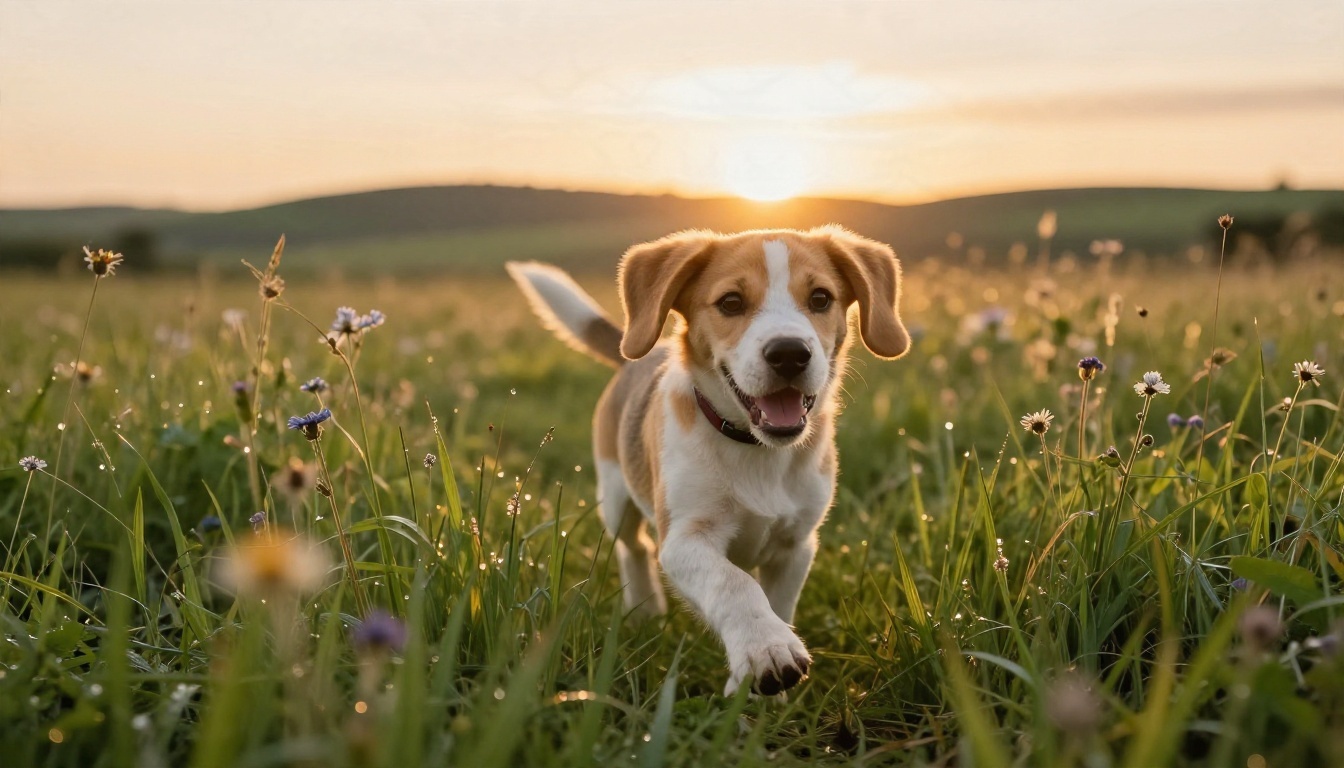
A young beagle sprints through tall grass at sunset, ears lifting, light glowing behind the fur. For a tribute, many people ask the model to slow this down and let the dog trot, then settle. The warm backlight hides small errors and gives the clip a nostalgic feel.
The Window Cat
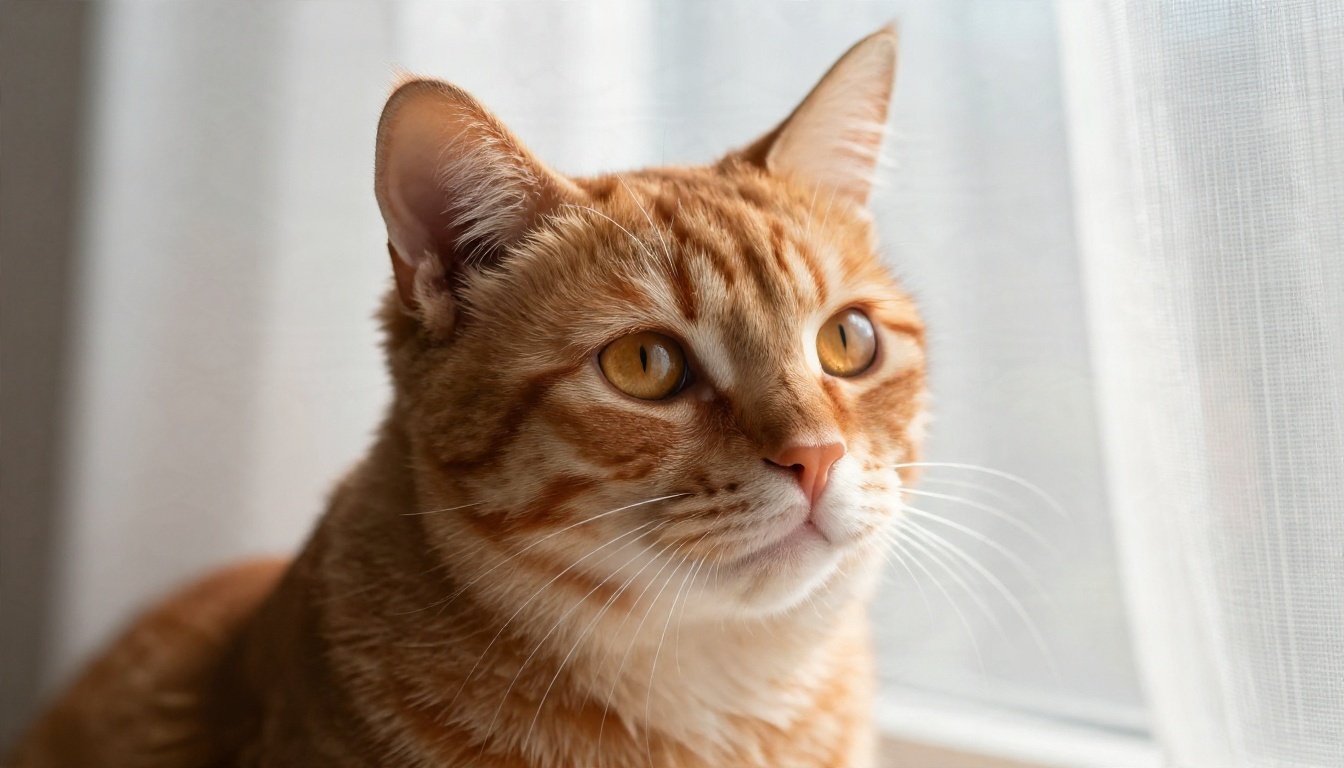
An orange tabby sits in morning light, whiskers lit from behind, a sheer curtain behind it. Ask for a slow blink, a soft ear twitch and dust floating in the sunbeam. Cats suit this format well because they spent so much of their lives sitting still and looking out of windows.
The Child and the Dog
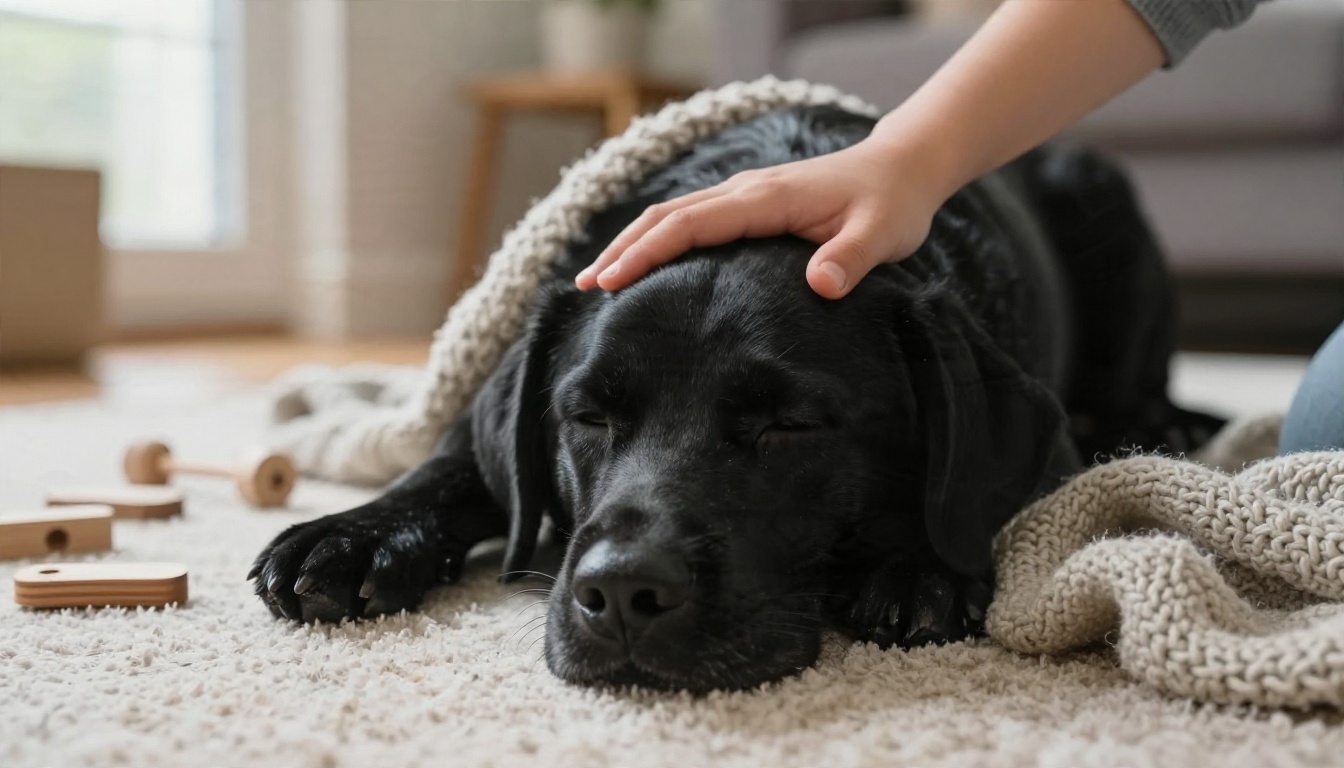
Perhaps the most emotional example: a small hand resting on a sleeping labrador. The motion here is almost nothing, slow breathing and a finger moving through fur. That restraint is what makes it work. Children also tend to watch these clips again and again, which can help them process the loss at their own speed.
Prompts You Can Copy
The Simple Formula
A good motion prompt has four parts: subject, one small action, camera movement, light. Keep it under 50 words. Long prompts invite the model to add things you did not ask for.
💡 Formula: [Animal and where it is] + [one gentle action] + [slow camera move] + [lighting and mood]
Ready-to-Paste Prompts
| Pet | Prompt |
|---|
| Senior dog resting | An old golden retriever lies on a wooden porch, slowly breathes, blinks once, ear twitches. Slow push-in toward the face. Warm evening light, soft dust in the air. |
| Cat on a windowsill | An orange tabby sits in a sunny window, slow blink, whiskers move slightly, tail tip flicks. Static camera with a very gentle drift to the right. Soft morning light. |
| Puppy in grass | A beagle trots through tall grass in slow motion, ears lifting in the breeze, then slows and looks at the camera. Low camera, slight tracking. Golden hour backlight. |
| Rabbit in a garden | A white rabbit sits on green grass, nose twitching, one ear turning toward a sound. Slow dolly-in. Overcast, even light. |
| Horse in a field | A chestnut horse stands at a fence, mane lifting in the wind, head turning slowly. Wide shot, gentle pan left. Soft dawn mist. |
Two edits that make a difference: add the phrase "photorealistic, natural motion, no sudden movement", and name the breed and coat color. The model then keeps markings consistent from the first frame to the last.
Free Apps Worth Trying
Pricing changes often, so treat everything below as a snapshot and check the current plan before you upload anything. Most of these tools are free to start, then charge for higher resolution, longer clips or watermark removal.
Pet-Focused Apps
- Pet2AI (iOS): built around pets, with a small number of free credits for new users. A paid memorial pack bundles portraits and a video tribute.
- PetBond: Pet Memorial (iOS): lets you build a profile for your pet and make AI videos from photos. Basic features are free, while some effects and credits sit behind in-app purchases.
- Pixa: a cat memorial video maker where you upload a photo and describe the motion, such as gentle breathing. It exports an MP4 without a watermark, though the free limits were not clear to me.
General Video Makers
- FlexClip: free memorial templates for pet photos, plus AI animation of stills. Good if you want a slideshow with text and music.
- Dreamina from CapCut: a useful source of scene ideas and prompt wording for pet memorial clips.
- HeyGen: a memorial and funeral video maker that is free to start, though paid plans cost more. It is not pet-specific.
💡 Reality check: Free tiers are fine for a first draft. If you want a clean 720p clip, no watermark and several attempts at the same photo, you will likely need credits somewhere.
Where PicassoIA Fits
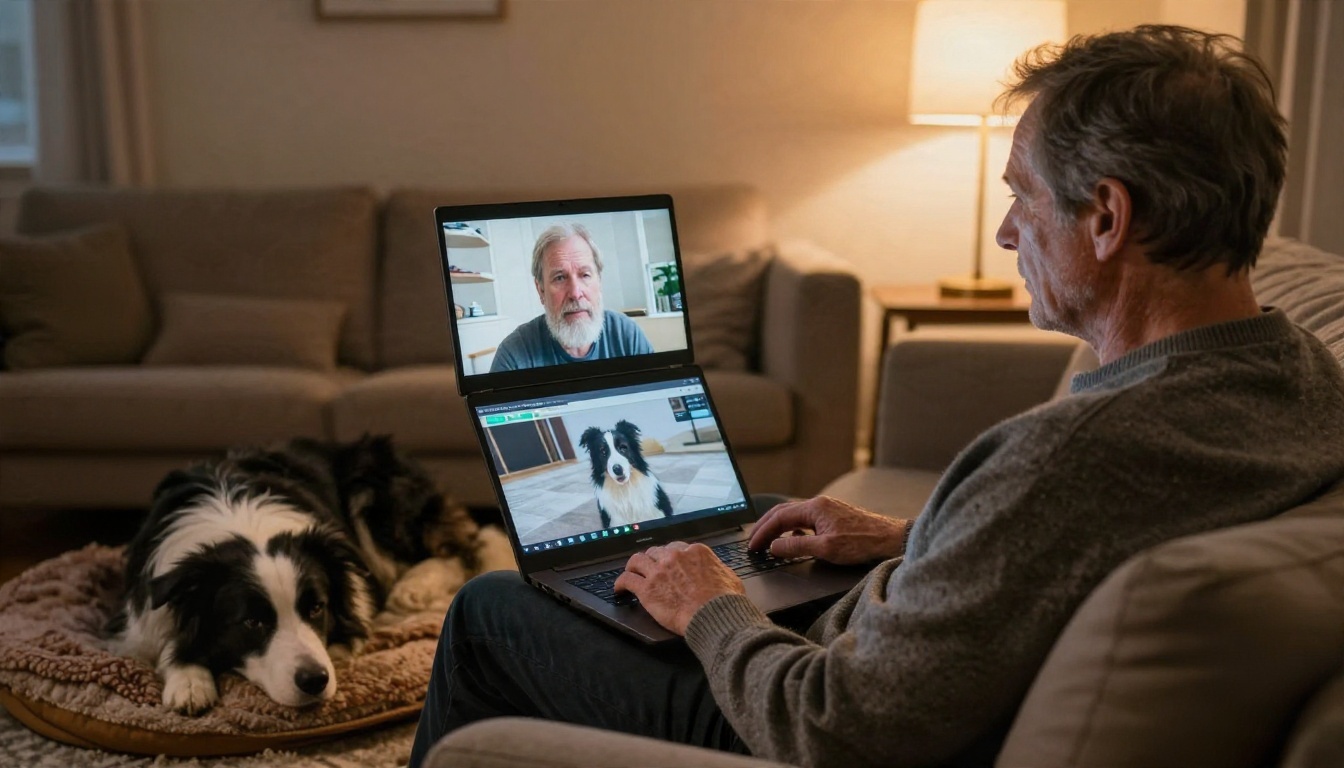
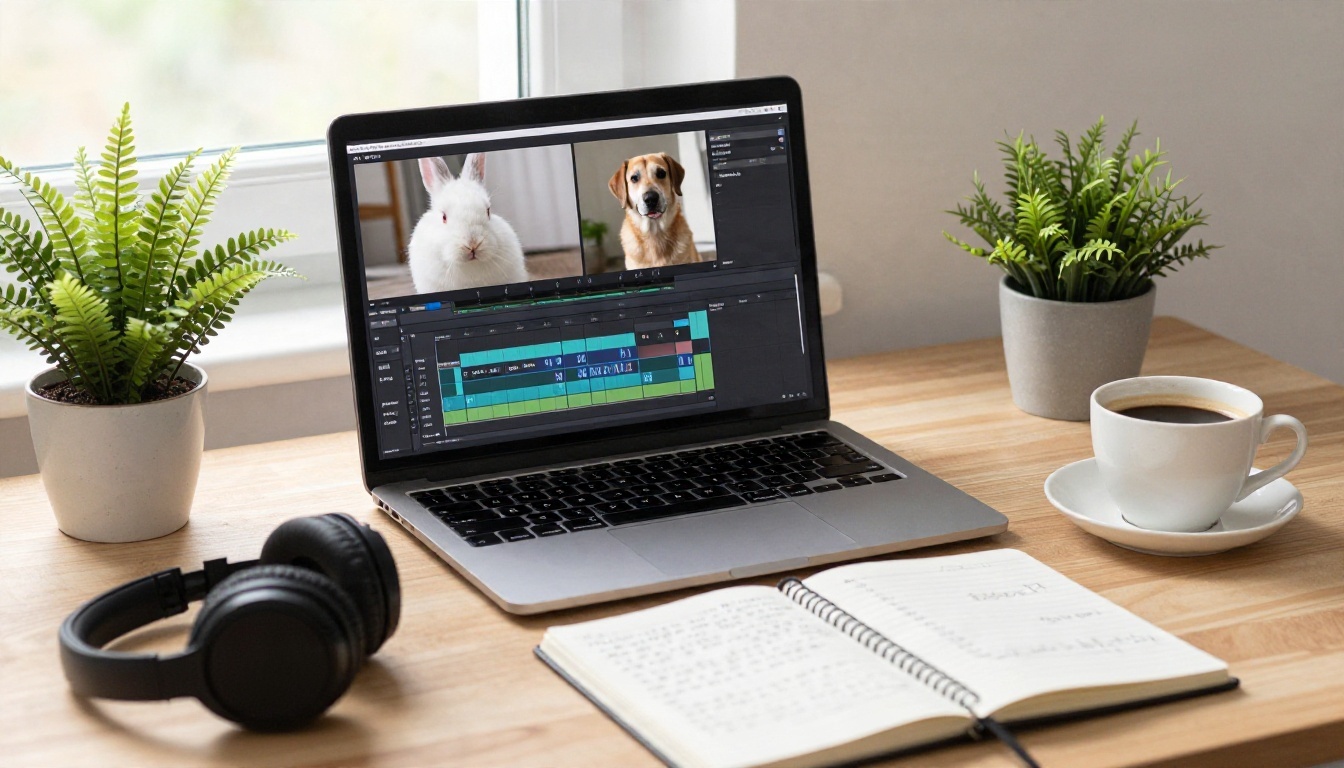
PicassoIA gives you the model itself rather than a template. You choose between Kling v3 Video, Kling v3 Omni Video, Wan 2.5 I2V, LTX 2.5 Fast and others, test the same photo on several, and keep the one that moves the way your pet moved. You also get image tools, upscalers, voice and music in the same place.
How to Use Kling v3 on PicassoIA
Kling v3 Video is a strong first choice because it keeps faces steady and handles slow, subtle motion well. Here is the workflow, step by step.
Step 1: Prepare the Photo
- Pick a photo where the face is sharp and the eyes are visible.
- Crop out other people if you want a clean frame.
- If the image is small or soft, run it through Clarity Pro Upscaler first. Sharper input means fewer odd artifacts in the motion.
- Fix a damaged or very dark photo with an image editor such as Nano Banana, which can clean noise and rebuild small details.
Step 2: Write the Motion Prompt
Open the model page, upload the photo as the first frame and paste a prompt from the table above. Set the resolution to 720p for a good balance between quality and speed. Keep the clip at the default few seconds. A short clip looks calmer and more believable than a long one.
Step 3: Generate, Compare, Repeat
Run the prompt two or three times. Small wording changes give very different results. If the animal moves too much, add "very subtle, almost still". If it barely moves, add "slow blink, ear twitch".
| Setting | Recommended |
|---|
| Resolution | 720p |
| Motion strength | Low to medium |
| Camera | Slow push-in or static |
| Number of tries | 3 to 5 per photo |
| Prompt length | 30 to 50 words |
Add Music and Voice
A silent clip feels incomplete. Music 2.6 and Lyria 3 can generate a soft piano or acoustic guitar track from a sentence such as "slow, warm piano, no vocals, tender, 60 BPM". Some video models like Veo 3.1 Fast add ambient sound on their own, such as birds and wind, which fits garden and meadow scenes nicely.
Build a Whole Scene Around Your Pet
Sometimes the best photo of your pet is not the best photo for a film. It might be cropped, or taken indoors under harsh flash. In that case you can build a calmer setting around the animal.
- Use Seedream 4.5 or Nano Banana Pro to place your pet's likeness in a quiet garden, a beach at dusk or a sunny porch. Describe the coat color and markings carefully, and give a reference photo if the tool supports it.
- Generate a still first, then animate it. This two-step route gives you more control than asking a video model to invent the scene from zero.
- Keep the setting simple and personal: the park you walked in, the sofa they loved, the sea where they ran.
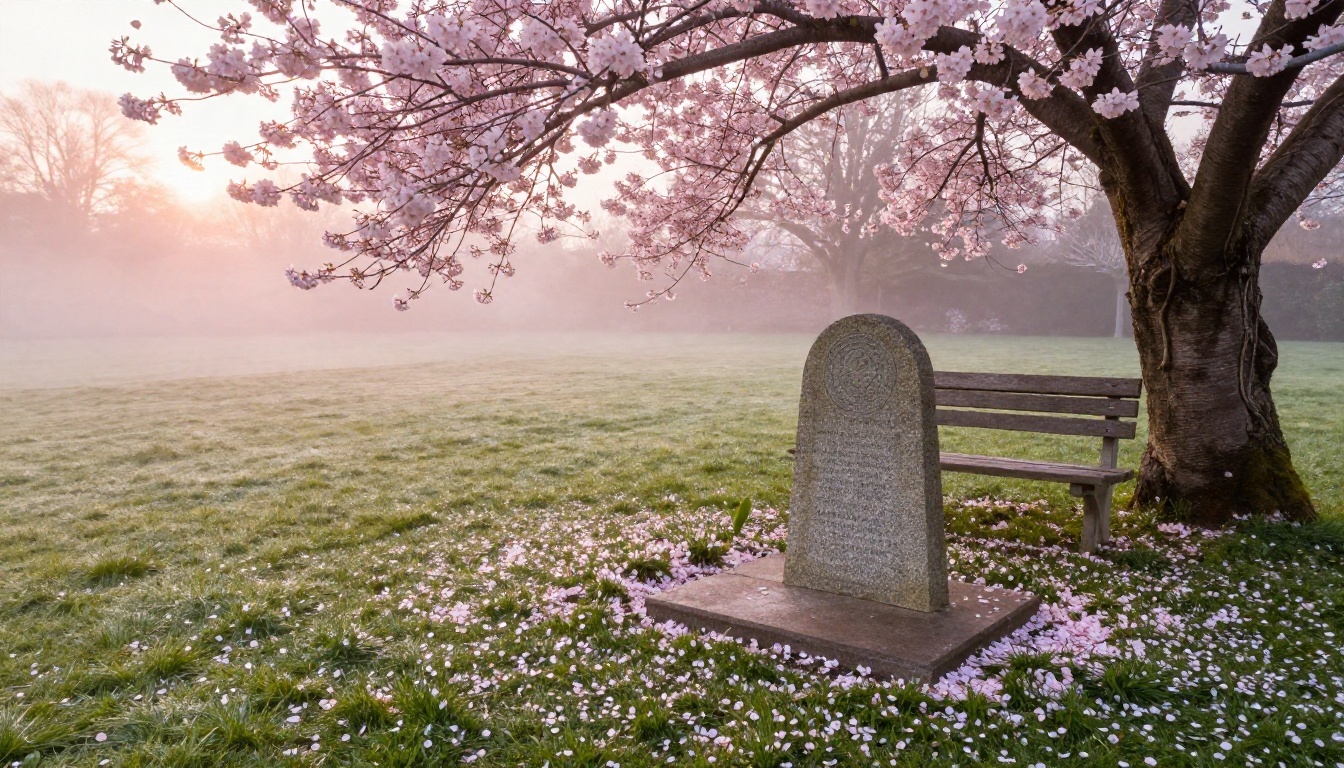
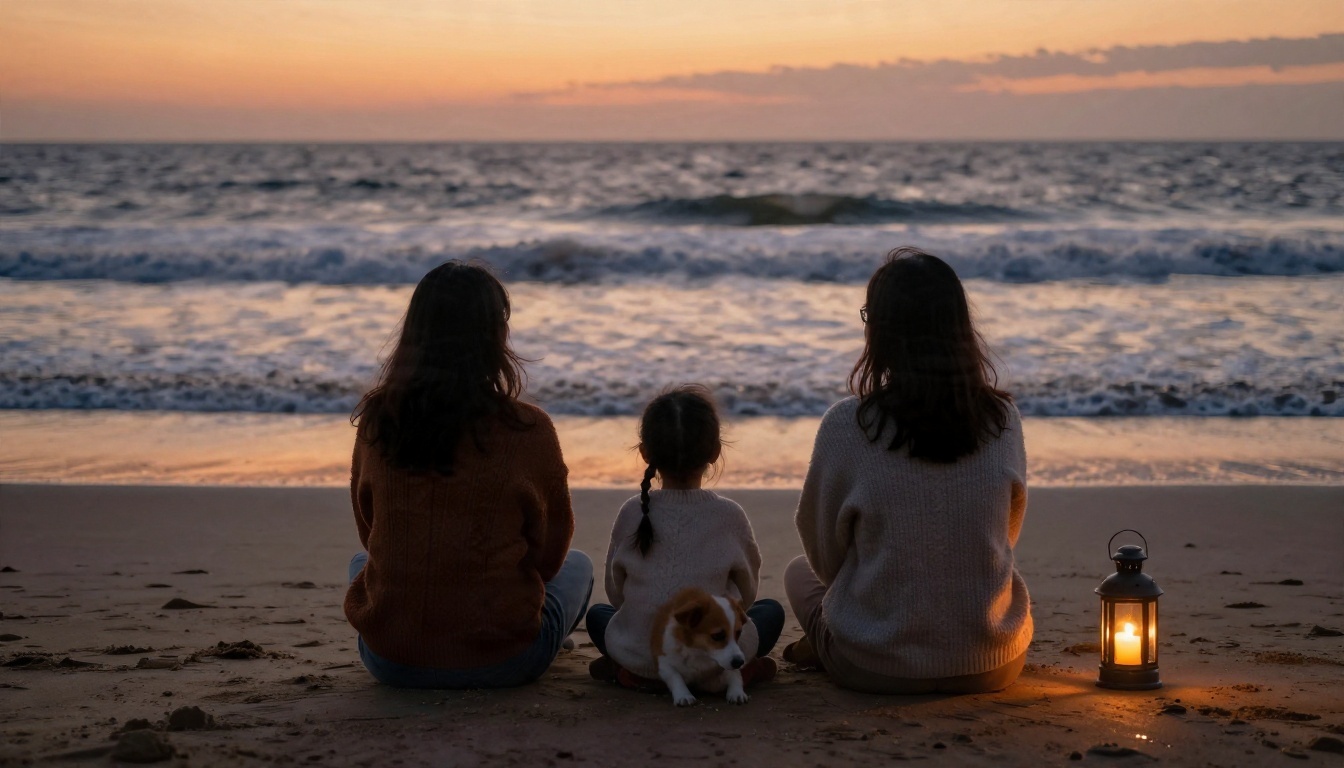
A wide shot like this one works as the opening or closing frame of a tribute. Place it before the animated portrait so the film breathes before the face appears.
Mistakes That Ruin the Moment
Most disappointing results come from a handful of avoidable problems:
- Too much motion. A pet that suddenly runs, jumps or opens its mouth wide usually looks wrong. Ask for less.
- Mismatched markings. If the model changes the color of a paw or the shape of a patch, your family will notice at once. Describe the markings in the prompt and reject any version that drifts.
- Dark, low-resolution photos. Upscale and brighten before animating.
- Cheerful music on a quiet photo. Pick slow, simple instrumentation. Avoid anything with a big drum entrance.
- Clips that run too long. Three to five seconds of good motion beats ten seconds of strange motion. Join several short clips instead.
- Skipping the review. Watch the clip on a large screen, not only on the phone. Small distortions in the eyes show up there.
💡 Tip: Cut your final film from three or four short clips: an opening scene, two or three portraits and a closing wide shot. Fade between them slowly.
Sharing It With Care
Who Should See It First
Watch it alone first, or with one person who knew your pet. Some people find the clip comforting right away. Others need a few weeks. Neither reaction is wrong. Send it to family only when you feel ready, and tell them it is AI-made so nobody mistakes it for a real recording.
Ways to Use the Finished Video
- Play it during a small gathering or a burial in the garden.
- Post it on a quiet day, such as the anniversary of their adoption.
- Send it to a vet who cared for your animal. Many appreciate it.
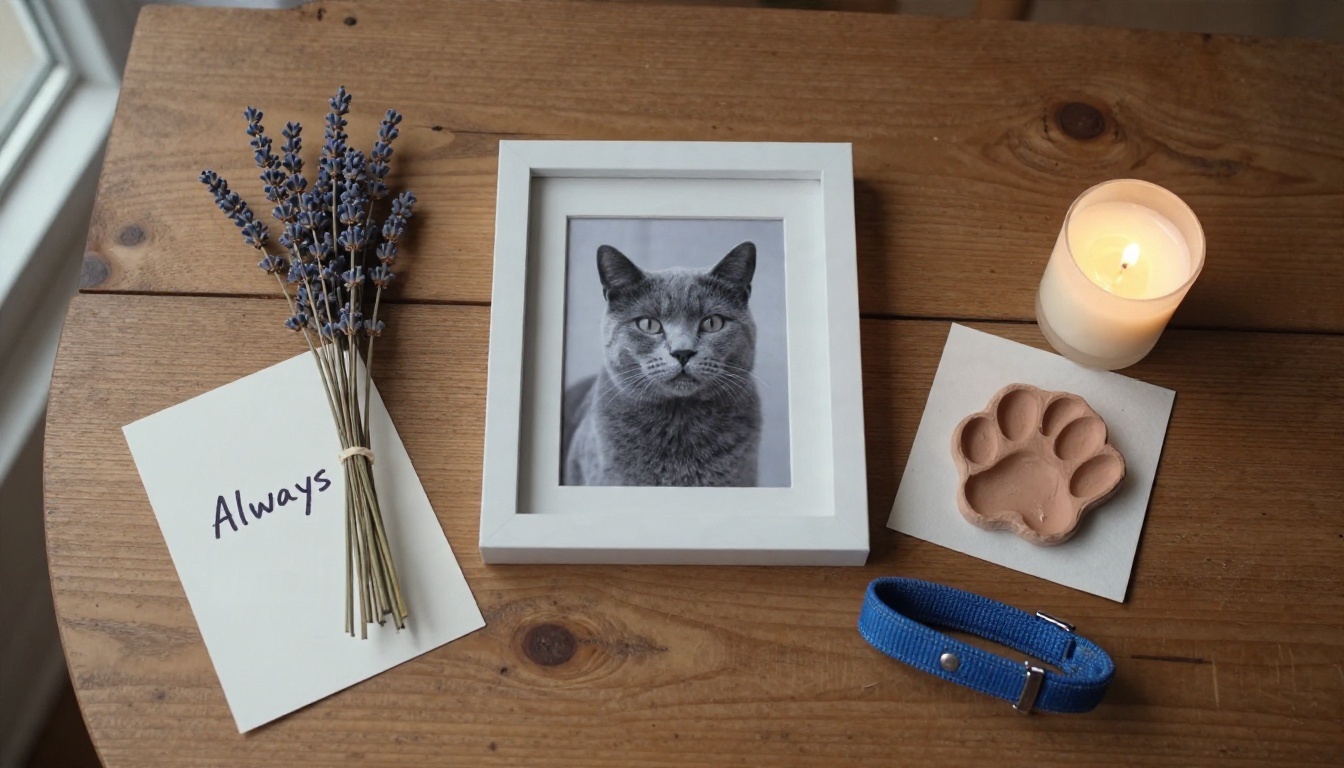
- Print a still frame and keep the video on a USB drive with the collar and paw print.
- Store a copy in more than one place, so it survives a lost phone.
Make Your Own Tribute Today
You do not need editing skills or a long evening. Choose one photograph that feels like your pet, write a short prompt with one gentle action, and let a model like Kling v3 Video or Wan 2.7 I2V animate it. Add a quiet track from Music 2.6, and you have something to keep.
Open Picasso IA, upload your favorite photo and try the three prompts from this article that fit your animal best. Run each one a few times, compare the versions and keep the one that looks the most like them. If you want to try other image, video, voice and music tools, browse the full list at picassoia.com/en/all-models.


