AI Pet Portrait Generator Free: Prompts and Best Apps
Turn a photo of your dog, cat or rabbit into a portrait without paying. This article compares mobile apps, text-to-image generators and photo editors, lists the best free models to try, and gives copy and paste prompts for studio, noble and outdoor looks.
You have hundreds of photos of your dog on your phone, and not one of them looks like something you would hang above the sofa. An AI pet portrait generator free to use closes that gap in about a minute. You upload a photo or type a short description, pick a style, and get back a portrait with the fur, the eyes and the attitude of your actual animal. The catch is that results swing wildly from one tool to the next. One app hands you a cartoon with five legs, another gives you somebody else's dog, and a third hides the download button behind a paywall.
This article sorts out which kind of tool fits which job, names the apps and models worth opening today, and gives you prompts you can paste in as they are. Every prompt was written with real photography in mind, so the results look like pictures of animals rather than clip art.
Why AI Pet Portraits Work
Pets are almost perfect subjects for image models. They hold still when sleepy, they have strong shapes (ears, snouts, whiskers), and their faces carry a lot of emotion in a small area. A model only has to get the eyes, the nose and the coat pattern right, and the viewer's brain fills in the rest. That is why a pet portrait often looks more convincing than an AI portrait of a person, where tiny errors in skin and teeth stand out right away.
What You Actually Get
Depending on the tool, a "pet portrait" can mean four very different things:
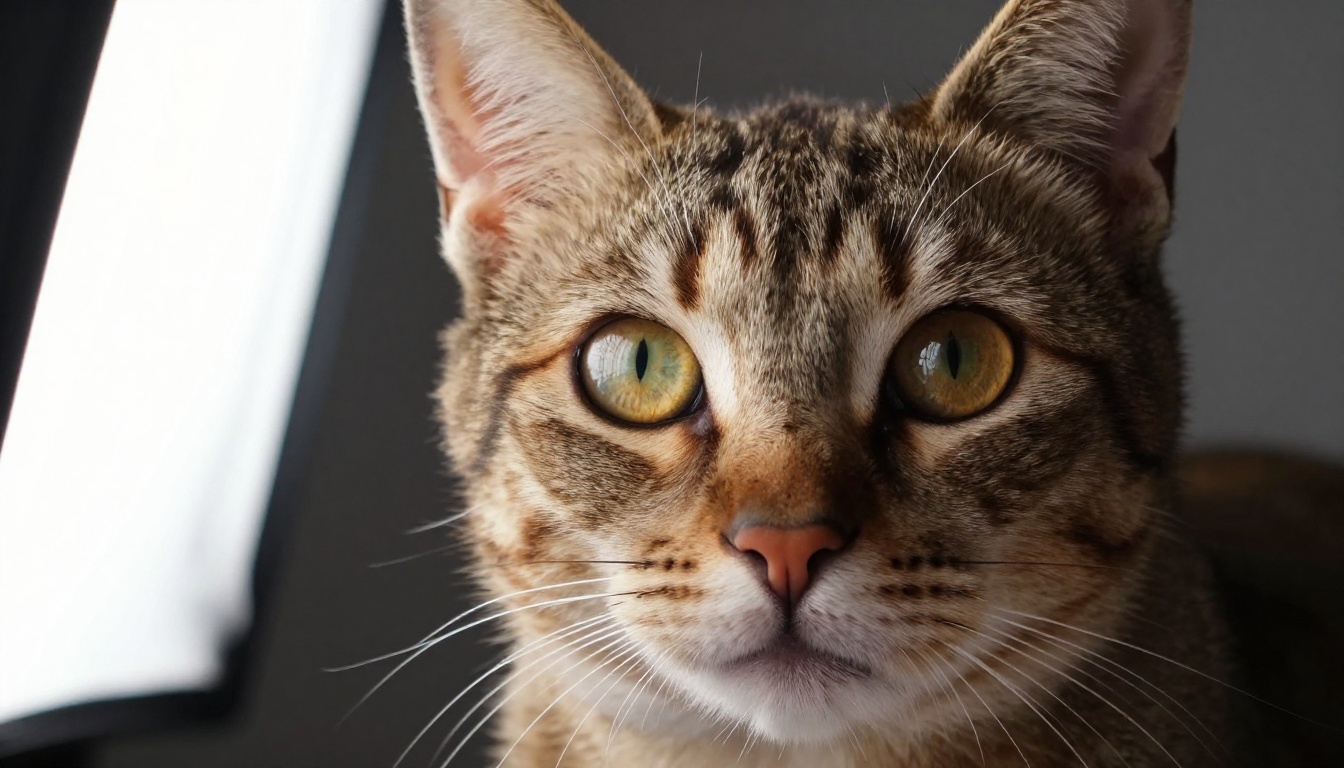
A photoreal studio portrait, like the tabby above, with controlled light and a clean backdrop.
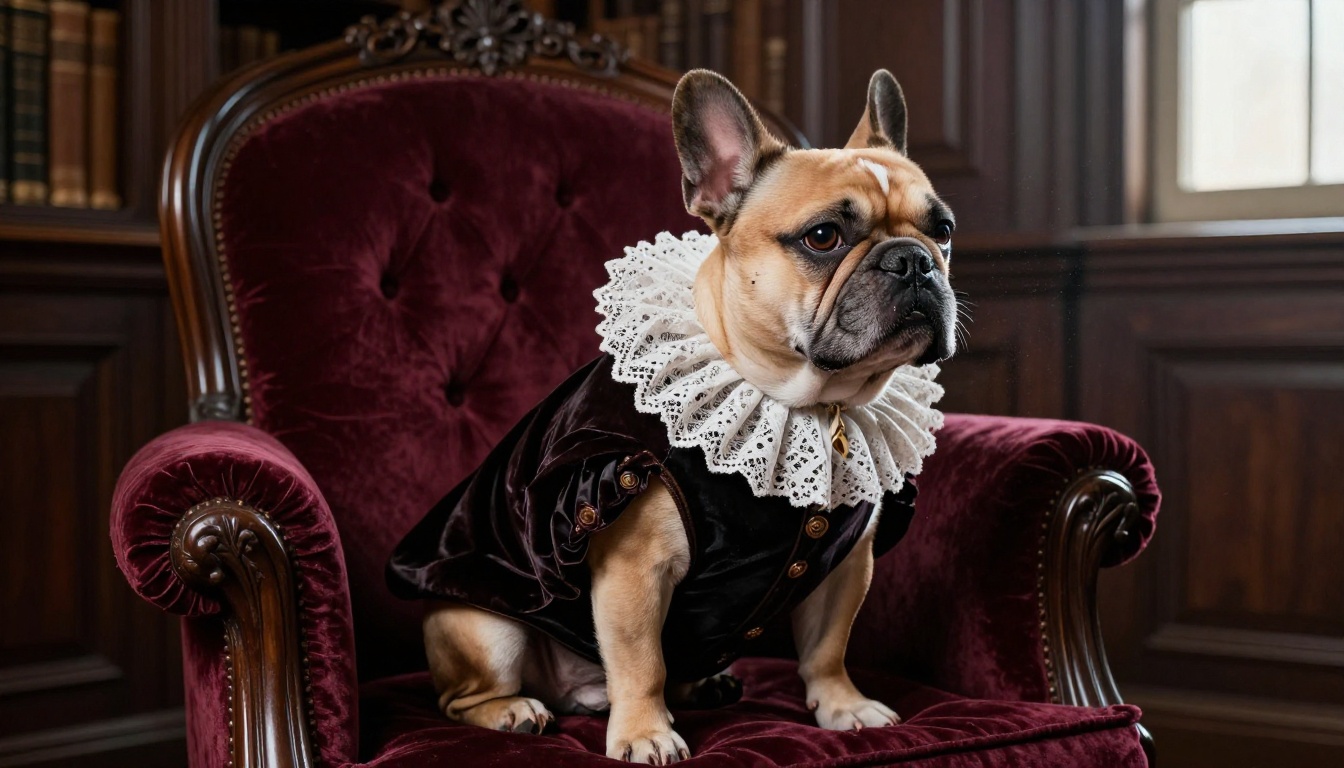
A costume or period portrait, where your cat becomes an admiral or your bulldog becomes a duke.
A painted or stylized version, from oil painting to watercolor.
A cleaned up version of your own photo, with a better background, sharper fur or restored colors.
Pick the one you want before you open any app. That single decision sets the model you use, the way you write the prompt and how much of your pet's real face survives.
Why Free Is Enough
Image generation got cheap enough that most services give away a daily or monthly allowance. For pet portraits that is plenty, because you only need a handful of attempts to land a good one. Free tiers usually limit resolution, add a watermark or cap the number of generations per day, and those limits change often. Check the current rules before you build a plan around one tool.
💡 Tip: Generate at a small size first, pick the best composition, and only then upscale. It saves credits on every platform.
Three Types of Pet Portrait Tools
Mobile Style Apps
These are the ones you see in app store ads. You upload a photo, tap a style and wait. They are fast and fun, and a few are built just for dogs and cats. The weakness is control. The style is fixed, and the app may smooth away the details that make your pet look like your pet, such as a crooked ear or a patch of white on the chest.
Text-to-Image Generators
Here you describe the picture in words and the model builds it from nothing. You get full control over style, light and scene, and the top models produce results that pass for photographs. The weakness is identity. A prompt that says "golden retriever" gives you a golden retriever, not yours. These tools shine for costumes, greeting cards, fantasy scenes and any project where a lookalike is fine.
Photo Editors With a Reference
This group starts from your photo and changes it according to your instructions. Models such as Flux Kontext Fast and Qwen Image Edit Plus can keep the animal's face while changing the background, the outfit or the style. If you want the portrait to be recognizably your own pet, this is usually the best route.
Tool type
Best for
Weak spot
Cost to try
Mobile style apps
Quick cartoon or painted looks
Little control, details get smoothed
Free tier, often limited
Text-to-image generators
Costumes, scenes, any style
Result is a lookalike, not your pet
Free credits or a free plan
Reference photo editors
Keeping your pet's real face
Needs a clear source photo
Free credits or a free plan
Best Apps and Models to Try
Models on PicassoIA
PicassoIA gathers a large range of image models in one place, so you can run the same prompt on several and compare the output side by side. These are the ones worth trying first for pets:
Every picture in this article was generated with P Image, which is a good reason to start there when you are still tuning a prompt. Speed matters more than polish in the first ten attempts.
💡 Tip: Run the same prompt on three models before you change a single word. The gap between models is often bigger than the gap between prompts.
Free Tiers Elsewhere
Outside PicassoIA, a few names come up again and again for free pet art:
Canva has a built-in image generator and a large template library for cards, posters and frames.
Adobe Firefly is a popular pick for polished, clean results and starts with a free allowance.
Pet-specific mobile apps such as DreamPets advertise preset styles for cats and dogs, which suits quick social posts.
Features and free limits at these services move around, so read each one's current page before you commit. For any of them, the same rule applies: a clear, well lit source photo beats a clever prompt.
Prompts to Copy and Paste
Every prompt below follows the same formula. Swap the words in [brackets] for your own pet and keep the rest.
Part
What to write
Example
Subject
Breed, coat, one unique detail
Fawn French bulldog with one folded ear
Setting
Where the pet sits or stands
Velvet armchair, dark library wall
Light
Direction and softness
Soft window light from the left
Lens
Focal length and aperture
85mm lens at f/1.8
Texture
Fur, whiskers, nose
Individual fur strands, wet nose highlights
Put the subject first and the camera last. Models tend to weigh the opening words of a prompt most heavily, so the first ten words should name the animal and what it is doing. Style words such as "cinematic" or "epic" pull the result away from a believable pet photo, so skip them unless you want that dramatic look.
Studio Portrait
Studio portrait of a [breed] with [coat color], sitting upright and looking straight into the lens, [one unique detail], soft window light from the left, plain warm gray backdrop, 85mm lens at f/2, individual fur strands visible, wet nose highlights, natural film grain, photorealistic
This is the safest starting point. The plain backdrop keeps the model focused on the face, and the lens detail pushes it toward a believable shallow depth of field.
Renaissance Noble
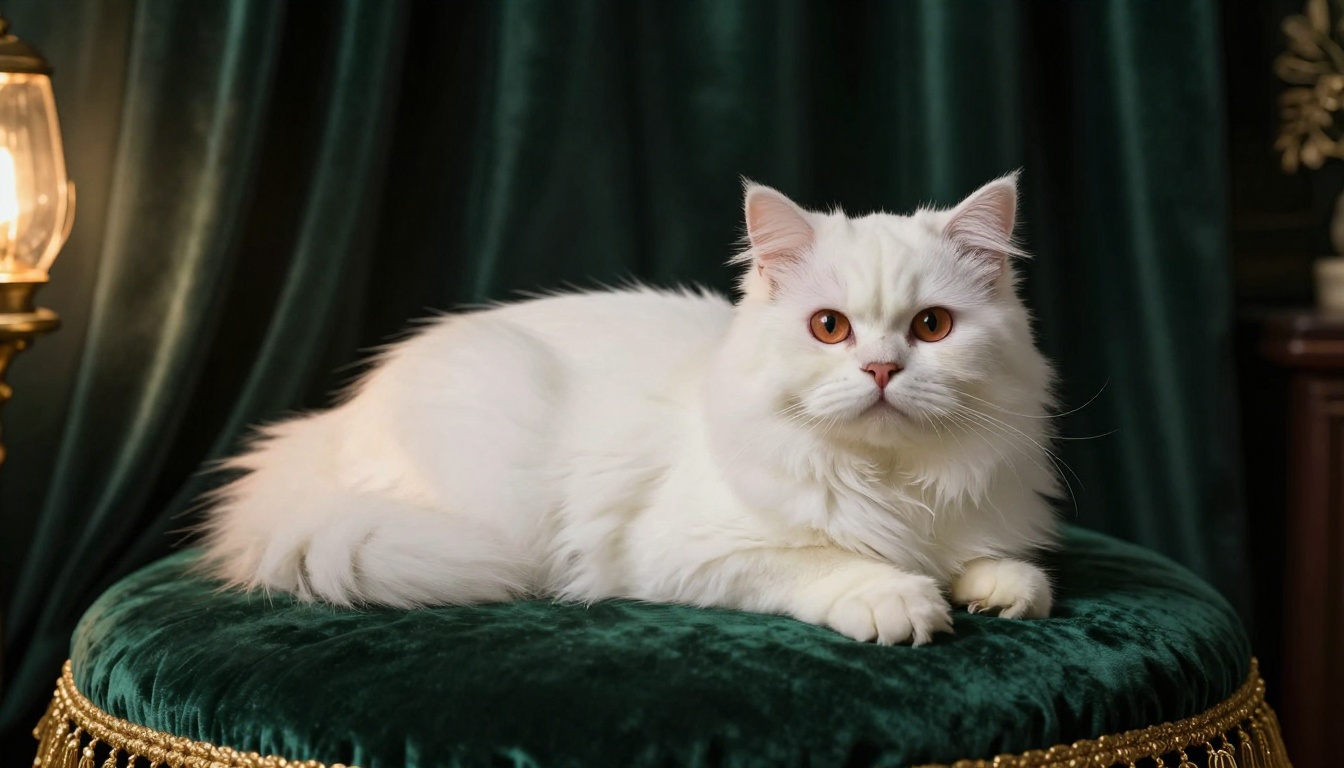
Photograph of my [breed] sitting on a burgundy velvet armchair wearing a white lace Renaissance ruff and a small dark velvet cloak, posed like a nobleman in a museum portrait, dark paneled wall, single warm light from the right, 50mm lens at f/2, fabric weave visible, film grain
Want a painting instead of a photograph? Replace "Photograph of" with "Oil painting of" and add "visible brush strokes, craquelure, rich brown palette". The costume and the pose stay the same.
Golden Hour Outdoors
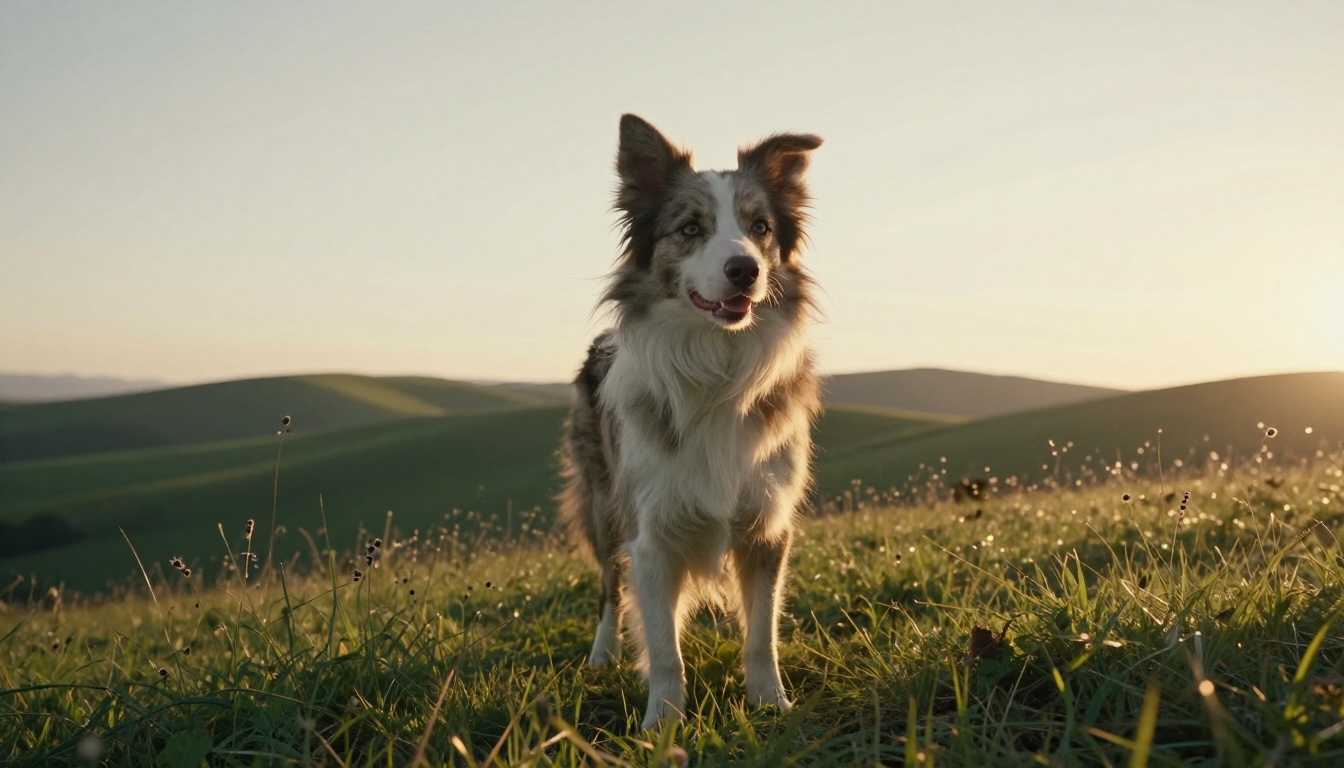
Low angle photograph of a [breed] standing on a grassy hilltop at golden hour, wind lifting the fur on its chest and ears, low sun from the right creating a warm rim light, rolling hills fading into haze, 70mm lens at f/2.2, shallow depth of field
A low camera angle makes any animal look heroic. Dogs with long coats, such as collies, setters and shepherds, gain the most because the rim light picks out every strand.
Rabbits, Birds and Small Pets
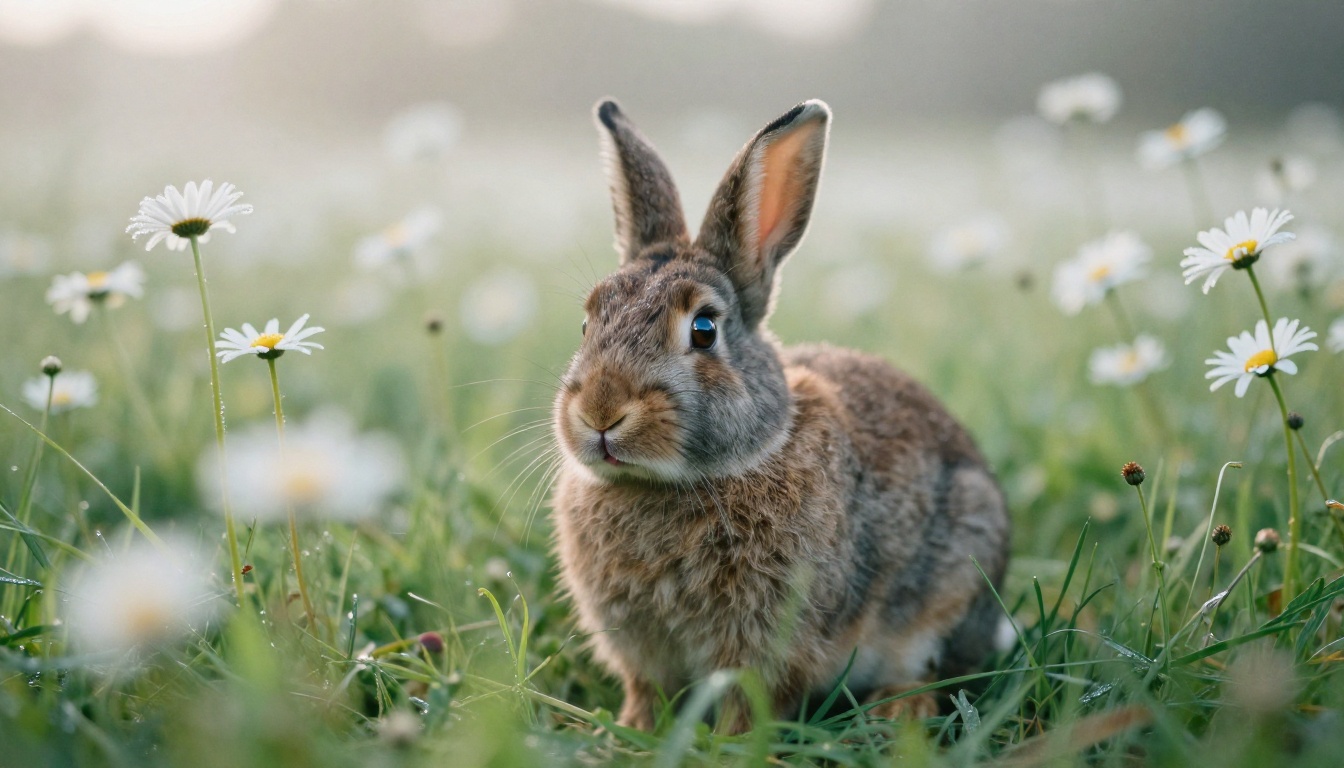
Macro style photograph of a [small animal] sitting in a daisy meadow at sunrise, dew on the petals, hazy backlight creating a halo on the fur, shot from ground level with a 90mm lens at f/2.8, foreground grass blurred, whiskers sharp
Small animals need a macro feel. Put the camera at their level, blur the foreground, and let the backlight do the work.
How to Use P Image on PicassoIA
P Image is fast enough that you can test a dozen versions of a prompt in the time it takes to make coffee. Here is the routine:
Open the model page. Go to the P Image page on PicassoIA.
Paste a prompt. Use one from the section above and fill every bracket. Add one detail that is truly yours, such as "one white sock on the left front paw".
Choose the shape. Use 16:9 for wide scenes and desktop wallpapers, and 3:4 or 2:3 for frames you plan to hang.
Generate and compare. Change one thing per attempt: the light, the lens or the setting. Never all three at once.
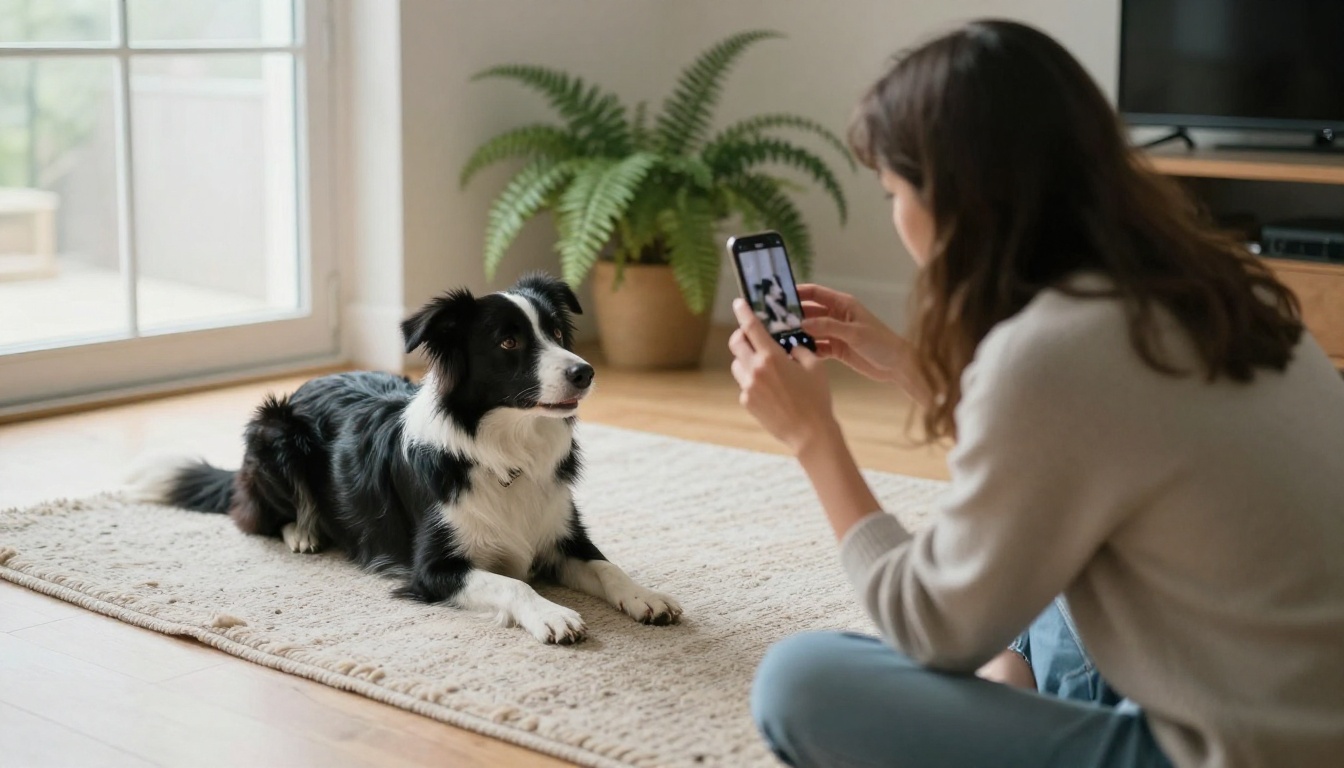
Switch for a real likeness. When you need your own pet's face, move to Flux Kontext Fast, upload your photo, and describe only what should change.
Settings That Matter
Aspect ratio changes the whole composition, so decide it before you generate, not after.
Seed: if the model page offers a seed field, reuse the same number while you adjust the prompt. The picture then changes only where your words changed.
Prompt length: 50 to 75 words works well. Shorter prompts leave too much to chance, and much longer ones start to contradict themselves.
Fix Common Problems
Most bad results trace back to three habits. People name a breed but never the coat, so the model guesses. They stack five styles in one prompt, such as watercolor, oil, anime and photograph, and the picture turns muddy. And they feed an editing model a blurry source photo, then wonder why the face looks soft. Fix those three and your hit rate climbs fast.
Wrong Coat or Eye Color
Vague words produce average dogs. Write "cream coat with a white blaze and dark brown eyes" instead of "light dog". For unusual eyes, say it outright: "one blue eye and one brown eye". When you edit a photo, add a line that locks the identity: "keep the same face, ear shape and markings".
Soft Details
Long, silky coats are the hardest case, because models tend to blur them into a smooth cloud. Ask for "individual fur strands", pick a lower f-number such as f/1.8 to separate the pet from the background, and finish with an upscaler.
Paws are the other usual trouble spot. If a result shows extra toes, regenerate with the pet lying down, paws tucked under the chest, or crop the paws out of the frame.
Old or Blurry Photos
Many people want a portrait of a pet who is no longer around, and the only photo is small, faded or scratched. Restore Image fixes and colorizes old photos. Run that first, then use the repaired picture as the reference for a new portrait. Do the repair before the style change, never the other way around.
Gift and Print Ideas
A good portrait deserves to leave the screen. These are the formats that tend to work best:
Canvas or framed print for the living room, sized to your resolution.
Holiday cards with the pet in a seasonal costume.
Phone wallpapers in a 9:16 shape.
A memorial picture built from a restored photo.
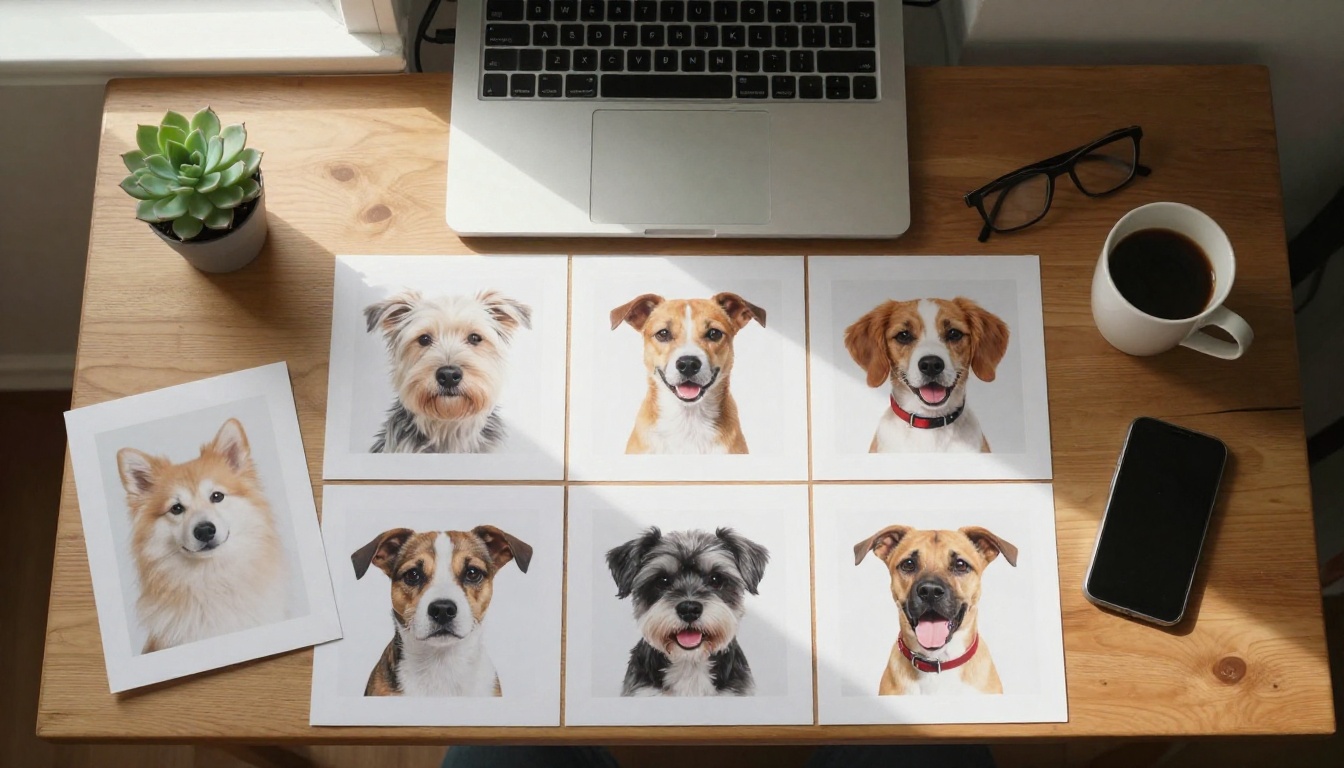
A gallery wall of one pet in several styles.
Resolution decides print quality. As a rule of thumb, you want 150 to 300 pixels per inch. An 8 by 10 inch print at 300 pixels per inch needs about 2400 by 3000 pixels, so upscale before you send anything to a printer.
💡 Tip: Order one small test print first. Screens are backlit and prints are not, so colors, especially warm browns and blacks, can shift.
Make Your Own Pet Portrait Today
You now have the formula, the prompts and a short list of models, which leaves one step: pick a single pet and a single prompt and run it. Start on Picasso IA with P Image for speed, compare it with Seedream 5 Pro for detail, and switch to Flux Kontext Fast when you want your own animal's face in the result. Browse the full list at picassoia.com/en/all-models if you want to test other styles.
Today's goal is easy: one pet, three styles, one favorite. Upload the photo, paste the prompt, change one detail at a time, and keep the version that makes you smile. Your next gallery wall starts with that first generation.