You finish a one hour meeting, and twenty minutes later nobody agrees on who promised what. That is the exact moment AI powered transcription earns its place. Software listens to the recording, turns speech into text, and hands you a searchable record before the coffee goes cold. The tools have gotten good enough that the real question is no longer "does it work?" but "which one should I pay for, if any?"
This article answers that with specifics: what the free plans actually give you, how accurate transcripts are on real audio, what the pricing looks like in 2026, and which meeting apps fit which kind of team. You will also see how to run your own transcription on PicassoIA with a few clicks.
💡 Quick answer: For occasional meetings, a free plan from a meeting app is usually enough. For interviews, podcasts and lectures, a pay-per-hour speech-to-text model costs less and gives you more control.
What AI Transcription Actually Does
Speech Recognition in Plain Terms
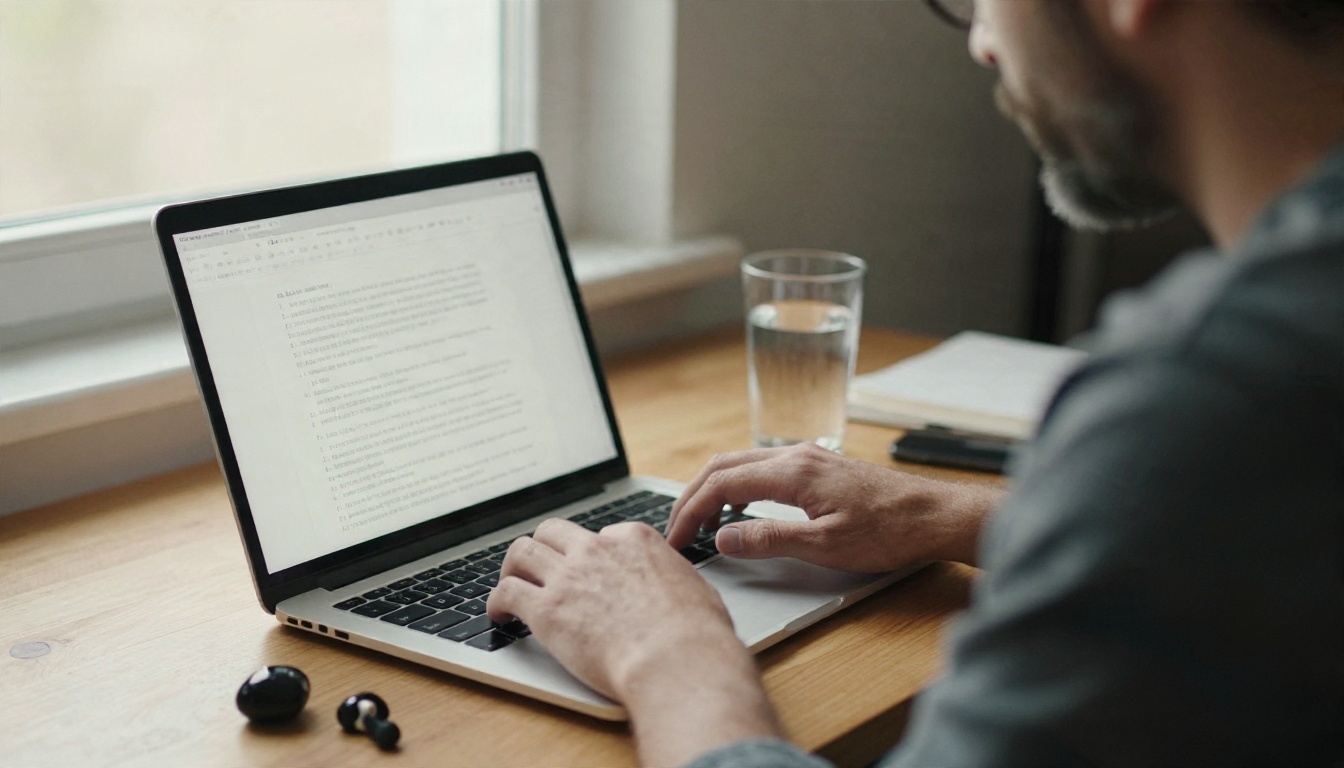
A transcription model takes an audio waveform, breaks it into tiny slices, and predicts the most likely words for each stretch of sound. Modern systems use large neural networks trained on enormous amounts of speech, which is why they cope with accents, filler words and fast talkers far better than the dictation software of ten years ago.
Most tools add layers on top of the raw text:
- Punctuation and casing, so the transcript reads like writing and not a wall of lowercase words.
- Speaker labels, which mark who said what.
- Timestamps, so you can click a line and jump to that moment in the recording.
- Summaries and action items, usually produced by a language model reading the finished transcript.
Why Meetings Are the Hard Case
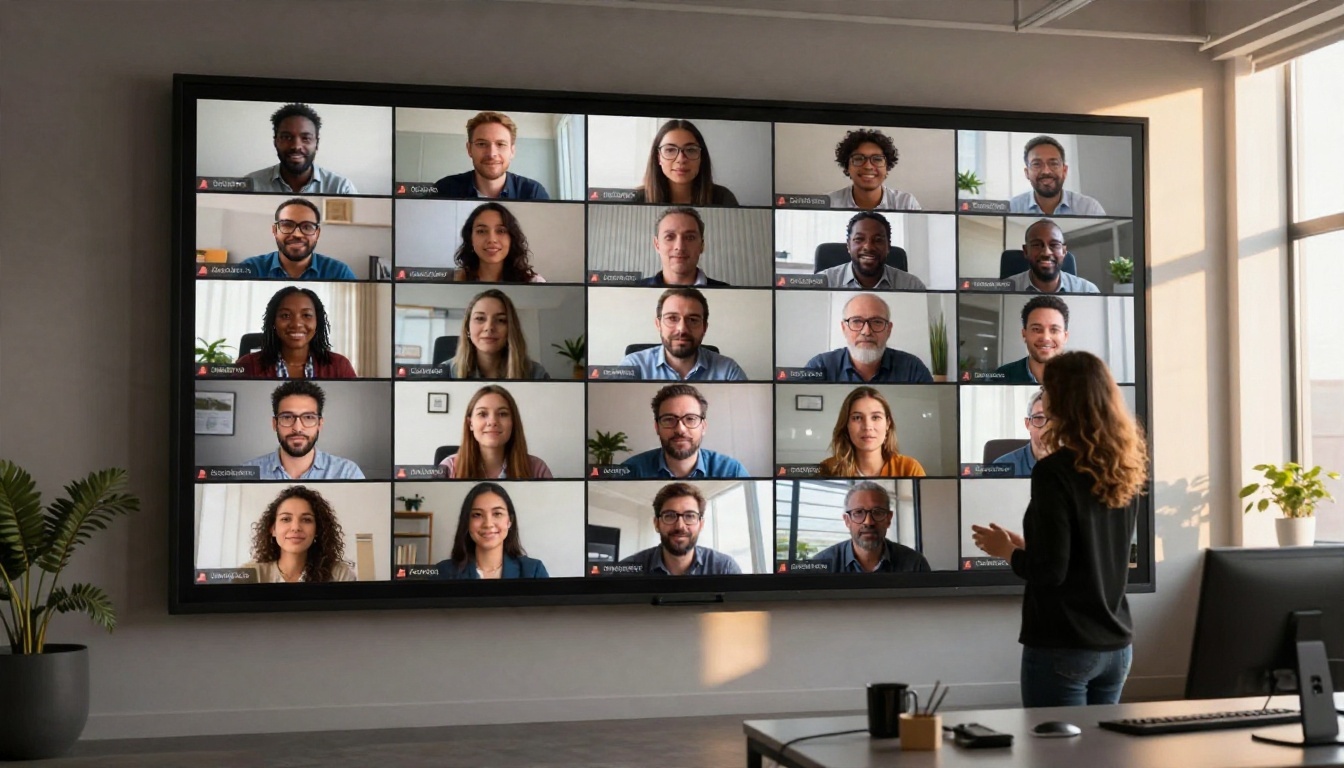
A single speaker reading into a good microphone is easy. A meeting is not. People interrupt each other, laugh mid sentence, speak from different distances, and use internal jargon no model has seen. Video calls also compress audio, which strips out detail the recognizer would love to have.
That is why accuracy numbers on a marketing page rarely match what you get in a real conference room. More on that below.
Free Options Worth Your Time
Free Meeting Apps
Several meeting assistants offer a free tier that joins your call, records it and produces a transcript. Based on the plans reported in early 2026, the field looks like this:
| Tool | What the free plan offers | Typical paid entry point |
|---|
| Fathom | Frequently described as unlimited recording and transcription for Zoom, Google Meet and Teams | Around $15 per user per month on annual billing |
| Otter.ai | Live transcription with a monthly minute allowance | Roughly $8 to $17 per user per month, depending on the plan |
| Fireflies.ai | Free tier with limited storage and AI features | Paid tiers per user, billed monthly or annually |
| tl;dv | Free plan reported at around 10 meetings per month | Per user pricing for higher limits |
| Fellow | A limited free version | From about $7 per user per month |
Treat these numbers as a snapshot. Vendors change limits often, so check the current pricing page before you commit a team.

Free Tiers for Solo Work
If you are a student, journalist or creator, you do not need a meeting bot at all. You have a file, and you want text. Here the free choices are:
- Built-in phone dictation and voice memo transcription, which are convenient but often weak on long recordings.
- Free minutes on web transcription tools, usually capped per month.
- A pay-as-you-go speech-to-text model, where a short interview can cost pennies.
The third option is the one most people overlook, and it is the one that scales without a subscription.
The Catch Behind Free
Free is rarely free. Expect at least one of these trade-offs:
- Recording caps per month or per meeting.
- Short transcript history, after which older files disappear.
- Summaries and search locked behind a paid tier.
- A branded bot that announces itself in every call, which some clients dislike.
- Your audio used in ways you did not expect, depending on the privacy policy.
How Accurate Is It Really?
Realistic Accuracy Ranges
Vendors love to quote 95 percent or higher. In practice, think in ranges:
| Audio situation | What to expect |
|---|
| One speaker, quiet room, good microphone | Very high, often a handful of errors per page |
| Two speakers, clear video call | High, with occasional name and term mistakes |
| Group meeting, crosstalk, laptop microphone | Noticeably lower, with missing words and wrong speaker labels |
| Noisy cafe, phone on a table, strong accents | The weakest case, expect real cleanup |
Independent head to head benchmarks for meeting apps are scarce, and many comparison pages are written by the vendors or by affiliates. The honest way to judge accuracy is simple: take one real recording of yours, run it through two or three tools, and compare.
What Drags Accuracy Down
The same few problems show up again and again:
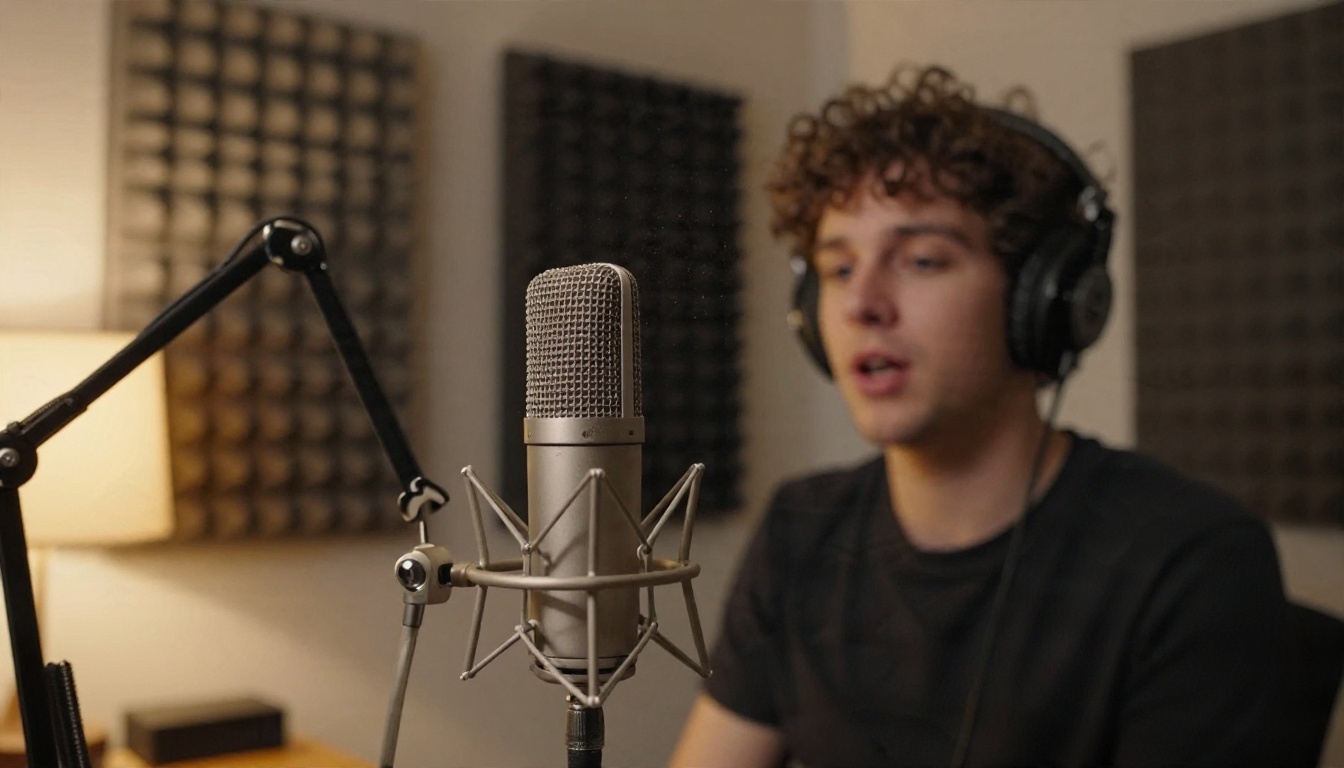
- Distance from the microphone. A phone across the table is the single most common culprit.
- Overlapping speech. Two people talking at once usually produces one garbled line.
- Proper nouns. Product names, surnames and acronyms get swapped for similar sounding words.
- Compressed call audio. A weak connection degrades the signal before the model ever hears it.
- Wrong language setting. Telling the model the language up front avoids bad guesses.
Quick Ways to Boost Results
You can improve almost any transcript before you press the button:
- Use a headset or a dedicated microphone instead of the laptop speaker.
- Ask people to state their name the first time they speak.
- Record in a quiet room and mute anyone who is not talking.
- Set the correct language when the tool asks.
- Add a short prompt listing unusual names and terms, where the tool allows it.
💡 Tip: A thirty second test recording tells you more about a tool than any review. Say your own company name and a few technical terms, then see how they come out.
What Transcription Costs in 2026
Per User Subscriptions
Meeting apps charge per seat. A team of ten on a plan around $15 per user per month spends roughly $1,800 per year, and that buys recording, summaries, integrations and a searchable archive. If everyone is in meetings all week, the price is easy to justify. If only two people actually use it, you are paying for eight idle seats.

Pay Per Hour Options
Developer oriented speech-to-text models charge by audio length. Some of the cheapest options in 2026 land at about $0.40 per hour of audio, and you pay nothing in months when you transcribe nothing. For a person who records a few interviews a month, that is a different universe from a subscription.
| Scenario | Better fit |
|---|
| 10 people, daily calls, need summaries and CRM sync | Per seat meeting app |
| Journalist with 8 interviews a month | Pay per hour model |
| Student with weekly lectures | Free tier or pay per hour |
| Podcast with weekly episodes | Pay per hour model |
| Compliance heavy team in healthcare or finance | Meeting app with certifications, or a controlled workflow |
Best Apps for Meetings
Fathom, Otter, Fireflies and tl;dv
These four dominate the free meeting assistant conversation. A rough way to choose:
- Fathom is a popular first pick for teams that want generous free recording and clean summaries.
- Otter.ai is well known for live transcription during the call, handy when you want to read along.
- Fireflies.ai leans into search across a large archive of past meetings and integrations with other work tools.
- tl;dv is built around clips and highlights you can share with people who missed the call.
All four join as a participant or capture the call directly, so check how each one appears to the other people on the line.
Fellow and Compliance Needs
Fellow positions itself around meeting agendas, notes and follow ups, and it emphasizes security certifications such as SOC 2 and HIPAA support. If your legal or security team asks for documentation before approving any tool, that kind of positioning matters more than a slightly better transcript.
When a Bot Is the Wrong Tool
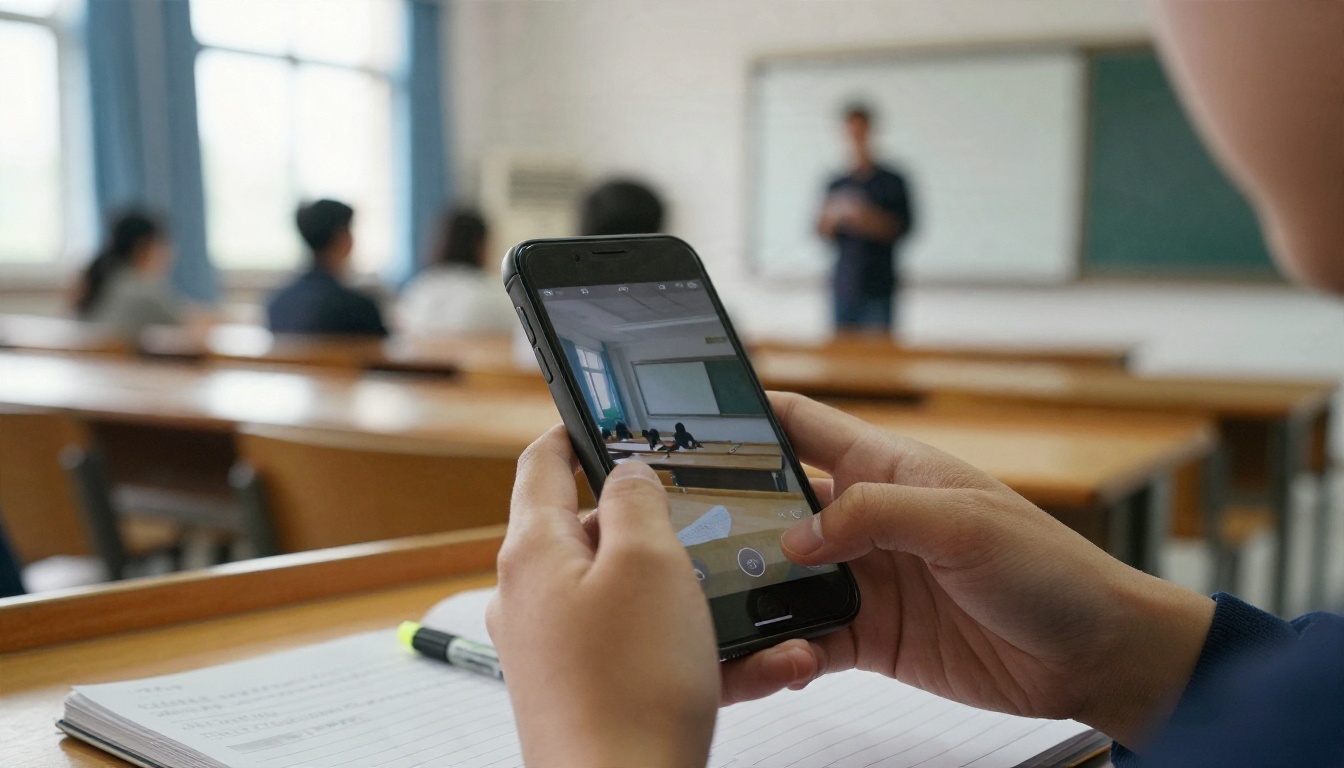
Not every conversation should have a bot in it. One on one coaching sessions, sensitive HR talks and client calls under confidentiality are better handled by recording a file with consent and transcribing it yourself. That is also the case for lectures and in person meetings, where there is no video platform to join.
How to Transcribe Audio on PicassoIA
If you have a recording and want the text, PicassoIA offers speech-to-text models you can run without installing anything. Three are available right now:
Step by Step
Here is the workflow with GPT 4o Transcribe:
- Open the model page and find the input panel.
- Upload your audio file. Supported formats include MP3, MP4, MPEG, MPGA, M4A, OGG, WAV and WebM, so you rarely need to convert anything.
- Set the language using a two letter ISO-639-1 code such as
en, es or fr. The model page notes that this improves both accuracy and speed.
- Add a prompt if you want. A short line listing names, product terms or the speaking style helps the model spell things the way you do.
- Leave temperature at 0 for the most literal transcript, or raise it slightly if you want more variation.
- Run the model and copy the text into your notes, document or project tool.
Settings That Matter
| Setting | What it does | Suggested value |
|---|
| Audio file | The recording to transcribe | MP3, WAV or M4A under a sensible length |
| Language | Tells the model what is being spoken | Always set it when you know it |
| Prompt | Guides style and spelling | Names, acronyms and tone in one sentence |
| Temperature | Controls variation | 0 for faithful text |
For very long recordings, split the file into chapters of thirty to sixty minutes. Smaller chunks are easier to proof, and if something fails you only redo one piece.
💡 Pro workflow: Transcribe with GPT 4o Transcribe, then paste the text into a language model from the large language models collection on PicassoIA to get a summary, a list of decisions or follow up emails.
Privacy Before You Hit Record
Transcripts contain exactly the material people are careful about: salaries, health details, deals and complaints. Before you pick a tool, run through this short checklist:
- Consent. Tell participants you are recording. Many regions legally require it.
- Data retention. Find out how long audio and text are stored and whether you can delete them.
- Training use. Check whether your recordings may be used to improve the vendor's models.
- Access control. Make sure you can restrict who sees each transcript.
- Certifications. Regulated teams should look for formal compliance documentation.
Upload only what you are allowed to process, and keep sensitive files out of shared folders.

Proofreading Without Pain
Even a strong transcript needs a quick pass. Skim the file with the audio playing at 1.5x speed and fix only what matters: names, numbers, dates and quotes. Search for words like "approximately," "deadline" and "budget" since they tend to sit near the lines people will act on.
A practical routine that takes under ten minutes for a one hour meeting:
- Read the summary first and compare it to your memory of the call.
- Search for every number and check it against the audio.
- Correct speaker labels for the three or four people who spoke most.
- Copy action items into your task tool with an owner and a date.
- Share the cleaned version, not the raw one.
Start Transcribing Your Own Audio
The cheapest way to settle the free versus paid debate is to test with your own material. Pick one recent meeting, one interview or one lecture, and run it through a free meeting app and through a speech-to-text model. Compare the errors, the time you spend fixing them and the price per hour. In an afternoon you will know which approach fits your work.
Ready to try? Open GPT 4o Transcribe on PicassoIA, upload a recording, and watch the text appear. If you want to compare engines, run the same file through GPT 4o Mini Transcribe and Gemini 3 Pro. And while you are there, browse everything else PicassoIA offers, from text to image and text to video to text to speech and music, at picassoia.com/en/all-models.