Posting every day sounds simple until you sit down on Sunday night with an empty camera roll, a blank caption box and a coffee gone cold. That gap between "I need content" and "I have content" is exactly where an AI social media content creator app earns its place. The right one turns a two-line idea into a finished photo, a short video clip or a voiceover in minutes, and the best ones cost nothing to try.
The market is crowded, though. Some apps only write captions. Others only schedule posts. A few actually make the visuals, which is the slow part for most people. This article sorts through all of it: which free options are worth your time, which prompts get usable results on the first try, what you will really pay once you outgrow the free tier, and what finished examples look like for different kinds of accounts.
💡 Quick answer: If you want to make the pictures and clips themselves, use an image and video generator. If you only want to schedule or write captions, a scheduler or chat assistant is enough. Most creators end up using one of each.
What These Apps Actually Do
The phrase "AI content creator app" covers four very different jobs. Mixing them up is the number one reason people pay for a tool and then barely use it.

The four types of tools
| Type | What it produces | Typical free limit | Best for |
|---|
| Visual generators | Photos, product shots, thumbnails | Daily or monthly credits | Accounts that need original imagery |
| Video generators | 5 to 10 second clips with sound | Few clips per month | Reels, Shorts, TikTok hooks |
| Caption and script writers | Hooks, captions, hashtags | Message caps per day | Fast text drafting |
| Schedulers | Nothing new, only publishing | A few channels, limited queue | Posting on autopilot |
Tools such as Buffer and Later sit in the scheduler row. ChatGPT sits in the writing row. Canva blends templates with light generation. OpusClip and Descript focus on cutting and captioning footage you already shot. None of these invent a brand new photograph or clip from a sentence, and that is where generative models come in.
Where generators fit in your week
A generator is the first step, not the last. You make the asset, then you drop it into whatever scheduler you already use. Think of it as a small photo studio that never closes: you describe the shot, you get the shot, and you decide whether it ships.
Free Options Worth Trying
Free does not mean useless, but it does mean limits. Here is how to judge them before you build a routine around one.
What a good free tier looks like
Check four things before committing: how many generations you get, whether outputs carry a watermark, the maximum resolution, and whether you can use the results commercially. A free plan that gives you ten watermarked low-resolution images per month is a demo, not a workflow.
On the scheduling side, the free plans from Buffer and Later cover a handful of channels and a limited number of queued posts, which is plenty for a solo creator. For footage you already shot, Descript and OpusClip offer free tiers with caps on minutes and exports. For writing, ChatGPT has a free plan that handles captions and hook brainstorming without trouble. Plans change often, so check each product's current page before relying on any of these numbers.

Free image models on PicassoIA
For the visual side, several models on PicassoIA are fast enough to run a full week of posts in one sitting:
- Nano Banana Pro handles detailed scenes and sharp text-free product photos at high resolution.
- Nano Banana is a flexible pick for both generating and editing existing pictures.
- Nano Banana 2 Lite trades a little detail for speed, ideal for drafts.
- Seedream 4.5 produces crisp 4K stills with natural skin and fabric texture.
- Qwen Image 3 Pro is strong for photorealistic lifestyle scenes.
- PicassoIA Image Editor Pro lets you fix, restyle and retouch photos you already have, with no cap on how many edits you run.
Free video options
Short video is the hardest thing to get for free, because it costs more computing power. LTX 2.5 Fast is built for speed, which makes it a sensible place to test hooks before you spend more on a polished clip. For finished pieces with sound, Veo 3.1 Fast, Kling v3 Video and Sora 2 are the ones to try.
💡 Tip: Test every new model with the same prompt. A side by side result tells you more than any feature list.
Prompts That Actually Work
Most weak AI posts come from weak prompts. "A nice photo of coffee" returns a nice photo of coffee that looks like everybody else's. Specific prompts return specific, believable images.

The five part prompt formula
Build every prompt from the same five pieces, in this order:
- Subject and action: who or what, and what they are doing.
- Setting: where it happens, with two or three concrete background objects.
- Light: direction and quality, such as "soft window light from the left."
- Camera: lens and angle, such as "85mm, eye level, shallow depth of field."
- Texture and mood: the small details that make it feel real, like linen weave, condensation, dust in the sunbeam.
Copy and paste image prompts
Swap the bracketed words for your own niche.
| Goal | Prompt |
|---|
| Product flat lay | Top-down photo of [product] on a rough stone slab, dried flowers beside it, soft window light from the left, 35mm lens, natural shadows, fine film grain. |
| Lifestyle portrait | Candid photo of a [age] [person] using [product] in a sunlit kitchen, 50mm lens, warm morning light, visible fabric texture, shallow depth of field. |
| Cafe or shop scene | Wide photo of a small [business type] interior at golden hour, warm light across wooden counters, customers blurred in the background, 28mm lens. |
| Travel scene | Medium shot of a traveler walking a coastal trail at sunset, backlit, windblown grass, 85mm lens, hazy horizon. |
Copy and paste video prompts
Video prompts work best when you describe what happens second by second.
- A woman lifts a ceramic mug toward the camera and smiles, steam rising, slow dolly-in, warm window light, soft background music.
- A runner ties her shoes on a quiet street at dawn, camera tilts up as she stands, cool morning haze, faint footsteps in the audio.
- A baker pulls a tray of rolls from the oven, flour drifting through a sunbeam, handheld camera with gentle sway, crackling sound.
💡 Pro move: Generate a still image first with a photo model, then feed it to a video model as the opening frame. You keep full control of the look, and the clip stays consistent with your feed.
Real Pricing Breakdown
Pricing is where marketing pages get slippery. Here is how to think about it so the number on the page does not surprise you at checkout.

Typical monthly costs
These ranges reflect what the market looked like at the time of writing. Confirm current prices before you subscribe.
| Tool category | Free tier | Entry paid plan |
|---|
| Chat assistants like ChatGPT | Yes, limited messages | Around $8 to $20 per month |
| Design apps like Canva | Yes, basic templates | Around $15 per month |
| Schedulers like Buffer and Later | Yes, a few channels | Roughly $5 to $9 per month, per channel or plan |
| Clip tools like OpusClip | Yes, limited exports | Around $9 per month |
| Social suites such as Jasper or SocialPilot | Usually trial only | Often $30 to $40 per month and up |
A "free stack" of a chat assistant, a design app and a scheduler can cover a lot of ground at zero cost. What it cannot do is invent original photography or video. That is the gap generators fill.
Credits versus subscriptions
Generators charge in one of two ways. Subscriptions give you a monthly pool of credits that expires. Pay as you go charges per image or clip, which suits irregular posting. If you post three times a week, credits per image almost always cost less than a flat plan. If you post twice a day, a plan with unlimited or high volume wins.
Hidden costs to watch
- Watermarks that force an upgrade just to publish.
- Resolution caps that make images look soft on a phone held at arm's length.
- Commercial use limits buried in the terms.
- Re-generation costs when the first attempt misses, which it will about one time in three.
Examples by Account Type
Abstract advice only goes so far. Here is what a finished workflow looks like for four common accounts.
Fashion and lifestyle creators
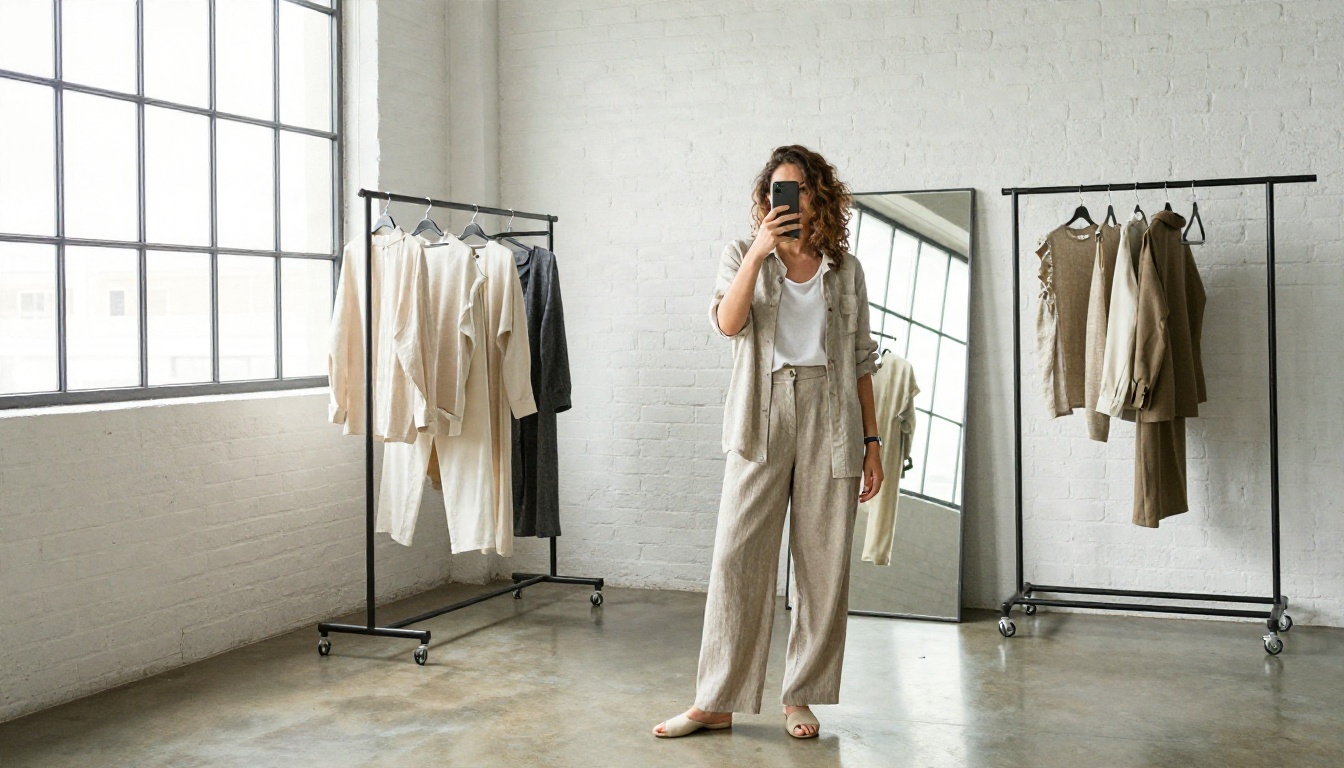
Fashion accounts live on consistent mood. Generate a handful of loft, street and studio backdrops with the same light direction, then drop real outfit shots into the same visual world. A model like Seedream 4.5 keeps fabric folds and skin looking natural, which matters when followers zoom in.
Small shops and product brands
A product photographer costs hundreds per session. An image model costs a few cents per shot. Describe the surface, the light and the props, then use PicassoIA Image Editor Pro to clean up edges or swap a background on your real product photo. This is the fastest way to keep a catalog looking uniform.
Travel and outdoor accounts
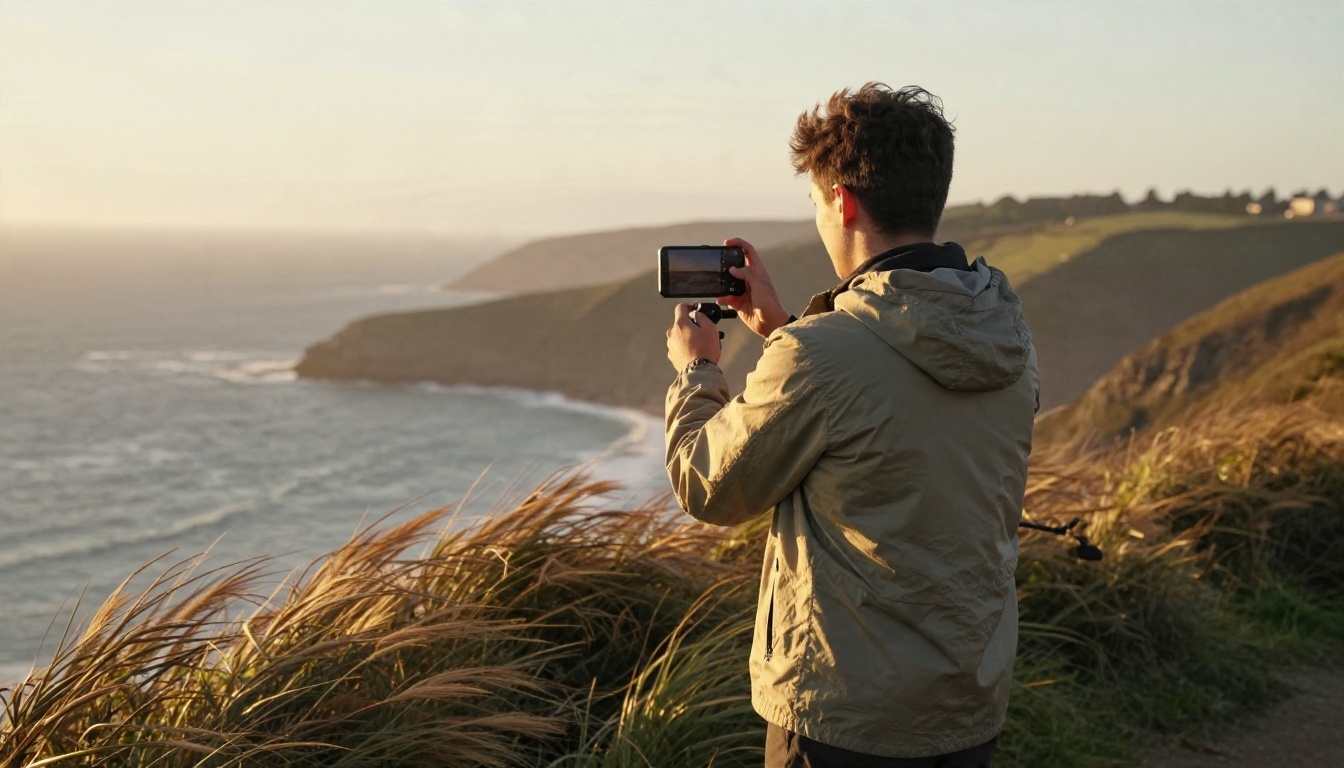
Travel feeds depend on atmosphere. When the weather ruined your trip photos, you can generate establishing shots of trails, coastlines and golden hour light to fill the gaps in a carousel. Label generated scenes honestly if your audience expects every frame to be real, and keep your actual photos as the heart of the feed.
Educators and coaches
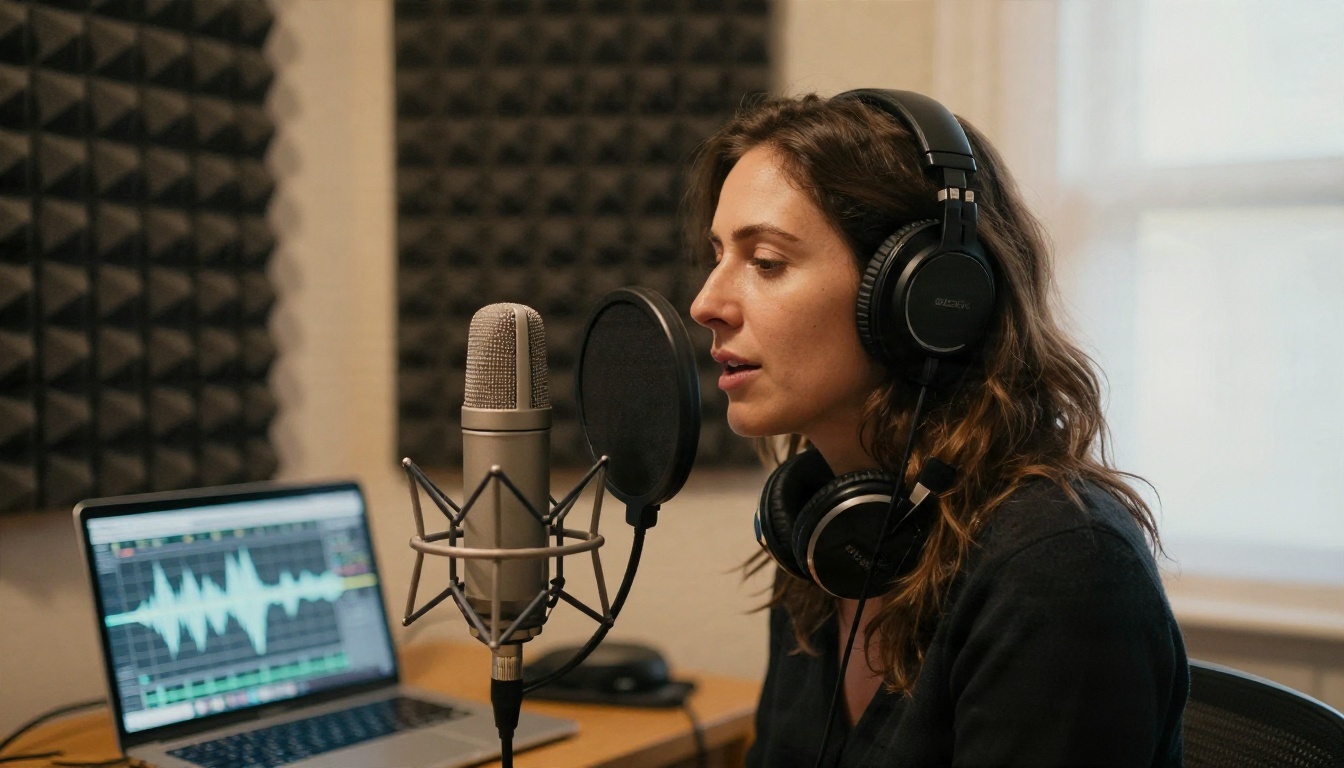
Talking head accounts need variety more than polish. Use generated B-roll to illustrate points, and add a voiceover with Realtime TTS 2 or the lighter Realtime TTS 1.5 Mini when you do not want to record audio yourself. To reach viewers in other languages, Dubbing translates a finished video into more than 90 languages.
A Weekly Workflow That Sticks
Tools only matter if they fit your routine. This is a simple loop that takes about ninety minutes once a week.

Step 1: Plan seven posts
Write seven one-line ideas. Mix formats: three single images, two carousels, two short clips. A chat assistant can draft the ideas if you feed it your niche and audience.
Step 2: Generate stills first
Run each idea through an image model using the five part formula. Make three variations per idea, then pick the strongest. Flux 2 Klein 4B Base is a good option when you want quick drafts and plenty of retries.
Step 3: Animate the best two
Pick the two stills that would work as motion, and send them to a video model. Kling v3 Video suits smooth, cinematic movement. Veo 3.1 Lite adds native audio at a lighter cost. For a recurring character or a branded look, PicassoIA Reference To Video builds clips from your own reference images.
Step 4: Add sound and captions
Layer a voiceover or music, then add captions. Most people watch with sound off, so captions are not optional.
Step 5: Schedule everything
Drop the files into your scheduler and set the week. Then close the laptop.
💡 Tip: Batch by format, not by day. Generate all your product shots together, then all your lifestyle shots. Your lighting and style stay consistent, and you waste less time switching context.
Mistakes That Waste Credits
Even with a good tool, a few habits quietly burn through your free limit.
Vague prompts
"Cool futuristic city" gives you a random result. Name the light, the lens and the subject. If you need a prompt that works, copy one from the table above and edit it.
Chasing perfect on try one
Treat the first image as a sketch. Change one thing at a time, such as the angle or the time of day, and rerun. Changing five things at once makes it impossible to tell what helped.
Ignoring the platform
A square 1:1 image gets cropped awkwardly on Reels. Pick the aspect ratio before you generate: 9:16 for Stories, Reels and TikTok, 4:5 for feed portraits, 16:9 for YouTube thumbnails.
Skipping a quick edit
An AI image at 90 percent is easy to bring to 100. Use PicassoIA Image Editor Pro to fix a stray detail, brighten a shadow or remove an object, instead of regenerating from scratch.
Forgetting your audience
People follow accounts for a point of view. AI should speed up production, not replace the voice that made people follow you. Keep real photos, real stories and real opinions in the mix.

Make Your First Week of Posts
You do not need to subscribe to five tools to publish consistently. Start with a free chat assistant for ideas, a free scheduler for publishing, and one generator for the pictures and clips that make a feed worth following. Run the five part prompt formula on your seven ideas, keep the best result for each, and you will have a full week of content before lunch.
The fastest way to see what you can do is to try it. Open Seedream 4.5 or Nano Banana Pro on Picasso IA, paste one of the prompts from this article, and swap in your own product, place or person. Then send your favorite result to a video model and watch it move. When you want to try every option side by side, browse the full lineup at picassoia.com/en/all-models and build your own routine from there.


