Posting every day used to mean a camera, a crew, an editor and a lot of patience. Now a single person with a laptop can plan, generate, edit and publish a week of short clips before lunch. That is the promise of AI social media video production, and it is mostly real, with a few catches that nobody puts in the ad copy. Clips are short. Prompts decide quality. Free tiers have limits. And the cheapest option is not always the one that costs the least once you count retries.
This article walks through what actually works for TikTok, Instagram Reels and YouTube Shorts: the free tools worth opening first, the prompt formulas that produce usable footage, concrete examples by business type, and a plain look at pricing. Every model named here that lives on PicassoIA is linked, so you can try it right after reading.
💡 Quick answer: Start with a free video model, write prompts as a shot description (subject, action, camera, light), generate 3 to 4 variations per idea, and spend your paid credits only on the clips that already look close to right.
What AI Social Video Production Means

Before picking tools, it helps to know who you are making video for. Most viewers meet your clip on a phone, held vertically, with half their attention, in a space of about two seconds. That shapes everything: framing, pacing, even how you write your prompts.
Where AI fits in the pipeline
A social video has five stages: idea, footage, edit, sound, and posting. AI now helps with all of them, but it is strongest in two places.
- Footage: text-to-video and image-to-video models create shots that you would otherwise need a location, a camera or stock licenses for.
- Sound: text-to-speech and lip sync models give you a voiceover or a talking presenter without a microphone.
- Idea: large language models draft hooks, scripts and shot lists in seconds.
- Edit: AI upscaling and video editing tools clean, extend and stylize what you already have.
Posting is still on you. No model decides when your audience is awake.
Vertical first, always
Frame for 9:16 from the first prompt. Cropping a 16:9 clip to vertical later throws away more than half the image and often cuts your subject off. Most current video models let you pick an aspect ratio or follow the shape of the source image, so choose vertical at generation time and keep the subject centered with room at the top and bottom for captions.
Short clips, stitched together
Even the longest AI clips are brief. A 5 to 10 second shot is normal, with some models stretching further. Good social video is already built from short cuts, so this fits. A 20 second Reel is usually 4 to 6 shots, each one doing a single job: hook, product, detail, result, call to action.
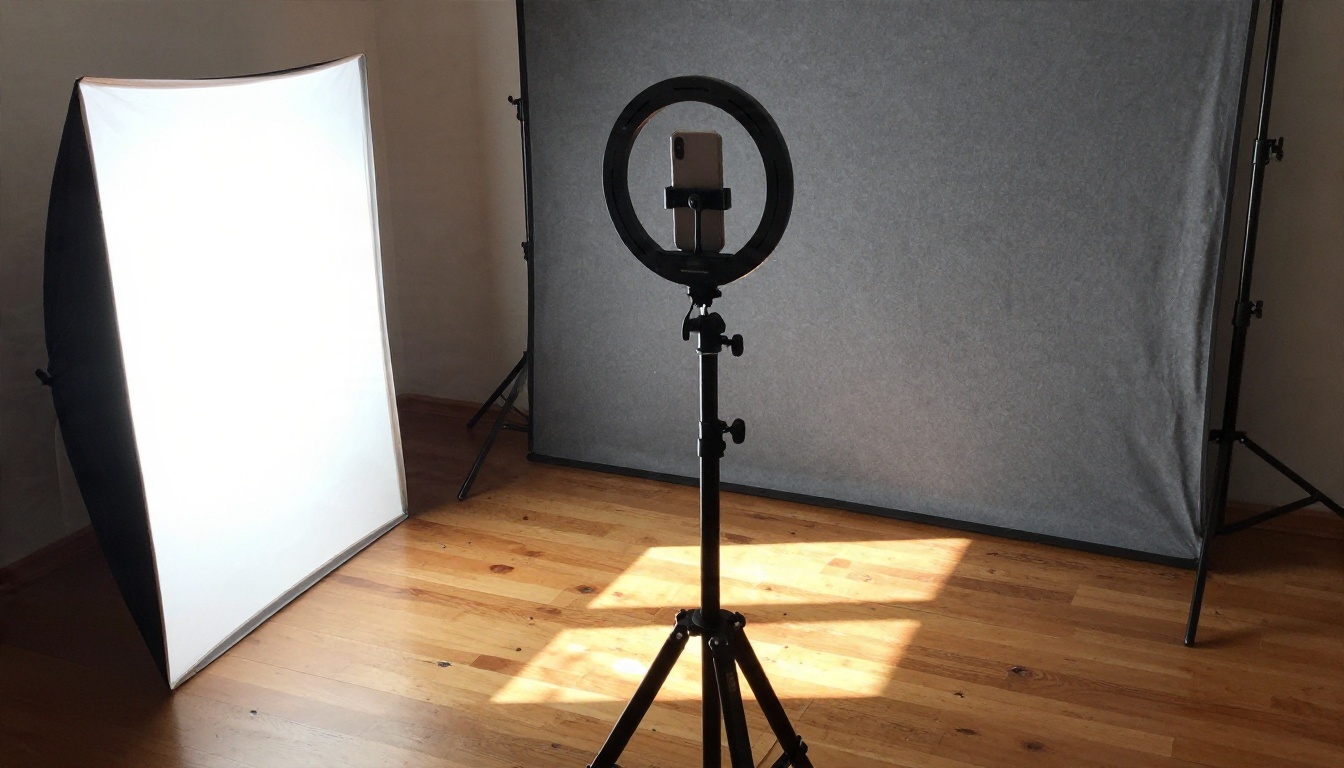
You do not need a subscription to find out whether AI video suits your content. A handful of free options will tell you in an afternoon.
Free video generators on PicassoIA
Several models on PicassoIA are listed as free or low cost to start. The most relevant for social clips:
| Model | Best for | Notes |
|---|
| Seedance 2.5 Lite | Daily Reels and Shorts | Listed as free and unlimited, up to 10 seconds per clip |
| Seedance 2.0 Mini | Quick drafts with native audio | Light model, good for testing a hook |
| Wan 2.5 I2V Fast | Animating a product photo | Image-to-video, fast turnaround |
| Hailuo 2.3 Fast | Photo-to-video motion | Good with people and natural movement |
| Veo 3.1 Lite | Clips with built-in sound | Native audio, lighter cost |
For higher polish, Kling v3 Video, Veo 3.1 Fast and Sora 2 are the models people reach for when a clip has to look expensive. Seedance 2.5 pushes length up to 30 seconds, which helps when you want a single continuous scene.
Free image and voice helpers
Image-to-video usually beats text-to-video for brand work, because you control the first frame. Make that frame with Nano Banana Pro (listed for free 4K images) or Flux 2 Klein 4B Base, then animate it. For voice, Gemini 3.1 Flash TTS offers a range of voices across 70+ languages, and Realtime TTS 2 handles natural-sounding narration.
What free plans usually limit
Free is rarely free of strings. Watch for these before you build a workflow on top of one tool:
- Clip length: many free tiers stop at 5 seconds.
- Resolution: 480p or 720p output, with 1080p reserved for paid plans.
- Watermarks: common on tools that are not built into a larger platform.
- Queue time: free jobs wait behind paid ones.
- Commercial rights: read the terms if you are making ads, not just posts.
💡 Tip: Run the same prompt through two models before you commit to one. The difference in motion quality between models is often bigger than the difference between a free plan and a paid one.
Prompts That Work for Short Clips
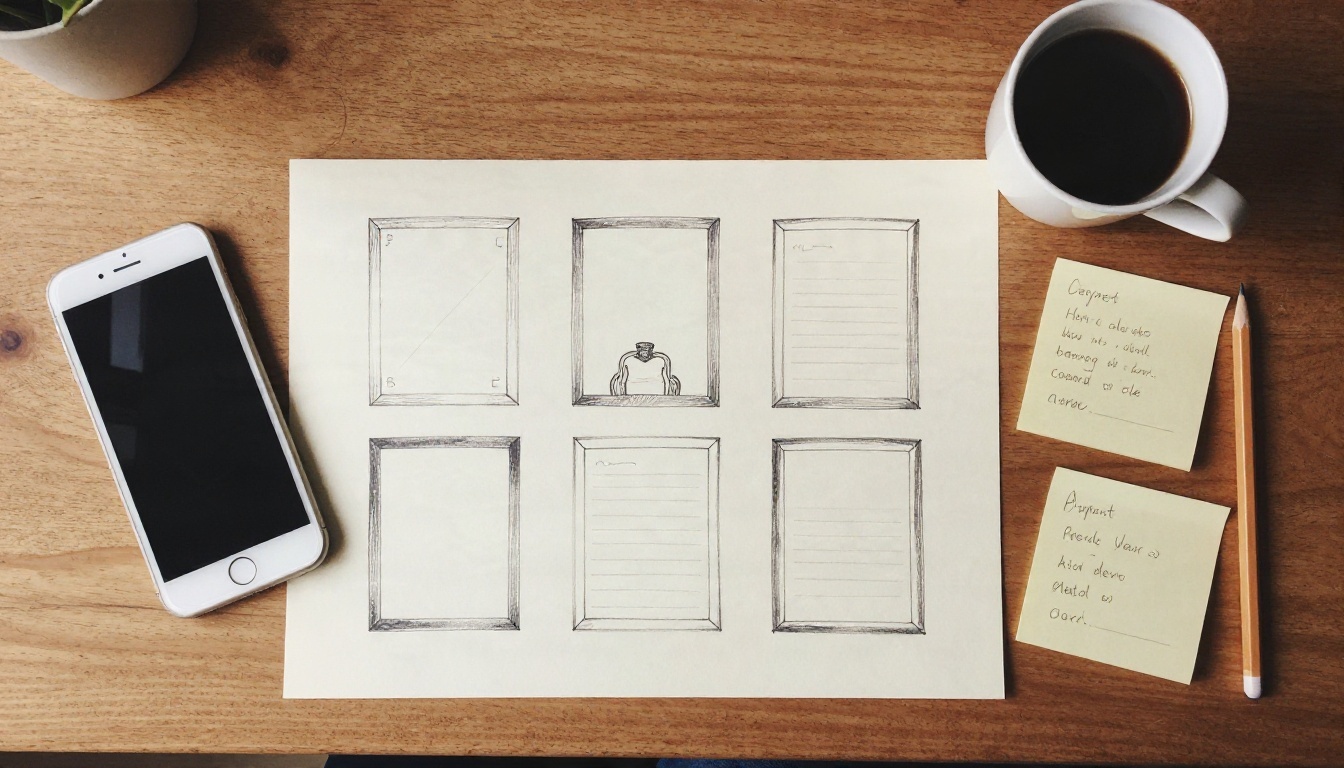
A video prompt is not a caption for the clip. It is a short film direction. Models respond best when you describe what the camera sees, in order, as if you were briefing a cinematographer.
A reliable prompt formula
Use this structure and you will waste fewer credits:
- Subject and starting pose: who or what is in frame, and what they are doing at second zero.
- Action over time: what changes during the 5 seconds.
- Camera movement: slow dolly in, handheld follow, static tripod, gentle pan.
- Light and setting: morning window light, overcast street, warm tungsten kitchen.
- Style anchor: "photorealistic, natural film grain, shallow depth of field."
Keep each prompt to one idea. Asking for a dance, a product reveal and a scene change in 5 seconds usually gives you none of them.
Five prompt templates to copy
Swap the brackets for your own subject.
- Product reveal: "A [product] on a [surface], soft side light from the left, slow dolly in, shallow depth of field, steam or dust catching the light, photorealistic."
- Lifestyle moment: "A [person] in [clothing] laughing while [action] in a [setting], handheld camera, warm afternoon light, natural skin texture."
- Behind the scenes: "Close-up of hands [making or fixing something] on a worn wooden bench, slight camera push in, workshop ambient sound."
- Establishing shot: "Slow aerial pull back over a [location] at sunrise, mist low on the ground, gentle drift, cinematic and realistic."
- Reaction shot: "Medium close-up of a [person] looking at a phone, expression shifting from curious to delighted, soft window light, 50mm lens."
Common prompt mistakes
| Mistake | What happens | Fix |
|---|
| Too many actions | Muddy, chaotic motion | One action per clip |
| No camera direction | Random framing | Name the move and the lens feel |
| Vague mood words | Generic stock look | Describe light and texture |
| Text in the prompt | Garbled letters | Add captions in editing instead |
| Ignoring aspect ratio | Awkward crops | Choose 9:16 up front |
Notice that none of these fixes require a better model. They require a clearer brief.
Real Examples by Business Type

Abstract advice only goes so far. Here is how three different kinds of accounts use the same tools.
Local food and retail
A bakery wants a morning Reel for new croissants. The owner generates a still of the tray with an image model, then animates it with Wan 2.5 I2V Fast: "Steam rising slowly from golden croissants on a marble counter, soft window light, slow push in." Two more shots follow, a close-up of flaky layers and a hand sliding the tray into a display case. Three clips, about 15 seconds, and a post that looks shot rather than staged.
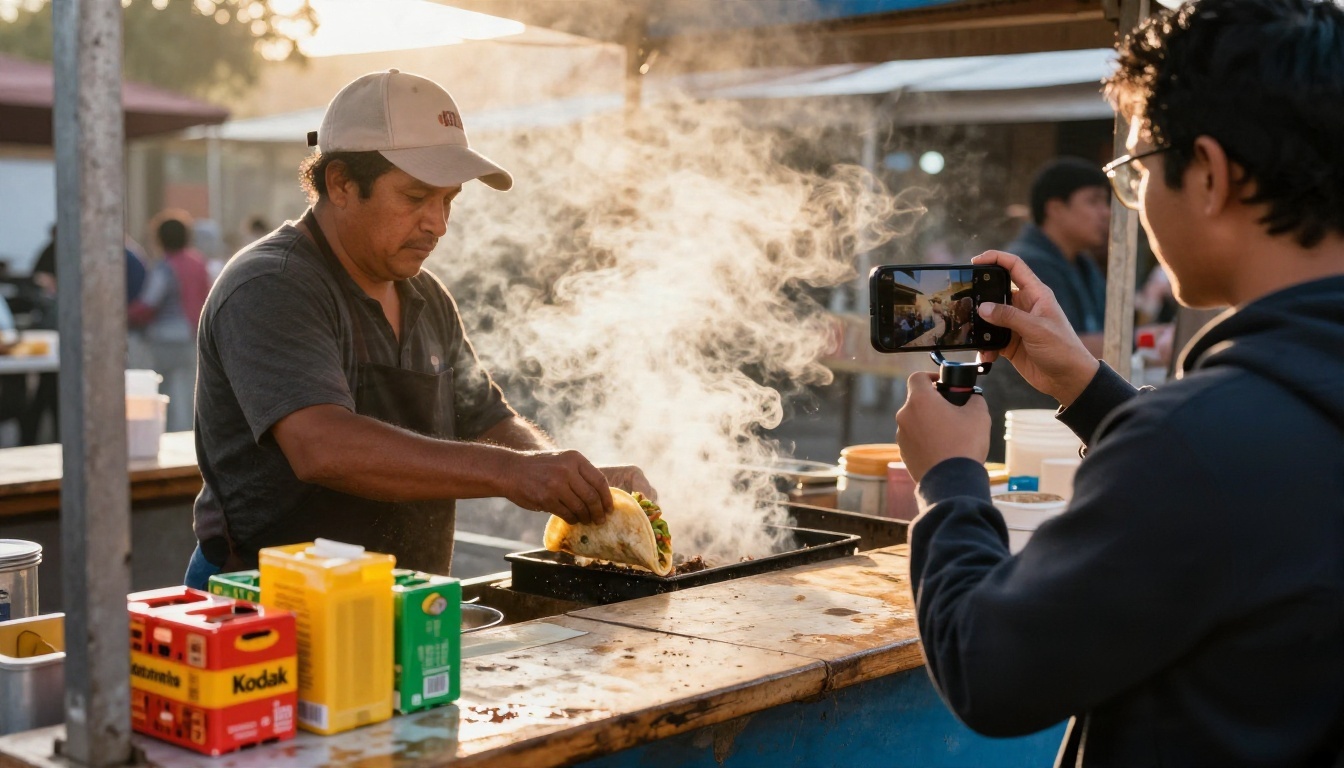
The same pattern works for a street food stall, a florist, a coffee cart or a boutique. Real footage still wins when the owner or the customers appear on camera, so many shops blend both: a real clip of the counter, with an AI product shot as the hook.
Creators and solo brands
A creator posting daily needs variety more than perfection. A typical week might mix:
- Two talking-point clips with AI-generated B-roll cutaways.
- One "day in the life" montage made from five 5-second generations.
- One trend format, adapted with the creator's own face or character.
- One behind-the-scenes post, shot on a phone.
For character consistency, Kling v3 Motion Control lets you drive a character with movement from a reference clip, which is useful for dance and gesture formats. PicassoIA Reference To Video takes your own reference images, video and audio so the result stays close to your look.
Explainers and talking heads
If you need a presenter, you have two paths. Start from a photo and use Omni Human 1.5 to produce realistic lipsync video from one image and an audio track. Or use P Video Avatar for talking avatar clips. For videos you already filmed, Kling Lip Sync matches mouth movement to new audio, and Video Translate dubs a clip into 150+ languages so one video can serve several markets.
Editing, Voice and Sound
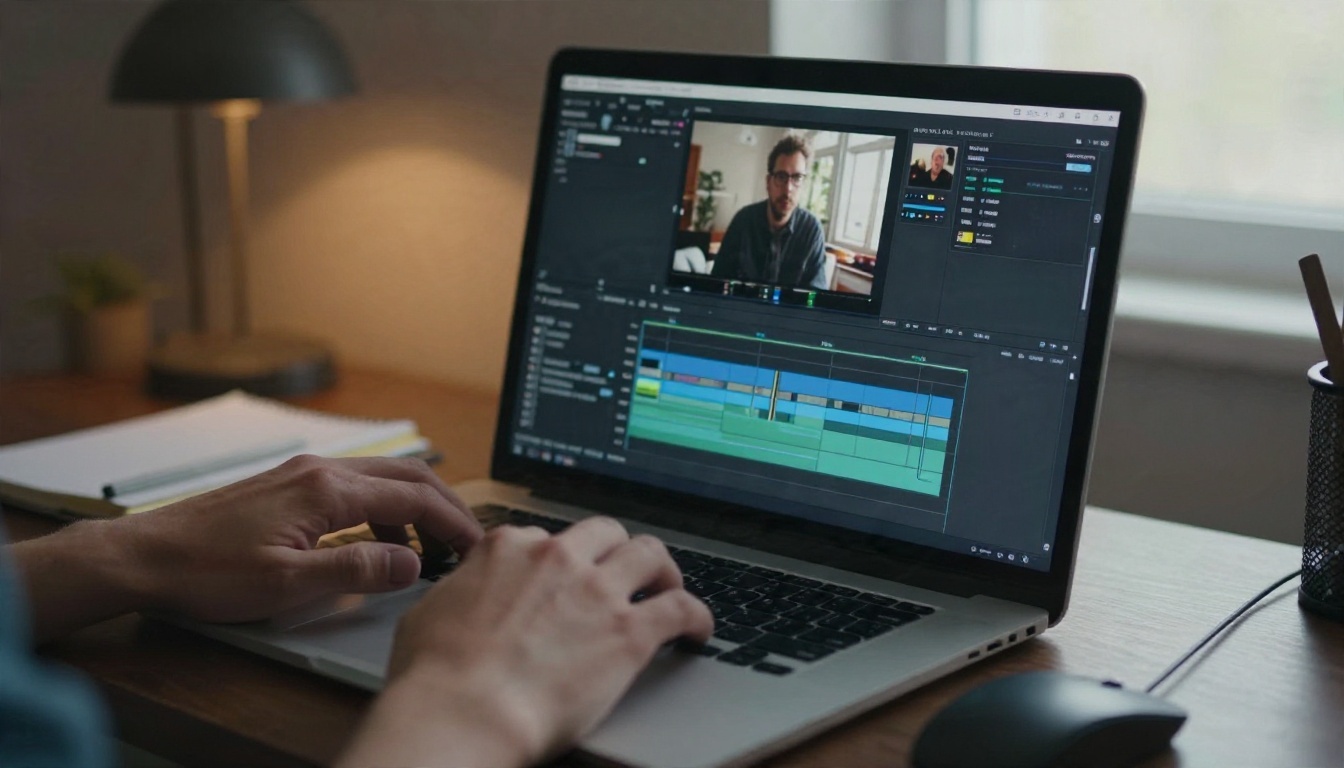
Raw generations are material, not finished posts. The edit is where a set of nice clips becomes something people watch to the end.
Cutting AI clips together
A few habits that make AI footage feel intentional:
- Cut early. Trim the first half second and the last second of each clip. Models often hesitate at the start and drift at the end.
- Match motion direction. If one shot pushes in, let the next push in or hold still. Mixing directions feels jittery.
- Vary shot size. Alternate wide, medium and close-up so the eye keeps moving.
- Hide the seams. A quick whip, a light flash or a matched object between shots makes a cut feel natural.
- Upscale at the end. Lower-resolution drafts can be cleaned up with a video enhancement or super resolution model once you have picked the final takes.
Tools like CapCut, Canva and Adobe Premiere Rush handle the assembly well. Platform-native editors in TikTok and Instagram are fine for simple sequences. PicassoIA also offers video editing and effects models for stylizing or repairing footage without leaving the browser.
Voiceover and captions
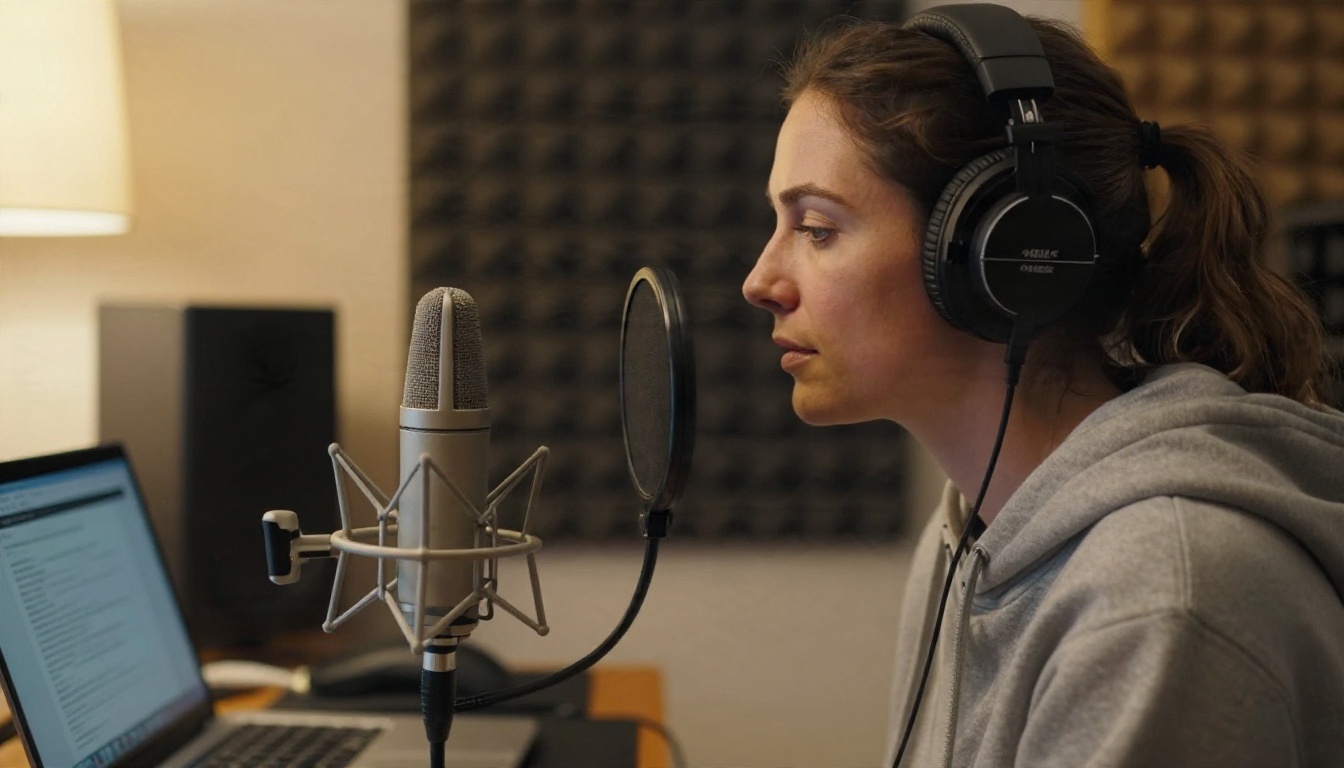
Most viewers watch on mute at first, so captions are not optional. Write the script, generate the voice, then burn in captions that match the spoken words. For voice, Realtime TTS 1.5 Mini is quick for drafts, while Realtime TTS 1.5 Max suits final narration. Grok Text To Speech is another fast option. If your source is spoken audio, a speech-to-text model produces the transcript for captions in one pass, and Dubbing can translate an existing clip into 90+ languages.
Models with native audio, like Veo 3.1 Lite, Sora 2 and Seedance 2.0 Mini, add ambient sound and sometimes speech straight into the clip. That saves a step for atmosphere shots, though you will still want a clean voiceover for anything that explains.
Pricing: What You Will Actually Pay

Prices in this category change often, so treat the numbers below as a rough shape rather than a quote. Check any tool's current pricing page before you subscribe.
How tools charge
| Model | How it works | Watch out for |
|---|
| Free tier | Limited or unlimited basic clips | Length, resolution and watermark caps |
| Monthly subscription | A pool of credits per month | Unused credits may expire |
| Pay per second | You pay for each second generated | Retries add up quickly |
| Pay per clip | Flat price per generation | Longer clips cost more |
Among the broader market, starter plans for popular creator tools tend to land around $10 to $15 per month, with premium cinematic models priced well above that. One published example priced a 30 second clip from a top-tier model at around $12, which shows how fast per-second billing grows when you generate dozens of takes.
Budget scenarios
Here is what three realistic setups look like.
- Zero budget: Use a free unlimited video model such as Seedance 2.5 Lite, a free image model for first frames, and a free phone editor. You get 10 second clips and enough variety to post several times a week.
- Small business: Mix a free model for drafts with a premium one such as Kling v3 Video or Veo 3.1 Fast for hero shots only. Budget a handful of premium clips per week and keep everything else on the free side.
- Agency or heavy creator: Expect to generate many takes per finished video. Track cost per usable clip, not cost per generation. A model that costs twice as much but nails it on the first try is cheaper in practice.
💡 Rule of thumb: Draft on the cheapest model that follows your prompt, then re-run only the winners on a premium model. You will cut your spend by more than half compared with generating everything at top quality.
Hidden costs to count
- Time spent rewriting prompts
- Stock music or sound licenses
- Caption and editing software
- Rework when a clip has distorted hands or text
Free tools are cheap in money and sometimes expensive in time. Paid tools reverse that trade.
A Weekly Workflow That Holds Up
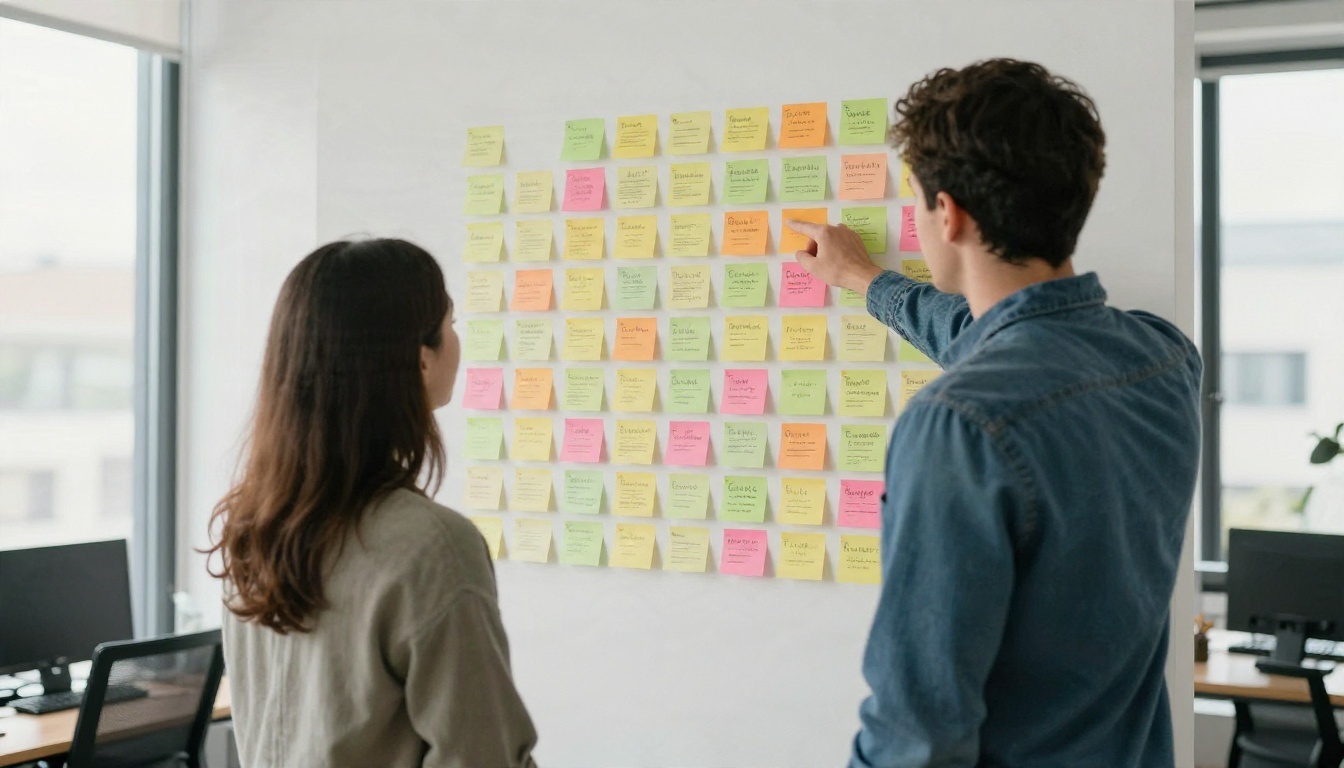
Tools matter less than routine. Here is a simple weekly rhythm that works for one person or a small team.
Monday: plan and script
Ask a large language model for ten hook ideas tied to one theme, pick five, and write a one-line shot list for each. Keep a running document of prompts that worked so you never start from zero.
Tuesday and Wednesday: generate
Create first frames with an image model, then animate them. Generate three variations per shot, label the best one, and move on. Do not polish during this stage. Batch work is faster than switching between modes.
Thursday: edit and sound
Assemble the clips, add voiceover, burn in captions and check the first two seconds of every video. If the hook is weak, fix the hook, not the ending.
Friday: schedule and review
Schedule the week's posts, then look at what the last week's numbers say. Which hook styles held viewers? Which shots were skipped? Feed those findings back into next Monday's prompts.
A quick checklist before posting
- Is the clip 9:16 and free of cropped subjects?
- Do captions match the audio and sit clear of platform buttons?
- Is the first frame interesting without sound?
- Have you checked hands, faces and any on-screen text for glitches?
- Do you have the rights to the music and the generated assets?
- Does the clip carry a label if the platform asks for AI disclosure?
That last point matters. Many platforms now ask creators to mark realistic AI-generated content, and being upfront avoids takedowns.
Make Your First Batch Today
The fastest way to judge AI social media video production is to make something. Pick one product, one idea and one free model. Generate a first frame, animate it, add a voiceover and post it. You will know within an hour whether the quality fits your account.
PicassoIA puts the whole chain in one place: image models for first frames, dozens of video models from free to premium, lip sync, text-to-speech, upscaling and editing tools. Start with Seedance 2.5 Lite for free daily clips, bring in Kling v3 Video when a shot needs extra polish, and browse everything else at picassoia.com/en/all-models. Write your first prompt today and see what your week of content looks like.


