You have a coffee shop, a handmade product line or a personal brand, and you have exactly zero hours to spend in a video editor. That is the moment AI to make Instagram Reels starts to look attractive: type a sentence, get a vertical clip, post it before lunch. It works, with caveats. Free tools come with watermarks, short clips and credit caps, and prompts that sound great in your head often produce a clip with melting hands or garbled text.
This article is the honest version. You will see what AI can and cannot do for Reels today, what "free" really means across popular tools, ten prompts you can paste right now, examples by niche, and a list of limits worth planning around before you build a posting schedule on top of them.
💡 Quick answer: Use AI for the parts of a Reel that are expensive to film (b-roll, scene setting, product animation, voiceover) and keep a real human moment, such as your face or your hands, for the part that sells trust.
What AI Can Actually Do for Reels
A Reel is a stack of small jobs: an idea, a hook, footage, motion, sound, captions and a final export in 9:16 vertical (1080 x 1920 is the safe target). AI can now help with almost every layer, but not equally well.

Text to video
You describe a scene in words and a model generates the footage. This is the fastest route when you need atmospheric b-roll: a slow pour of coffee, a rainy street, a product on a marble counter. Models such as Kling v3 Video, Veo 3.1 Fast and Sora 2 sit in this category, and several of them generate synced audio along with the picture.
Image to video
You start with a still (your product photo, a portrait, a generated image) and the model animates it. For Reels this is often the better option, because the first frame is exactly what you chose. Brand colors, packaging and faces stay closer to your source. Wan 2.5 I2V Fast and Hailuo 2.3 Fast are built around this workflow.
Voice, captions and lip sync
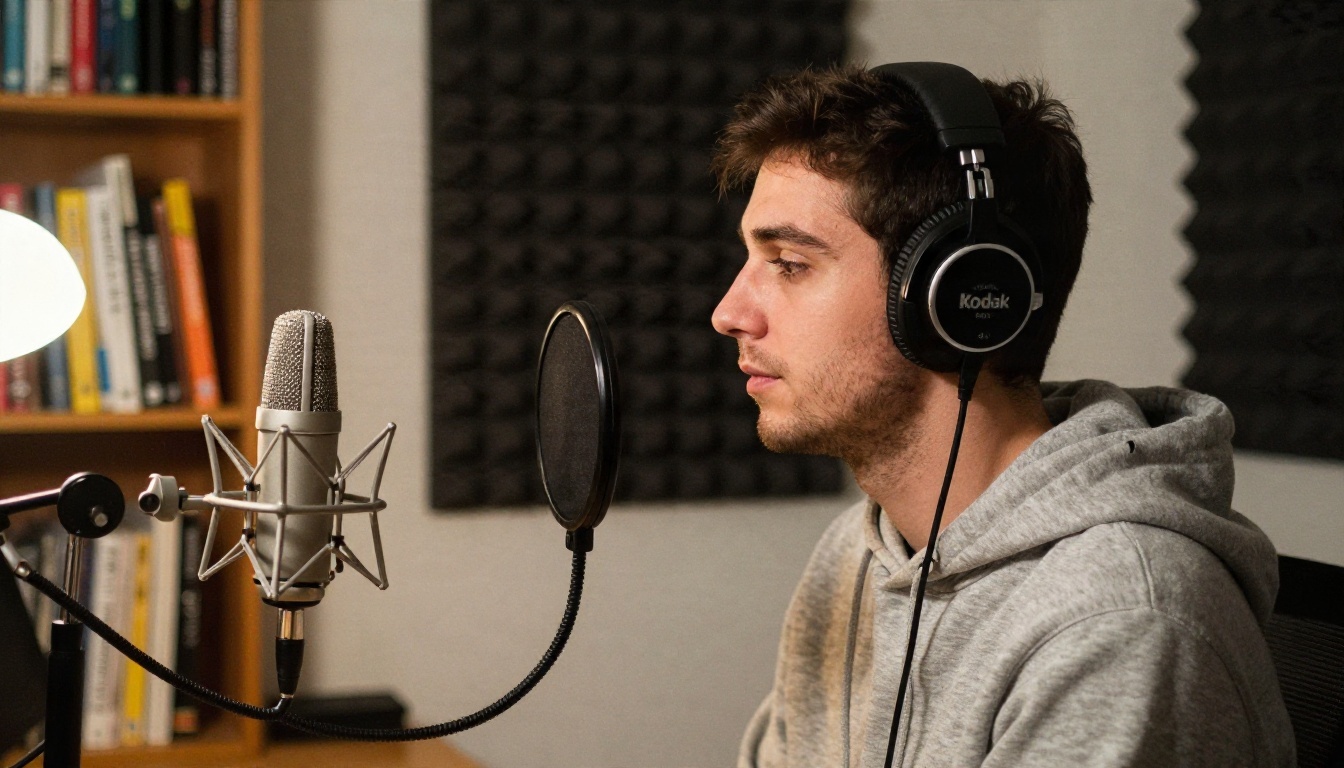
Reels live on sound. Text to speech gives you a voiceover without a microphone, and lip sync tools make a face on screen match the words. Realtime TTS 2 handles natural voiceovers, while Kling Lip Sync and Lipsync Precision match a mouth to an audio track. If you plan to reach other markets, Dubbing translates a finished video into more than 90 languages.
Here is the uncomfortable truth about free AI video: nobody gives away unlimited, watermark-free, high-resolution generation without a catch. The catch just moves around. Some tools limit credits, some stamp a logo, some cap the clip at a few seconds, some drop the resolution.
Watermarks
Reports about free-tier watermarks disagree from one review to the next, and plans change often, so treat this as a pattern rather than a promise. Editors such as Clipchamp are commonly described as watermark-free on the free plan. Generators like Kling and Luma have been reported to add a watermark on free tiers. CapCut is the most confusing: some features that used to export clean now sit behind a subscription. A watermark on a Reel is not just ugly. It also marks the clip as recycled content from another app, and viewers scroll past it.
Clip length and resolution
AI generators produce short clips, and that suits Reels well because a Reel is a chain of short shots anyway. Free tiers of some tools cap a single generation at around 4 to 5 seconds, while others reach roughly 10 to 16 seconds. Many free plans export at 720p or even 480p, which looks soft on a modern phone. Editors are more generous with length, but they do not create footage for you.
Credits and daily caps
Credit systems are where "free" gets expensive. A tool might give you a monthly pool that disappears after a handful of videos, or a small daily refill. If you post five Reels a week, count how many generations you burn per finished Reel. A realistic ratio is 3 to 6 attempts per usable 5 second clip.
| Limit | Typical free tier | What it does to your Reels |
|---|
| Watermark | Often present on generators | Hurts reach and looks unprofessional |
| Clip length | 4 to 16 seconds per generation | Forces you to stitch several shots |
| Resolution | 480p to 720p on many plans | Soft detail, weaker on large screens |
| Credits | Monthly pool or daily refill | Limits how many retries you get |
| Commercial use | Varies by plan | Read the terms before using it for a brand |
| Audio | Sometimes silent | You add voice and music separately |
💡 Always check each tool's current pricing page before building a routine around it. Free plans change quickly, and the numbers above are patterns, not guarantees.
Free Models Worth Trying on PicassoIA
A few models on PicassoIA are worth a look when you want to test AI Reels without opening your wallet. Check each model page for the current terms.
- Seedance 2.5 Lite: listed as a free and unlimited video generator with clips up to 10 seconds. That length fits a single Reel shot nicely.
- Seedance 2.5: the longer sibling, aimed at clips up to 30 seconds when you want one continuous scene.
- Seedance 2.0 Mini: text to video with native audio in a lighter package.
- LTX 2.5 Fast: quick generations, useful for testing a prompt before you commit to a slower model.
- Nano Banana Pro and Seedream 4.5: image models for creating the first frame, thumbnails and product shots you later animate.
The trick is the two-step flow: generate a strong still, then animate it. It spends fewer credits than rolling the dice on text to video again and again.
Prompts That Work for Reels
A Reel prompt needs to describe motion, not just a scene. A still image prompt says what the picture contains. A video prompt says what changes in five seconds.
The five-part prompt formula
Use this order and keep each part short:
- Subject and starting pose: "A barista in a green apron holds a ceramic cup."
- Motion over time: "She pours milk slowly, steam rises, the latte art forms."
- Camera move: "Slow push in, shallow depth of field."
- Light and place: "Warm window light from the left, wooden cafe interior."
- Style anchor: "Natural colors, fine film grain, realistic textures."
Add vertical 9:16 when the tool lets you pick it. If the tool only outputs 16:9, crop in your editor and leave empty space around the subject so the crop does not cut off the action.
Ten prompts to copy
- "A slow close-up of hot coffee pouring into a white cup on a wooden table, steam curling upward, soft morning window light, camera pushes in gently."
- "A woman walks through a sunlit flower market, touching petals, handheld camera follows from behind, shallow depth of field, natural colors."
- "A handmade ceramic mug rotates slowly on a linen cloth, light sweeps across the glaze, macro lens, calm studio atmosphere."
- "A runner ties her shoes on a quiet city street at dawn, camera tilts up as she starts to jog, cool blue morning light."
- "A hand opens a small cardboard shipping box, tissue paper unfolds, a candle is revealed, top-down view, warm lamp light."
- "A chef plates pasta in a tiny kitchen, steam rises, camera orbits the plate slowly, tungsten light, realistic textures."
- "A traveler looks out of a train window at rolling green hills, light flickers across his face, slow dolly in."
- "A bookshop owner stacks novels near a rainy window, camera pans left along the shelf, warm interior lamps."
- "A dog shakes water off its fur on a beach at sunset, slow motion feel, low camera angle, golden backlight."
- "A designer sketches on a notepad, the camera drifts over her shoulder, soft daylight, paper texture visible."
💡 Keep one idea per clip. The more actions you pack into five seconds, the more likely the model invents an extra arm or merges two objects.
Real Examples by Niche
AI Reels succeed when they sell a feeling quickly. Here is how different accounts use the same tools.
Cafes and local shops
A cafe can film one real clip of the espresso machine, then add AI b-roll of steam, pastries and a rainy window to set the mood. The AI footage fills the gaps between real shots, so the Reel feels polished without a full production day. Open with a text hook such as "Rainy Monday menu" and keep every shot under 3 seconds.
Product and handmade brands
Take a clean product photo, generate a lifestyle scene around it with an image model, then animate it with image to video. A candle on a windowsill with drifting light, a mug on a linen cloth with steam, a leather bag on a café chair. Because the first frame comes from your real product, the packaging and logo stay recognizable. This is the strongest use of AI for small shops.
Personal brands and faceless channels
If you do not want to appear on camera, pair AI b-roll with a voiceover. A natural-sounding text to speech track plus a handful of animated scenes can carry a "3 tips" or "story time" Reel. If you do appear on camera, record the voice once, then use lip sync to dub the same clip into other languages. Never publish an AI voice that imitates a real person without their permission.
A Simple Workflow From Idea to Post
This is the routine that keeps credit use low and quality high.
Build the Reel in seven steps
- Write the hook first. One sentence that tells the viewer why to stay. Everything else is built around it.
- List 4 to 6 shots. A 15 second Reel needs about five shots of 2 to 3 seconds each.
- Generate still frames. Use an image model to lock the look: colors, lighting, setting.
- Animate the best stills. Run image to video, and make 2 or 3 versions of the shots that matter most.
- Record or generate the voice. Write the script to match the shot lengths.
- Assemble and trim. Cut each clip to the best 2 to 3 seconds. Trimming hides most AI wobble.
- Add captions and music. Most viewers watch muted at first, so captions carry the message.
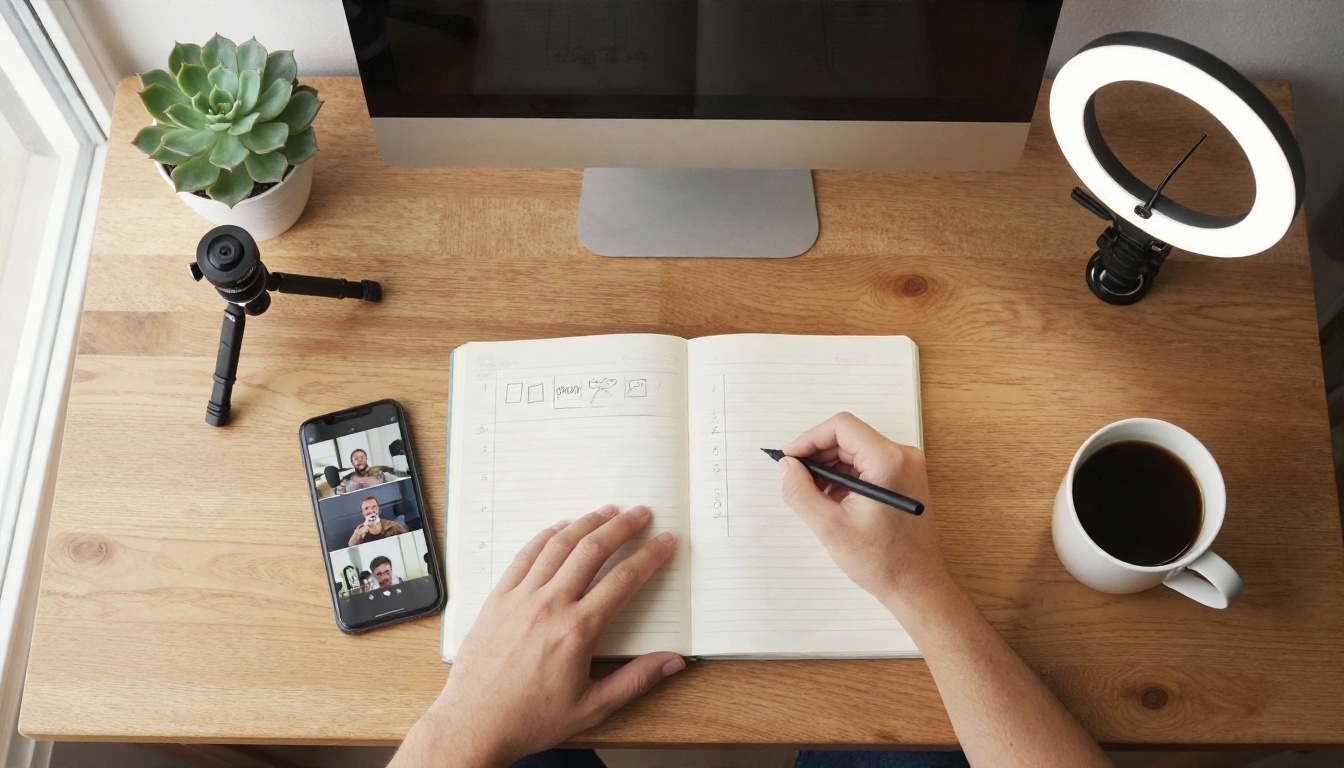
For editing, PicassoIA also lists video editing and video enhancement models, which are useful when a clip looks soft and you want to upscale it before posting. Planning is easier too if you sketch the shots on paper first.
Limits You Should Plan Around
AI video has improved fast, but it is not magic. Knowing the weak spots saves credits and embarrassment.

Hands, text and physics
Fingers can still bend wrongly, fabric can behave oddly, and any readable text inside a scene (signs, labels, packaging) may come out garbled. Fix this by keeping text out of the shot and adding it later as a caption in your editor. Liquids, reflections and fast sports motion are also difficult. If something looks wrong on the first look, it will look worse on a phone held at arm's length, so regenerate it.
Consistency across clips
Each generation is its own roll of the dice. A character can change hair, clothing or face between shots. To reduce the drift, start every shot from the same reference image, reuse the same description word for word, and use PicassoIA Reference To Video when you need the same person or product across several clips. Kling v3 Motion Control is another option when you want a character to follow a specific movement.
Disclosure and music
Instagram encourages creators to label realistic AI-generated content with its "Made with AI" style disclosure, and honest labeling protects your credibility with followers. For music, use sounds from Instagram's own library or tracks you have the rights to, because licensing rules differ for personal and business accounts. Read the commercial terms of any AI tool before using its output in paid brand content.
💡 Quality checklist before posting: no extra fingers, no garbled text, no flicker in the first second, captions readable on a small screen, audio not clipping, and a hook that works with the sound off.
Try Your First Reel Today
You do not need a studio or a week of editing to test this. Pick one idea, generate a still frame with Nano Banana Pro or Seedream 4.5, then animate it with Seedance 2.5 Lite or Kling v3 Video. Add a voiceover, trim each shot to its best moment, and post.
Start small: one Reel, one product, one prompt from the list above. Compare what you get with a real clip, keep the AI shots that hold up, and drop the ones that do not. When you want to try other models side by side, open the full catalog at picassoia.com/en/all-models and run your own tests on PicassoIA.


