Somewhere on your laptop right now there is probably an hour of audio nobody will ever listen to again. A client call, a lecture, a voice memo you recorded while walking. The words are valuable, but they are trapped in a format you can't search, quote or skim. AI transcription fixes that, and the real question in 2027 is no longer whether it works. It is where you plug it in: through an API, inside an app on your phone, on top of your Zoom meetings, or through a free tool that costs nothing but a bit of patience.
This article walks through all four paths, shows who each one suits, and gives you a practical workflow you can copy today.
Why Integration Beats One-Off Uploads
Most people start by dragging a single file into a website and pasting the result into a document. That works exactly once. By the third recording, you are spending more time moving files around than reading the transcript.
Integration means the audio goes in at one end and text arrives where you need it, with no manual shuffling. A recording lands in a folder, a script sends it to a speech to text model, and the transcript shows up in your notes app, your CRM or your subtitle editor.
What You Actually Gain
- Speed: a one-hour recording is usually converted in a few minutes, not hours.
- Searchability: every word becomes findable, so "what did they say about the budget?" takes seconds.
- Consistency: the same settings apply to every file, which keeps names, formatting and timestamps uniform.
- Reuse: one transcript can become meeting notes, a blog post, captions and a summary.
Who Benefits Most
Podcasters, journalists, researchers, students, sales teams and customer support managers see the biggest return. Anyone who talks for a living, or listens for a living, is a candidate.
💡 Tip: Before choosing a tool, count how many hours of audio you handle per week. Under two hours, a free tool is fine. Over ten, automation pays for itself quickly.
Four Ways to Plug In Transcription
Each path trades control for convenience. Here is how they compare at a glance.
| Path | Best for | Effort to set up | Control | Typical cost |
|---|
| API | Developers, products, bulk audio | Medium to high | Very high | Pay per minute of audio |
| Apps | Individuals, field recording | Very low | Low | Free tier or subscription |
| Zoom and meeting tools | Teams, recurring calls | Low | Medium | Often bundled with a plan |
| Free options | Occasional use, testing | Low | Varies | Free, with limits |
There is no universal winner. A solo journalist will love an app. A startup building a voice feature needs an API. A manager drowning in calls wants meeting transcripts handled without lifting a finger.
The API Route Explained
An API lets your own code send audio to a speech to text model and receive text back. If you can write a short script, you can build a pipeline that nobody has to babysit.
How an API Call Works
The flow is almost always the same:
- Your script reads an audio file, or receives one from an upload form.
- It sends the file to the transcription endpoint, along with options such as language.
- The service returns text, often with word-level or sentence-level timestamps.
- Your script stores the text, or passes it to another step such as summarizing.
For long recordings, many services accept uploads and return results asynchronously, so your script checks back instead of waiting on an open connection.
Choosing a Model
Models differ in accuracy, speed and how well they handle accents, background noise and technical vocabulary. On PicassoIA you can compare several without writing integration code first:
- GPT 4o Transcribe is the pick when accuracy matters most, for example interviews with accents or crosstalk.
- GPT 4o Mini Transcribe is the lighter option for high volume, where speed and cost per file matter more than the last percent of accuracy.
- Gemini 3 Pro handles long audio well and can follow instructions, such as labeling speakers or formatting the output in a certain way.
💡 Tip: Run the same three-minute clip through two or three models and compare the output side by side. Your own audio, with your own vocabulary, is the only benchmark that counts.
Common API Mistakes
- Uploading huge raw files. Compress to a sensible format and split recordings that run for hours.
- Ignoring language settings. Set the language when you know it. Auto detection can stumble on short clips.
- Skipping error handling. Network drops happen. Retry failed requests and keep a log of which files succeeded.
- Storing audio forever. Delete source files once the transcript is verified, especially for sensitive recordings.
Apps for Phones and Desktops
If code is not your thing, apps are the shortest route from voice to text. Open the app, press record, and a transcript appears when you stop.
Where Apps Shine
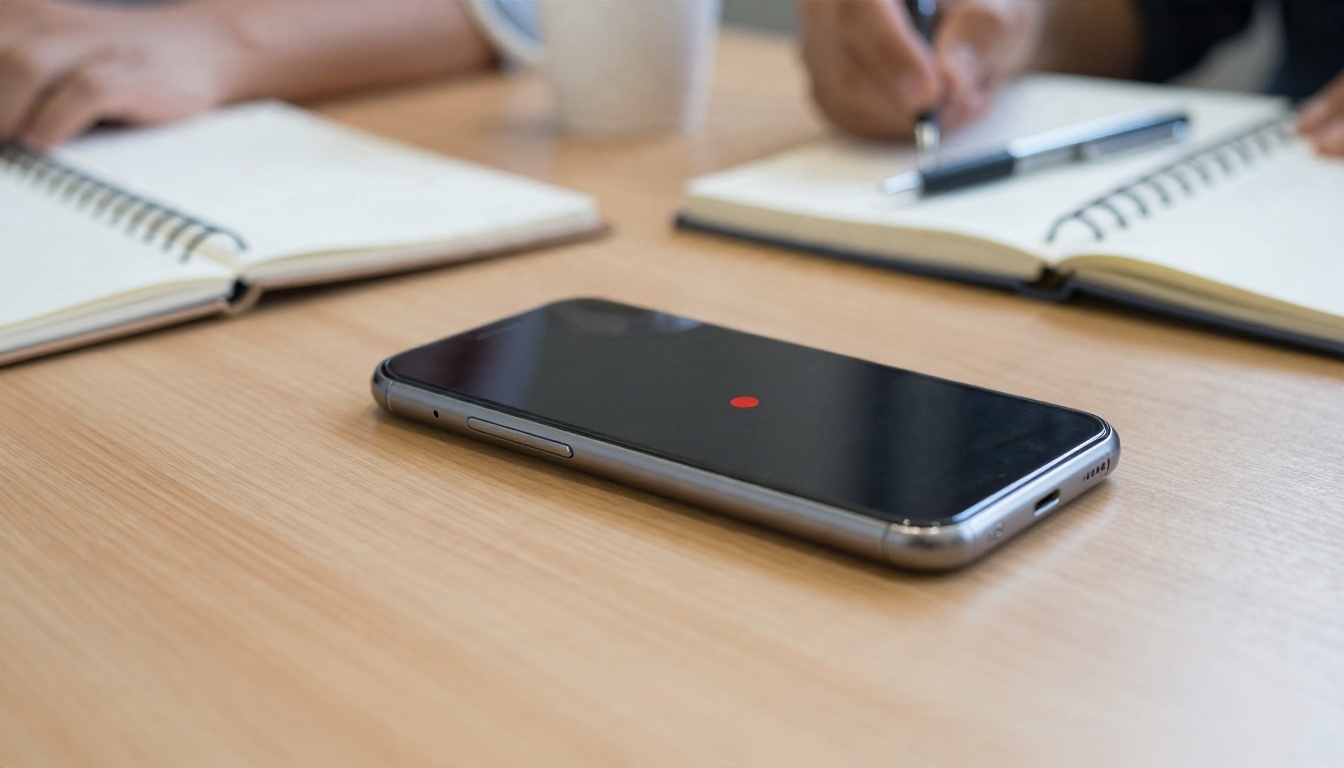
Apps are ideal for in-person conversations: interviews, lectures, site visits, doctor appointments where you want a record of instructions. Most mobile transcription apps now offer speaker labels, highlights and exports to common formats. Well-known names include Otter, Rev, Descript and the built-in dictation tools on iPhone and Android, each with a different balance of price and polish.
Where Apps Fall Short
Apps lock you into their interface. Exporting hundreds of transcripts to another system can be clumsy, and the model underneath is chosen for you. If you outgrow the app, you may want to move to an API while keeping your recordings.
⚠️ Privacy check: Read what the app does with your audio. Some services keep recordings to improve their models unless you opt out. For legal, medical or confidential work, confirm the retention policy first.
Recording Tips That Help Every App
- Hold the phone close to the speaker, ideally within an arm's length.
- Put it on a soft surface such as a notebook, not directly on a hard table, to cut vibration noise.
- Say the date, names and spellings of unusual terms at the start of the recording.
- Turn off notifications so a buzzing phone doesn't punch holes in the audio.
Zoom and Meeting Transcripts
Meetings are where transcription pays back fastest. Instead of one person scribbling notes while trying to listen, everyone stays present and reads the transcript afterward.

Built-In Zoom Features
Zoom offers live captions and, on supported plans, an audio transcript tied to cloud recordings. Availability depends on your plan and your account settings, so check the admin options before assuming it is on. Google Meet and Microsoft Teams offer similar features in their own plans.
Two Ways to Add Your Own
When the built-in feature is missing or too basic, you have two options:
- Record and process afterward. Save the meeting audio, then send it to a speech to text model. This gives you full control over accuracy and formatting.
- Use a meeting bot. Third-party assistants join the call as a participant and produce notes. They are convenient, but guests may notice a new name in the participant list, so tell people in advance.
💡 Tip: Always announce that a meeting is being recorded and transcribed. In many regions, consent is a legal requirement, not just good manners.
Make Meeting Audio Easier to Transcribe

- Ask participants to mute when not speaking.
- Use a headset or a dedicated microphone instead of laptop speakers.
- In a room with several people, place a speakerphone in the center of the table.
- Encourage people to state their name the first time they speak, which makes speaker labels far more accurate.
Free Options That Actually Work
Free does not have to mean useless. There are solid ways to transcribe without paying, as long as you know the limits.
Free Tiers and Trials
Many apps give you a monthly allowance of minutes. That is plenty for a student who records two lectures a week, and a good way to test whether a tool suits your accent and subject matter before paying.

Open Source Models
Open-weight speech models such as Whisper can run on your own computer at no per-minute cost. The trade-off is setup time, and you need a reasonably capable machine for long files. For people comfortable with a command line, it is an excellent way to keep audio completely private.
Built-In Dictation
Phones and operating systems include free dictation. It is fine for notes and short messages but tends to struggle with long recordings and multiple speakers.
The Real Cost of Free
| What you gain | What you give up |
|---|
| No bill | Monthly minute caps |
| Quick to try | Limited export formats |
| Often private if run locally | Your own time for setup and cleanup |
| Good for short clips | Weak speaker labels on long calls |
💡 Tip: Mix and match. Use a free tier for casual recordings, and save paid minutes or API calls for the important interviews.
From Raw Audio to Clean Text
A transcript is only the first draft. The workflow below turns audio into something people will actually read.

Step 1: Prepare the Audio
Trim silence at the start and end, and normalize the volume if one speaker is much quieter. If the file is enormous, convert it to a compressed format and split it into chunks of 20 to 30 minutes.
Step 2: Transcribe
Send the audio to a speech to text model. If you are not sure which, start with GPT 4o Transcribe for the best accuracy, or GPT 4o Mini Transcribe for fast turnaround on lots of files.
Step 3: Clean and Structure
Raw transcripts include "um", false starts and run-on sentences. A language model can tidy these up in seconds. Models such as Claude Sonnet 5 or GPT 5.6 Luna can:
- Remove filler words while keeping the speaker's meaning.
- Split the text into paragraphs with short headings.
- Pull out action items, decisions and questions.
- Write a three-sentence summary for people who weren't there.
⚠️ Always check names and numbers. Models are very good, but a misheard surname or a wrong figure in a contract note can cause real trouble. Skim the transcript while listening at 1.5x speed, and fix the details that matter.
Step 4: Deliver Where It's Needed
Send the finished text to the place your team already works: a shared document, a project tool, an email draft, or a subtitle file for video.
Boosting Accuracy Before You Record
Better input beats better software. Spending two minutes on audio quality saves twenty minutes of corrections.
Microphone and Room
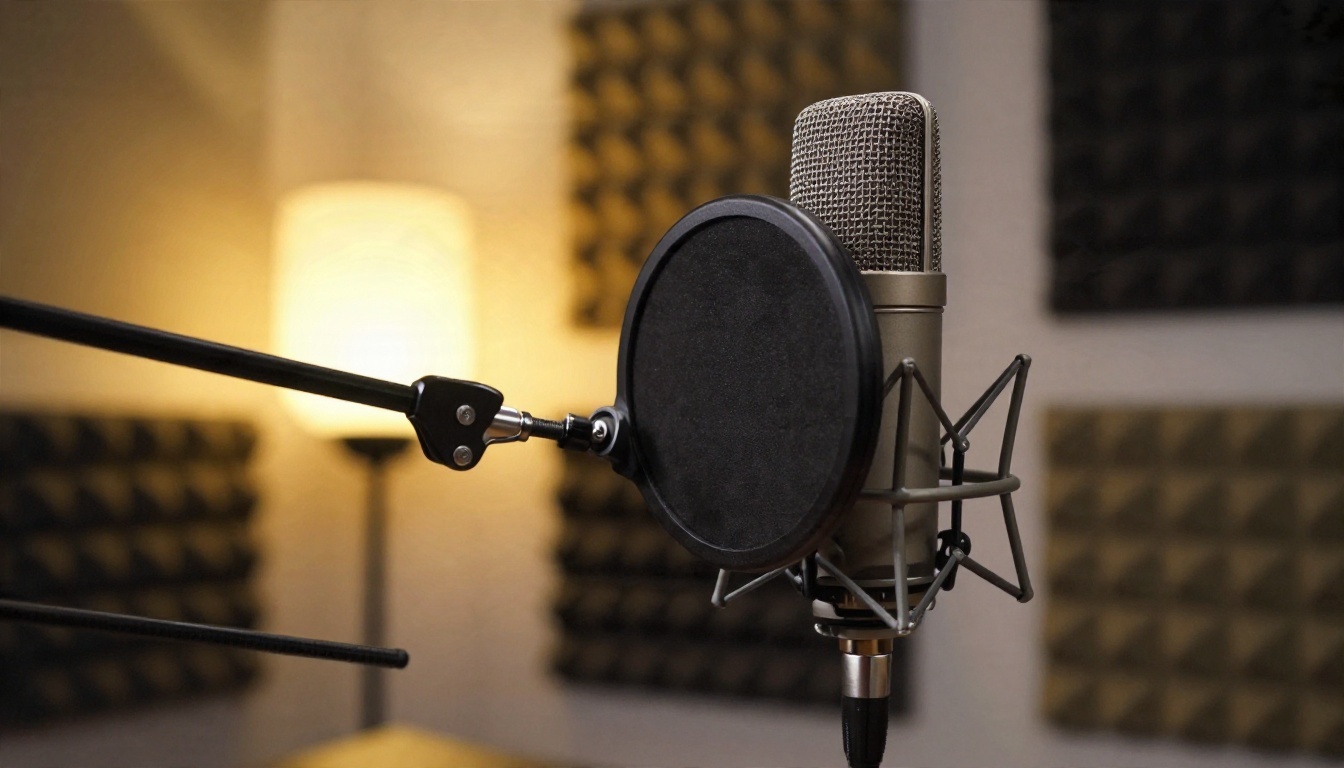
A decent USB microphone placed a hand-width from the speaker will outperform an expensive one across the room. Soft furnishings such as curtains, rugs and sofas absorb echo, so a living room often beats a bare kitchen.
Speaking Habits
- Speak at a natural pace and leave short gaps between speakers.
- Spell out acronyms and unusual names once.
- Avoid talking over each other. Overlapping speech is the hardest case for every model.
Vocabulary and Language
When a recording is full of product names, medical terms or local place names, give the model a short list of those words if the tool supports prompts or custom vocabulary. For multilingual teams, note which language each segment uses, or split the audio by language before sending it.
Quick Troubleshooting Table
| Problem | Likely cause | Fix |
|---|
| Words missing in the middle | Clipping or very low volume | Re-record or normalize the audio |
| Wrong speaker labels | Overlapping voices | Ask speakers to take turns |
| Strange spellings | Rare names or jargon | Provide a vocabulary list |
| Garbled sections | Background noise | Use a closer microphone |
Try It on PicassoIA Today
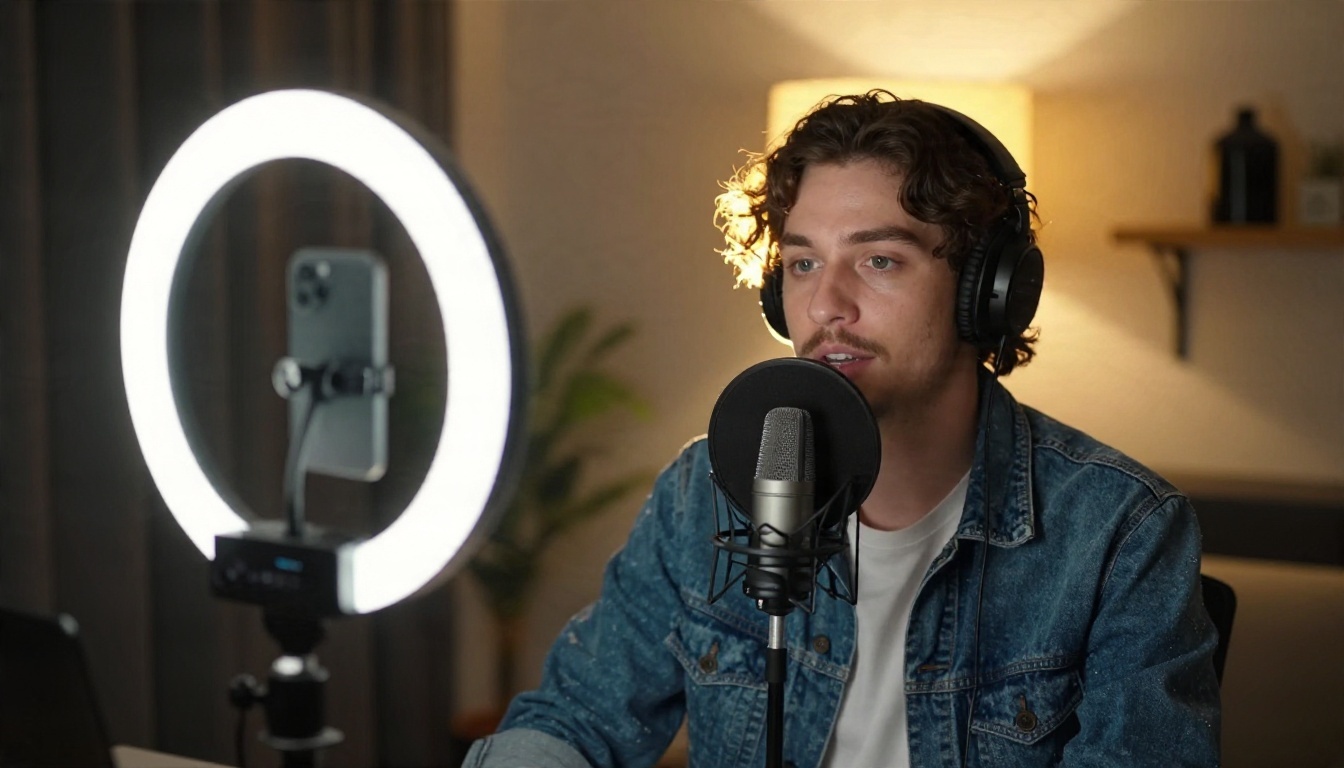
You don't need to write a line of code to test these ideas. PicassoIA puts several speech to text models in one place, so you can upload an audio file, compare results and pick the one that suits your voice recordings.
A Simple Test Plan
- Pick a three-minute clip with at least two speakers and a few tricky words.
- Run it through GPT 4o Transcribe, GPT 4o Mini Transcribe and Gemini 3 Pro.
- Compare names, numbers and punctuation. Note which one needs the fewest corrections.
- Paste the best transcript into a language model to produce a summary and action list.
Going Beyond Text
Once you have a transcript, it can feed other creative steps. Translate it, then turn it into a localized voiceover with Dubbing, or generate a narration of the summary with Realtime TTS 2. A single interview can become captions, a newsletter, a short audio recap and a dubbed video.
Choosing Your Path
Here is a fast way to decide.
- You build products or process audio in bulk: go with an API and a model matched to your accuracy needs.
- You record in person or on the move: pick a phone app with good exports.
- You live in video calls: switch on built-in transcripts, and add your own processing when you need better accuracy.
- You're testing or on a tight budget: combine free tiers and open models, and keep paid options for important recordings.
Whichever route you take, keep the same habits: record clean audio, check names and numbers, and tell people when they're being recorded.
Turn Your Recordings Into Text
Pick one recording you have been putting off, a meeting, an interview or a voice memo, and run it through a model on PicassoIA this week. Try GPT 4o Transcribe first, then compare it with Gemini 3 Pro. Ten minutes of testing will tell you more than any comparison chart, and you may find that the hour of audio sitting on your laptop is the start of your next article, report or video. Browse every model on picassoia.com/en/all-models and build the workflow that fits the way you work.


