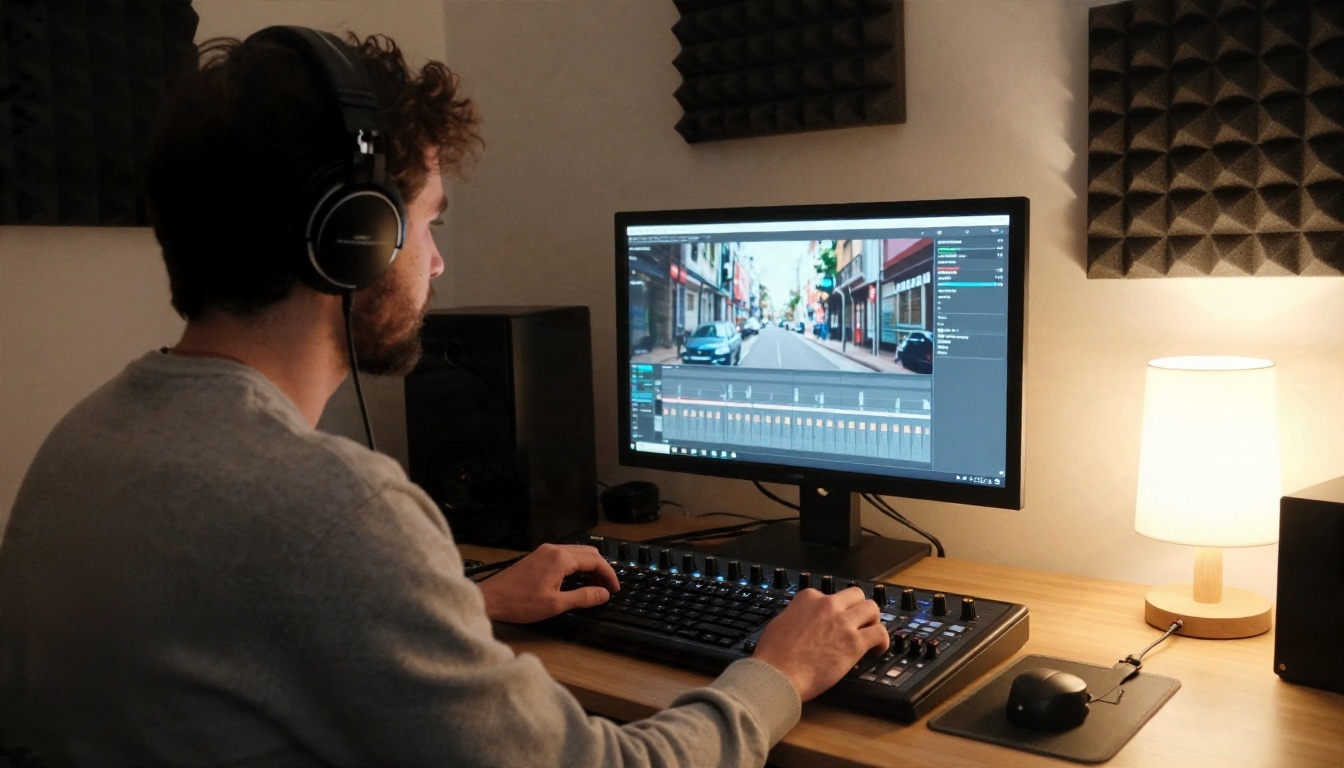
AI Video Editor API: Pricing, Limits, Free Access, and Examples
A plain breakdown of what an AI video editor API costs per second and per credit, which rate and length limits hit first, where free access actually exists, and request examples for prompt edits, object removal and captions.
You found an AI video editor API, the demo looks great, and then the questions start. What does one edited minute cost? How many requests can you send before you get throttled? Is there a free tier that works for a real test, or only a toy clip? These are the questions that decide whether a video feature ships or dies in a spreadsheet.
This article answers them in plain language. You will see how providers bill, which limits show up first in production, where free access really exists, and what request examples look like for the edits people ask for most. One honest note before we start: prices in this market change almost monthly, and the numbers quoted across vendor blogs often disagree. Treat every figure below as a range for planning, then confirm it on the provider's own pricing page before you commit budget.
What an AI Video Editor API Does
An AI video editor API is a web service that takes an existing video, plus instructions, and returns a modified video. You send a file or a link, describe the change, and receive a new file. No timeline, no desktop software, no manual masking.
Edit Versus Generate
People mix these up, and it changes the bill. Generation creates new footage from text or a still image. Editing starts from footage you already own and changes part of it: the style, an object, the background, the audio, the length, the resolution.
Editing usually costs more per second than you expect, because the model has to read your input video and produce a new one. Some providers price the input and the output separately. Others charge a flat per second rate for the output only.
Typical Endpoint Types
Most services group their features into a handful of endpoints:
Prompt based edit: "make it snowy", "swap the jacket to red".
Object removal: erase a person, a sign or a logo across frames.
Background removal: isolate the subject with no green screen.
💡 If a vendor lists only one "edit" endpoint, ask what happens to audio and to clips longer than the limit. Those two details cause most surprises.
How Pricing Really Works
Four billing models cover almost every service on the market. The same vendor sometimes mixes two of them.
Per Second Billing
You pay for each second of output video. In 2026 comparisons, official per second rates for AI video span a huge range: from roughly two cents on the low end to about seventy cents per second for premium models such as Sora 2 Pro. Mid tier options from Google, such as Veo 3.1 Fast and Veo 3.1 Lite, sit between those extremes, and the exact cents depend on resolution and whether audio is included.
Those are generation rates, not editing rates, but they give you the scale. A ten second edit at five cents per second costs fifty cents. At forty cents per second, the same edit costs four dollars.
Credits and Tokens
Some providers sell credit bundles. Others bill by tokens, which is how ByteDance quotes its Seedance family: one rate for plain generation and a lower rate when you send a video as input for editing. Tokens make budgeting harder, because the cost depends on resolution, frame count and duration together. Run a test batch and divide the invoice by the seconds you produced. That gives you a real per second number.
Hidden Costs
The sticker price is rarely the whole price. Watch for these:
Failed or rejected jobs that still consume credits.
Retries when the first result is not usable.
Storage and egress if the provider hosts your output files.
Higher rates for 1080p and 4K, often double the 720p price.
Audio add ons billed separately from the visual edit.
Pricing Models Compared
Billing model
How it charges
Best for
Main risk
Per second
Seconds of output video
Predictable, short edits
Cost scales linearly with length
Per credit
Bundles, burned per job
Small teams, mixed tasks
Unused credits expire
Per token
Input plus output tokens
Heavy volume on one model
Hard to forecast
Subscription
Monthly fee plus allowance
Steady weekly use
Paying for idle months
Enterprise
Negotiated contract
Large platforms
Long commitments
💡 Always compute cost per accepted clip, not cost per generated clip. If you accept one result in three, your real price is three times the listed rate.
Limits That Hit First
Cost is only half the story. Limits decide whether your product stays responsive at 9 a.m. on a Monday.
Rate Limits
Rate limits cap how many requests you can send per minute and how many jobs can run at once. Free and trial plans are the strictest, sometimes only a handful of requests per minute and one concurrent job. Paid plans raise the ceiling, and enterprise contracts can lift it much higher.
I did not find a single reliable public number for free tier limits across providers, and I would be suspicious of any article that claims one. Read the provider's rate limit page and test with a small load script before launch.
Clip Length and Resolution
Editing models are trained on short clips. Typical caps look like this:
Input length: often 5 to 30 seconds per request, sometimes up to a minute.
Output resolution: 720p by default, 1080p on higher tiers, 4K on a few premium models.
File size: a cap in megabytes on uploads, commonly in the hundreds.
Aspect ratio: some models accept only 16:9, 9:16 or 1:1.
For longer videos you split the source, edit each piece, then merge. That adds cost and requires you to keep the style consistent between pieces.
Queue Time and Timeouts
Video jobs are not instant. A short clip can finish in under a minute, a heavy 1080p edit can take several minutes. Good APIs return a job ID right away and let you either poll for status or receive a webhook when the file is ready. If an API holds one HTTP connection open for the entire render, expect timeouts.
Limit type
Typical free or trial
Typical paid
Requests per minute
Very low
Moderate to high
Concurrent jobs
1
5 to 50 or more
Output resolution
480p to 720p
720p to 4K
Clip length
Short, a few seconds
Up to tens of seconds
Watermark
Often present
Removed
Free Access Options
Free access exists, but it comes in three very different forms, and only one of them is useful for building a product.
Free Tiers and Trial Credits
The first form is a trial credit given at sign up. It is enough for a few dozen test clips, then it stops. The second is a recurring free tier with a small daily allowance, for example consumer apps that hand out daily credits. The third is a preview program, such as limited research previews from big labs, which are free but experimental, with low limits and no uptime promise.
Many direct APIs also ask for a card on file before the first call succeeds, even when the trial is free. Official free video generation through some large providers has mostly disappeared, so do not plan a product around it.
Test Without Writing Code
You do not need to write code to judge quality. Before you spend API credits, run the same source clip through a few editing models in a browser and compare results. On PicassoIA you can try P Video Edit, Wan 2.7 Videoedit, Lucy Edit 2 and Kling o1 with a text prompt, then pick the style you like before you design an integration.
💡 Use the same three test clips for every model: one with a person, one with a moving camera, one with fast action. Weak models fail on at least one of them.
Request Examples You Can Copy
The exact field names differ between providers, so read these as patterns, not copy and paste code. The shape is nearly universal: submit a job, receive an ID, poll or wait for a webhook, download the result.
Text Prompt Edit
POST /v1/video/edit
{
  "video_url": "your-source-clip.mp4",
  "prompt": "Change the weather to light snowfall, keep the people and camera motion unchanged",
  "resolution": "720p",
  "duration": 5,
  "webhook_url": "your-callback-endpoint"
}
The response is usually a job object with an ID and a status of queued. When it flips to succeeded, the payload carries an output URL. Models such as Aleph 2, Gen 4 Aleph and Modify Video follow this prompt plus clip pattern when you restyle or recut footage.
Prompt tips that cut retries:
Say what must stay the same, not only what should change.
Name one change per request. Stacking five edits raises the failure rate.
Keep the clip short for the first pass, then repeat on the full length.
Object Removal
POST /v1/video/erase-object
{
  "video_url": "your-source-clip.mp4",
  "mask": "coordinates or a mask video",
  "output_format": "mp4"
}
Removal needs a mask or a text description of what to erase. Video Erase Object is built for this job, and Video Remove Background isolates the subject when you want a clean cut out with no green screen.
Captions, Reframe and Audio
POST /v1/video/caption
{
  "video_url": "your-source-clip.mp4",
  "language": "en",
  "style": "bold-bottom"
}
Utility endpoints are cheap and fast, and they often cost far less than generative edits. Autocaption adds subtitles, Reframe Video turns a landscape clip into a vertical one, and Trim Video cuts to an exact length. For sound, MMAudio and Video To SFX v1.5 generate audio that matches what happens on screen.
Picking Models for Each Job
No single model wins every task. Match the tool to the edit, and the bill drops while quality goes up.
If you also need new footage to edit, generation models such as Kling v3 Video, Seedance 2.5 and Veo 3.1 create clips from text, and you can then pass those clips into an editing endpoint.
💡 Upscale last. Edit at 720p while you iterate, then upscale only the approved version. You pay the high resolution rate once.
Cost Control for Teams
Teams get surprised by bills because usage grows quietly. A few habits keep the number steady.
Cache and Reuse Results
Store every output with a hash of the input file and the prompt. If someone asks for the same edit again, return the saved file. In content teams, repeat requests are common, and caching can remove a surprising share of your spend.
Test Small, Then Scale
Run each new prompt on a three to five second slice. Check the result. Only then run the full clip. This one habit prevents most wasted credits.
Set Hard Spend Caps
Add a daily budget in your own code, plus alerts at 50 and 80 percent. Do not rely only on the provider's dashboard. Log the job ID, model, duration, resolution and cost for every request, so you can answer "where did the money go" in a minute.
A simple checklist before you go live:
Confirm the rate limit for your paid tier, not the free one.
Build retry logic with a delay that grows after each failure.
Handle webhooks and polling both, since webhooks sometimes fail.
Keep a fallback model for when your first choice is down.
Check licensing terms for commercial use of outputs.
Try It Yourself
The fastest way to learn what an AI video editor API will cost you is to run real clips through real models. Start with a short clip you already own. Try a prompt edit, an object removal and a caption pass. Note how many attempts each one takes, and multiply by the per second price you found. That number is your actual budget.
You can test video editing models right now on PicassoIA, with no setup and no code. Upload a clip, write one clear instruction, and compare how Kling o1, Wan 2.7 Videoedit and Lucy Edit 2 handle it. Browse the full catalog at picassoia.com/en/all-models, pick the style that fits your project, and make your own edited video today.