You upload a perfectly good portrait, type a simple motion prompt, and the app answers with a red warning banner. Or worse, it burns a credit, returns a blurry five second clip and stamps a watermark across the middle. That is the daily reality of searching for an AI video generator from image uncensored and free, and it explains why so many people bounce between tools every week.
This article sorts the marketing from the facts. You will see what "uncensored" actually means in practice, which free options are worth your time, how to build a source photo that animates well, which prompts make a still move naturally, and exactly how long a clip can run on each model. One boundary up front: everything here assumes non-explicit content such as glamour, swimwear, boudoir style portraits and fashion. Pornographic output is not the goal, and no serious platform will support it.
💡 Quick answer: For free, longer, less restrictive image to video work, generate your source photo with Seedream 4.5, then animate it with Seedance 2.5 Lite for clips up to 10 seconds.
What "Uncensored" Really Means
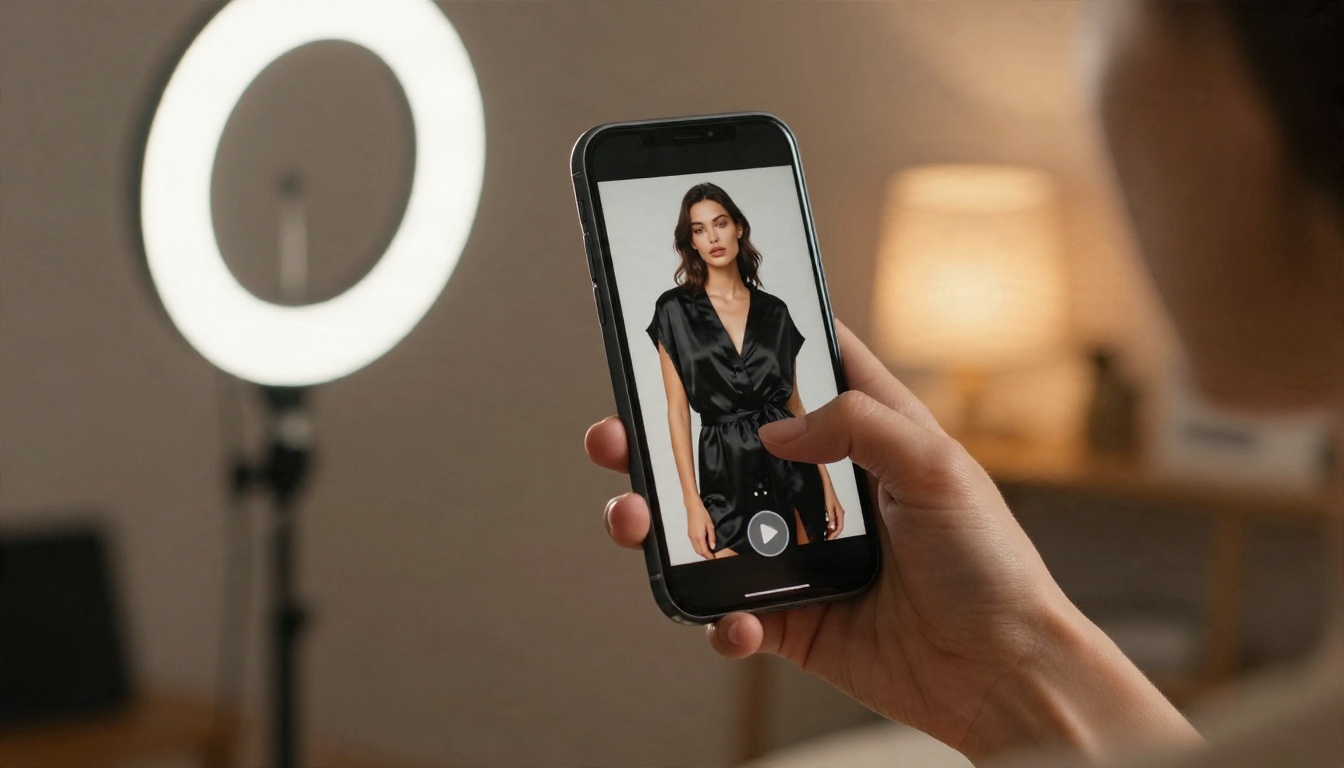
The word "uncensored" gets stretched until it means nothing. One site uses it for a tool that skips a single filter, another uses it to describe a generator that simply refuses less often than a big brand. Before you pick an app, know what you are actually asking for.
Filters, Policies and Marketing
Most image to video tools run two checks. The first reads your prompt. The second scans your uploaded image and sometimes the finished clip. A tool can be relaxed on the first and strict on the second, which is why a prompt that works on one app fails on another with the same photo.
Many "uncensored" reviews online are affiliate style roundups, and their claims are inconsistent. Several tools they list are paid, and the free tier is often short, watermarked or low resolution. Moderation also changes quietly. A generator that was permissive in spring can tighten by autumn, and community reports usually notice before the vendor admits it.
So treat the label as a hint, not a promise. What you want in practice is simple:
- Fewer blanket refusals on swimwear, lingerie style fashion and glamour portraits
- No random watermark on free output
- A clip length that fits real scenes, not just a 2 second twitch
- Consistent results so you are not gambling credits
What Stays Off Limits
Even permissive platforms draw hard lines. Expect refusals or removals for:
| Content | Status |
|---|
| Explicit sexual acts | Not supported on mainstream platforms |
| Real people without consent | Off limits, including celebrities and private individuals |
| Anyone who looks underage | Always blocked, no exceptions |
| Violence and illegal content | Blocked almost everywhere |
| Suggestive glamour, swimwear, boudoir | Generally workable on permissive tools |
The last row is where good tools earn their reputation. If your goal is a stylish, attractive, non-explicit clip, you do not need a sketchy app with no rules. You need a model that does not panic at a bikini.
Free Apps Worth Your Time
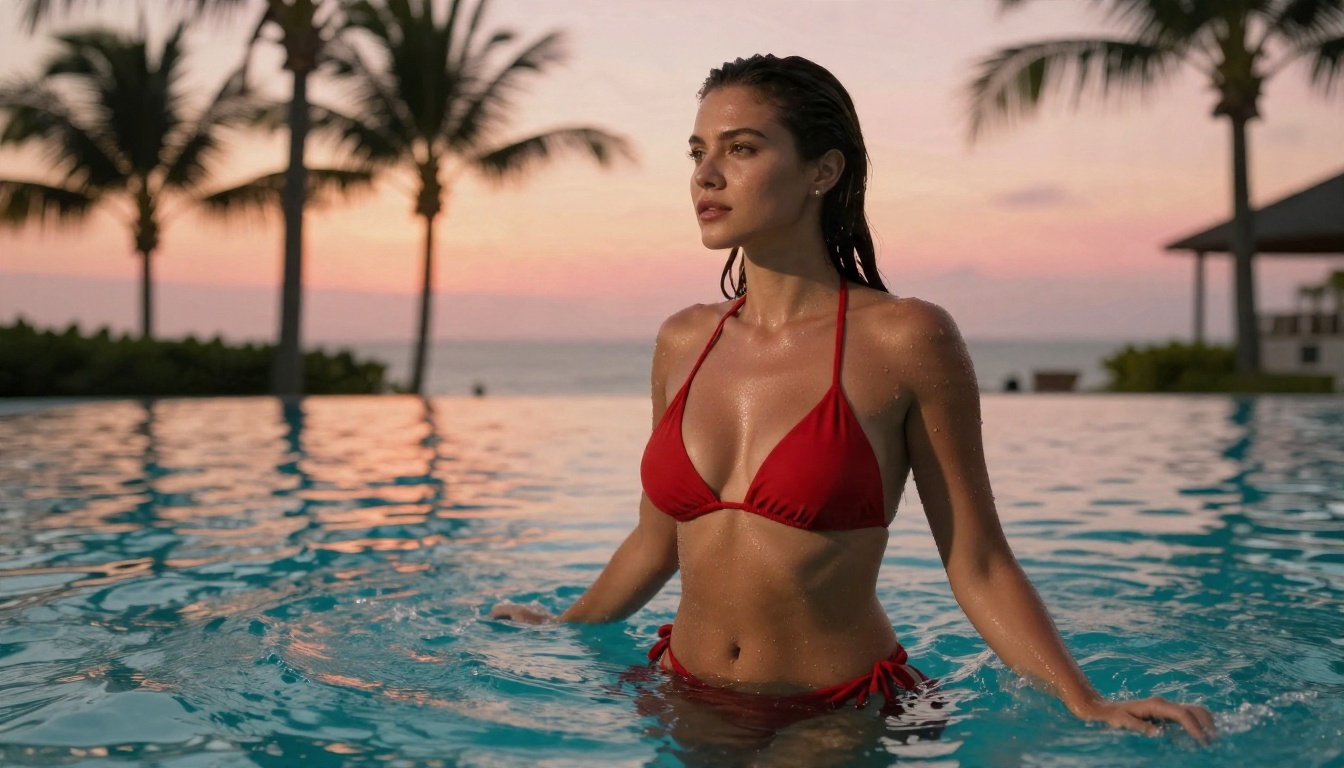
Searching "free image to video AI" returns hundreds of results, and most agree on one thing: free tiers are short. Typical caps sit around 5 to 10 seconds per clip, with limited daily credits, lower resolution and sometimes a watermark. Kling is often cited for its daily free credits, Runway offers a small trial allowance, and Veo 3.1 is listed at up to about 8 seconds per clip. Figures vary by source and change often, so check each app's current page before you rely on them.
Why Free Tiers Disappoint
| Typical free tier | What you get | What goes wrong |
|---|
| Daily credits | 1 to 3 clips a day | You run out mid experiment |
| Watermark | Logo on every clip | Unusable for posting |
| 480p output | Soft, small video | Faces lose detail |
| 5 second cap | One short beat | No room for a full movement |
| Strict moderation | Refusals on mild content | Credits wasted on blocked jobs |
The pattern is clear. "Free" usually means a sample, not a workflow. If you plan to test twenty prompts to land one great clip, you need something closer to genuinely unlimited.
Free and Unlimited Options on PicassoIA
PicassoIA takes a different route for video. PicassoIA Video generates 5 second clips from text or from an image, at 480p or 720p, with synchronized audio and no editing timeline. Next to it, Seedance 2.5 Lite is a lightweight version of Seedance 2.5, built for 480p and 720p, and it gives Elite and Infinite members unlimited generation with clips of 5 or 10 seconds.
For image creation, PicassoIA Image Editor Pro offers unlimited generations, which matters because your source photo is half the job. Browse the full catalog at picassoia.com/en/all-models if you want to see every option side by side.
💡 Tip: Draft at 480p to test motion cheaply, then re-run the winning prompt and seed at 720p for the final clip.
Build a Strong Source Image
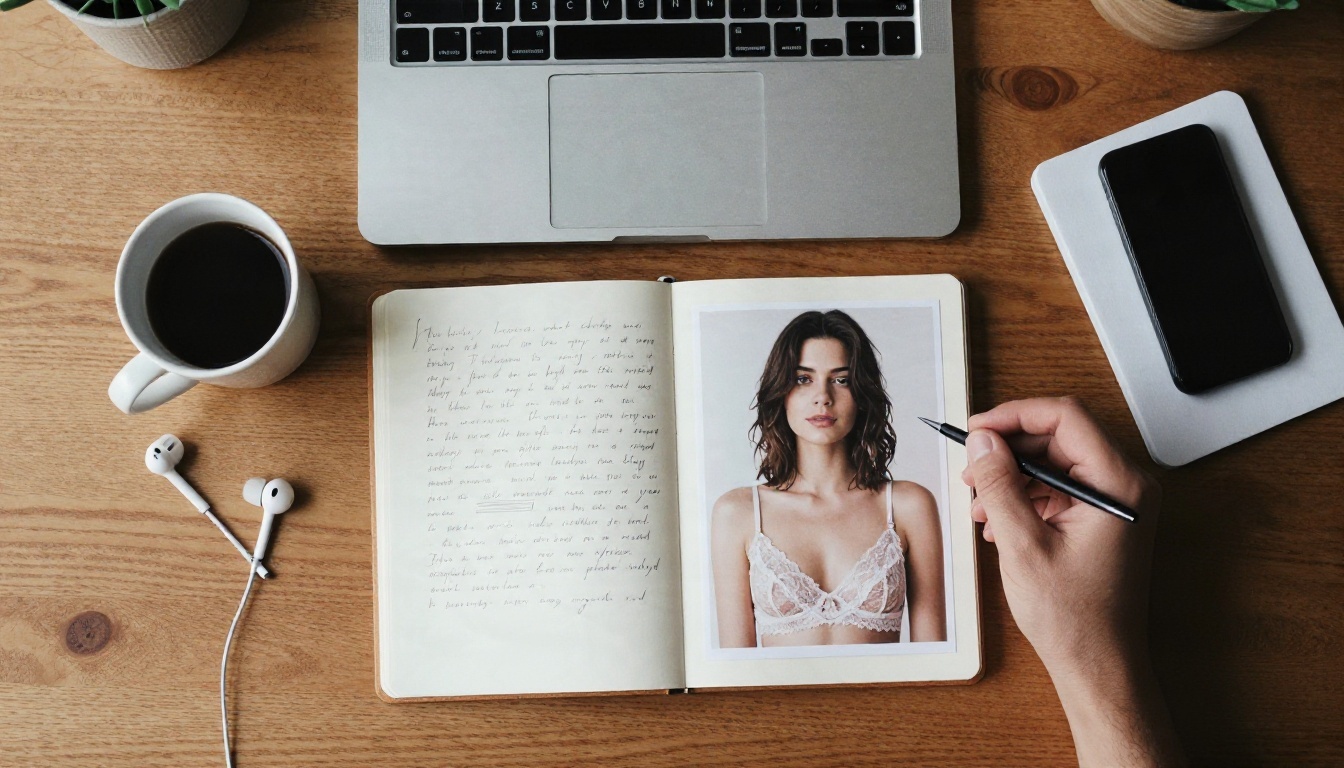
Image to video models treat your photo as the first frame, then invent the next 120 or 240 frames. A weak first frame produces a weak clip, no matter how clever your prompt is. Spend your effort here.
A good source image has:
- A clear subject with visible face, hands and posture
- Room to move: space around the body, not a tight crop
- Soft, believable light from one direction
- Natural skin texture instead of plastic smoothing
- A pose that suggests motion, such as mid step, hair in a breeze or a turn of the head
Start With Seedream 4.5
For glamour and portrait work, lead with Seedream 4.5. It produces sharp, photographic images at up to 4K, handles swimwear, evening wear and suggestive portraits without the blanket refusals you get elsewhere, and renders skin, fabric and light convincingly. That realism matters, because video models inherit every flaw in the first frame.
Write the photo prompt like a photographer, not like a tag list:
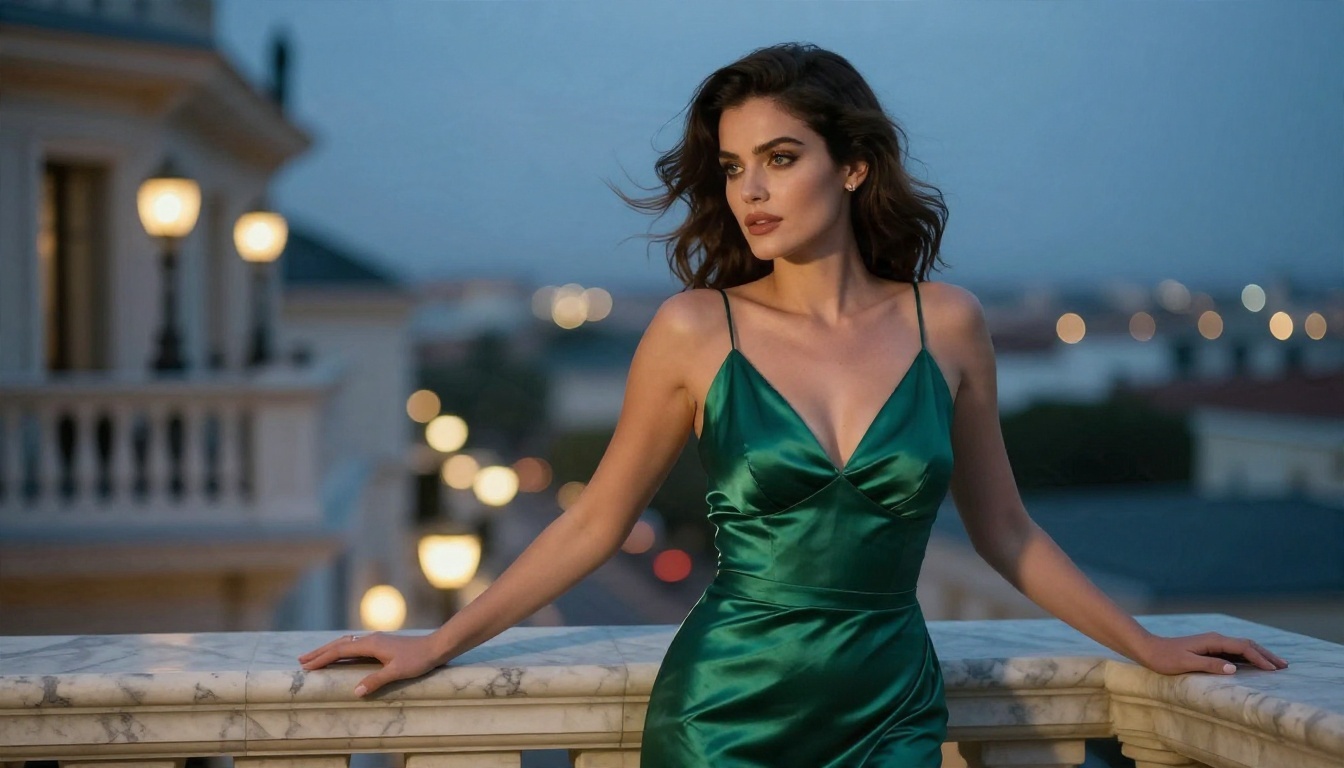
"Medium shot of a woman in a plunging emerald satin dress leaning on a marble balcony at dusk, warm lamplight from the left, 85mm f/1.4, shallow depth of field, visible silk sheen, Kodak Portra 400 grain."
Seedream 5 Lite is a different story: it blocks adult style content, so skip it for this kind of work.
Fix Details in Image Editor Pro
Once you have a promising frame, use PicassoIA Image Editor Pro to polish it before animating. Because generations are unlimited, you can fix a stray finger, change an outfit color, swap a background or adjust the light as many times as needed. Small corrections here save you from burning video attempts later.
Prompts That Move Photos Well
Here is the mistake almost everyone makes: they re-describe the photo. The model already sees the photo. Your prompt should describe what changes, not what is there.
The Simple Prompt Formula
Use this order and keep it chronological:
- Subject and starting pose (very short)
- Main motion over the clip
- Camera movement
- Light and atmosphere
- Sound, if the model generates audio
Models like Seedance and PicassoIA Video respond best to cinematic, time ordered sentences. Think of a director calling out what happens second by second.
Motion Prompts to Copy
Adapt these to your own image:
- Portrait: "She slowly lifts her gaze to the camera and smiles, a gentle breeze moves her hair, slow push in, warm window light, soft ambient room sound."
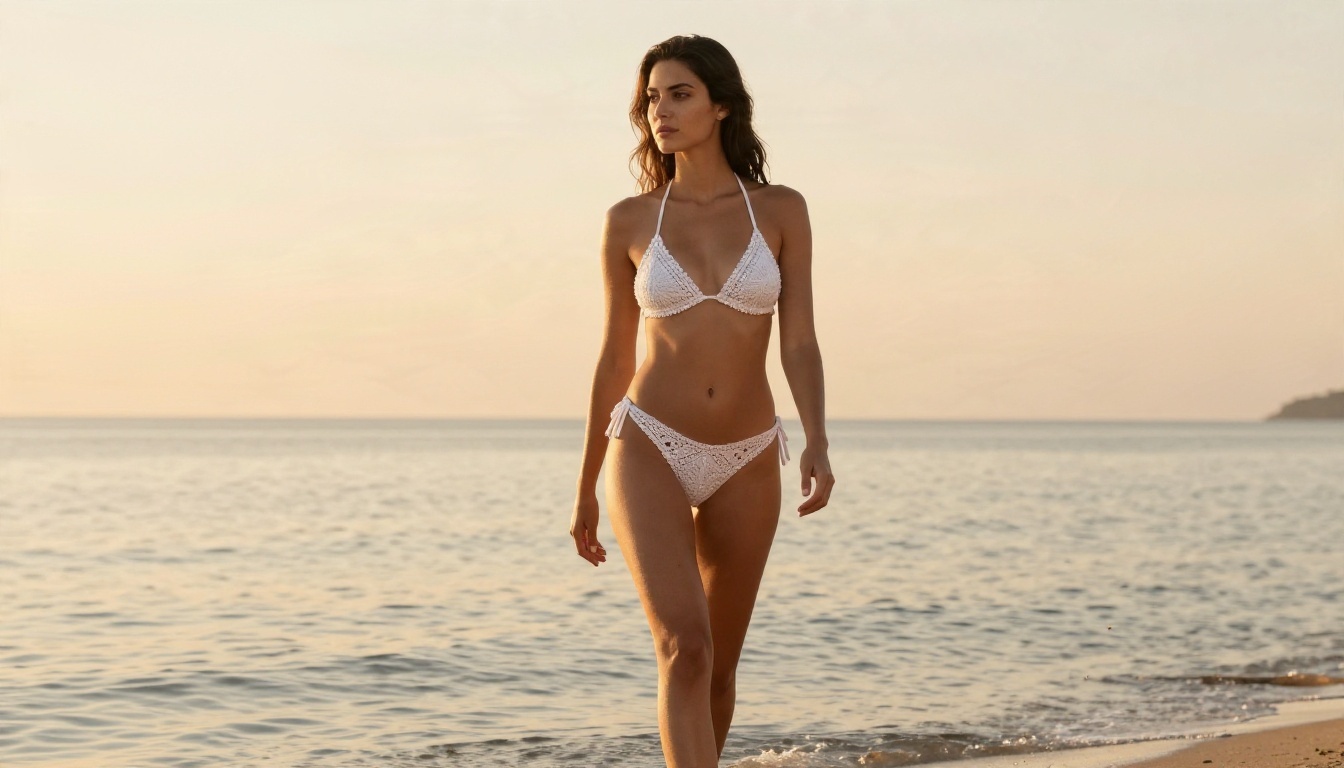
- Pool or beach: "She walks along the water's edge, small waves roll over her ankles, her hair lifts in the wind, camera tracks sideways at a low angle, golden hour, gentle surf audio."
- Evening dress: "She turns toward the city lights and glances back over her shoulder, fabric shifts with the night breeze, slow orbit around her, distant traffic hum."
- Desk or lifestyle: "Steam curls from the coffee mug, she reaches for the laptop and scrolls, subtle handheld camera drift, soft daylight, keyboard clicks."
Common Prompt Mistakes
| Mistake | Better approach |
|---|
| Re-describing the whole photo | Describe only the motion |
| Asking for five actions in 5 seconds | Pick one clear action |
| Vague words like "cool" or "epic" | Use physical verbs: turns, walks, lifts, leans |
| Fast camera whips | Slow push in, pan or orbit |
| Stacking contradictory moods | Keep one atmosphere |
| Ignoring sound | Add a short audio cue |
One motion, one camera move, one mood. Models handle that cleanly, and faces stay stable.
Length Limits Explained
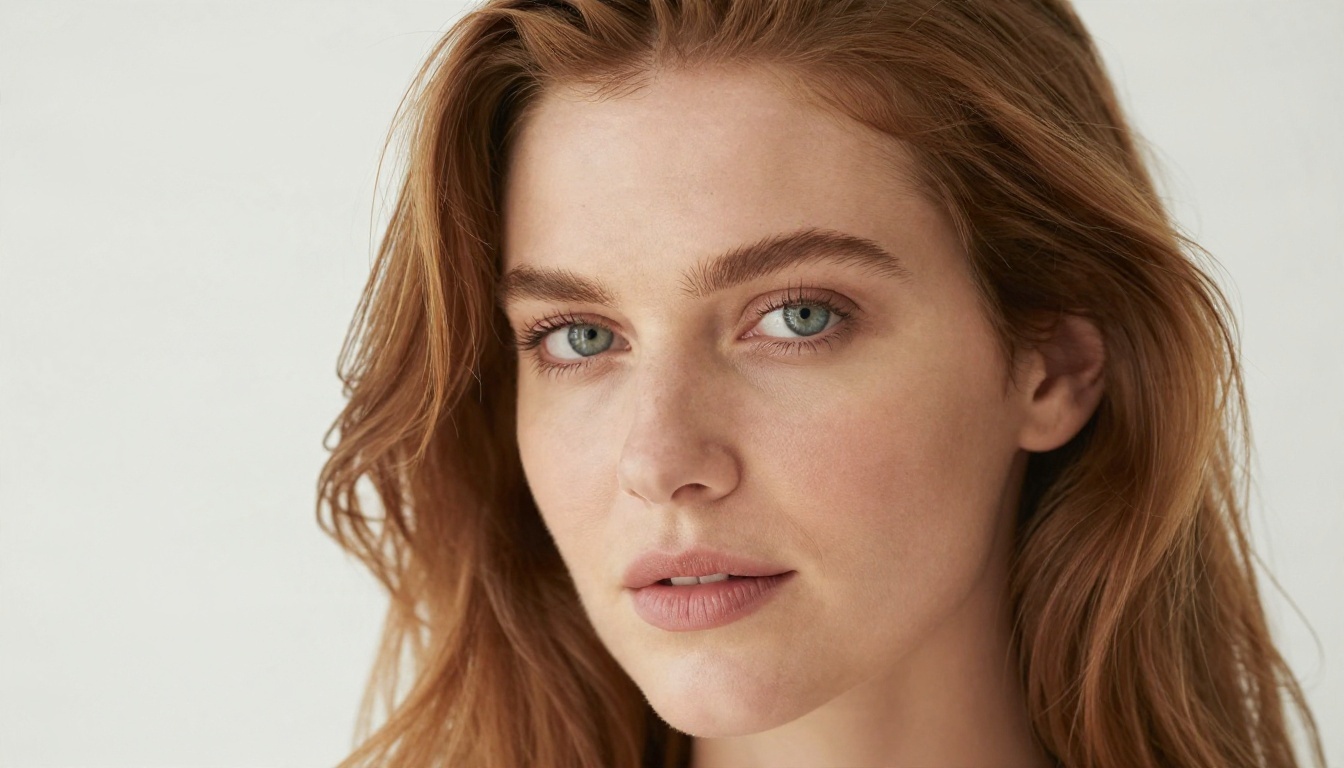
Clip length is where free apps hurt most. A 5 second clip is enough for a head turn or a smile. It is not enough for a short story beat, a walk across a room or a dialogue line.
5, 10 and 30 Seconds
Seedance 2.5 is the long form option. It turns a text prompt, a photo or a reference clip into a video of up to 30 seconds, with synchronized dialogue, sound effects and music. It also accepts a first and last frame, so you control how the shot opens and closes, and up to 30 reference images to keep a face and outfit consistent.
How to Stretch a Clip
Longer is not always better. Faces drift over time, and a 10 second clip with one weak moment can ruin the whole thing. Try these approaches instead:
- Chain clips: end clip one on a good frame, export that frame, and use it as the first frame of clip two
- Use first and last frame control so the model has a destination, not just a start
- Cut on action: trim to the best 4 seconds and loop or edit them together
- Keep one subject: several moving elements raise the chance of artifacts
💡 Rule of thumb: use 5 seconds for a look, 10 seconds for a movement, and 30 seconds only when you have a real scene to tell.
How to Use Seedance 2.5 Lite on PicassoIA
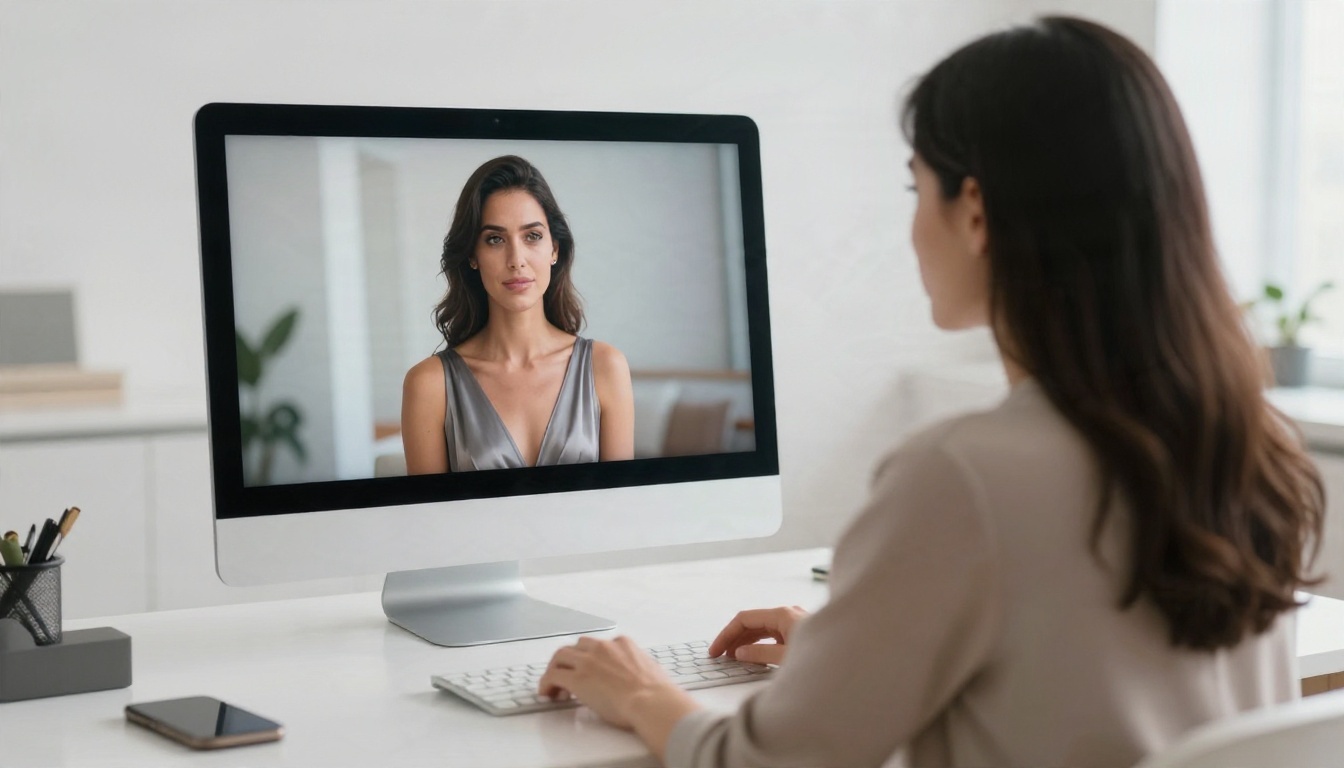
Seedance 2.5 Lite is the best fit for this topic: free for Elite and Infinite members, quick, and capable of 10 second clips from a single image.
Step by Step Workflow
- Generate your source photo with Seedream 4.5, and polish it in Image Editor Pro if needed.
- Open Seedance 2.5 Lite and upload the photo in the Input image field. The clip uses it as the opening frame.
- Write a motion prompt using the formula above. Describe only what changes.
- Set the duration to 5 or 10 seconds.
- Choose 480p for drafts and 720p for the final render.
- Leave aspect ratio on match input image so the video fits your photo.
- Generate, review, and adjust the prompt or seed until the movement feels right.
Parameter Tips That Matter
| Setting | Recommendation |
|---|
| Duration | Start at 5 seconds, move to 10 once the motion works |
| Resolution | 480p to test, 720p to finish |
| Seed | Lock it when you like a result, then change one word at a time |
| Save audio | Keep it on for atmosphere, switch off for a silent clip |
| Last frame image | Add it when you want a controlled ending |
If you have a story that needs more than 10 seconds, move the same image to Seedance 2.5 and set a longer duration.
Other Image to Video Models Worth Testing
No single model wins every shot. Some are better at faces, some at camera movement, some at speed. These are worth keeping in your rotation, and each one accepts a starting image:
💡 Testing method: use the same photo and the same prompt across three models. Keep the best one for that kind of scene. Portraits, wide beach shots and fashion walks often favor different models.
Moderation behavior differs by model, so a prompt that one rejects might pass on another. If a model refuses a harmless glamour shot, rephrase it with calmer wording such as "swimwear" instead of stronger terms, or try a different model before giving up.
Make Your First Clip Today
You do not need a shady app or a stack of subscriptions to animate a photo. You need a strong source frame, a prompt that describes motion instead of the picture, and a model with a clip length that fits your idea.
Here is a simple plan for the next ten minutes:
- Create a portrait or fashion shot in Seedream 4.5.
- Polish it in PicassoIA Image Editor Pro.
- Animate it in Seedance 2.5 Lite with one motion, one camera move and one mood.
- Compare the result on PicassoIA Video or Seedance 2.5 if you want a different length.
Experiment freely, change one variable at a time, and keep your best seeds. Everything is waiting at picassoia.com/en/all-models. Pick a photo, write a single line of motion, and press generate.


