You queue up your favorite song, hand someone the microphone, and the original singer is still belting over the top of them. That is the exact problem an AI vocal remover for karaoke solves. Upload a normal stereo track, wait a minute or two, and you get an instrumental you can sing over, plus an isolated vocal if you want to practice with it.
A few years ago this only worked badly. Old "center channel" tricks left a hollow, watery mess. Today, neural separation models trained on thousands of songs pull vocals, drums, bass and other instruments apart with surprising accuracy. Many of the best tools are free, at least for short tests.
This article walks through how it works, which free online tools are worth opening, what separation quality really sounds like, and which settings make the difference between a party-ready backing track and a muffled disappointment.
How AI Vocal Removal Works
Stems, Not Phase Tricks
The old method flipped the phase of one stereo channel and mixed it with the other. Anything sitting dead center, usually the lead vocal, cancelled out. It also cancelled the kick drum, the bass and half the snare, and it did nothing for songs with wide stereo vocals.
Modern tools use stem separation. A neural network listens to the mixed audio and predicts what each instrument group would sound like on its own. The output is a set of separate files called stems: vocals, drums, bass and "other." Some services split further into piano, guitar, strings or synths.
For karaoke you only need two results: the vocal stem (to throw away or keep as a practice reference) and everything else combined into one instrumental file.

Why Karaoke Is the Hardest Test
Karaoke is a harsh test because you listen to the instrumental alone and loud, with a live voice on top. Any leftover trace of the original singer stands out. Any damage to the drums or guitars is easy to hear because nothing hides it.
Songs that are easy to split have a clearly recorded lead vocal, a sparse mix and little reverb. Songs that are hard to split have stacked harmonies, heavy vocal effects, distorted guitars in the same frequency range as the voice, or live recordings with crowd noise.
💡 Quick rule: if the original song sounds clean and dry on good headphones, the separated version will probably sound clean too. If it already sounds like a wall of noise, expect artifacts.
The market changes quickly, and free tiers get tighter or looser from month to month. Treat the notes below as a snapshot and check each service's current limits before you plan a whole party around one tool.
Browser Tools With No Install
Browser tools are the fastest way to test a song. You drag in a file, wait, then preview and download the result.
- Moises: Built around a musician's practice workflow, with free stem separation on its base tier. Some comparison sites report a monthly cap on free songs, so test with the songs you care about most.
- LALAL.AI: Known for offering many stem types, up to ten in some modes. Its free tier is mostly a preview, so you hear the quality before you pay for full downloads.
- VocalRemover.org: A common free browser choice for quick jobs. One review mentions a file size limit of around 10 MB, and quality is a step below the paid specialists.
Run the same short clip through two or three of these before choosing. Differences in ghost vocals and cymbal clarity show up within seconds.
Free Desktop Options
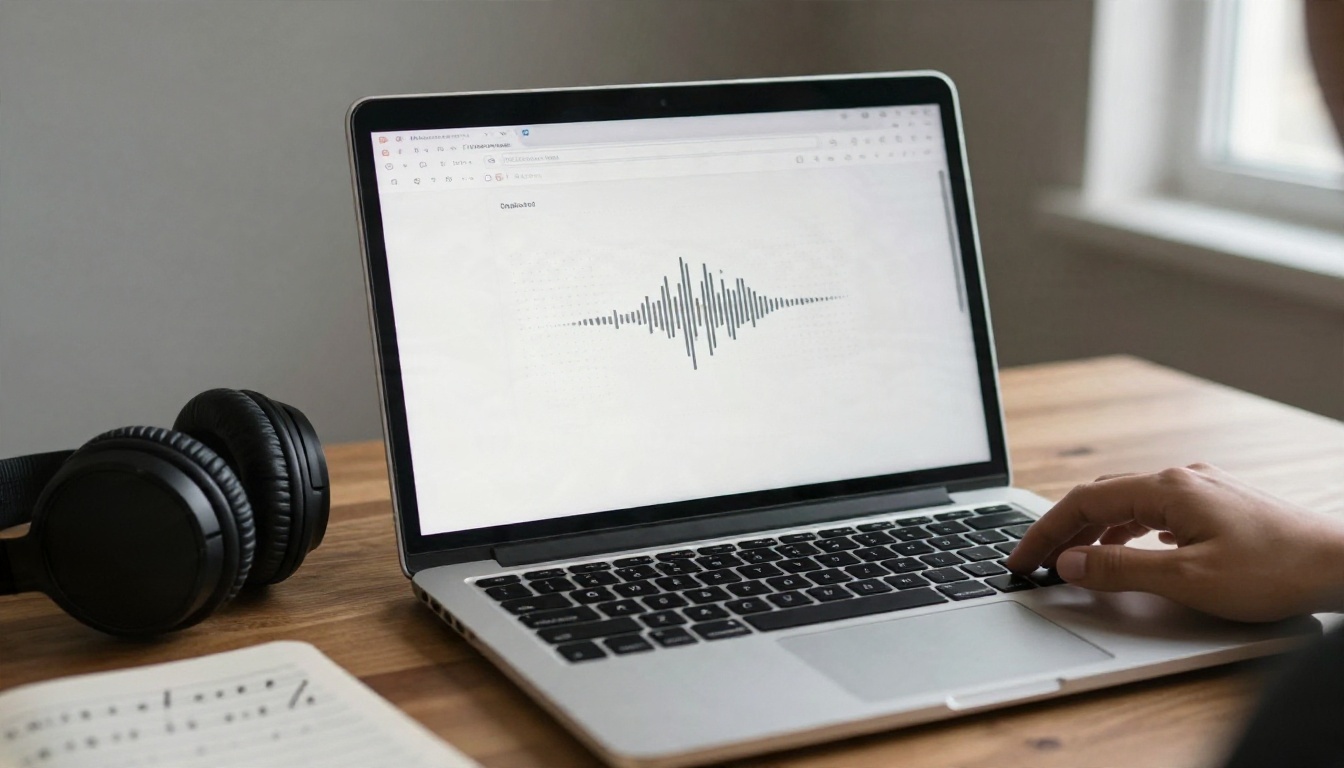
If you plan to process many songs, a local app removes the upload limits. Ultimate Vocal Remover is a free, open desktop program that can run the HTDemucs family of models, and users commonly report four-stem results close to the paid web services. The trade-off is setup time and a computer with a decent graphics card, since separation on a slow processor can take several minutes per song.
Free Tier Limits at a Glance
| Tool type | Cost to start | Typical limit | Best for |
|---|
| Moises (web and app) | Free base tier | Monthly song cap reported | Singers who practice often |
| LALAL.AI (web) | Free preview | Preview only before paid plan | Testing quality on a short clip |
| VocalRemover.org (web) | Free | Small file size limit reported | One-off quick karaoke tracks |
| Ultimate Vocal Remover (desktop) | Free | Your own hardware | Large batches, full control |
💡 Tip: always preview before downloading. A 30 second preview of the chorus tells you more than any review.
Quality: What to Listen For
Separation scores and marketing claims are everywhere, but there is no independent blind test that ranks all these tools fairly. Many published rankings come from vendors that place themselves first. Your ears on your song are the only test that counts.
Ghost Vocals and Backing Harmonies
The most common flaw is a faint, whispery version of the lead vocal that survives in the instrumental. It usually hides in reverb tails and in backing vocals that sit close to the lead. Listen on headphones during a quiet passage, such as the intro to a verse.
Some leftover backing vocals are actually a feature. If the instrumental keeps the choir "ooh" parts, your singers can still sound full. Ghost lead vocals, though, make singing along confusing because you hear two melodies.
Cymbal and Reverb Artifacts
The second flaw is damage to the instrumental itself. Models sometimes mistake sharp consonant sounds for hi-hats, or hi-hats for vocal sibilance. You may hear a slightly swirly or underwater quality on cymbals, or a thin snare where the vocal used to overlap.
Check three things in every preview:
- Hi-hats and cymbals: do they sound crisp or smeared?
- Bass and kick: is the low end still punchy?
- Quiet sections: do you hear bubbling or "chirping" sounds between notes?
Best Settings for Clean Karaoke Tracks
Most free web tools hide their settings, but the choices you do control matter a lot.

Input File First
Garbage in, garbage out. The cleaner the source, the cleaner the stems.
- Use a WAV or FLAC file if you own one. A high bitrate MP3 (256 to 320 kbps) is a decent second choice.
- Avoid low quality YouTube rips, which are already compressed twice and lose detail the model needs.
- Skip live recordings and heavily limited modern masters when you can. Pick the album version over a remaster that is crushed loud.
Model and Mode Choices
When a tool offers a choice, use these rules of thumb:
- Choose vocals plus instrumental (two stems) if you only want karaoke. Fewer stems usually mean fewer artifacts in the combined backing track.
- If offered, pick a higher quality or slower mode for songs with dense mixes.
- Try a "back vocals" or "lead only" option when available. Removing only the lead keeps harmonies in place.
- Leave extra processing like noise reduction off unless the source is noisy. Extra processing on a clean track often adds smearing.
Export Format
| Format | Best use | Trade-off |
|---|
| WAV | Karaoke apps, editing, long term storage | Large files |
| FLAC | Same quality as WAV in a smaller file | Not every player supports it |
| MP3 320 kbps | Phones, USB sticks, car stereos | Slight loss, fine for singing |
💡 Pro habit: keep a WAV of the instrumental and export MP3 only for sharing. Converting back and forth wears down the quality.
Step by Step Karaoke Workflow
Upload, Split, Check
- Pick the best quality version of the song you own or have licensed.
- Upload it to your chosen tool and select vocals plus instrumental.
- Preview the chorus, a quiet verse and the final fade.
- Download the instrumental in WAV or high bitrate MP3.
- Play it through the speakers you will actually use. Laptop speakers hide problems that a party system exposes.

Add Lyrics and Timing
An instrumental alone is only half a karaoke setup. You need lyrics on screen at the right moment. Options include:
- A karaoke player app that loads an audio file and a lyric file together.
- A simple video editor where you type lyrics as text and time them by ear.
- A printed lyric sheet taped to the wall for casual nights at home.
Check your local rules about public performance if you plan to use the tracks in a bar or at a paid event. Personal practice and private parties are a different situation from a commercial venue, and licensing for venues is usually handled by the venue.

Fixing Common Problems
Vocals Still Audible
If a ghost vocal remains after the first pass, try these fixes in order:
- Try a different tool or model on the same file. Different networks fail in different places.
- Use a higher quality input, such as WAV instead of a low bitrate MP3.
- Run the instrumental through the separator a second time, then compare it against the first pass. Sometimes it removes the residue, sometimes it adds artifacts, so listen carefully.
- Lower the volume of the mid range slightly with a basic equalizer, between roughly 1 and 4 kHz, where voices sit. Use small cuts so the guitars do not suffer.
Muddy Instrumental
A dull or thick instrumental usually points to a bad source or an over-processed result. Try the original album version instead of a remaster or a video rip. Then add a gentle boost around the high frequencies with an equalizer, and avoid heavy compression. If drums still sound smeared, try a different separation model rather than pushing the same one harder.
Skip Separation With Original Backing Tracks
Separation will always carry some risk: leftover vocals, softened drums, and a track that never sounds quite like a real studio instrumental. There is another route that avoids the problem entirely: create the backing track from scratch.
PicassoIA does not offer a stem splitter, so it will not remove vocals from an existing song. What it does offer is a set of AI music generation models that can compose an instrumental from a text prompt. That fits several karaoke situations:
- You want a backing track in a style you describe, such as "warm acoustic pop ballad at 90 BPM with soft piano and light drums."
- You are writing your own song and want to sing it over a clean instrumental.
- You need a track you can share or post without worrying about the rights attached to a commercial recording. Check the license terms for your own use case.
Models Worth Trying for Instrumentals
| Model | What it is good at |
|---|
| Lyria 3 | Original music from a text prompt, good for polished instrumentals |
| Lyria 3 Pro | Longer, full-length songs with more structure |
| Music 2.6 | Full songs from lyrics and style prompts |
| Music 2.5 | Songs with vocals, handy for demo guide tracks |
| Stable Audio 2.5 | Instrumental textures and short musical loops |
For a karaoke track, write your prompt like a producer. Name the genre, tempo, instruments and mood, then add "instrumental, no vocals." A prompt like "upbeat 1980s style pop rock, 118 BPM, bright electric guitars, punchy drums, no singing, big chorus section" gives the model a clear target.
💡 Tip: generate two or three versions with slight prompt changes, then pick the one where the chorus gives you the best room to sing.
Make Your Own Karaoke Track Today
Free vocal removers are great for quickly turning a favorite song into a singalong, and a few careful choices about input file, mode and export format will give you far better results than clicking the default button. Test a short clip first, listen on real speakers, and switch tools if ghost vocals refuse to go away.
When you would rather have a backing track that was never mixed with a singer in the first place, open PicassoIA and try the music generation models above. Describe the style you want, generate a few instrumentals, and sing over the one that fits your voice. You can also browse every available tool at picassoia.com/en/all-models and pair your music with text to speech, lipsync or video models for a full karaoke clip.
Your next singalong is only one prompt away. Pick a genre, press generate, and grab the microphone.


