Most people type "bride and groom, beautiful, romantic" into an image generator and get back two plastic-skinned mannequins in front of a blurry castle. The problem is never the model. It is the prompt. A strong AI wedding photoshoot prompt reads like a shot list from a working photographer: who is in the frame, what they are doing, where the light comes from, and which lens captured it. Get those four things right and the result looks like a page from a bridal magazine.
This article gives you a reusable prompt formula, eight scene ideas you can copy today, a comparison of the best generator and editor models, and a set of editing workflows for photos you already have. Everything below is built for realism: natural light, believable skin, film grain, and fabric that behaves like fabric.
Why Wedding Prompts Fail
Wedding imagery is one of the hardest subjects for AI. You have faces, hands, layered fabric, flowers, jewelry, and emotion all in one frame. Any weak spot in the prompt shows up immediately.
Vague Words Produce Generic Couples
"Beautiful couple at a wedding" gives the model almost nothing to work with, so it falls back on the most average image in its training data. That means symmetrical faces, stiff poses, and a generic white dress. Specific verbs and objects fix this. Compare these two:
- Weak: "romantic wedding photo of a couple"
- Strong: "groom turning toward his bride on a hydrangea-lined garden path, her hands over his eyes, tears on her cheeks"
The second version tells the model what the moment is. Moments create believable expressions, and believable expressions are what separate a candid photograph from a stock render.
Missing Light Ruins Realism
Lighting is where most prompts go quiet. If you do not state a light direction, the model picks flat, even illumination, and flat light is the fastest route to a fake look. Always name the source (window, low sun, candles), its direction (camera left, backlit, overhead), and its quality (soft, diffused, golden).
💡 Quick rule: If your prompt does not contain the words "light from" followed by a direction, add them before you hit generate.
The Anatomy of a Good Wedding Prompt
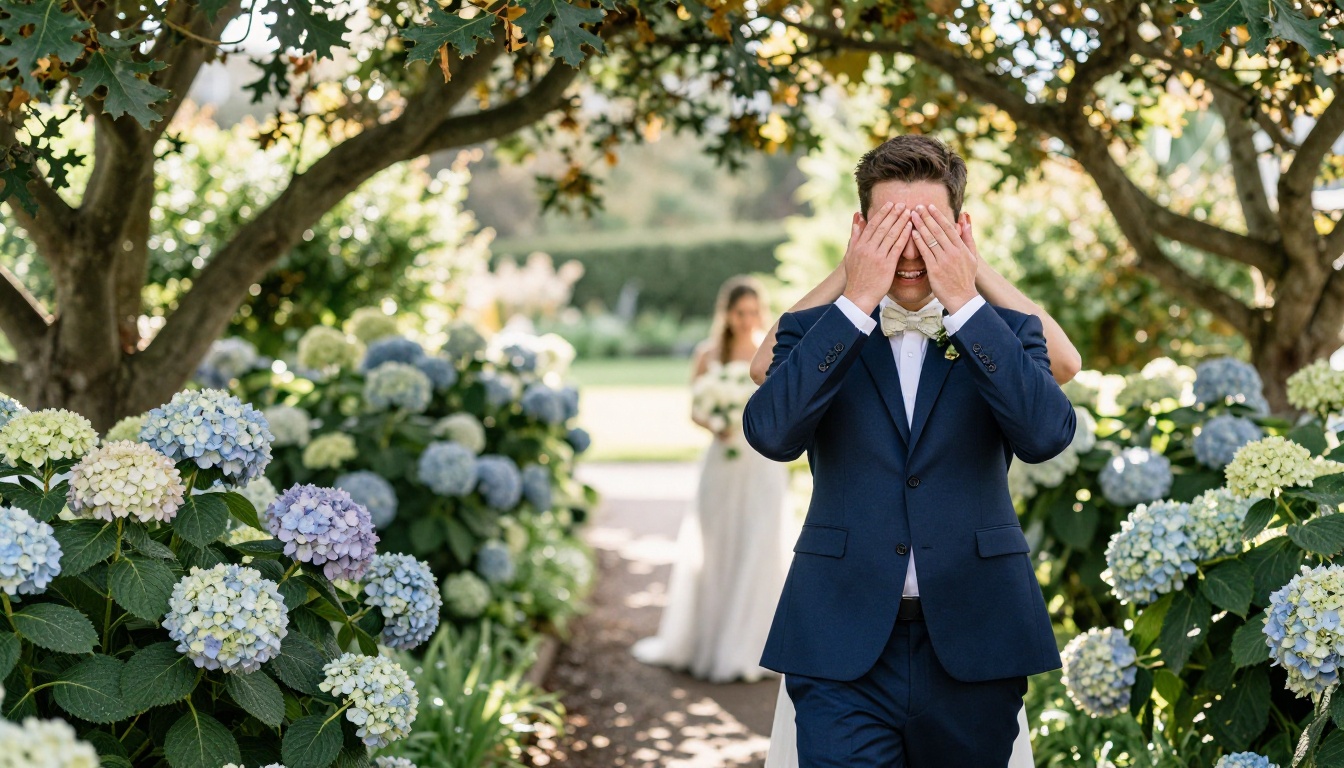
The image above came from a prompt that follows the same structure every time. Once you internalize it, you can write a new wedding prompt in under a minute.
The Five-Part Formula
- Subject and action: who is in the frame and what they are doing right now.
- Environment: the venue, the background, the time of day.
- Light: source, direction, and quality.
- Camera and lens: focal length, aperture, angle, and distance.
- Texture and film stock: skin, fabric, grain, color palette.
| Part | Weak version | Strong version |
|---|
| Subject | a bride | a bride looking over her shoulder, veil resting on one arm |
| Environment | a church | a stone chapel doorway with climbing jasmine |
| Light | nice lighting | soft window light from camera right |
| Camera | professional photo | 85mm f/1.8, shallow depth of field |
| Texture | high quality | visible skin pores, lace threads, Kodak Portra 400 grain |
Ready-to-Copy Prompt Template
Paste this into any text-to-image model and swap the brackets:
"Candid wedding photograph, [subject and action], [environment and time of day], [light source and direction], [focal length and aperture], [fabric and skin textures], Kodak Portra 400 film grain, natural color grading, RAW 8K photography."
Notice the film stock at the end. Kodak Portra 400 is a shorthand that pushes models toward warm skin tones, soft highlights, and gentle grain. It is one of the most reliable realism triggers you can add.
Eight Wedding Prompt Ideas to Copy
Each idea below comes with the angle, the light, and the mood that make it work. Adapt the details to your own couple, dress, and venue.
First Look and Bridal Portrait
The first look is pure emotion. Keep the camera at eye level with a 35mm lens so the viewer feels present in the scene. For the portrait, go tighter and closer.
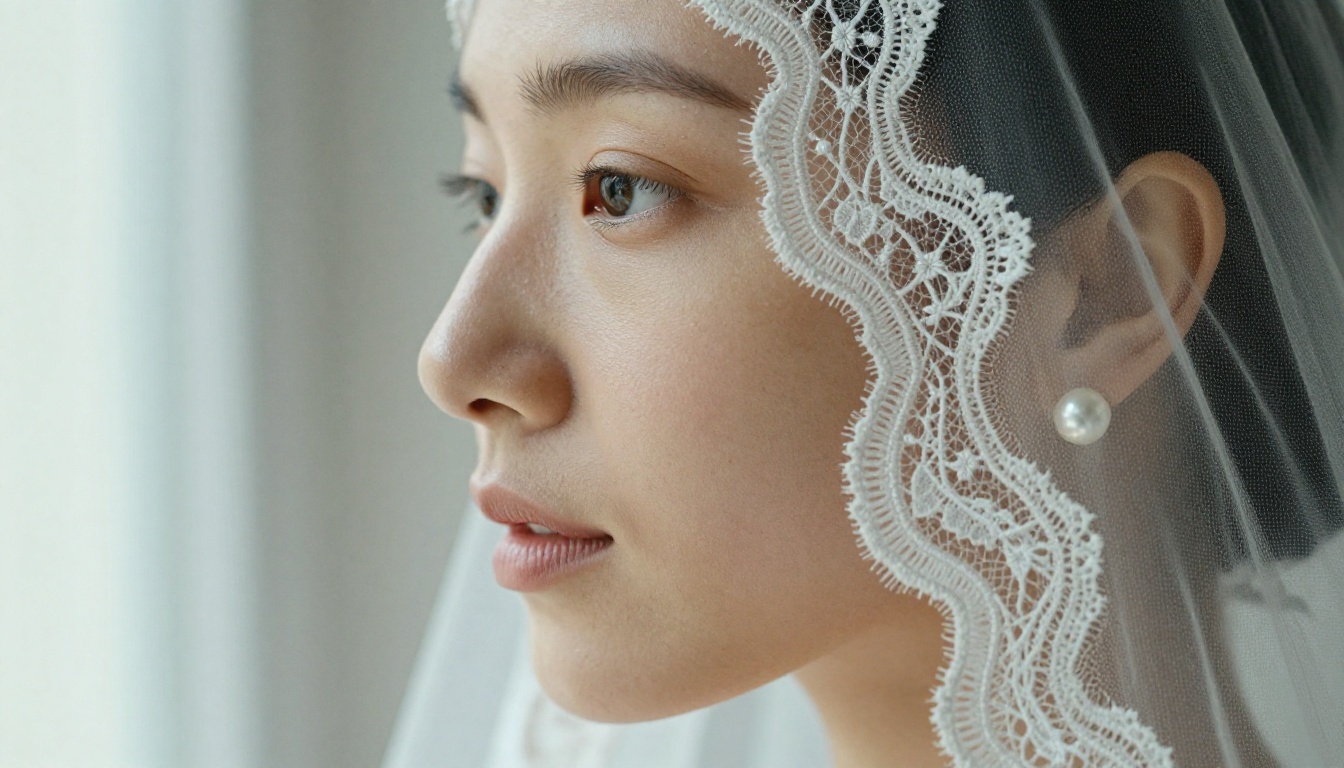
Prompt idea: "Extreme close-up portrait of a bride's face and shoulder in a tulle veil, looking over her shoulder toward the window, Chantilly lace neckline with individual threads visible, natural skin pores and soft freckles, window light from camera right in a bright bridal suite, 100mm lens at f/2, pearl earring catching a small highlight, Kodak Portra 400 film grain."
Why it works: the glance over the shoulder gives the face a natural turn, the window light shapes the cheekbones, and the mention of pores and freckles stops the model from smoothing the skin into plastic.
Rings and First Dance
Detail shots tell the story between the big moments. A ring macro is also the easiest wedding image to get right, which makes it a perfect warm-up.
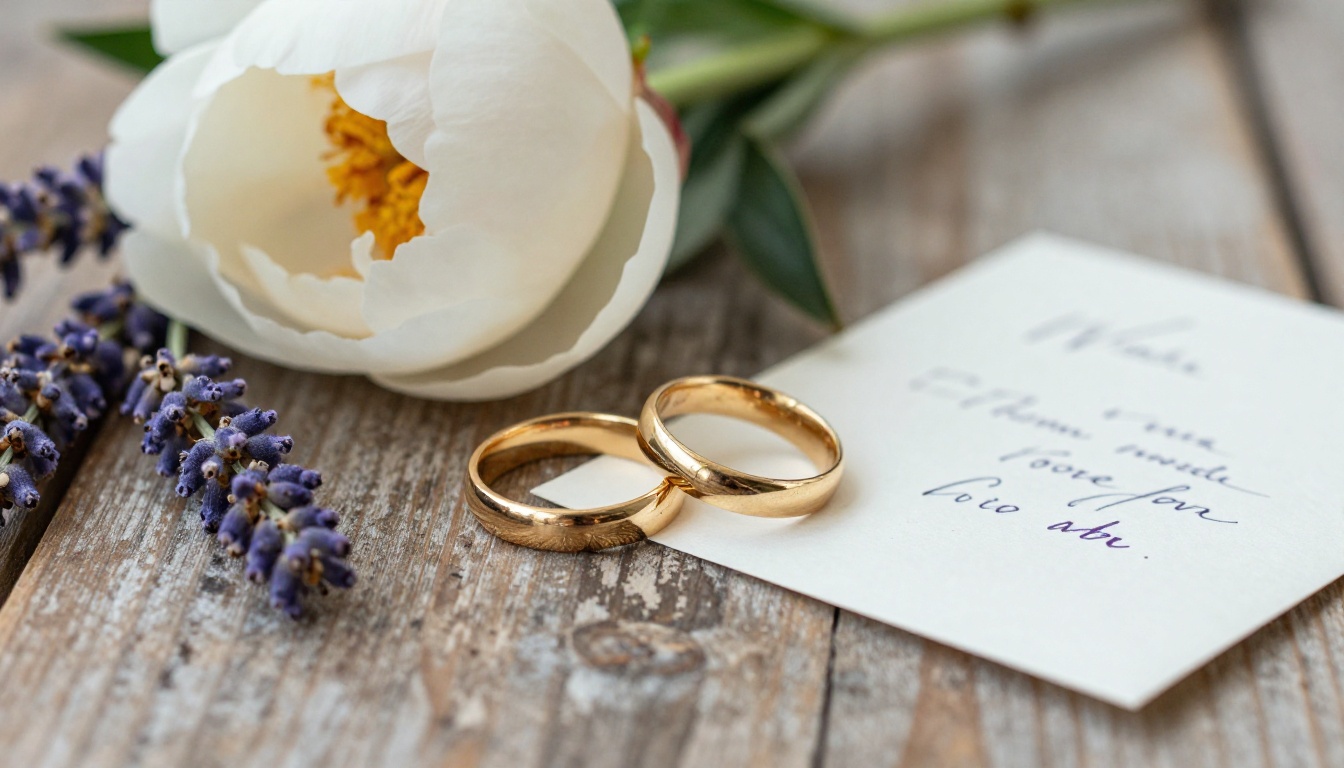
Prompt idea: "Macro overhead photograph of two gold wedding bands on a bouquet of white peonies and lavender, handwritten vow card softly out of focus, weathered wooden table, diffused window light from the upper left, 100mm macro lens at f/4, fine petal veins and metal micro-scratches visible."
For movement, shoot the first dance from a low angle. It exaggerates the swirl of the skirt and adds drama without any gimmicks.
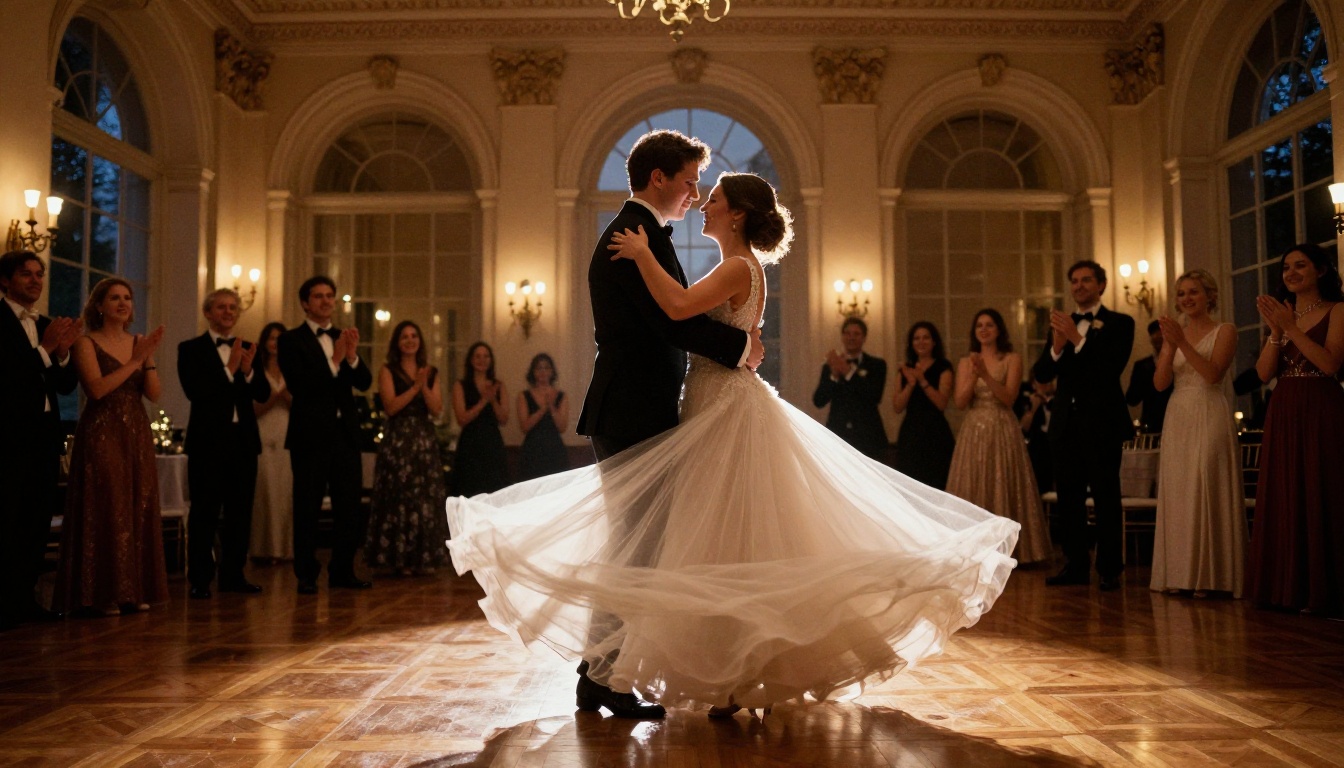
Prompt idea: "Low-angle photograph of a couple's first dance in a historic ballroom with tall arched windows, bride's tulle skirt mid-swirl, warm chandelier glow mixed with dusk light from the right, guests blurred in the background, 24mm f/2.8, polished parquet reflections, natural motion blur in the fabric."
Elopements and City Streets
Not every wedding happens in a ballroom. Small ceremonies photograph beautifully because the scenery does the heavy lifting.
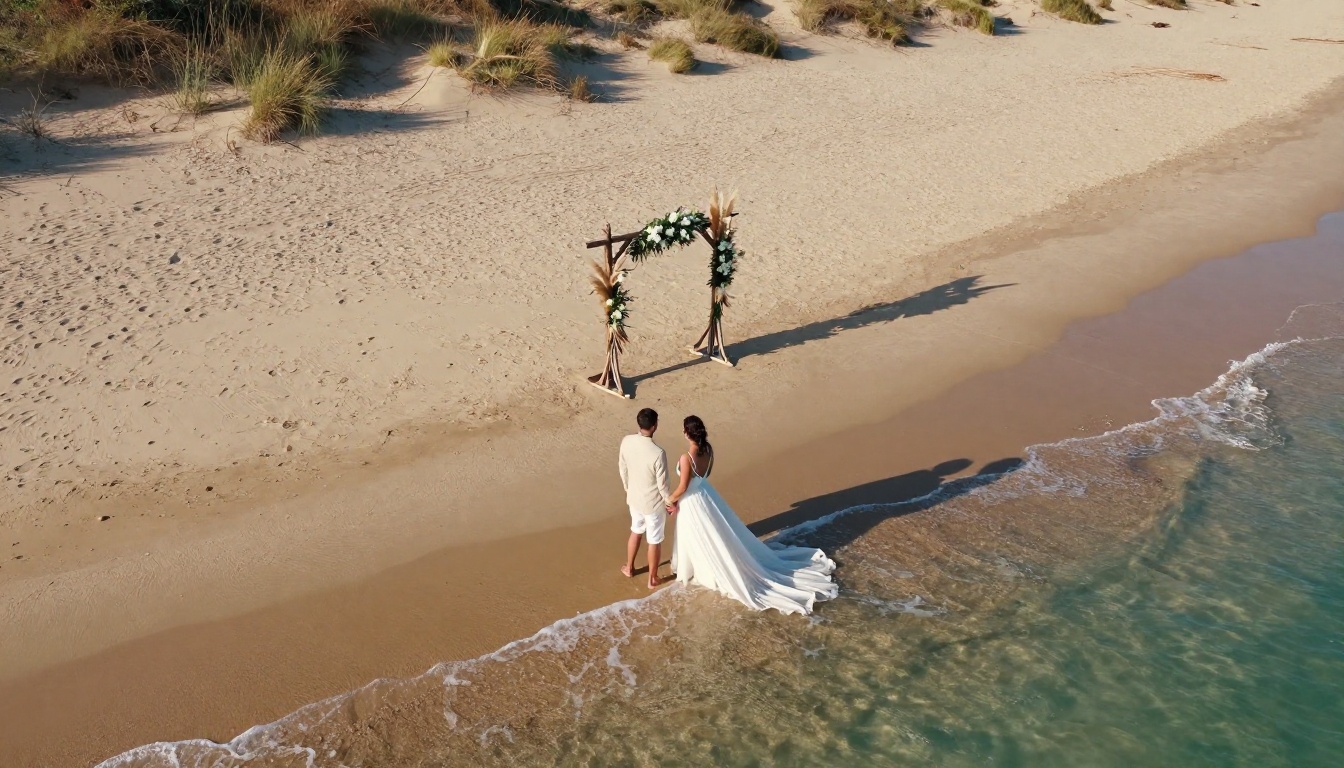
Beach elopement prompt: "Aerial drone photograph of a barefoot couple walking along wet sand at the water's edge, the bride's chiffon dress trailing in the foam, a driftwood arch with pampas grass on the dunes, low golden sun from the right, 24mm lens from high overhead, rippled sand texture, turquoise shallow water."
For urban couples, a rainy street at blue hour is hard to beat. Wet cobblestones reflect shop windows and give you free bokeh.
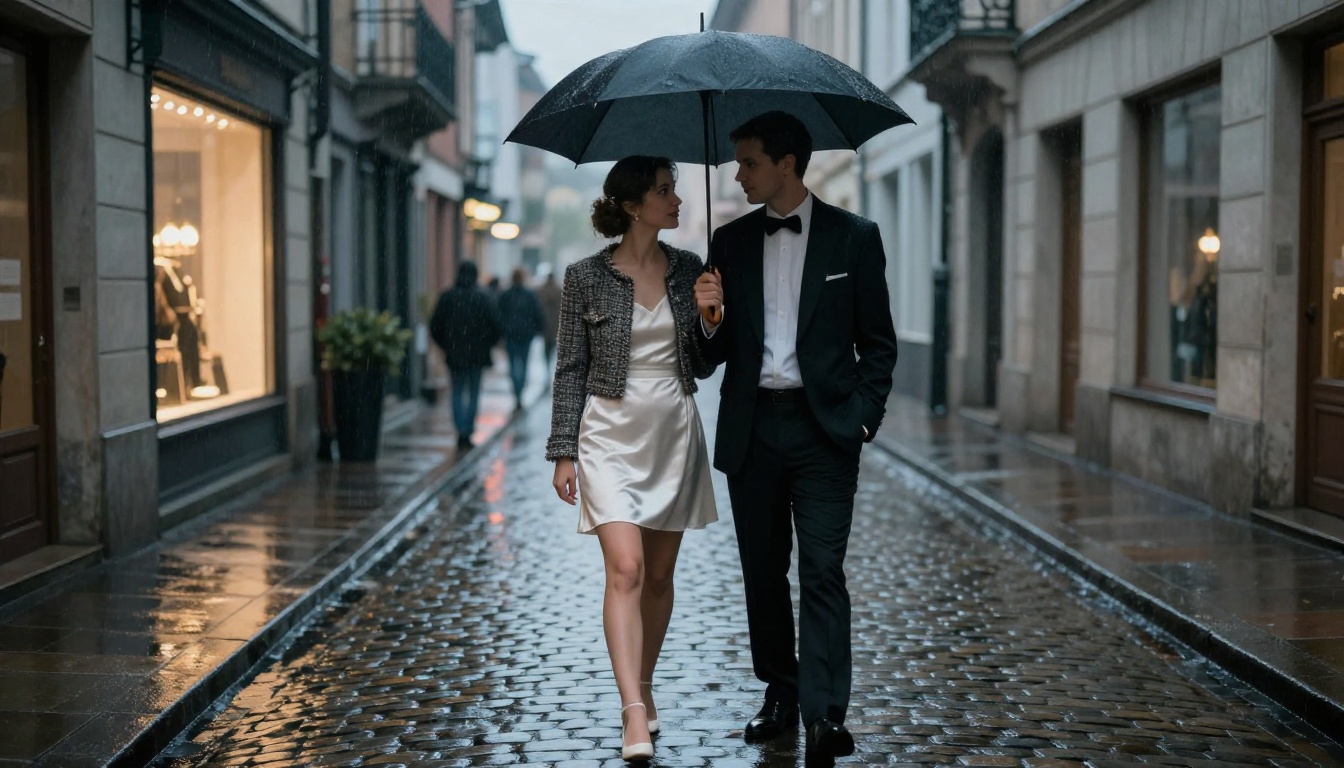
Rainy street prompt: "Vintage street-style wedding photograph at blue hour, couple under a black umbrella on a narrow cobblestone street after light rain, bride in a short satin dress with a tweed jacket, wet stones reflecting warm shop light, 50mm f/1.4 at eye level, muted tones, visible film grain."
Getting Ready and Reception Tables
Group scenes are harder because the model must keep several faces believable at once. Limit the group to five people or fewer, and give each a shared action such as laughing or helping with buttons.
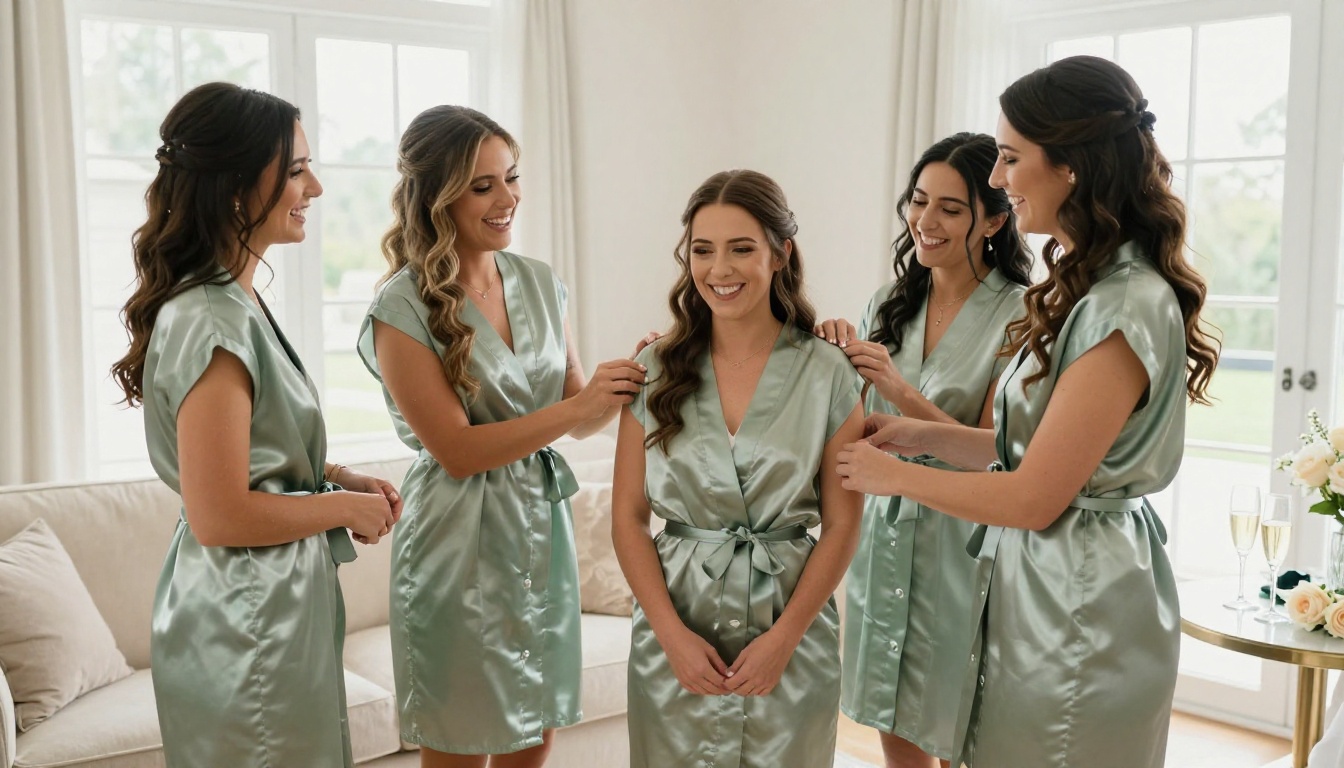
Getting-ready prompt: "Candid photograph of five bridesmaids in sage green satin robes laughing on a cream sofa while helping the bride with her buttons, bright suite with large window light from the right, champagne glasses and scattered roses on a side table, 35mm f/2 from a slightly high angle."
Reception details need no people at all, which makes them forgiving and fast.
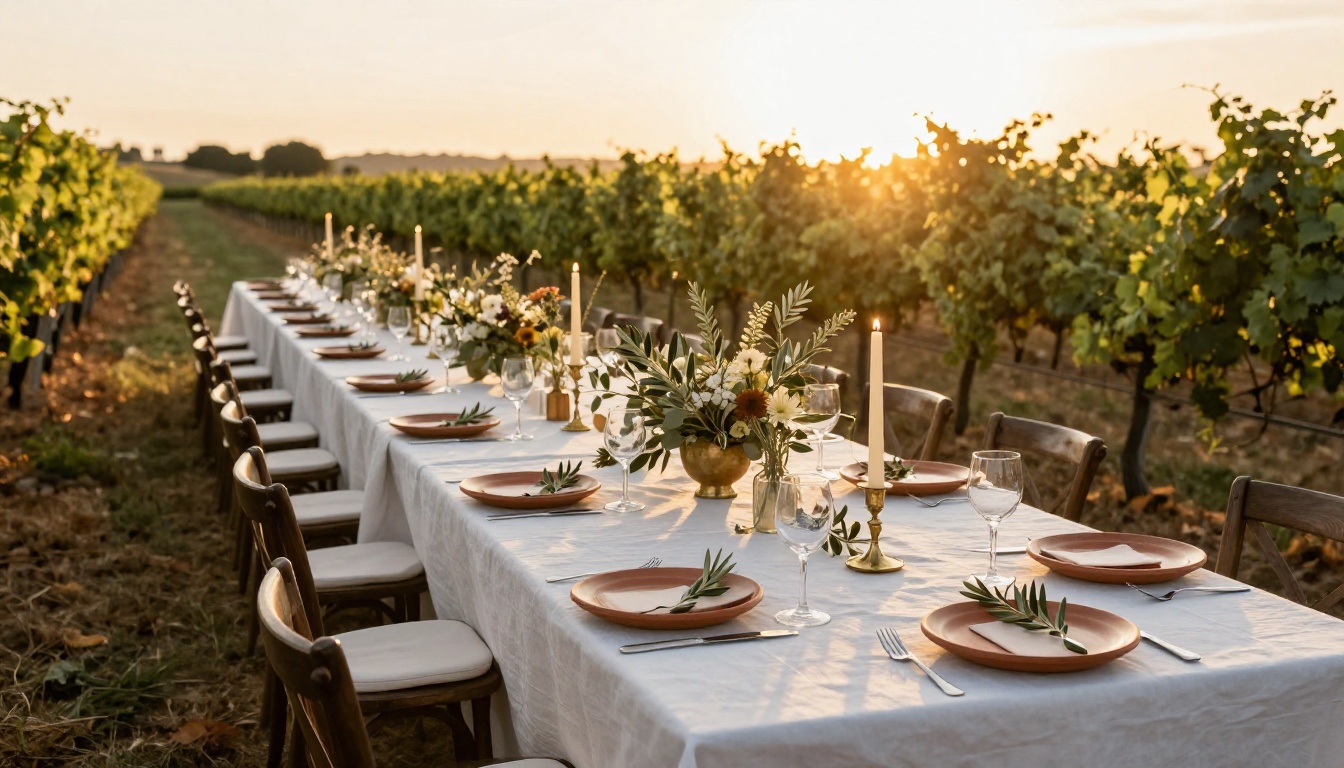
Vineyard table prompt: "Wide golden hour photograph of a long reception table in a vineyard, white linen runner, taper candles in brass holders, terracotta plates, olive branches and wildflowers, grapevine rows receding into warm backlight, 35mm f/2.8 at table height."
💡 Mood board trick: Generate one image from each of these eight scenes with the same color words (for example "sage green and ivory") and you get a cohesive visual set for invitations, Pinterest boards, or a venue pitch.
Best Generator Models for Weddings
Different models have different strengths. Here is how the most useful ones compare for bridal work.
| Model | Best for | Strength |
|---|
| Seedream 4.5 | Portraits and full scenes | Sharp 4K output, strong skin and fabric detail |
| Flux 2 Pro | Editorial look, text or photo input | Natural lighting and clean composition |
| Nano Banana Pro | Detailed 4K scenes | Strong prompt following on busy frames |
| Qwen Image 3 | Photorealistic people | Believable faces and hands |
| Gpt Image 2.5 Sunburst | Generate and edit in one tool | Good with long, descriptive instructions |
My recommendation: start with Seedream 4.5 for portraits, then switch to Flux 2 Pro when you want a more editorial, magazine feel. Running the same prompt through two models takes seconds and often reveals which one suits your couple better.
Why Model Choice Changes the Mood
Seedream tends to produce crisp, high-detail skin and fabric. Flux leans toward softer, more cinematic light. Neither is "better." If your scene is a close bridal portrait, you want detail. If it is a wide vineyard dinner, you may prefer the softer rendering.
How to Use Seedream 4.5 on PicassoIA
Seedream 4.5 is a reliable first choice for wedding portraits because it handles lace, veils, and skin without over-smoothing. Here is the workflow.
- Open the model page. Go to the Seedream 4.5 page on PicassoIA and select the prompt box.
- Paste your prompt. Use the five-part template from earlier. Keep it between 50 and 120 words; shorter prompts leave too much to chance, longer ones start to contradict themselves.
- Set a 16:9 ratio for scenery, 3:4 for portraits. Wide frames suit venues and aerials. Tall frames suit single-subject bridal portraits and Pinterest pins.
- Generate a batch. Create three or four variations of the same prompt and pick the best expression.
- Refine one detail at a time. If the veil looks wrong, change only the veil description and regenerate. Changing five things at once makes it impossible to tell what helped.
Settings That Matter Most
- Aspect ratio: match the final use (print, album, invitation).
- Prompt length: one clear scene, not a list of ten ideas.
- Seed: if the platform exposes it, keep the seed fixed while you tweak wording so you can compare changes fairly.
💡 Pro tip: Add "no text, no watermark, no logos" at the end of every wedding prompt. Signage, banners, and phantom lettering sneak into reception scenes more often than you would expect.
Editor Ideas for Existing Photos
Generating from scratch is only half the story. Many couples already have decent photos that need a better sky, softer light, or a cleaner background. This is where an AI editor earns its place.
Swap Backgrounds Without Reshoots
A great portrait with a parking lot behind it is a common problem. Generate Background lets you keep the couple and replace the setting with a garden, a chapel, or a golden hillside. For best results, describe a background whose light direction matches your original photo, otherwise the shadows will look pasted on.
For image-to-image editing with plain-language instructions, Nano Banana and Qwen Image Edit Plus both work well. Typical instructions that succeed:
- "Remove the exit sign on the wall behind the couple."
- "Change the overcast sky to a soft golden sunset."
- "Replace the plastic chairs with wooden garden chairs."
Fix Light and Depth
If a snapshot looks flat, Depth of Field adds the creamy background blur that normally requires an expensive lens. It is a fast way to make a phone photo look like it came from an 85mm portrait setup.
For quick tweaks, Flux Kontext Fast and P Image Edit deliver results in seconds, which makes them ideal for trying five or six edits before settling on one.
Hair is another frequent request. Change Haircut lets a bride preview an updo versus loose waves before the trial appointment, which saves both time and stress.
Upscale for Print
Wedding albums and canvas prints need resolution. A 1500 pixel image will look soft at 24 by 36 inches. Run your final picks through Real ESRGAN for a 4x upscale, then check faces and lace at 100% zoom before sending to the printer.
| Task | Recommended tool | Typical time |
|---|
| Replace background | Generate Background | Seconds |
| Remove objects or change sky | Nano Banana or Qwen Image Edit Plus | Seconds |
| Add portrait blur | Depth of Field | Seconds |
| Quick style or detail edit | Flux Kontext Fast | Seconds |
| Print resolution | Real ESRGAN | Under a minute |
Build a Repeatable Prompt Workflow
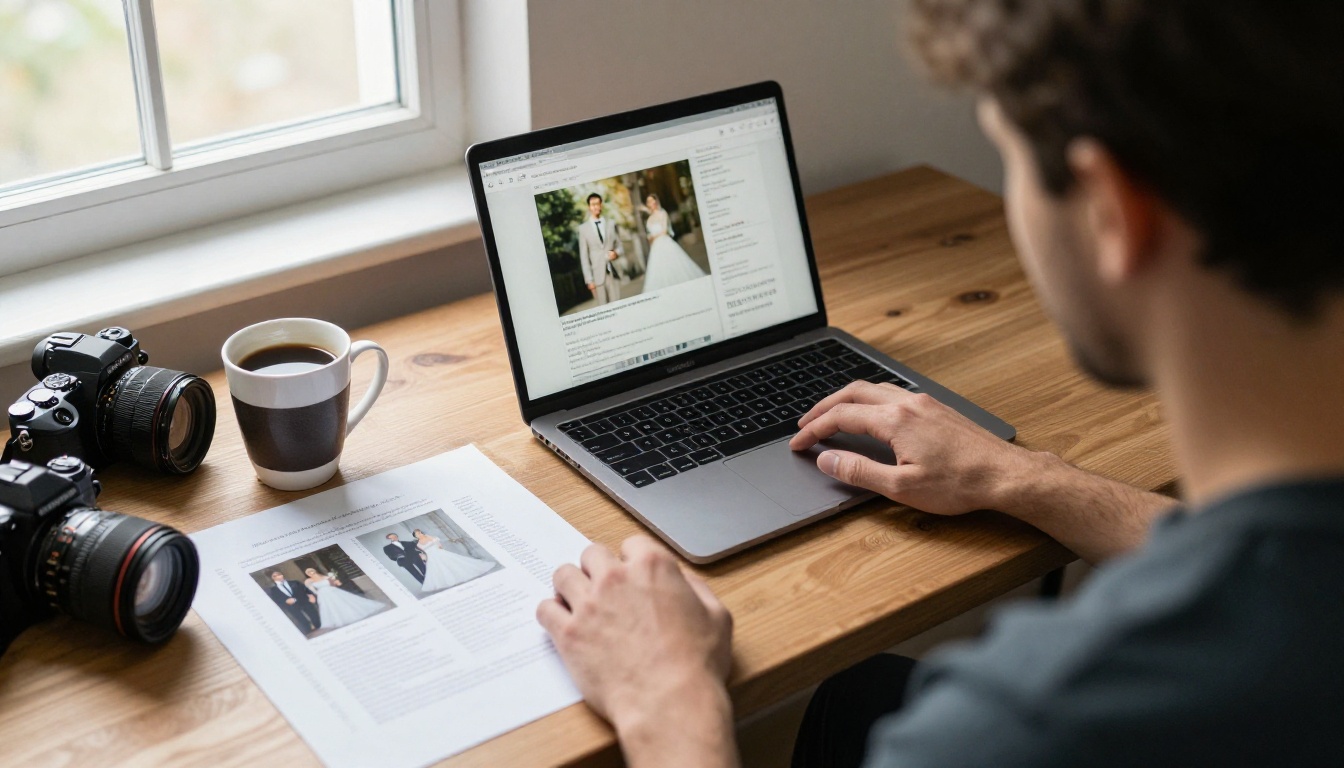
Professional photographers rely on shot lists, and your AI workflow should too. A simple system saves hours.
Create a Shot List First
Write down twelve to twenty moments before you touch a generator: getting ready, first look, ceremony, ring exchange, portraits, dance, table details, send-off. Then write one prompt per line using the template. This keeps the set varied in angle and distance, so you do not end up with fifteen nearly identical waist-up portraits.
Vary these three things on every shot:
- Distance: wide, medium, close, macro.
- Angle: eye level, low, high, aerial.
- Light: window, golden hour, candle, blue hour.
Keep a Prompt Library
When a prompt gives you a great result, save it. Over time you build a personal bank of reliable openings: your favorite portrait lighting line, your preferred film stock wording, your list of negative terms. New projects then start from proven material instead of a blank page.
Use an LLM as a Prompt Generator
If you struggle to write descriptions, ask a language model to draft the prompts. Give it the venue, season, dress style, and color palette, and ask for ten prompts that each include a light direction, a lens, and a texture detail. Then paste the best ones into your image model. Treat the output as a first draft and trim anything vague.
Common Mistakes to Avoid
- Stacking too many subjects. Three people is fine. Twelve guests in sharp focus will almost always break.
- Asking for perfection. Words like "flawless" push the model toward waxy skin. Ask for natural texture instead.
- Ignoring hands. Describe what the hands are doing (holding a bouquet, resting on a waist). Hands with a task look better than hands left to chance.
- Mixing styles. A prompt that asks for film grain, glossy studio lighting, and painterly color will confuse the model. Pick one visual direction.
If you want to take a still wedding image further, short animated clips are available too. Models such as LTX 2.5 Fast can turn a photo into a few seconds of drifting veil and moving candlelight, which works nicely for social posts and digital invitations.
Start Creating Your Own Wedding Set
You now have a formula, eight scenes, a model lineup, and an editing workflow. The fastest way to improve is to run a test: pick one scene from this article, paste the prompt into Seedream 4.5 on PicassoIA, and change a single variable such as the light direction or the lens. Compare the two results side by side. You will see the difference immediately.
Then move to your own couple, your own venue, and your own color palette. Build the mood board, fix the weak frames with an editor, and upscale the winners for print. Whether you are planning a wedding, pitching a venue, or building a portfolio, a handful of well-written prompts can produce a full gallery in an afternoon.
Open PicassoIA, pick a model, and write your first prompt today.


