Every week a new AI art generator promises sharper faces, cheaper credits and fewer rules. Most of them deliver one of the three. Very few deliver all of them at once. If you have ever burned a free trial on three mediocre images, hit a paywall right when a prompt finally worked, or watched a perfectly harmless request get blocked, this article is for you.
Below you will find a straight comparison of what free plans really include, which models handle anime styles without turning faces into mush, where NSFW limits sit across the industry, and what pricing looks like once you add up credits, subscriptions and re-rolls. Along the way you will see which models on PicassoIA fit each job, so you can test them in minutes instead of reading another listicle.
💡 Quick answer: For realistic images and flexible content rules, start with Seedream 4.5. For editing and unlimited generations, use PicassoIA Image Editor Pro. For anime, try Krea 2 Medium or Proteus v0.3.
What Makes an AI Art Generator Good
Before comparing names, decide what "best" means for you. A concept artist, a Discord moderator making sticker packs and a small shop owner building product mockups all need different things.
Image quality and detail
Look at hands, teeth, fabric folds and text on signs. These are the spots where weak models fall apart. A strong generator keeps skin texture believable, handles reflections and holds a consistent light direction across the frame. If you zoom to 200% and the eyes still look right, the model is doing its job.
Prompt accuracy
Some tools produce gorgeous pictures that ignore half of what you typed. Others follow instructions closely but look flat. The best models do both: you ask for a woman in a green raincoat holding a yellow umbrella at dusk, and you get exactly that, not a green umbrella and a yellow raincoat.
Speed, limits and control
Speed matters more than people admit. If every attempt takes a minute, you will stop iterating after four tries. Generation caps, queue times and resolution ceilings are the real cost of a "free" tool. Control features such as inpainting, outpainting, image-to-image and style references decide whether you can fix a near-miss or have to start over.
Free Options That Actually Work
"Free" can mean three very different things: a small daily allowance, a trial that expires, or a model you can run with no meter at all. Knowing which one you are looking at saves a lot of frustration.
What free plans really give
At the time of writing, reviewers report that most big names ration their free tiers tightly. Leonardo AI is often described as one of the more generous, with a daily token allowance in the range of 150. Ideogram has been reported at around 10 weekly credits, which works out to a few dozen images per week at best. Adobe Firefly's free plan is reported at roughly 25 generative credits per month. Midjourney, by most accounts, has no ongoing free tier, with paid entry plans starting around ten dollars a month. These numbers change often, so treat them as a snapshot and check each product's own pricing page before you commit.
The pattern is clear: free tiers are built to get you hooked, not to finish a project. Expect watermarks, lower resolutions, slower queues or a daily cap that runs out right as you find a good prompt.
Open models and no-cost tiers
Open-weight models flip the equation. Stable Diffusion is the classic example, and it is free if you have the hardware to run it. On PicassoIA you skip the hardware problem entirely. Models such as Stable Diffusion, Stable Diffusion 3.5 Large and Flux Schnell are available in the browser, with no installation and no GPU.
If speed is your priority, two picks stand out:
- Flux Schnell: built for results in seconds, good for brainstorming and quick drafts.
- Z Image Turbo: sharp output with very short wait times, ideal when you need volume.
💡 Tip: Draft with a fast model, then re-run only your best prompt on a higher-quality model. You spend less and waste fewer slow generations.
Anime Styles Without the Mess
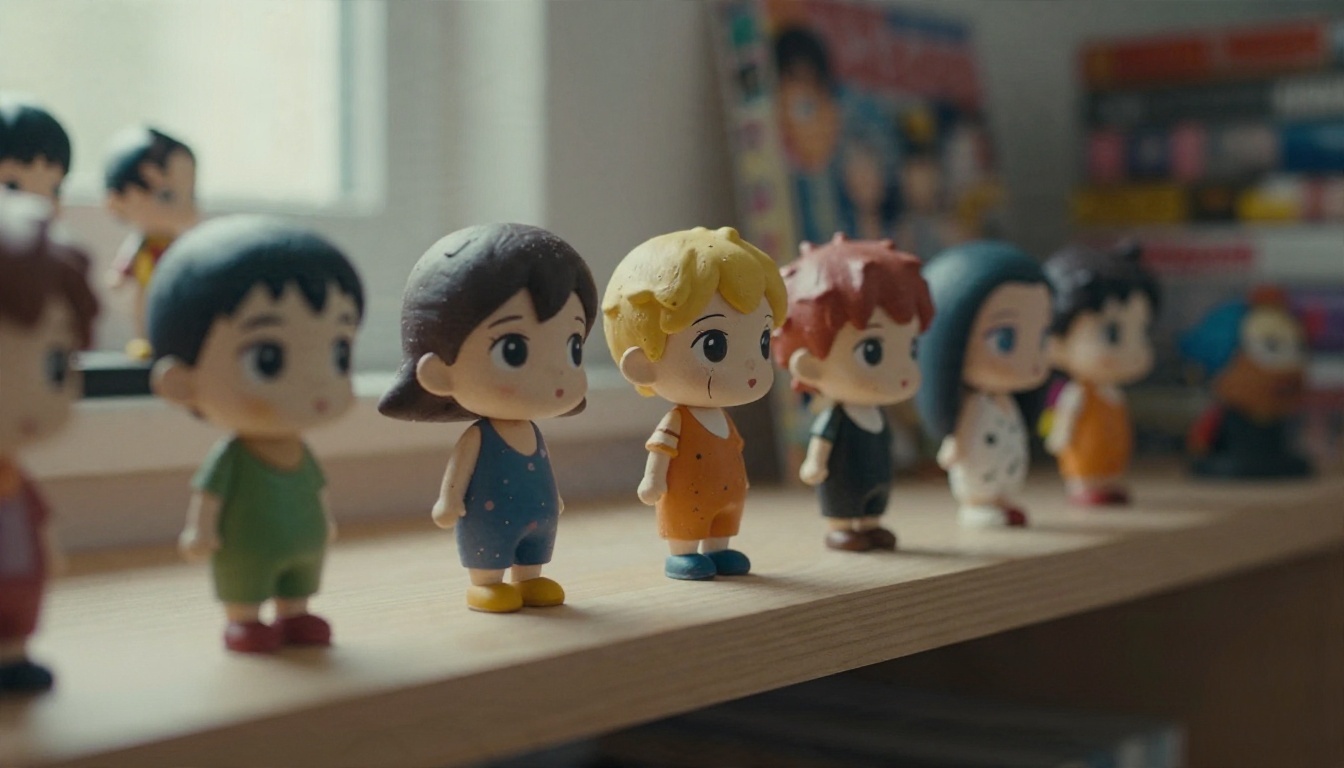
Anime is the single most requested style in AI art, and also one of the easiest to get wrong. Eyes drift out of alignment, hands grow extra fingers, and "anime" becomes a muddy blend of cartoon and oil paint.
Pick a model built for it
General-purpose models can do anime, but dedicated or style-flexible ones do it better. Here is how the options on PicassoIA compare:
For character sheets and posters, Proteus v0.3 is a dependable first stop. If you want looser, more painterly scenes with a manga flavor, Krea 2 Medium gives you more room to play.
Convert photos into anime
You do not always need to start from text. Qwen Image Edit Plus LoRA Photo To Anime takes a regular photograph and rebuilds it in an anime look, keeping pose and composition. It is a fast way to make profile pictures, gift art or reference frames.
A prompt that works
Short, specific prompts beat long poetic ones. Try something like: "anime girl with short silver hair, school uniform, standing on a rainy rooftop, soft evening light, detailed eyes, clean line art". Then change one variable at a time: hair color, camera angle, weather. You will learn how each model responds in about ten generations.
NSFW Limits and What They Mean
This is the part most reviews skip or dodge. Adult content rules vary a lot between platforms, and they affect more than people expect: swimwear, lingerie, fashion shoots and even medical or art-history subjects can trigger blocks on stricter tools.
Why platforms block adult content
Most large providers restrict explicit output for legal, payment-processor and brand reasons. The result is a spectrum. Some products refuse anything beyond a fully clothed portrait. Others allow swimwear and glamour but block explicit scenes. A few leave moderation light but charge more or require verification. The rules are usually posted in the terms of service, and they shift without much warning.
If you are producing content for a business, the safe default is simple: suggestive and tasteful is fine, explicit is not. That standard keeps your accounts, your ad platforms and your audience comfortable.
Non-explicit glamour that works
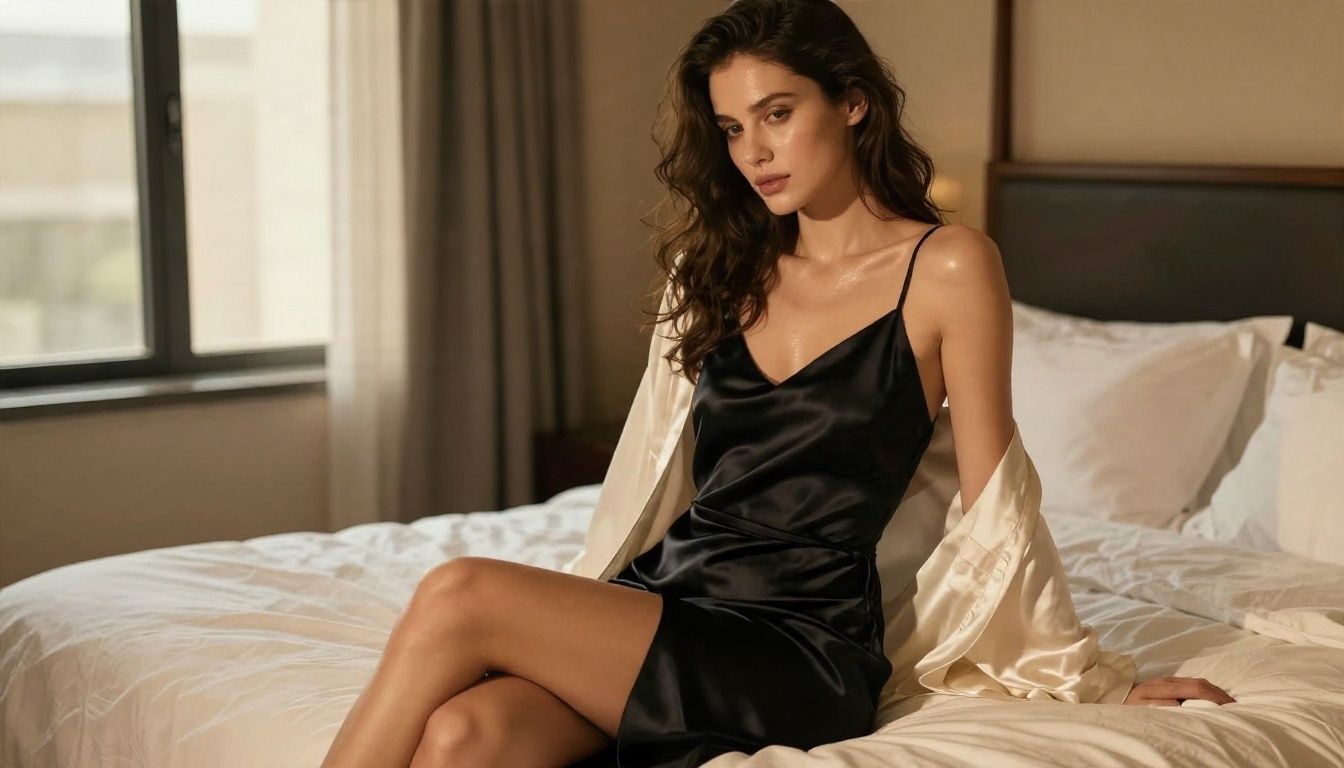
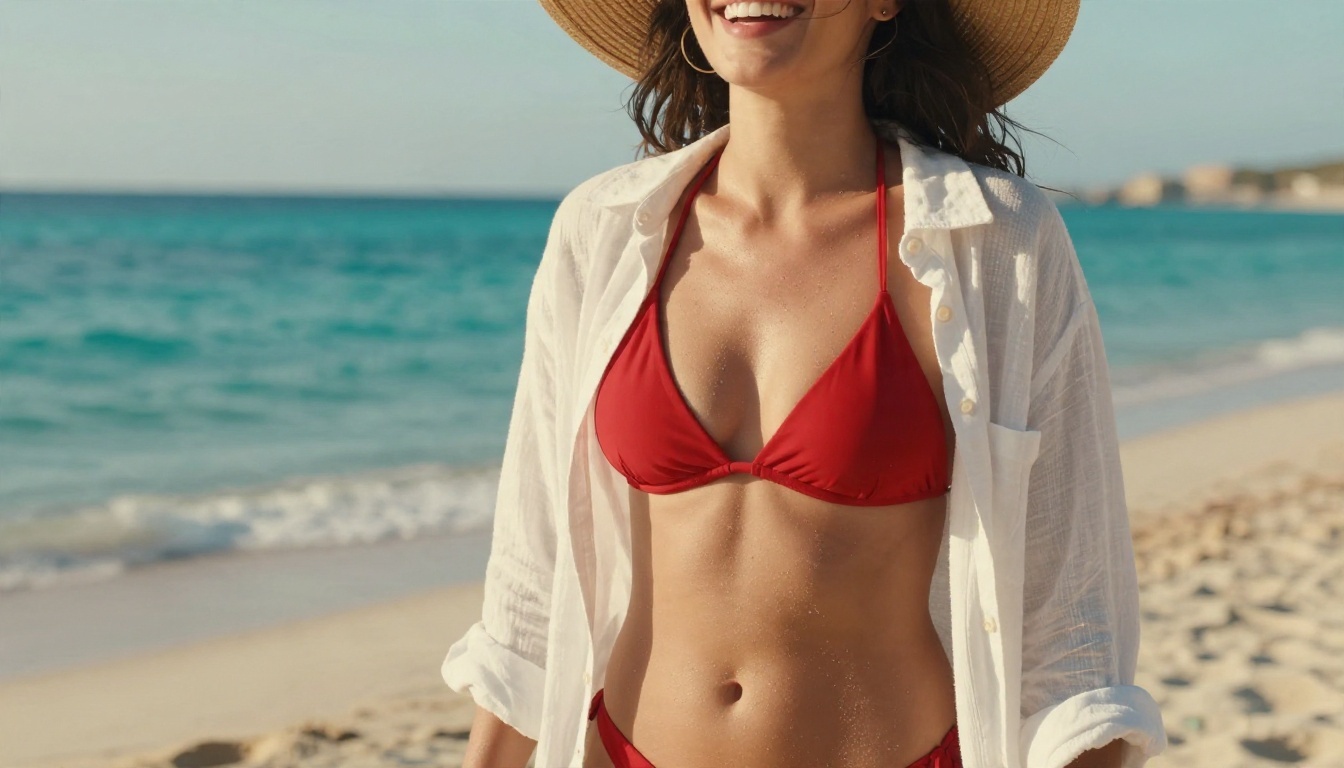
Fashion editorials, boudoir-style portraits, beachwear and lingerie campaigns are standard photography genres. They depend on lighting, pose and styling rather than explicitness. A good prompt sounds like a photographer's shot list: location, light direction, lens, fabric, mood. Think "satin slip dress, golden hour window light, 85mm lens, soft film grain", not a list of body parts.
Seedream 4.5 comes first
For adult-leaning aesthetic work that stays non-explicit, Seedream 4.5 is the model to open first. It produces believable skin, natural light falloff and clean 4K detail, and it is more flexible with glamour and swimwear subjects than many mainstream tools. Next, PicassoIA Image Editor Pro gives you unlimited generations, which matters when you are iterating on poses and outfits. You can also browse the full catalog at picassoia.com/en/all-models and test others side by side.
💡 Note: Not every model treats adult subjects the same way. If one blocks your prompt, switch models instead of rewording the same request again and again.
Pricing Compared Side by Side
Sticker price rarely tells the full story. A $10 plan that gives you 200 fast images may cost more per usable image than a pay-as-you-go tool where every attempt is cheap.
Subscriptions versus pay per image
Subscriptions suit people who generate daily. You get a predictable bill, but unused credits usually vanish at the end of the month. Pay-per-image or credit packs suit occasional creators: you spend only when you have a project. Unlimited tiers, such as the one tied to Image Editor Pro, suit people who iterate heavily and hate counting.
Here is a rough picture based on what reviewers report today (verify current numbers before you subscribe):
| Option type | Typical entry cost | Best for | Watch out for |
|---|
| Free daily allowance | $0 | Testing a tool | Caps, watermarks, slow queues |
| Entry subscription | About $8 to $12 per month | Regular hobby use | Credits expire, fast hours run out |
| Higher subscription | $30 and up per month | Professionals, high volume | Overpaying for features you skip |
| Open models in browser | Free to low cost | Drafting and experiments | Variable quality between models |
| Unlimited editor access | Plan based | Heavy iteration | Check which models are included |
Hidden costs to watch
The costs people forget are re-rolls and upscales. If one in five generations is usable, your real price per good image is five times the listed rate. Resolution upgrades, commercial license fees and private-mode surcharges add more. Before you subscribe, run ten prompts and count the keepers.
If your goal is images that pass for photographs, a handful of models are clearly ahead.
The realistic leaders
For quicker drafts, Imagen 4 Fast and Nano Banana 2 Lite keep waiting time low.
Edit instead of re-rolling
Many near-misses can be fixed rather than regenerated. Nano Banana is well suited to conversational edits: change the jacket color, remove a background object, adjust the mood. PicassoIA Image Editor Pro goes further with unlimited runs, so you can try variation after variation without watching a counter. PicassoIA also offers inpainting, outpainting, background removal and super resolution for finishing touches.
How to use Image Editor Pro
- Open PicassoIA Image Editor Pro.
- Upload your base image, or start from a text prompt.
- Describe one change at a time, for example "swap the background for a sunlit terrace".
- Review the result, then refine with a short follow-up instruction.
- Download your favorite version, or send it through a super resolution model for extra sharpness.
💡 Tip: Keep each edit to a single change. Stacking five changes in one instruction is the quickest way to get a muddled result.
Quick Picks by Use Case
Short on time? Match your goal to a starting point and test two or three models before settling.
Three common mistakes
- Judging a tool on one prompt. A single image tells you almost nothing. Run the same five prompts on each model.
- Paying before testing. Spend free credits first, and compare cost per usable image, not per generation.
- Fighting a blocked prompt. If a model refuses your request, change the model rather than rewording the same idea ten times.
Bring your own workflow
Tools differ less than their marketing suggests. What separates good results from bad ones is usually a clear subject, one lighting cue, one camera cue and one mood word. Write prompts like a photographer describing a shot, and every model on this list gets better.

Make Your Own Images Today
The best AI art generator is the one that fits your subject, your budget and your content rules, and the only reliable way to find it is to try a few. Reading reviews gets you a shortlist. Generating ten images of your own idea gets you an answer.
Here is a simple plan for this afternoon:
- Pick one realistic prompt and one anime prompt.
- Run both on Seedream 4.5 and Proteus v0.3.
- Take your favorite result into PicassoIA Image Editor Pro and refine it with unlimited edits.
- Test a faster option such as Flux Schnell for batches.
- Browse everything else at picassoia.com/en/all-models.
Start with a scene you have been picturing for a while, a character, a product shot or a portrait, and see how it looks in a few minutes. Picasso IA puts dozens of image models in one place, so you can switch styles, content rules and speed without opening a new account every time. Open it, write your first prompt and see what comes back.