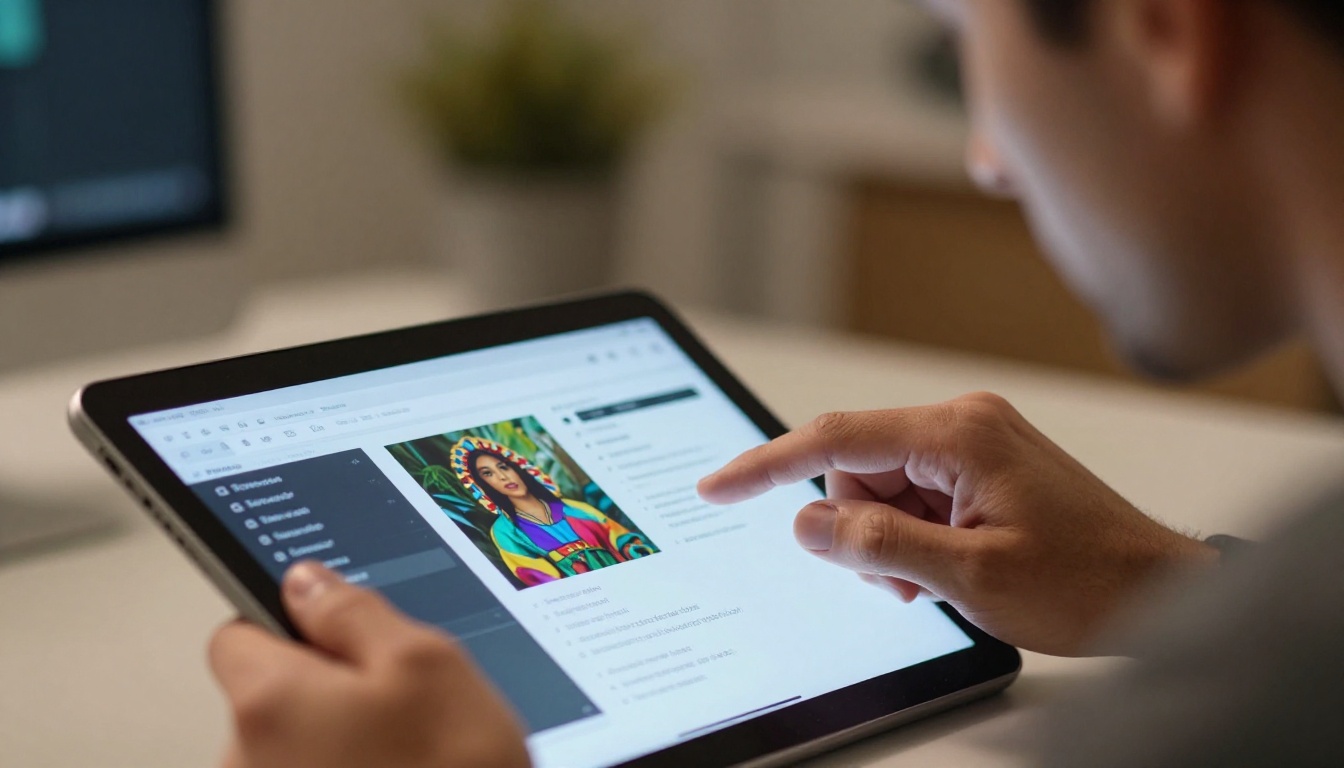
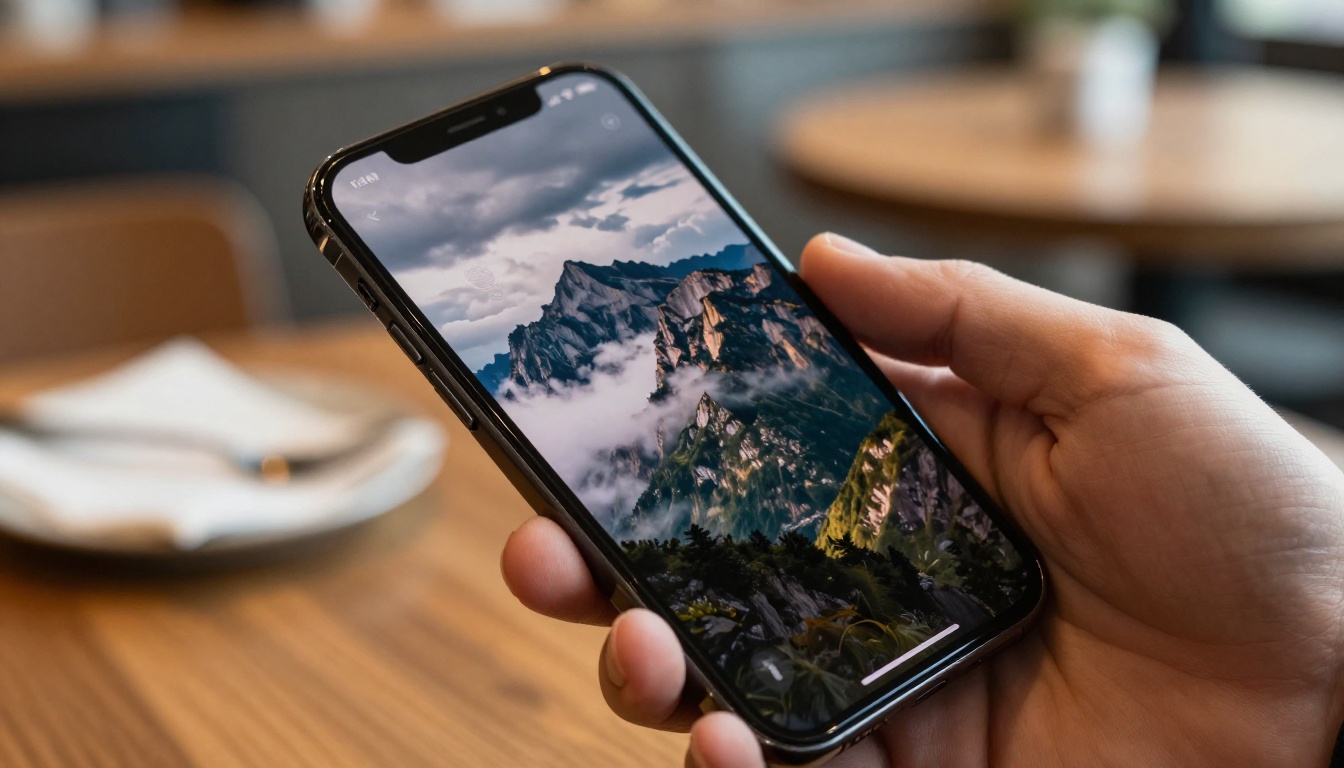
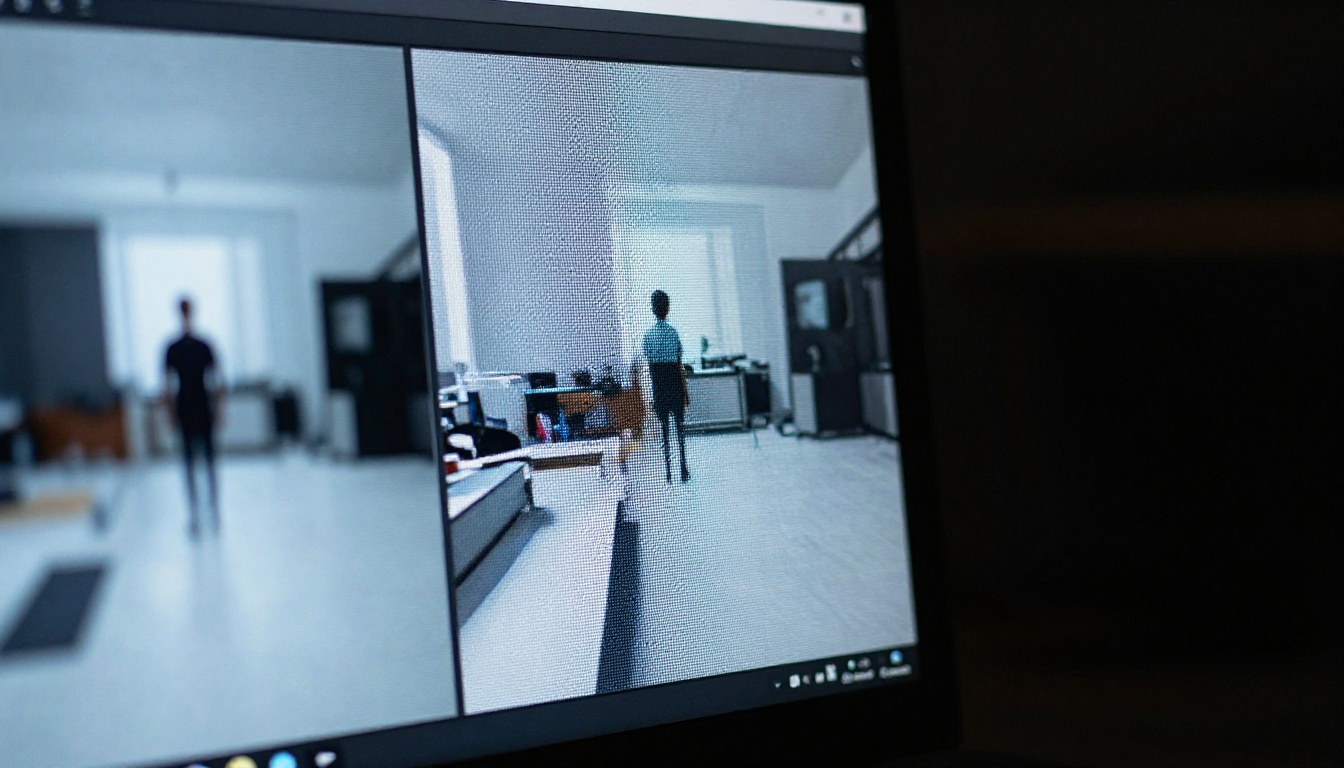
If you want the best AI image generator for free, this article breaks down the top text-to-image tools of 2027, tested for output quality, accessibility, and creative range. From unlimited generators to specialist models, you will find the right tool for portraits, landscapes, product shots, and more, all at zero cost.
Free AI image generation hit an inflection point in 2025. Tools that once required expensive subscriptions or cloud credits now run free tiers with no watermarks, and some platforms offer unlimited generation altogether. If you want the best AI image generator for free, the real challenge is no longer "can I access it," but "which of the dozens of available options is right for what I need to create."
This article cuts through the noise. It covers the top free text-to-image tools available today, explains the differences that actually matter for output quality, shows you how to write prompts that consistently produce professional results, and walks you through PicassoIA's catalog of over 185 AI image models, most of them free to use right now.
Why Free AI Image Tools Are Now This Good
A few years ago, free AI image generators produced results that looked soft, artificial, and inconsistent. Faces had too many fingers, lighting was flat, and textures looked painted. That is no longer the case.
The Quality Gap Finally Closed
The shift happened for two reasons. First, compute costs dropped dramatically, making it feasible to offer high-quality inference for free or at near-zero cost. Second, new model architectures like the Flux family from Black Forest Labs and Seedream 4.5 from ByteDance produce photorealistic output at a fraction of the compute required by earlier models.
The result: today's best free AI image generators can produce 4K-ready images that rival paid professional tools. You are not settling for a watered-down version when you go free.
What Changed in the Last 12 Months
The biggest shifts in free AI image generation over the past year:
Resolution: 4K output is now standard even on free tiers
Photorealism: Skin texture, lighting, and cloth detail improved massively across all major models
Speed: Generation times dropped from 30-plus seconds to under 5 seconds on fast models like Gemini 2.5 Flash Image
Editing: Free tools can now do inpainting, outpainting, and object replacement, not just generation from scratch
Specialization: Hundreds of fine-tuned models now exist for specific subjects, from portraits and architecture to product photography and typography
The practical meaning: a creator who spent $50 per month on AI image tools in 2023 can now do the same work for free in 2025, often at higher quality.
The Top Free AI Image Generators Right Now
Not all free tools are equal. Here is a comparison of the most capable options available today and what each does best.
GPT Image 2 by OpenAI is currently one of the strongest free AI image generators for handling complex text placement and instruction-following. If your prompt has multiple elements, precise spatial arrangements, or text that needs to appear clearly in the image, GPT Image 2 produces more accurate results than most competitors.
Its daily limit on the standalone product is manageable for occasional use. On PicassoIA, you can access it alongside more than 184 other models under one account.
Seedream 4.5
Seedream 4.5 from ByteDance is among the best free options for photorealistic portraits and lifestyle photography. It handles skin texture, natural lighting, and clothing detail at a level that competing free models rarely match.
For anyone creating social media content, product shots with people, or editorial-style images, Seedream 4.5 is the model to reach for first.
Stable Diffusion 3
Stable Diffusion 3 from Stability AI remains one of the most versatile free text-to-image models available. It handles a wide range of styles from photorealistic to painterly, and responds well to detailed prompts. Because the weights are openly accessible, it also has the largest community ecosystem for LoRA fine-tuning and style customization.
💡 Tip: When using Stable Diffusion 3, describe lighting direction explicitly, for example "soft morning light from the left," for consistently better results.
Recraft 20B
Recraft 20B is the standout choice for brand work, graphic design, and any project where clean lines, typographic accuracy, and vector-friendly output matter. It also has a companion SVG export version that outputs scalable vector graphics directly.
How to Write Prompts That Actually Work
The biggest single factor in output quality is not the model, it is the prompt. A mediocre model with a great prompt often outperforms a top model given a vague one. Free AI image generators respond especially well to specificity.
3 Elements Every Strong Prompt Needs
1. Subject with specific detail
Instead of "a woman," write "a woman in her mid-30s with curly dark hair, wearing a white linen shirt, standing in a doorway." The more specific, the more consistent the output. Vague prompts invite the model to fill in details with generic defaults.
2. Lighting description
Lighting is the single most underused element in free AI image prompts. Include: direction ("from the left"), quality ("soft diffused"), and color temperature ("warm golden hour light"). This alone can take a flat, mediocre generation and produce something that looks like a professional photograph.
Good lighting descriptors that work consistently:
"Soft diffused overcast light from above"
"Warm golden hour light backlighting the subject"
"Sharp side light from a single window on the left"
"Volumetric morning mist with rays through trees"
"Cool blue shade with a single warm practical light source"
3. Camera and lens specification
Add "85mm f/1.4 lens, shallow depth of field" or "wide angle 24mm" to your prompt to control composition. Most free AI image generators, including all the models on PicassoIA, respond well to photography-specific language. The model interprets this as a signal to produce an image that looks like a professional capture.
Prompt structure that works consistently:
[Subject + specific detail] + [environment/setting] + [lighting direction and quality] + [camera lens] + [texture/atmosphere details] --ar 16:9
Common Mistakes That Kill Results
Being too vague: "A landscape" gives mediocre output. "A misty valley at dawn with pine trees and frost on the grass, warm amber light breaking from the right horizon" produces something worth printing.
Conflicting instructions: Asking for "dark moody lighting" and "bright vibrant colors" in the same prompt confuses the model and produces muddled output.
Ignoring aspect ratio: Always specify --ar 16:9 for landscape, --ar 1:1 for social square, or --ar 9:16 for vertical. Without this, the crop is unpredictable.
No texture cues: Mentioning surface textures such as worn denim, rough concrete, and smooth glass adds realism to AI-generated images with minimal extra effort. Models read these as signals to add fine detail.
Overloading with qualifiers: Phrases like "ultra hyper realistic 8K masterpiece perfect sharp" add noise. Specific physical descriptions do more than stacked quality adjectives.
PicassoIA Has 185 Free Models in One Place
If you want the best AI image generator for free without managing five separate accounts, PicassoIA solves that problem directly. It hosts over 185 text-to-image models under one interface, most of them accessible without a subscription, with an unlimited-generation option for the flagship model.
Why One Platform Beats Five Separate Tools
Managing separate accounts, credits, and interfaces across multiple AI image tools wastes time and creates inconsistency in your workflow. PicassoIA consolidates everything:
Switch between models in seconds to compare outputs on the same prompt
Access editing tools including inpainting, outpainting, and object replacement alongside generation
Upscale your images without switching platforms
Remove backgrounds, restore old photos, and apply depth-of-field effects in the same dashboard
The Unlimited Option: PicassoIA Image
PicassoIA Image is PicassoIA's own unlimited text-to-image generator. Unlike most free AI image generators that impose daily generation limits or require credits, PicassoIA Image has no generation cap. For anyone creating images at volume, this changes the economics entirely.
The model produces 4K output with strong photorealism across portraits, landscapes, product photography, and abstract concepts.
💡 For professionals: PicassoIA Image Editor Pro adds full image editing capabilities alongside generation, making it a complete AI photo studio with unlimited usage at no extra cost.
Type your prompt in the input field, using the structure from the section above
Select your aspect ratio: 16:9 for landscape, 1:1 for social, 9:16 for vertical
Click Generate and wait a few seconds
Download your image or continue editing directly in the platform
For portrait work, Seedream 4.5 on PicassoIA produces noticeably better skin and hair detail than the general-purpose models. For cinematic 4K scenes, Wan 2.7 Image Pro and Hunyuan Image 2.1 are strong choices. For fast everyday generation, Flux Kontext Fast delivers near-instant results.
Visual Effects That Make Free AI Images Look Professional
Generating a base image is just the first step. The difference between a good AI image and a genuinely impressive one often comes down to what you do with it after initial generation.
The Flux Kontext Apps for Editing
PicassoIA hosts a set of specialized editing apps built on the Flux Kontext architecture. These are free to use and dramatically extend what you can do with any AI-generated or real photograph:
Depth of Field: Blur the background like a professional camera, applied to any image with a single text instruction
Professional Headshot: Convert any casual photo into a corporate headshot-quality portrait
Iconic Locations: Place a subject at any famous location worldwide
Portrait Series: Turn one photo into a consistent series of styled portraits across different contexts
Restore Image: Fix and colorize old or damaged photographs automatically
These apps handle the prompt engineering internally, so you get professional-quality edits without needing to craft complex instructions from scratch.
Removing Backgrounds Instantly
For product photography, social media content, or any image that needs a clean cutout, Bria Remove Background on PicassoIA handles it automatically. Upload your AI-generated or real photograph and the background is removed cleanly in one click, with no manual masking required.
Upscaling Your Free AI Images
Most free AI image generators max out at 1024x1024 or 1280x720. That works for web and social media use, but not for print or large-format display. Free AI upscalers solve this without degrading the original image quality.
The instinct is to always use maximum upscaling, but that is not always the right call.
Use 2x when:
The source image is already high resolution (1280x720 or above)
You need fast processing
The final output is only for web or social media display
Use 4x or 6x when:
You plan to print at A3 size or larger
The source image has fine detail like hair, fabric, or architectural texture that benefits from sharpening
You are creating stock photography or commercial assets with usage rights
Topaz Image Upscale supports up to 6x upscaling, making it the best choice for print-ready output. Clarity Pro Upscaler adds detail intelligently rather than just stretching pixels, which produces sharper results specifically on portraits and close-up photography.
💡 Workflow tip: Generate at the highest resolution your model supports, then upscale once. Two upscaling passes often introduce subtle artifacts in fine textures.
Which Model Is Right for Your Project
Choosing the best free AI image generator depends entirely on what you are making. Here is a practical breakdown by project type.
If your project requires consistent characters, specific styles, or brand assets that appear across many images, LoRA fine-tuning is worth exploring. P Image Trainer and Flux Kontext Dev LoRA let you train custom styles directly on PicassoIA.
This is particularly valuable for:
Product photography: Maintaining consistent product appearance across dozens of shots in different settings
Content series: Keeping characters and visual style recognizable across multiple generated images
Brand campaigns: Establishing a visual identity that AI generation reproduces reliably
Flux Pro Finetuned is the professional-grade option for custom AI image generation at production scale, still accessible through PicassoIA without a separate subscription.
Working With Multiple Reference Images
Some of the most powerful free image generation tools on PicassoIA work with reference images, not just text prompts. Flux Redux Dev generates variations of any image you provide. Multi Image Kontext Max combines two source images into a single coherent output.
These reference-based tools are particularly strong for product photography workflows where you need consistent backgrounds or lighting across a catalog of items.
Start Creating Free AI Images on PicassoIA
The best AI image generator for free is not one single tool. It is access to the right tool for each specific task. PicassoIA gives you that in one place: 185-plus models, unlimited generation on the flagship model, editing, upscaling, and background removal, all without a subscription.
The workflow that works for most creators:
Start with PicassoIA Image for unlimited generation at no cost
Switch to a specialist model like Seedream 4.5 when you need stronger portrait realism
Apply Flux Kontext edits to add depth of field, swap backgrounds, or refine composition
The entire workflow costs nothing. Every model listed in this article is available at picassoia.com/en/all-models. Pick the one that fits your current project, run a few generations with a well-structured prompt, and the difference between free and paid AI image generation becomes very hard to justify.