You type one sentence, wait a minute, and a cinematic clip with sound appears on your phone. That is where AI video stands today, and it is exactly why choosing the best AI video app has become harder, not easier. Dozens of apps promise "free" video, then hand you a watermark, a 480p export, or a credit balance that disappears after two clips.
This article cuts through that. You will see what free plans really include, how pricing works once the trial ends, which limits you will hit first, and the exact prompt formulas that turn a vague idea into a usable shot. Prices and allowances change often, so treat every number here as a snapshot and check each provider's pricing page before you commit money.
What Makes a Video App Best
"Best" depends on what you make. A solo creator posting vertical clips needs something different from a shop owner animating product photos. Still, a few factors decide almost every case.
Output Quality Comes First
Motion that looks natural beats every feature on a checklist. Watch for hands that melt, faces that drift between frames, and objects that change shape halfway through a shot. A good app holds a subject steady for the full clip. If a sample looks great but your own test prompt falls apart, move on.

Audio, Length, and Resolution
Native audio is now common. Models such as Sora 2, Veo 3.1 Lite and Pixverse v6 can produce sound alongside the picture, which saves a whole editing step. Length and resolution vary a lot, so check the real export specs before you pay.
💡 Quick test: Run the same prompt in three apps. Compare the first two seconds, because that is where bad motion shows up fastest.
One App or Many Models
Single model apps are simple, but you are locked into one look. Platforms that bundle several models let you pick the right engine per shot: a fast cheap one for drafts, a premium one for the final render. That flexibility usually saves more money than any monthly discount.
Free Options That Actually Work
Free is the most abused word in this category. Reviews of free AI video generators keep repeating one pattern: "free" usually means a small trial allowance, a resolution cap, a watermark, or all three.
Recurring Credits vs Trials
There are two kinds of free plans, and the difference matters.
- Recurring credits refresh daily or monthly. You can keep experimenting without paying, just slowly.
- One time trials give you a lump of credits that runs out. Great for a test drive, useless for a habit.
Several reviews report that Kling AI renews free credits daily, and Pika's basic tier is described as refreshing monthly. Dreamina is often recommended for people who want a steady free allowance, though reviewers note that free downloads carry a watermark. Google's own video tools are the most confusing: sources disagree on whether free access exists, so check directly.

Free Plans Worth Trying
| Free option type | What you usually get | Typical catch |
|---|
| Daily credit refresh | A few short clips per day | Slow queues, lower priority |
| Monthly credit refresh | One batch of clips per month | Hard stop when credits end |
| One time trial | Several premium clips | No more free use afterward |
| Free tier with watermark | Unlimited style practice | Branded exports |
| Free and unlimited model | No credit counting | Shorter clips, lighter model |
On PicassoIA, the clearest free route is Seedance 2.5 Lite, listed as a free and unlimited video generator for clips up to 10 seconds. For a creator who wants to practice prompts without watching a credit meter, that is a rare setup. When you need longer shots, step up to Seedance 2.5, which supports clips of up to 30 seconds.
How to Stretch Free Credits
- Draft on a cheap or fast model, then render only your best prompt on a premium one.
- Keep clips short while testing. Five seconds is enough to judge motion.
- Write one strong prompt instead of rerolling ten weak ones.
- Save winning prompts in a notes file so you can reuse the structure.
Pricing Without the Surprises
Monthly price tells you almost nothing. What matters is what one usable clip costs you, including the failed attempts.
How Credits Really Work
Most apps sell credits, then charge different amounts per model, length and resolution. Reseller platforms list wildly different credit costs for the same models, so one platform's "60 credits" is not comparable to another's. Some pricing tables show budget engines starting around ten credits per second, with premium or 4K tiers costing several times more. Treat those as rough indicators, since each platform uses its own credit system.
Cost Per Second Beats Monthly Price
Divide the credit cost by clip length, then multiply by how many tries you usually need. If a premium model nails the shot in one go and a cheap one needs four attempts, the premium model can end up cheaper.
| Use case | Best strategy | Why it saves money |
|---|
| Social drafts | Fast, lightweight model | Cheap iterations |
| Client deliverable | Premium model, one tested prompt | Fewer rerolls |
| Product animation | Image to video | Your photo anchors the look |
| Long storytelling | Longer clip model | Fewer stitched cuts |
Hidden Costs to Watch
- Watermark removal is sometimes a paid add on.
- Commercial rights may require a paid plan.
- Upscaling to 1080p or 4K can cost extra credits.
- Failed generations sometimes still use credits.
💡 Before paying, read the license terms. A cheap plan that blocks commercial use costs more than it saves if you sell your videos.
Limits You Will Hit Early
Every app has ceilings. Knowing them in advance saves you from planning a project around a feature that is locked.
Watermarks and Resolution Caps
Free exports often carry a visible watermark, and many cap at 480p or 720p. For quick social previews that is fine. For client work it is not. Some models are built for speed at lower resolution, like Hailuo 02 Fast at 512p, while others reach higher: Hailuo 02 produces 1080p, Kling v3 Omni Video goes to 1080p, and LTX 2.5 Fast targets 4K.
Clip Length and Queue Times
Most clips run between 5 and 10 seconds. Longer outputs exist but cost more and have more room for errors. Free users also wait longer in the queue when servers are busy. If you need a 30 second scene, plan it as a sequence of short shots rather than one long gamble.
Content Rules and Usage Caps
Daily generation caps, content filters and concurrency limits (how many clips you can render at once) all shape your workflow. A filter that blocks harmless prompts is a real cost when you are on deadline.
Prompts That Produce Better Clips
A prompt for video is closer to a shot description than a caption. You are telling a camera operator what to film.
The Five Part Formula
Use this order and you will get steadier results:
- Subject: who or what, with one clear detail.
- Action: one movement, described simply.
- Setting: place, time of day, weather.
- Camera: move type and lens feel.
- Light and mood: direction and color of light.
Guides to video prompting repeat the same advice: describe one or two motions, not a choreography. Complex action in a busy scene raises the odds of morphing and distortion.
Camera Moves That Behave
| Camera move | Best for | Risk level |
|---|
| Slow dolly in | Portraits, products | Low |
| Gentle pan | Landscapes | Low |
| Static locked shot | Dialogue, detail | Very low |
| Orbit around subject | Hero objects | Medium |
| Fast whip pan | Action beats | High |
Slow, wide establishing shots tend to hold together best. Save fast motion for models you have already tested.
Prompt Examples You Can Copy
Product shot: "A handmade ceramic bowl on a linen cloth, steam rising from soup, slow dolly in, soft window light from the left, shallow depth of field, warm tones."
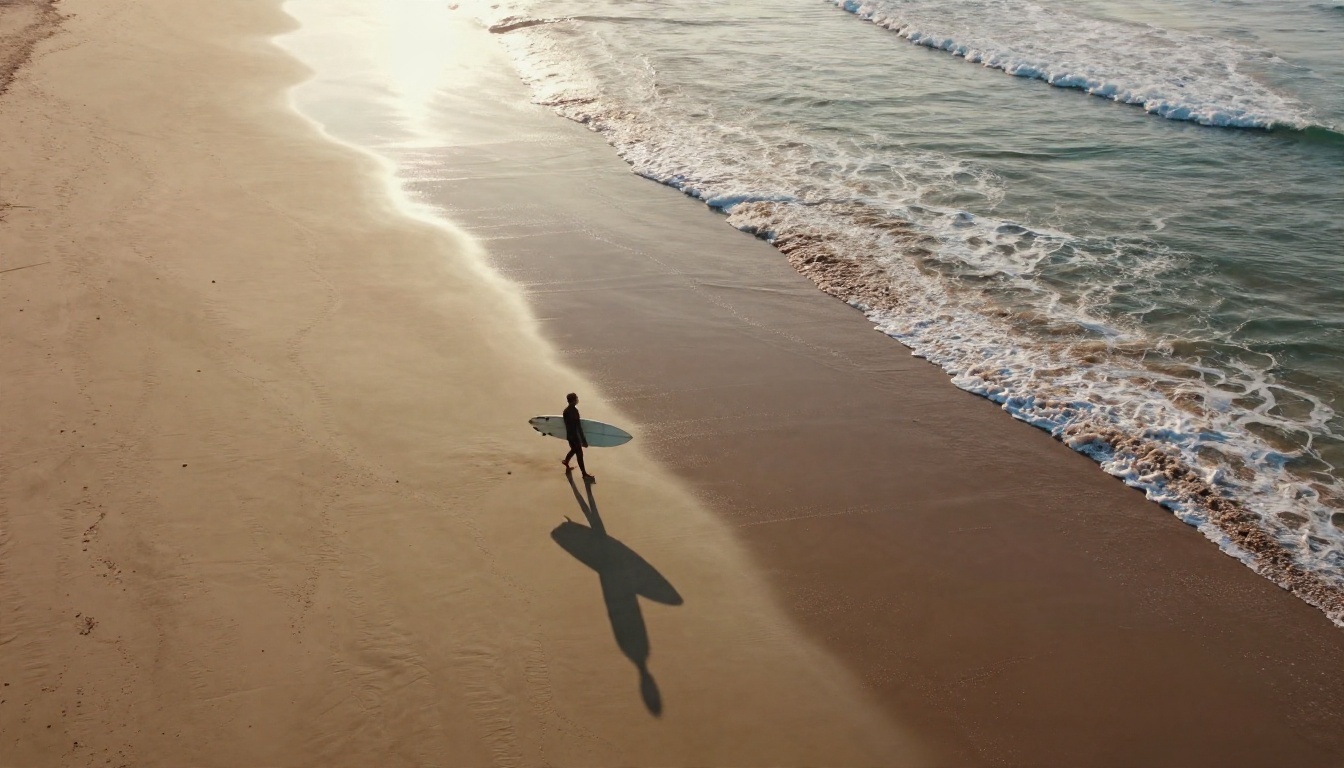
Travel clip: "A surfer walks along a wet beach at golden hour, long shadow on the sand, slow aerial move forward, gentle waves, natural color."
Portrait: "A woman in a cream sweater looks up from her phone and smiles, static camera, soft morning light, 85mm lens feel."
💡 Add sound cues if your model supports audio: "soft waves, distant gulls, light breeze." Models with native audio respond well to short, concrete sound words.
Image to Video for Control
If text prompts keep drifting, start from a still image. The picture locks the subject, outfit and lighting, so the model only has to invent motion. Models such as Wan 2.5 I2V Fast are built for this job, and Hailuo 2.3 Fast animates photos quickly.
Best Models Inside One App
You do not have to pick a single engine. A common rule of thumb from comparison sites: use Sora 2 for storytelling, Veo 3.1 for polish, Kling v3 for length, and Seedance or Wan for volume. Treat that as a starting point, then test against your own prompts.

Picks by Goal
Matching Format to Platform
Vertical clips suit phone feeds, so shoot your first frame in portrait if you use image to video. Horizontal works for websites and presentations. Pick the format before you generate, because cropping later wastes pixels.
Reference Based Video
When you need consistency across several clips, PicassoIA Reference To Video takes reference images, video and audio as input, which helps keep a character or product looking the same from shot to shot.
A Simple Workflow on PicassoIA
This is the routine that wastes the fewest credits.
Step by Step
- Draft free. Open Seedance 2.5 Lite and write your five part prompt. Generate two or three variations.
- Pick the winner. Choose the clip with the cleanest motion and the best first two seconds.
- Upgrade the render. Send the same prompt to a premium model such as Kling v3 Video or Veo 3.1 Fast.
- Fix weak spots. If a face or hand looks off, simplify the action in the prompt and retry.
- Export and post. Check the resolution and format against your platform.

Three Common Mistakes
- Overloaded prompts. Ten ideas in one sentence produce mush. Pick one action.
- Skipping drafts. Going straight to a premium model burns credits on weak prompts.
- Ignoring the first frame. Strong video starts from a strong still. Try image to video when text fails.
Make Your First Clip Today
The best AI video app is the one that fits your budget, your prompts and your output needs, and you will only find it by testing. Start with a free model, keep clips short, write prompts like shot lists, and upgrade only when a draft deserves a premium render.
PicassoIA puts free practice, premium engines, image to video and reference based tools in one place, so you can compare results without juggling subscriptions. Open Seedance 2.5 Lite, paste one of the prompts above, and watch what comes back. Then try the same prompt on a second model and keep the one that looks better. Browse everything available at picassoia.com/en/all-models and make something worth sharing.