You type a simple prompt for a woman in a bikini on a yacht, hit generate, and get a gray box that says the request violates a policy. Or worse, the app lets you through, then asks for a subscription after three images. That is the daily experience of searching for the best free AI app with no restrictions, and it explains why so many people bounce between tools every week.
This article sorts the marketing from the reality. You will see what "no restrictions" can honestly mean, how free limits work for images and videos, which kinds of apps are worth your time, and where to go when a tool shuts the door. Everything here is written around suggestive, glamour-style content: swimwear, lingerie-style fashion, boudoir lighting, artistic mood. Nothing explicit.
💡 Quick answer: If you want fast, flexible, photorealistic results without a wall of filters, start with Seedream 4.5 and the PicassoIA Image Editor Pro, then animate your favorite results with a video model.
What "No Restrictions" Really Means
Let's be blunt. No hosted app has zero rules. Every serious platform blocks illegal material, anything involving minors, and non-consensual deepfakes of real people. That is a good thing, and any app that claims otherwise is either lying or a legal problem waiting to happen.
When people search for an unrestricted AI app, they usually mean something narrower:
- The tool does not refuse ordinary glamour content like bikinis, lingerie-style outfits, or sensual portraits.
- It does not rewrite or soften your prompt behind the scenes.
- It does not slap a heavy watermark across the result.
- It does not stop you after a handful of generations.
So the useful question is not "Is there a tool with no rules?" but "Which tool lets an adult make attractive, suggestive, photorealistic images without constant refusals?" That is a much more answerable question, and it is the one the rest of this article uses.

The three kinds of filters
Not all blocks work the same way, and knowing which one you hit saves a lot of time.
| Filter type | What it does | How it feels |
|---|
| Prompt filter | Scans your words before generation | Instant refusal, no image at all |
| Output filter | Checks the finished image | Long wait, then a blurred or blank result |
| Silent rewrite | Changes your prompt behind the scenes | You get an image, but it looks nothing like your request |
The silent rewrite is the sneakiest. Your "black satin slip dress" quietly becomes "a woman in a dark outfit," and you waste credits wondering why the result looks bland.
Why free tools get stricter over time
Running image and video models costs real money in GPU time. Free tiers survive by attracting traffic, and the more traffic they attract, the more pressure they face from payment processors, app stores, and hosting providers. That pressure is why a tool that felt open last spring may feel locked down this fall. It is also why "free and unrestricted" often has a short shelf life, so test any platform yourself before building a routine around it.
Free Limits, Credits and Hidden Costs
Free rarely means unlimited. It usually means one of four things, and each one changes how you should work.
- Daily credits. You get a fixed pool every 24 hours, then you wait. This is fair, but a single 4K image or video can burn a day's allowance.
- Signup credits. A one-time bundle that disappears fast. Good for testing, bad for a habit.
- Queue priority. Free users generate, but wait behind paying users. Fine at 3 a.m., painful at 8 p.m.
- Watermarks and low resolution. Free output looks like a preview, so you pay to remove the stamp.
Reports from recent roundups mention hosted tools such as Tensor.art, SeaArt, PixAI and Perchance offering daily credits or login-free use, while Leonardo is often listed for its daily credits. Numbers and content policies on these services change often, and many roundups are written by people with affiliate incentives, so treat any specific figure as a rough guide and check the current terms on each site before you commit.
The real price of a "free" image
Here is a simple way to compare tools. Ask how many usable images you get per day, not how many credits.
| Cost factor | Why it matters |
|---|
| Credits per image | A 4K render can cost several times more than a 1K draft |
| Failed generations | Filtered or broken results often still burn credits |
| Resolution cap | Free tiers often cap output below print quality |
| Video cost | One short clip can equal 10 to 30 images in credit terms |
| Waiting time | Slow queues quietly cost you hours |
💡 Tip: Draft at a lower resolution, pick the best composition, then spend your premium generations only on finals. This single habit can double your daily output on any platform.
Local models: free, but not effortless
Running open-weight models like Flux or Stable Diffusion on your own computer is the closest thing to genuinely unlimited use. No daily caps, no server-side review, no account. The catch is hardware: you need a capable graphics card, patience with installers, and comfort fixing broken dependencies. For most people, a good hosted tool with generous limits is the better trade.
NSFW Images: What Actually Works
Photorealistic glamour is the sweet spot for most users, and it is also where model quality shows the most. Skin texture, fabric behavior, hands, and lighting all have to hold together or the image reads as fake in half a second.
Start with the right model
For suggestive, photorealistic work, Seedream 4.5 is the model to try first. It produces sharp 4K output, handles skin and fabric with convincing detail, and is fast enough that you can iterate on a prompt five or six times in a few minutes. For editing, PicassoIA Image Editor Pro offers unlimited generations, which removes the daily-credit anxiety entirely. You can adjust outfits, backgrounds, lighting, and poses on the same image until it looks right.
What a good prompt contains
Strong prompts read like a photographer's shot notes. Include:
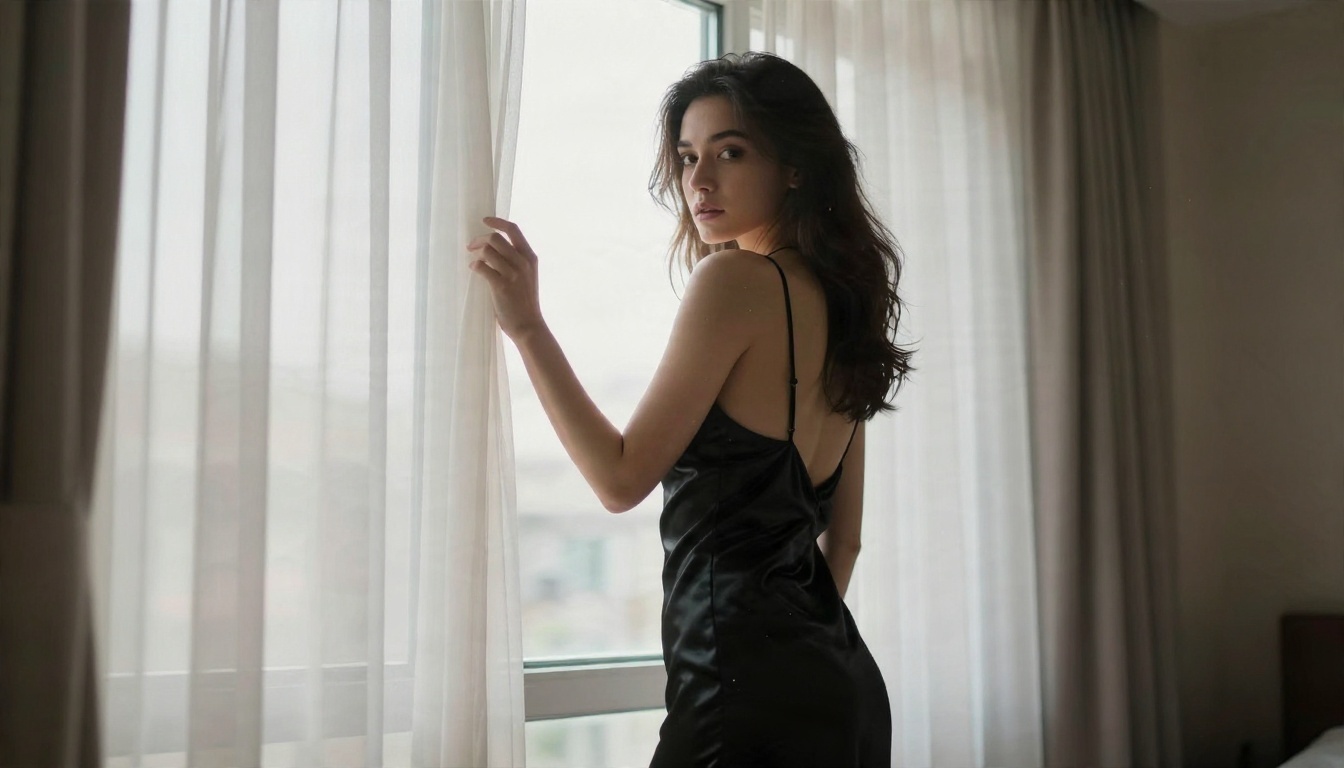
- Subject and pose: "woman in a black satin slip dress, looking over her shoulder"
- Setting: "tall bedroom window with sheer curtains"
- Light direction: "soft backlight from the left, warm rim on the shoulders"
- Lens and distance: "35mm f/1.8, waist-height angle"
- Texture words: "visible skin pores, fabric folds with specular sheen, fine film grain"
Words like tasteful, editorial, and boudoir steer the model toward flattering, magazine-style results rather than awkward ones.
Fixing the usual problems
| Problem | Quick fix |
|---|
| Plastic, airbrushed skin | Add "visible pores, natural freckles, film grain" |
| Odd hands | Ask for hands resting on an object, or out of frame |
| Flat lighting | Name a light source and its direction |
| Bland outfit | Describe fabric, color, and fit in detail |
| Cluttered background | Specify a simple setting, then blur with "shallow depth of field" |
NSFW Videos: Limits to Expect
Video is where "free" falls apart fastest. Every five-second clip means generating dozens of frames with consistent motion, and that costs far more compute than a still. Expect lower resolution, shorter clips, longer queues, and stricter credit pricing.
The smart workflow: image first, then motion
The most reliable approach is image to video. Build a still you love, then hand it to a video model so the first frame is already correct. You avoid the common problem of a text-to-video model inventing a different face or outfit than you wanted.
Good options to try on PicassoIA:
Behavior around adult-leaning content differs between video models and changes with updates, so run a short test clip with each before you rely on one.
How to write motion prompts
Describe what happens in the five seconds, in order. A good formula: starting pose, then motion, then camera move, then light.
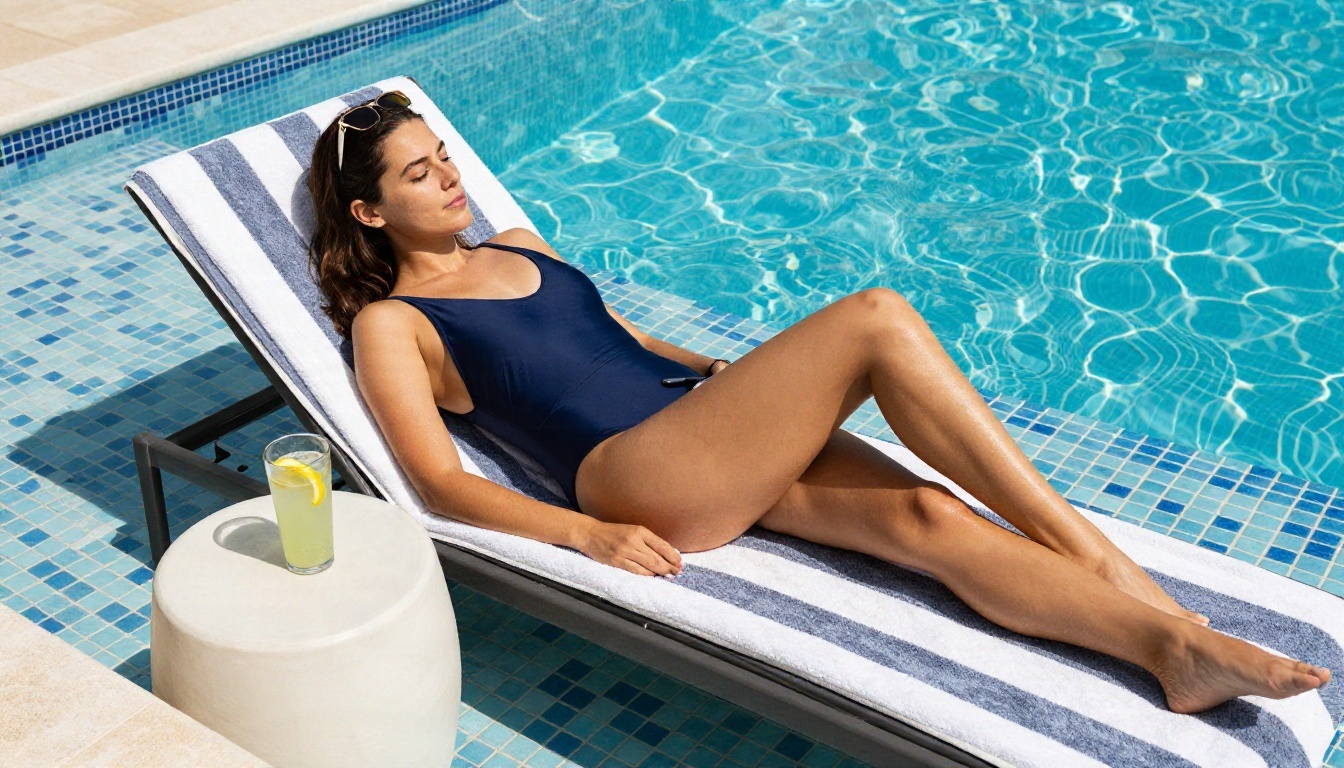
Example: "She lifts her sunglasses and turns toward the camera with a slow smile, a gentle breeze moves her hair, slow dolly-in, warm afternoon sun, shallow depth of field."
Keep movements small. Subtle motion looks real; big motion looks warped.
💡 Tip: Ask for one action per clip. "Turns her head and smiles" works. "Turns, walks, sits, and waves" falls apart.
Even a flexible model will sometimes refuse a prompt or return something odd. Instead of fighting one tool, keep a short bench of alternatives.
Models worth keeping in rotation
Here is a practical order to work through, starting with the best fit for glamour-style work:
- Seedream 4.5: your first stop for sharp, photorealistic 4K stills.
- PicassoIA Image Editor Pro: unlimited generations and editing for refining results.
- Seedream 4: a reliable sibling when you want a slightly different look.
- Z Image Turbo: very fast drafts for testing compositions.
- Flux 2 Klein 9B Base LoRA: styled output with LoRA flexibility.
- Qwen Image 3 Pro: strong photorealism and detailed scenes.
Hosted apps versus local setups
| Option | Cost | Setup | Control | Best for |
|---|
| Hosted with daily credits | Free to low | None | Medium | Casual use |
| Unlimited hosted editor | Free to low | None | High | Daily creators |
| Local open models | Hardware cost | Heavy | Highest | Technical users |
| Paid premium apps | Monthly fee | None | Medium | Volume work |
Red flags to avoid
- Apps that demand a credit card for a "free" trial with no clear cancel button.
- Sites that require you to upload real photos of other people. Don't do it, and never generate content of real people without consent.
- Tools that give no information about who runs them or where your files are stored.
- "Unlimited" claims with no stated resolution, speed, or queue terms.
💡 Safety note: Stay on the right side of the line. Keep your content non-explicit, fictional or your own, and clearly adult. Any platform worth using blocks the rest, and so should you.
How to Make Your First Image
If you want to test everything above in about five minutes, here is a simple route on PicassoIA.
Step 1: Open Seedream 4.5
Go to the Seedream 4.5 page and open the prompt box.
Step 2: Write a photographer's prompt
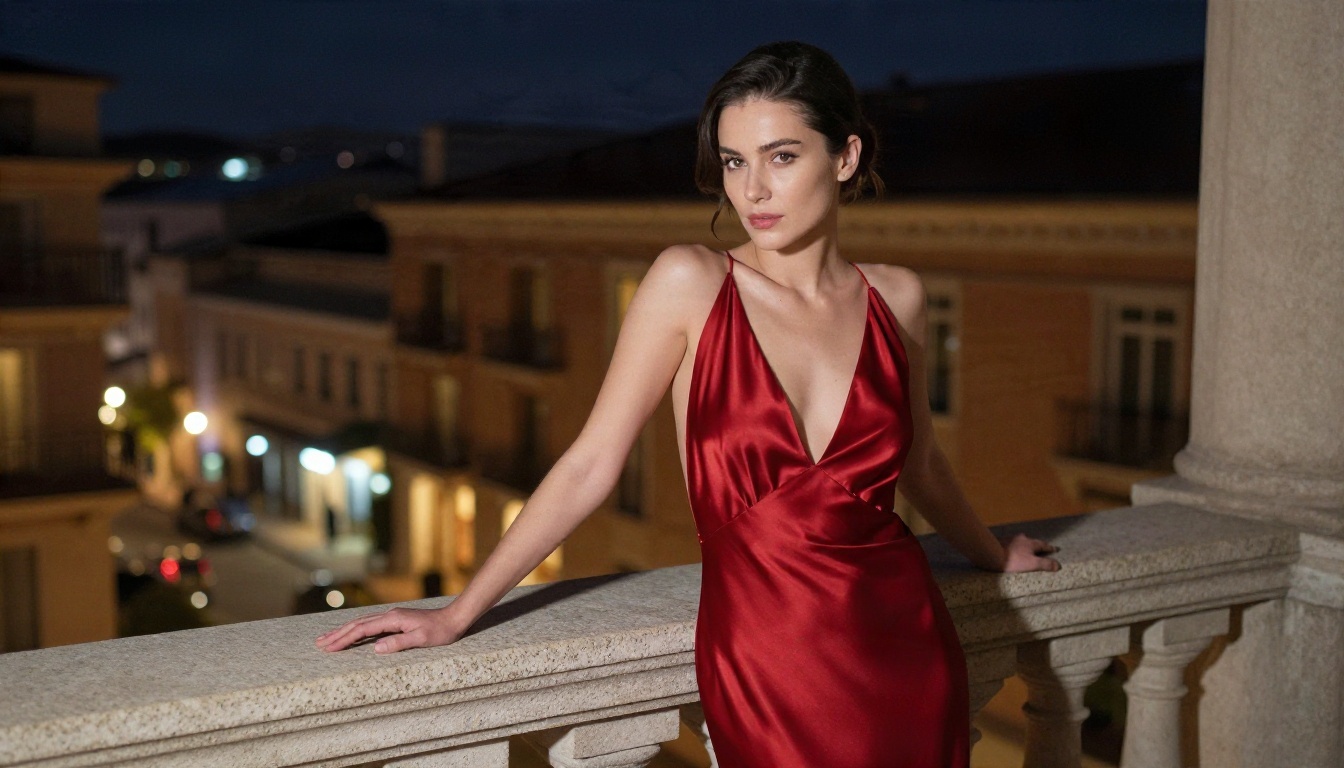
Use the formula from earlier. For example: "A woman in a deep red backless evening gown on a hotel balcony at blue hour, city lights softly blurred, low angle, 70mm f/2, silk texture, natural skin, fine film grain."
Step 3: Set the ratio and generate
Choose 16:9 for wide scenes or 3:4 for portraits. Generate three variations, then pick the strongest composition.
Step 4: Refine in Image Editor Pro
Open the winner in PicassoIA Image Editor Pro. Ask for small changes: a different background, warmer light, a new outfit color. Because generations are unlimited, you can iterate freely until it looks right.
Step 5: Animate the favorite
Send the final still to Wan 2.5 I2V Fast or Hailuo 2.3 Fast with a short, single-action motion prompt.
Parameter tips that save time
| Setting | Recommendation |
|---|
| Aspect ratio | 16:9 for scenes, 3:4 for portraits |
| Prompt length | 50 to 80 words works well |
| Variations | Generate 3 to 4, then refine the best |
| Lighting | Always name a direction |
| Seed | Reuse a seed when you want a similar look |
Tips From a Daily Workflow
A few habits separate people who get great results from people who burn credits.
- Keep a prompt notebook. Save the prompts that work, and reuse their structure.
- Change one thing at a time. If you change outfit, light, and angle together, you won't know what helped.
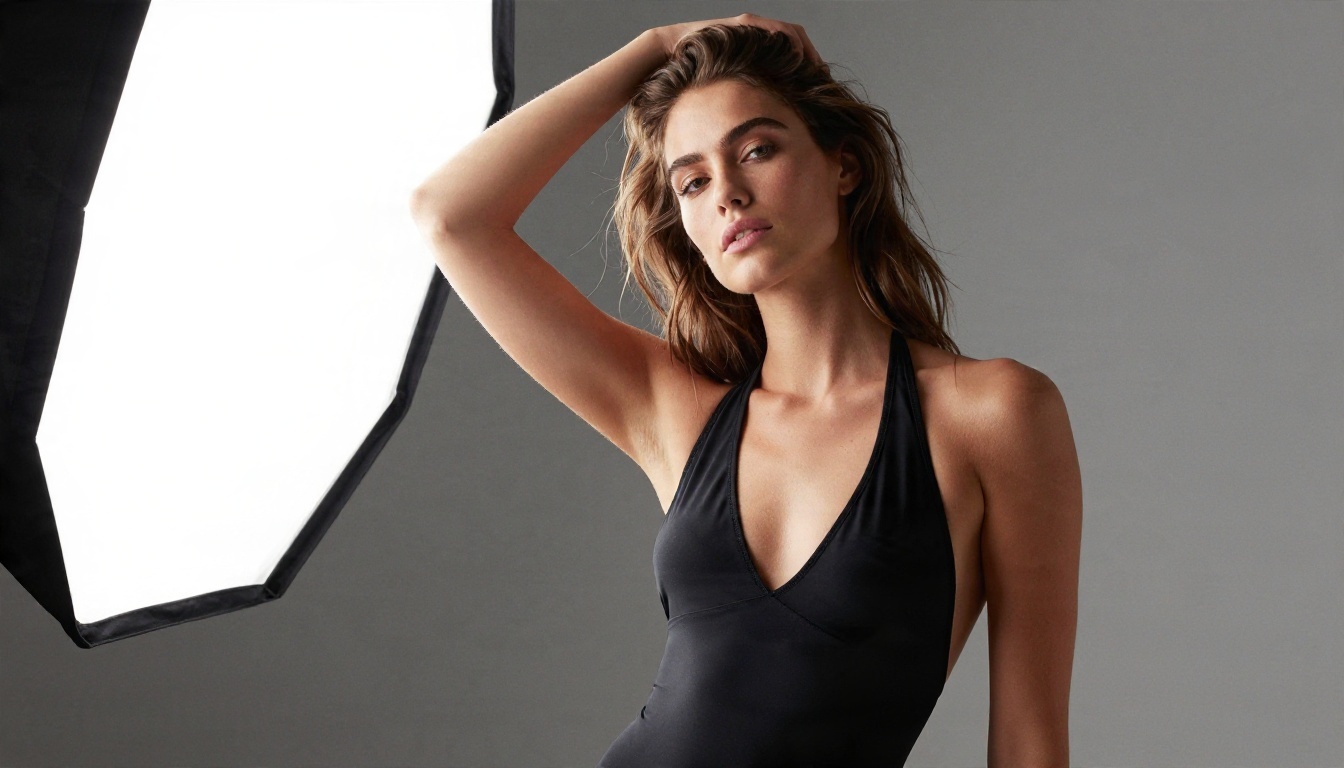
- Match light to mood. Golden hour feels warm and playful. Window backlight feels intimate. Studio softbox feels like fashion.
- Upscale last. Fix composition first, then use a super resolution tool for the final.
- Batch your video. Queue several clips at once, then review them together.
Building a repeatable look
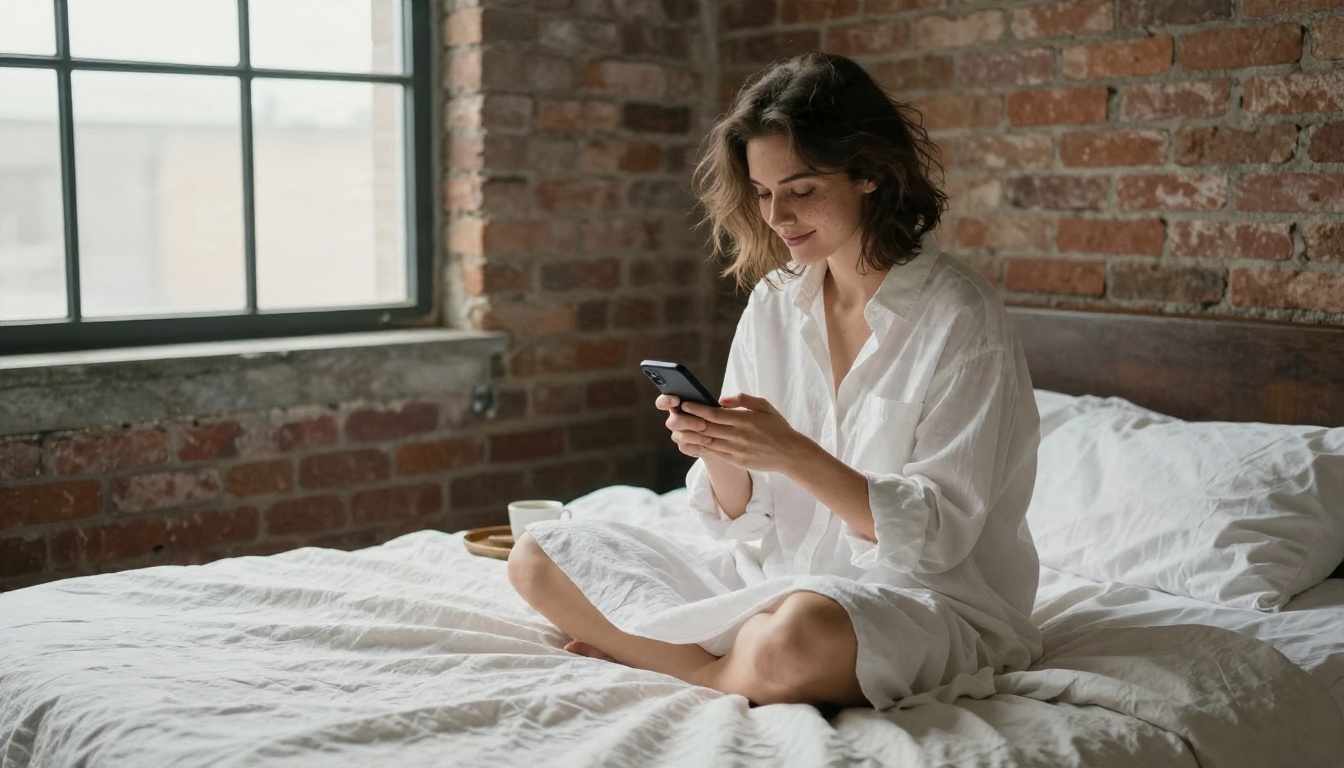
If you create content around a recurring style, define a short "style line" and paste it into every prompt: "Kodak Portra 400 grain, natural window light, 85mm f/1.8, visible skin texture." It keeps a series of images feeling like one photoshoot instead of a random collection.
A simple weekly routine
| Day | Task |
|---|
| Monday | Test three new prompt ideas at draft quality |
| Wednesday | Refine the best two in the editor |
| Friday | Animate your top picks and queue final upscales |
Try It Yourself Tonight
The honest answer to "what is the best free AI app with no restrictions" is that it depends on what you value: unlimited use, speed, resolution, or video. For most people making glamour-style, photorealistic content, a combination wins. Use Seedream 4.5 for sharp generation, PicassoIA Image Editor Pro for unlimited editing, and an image-to-video model for motion.
The best way to find out is to run your own test. Pick one scene, write a photographer-style prompt, and generate it in the next ten minutes. Then try the same idea in a second model and compare. You will quickly see which tool matches your taste and your patience.
Ready to go further? Browse the full model library at picassoia.com/en/all-models, pick a model, and start creating your own images and videos on PicassoIA today.


