Most "free" image generators have the same problem. You type a perfectly normal prompt, such as a woman in a swimsuit on a beach or a dramatic portrait with bare shoulders, and the tool refuses it, blurs it or buries it behind a paywall. If that sounds familiar, you are the reason this list exists. I compared the image models people actually use in 2027 and sorted them by three things: whether you can use them for free, how relaxed their filters are for non-explicit adult and glamour content, and how real the pictures look.
One thing up front. "Uncensored" and "no filter" get thrown around loosely online. Some tools mean "we allow swimwear and artistic portraits." Others mean "run it on your own computer and nobody can stop you." This article separates the two, tells you which models are worth your time, and shows you how to get sharp photorealistic results without paying for a subscription.
💡 Quick answer: For the best mix of free access, flexible content rules and realism, start with Seedream 4.5, then try PicassoIA Image Editor Pro for unlimited generations.
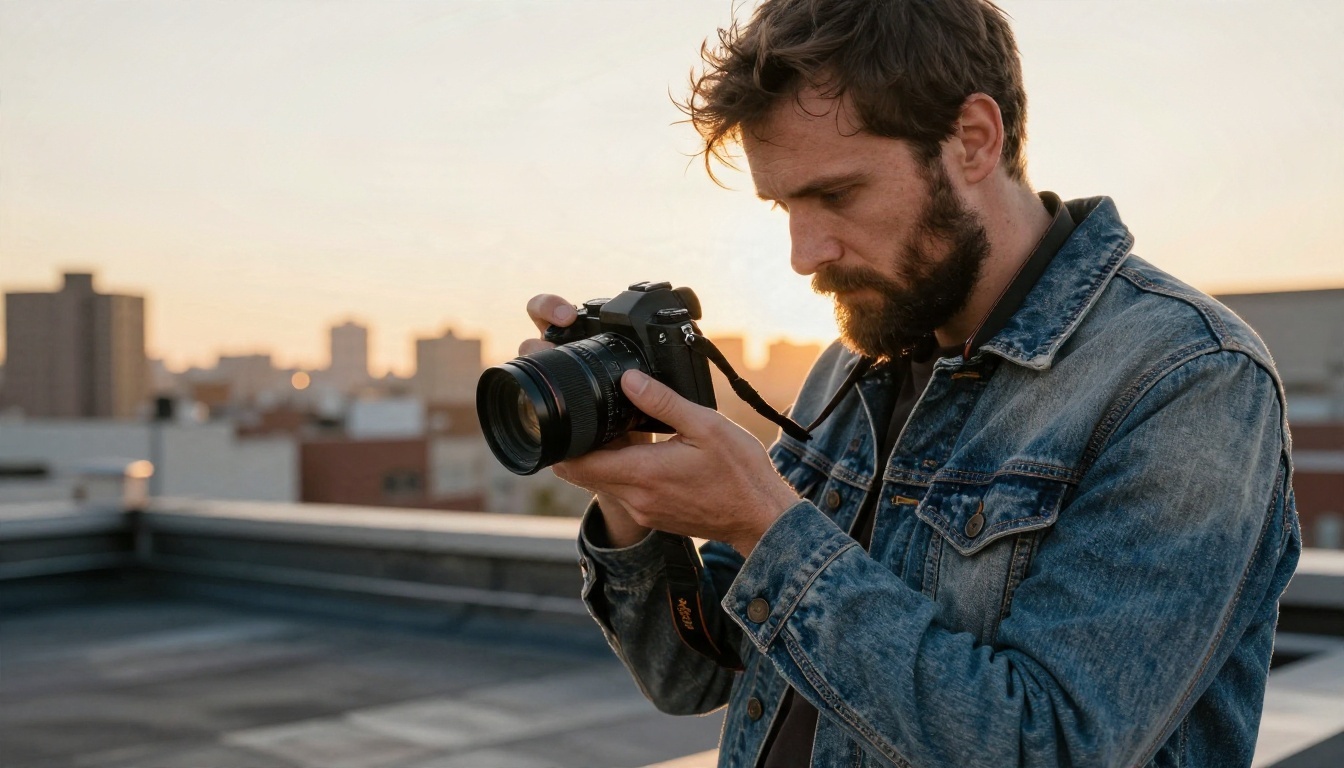
What "Uncensored" Really Means
The search term sounds simple, but it hides three very different products. Knowing which one you want saves hours of trial and error.
Three Kinds of "Free"
| Type | What you get | Catch |
|---|
| Free with strict filters | Instant generation in a browser | Refuses swimwear, glamour, many portraits |
| Free with limits | A few credits per day or week | Credits run out, adult tiers cost money |
| Self-hosted open weights | Total control on your own PC | Needs a strong GPU and setup time |
Most guides you will find online lump these together. They are not the same. A browser tool with daily credits is easy but tends to be cautious. A local install has no external filter but asks for hardware, patience and some technical comfort.
Where Filters Actually Hide
Filters rarely sit in one place. A typical hosted tool checks your prompt text, then the generated image, and sometimes your account history. A model can feel "censored" even when the underlying weights are fine, simply because the website wrapped it in extra safety layers. That is why the same model can behave differently on two platforms.
💡 Tip: If a prompt gets refused, rewrite it around the photography. Describe the lens, the light, the fabric and the pose instead of leaning on loaded words. Models respond better to a photographer's brief than to a blunt request.
Quick Comparison of the Top Picks
Here is the short version before we go model by model. Every model in the table has a page you can open and test right now.
The Best Models You Can Use Today
1. Seedream 4.5
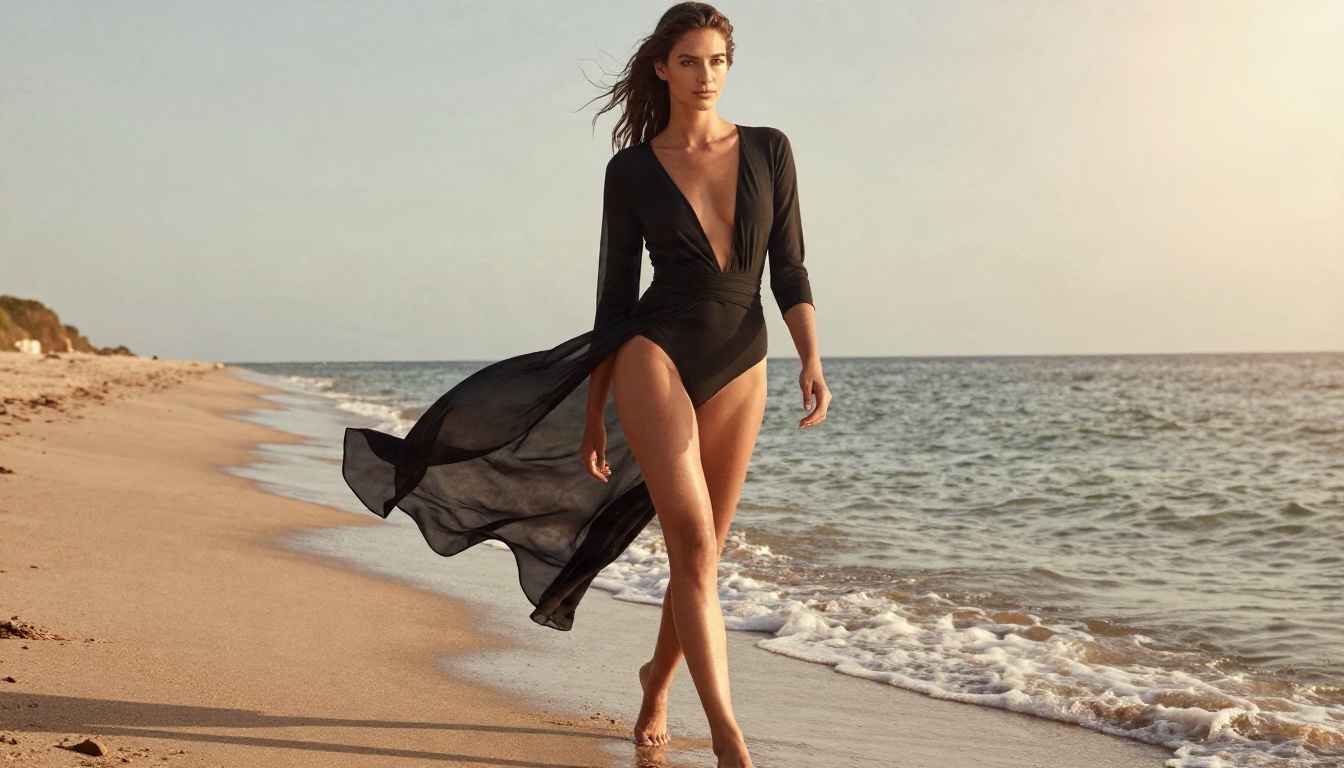
Seedream 4.5 is my first recommendation for anyone who wants glamour, fashion and portrait work without constant refusals. Skin looks like skin: pores, tiny highlights, soft shadows under the collarbone. Fabric folds behave the way real satin and linen do. It handles swimwear, lingerie-style editorial fashion and artistic portraits that other tools block outright, while staying on the non-explicit side.
Why it ranks first:
- Sharp, high-resolution output that holds up when you zoom in
- Strong prompt following, so a long photographer-style brief actually lands
- Fast enough to iterate ten times in a coffee break
- Faces stay consistent across a batch of prompts
2. PicassoIA Image Editor Pro
PicassoIA Image Editor Pro earns the number two slot for one reason: unlimited generations. When you are testing prompts, credits are the real bottleneck. Every refused or mediocre result usually costs you something on other platforms. Here you can keep going until the picture looks right, which matters a lot when you are chasing a specific pose, outfit or lighting mood.
It also works as an editor. Upload a photo, describe the change, and it adjusts clothing, background or lighting while keeping the face recognizable. That makes it the best option on this list for people who want to refine rather than start from zero.
3. Nano Banana Pro
Nano Banana Pro is a precision tool. Its strength is edits: change a jacket color, swap a background, fix a hand. Its 4K output has a crisp, almost studio-grade finish. The filters are more moderate than the first two picks, so it suits clean portraits, product shots and lifestyle photography better than glamour work. If you only want smaller edits, the lighter Nano Banana is quicker.
4. Flux 2 Klein with LoRA
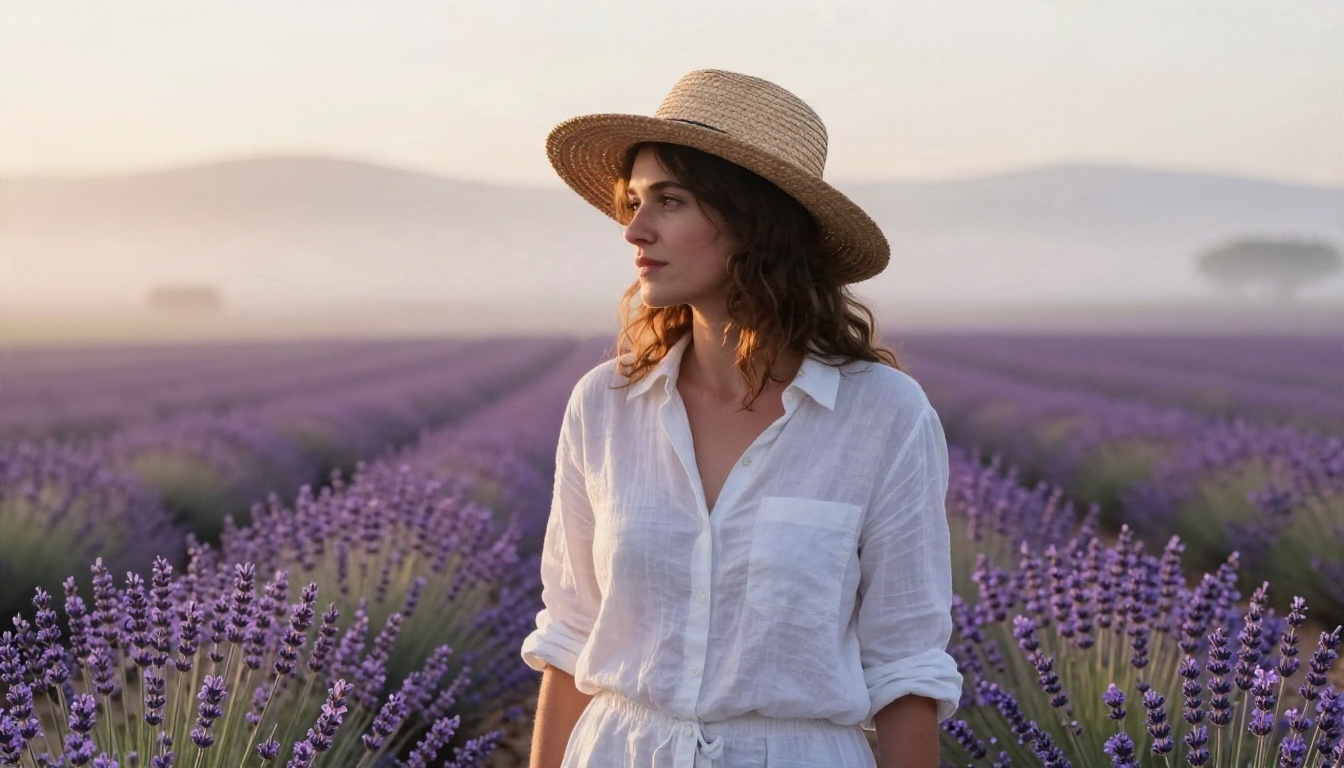
The Flux family built its reputation on realistic light and natural anatomy. Flux 2 Klein 9B Base LoRA and its smaller sibling Flux 2 Klein 4B Base LoRA add LoRA support, so you can load a style or a character look and keep it stable. If you want a particular film look, a recurring model or a distinct color palette, this is the route.
For plain base generation without LoRA, try Flux 2 Klein 4B Base. And when you need a draft in seconds, Flux Schnell is one of the fastest options around.
5. Z Image Turbo
Z Image Turbo is the sprinter. Results arrive in seconds, which makes it ideal for brainstorming. I use it to test five or six compositions, pick the best one, then rebuild that prompt in Seedream 4.5 for the final render. It will not beat the top two in fine skin detail, but for the speed it is hard to complain.
6. Qwen Image 3
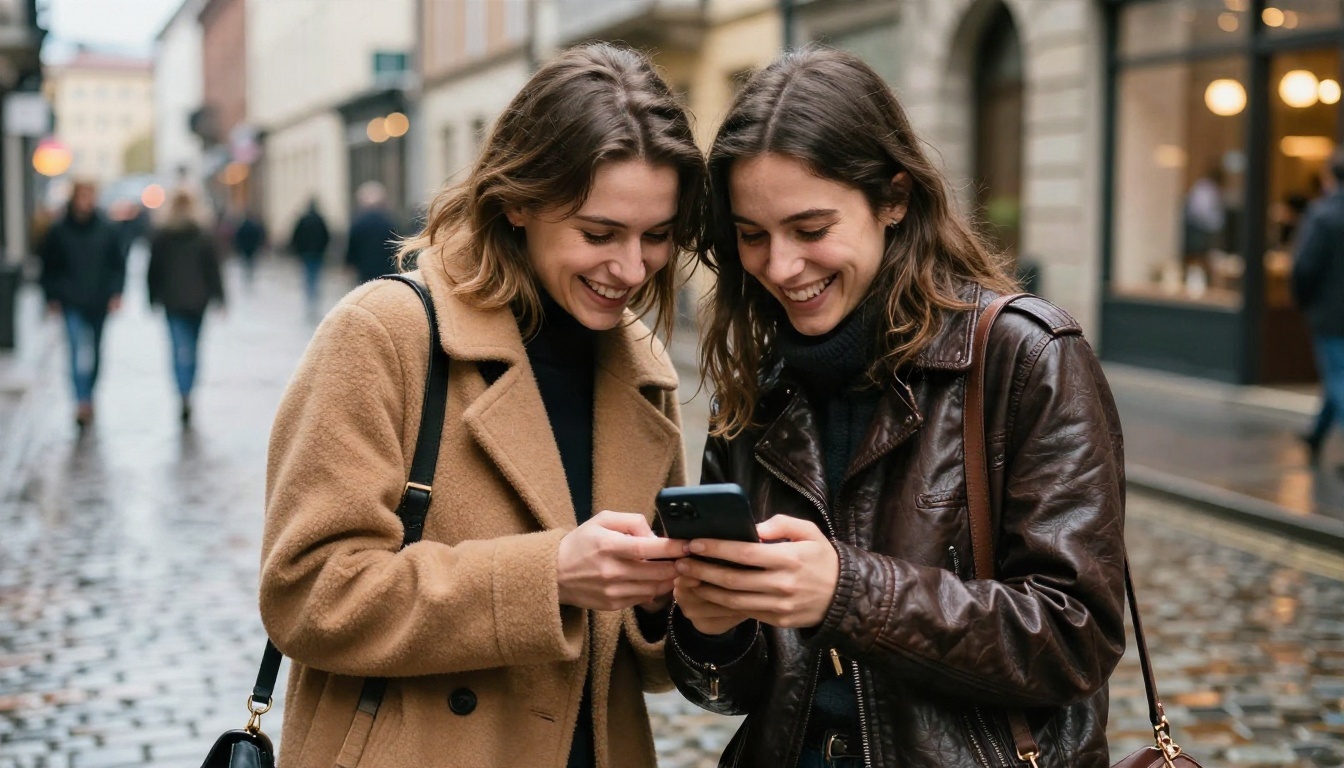
Qwen Image 3 is strong for photorealism and for images that contain readable text, such as signs, posters and labels. A heavier variant, Qwen Image 3 Pro, exists for sharper detail. Both are better for street scenes, product mockups and lifestyle pictures than for glamour content, because their content rules lean more cautious.
7. HiDream and Stable Diffusion options
If you want a budget-friendly workhorse, the HiDream line is worth a look: HiDream L1 Fast for speed, HiDream L1 Dev for free HD output and HiDream L1 Full for maximum quality. For people who like the classic Stable Diffusion look, Stable Diffusion 3.5 Large and Realistic Vision v5.1 still produce believable photos, and Realistic Vision in particular has a loyal following for portraits.
Running Open Weights on Your Own PC
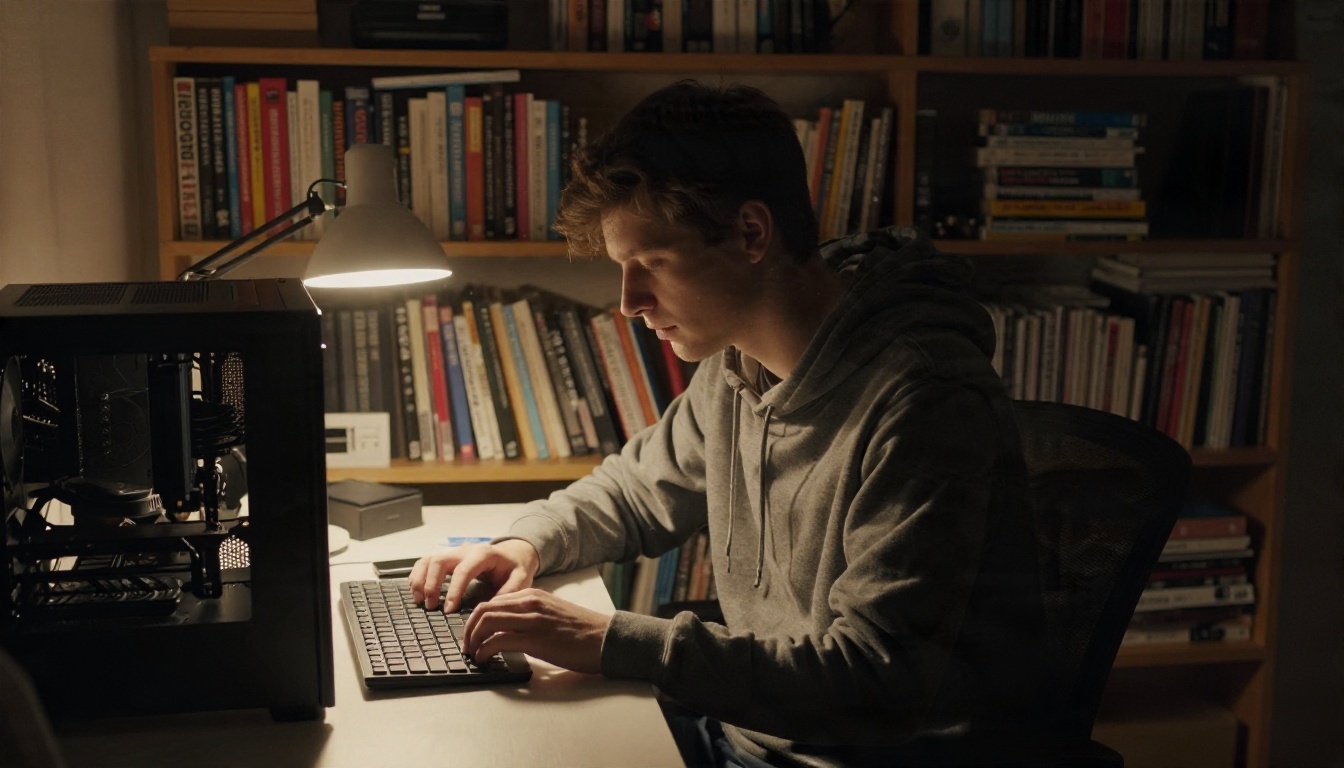
The most "no filter" route is a local install. Recent roundups consistently name Qwen Image, FLUX.2, Stable Diffusion 3.5, HunyuanImage 3.0 and Sana among the leading open options, and tools like ComfyUI, SwarmUI and Forge are the usual front ends. There is no website between you and the model, so there is no outside moderation.
Hardware Reality Check
Local generation is not free in the way people hope. You pay with hardware and time.
- 8 GB VRAM: Enough for lighter models and SDXL-class checkpoints
- 12 to 16 GB VRAM: Comfortable for most current open models
- 24 GB or more: What you want for the largest models without compromises
Sana is often praised because it runs on modest cards. HunyuanImage 3.0 is not available on PicassoIA, so I mention it only as a local option you would set up yourself.
License Traps
"Open weights" does not always mean "free for any use." Several of the strongest models carry non-commercial terms, some set revenue limits, and a few exclude certain regions. If you plan to sell prints, run a brand page or publish client work, read the license before you build a workflow around a model. Hosted tools often sidestep this headache, because the platform handles the licensing for you.
💡 Rule of thumb: If you have a mid-range PC and just want pictures, hosted models are faster to set up. If you want to train your own LoRAs or run batches overnight, local pays off.
How to Use Seedream 4.5 on PicassoIA
Since Seedream 4.5 is the top pick here, this is the workflow I follow each time.
Step by Step
- Open the model page. Go to the Seedream 4.5 page and sign in.
- Write a photographer's prompt. Include the subject, the setting, the light direction, the lens and the film look.
- Set the ratio. Use 16:9 for banners and cinematic scenes, 3:4 or 2:3 for portraits and social posts.
- Generate a batch. Make several versions and keep the one with the best face and hands.
- Refine. Send the winner to PicassoIA Image Editor Pro to adjust clothing, background or light without regenerating the whole picture.
- Upscale if needed. Use a super resolution model from the platform before printing.
Prompt Tips That Change Results
- Name the light. "Warm backlight from the right with soft flare" beats "nice lighting."
- Name the lens. "85mm f/1.8" gives portrait compression and soft bokeh.
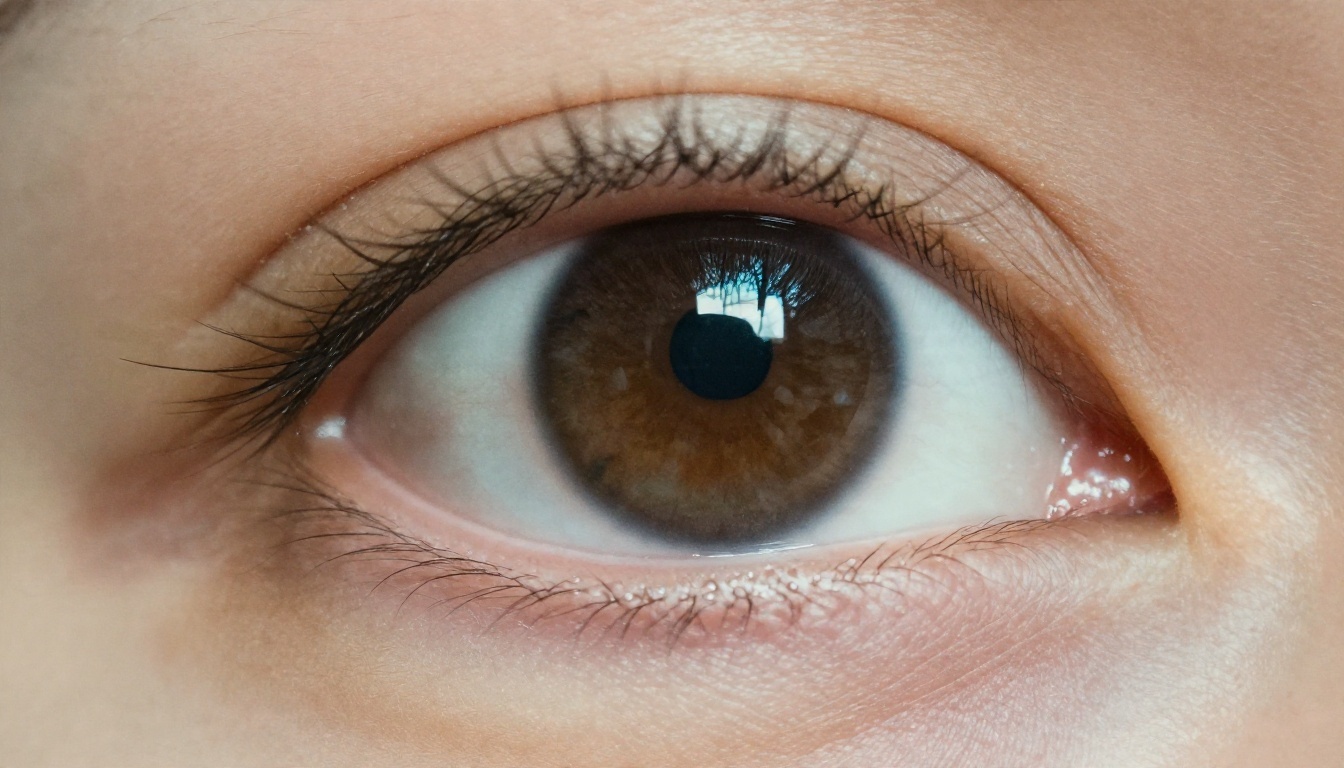
- Add texture words. "Visible skin pores, wool fibers, wet sand grains" push realism up.
- Skip style tags like "digital art." If you want a photo, ask for film stock and grain.
- Keep prompts between 50 and 100 words. Shorter ones leave too much to chance, longer ones start to contradict themselves.
Here is a prompt pattern that works well for glamour portraits:
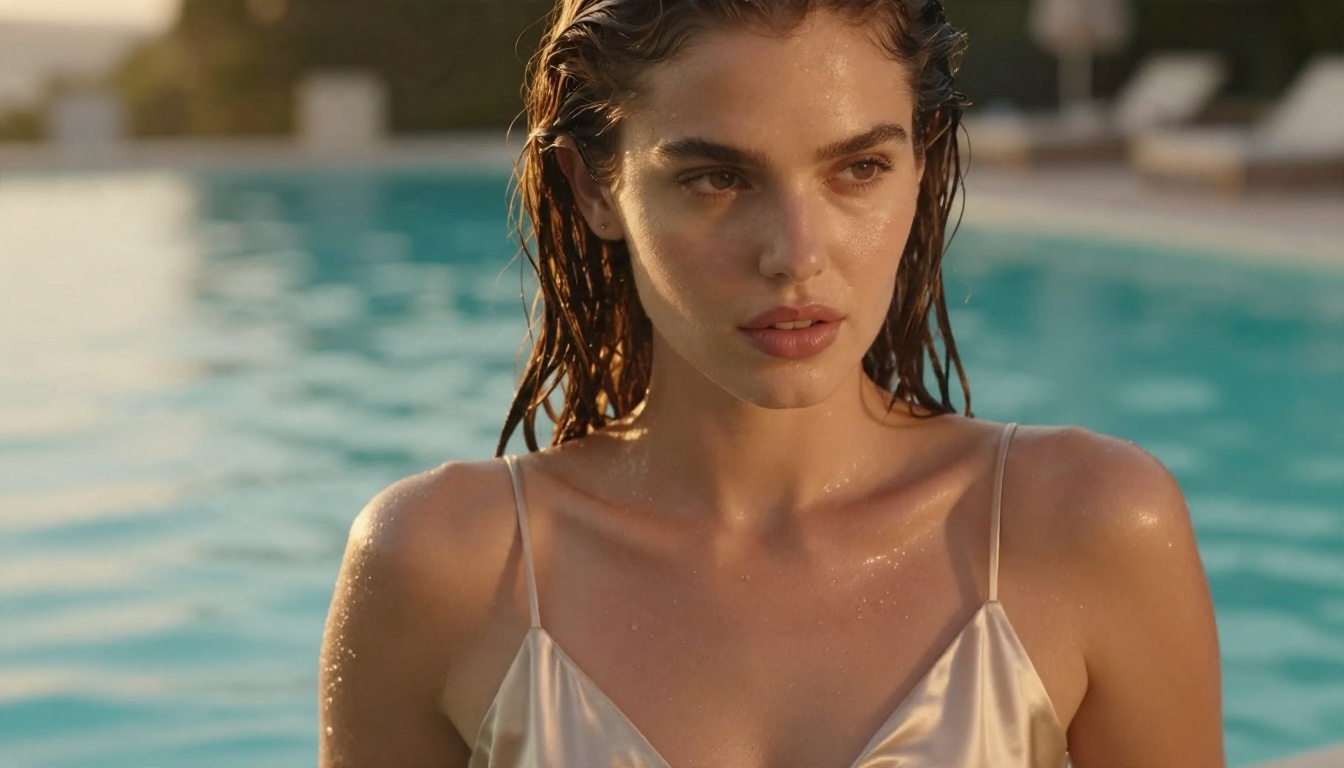
Medium shot of a woman in a satin champagne dress at a poolside villa at sunset, wet hair slicked back, realistic skin with tiny water droplets, warm golden backlight from the left, 85mm f/1.8, shallow depth of field, Kodak Portra 400 grain, tasteful editorial fashion photography.
Staying Free Without Losing Quality
You do not need to pay a monthly fee to get strong images. A few habits stretch free usage a long way.
Draft Small, Finish Big
Use a fast model such as Z Image Turbo or Flux Schnell for the first ten ideas. Pick the best composition, then send only that prompt to a heavier model. You will spend far fewer credits than if you render everything at full quality.
Edit Instead of Regenerating
If the face and pose are right but the dress color is wrong, do not roll the dice again. An editor such as Image Editor Pro or Nano Banana can change one detail and keep everything else.
Reuse What Works
Keep a text file of prompts that gave you good results. Swap the subject, keep the lighting and lens lines. This is the closest thing to a reliable formula that exists in image generation.
Rules That Still Apply
"No filter" is a marketing phrase, not a license to do anything. Even the most relaxed platform draws lines, and so should you.
- No explicit or pornographic content. The models and prompts recommended here are for suggestive, attractive, artistic imagery: swimwear, glamour, fashion and portraits.
- No real people without consent. Do not generate images that put a real person's face in a compromising scene.
- Nothing involving minors. Ever. No exceptions, on any model.
- Check commercial terms. If you are selling images, confirm the model's usage rights first.
Respecting these limits keeps the platforms that offer flexible tools alive. It also keeps your account safe.
💡 Reminder: A relaxed filter is a convenience. It works best when you use it for good photography, not for pushing limits.
Which Model Should You Pick
If you only read one section, read this one.
Try Your Own Images Now
Reading about models only gets you so far. The fastest way to find your favorite is to type a prompt and look at what comes back. Open Seedream 4.5 on Picasso IA, paste the glamour prompt from above, then change the outfit, the location and the light. When you have a result you like, move it into PicassoIA Image Editor Pro and refine it as many times as you want, since generations there are unlimited.
Want to see everything the platform offers, from text-to-image to upscaling and editing? Browse the full catalog at picassoia.com/en/all-models, pick two or three models from this list, run the same prompt through each, and keep the one that matches your eye. Your next best image is one prompt away.


