Running an image model on your own computer sounds like the perfect deal for adult content: no queue, no strangers' servers, no sudden account bans, no per-image bill. And it mostly is. But the internet makes it sound like you download one file, press a button and get studio-grade results. In reality, the best local AI for porn is a mix of the right free model, the right settings and a graphics card with enough memory to hold both. Get one of the three wrong and you will spend a weekend staring at out-of-memory errors or plastic-looking faces.
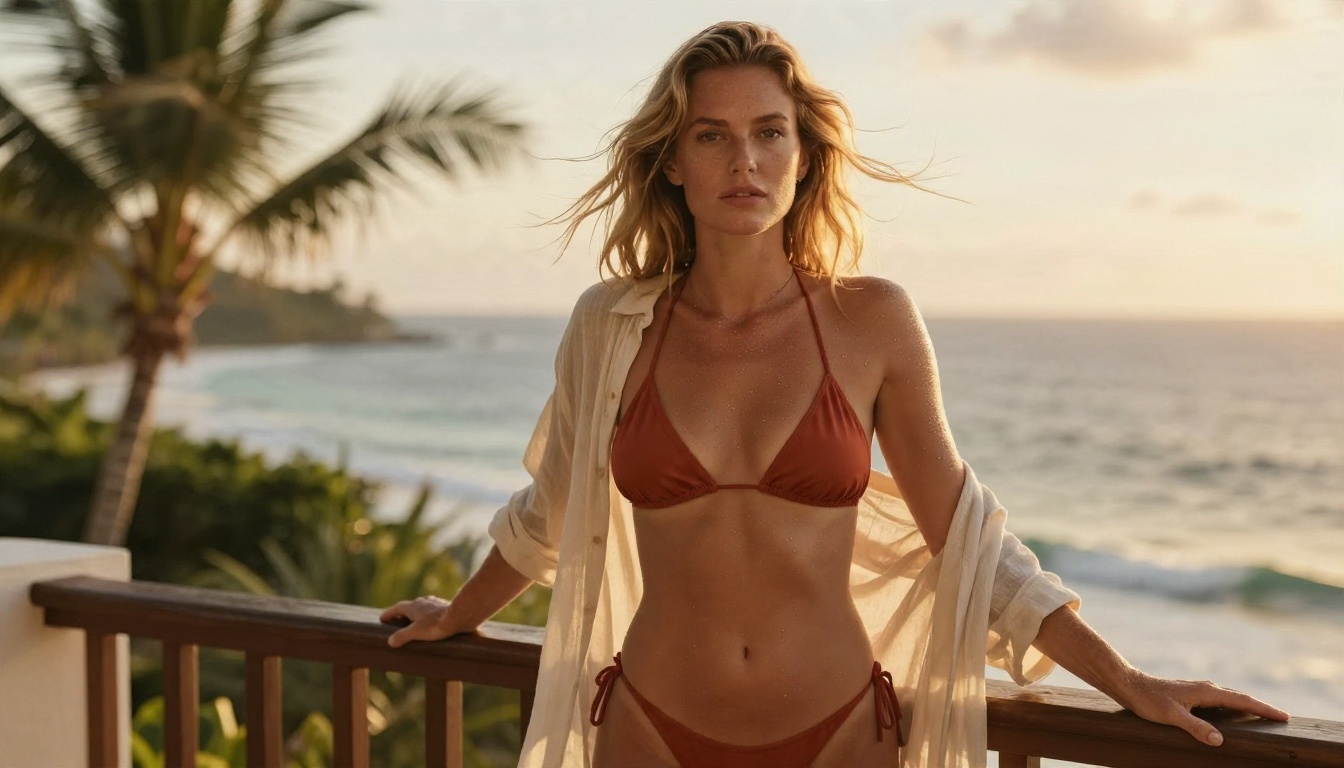
This article sorts out what actually works in late 2026: which free models are worth the disk space, what hardware each one demands, which settings change results the most, and when a hosted option simply makes more sense. The images here stay in glamour territory on purpose, because the workflow is the same whether you aim for boudoir portraits or anything bolder, and the hardware math does not change.
💡 Quick answer: For most people, a 12 to 16 GB NVIDIA card, a recent open model such as Z Image Turbo or a Flux-family model, and a clean ComfyUI install is the sweet spot. If you have less than 8 GB of VRAM, or no patience for installs, a hosted tool is the saner route.
What "Local AI" Really Means
Local simply means the model weights live on your drive and the math happens on your GPU. Nothing is uploaded, nothing is logged by a third party, and no filter sits between you and the output unless the model itself carries one.
Why People Go Local
The appeal is easy to list:
- Privacy: prompts and results never leave your machine.
- No credits: once the hardware is paid for, a thousand images cost about as much as the electricity.
- Control: you choose the checkpoint, the sampler, the LoRA and every number in between.
- Offline use: it works on a plane, in a cabin, behind a firewall.
- Reproducibility: save a seed and a workflow file and you can recreate any image later.
What You Give Up
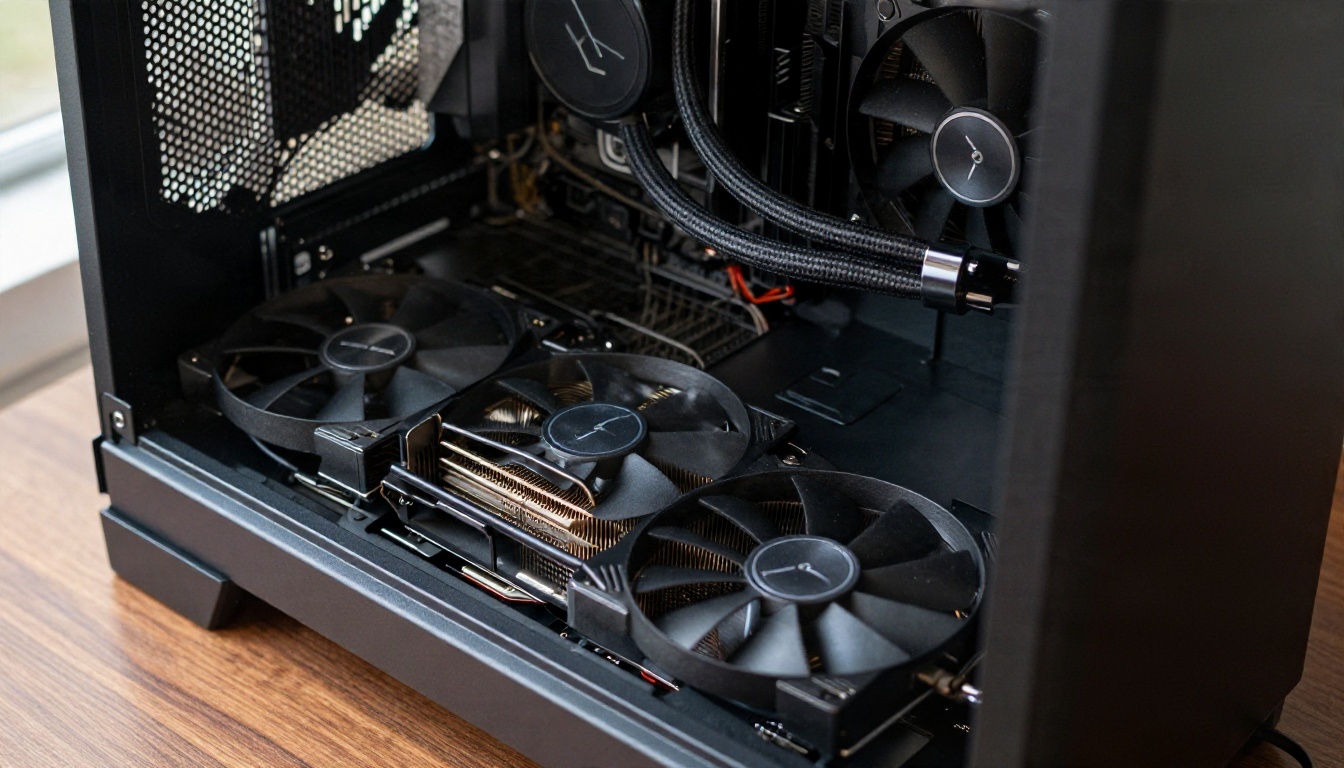
Local is not free in the way people imagine. You pay in setup time, in disk space (a serious collection of checkpoints and LoRAs easily passes 100 GB), and in troubleshooting. Driver mismatches, Python environments and node packages that break after an update are normal. Speed also depends entirely on your card: a 12 GB GPU that handles SDXL comfortably can feel sluggish with heavier models.
Best Free Models to Run
Open-weight image models fall into a few families. Each has a personality, and each has a different appetite for VRAM.
SDXL and Its Fine-Tunes
SDXL is the veteran. Its strength is the enormous ecosystem: thousands of community checkpoints and LoRAs tuned for portraits, lighting styles and body types. It runs on roughly 8 to 12 GB of VRAM, generates fast, and forgives sloppy prompts. The weakness is anatomy and fine detail, which usually need inpainting or an upscale pass. If you want the widest choice of styles on modest hardware, this is still the safest pick.
Flux Family Models
Flux models follow long, natural-language prompts far better than SDXL, and their skin, hands and fabric rendering is noticeably cleaner. The catch is size. One round of community testing puts the full-precision Flux.1 dev build near 24 GB of VRAM, while quantized GGUF versions squeeze it into about 12 GB at some cost in quality. Smaller recent releases in the family, such as Flux 2 Klein, are friendlier to mid-range cards and have LoRA support.
Z Image Turbo
Z Image Turbo is the newcomer that surprised many people. It needs only a handful of sampling steps, produces sharp photographic results, and has quantized builds that fit surprisingly small cards: reports put the full-precision version at about 14 to 16 GB, an FP8 version near 8 GB, and community GGUF versions on 6 GB cards. Its fine-tuning scene is still much smaller than SDXL, so expect fewer ready-made LoRAs.
Qwen Image
Qwen Image leans toward heavy prompt understanding and clean text rendering. It is hungry for memory and usually reserved for 16 GB cards and up. For glamour photography it is capable, but the community checkpoint library is thin compared with SDXL or Flux.
| Model family | Typical VRAM | Speed | Realism | Community LoRAs |
|---|
| SDXL | 8 to 12 GB | Fast | Good, needs cleanup | Huge |
| Flux | 12 GB (GGUF) to 24 GB | Medium | Excellent | Large |
| Z Image Turbo | 6 to 16 GB | Very fast | Excellent | Small, growing |
| Qwen Image | 16 GB and up | Slower | Very good | Small |
💡 Check the license. "Free to download" does not always mean "free for any use." Read the license of each checkpoint and LoRA before you publish or sell anything.
Hardware You Actually Need
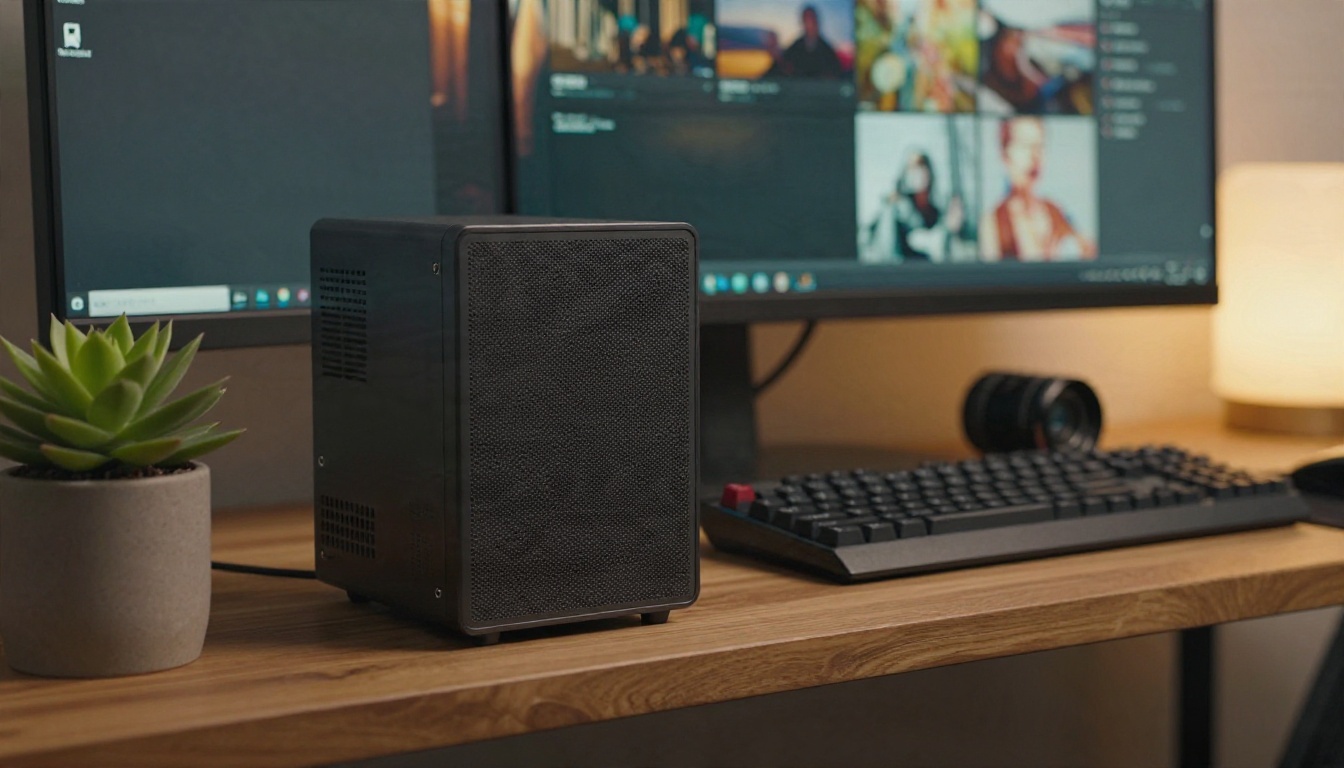
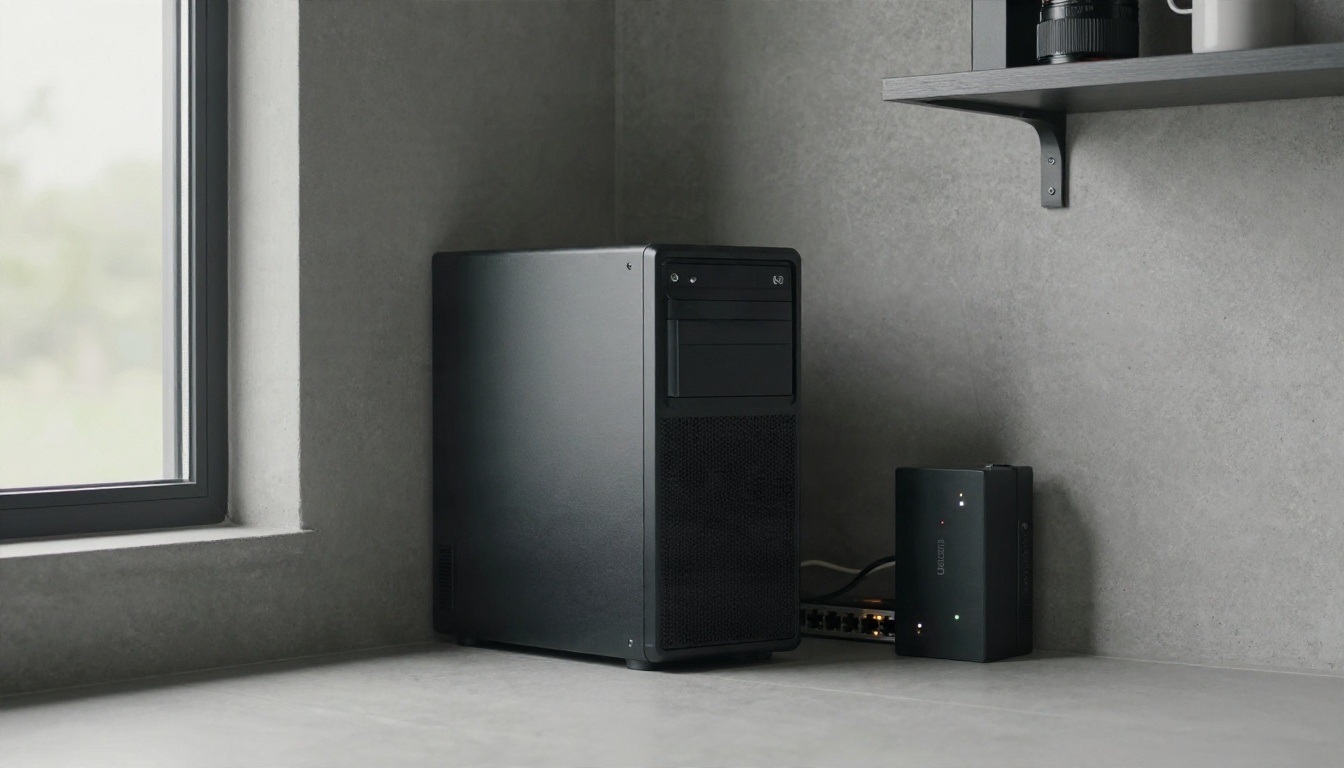
VRAM is the number that matters. Raw GPU speed decides how long you wait, but VRAM decides whether the model runs at all.
VRAM Tiers Explained
| VRAM | What runs well | What to expect |
|---|
| 6 GB | Quantized Z Image Turbo, SD 1.5 class models | Works, small batches, patience required |
| 8 GB | SDXL with tweaks, FP8 Z Image Turbo | Comfortable for single images |
| 12 GB | SDXL at full speed, quantized Flux | The realistic entry point for serious use |
| 16 GB | Z Image Turbo full precision, most Flux builds, ControlNet | A strong all-round tier |
| 24 GB | Full Flux.1 dev, LoRA training, big batches | Enthusiast territory, almost no limits |
A 12 GB RTX 3060 is still a fair starter for SDXL, though it feels slow once you move to Flux-class models. A 16 GB card such as the RTX 4070 Ti Super is often named as the best balance of price and capability for ComfyUI work.
RAM, Storage, and Power
Do not ignore the rest of the machine:
- System RAM: 32 GB is the comfortable target. 16 GB works but swaps often when loading large checkpoints.
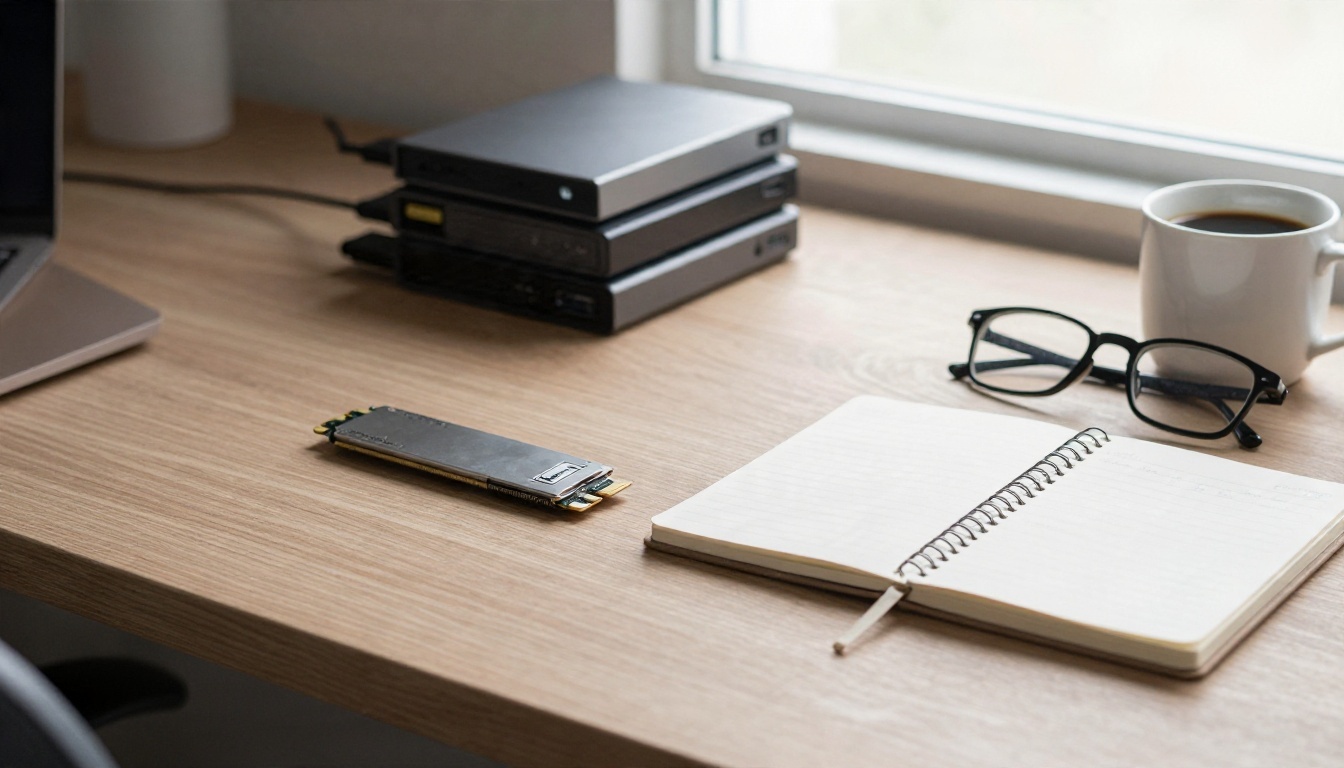
- Storage: an NVMe drive with at least 250 GB free. Loading a 10 GB checkpoint from a hard drive is painful.
- Power supply: check the card's recommended wattage and leave 100 to 150 W of headroom.
- Cooling: long batch runs keep the GPU at full load for hours, so airflow matters.
- GPU brand: NVIDIA is the path of least resistance. AMD and Apple Silicon work for many models but with more friction and fewer shortcuts.
Budget Builds That Work
If you are starting from scratch, three tiers make sense:
- Entry: a used 12 GB card, 32 GB RAM, 500 GB NVMe. Runs SDXL and quantized newer models.
- Balanced: a 16 GB card, 32 to 64 GB RAM, 1 TB NVMe. Runs almost everything at decent speed.
- Enthusiast: a 24 GB card, 64 GB RAM, 2 TB NVMe. Handles full-precision models and LoRA training.
💡 A used 12 GB card often beats a new 8 GB card for this hobby, because the extra memory opens more models than a faster chip ever will.
Settings That Change Results
Most disappointing output comes from default settings, not from a bad model. A handful of values do most of the work.
Resolution, Steps, and CFG
Generate at the resolution the model was trained for, then upscale. SDXL likes around 1024 by 1024 or equivalent pixel counts, such as 832 by 1216 for portraits. Pushing past that in one pass is how you get duplicated limbs and stretched faces.
| Setting | SDXL fine-tunes | Flux-family | Z Image Turbo |
|---|
| Steps | 25 to 35 | 20 to 30 | 8 to 10 |
| CFG | 5 to 7 | 1 to 4 (model dependent) | 1 to 2 |
| Resolution | 832 by 1216 | 1024 class | 1024 class |
| Sampler | DPM++ 2M Karras | Euler or DPM++ | Euler |
Treat these as starting points. Distilled and turbo models want very low CFG, and cranking it up burns the image into harsh, oversaturated skin.
LoRA Weights and Samplers
LoRAs are small add-on files that push a model toward a look, a pose style or a lighting setup. Start at a weight of 0.6 to 0.8. At 1.0 and above, faces begin to melt and every image looks the same. Stack at most two or three LoRAs, and lower each one as you add more.
For samplers, DPM++ 2M Karras is a dependable default for SDXL-class models. Euler works well for Flux and turbo models. Changing the sampler mostly shifts texture and sharpness, so test it on a fixed seed and compare.
Fixing Hands and Faces
Even the best output needs a second pass:
- Inpaint only the broken region at a moderate denoise strength (0.35 to 0.5) so the rest of the picture stays intact.
- Upscale with a tile-based pass to add pore-level skin detail without redrawing the composition.
- Use ControlNet for pose control when a prompt alone keeps giving you the same stiff stance.
- Write photographic prompts: name a lens, a light direction and a film stock. "85mm f/1.8, window light from the left, soft grain" beats a pile of quality tags.
Safe and Legal Ground Rules
This is the part many tutorials skip, and it matters more with adult content than almost anywhere else.
- Adults only, always. Never generate anything that depicts or suggests a minor. No exceptions, no "ageless character" loopholes.
- No real people. Do not use a real person's face or likeness without their clear consent. Face swaps of real individuals into adult scenes cause real harm and are illegal in a growing number of places.
- Fictional subjects. Invent your characters. Describe them, keep them original.
- Know your local law. Rules on synthetic adult imagery differ between countries and states.
- Store files privately. A local setup is only private if your drive is. Encrypt it, and do not sync the output folder to a public cloud album.
💡 If a checkpoint or LoRA was trained on scraped photos of identifiable people, skip it. The legal risk is not worth one extra style.
When Cloud Beats Local
Local is great when you enjoy tinkering. It is a poor fit if you own a laptop with 4 GB of VRAM, if you want results in ten seconds with no setup, or if you simply want better output than your hardware can deliver. A hosted model has already solved the memory problem for you.

Seedream 4.5 for Glamour
Seedream 4.5 is the model to try first for sensual, photographic portraits. It handles skin tone, fabric and lighting with a polish that most local setups need three extra passes to reach, and it produces up to 4K images from a plain text prompt. No VRAM to worry about, no checkpoints to download.
Image Editor Pro Without Limits
PicassoIA Image Editor Pro is built around unlimited generations, which removes the main argument for going local: the fear of burning credits while you experiment. Use it for edits, outfit and background swaps, and for refining images you already like. It is fast, runs in the browser and works on any laptop.
Other Models Worth Trying
If you like the local models above, you can also test their relatives in the browser before you commit to a hardware purchase:

| Situation | Better choice |
|---|
| 12 GB or more VRAM, love tweaking | Local ComfyUI |
| 8 GB or less, or a laptop | Browser-based tools |
| Need 4K polish fast | Seedream 4.5 |
| Want unlimited experiments | Image Editor Pro |
| Need total offline privacy | Local, on an encrypted drive |
How to Run This on PicassoIA
If you want to test your prompts and settings before you spend money on a GPU, this takes about two minutes:
- Open Seedream 4.5 and write a photographic prompt: subject, outfit, setting, lighting direction, lens and film stock.
- Choose the 16:9 or portrait aspect ratio that fits your idea, and generate a first batch.
- Keep the seed and wording of the version you like, then change only one detail at a time.
- Send favorites to PicassoIA Image Editor Pro to adjust clothing, backgrounds and small flaws without limits.
- Compare the same prompt on Z Image Turbo and Flux 2 Klein 9B Base LoRA to see which family fits your taste before you pick local hardware.
💡 Prompt tip: write like a photographer, not a tag collector. "Adult woman, satin robe, window light from the left, 85mm f/1.8, visible skin texture, Kodak Portra 400 grain" produces better images than twenty quality buzzwords.
Keep your prompts to adult, fictional subjects and tasteful, non-explicit scenes. That is where the polish of these models really shows.
Make Your First Images Today
The honest summary: if you own a 12 GB or larger NVIDIA card and like tinkering, a local ComfyUI setup with SDXL, a Flux-family model or Z Image Turbo will pay off. If you do not, or you want the best-looking result with the least friction, a hosted route saves you days.
The smartest path is to do both. Test your prompts and style ideas in the browser, then decide whether the hardware investment makes sense. Start with Seedream 4.5, keep experimenting with PicassoIA Image Editor Pro, and browse the full lineup at picassoia.com/en/all-models. Write a prompt, hit generate, and see what your idea looks like in under a minute.


