Draw Things is the app that made local image generation feel normal on a Mac, an iPad and even an iPhone. It's free, it runs offline, and it will happily load almost any checkpoint you throw at it. That last part is exactly why people search for the best NSFW model for Draw Things: the app ships with general-purpose models, and the glamour, boudoir and swimwear look most people want comes from community checkpoints you import yourself.
This article sorts out what actually works. You'll see which model families fit your hardware, which settings stop the usual plastic skin and broken hands, and where a cloud alternative beats a local setup. Everything here stays in the suggestive, non-explicit lane: lingerie, swimwear, silk, boudoir light. Beautiful, not pornographic.
💡 Quick answer: For local use, a photoreal SDXL-family checkpoint is the safest pick on 8 GB of memory, and a Flux-family model is the best option if you have 16 GB or more. If you want results without downloading anything, Seedream 4.5 on PicassoIA is the fastest path, and it's linked below.
What Draw Things Can Actually Run
Before picking a model, it helps to know the ground rules. Draw Things is a native Apple app. It can import checkpoints, LoRAs and embeddings from Hugging Face or CivitAI, either by pasting a direct download link or through the app's own model manager. Recent write-ups list support for Stable Diffusion 1.5, SDXL, SD3 and 3.5, FLUX.1, FLUX.2, HiDream and Qwen Image.
That's a wide net, and it means the "best" model depends less on the app and more on your device.
Memory decides your ceiling
A rough rule from community testing: SD 1.5 runs on about 4 GB, the SDXL family wants around 8 GB, and Flux-class models are happier with 12 GB or more. Draw Things can quantize models to 8-bit to squeeze them in, which helps, but it won't turn an old iPhone into a workstation.
| Device memory | Comfortable model family | Typical image size |
|---|
| 4 to 6 GB | SD 1.5 photoreal checkpoints | 512 x 768 |
| 8 GB | SDXL family checkpoints | 832 x 1216 |
| 16 GB | Flux-class, quantized | 1024 x 1024 and up |
| 24 GB and above | Flux-class, full detail | 1280 x 1280 and up |
Why "NSFW model" is a loose term
There is no official NSFW tab. What people call an NSFW model is usually a checkpoint fine-tuned on a wider range of body, skin and lingerie photography than the base model saw. Base models tend to be shy with skin and fabric detail. Community fine-tunes loosen that up. The best ones are really just very good photoreal models that don't flinch at a swimsuit or a satin robe.
The Best Local Models for Glamour Work
I'm ranking these for suggestive, photographic output: swimwear, lingerie, boudoir lighting, natural skin. Names change fast on CivitAI, so treat the families as the stable part and the specific checkpoint as a starting point.
SDXL family: the safe default
For most people on an 8 GB Mac or a recent iPad, this is the answer. SDXL-based checkpoints are fast, widely supported by LoRAs, and forgiving with prompts. Photoreal names that keep appearing in 2026 comparisons include Juggernaut XL and RealVisXL. Both are strong at skin texture and natural light, and neither needs a monster GPU.
If you want to see what this family feels like before downloading anything, SDXL Lightning 4Step runs in the browser and returns an image in a few seconds.
Strengths:
- Fast on Apple silicon
- Huge LoRA library
- Handles fabric like satin and lace well
Weaknesses:
- Hands still need a second pass
- Prompts have to be explicit about lighting and lens
SD 1.5 photoreal checkpoints: the lightweight pick
Older, yes. Still useful. If your device is limited, an SD 1.5 photoreal checkpoint will give you decent portraits at low memory cost. Realistic Vision v5.1 is the classic example of this style, and it's a good benchmark for how much skin realism a small model can reach.
Flux family: the quality leader
Flux-based models follow prompts more closely than SDXL, render hands better, and produce more convincing skin without extra tricks. In Draw Things you'll see FLUX.1 and FLUX.2 variants supported. The cost is memory and speed. On a 16 GB Mac, expect a quantized model and slower renders.
The Flux 2 line also has compact variants. Flux 2 Klein 4B Base and Flux 2 Klein 9B Base LoRA are available online if you want to test how the family behaves with a style LoRA before committing disk space.
| Model family | Skin realism | Hand accuracy | Speed on a laptop | Best for |
|---|
| SD 1.5 photoreal | Good | Weak | Very fast | Old devices |
| SDXL family | Very good | Average | Fast | Daily use |
| Flux-class | Excellent | Good | Slow | Final quality |
How to Import a Model Safely
Importing is simple, and that's the risk. A checkpoint is a large file from a stranger, so a few habits are worth keeping.
The basic steps
- Open Manage Models in the app.
- Choose the import option and paste the direct download link, or add a local
.safetensors file.
- Let the app convert it. Accept the default settings for the first import.
- Pick the right base type when asked (SD 1.5, SDXL or Flux). A wrong choice gives you noise.
- Run a simple test prompt before you stack LoRAs.
Stay with safetensors
Prefer .safetensors over .ckpt. The older format can carry executable code, while safetensors only stores weights. It's a small habit that avoids a real class of problems.
Check the license and the age rules
Read the model page. Some checkpoints restrict commercial use. And one rule is absolute: generate only adult, fictional subjects. Never real people without consent, and never anything involving minors. That's not a preference, it's the line.
Settings That Make the Biggest Difference
Most weak results come from settings, not from the model. These values work as a starting point for photoreal glamour in Draw Things.
Sampler, steps and guidance
| Setting | SDXL family | Flux-class |
|---|
| Sampler | DPM++ 2M Karras | Euler A Trailing or the default |
| Steps | 28 to 35 | 20 to 28 |
| Text guidance (CFG) | 5 to 7 | 3 to 4 |
| Size | 832 x 1216 | 1024 x 1280 |
| Seed | Fixed while testing | Fixed while testing |
Distilled "turbo" or "lightning" variants need far fewer steps, often 4 to 8, and a CFG near 1 to 2. Mixing a normal sampler setup with a distilled model is the most common reason for burnt, oversaturated images.
💡 Tip: Lock the seed while you tune a prompt. Change one thing at a time. If you change the seed, the sampler and the prompt together, you can't tell what helped.
Prompts that read like a photographer's note
Short tag soup works poorly on modern models. Write a sentence instead:
"A woman in a black silk robe by a bedroom window, soft morning light from the left, 85mm lens, shallow depth of field, visible skin texture, 35mm film grain."
Name the light, the lens and the fabric. That gives the model something concrete to follow, and it keeps the output tasteful and photographic rather than generic.
Negative prompts that still matter
SDXL-family models respond well to a short negative list: "blurry, plastic skin, extra fingers, deformed hands, watermark, text, oversaturated." Flux-class models mostly ignore negatives, so put what you want into the main prompt instead.
Fixing Hands, Skin and Faces
Even good checkpoints trip on the same three things.
Plastic skin
Lower the CFG by a point, add "natural skin pores, subtle freckles" to the prompt, and drop any beauty LoRA to 0.4 or lower. Over-smoothed skin is nearly always an over-strength LoRA.
Hands
Use inpainting. Mask the hand, write a short prompt such as "relaxed hand, five fingers", and regenerate only that region at a lower strength. Draw Things has an inpainting canvas built in, so you don't need to leave the app.
Soft detail
Generate at a modest size, then upscale. Rendering at huge sizes from the start often duplicates limbs and faces. A two-step workflow, base image first and upscale second, is both faster and cleaner.
Free Options Worth Using
You asked for free, so here is the realistic picture.
Fully free, fully local
Draw Things itself costs nothing, and community checkpoints on CivitAI and Hugging Face are free to download. The real cost is disk space (a single model is often 2 to 7 GB), battery, and your time tuning settings.
Free tiers online
Browser tools remove the download step. Z Image Turbo is a quick option for fast, sharp portraits, and Nano Banana is handy for editing an existing photo with a short instruction. Both are useful for testing a concept in seconds before you commit to a long local render.
The honest tradeoff
| Local in Draw Things | Online on PicassoIA |
|---|
| Cost | Free, plus hardware | Free tier and paid plans |
| Setup time | Hours of tuning | Seconds |
| Privacy | Fully offline | Cloud processing |
| Peak quality | Depends on your Mac | High on any device |
| Battery and heat | Heavy | None |
Alternatives When Local Falls Short
Draw Things is not on PicassoIA, since it's a standalone app. But the job it does, producing suggestive photoreal images, is exactly what several PicassoIA models handle well. If your Mac is slow or your checkpoint keeps misbehaving, these are the models to try in order.
1. Seedream 4.5
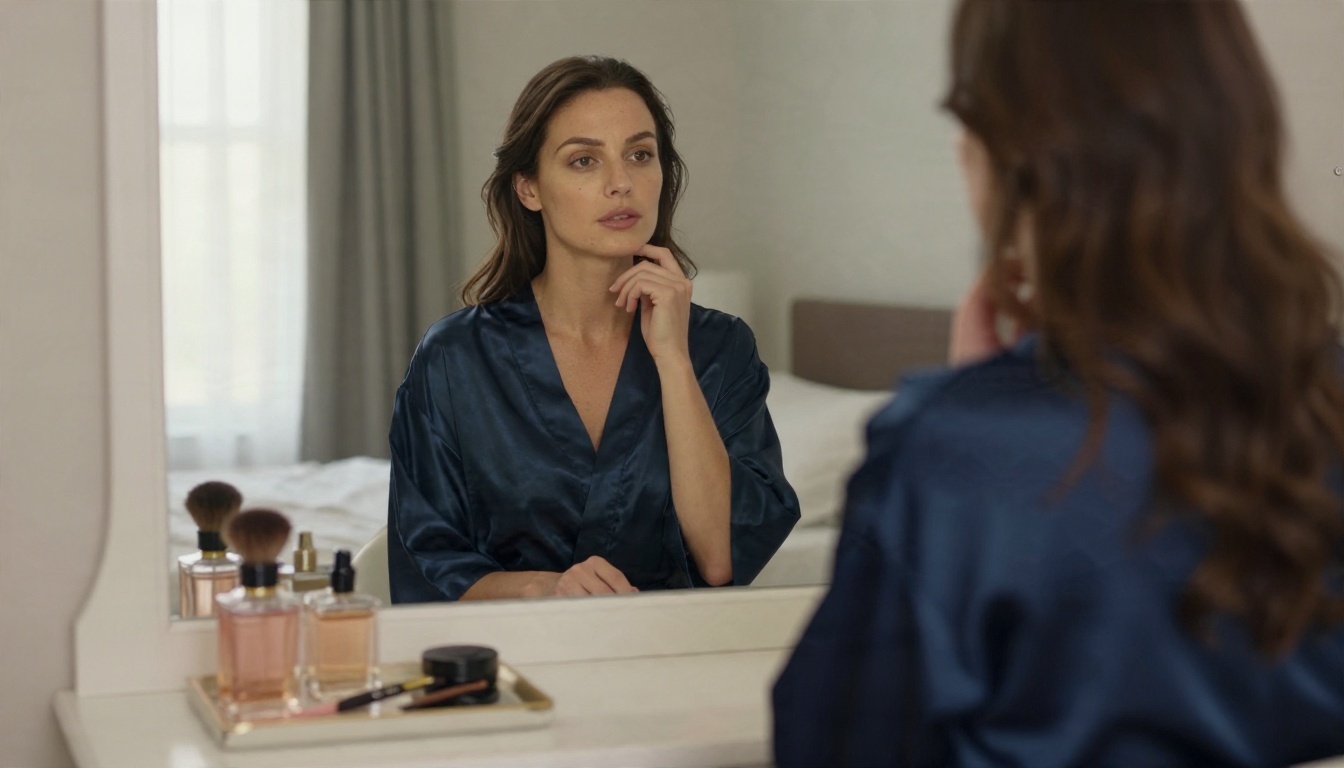
Seedream 4.5 is the first model to try. It produces sharp, high-resolution photographs with convincing skin, fabric and lighting, and it follows long prompts without the hand and anatomy glitches that SDXL checkpoints need inpainting to fix. For swimwear, lingerie and boudoir scenes it's the closest thing to a one-click answer.
2. PicassoIA Image Editor Pro
PicassoIA Image Editor Pro offers unlimited generations, which matters when you iterate dozens of times on one pose. It's quick, it's forgiving with suggestive glamour content, and it doubles as an editor, so you can change an outfit, a background or a lighting mood on a photo you already have.
3. More models in the same lane
💡 Rule of thumb: If you want control and offline privacy, stay in Draw Things. If you want speed and consistency, use the cloud.
How to Get Similar Results on PicassoIA
Here's the fastest way to reproduce a Draw Things-style glamour shot with Seedream 4.5.
Step by step
- Open the Seedream 4.5 page and choose the text-to-image mode.
- Write one descriptive sentence: subject, outfit, setting, light direction, lens.
- Set the aspect ratio to 16:9 for scenes, or 3:4 for portraits.
- Generate, then keep what's close and rewrite only the part that's off.
- Move the best result into PicassoIA Image Editor Pro for outfit swaps, background changes and unlimited retries.
Parameter tips
- Be specific about light. "Soft window light from the left" beats "good lighting."
- Name the lens. "85mm f/1.8" nudges the model toward a real portrait look.
- Use film language. "Kodak Portra 400, fine grain" gives a natural, analog tone.
- Keep prompts one scene long. Two scenes in one prompt split the model's attention.
A prompt to copy
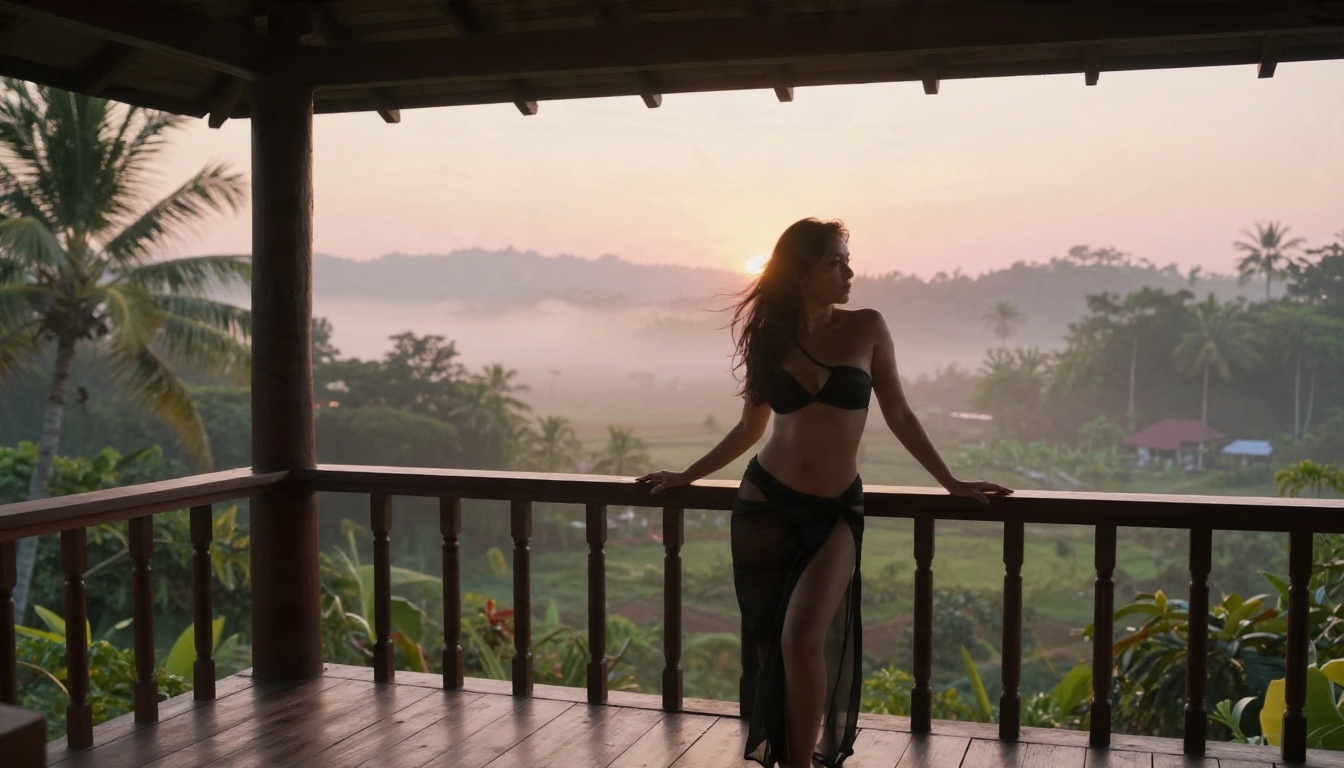
"A woman in a black one-shoulder bikini and a sheer sarong on a wooden villa balcony at sunrise, misty valley behind her, soft golden backlight, 28mm lens, low angle, visible skin texture, fine film grain."
Quick Fixes for Common Problems
| Problem | Likely cause | Fix |
|---|
| Burnt, oversaturated image | CFG too high | Drop CFG by 1 to 2 |
| Pure noise after import | Wrong base type chosen | Re-import with the right type |
| App crashes on a large model | Not enough memory | Use a smaller or quantized version |
| Waxy skin | LoRA too strong | Lower strength to 0.4 |
| Extra fingers | Model limits | Inpaint the hand only |
| Slow render | Heavy model on an old device | Use a lighter model or the cloud |
Pick One and Start Making Images
If you have an 8 GB device, install a photoreal SDXL-family checkpoint in Draw Things and keep the settings above. If you have 16 GB or more and patience, try a Flux-class model for the best local quality. And if you're tired of tuning samplers, skip the downloads and let a cloud model do the heavy lifting.
The simplest next step is to open Seedream 4.5, paste the sample prompt above, and see what you get in under a minute. Then take the best frame into PicassoIA Image Editor Pro and push it further with unlimited generations. Change the outfit, the light, the setting, and compare it against what your local setup produces.
Want to see everything else on the platform? Browse the full catalog at picassoia.com/en/all-models and try your own ideas with Picasso IA today.


