Most people searching for an NSFW text to image model hit the same wall within five minutes: the prompt is fine, the idea is simple, and the tool still replies with a polite refusal or a blurred, plastic-looking result. The model you pick decides almost everything. A good one gives you believable skin, natural light and tasteful glamour on the first try. A bad one wastes your credits and your evening.
This article ranks the models worth using, shows which free options are real and which are traps, and hands you prompts and settings you can paste straight in. Everything here stays in suggestive, non-explicit territory: bikinis, boudoir, fashion and glamour portraits of adults. That is where the best models shine anyway.
What Makes an NSFW Model Good
Before the ranking, it helps to know what you are actually judging. Spicy keywords are easy. Good photography is hard.
Realism Beats Raw Spice
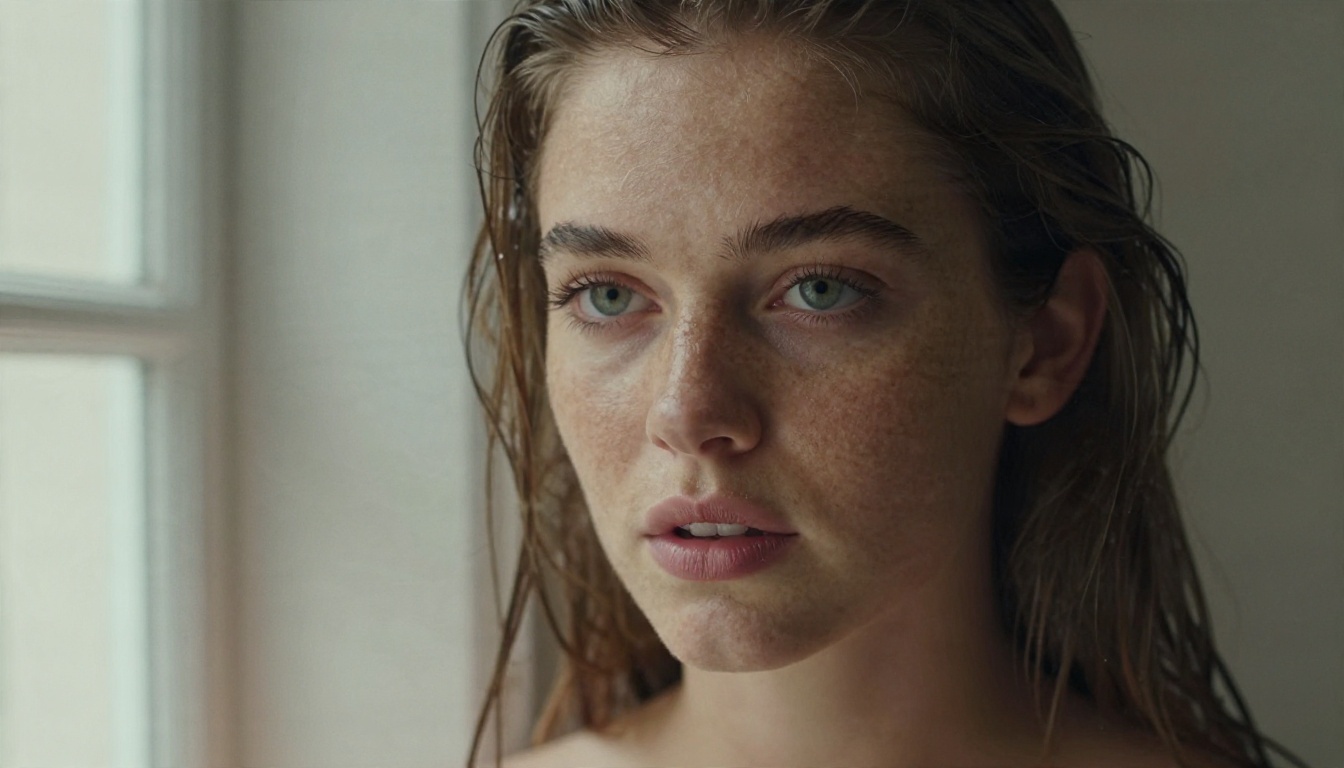
The best glamour images look like they came from a real camera: visible pores, flyaway hairs, fabric that folds the way fabric folds, light that falls in one believable direction. Models that over-smooth skin produce the "AI look" everyone scrolls past. When you compare tools, generate the same prompt in each and zoom in on the shoulders, hands and eyes. That is where weak models give themselves away.
Few Refusals, Fast Output
A model is only useful if it answers your prompt. Heavily filtered tools reject swimwear, lingerie or even the word "sensual." Look for models that treat adult fashion and boudoir as normal photography subjects. Speed matters too, because you will iterate. If each image takes a minute, you test five ideas per hour. If it takes seconds, you test fifty.
💡 Quick test: run one swimwear prompt and one boudoir prompt on any new tool. If both come back clean and detailed, keep going. If either gets blocked, move on.
The Best NSFW Text to Image Models
Here is the ranking, ordered by how well each model handles realistic, suggestive adult imagery with few refusals.
Seedream 4.5 Leads the Pack
Seedream 4.5 is the first model to try. It produces sharp, high resolution photographs with convincing skin, strong lighting logic and clean hands, and it follows long, detailed prompts closely. On PicassoIA it runs without the heavy restrictions that make other tools frustrating, which is exactly what you need for swimwear, boudoir and glamour work. If you only test one model from this list, make it this one.
PicassoIA Image Editor Pro
PicassoIA Image Editor Pro is the second stop, and the biggest value on this list because it offers unlimited generations. That changes how you work. Instead of rationing credits and settling for a decent frame, you can run a dozen variations of one prompt, adjust the lighting wording, and keep only the best. It also works as an editor, so you can refine an image you already like instead of starting over.
Flux 2 Klein 9B Base LoRA
Flux 2 Klein 9B Base LoRA is a strong pick when you want a specific visual style. LoRA support lets you steer the look toward film photography, editorial lighting or a particular color palette. It rewards precise prompts, and it is a good partner to Seedream 4.5 when you want a different flavor of the same scene.
Z Image Turbo for Speed
Z Image Turbo is built for fast turnaround. It is ideal for drafting: you throw ten rough ideas at it, pick the two that work, then rebuild those in a higher fidelity model. If your workflow is "test cheap, finish well," this belongs in it.
Other Models Worth a Test
Flux Dev LoRA gives you the open-weights Flux look with custom style control, and Nano Banana Pro is strong at clean 4K output and edits. Both are good fallbacks. Neither should replace the first two choices for suggestive glamour work.
Model Comparison at a Glance
Free Options That Actually Work
"Free" is where most searches go wrong, because the word means four different things.
Free Tiers vs Truly Unlimited
A free tier gives you a handful of credits, then asks for payment. Unlimited means you can keep generating. Many sites advertise the first and imply the second. Read the limits before you build a workflow around any tool. This is why PicassoIA Image Editor Pro stands out: unlimited generations remove the cost of experimenting, and experimenting is how you get good results.
Local Setups Are Free but Not Easy
Running a model on your own computer costs nothing per image, but it demands a capable graphics card, disk space, and patience for installation and troubleshooting. For most people the hidden cost is time. A hosted model with fast output usually wins unless you generate thousands of images a month.
Watch for Data Policies
Many free generators say little about how they store or reuse your prompts and outputs. If privacy matters to you, favor platforms that are clear about it, and never upload photos of real people without their consent.
💡 Rule of thumb: if a free tool asks for an upload of someone else's photo, close the tab. Stick with fully generated, fictional adult subjects.
How to Use Seedream 4.5 on PicassoIA
Since Seedream 4.5 is the strongest starting point, here is the exact workflow.
Step by Step
- Open the Seedream 4.5 page on PicassoIA.
- Paste a prompt into the text box. Start with one of the examples below.
- Choose a 16:9 aspect ratio for scenic and full-body shots, or a portrait ratio for close-ups.
- Pick the highest resolution the page offers if you plan to print or crop.
- Generate, then review the image at full size. Check hands, eyes and fabric edges.
- Change one detail at a time, such as the light direction or the lens, and generate again.
- When you have a keeper, send it to PicassoIA Image Editor Pro for small fixes.
Parameter Tips
- Be specific about light. "Soft morning light from the left through blinds" beats "nice lighting" every time.
- Name the lens. "85mm f/1.8" nudges the model toward flattering portrait compression and soft backgrounds.
- Describe texture. Words like "visible pores," "satin sheen" and "linen wrinkles" push the output away from the plastic look.
- Keep one subject. Single-person scenes give cleaner anatomy than crowded ones.
Prompts You Can Copy Today
Paste these as written, then adapt the clothing, setting and color palette. They all follow the same structure: subject and pose, environment, light, camera, texture.
Beach and Swimwear Prompt
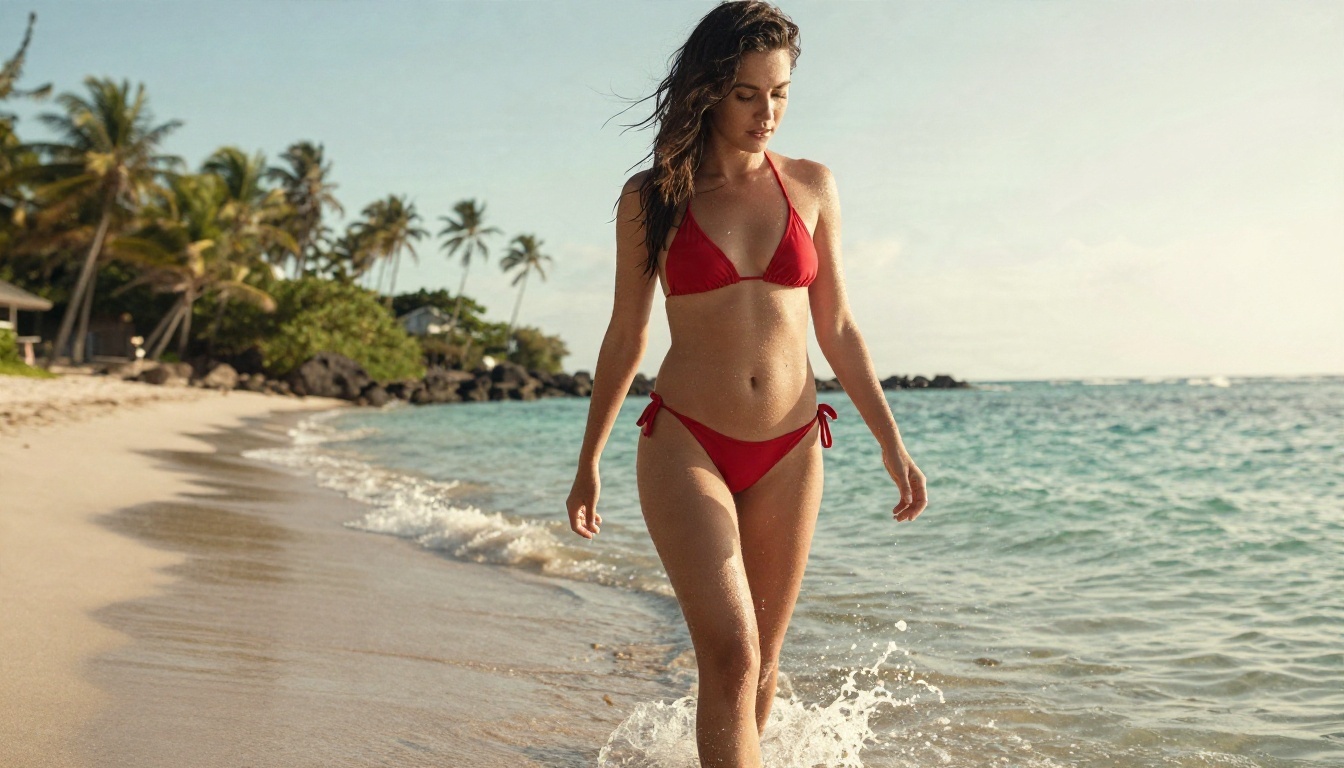
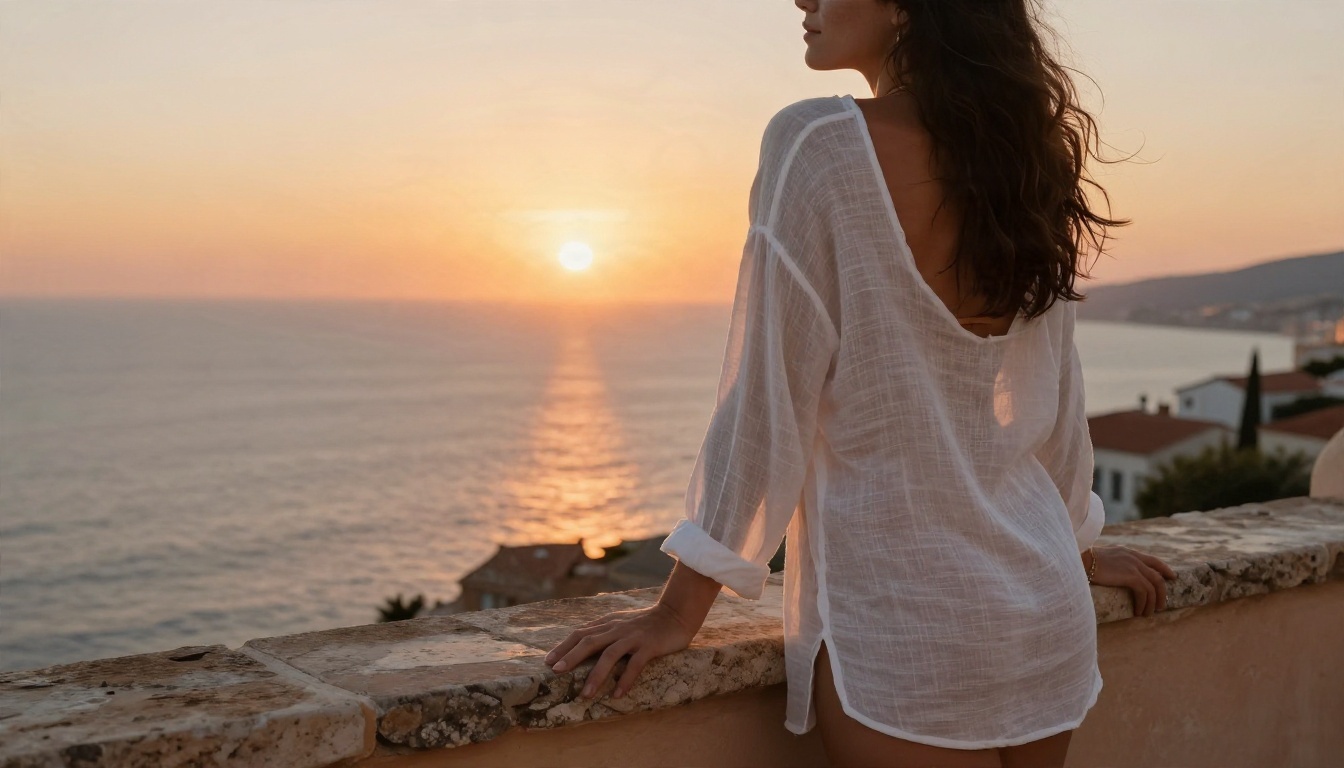
"Low-angle shot of a woman in a red string-tie bikini walking out of shallow turquoise surf onto wet sand, water droplets on tanned skin, wind lifting damp hair, empty tropical beach with palm trees, bright late afternoon sun from the right, 35mm f/2 lens, visible skin texture, fine film grain, Kodak Portra 400."
Swimwear is the easiest category to get right because the subject is clear and the lighting is naturally strong. Change the bikini color and the water tone for easy variety.
Boudoir and Bedroom Prompt
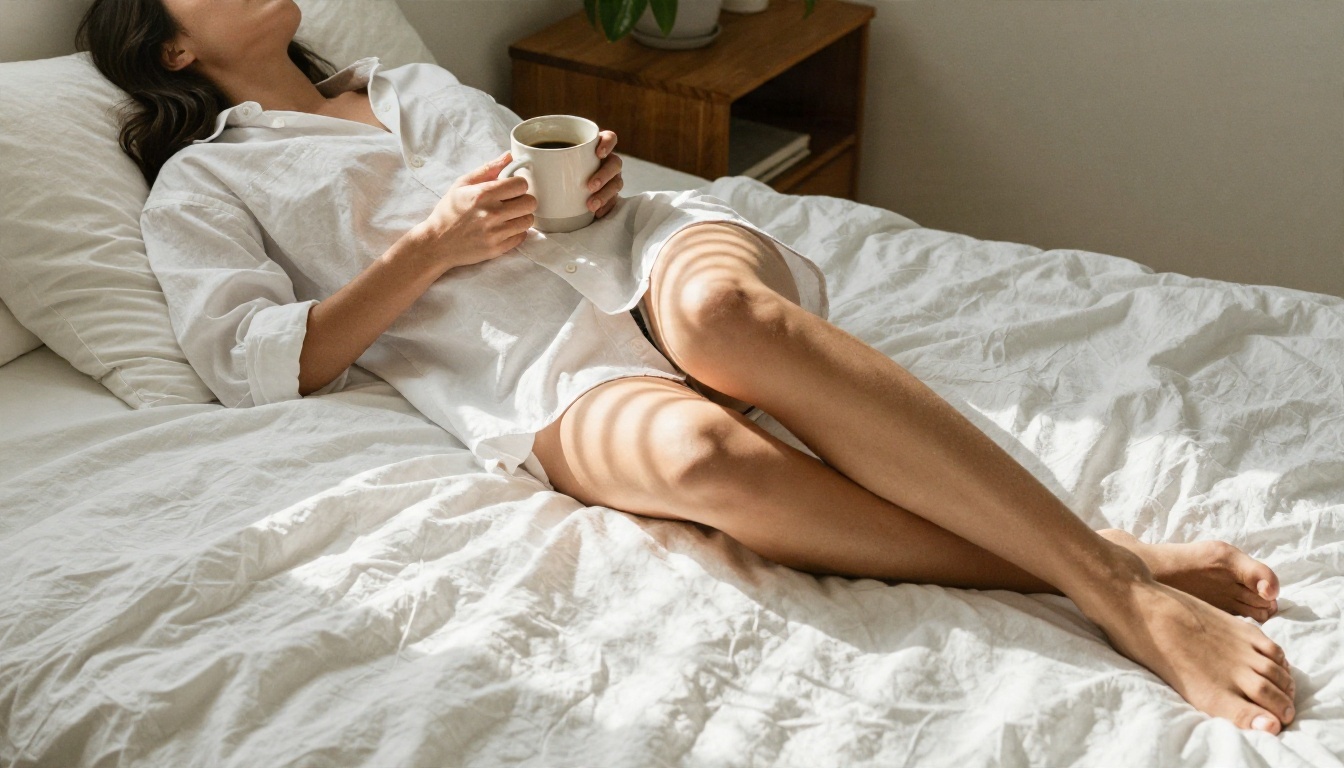
"High-angle shot of a woman lying on rumpled white linen sheets wearing an oversized white button-up shirt, holding a coffee mug, soft morning sunlight through half-open blinds casting striped shadows across the bed, 50mm f/1.8 lens, cozy bedroom, realistic fabric wrinkles, natural skin texture, Kodak Portra 400."
Boudoir works when the mood comes from light and fabric, not from skin alone. Window shadows, rumpled sheets and a relaxed pose give the picture a story.
Studio Fashion Prompt
"Full-length studio fashion photograph of a tall woman in a black long-sleeve bodysuit and high heels against a grey seamless backdrop, one hip popped, confident stare, single large softbox from the left plus a thin rim light from behind, deep sculpted shadows, 70mm f/2.8 lens, realistic fabric stretch, editorial magazine look."
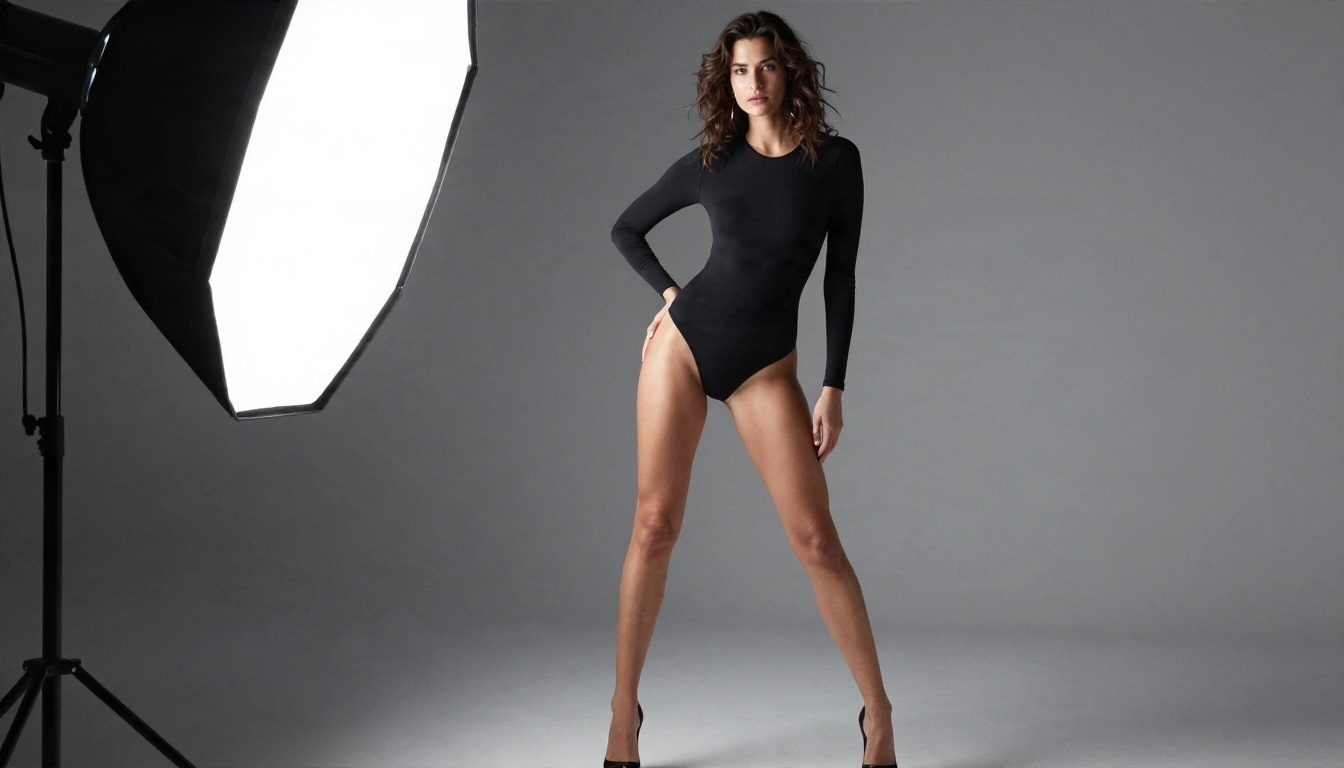
This format gives you control. A plain backdrop removes distractions, so any flaw in anatomy or fabric is easier to spot and fix in the next round.
Settings That Make the Difference
Prompts get the attention, but settings quietly decide whether a result looks professional.
Aspect Ratio and Resolution
Match the ratio to the scene. 16:9 suits beach, balcony and room-wide scenes. A tall portrait ratio suits full-body fashion. For close-ups, go square or slightly vertical and crop later. Always generate at the highest resolution available if you plan to crop, because cropping a low resolution image brings back the soft, smeared look.
Seeds and Iteration
If the model shows a seed field, use it. Lock the seed when you like the composition and change only the wording. That lets you test "red bikini" against "white bikini" without the whole scene rearranging. Unlock it when you want fresh variety.
💡 Workflow that saves time: draft in Z Image Turbo, finish in Seedream 4.5, and polish in PicassoIA Image Editor Pro.
Writing Prompts Without Negatives
Many modern models ignore long "avoid this" lists. State what you want instead. Write "natural skin with visible pores" instead of "no smooth skin." Write "five fingers, relaxed hand resting on the railing" instead of "no extra fingers." Positive phrasing is clearer for the model and for you.
Mistakes That Ruin Good Prompts
Stacking too many adjectives. "Stunning, gorgeous, perfect, ultra beautiful" adds nothing. One specific detail about light beats five compliments.
Skipping the camera. Without a lens and angle, the model picks a default that is often flat and frontal. Name the angle: low, high, over the shoulder, profile.
Mixing lighting sources. "Golden hour and neon and studio flash" confuses the scene. Pick one main source and, if needed, one soft fill.
Chasing explicit content. Models behave best when you describe fashion, mood and setting. Pushing for explicit material leads to refusals, distorted anatomy and lower quality output. Suggestive photography is stronger and more shareable anyway.
Using real people. Never prompt for or upload a real person's likeness without their consent. Fictional adult subjects only.
Quick Reference Checklist
Try Your Own Prompts Today
The best NSFW text to image model is the one that answers your prompt, looks real, and lets you try again without counting credits. For most people that means Seedream 4.5 first, then PicassoIA Image Editor Pro for unlimited refinement.
Pick one prompt from this article, paste it into Picasso IA, change the outfit and the light, and see what comes back. Run it ten times. You will have a better feel for the model after one evening than after reading ten reviews. When you want to test more options, browse every available model at picassoia.com/en/all-models and build your own shortlist.


