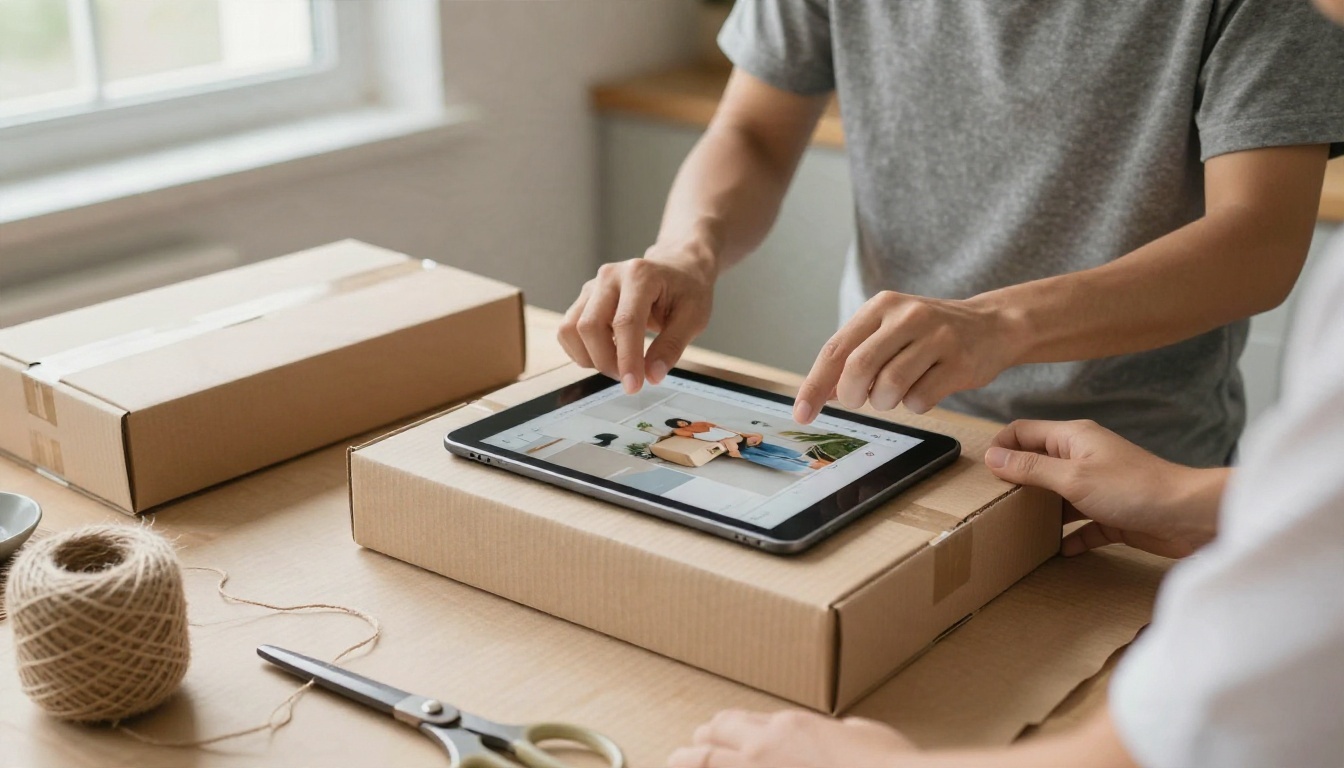
If you sell anything online, you have probably typed "Booth AI price" into a search bar hoping for one clean number. You will not find it as quickly as you would like. Booth AI is a product photography tool that places your item into AI-generated scenes, and its pricing is described differently depending on where you look. Some directories list a free plan, others say there is none, and a few simply tell you to contact sales.
That mess matters, because product photos are a volume game. One hero shot per item is rarely enough: you need a clean white background version, a lifestyle scene, a close-up, maybe a seasonal variant. If every download costs credits, the math changes fast.
This article sorts through what is actually known about Booth AI pricing, how its credit model behaves, where product photo limits tend to appear, and which alternatives let a small shop produce more images for less. I also walk through a practical workflow you can run today on PicassoIA.

What Booth AI Actually Does
The Basic Workflow
Booth AI sits in the "AI product photography" category. You upload a photo of your product, usually shot on a phone against a plain surface, pick or describe a scene, and the tool generates new images with your product placed into that setting. Think a candle on a rustic shelf, a bottle on a stone slab, or sneakers on a studio pedestal.
The appeal is obvious. A traditional product shoot means a photographer, a studio, props, and editing time. Even a small shoot can cost more than a month of software. An AI tool promises to replace most of that with a few clicks.
Who It Suits
It works best for sellers with simple, opaque products: mugs, bags, boxed goods, shoes, and candles. If your catalog is small and your goal is nicer marketplace thumbnails, the idea makes sense. It gets more complicated when you have hundreds of SKUs, transparent materials, or strict brand color requirements. That is where credit costs and output limits start to matter.
💡 Quick filter: Count how many finished images you need per month. Multiply by how many attempts it usually takes to get one you like. That number, not the plan name, is your real usage.
The Real Booth AI Price
What Listings Disagree On
Here is the honest picture. Software directories do not agree. Some list a free-forever tier with limited usage and no card required. Another says Booth AI is paid with no free plan. A third says the price is available on request. Several of those listings are dated, and some note that you should check the official site for current numbers.
Because of that, I will not pretend to quote exact plan prices. A number I printed today could be wrong next week. What can be said with reasonable confidence is the structure: Booth AI describes its subscriptions as a way to try different products and text prompts and only pay for the photos you decide to keep. Third-party reviews describe it the same way, with credits deducted when you download an image rather than when you generate it.
Credits Per Download
That credit-on-download design has a real upside. You can experiment with scenes and prompts without burning budget on every attempt. The downside appears when you need many final files. Every kept image is a spent credit, so a catalog of 200 products with four angles each is 800 credits before retries on anything you reject at the download stage.
| Pricing question | What is reported | What to do |
|---|
| Is there a free plan? | Directories disagree | Check the live pricing page before signing up |
| Are exact prices public? | Often described as sales-led or on request | Ask for a written quote if you have volume |
| When are credits spent? | Reported as on download | Preview freely, download only winners |
| Is there API access? | Reported for higher tiers | Needed only for automated catalog pipelines |
Free Credits: What to Expect
Trial Versus Free Plan
When people search for free credits, they usually mean one of two things. A free plan is a permanent allowance that refreshes. A trial is a one-time batch of credits that runs out and does not come back. Product photography tools tend to lean toward the second model, because image generation costs real compute and the vendor needs you to convert.
If you sign up for Booth AI and see free credits, treat them as a trial: enough to test two or three products, not enough to run a store. That is perfectly fine as long as you plan around it.
Making Free Credits Last
If you do get a small allowance, spend it with intention:
- Pick your hardest product first. If the tool fails on your glossy bottle, you want to know before you pay.
- Test one clean source photo. Sharp focus, even light, no clutter. Bad inputs waste credits.
- Write one specific scene description. "Warm wooden shelf, soft side light" beats "nice background."
- Compare against a free baseline. Run the same product through a free workflow so you can judge whether the paid output is actually better.
💡 Tip: Keep a simple spreadsheet with three columns: product, attempts, kept images. After a week you will know your true cost per usable photo.
Product Photo Limits That Hurt
Pricing is only half the story. The other half is what the tool can reliably produce. Every AI product photo generator has weak spots, and they tend to show up in the same places.
Glass and Reflections
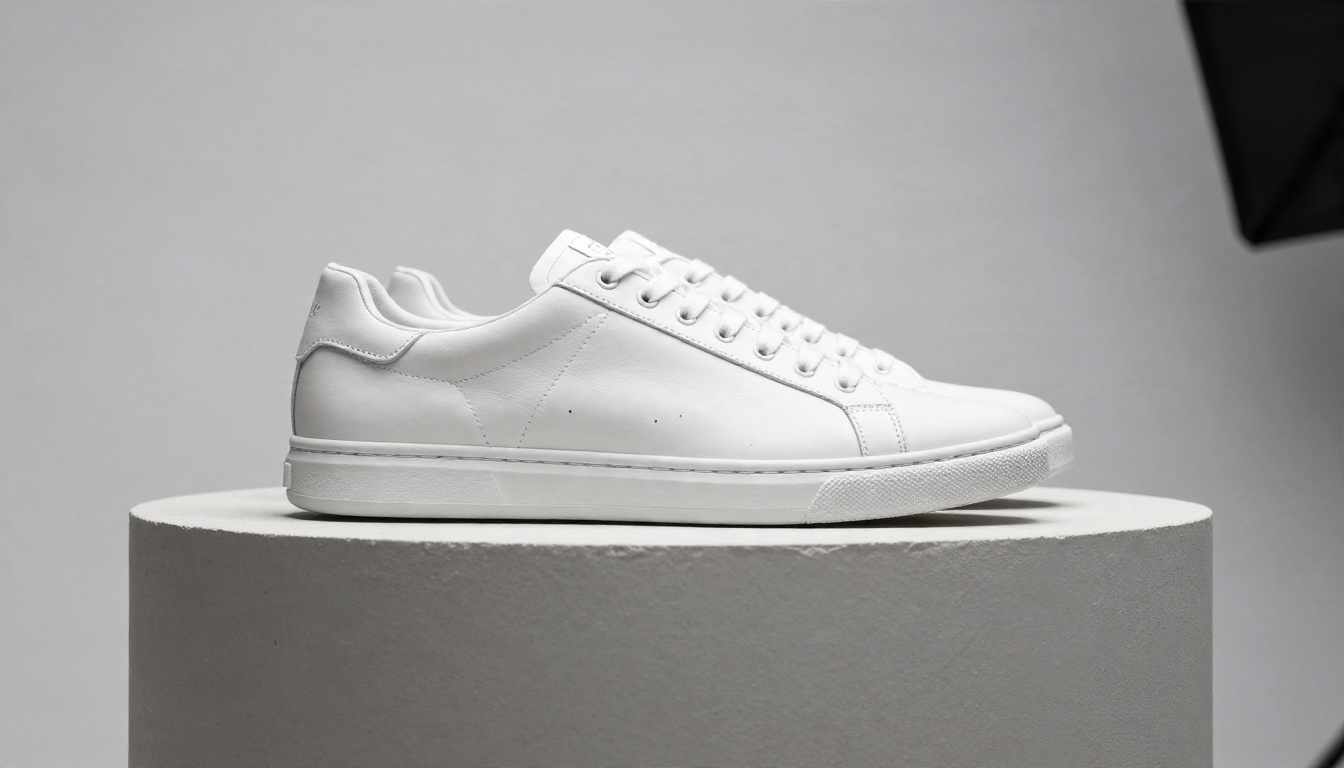
Perfume bottles, serum droplets, jars, and anything mirrored are the classic stress test. Real glass bends light, picks up reflections of the room, and shows thin edge highlights. When an AI scene tool drops a flat cutout of your bottle into a new setting, those reflections often do not match the new environment. The result looks pasted in, and shoppers notice even if they cannot say why.
Fine Details and Labels
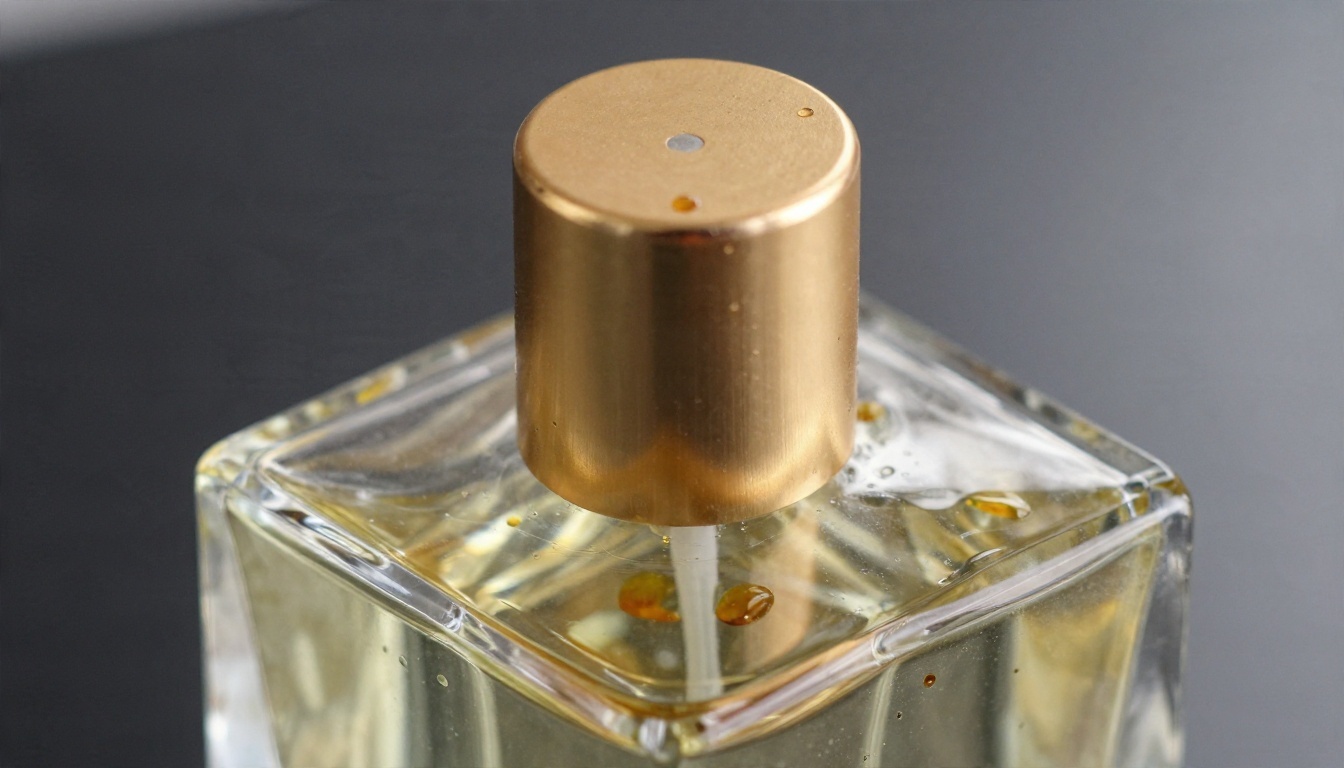
Small printed text, logos, stitching patterns, and barcodes are another weak area. Scene generators sometimes soften or subtly alter fine print. For a food label with ingredients, or a brand mark that must stay exact, that is a deal breaker. You cannot ship a product photo where the logo has drifted.
A safe habit: if your product has important text, keep the original product pixels intact and change only the background around it.
Consistency Across a Catalog
A shop needs a family of images that look like they belong together. Same lighting direction, same color temperature, same shadow softness. Generating each scene independently gives you variety, but variety is not what a product grid needs. Consistency is. If two similar items sit on very different backgrounds, the storefront looks scattered.
| Limit | Why it matters | Practical workaround |
|---|
| Glass and metal reflections | Looks pasted in | Use a simple, neutral background |
| Small printed text | Brand risk | Keep original product pixels |
| Style drift between items | Messy storefront | Reuse the same scene prompt |
| Resolution caps | Blurry zoom on marketplaces | Upscale final files |
Alternatives Worth Trying Instead
Booth AI is not on PicassoIA yet, so you will not find a page for it here. For similar results today, these four options on PicassoIA cover the same job: building clean, believable product images from a prompt or a reference photo.
Nano Banana Pro for Realistic Scenes
Nano Banana Pro is a strong pick when you want sharp, believable lighting and clean detail at high resolution. It handles reference-based editing well, so you can feed in a product photo and describe the setting you want around it. For small sellers, that is the closest match to the Booth AI workflow.
Seedream 4.5 for Crisp Detail
Seedream 4.5 produces 4K output with very good texture rendering. Wood grain, leather, ceramic glaze, and fabric weave all come through convincingly. It is a good fit for lifestyle scenes where the background carries the mood.
Image Editor Pro for Unlimited Edits
PicassoIA Image Editor Pro is built for iterative editing with unlimited generations. That removes the credit anxiety entirely: you can retry a scene ten times without watching a counter. For a seller who needs volume, this is the biggest practical difference from a pay-per-download model.
Product Cutout for Clean Backgrounds
Product Cutout isolates your item precisely, and Remove Background does a similar job for quick white-background marketplace shots. These tools matter because they let you keep your real product pixels, which protects logos and labels.
How to Get Similar Results on PicassoIA
The workflow below uses Nano Banana Pro as the main engine, with Product Cutout as an optional first step. It recreates what an AI product photo tool does: your real item, a new scene.
Step by Step
- Shoot a clean source photo. Use a phone, daylight near a window, and a plain surface. Keep the product sharp and fully in frame.
- Cut out the product (optional). Run it through Product Cutout if you want a transparent or white base.
- Open Nano Banana Pro from its model page and upload your product photo as the reference image.
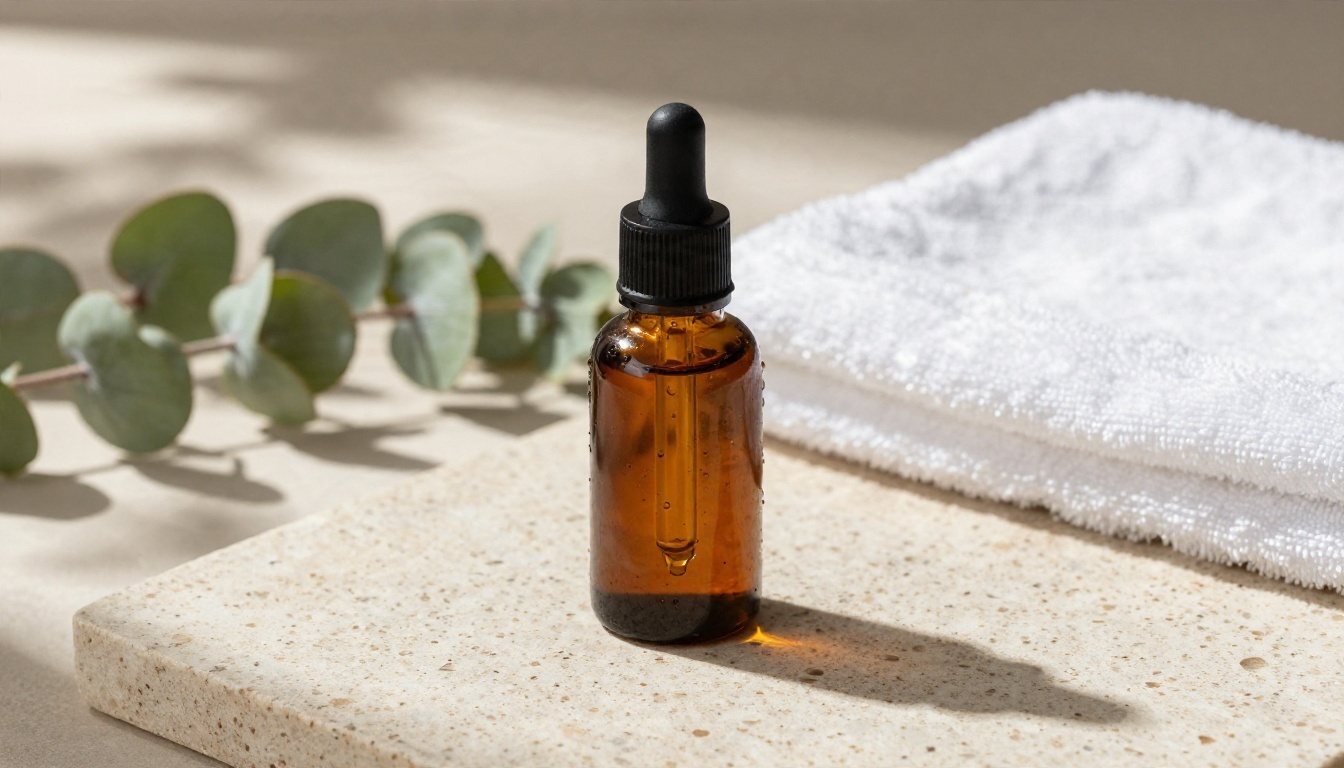
- Write a scene prompt. Name the surface, the light direction, the lens feel, and the mood. Example: "Serum bottle on a travertine slab, eucalyptus branch beside it, dappled afternoon light from the upper left, shallow depth of field, natural film grain."
- Generate, compare, and iterate. Change one thing at a time: the surface, the light, or the props.
- Upscale the winner if the marketplace requires large files.
Parameter Tips
- Aspect ratio: 1:1 for most marketplace grids, 4:5 for social feeds, 16:9 for banners.
- Light direction: Always name it. "Soft window light from the left" gives far more believable shadows than "good lighting."
- Keep props minimal: Two or three objects. More props mean more places for the model to drift.
- Reuse your prompt: Copy the exact same scene text for every item in a collection to keep the catalog consistent.
- Mention materials: "Brushed gold cap," "speckled ceramic glaze," and "full-grain leather" push the model toward real surface texture.
💡 Tip: For anything with small text, generate only the background and composite your original cutout back on top. Your label stays exact.
Cost Math for a Small Shop
Let us run a simple example. Say you sell 40 products and want three images each: a clean white shot, a lifestyle scene, and a close-up. That is 120 final images. If each final image takes an average of three tries to get right, you are making around 360 generations.
On a pay-per-download credit model, only the 120 kept files cost credits, which is a fair deal if previews are free. On an unlimited editing model, all 360 attempts cost nothing extra. The right choice depends on whether your bottleneck is budget or time.
| Scenario | Final images | Attempts | Best fit |
|---|
| Testing 2 or 3 products | 10 to 15 | 30 to 45 | Free trial credits |
| Small shop, 40 products | 120 | about 360 | Unlimited editing workflow |
| Growing catalog, 200+ products | 600+ | 1,800+ | Repeatable prompts plus batch retries |
Three Common Mistakes
- Judging by the first output. One weak result tells you about the prompt, not the tool.
- Skipping the source photo quality. A blurry input gives a blurry scene, every time.
- Ignoring resolution. A pretty image that pixelates when shoppers zoom will cost you sales.
Start Shooting Your Own Product Photos
Booth AI may be a fine fit if its credit model matches your volume and you confirm current pricing on its live page. But you do not have to pay per finished image to get believable product scenes. A clean phone photo, a clear scene prompt, and a model that renders light honestly will get most small shops to a catalog they are proud of.
Pick one product from your shelf right now, the one you think is hardest to photograph, and run it through Nano Banana Pro or PicassoIA Image Editor Pro. Try three different scenes. Compare them side by side. If you want to see everything else on offer, browse all PicassoIA models and build the workflow that fits your store.