You open Grok, type a prompt for a quick picture, and then wonder whether the button you just pressed is about to ask for your credit card. It is a fair worry. Can Grok free generate images? The honest answer is "sometimes, a little, and the rules keep moving." xAI has not published a single fixed number for free users, and the figures floating around the internet disagree with each other. This article sorts out what is reported, what is certain, what each paid tier costs, and what to use when you simply want images today without watching a counter.

The Short Answer
Here is the version you can screenshot.
- Free access exists in some form, but it is thin. Reports from the past months describe either a handful of images per day or a small number per rolling window of a couple of hours.
- Some sources say the free tier has no image allowance at all. Several third party pages claim image tools are limited to paying subscribers. Others say free X users still get a capped generator.
- xAI does not print an exact free quota. Limits are adjusted dynamically based on server load and demand, so the number you see on a Tuesday evening may differ from a quiet Sunday morning.
- Paid plans start around $10 a month and climb steeply from there.
💡 Reality check: When two reputable looking pages give opposite answers about a free tier, both can be right on different days. Treat any exact "X images per day" claim as a snapshot, not a promise.
Why the Answers Conflict
Three things make this topic messy. First, Grok image generation lives inside several surfaces: the Grok website, the mobile app, and the X platform. Each has had its own access rules at different times. Second, xAI renamed and reshuffled its image tooling, so older articles describe a product that no longer behaves the same way. Third, many "daily limit" pages are written by companies that sell an alternative, which gives them a reason to make free access sound as small as possible.
What Is Certain
Very little is fixed, but a few points hold up across sources. Free usage is rationed. Paid usage is rationed too, only more generously. And since mid 2026 several reports say paid plans moved toward one shared weekly usage pool, which means images, chat and other features draw from the same bucket instead of having separate daily counters.
What the Daily Limits Look Like
A "daily limit" sounds simple, but in practice it behaves like a leaky bucket. You get a few generations, the meter fills, and then you wait. How long you wait depends on the plan and on the moment.
Free Tier Behavior
Community reports describe the free experience in roughly three ways:
- About three images per day, a figure repeated in several guides.
- Around ten generations per two hour window, which feels more generous but resets on a rolling clock.
- Zero images, with a prompt to subscribe the moment you ask for a picture.
Which one you hit can depend on your region, your account age, whether you log in through X or directly, and how busy the servers are. If you are testing right now, expect the low end and be pleasantly surprised if you get more.
Paid Tier Behavior
Paid users get a bigger allowance, though still not an unlimited one. One page cites around 200 images a day on the main SuperGrok plan, while another points out that real delivery can fall below the advertised figure. The cheapest paid tier reportedly allows a small single digit number of images per day. With the shift to shared weekly pools, the cleanest way to think about it is this: you buy a larger bucket, and images are one of several things that drain it.
Resets and Cooldowns
Reset timing is where users get frustrated. A rolling window means your first image from this morning frees up space at a different moment than your fifth one. If you batch ten prompts in a row, you may be locked out for hours. Spreading prompts out, or switching tools when you hit the wall, is the practical workaround.
💡 Tip: Keep a plain notebook of when you hit the cap. After three or four sessions you will see the real reset pattern for your account, which is more reliable than any blog post.
What Grok Costs Per Month
Pricing also shifts, but most 2026 sources agree on the broad tiers.
| Plan | Reported monthly price | What you get (reported) | Best for |
|---|
| Free | $0 | Chat access, small and variable image allowance | Trying it once or twice |
| SuperGrok Lite | About $10 | Low cost entry to paid features, small image count | Light casual use |
| SuperGrok | About $30 | Larger limits, priority access, more images | Regular creators |
| SuperGrok Plus | About $100 (reported) | Much higher usage pool | Heavy daily users |
| SuperGrok Heavy | Reported near $300 | Top tier access, early features | Teams and power users |
The X Premium Plus route has also been a way to reach Grok features, with its own pricing and limits that change from time to time. Check the current plan page inside the Grok app before paying, since promotions and tier names rotate.
Is $30 a Month Worth It for Images?
If images are only a side feature for you, probably not. You would be paying for a chatbot, research tools and a large language model, and the image allowance is one slice of that. If you generate pictures every day for client work, the monthly cost per image can still look fine, but you also inherit the usage pool behavior described above.
Hidden Costs to Watch
- Weekly pooled usage: a long chat session can eat into your image budget.
- Variable limits: you cannot predict how many pictures you will get on a busy day.
- Subscription creep: the tier that fits your needs this month may not fit next month.
Free vs Paid at a Glance

| Factor | Free Grok | Paid Grok | Open model platform |
|---|
| Image count | Small, unpredictable | Larger, still capped | Depends on the model and plan |
| Wait after cap | Hours | Hours to days | Usually none while credits remain |
| Model choice | One | One | Dozens of models |
| Photorealism control | Limited | Limited | High, pick the model for the look |
| Editing tools | Basic | Basic | Upscale, background removal, more |
The real gap is not price. It is choice. A single in house model means a single visual personality. If it nails a portrait but struggles with your product shot, you have nowhere else to go inside the app.
How to Use Grok Imagine Image 2 on PicassoIA
Here is something many people miss: you do not need a Grok account to use xAI's image models. Grok Imagine Image 2 is available on PicassoIA, and so is Grok Imagine Image Quality, which targets 2K output. This is the model family, not the chatbot app, so you work with it as a straightforward text to image tool without chat limits or a shared usage pool.
Step by Step
- Open the model page for Grok Imagine Image 2 on PicassoIA.
- Write your prompt with a clear subject, setting, light and lens. Example: "Candid photo of a ceramic artist glazing a bowl in a sunlit studio, soft window light from the left, 50mm lens, shallow depth of field."
- Choose the aspect ratio that matches where the image will live: 16:9 for blog headers, 1:1 for social posts, 9:16 for stories.
- Generate, then compare. Run two or three variations by changing only one detail at a time, such as the light direction or the camera distance.
- Switch to the Quality variant when you want a more detailed 2K result for the final version.
- Upscale or edit if needed using the other tools on the platform.
Parameter Tips
- Keep prompts specific, not long. Two or three concrete details about light and lens beat a paragraph of adjectives.
- Name the camera feel. Phrases like "35mm f/2" or "85mm portrait lens" nudge the model toward believable depth of field.
- Use the same seed or wording when you want a consistent look across a set.
- Iterate in small steps. Change one thing per run so you can tell what caused the difference.
💡 Pro move: Draft with the standard model, then rerun your best prompt on the Quality variant. You save time on the experiments and only spend effort on the final pick.
Best Free Alternatives Today
If your main frustration is the wall after a few images, these models on PicassoIA give you different strengths to rotate between. Check each model page for its current access options.
| Model | Strength | Good for |
|---|
| Nano Banana Pro | 4K output, strong prompt following | Detailed scenes, edits |
| Seedream 4.5 | Sharp 4K images, natural color | Portraits, product visuals |
| Imagen 4 | Photorealistic detail | Lifestyle and landscape photos |
| Z Image Turbo | Very fast generation | Rapid drafts and ideas |
| Imagen 4 Fast | Quick results with clean quality | Batch testing |
Nano Banana Pro for Detail
Nano Banana Pro is the one to reach for when you want crisp detail and a model that follows complicated instructions without ignoring half of them. It also handles edits to an existing photo, which a capped chatbot rarely does well.
Seedream 4.5 for Natural Looks
Seedream 4.5 produces clean 4K frames with skin tones and fabrics that look photographed rather than painted. It is a strong default for people shots and product images.
Imagen 4 for Photoreal Scenes
Imagen 4 leans toward realistic light and texture. For landscapes, interiors and street scenes, it often needs less prompt effort to look believable. If you need volume, Imagen 4 Fast trades a little polish for speed.
Z Image Turbo for Speed
Z Image Turbo is built for quick turnaround. When you are still hunting for a concept, ten fast drafts teach you more than two slow ones.
Prompt Tips for Sharper Results
Whatever model you use, a limited number of generations rewards careful prompts. If you only get a few shots, make each one count.
Build the Prompt in Layers
Think of the prompt as a short shot list:
- Subject and action: who or what, doing what.
- Environment: where, with two or three concrete props.
- Light: direction, time of day, soft or hard.
- Camera: lens length, angle, depth of field.
- Texture and mood: skin, fabric, film grain, atmosphere.
Avoid These Common Mistakes
- Stacking style words. "Cinematic, epic, ultra, masterpiece" adds noise. One clear photographic reference does more.
- Forgetting the light. Without a light direction, many models default to flat, even lighting that looks synthetic.
- Cramming text into the image. Keep any in image text to one or two short words.
- Changing everything between runs. You will never know which change helped.
A Prompt That Works Everywhere
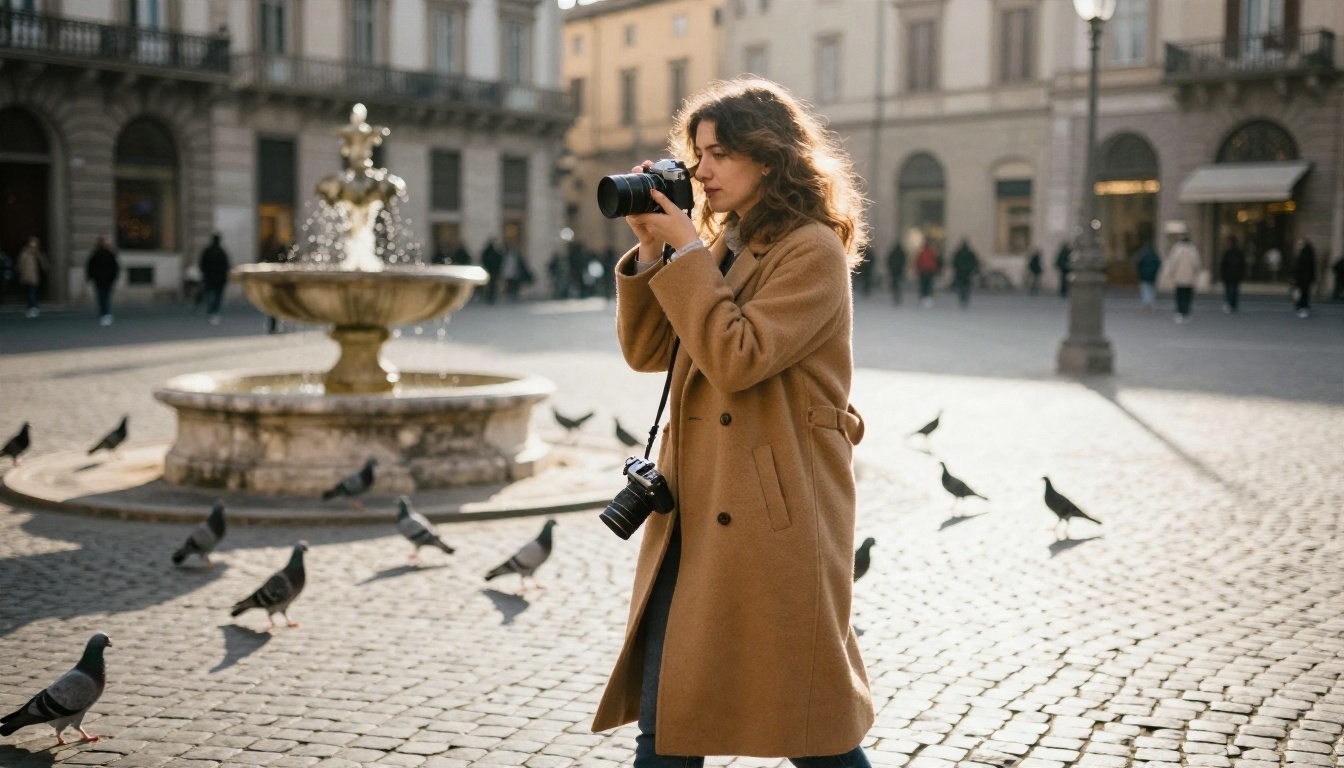
Here is a template you can paste into any of the models above and tweak:
Candid photograph of [subject] [doing action] in [place], [time of day] light from the [direction], 50mm f/1.8 lens, shallow depth of field, natural skin and fabric texture, subtle film grain, realistic colors.
Swap the brackets, keep the structure, and you will get consistent, believable frames across different models. That consistency is what makes switching tools painless when one of them runs out of daily allowance.
When to Pay and When to Skip
Pay for a Grok plan if you already rely on its chat, research and reasoning tools every day and images are a bonus. Skip it if pictures are your main goal. A dedicated image platform gives you more models, more control and no shared pool quietly shrinking while you write emails with the chatbot.
Make Your First Image Today
You now know the situation: Grok free image access is real but small, the exact daily limit is not published, paid plans start near $10 a month and rise quickly, and the usage rules keep changing. You also know you do not have to wait for a reset to keep creating.
Open Picasso IA, pick a model from the full model list, and run the prompt template above. Start with Grok Imagine Image 2 if you like the xAI look, compare it with Seedream 4.5 or Nano Banana Pro, and keep the version that matches your idea best. Five minutes of side by side testing will tell you more than any article, including this one.