Yes, Stable Diffusion can produce NSFW images, but only in some situations. The open weights have no built-in moral compass, the official code ships a safety checker you can switch off, and nearly every hosted website adds its own moderation on top. That is why one person says "it blocks everything" and another says "it has no limits". They are both right, because they are talking about different setups.
This article sorts it out. You will see exactly where the filters live, which versions behave differently, what free community models people run at home, and which online alternatives give you suggestive, glamour-style results in seconds without installing anything. Everything here stays at the non-explicit end: bikinis, lingerie, boudoir portraits, fashion editorials and artistic sensuality.
The Short Answer
What NSFW Means in Practice
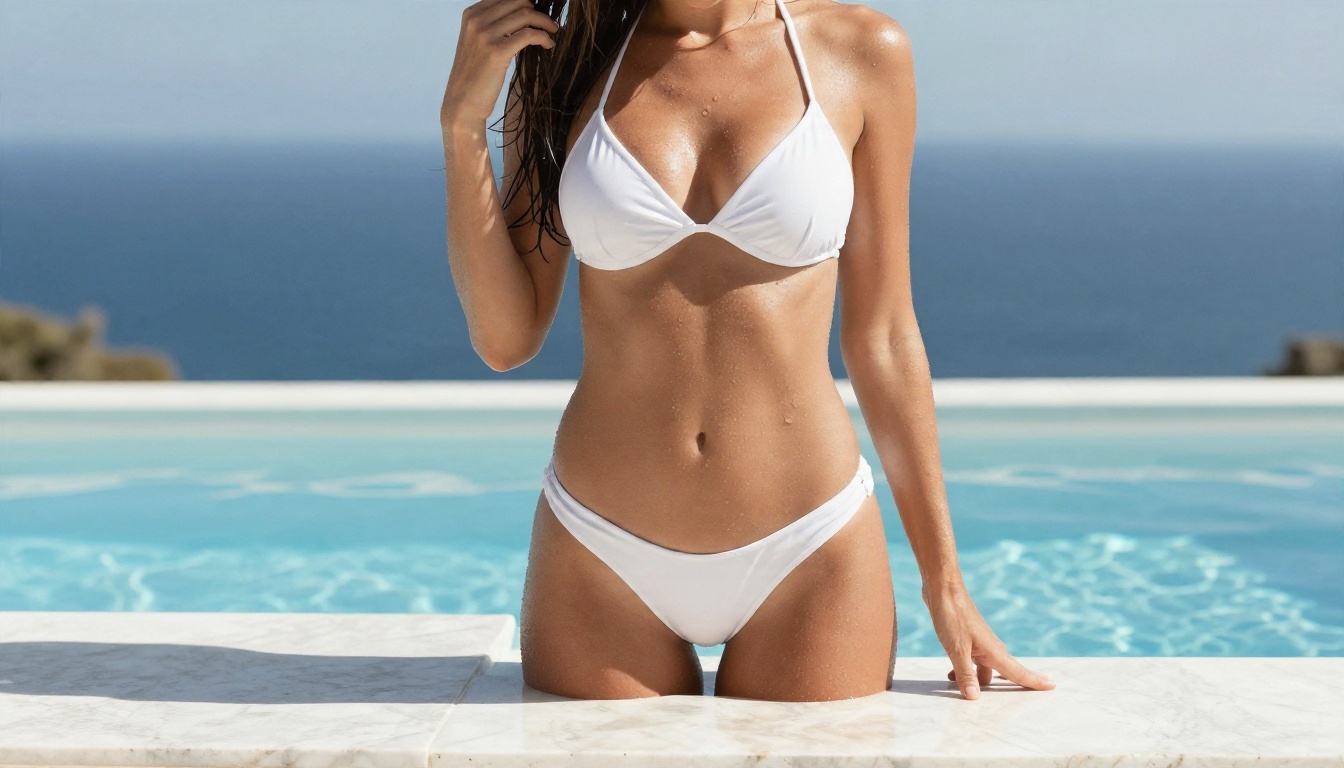
"NSFW" covers a wide range. At one end you have swimwear shoots, lingerie campaigns and boudoir portraits, the kind of images that appear in fashion magazines. At the other end sits explicit material. Most filters, and most platform rules, draw a line somewhere between the two.
For this article, the useful question is narrower: can Stable Diffusion render a suggestive, attractive portrait of an adult without refusing or blurring the result? The answer is yes, in the right setup.
Why the Answer Depends on Where You Run It
Stable Diffusion is not one product. It is a family of open-weight models (1.5, 2.x, XL, 3, 3.5) that people run in very different ways:
- On your own computer, with the safety checker off or never installed.
- Inside a hosted app, where the company adds prompt filters and output scanners.
- Through an API, where moderation is usually mandatory.
The model itself is only one layer. The wrapper around it decides what you actually see.
💡 Quick rule: if an image is blurred, blacked out or replaced with a warning, a filter layer fired. It is rarely the base model saying no.
How Stable Diffusion Filters Work
The Safety Checker
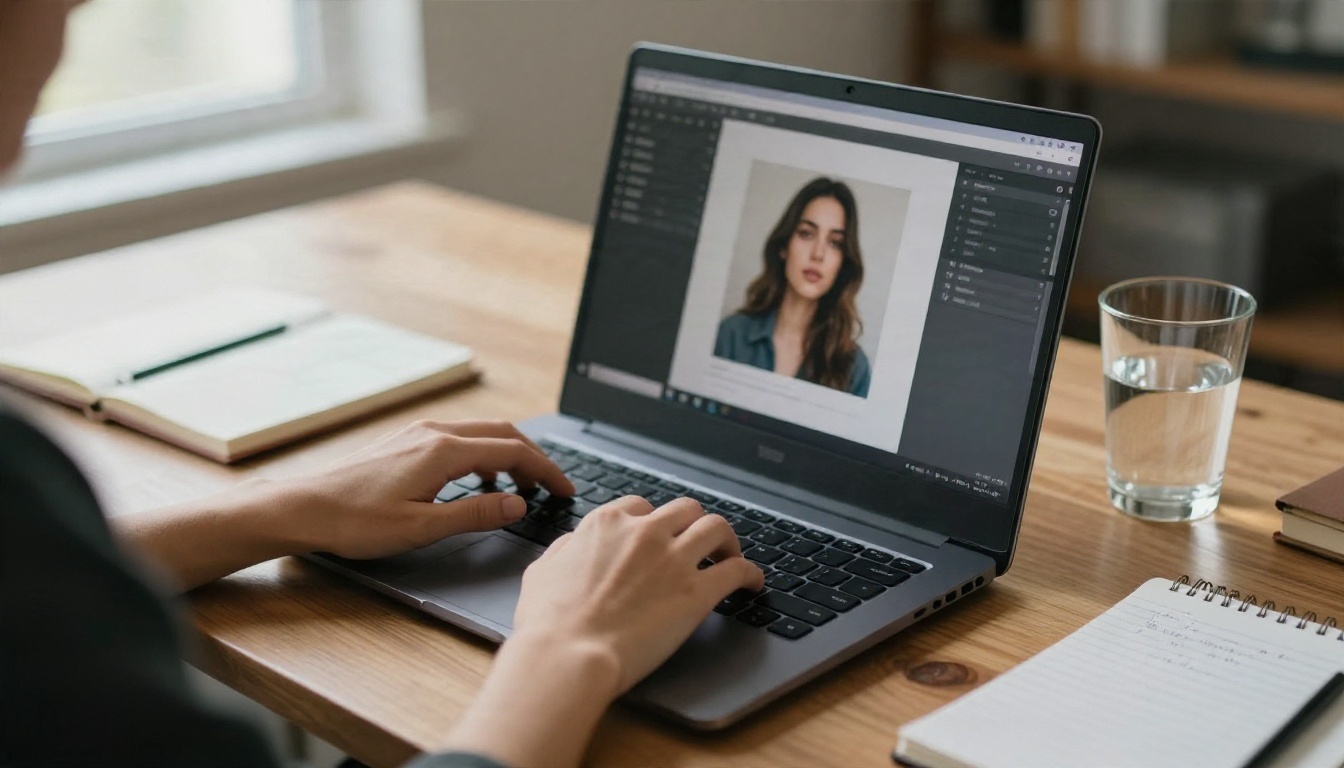
The early public releases came with a safety checker inside the standard Python pipeline. After an image is generated, a small classifier compares it with a set of flagged concepts. If it matches, the output is replaced with a black or blurred frame.
Two details matter here:
- The checker is a separate component. It is not baked into the weights.
- Because the weights are open, anyone can run the model without it. Many local interfaces simply expose a toggle.
This is the main reason people say Stable Diffusion "has no filter". It has one, but it was always optional.
Training Data Filtering
A second kind of filtering happens before you ever type a prompt. With the 2.x generation, the training data was screened with an adult-content detector, and the result was a model that struggled with human anatomy and portraits. A large part of the community stayed with the 1.5 generation because of it.
The 3.x line saw a similar debate. After the launch of Stable Diffusion 3 Medium, many users complained about distorted bodies and hands, and heavy dataset filtering was widely blamed as one reason. The lesson: a model trained with fewer adult or body-focused images tends to draw people less convincingly, even for fully clothed subjects.
That is why the community did not simply move to each new official release. Many creators kept the older, more flexible versions and trained their own variations.
Hosted Platform Moderation
When you use a website or an API, a third layer appears:
- Prompt filters that reject certain words before generation.
- Output classifiers that scan the image after generation.
- Account rules that can limit or suspend users.
Even the official hosted services from the model's creator apply this kind of moderation. So "Stable Diffusion online" and "Stable Diffusion on my own GPU" can behave in opposite ways with the same prompt.
| Layer | Where it lives | Can you change it? |
|---|
| Safety checker | Pipeline code | Yes, when running locally |
| Training data filter | Inside the weights | No, only a new fine-tune helps |
| Prompt filter | Hosted website or API | No |
| Output classifier | Hosted website or API | No |
Free Models You Can Run Locally
Checkpoints and LoRAs
The open-weight world around Stable Diffusion is huge. Community members publish checkpoints (full fine-tuned models) and LoRAs (small add-ons that nudge style, face or clothing). Sites such as Civitai host thousands of them, and many SDXL-based checkpoints are openly labelled as unfiltered or adult-oriented.
Typical local interfaces include AUTOMATIC1111, Forge and ComfyUI. In these tools, the safety checker is either absent or a setting you control.
Common choices people mention:
- SD 1.5 fine-tunes for photoreal portraits and lightweight hardware.
- SDXL fine-tunes for higher resolution and better hands.
- Anime-leaning SDXL derivatives such as Pony and Illustrious style models, which are popular but outside the photoreal look this article focuses on.
If you want a photoreal base without downloading anything, the hosted Stable Diffusion and Realistic Vision v5.1 pages give you a quick preview of what that style looks like.
Hardware You Need
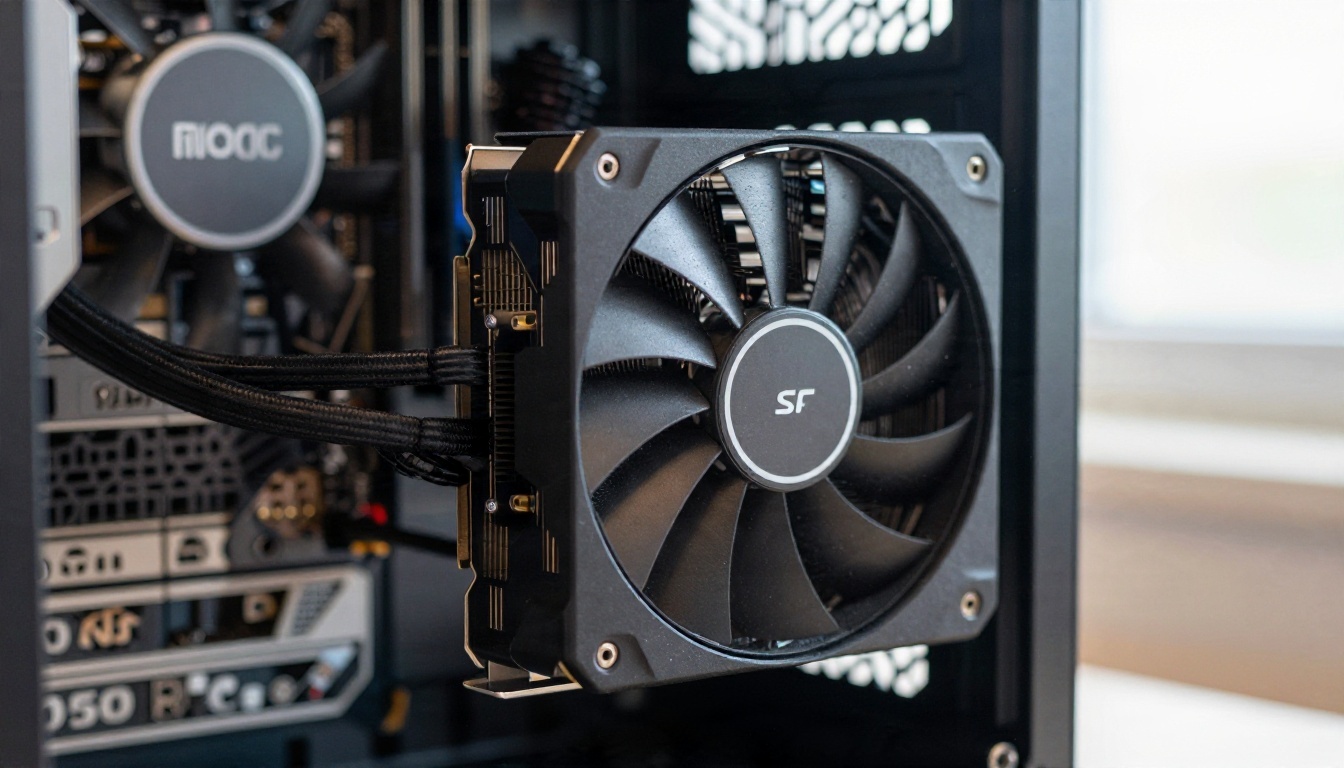
Local generation is free in terms of money, but not in terms of hardware. These are rough, real-world ranges:
| Model family | Comfortable GPU memory | Typical speed on a mid-range card |
|---|
| SD 1.5 | 6 GB | A few seconds per image |
| SDXL | 8 to 12 GB | 10 to 30 seconds per image |
| SD 3.5 Large | 16 GB or more | Slower, often needs optimization |
If your computer has no dedicated graphics card, local generation becomes painfully slow. That is the moment most people switch to an online tool.
Risks of Downloaded Files
Free does not always mean safe. A few habits will save you trouble:
- Prefer files in the safetensors format. Older pickle-based files can run code when loaded.
- Read the license of every model. Some forbid commercial use.
- Keep your drivers and interface up to date.
- Never use a model to depict a real person without their consent. That is both a legal and a personal-safety problem.
💡 Reality check: removing a filter does not remove the law. Content involving minors, non-consensual imagery or deepfakes of real people is illegal in many places, and every model license forbids it.
Online Alternatives Without Setup
If you want attractive, suggestive results but not the install headaches, hosted models are the faster path. The best ones are the ones that handle skin, fabric and light naturally, because that is what makes a glamour image believable.
Start With Seedream 4.5
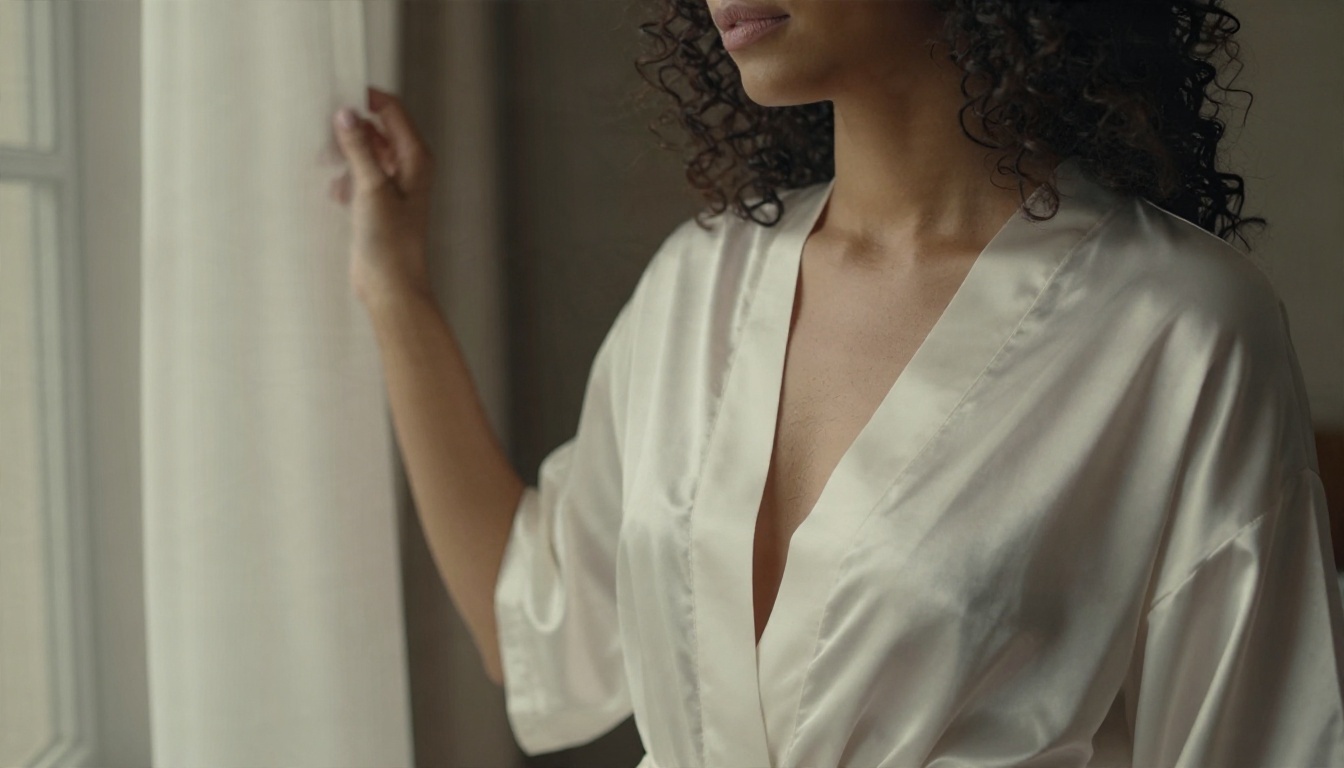
Seedream 4.5 is the model to try first for suggestive, photographic work. It renders skin texture, satin, lace and soft window light with a level of detail that older Stable Diffusion checkpoints often need extra LoRAs to reach. It also handles hands and faces cleanly, and it outputs sharp, high-resolution frames quickly.
Why it works well for glamour prompts:
- Natural skin with pores and subtle highlights instead of a plastic look.
- Fabric realism for satin, silk, lace and knitwear.
- Fast results, so you can iterate on pose and lighting in minutes.
- Fewer refusals on bikini, lingerie and boudoir style subjects.
PicassoIA Image Editor Pro
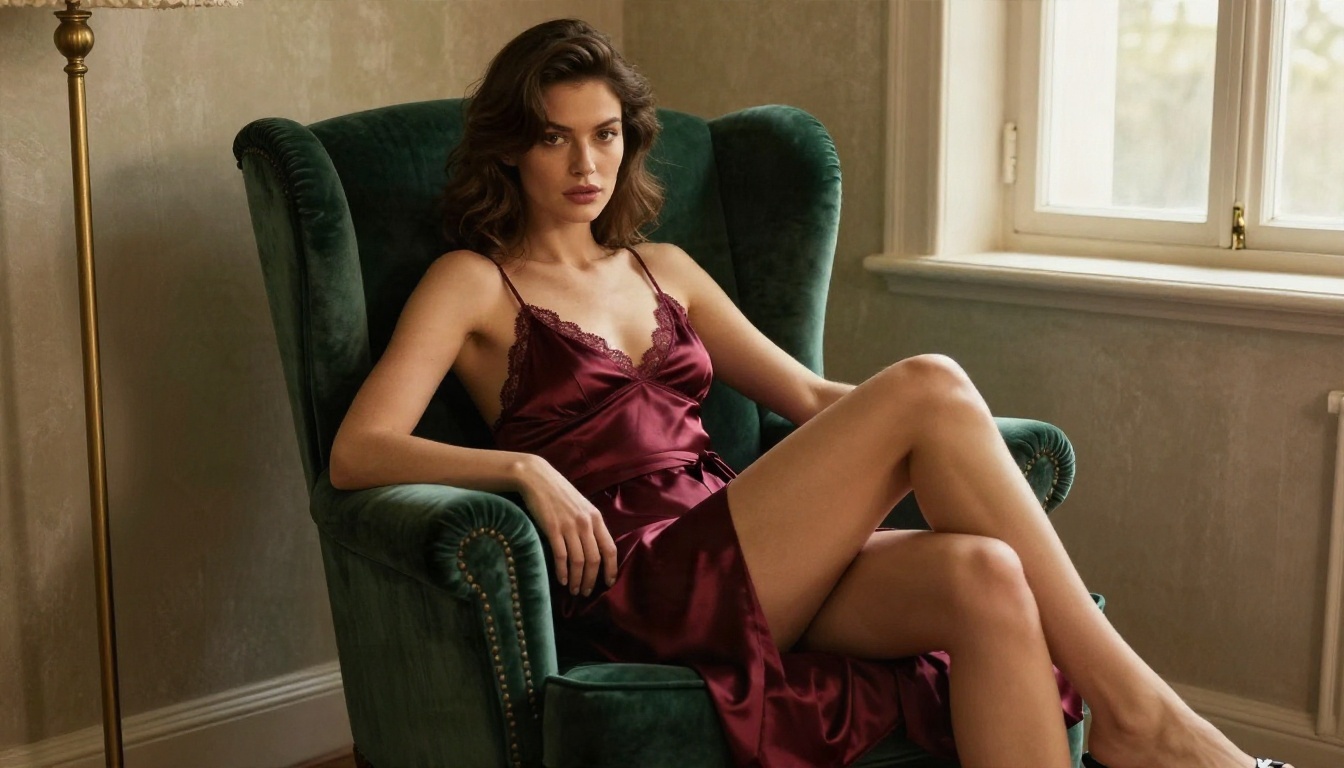
PicassoIA Image Editor Pro is the second stop. It works as an AI photo editor with unlimited generations, which matters when you are refining one idea over many attempts. You can change an outfit, swap a background, fix lighting or adjust a pose without paying per attempt.
Use it when you already have an image you like and want to push it further: a different dress colour, a warmer light, a new location. Pairing it with Seedream 4.5 gives you a strong loop. Generate a base portrait, then edit freely.
Other Photoreal Options
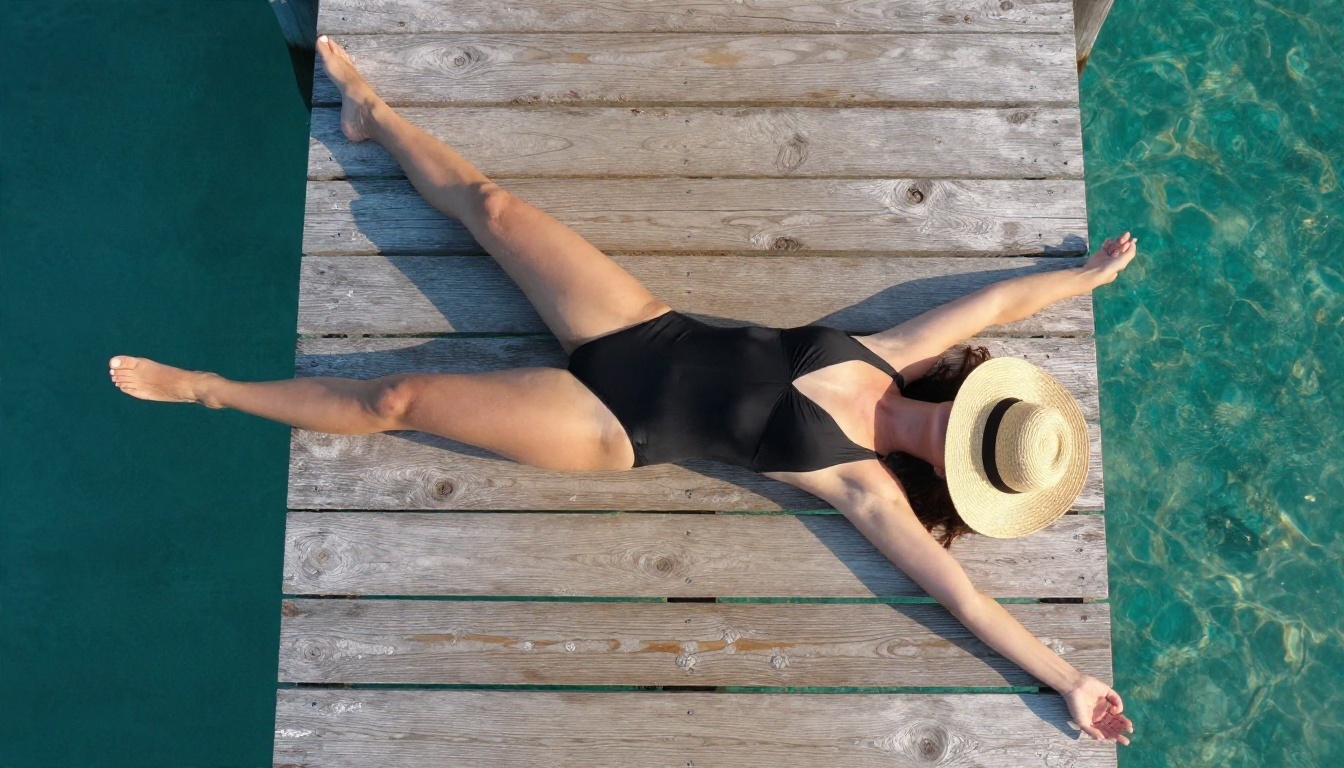
Once you have tried those two, a few more models are worth testing for glamour and fashion style images:
| Model | Best for | Link |
|---|
| Seedream 4.5 | Realistic skin, fabrics, fast iterations | Open page |
| PicassoIA Image Editor Pro | Unlimited edits and outfit changes | Open page |
| Realistic Vision v5.1 | Classic Stable Diffusion photoreal portraits | Open page |
| Flux 2 Klein 9B Base LoRA | Styled looks with LoRA control | Open page |
| Qwen Image 3 | Clean photographic scenes and lighting | Open page |
For a bigger menu, the full catalog lives at picassoia.com/en/all-models.
How to Use Stable Diffusion on PicassoIA
If you like the Stable Diffusion look but do not want to install anything, you can run it straight from the browser. The Stable Diffusion model page is the simplest entry point, and the newer Stable Diffusion 3.5 Large and Stable Diffusion 3.5 Medium pages give you the modern versions. For a more speed-focused option, there is also Stable Diffusion 3.5 Large Turbo.
Step by Step
- Open the model page and choose the version that fits your goal: the base model for a classic look, 3.5 Large for detail, Turbo for speed.
- Write a photographic prompt. Start with the subject, then the clothing, the setting, the light and the camera. Example: "woman in a cream silk slip dress by a tall window, soft morning light from the left, 85mm lens, shallow depth of field, natural skin texture, film grain."
- Add a negative prompt if the field is available. Terms like "blurry, extra fingers, distorted hands, plastic skin, text, watermark" reduce common flaws.
- Pick a 16:9 or portrait ratio depending on where the image will be used.
- Generate, compare and change one thing at a time. Move the light, swap the outfit, or tweak the seed.
- Refine in an editor. Send your favourite result to PicassoIA Image Editor Pro for outfit, background or lighting changes.
Parameter Tips
| Setting | Suggested starting point | Why |
|---|
| Steps | 25 to 35 | More steps add detail, with diminishing returns |
| Guidance scale | 5 to 8 | Lower is looser, higher follows the prompt strictly |
| Seed | Fixed while testing | Lets you compare changes fairly |
| Aspect ratio | 16:9 or 3:4 | Match the final use |
Prompt Habits That Work
- Name the light direction. "Window light from the left" beats "good lighting".
- Describe texture. Satin sheen, linen weave, freckles and pores push realism.
- Pick a lens. "85mm f/1.8" gives portrait compression, "35mm" gives context.
- Keep it tasteful. Suggestive prompts built around fashion words (editorial, boudoir, swimwear shoot) usually give better, cleaner results than blunt ones.
💡 If a result looks stiff, add one emotional cue, such as "relaxed half smile" or "looking over her shoulder". Natural expression matters more than extra adjectives.
Rules You Should Follow
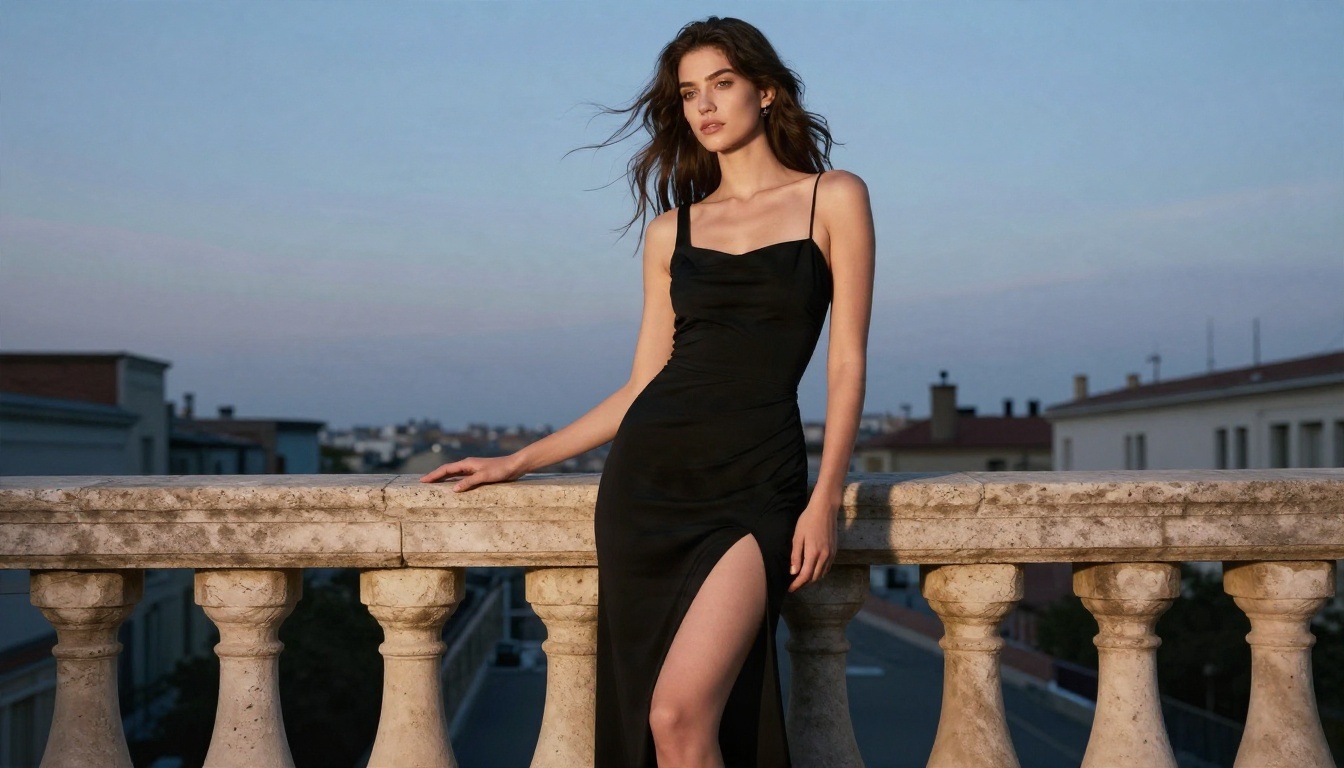
Adult-style imagery comes with real responsibilities. These are non-negotiable:
- Adults only. Every subject must be clearly an adult. No exceptions, no ambiguity.
- No real people without consent. Do not create images of a real person, a celebrity or an acquaintance in suggestive scenes.
- Respect platform terms. If a site blocks something, do not try to trick the filter.
- Be careful where you share. Social networks, ad platforms and payment processors each have their own limits.
- Check licenses before using images commercially.
Following these keeps your work legal, keeps accounts safe and keeps the tools available for everyone.
Local or Online: Which Should You Pick?
Here is a side-by-side view to settle the decision.
| Factor | Local Stable Diffusion | Online models on PicassoIA |
|---|
| Cost | Free software, hardware required | No hardware to buy |
| Setup time | Hours | Seconds |
| Filter control | Full control over the checker | Platform rules apply |
| Photoreal quality | Depends on checkpoint and LoRA | High out of the box |
| Speed | Depends on your GPU | Fast on any device |
| Maintenance | Updates, drivers, file safety | None |
Choose local if you enjoy tinkering, own a strong GPU and want total control over every component. Choose online if you want polished glamour results quickly, on a laptop or a phone, with no installs. Many creators do both: they experiment locally, then use hosted models like Seedream 4.5 for the final polished image.
Try It Yourself Today
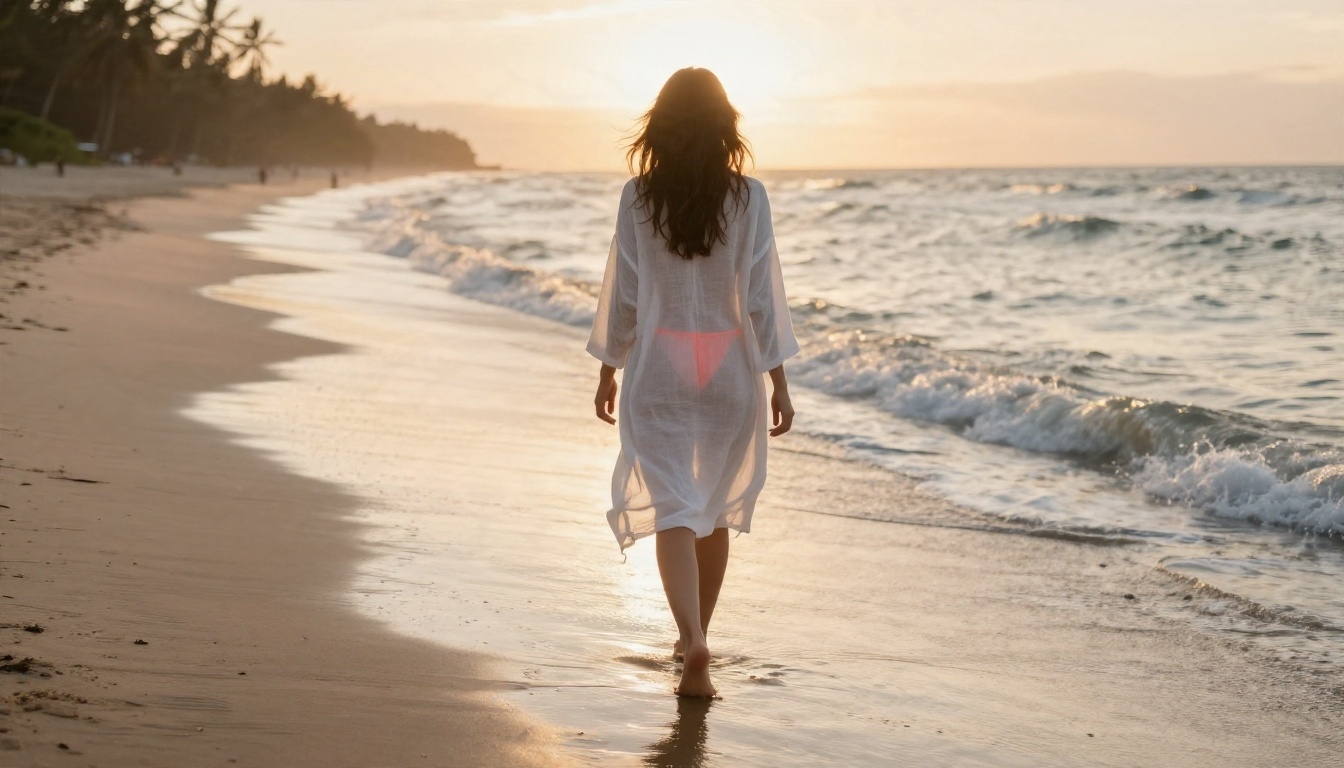
So, can Stable Diffusion do NSFW? Yes. The open weights allow it, the safety checker can be removed locally, and a huge community has built models for it. But you pay for that freedom with setup time, hardware and responsibility, and hosted versions come with their own rules.
If you would rather skip all that, open Seedream 4.5 and type your first prompt: a swimwear shoot on a terrace, a satin robe by a window, a boudoir portrait in warm evening light. Then bring the result into PicassoIA Image Editor Pro and keep refining with unlimited generations. When you want more choices, browse everything at picassoia.com/en/all-models, and start creating your own images on Picasso IA today.


