You typed a perfectly reasonable glamour prompt into ChatGPT, hit enter, and got a polite refusal. Or worse, an image that looks nothing like what you described, with extra clothing added and the mood drained out of it. You are not doing anything wrong. ChatGPT is built with strict adult content filters, and those filters are blunt. This article shows you which prompt examples still get through, which settings are worth checking, how to fix the most common "not working" errors, and where to go when you want more freedom than ChatGPT will ever give you.
What ChatGPT Actually Allows
Let's start with the honest part. ChatGPT's image generation will not produce explicit sexual imagery, full stop. Suggestive fashion, swimwear, boudoir style portraits and glamour photography sit in a gray zone where results depend on wording, the day, and sometimes pure luck.
The Adult Mode Story
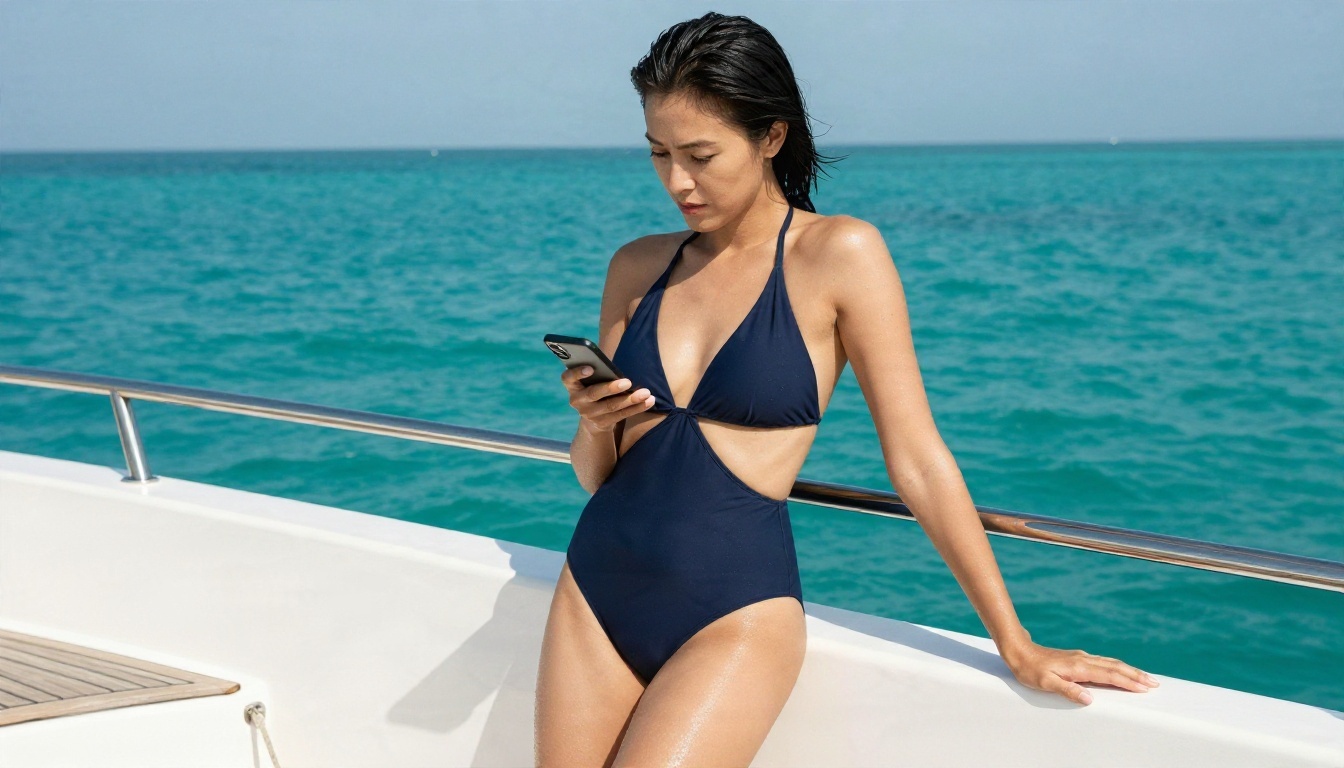
OpenAI announced in late 2025 that verified adults would get access to more mature content, and many people assumed an "adult mode" toggle would show up in settings. Based on what I could find, that plan slipped through early 2026 and reports from mid 2026 say it was shelved. Some of those reports come from sites with their own agenda, so treat the details with caution. The practical takeaway is simple: do not rely on a hidden switch that turns ChatGPT into an uncensored image tool. I could not confirm that such a switch exists today.
What Stays Blocked Always
Some limits never move, whatever you type or whichever account you hold:
- Explicit nudity and sexual acts
- Anything involving minors, or characters who look underage
- Real people's likenesses in sexualized scenes
- Non-consensual or degrading scenarios
If your goal falls inside those lines, no prompt rewrite will help in ChatGPT. That is a policy wall, not a bug.
What Usually Passes
Fashion and lifestyle photography is the sweet spot. Bikinis on a beach, a silk slip dress in soft window light, a swimsuit editorial in a studio. The more your prompt reads like a photographer's shot list rather than a request for skin, the more often it goes through.
💡 Quick rule: describe the photograph (lens, light, location, fabric), not the body. Filters react to body focused language far more than to wardrobe or setting.
Settings Worth Checking
There is no "NSFW" checkbox, but a few settings and habits change how often your prompts land.
| Setting or habit | What it does | Worth your time? |
|---|
| Account age and verification | Some regions ask you to confirm you are an adult | Yes, if prompted |
| Custom instructions | Sets tone and photo style defaults for every chat | Yes |
| Fresh chat per image | Stops earlier refusals from biasing the next reply | Yes |
| Memory | Can carry over wording that triggered a refusal | Sometimes |
| Model picker | Different models handle image requests differently | Test it |
| Image style presets | Pushes output toward illustration or cinematic looks | Skip for photo realism |
Custom Instructions That Help
Custom instructions will not unlock restricted content, and you should not expect them to. What they do well is lock in a photography vocabulary so you stop repeating it. Something like: "When I ask for images, default to editorial fashion photography, natural light, 85mm lens, film grain, adult subjects only." That alone cuts the number of cartoonish results.
Start a New Chat Often
Once ChatGPT refuses a request, the rest of that conversation tends to get more cautious. Open a fresh chat instead of arguing. A clean thread with a clean prompt beats a ten message negotiation almost every time.
Check Your Model and App Version
The web app, the mobile app and the API do not always behave identically. If a prompt fails in one place, try another before you give up. Image tools also get quiet updates that tighten or loosen filters without any announcement, so a prompt that worked last month may fail today.
Prompt Examples That Work
These are tasteful, suggestive, fully clothed or swimwear prompts. They are written for adult subjects and photographic realism. Paste them as written, then adjust the details.
Beach Golden Hour
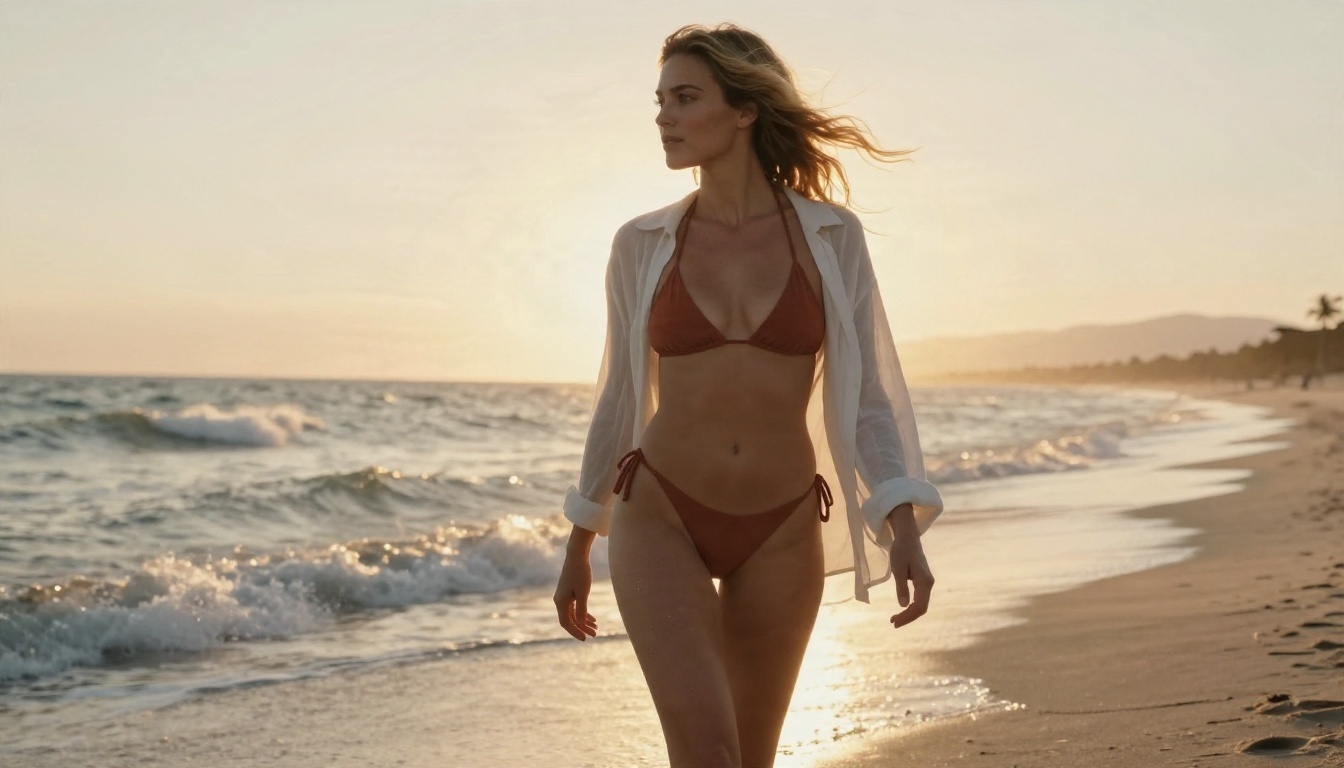
"Photograph of an adult woman walking along a quiet beach at golden hour, terracotta bikini under an open white shirt, windblown hair, small waves around her ankles, warm backlight, 70mm lens, shallow depth of field, film grain, natural skin texture."
Why it works: it names a location, a light source and a lens. The wardrobe is a normal vacation outfit. Nothing in the wording asks for anything beyond a travel or fashion photo.
Boudoir Window Light
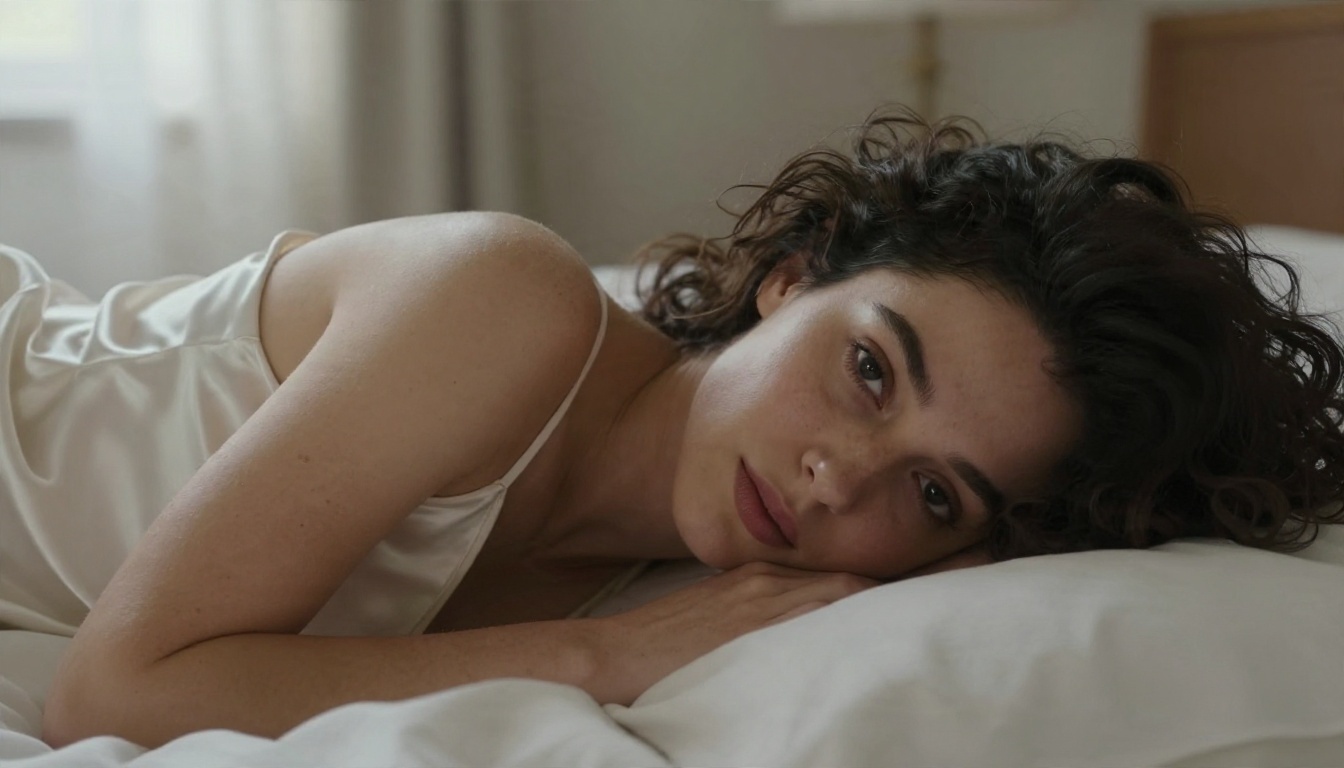
"Close-up portrait of an adult woman lying on white linen sheets in an ivory silk slip dress, soft window light from the left, sheer curtains, calm direct gaze, 105mm lens, muted warm tones, visible skin texture, Kodak Portra 400 grain."
Why it works: the focus is the face, the fabric and the light. The word "boudoir" is fine as a style label, but keep the body description out of it.
Pool From Above
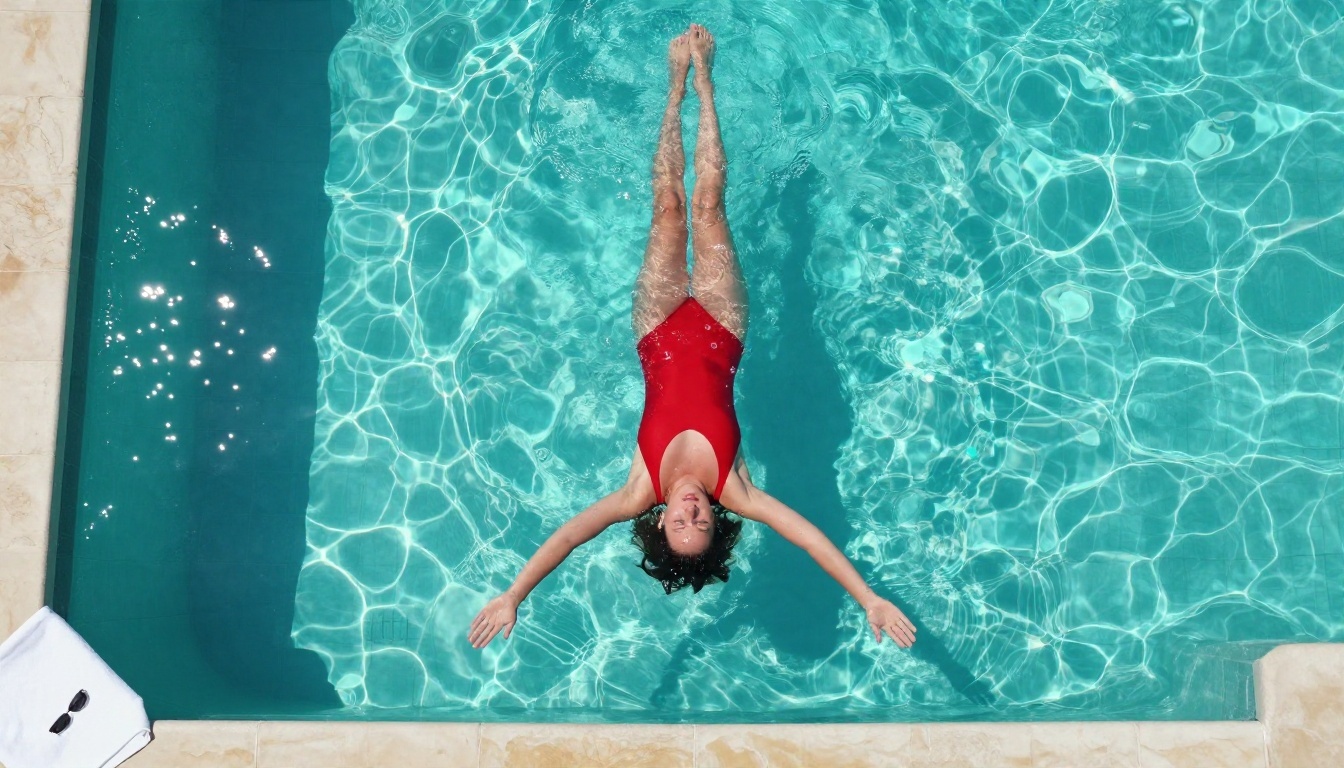
"Aerial top down photograph of an adult woman in a red one piece swimsuit floating on her back in a clear turquoise villa pool, towel and sunglasses on the stone edge, bright noon sun, rippling light on the pool floor, 24mm lens."
Why it works: the camera angle does the storytelling. A drone view turns the subject into part of a composition, which filters treat as lower risk.
Studio Swimwear Editorial
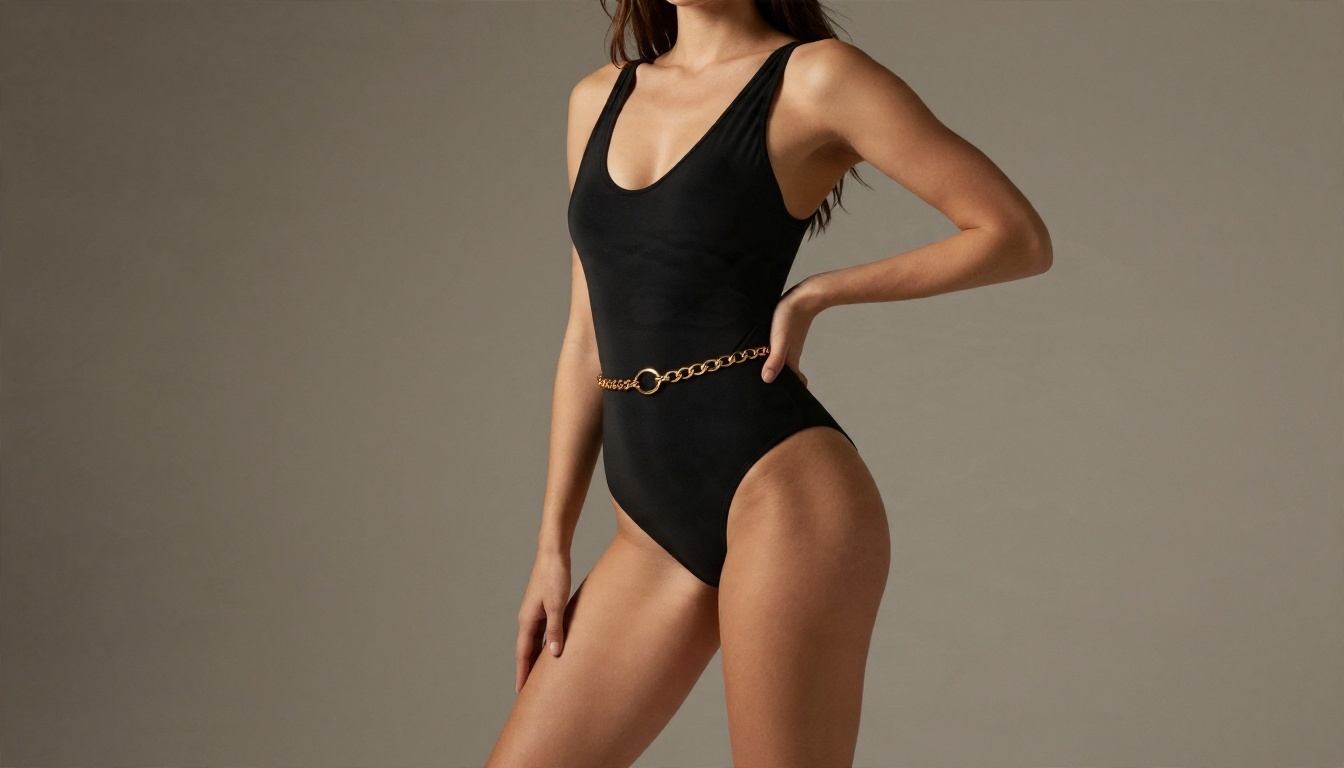
"Full body fashion editorial of an adult woman in a black high cut swimsuit with a gold chain belt, seamless warm gray studio backdrop, strong softbox light from the right, 85mm lens, glossy fabric texture, natural skin detail."
Why it works: it reads like a magazine brief. Words like "editorial", "softbox" and "backdrop" tell the model this is a professional shoot.
Prompt Formula You Can Reuse
| Part | Example |
|---|
| Subject | adult woman, late twenties |
| Outfit | silk slip dress, bikini with open shirt |
| Location | villa pool, quiet beach, hotel balcony |
| Light | golden hour backlight, window light from the left |
| Camera | 85mm f/1.8, low angle, aerial view |
| Texture | film grain, skin pores, fabric sheen |
Stack one item from each row and you have a prompt that behaves well in almost any image generator.
Why Your Prompt Gets Refused
Refusals feel random, but they follow patterns. Here are the usual culprits.
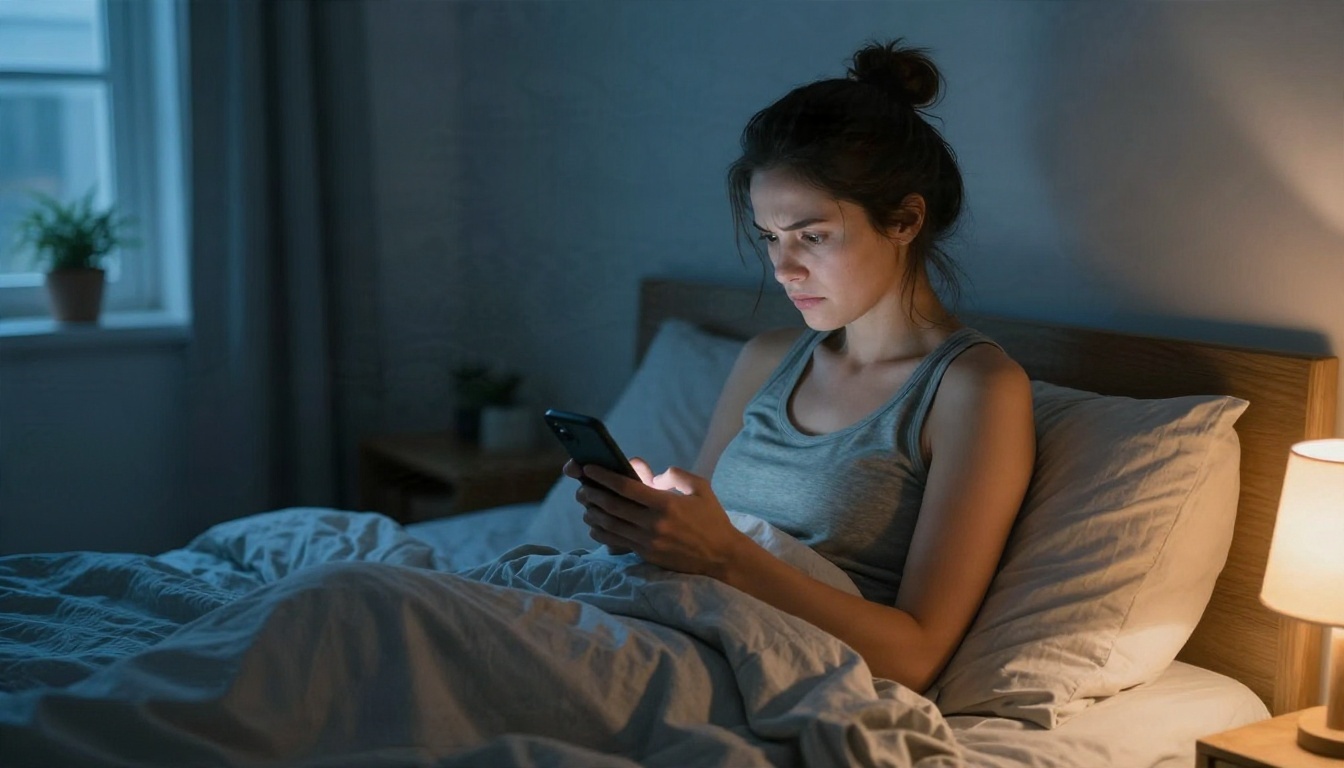
Trigger Words
Certain words raise a red flag no matter the context: explicit anatomy terms, "nude", "topless", "see through", "wet look" paired with body parts, and anything that sounds like a request for arousal rather than a photo. The filter reads the whole prompt, so one risky word can sink an otherwise innocent request.
Real Names and Celebrities
Mentioning a real person next to swimwear or lingerie is the fastest way to a refusal. Skip names entirely and describe an invented adult subject instead.
Age Ambiguity
Words like "girl", "schoolgirl" or "teen" will get blocked immediately, and they should. Always write "adult woman" and give an age range such as "late twenties". It protects you from refusals and keeps your work clearly appropriate.
Piling On Style Words
Prompts overloaded with "sexy", "seductive", "sultry" and "provocative" often fail. Swap them for photographic mood words: "confident", "relaxed", "playful", "editorial", "warm".
Not Working? Try These Fixes
Run through this list in order. Most problems disappear by step three.
- Open a new chat. Old refusals bias new replies.
- Shorten the prompt. Cut it to subject, outfit, location, light, lens.
- Replace risky words. Use the swaps in the table below.
- Remove people's names. Invent a subject instead.
- Drop the style preset. Presets can push output toward illustration.
- Try another surface. Web, mobile and API can behave differently.
- Wait and retry. Temporary glitches and rate limits look like refusals.
| Instead of | Try |
|---|
| sexy | confident, glamorous |
| seductive pose | relaxed pose, over the shoulder glance |
| revealing outfit | silk slip dress, swimwear |
| skin focus | skin texture, natural light on shoulders |
| bedroom scene | boudoir style portrait, linen sheets, window light |
💡 Reality check: if your result keeps getting softened, flattened or covered up, you have probably reached the edge of what ChatGPT will do. More rewrites will not move that edge. A different tool will.
When the Image Looks Wrong, Not Blocked
Sometimes there is no refusal, just a disappointing picture: plastic skin, odd hands, or a flat illustration look. Add lens details, a named film stock like Kodak Portra 400, and phrases such as "visible pores" and "natural skin texture". Those anchors pull the model toward photography.
Alternatives With More Freedom
If you want glamour, swimwear and boudoir imagery without fighting a filter on every prompt, you need a generator built with fewer restrictions and faster iteration. The models below are available on PicassoIA, where you can generate many variations without watching a message limit.
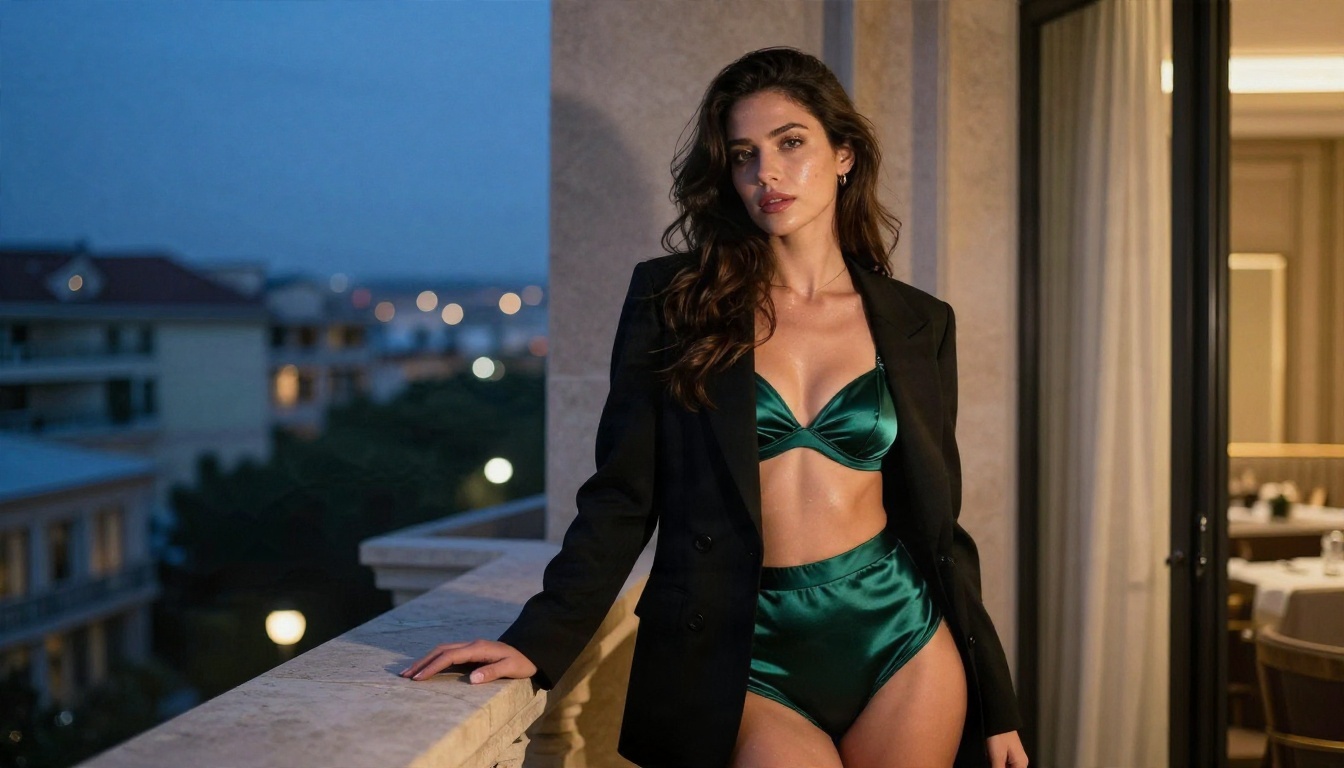
Seedream 4.5 First
Seedream 4.5 is the first model I would reach for. It produces sharp 2K and 4K output, handles skin texture and fabric very well, and gives you far more room for adult glamour than ChatGPT does. It also takes reference images, so you can keep a consistent look across a series.
PicassoIA Image Editor Pro
PicassoIA Image Editor Pro offers unlimited generations. That matters more than it sounds. Good results come from iteration, and nothing kills iteration like a daily cap. Use it to generate, edit and refine until the shot feels right.
More Models Worth Testing
Quick Comparison
| Option | Best for | Iteration speed | Restriction level |
|---|
| ChatGPT | Safe lifestyle and fashion shots | Medium | High |
| Seedream 4.5 | Glamour, skin and fabric detail | Fast | Lower |
| Image Editor Pro | Unlimited tries and edits | Fast | Lower |
| Seedream 4 | Photoreal portraits | Fast | Lower |
| Z Image Turbo | Rapid prompt drafts | Very fast | Lower |
How to Get Similar Results on PicassoIA
ChatGPT's image tool is not on PicassoIA, but you can reproduce the same prompt styles and push them further with Seedream 4.5. Here is the workflow.
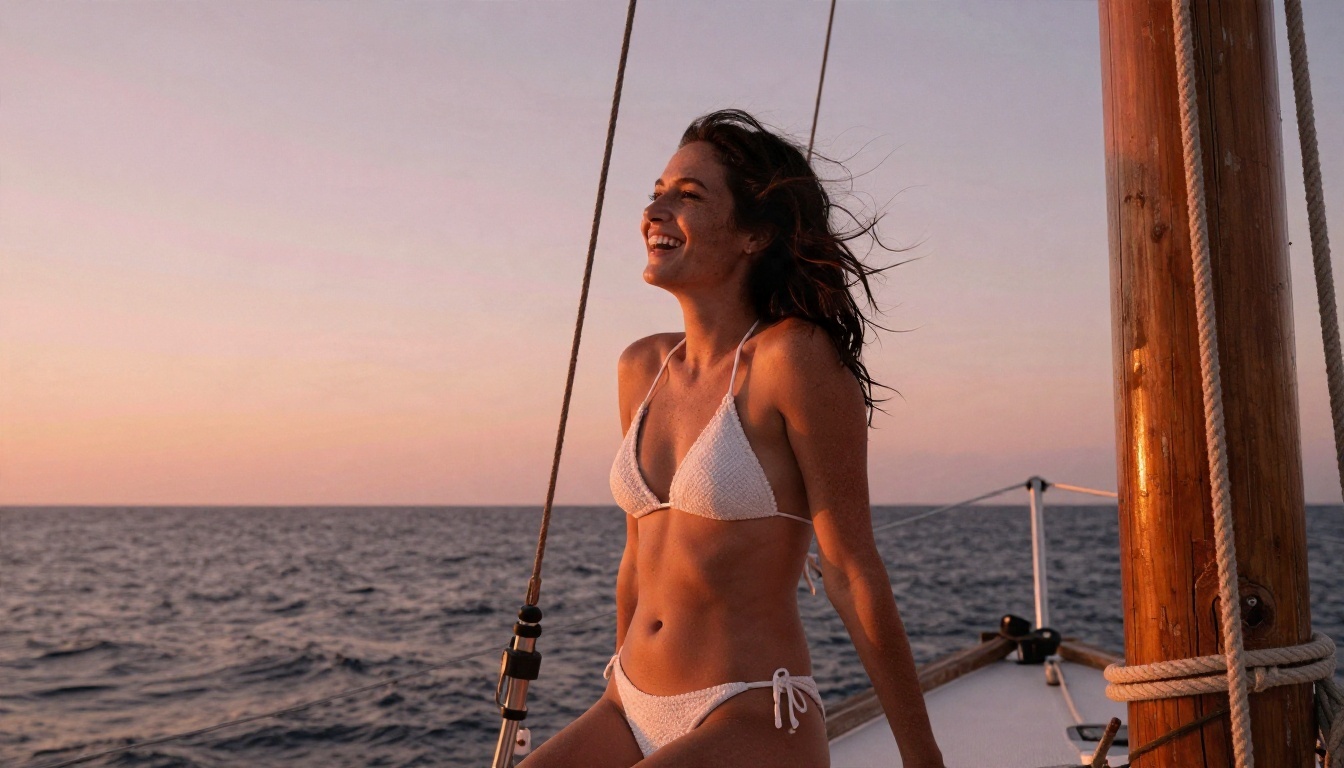
Step by Step
- Open the model page. Go to Seedream 4.5 on PicassoIA.
- Paste your prompt. Reuse any example from the section above. Prompts up to 4,000 characters are accepted, so you can add rich photographic detail.
- Pick the size. Choose 2K for fast drafts and 4K when you are happy with the composition.
- Set the aspect ratio. 16:9 suits scenic shots, 3:4 and 2:3 suit portraits, 9:16 suits phone wallpapers and stories.
- Add reference images if needed. You can upload between 1 and 14 images to keep a pose, outfit or mood consistent.
- Try batches. Turn on sequential generation and set the maximum image count to get several related variations in one run, up to 15.
- Refine in Image Editor Pro. Move your favorite shot into PicassoIA Image Editor Pro for unlimited edits and touch ups.
Parameter Tips
- Lens language matters. "85mm f/1.8" gives portrait compression, "24mm" gives wide environmental shots.
- Name the film look. "Kodak Portra 400, fine grain" gives warm, natural color.
- Describe fabric and skin. "Satin sheen", "linen weave", "visible pores" push the result toward real photography.
- Change one thing per run. If you alter light, outfit and location together you will not know which change helped.
💡 Keep it adult and consensual. Write "adult woman", use invented subjects, and avoid real people's names. Better results and a safer workflow come from the same habit.
Prompt Upgrade Example
Take the beach prompt from earlier and add more camera detail for a stronger result:
"RAW photograph of an adult woman in her late twenties walking along a quiet beach at golden hour, terracotta bikini under an open white shirt, honey blonde hair moving in the wind, small waves washing her ankles, warm backlight with rim glow on her shoulders, low angle, 70mm f/2 lens, wet sand reflections, salt on skin, Kodak Portra 400 film grain, natural skin texture."
Run it in Seedream 4.5 at 2K, check the composition, then rerun at 4K once you like it.
Common Mistakes to Avoid
Even with a more flexible generator, a few habits waste time.
- Writing a novel. Long rambling prompts confuse the model. Keep the structure tight.
- Ignoring lighting. Light decides mood. If you skip it, results look flat.
- Reusing one angle. Mix low angles, aerial shots and close-ups so your set feels like a real shoot.
- Skipping the edit pass. A small touch up in an editor often does more than a tenth rewrite of the prompt.
- Chasing ChatGPT for everything. Use it for ideas and wording, then take the prompt to a model with fewer limits.
Use ChatGPT for Prompt Writing
Here is a workflow that plays to each tool's strength. Ask ChatGPT to draft a photographic prompt in the formula above: subject, outfit, location, light, lens, texture. It is very good at that. Then paste the result into Seedream 4.5 or Image Editor Pro and generate. You get ChatGPT's writing skill without its image filter getting in the way.
Make Your Own Shots Today
You now have a set of prompts that work, a short list of settings worth checking, a fix list for refusals, and a few generators that do not stop you every time the mood gets a little glamorous. The fastest way to see the difference is to try it. Take one of the prompts above, paste it into Seedream 4.5, then polish your favorite result in PicassoIA Image Editor Pro with unlimited generations. Change the light, swap the location, try a new lens, and build a set you actually like.
Want to see everything on offer? Browse the full list of models at picassoia.com/en/all-models and find the one that fits your style.


