Every Civitai NSFW image you scroll past has a recipe hiding behind it: a checkpoint, a sampler, a handful of numbers and a prompt someone tuned for hours. The gallery makes that recipe visible, which is why millions of people treat it like a cookbook for adult AI art. It also comes with a catch. Filters shift, rules change, downloads need a capable GPU, and one wrong file can waste an evening. This article breaks down how the Civitai side of things works, which settings actually matter for realistic glamour, and where you can get similar photographic results online without installing anything.
A quick note on scope. Everything here stays on the non-explicit side: boudoir, swimwear, glamour, editorial portraits. That is also the kind of content that survives policy changes best, and the kind that looks most convincing when it is done well.
What Civitai Actually Is
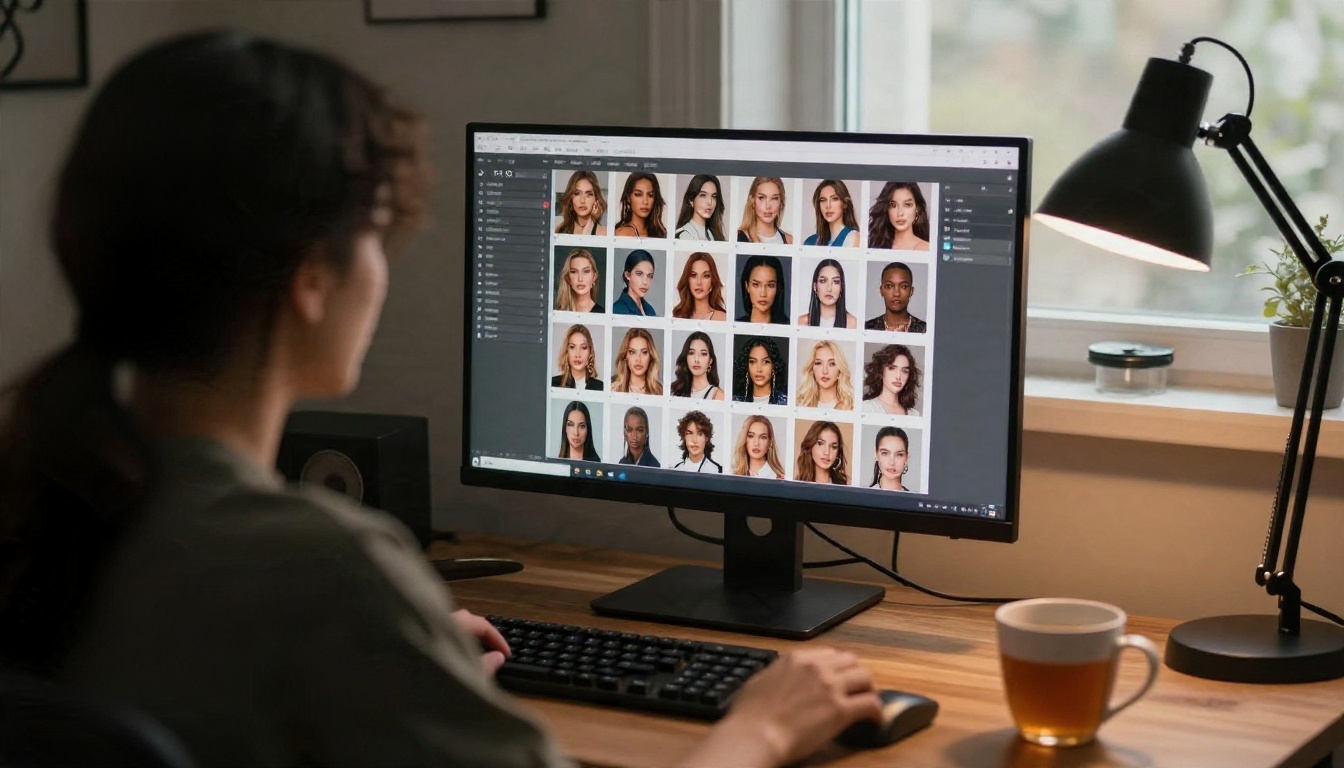
Civitai is a community hub for sharing AI image models, mostly checkpoints and LoRAs, along with the pictures people make with them. Think of it as a mix between a file library and a photo feed. You browse a model page, see dozens or hundreds of sample images, click one, and read the exact prompt and settings used to produce it.
That transparency is the whole appeal. Instead of guessing why a portrait looks sharp and another looks plastic, you can check the metadata and copy the setup.
Checkpoints versus LoRAs
A checkpoint is the base model. It decides the overall look: skin rendering, lighting behavior, anatomy, how it reads a prompt. A LoRA is a small add-on that nudges the checkpoint toward a face, a pose, a clothing style or a film look. Most good adult glamour images use one checkpoint and zero to two LoRAs, not ten.
The two-site setup
Reports from 2026 describe Civitai as split across two domains, with a mainstream site and a separate one for mature content, both sharing the same account and library. Details on this have changed more than once, and secondary sources disagree on some points, so treat any summary (this one included) as a snapshot and check the current terms on the site itself.
How the NSFW Gallery Works
The gallery is filtered by maturity level rather than by a simple on/off switch. Content is tagged from family friendly up to explicitly adult, and your browsing settings decide how much of that range you see. Adult content requires you to be 18 or older and to opt in. You can also turn it all off with one click, which is useful if you share a screen.
| Gallery feature | What it gives you | Why it helps |
|---|
| Maturity filters | Choose which rating levels appear | Keeps your feed on glamour, not extremes |
| Generation metadata | Prompt, negative prompt, sampler, steps, CFG, seed | Lets you reproduce or adapt an image |
| Model links | Jump from an image to the checkpoint used | Saves guessing which file to download |
| Sorting | Most reactions, newest, most collected | Surfaces proven recipes fast |
| Tags and collections | Group results by style or subject | Builds a personal reference library |
💡 Tip: Sort by Most Collected instead of Newest. Collected images tend to be the ones people actually reproduced, which means their metadata is more likely to work for you too.
Why enforcement feels unstable
Over the past couple of years, Civitai has tightened rules on certain content categories, especially around real people, and removed or hid a large number of models and images. Some users suspect pressure from payment processors. Whatever the cause, the practical lesson is the same: a model you love today may disappear tomorrow. Download what you need, keep notes on the settings, and do not build a workflow that depends on one page staying live.
Picking the Right Checkpoint
Checkpoints fall into families, and the family matters more than the individual name. Each one has a different prompting style and a different realism ceiling.
| Checkpoint family | Prompt style | Realism for photo looks | Hardware needs |
|---|
| SD 1.5 based | Short tag lists, heavy negative prompts | Good with tuning, can look soft | Low, 6 GB VRAM works |
| SDXL based | Natural phrases plus a few tags | Very good skin and lighting | Medium, 8 to 12 GB VRAM |
| Pony and Illustrious derivatives | Tag based, score tags | Excellent for stylized, weaker for pure photo | Medium |
| Flux based | Full sentences, no negative prompt | Best skin texture and hands | High, 12 to 24 GB VRAM |
For photographic glamour
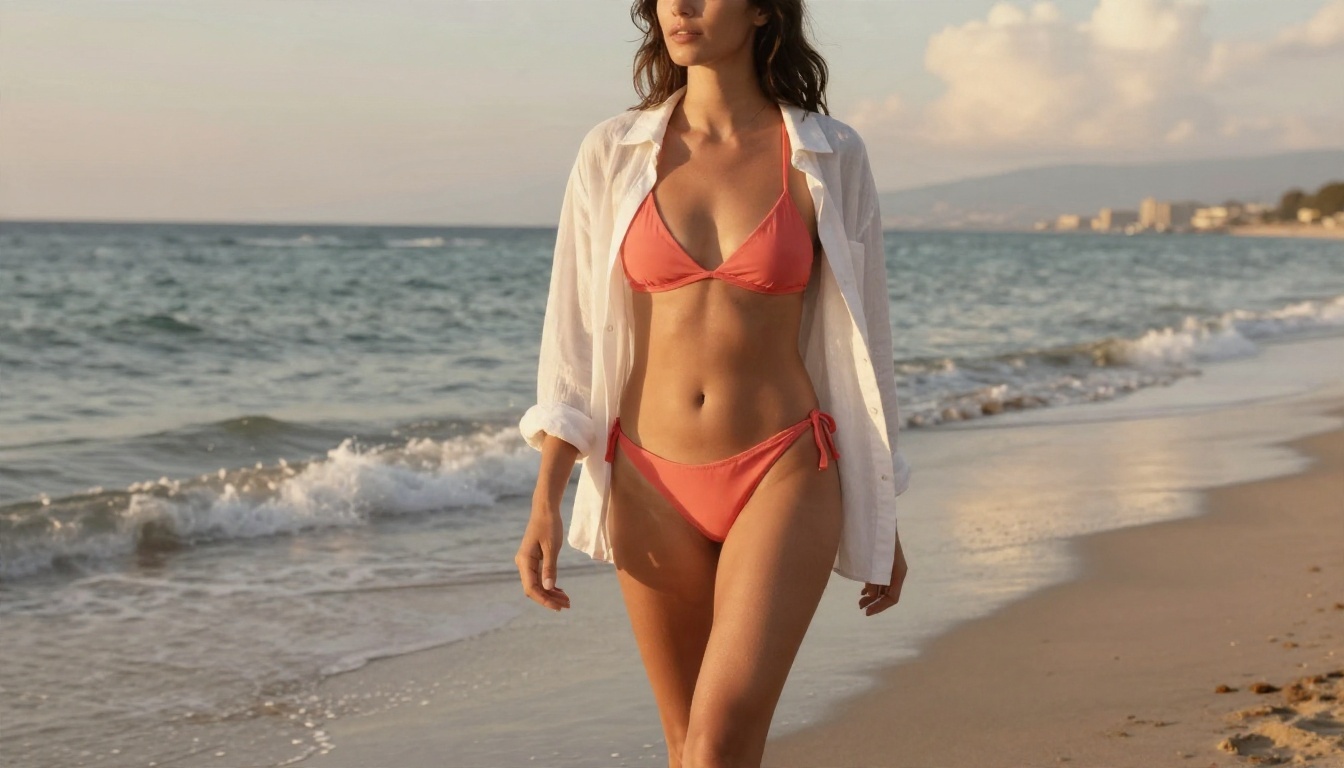
If your goal is something that looks like a magazine shoot, look for checkpoints described as photoreal, and ignore anything tagged anime or illustration. Check the sample images on the model page. If every thumbnail has the same airbrushed face, the checkpoint is overfitted and you will fight it all week.
File safety
Prefer the safetensors format. Older pickle style files can execute code when loaded, which is a real risk when you download from strangers. Read the comments on a model page before installing, and keep your downloads in a dedicated folder rather than scattered across your drive.
Version numbers lie
A "v2" is not always better than a "v1". Authors sometimes retrain toward a new style and lose the realism people liked. When a model has several versions, open the gallery for each one and compare the sample images side by side.
Settings That Make Skin Look Real
Most people blame the checkpoint when a portrait looks fake. Usually the culprit is the settings. These are sensible starting points for photoreal checkpoints, but always compare against the metadata on the images you like.
| Setting | Starting value | What it changes |
|---|
| Sampler | DPM++ 2M Karras or Euler a | Texture and edge quality |
| Steps | 25 to 35 | More steps add detail up to a point, then waste time |
| CFG scale | 4 to 7 (1 to 3 for Flux) | How strictly the prompt is followed |
| Resolution | 832 x 1216 or 1024 x 1024 for SDXL | Native sizes avoid warped anatomy |
| Clip skip | 1 or 2, follow the model page | Affects how prompts are read |
| Seed | Fixed while testing | Lets you change one thing at a time |
| Hires fix or upscaler | 1.5x, denoise 0.3 to 0.45 | Adds pore and fabric detail |

The CFG trap
Pushing CFG high makes colors harsh and skin waxy. If a face looks like a plastic doll, lower CFG by one or two points before you touch anything else.
Fix a seed, then change one thing
Change the seed and the prompt at the same time and you will never know which one helped. Lock the seed, edit one variable, regenerate, compare. It feels slow and saves hours.
Resolution and anatomy
Generating far above the model's native size is the most common cause of duplicated limbs and stretched torsos. Stay near the native resolution, then upscale in a second pass.
💡 Tip: Write down the three settings that gave you your best result in a note file. Next time you open a new checkpoint, start from those numbers instead of defaults.
Prompting for Photographic Results
Realism comes from describing a photograph, not a subject. The best Civitai samples read like a camera setup: lens, light direction, film stock, location. Compare these two approaches.
- Weak: "beautiful woman, lingerie, bedroom, detailed, masterpiece"
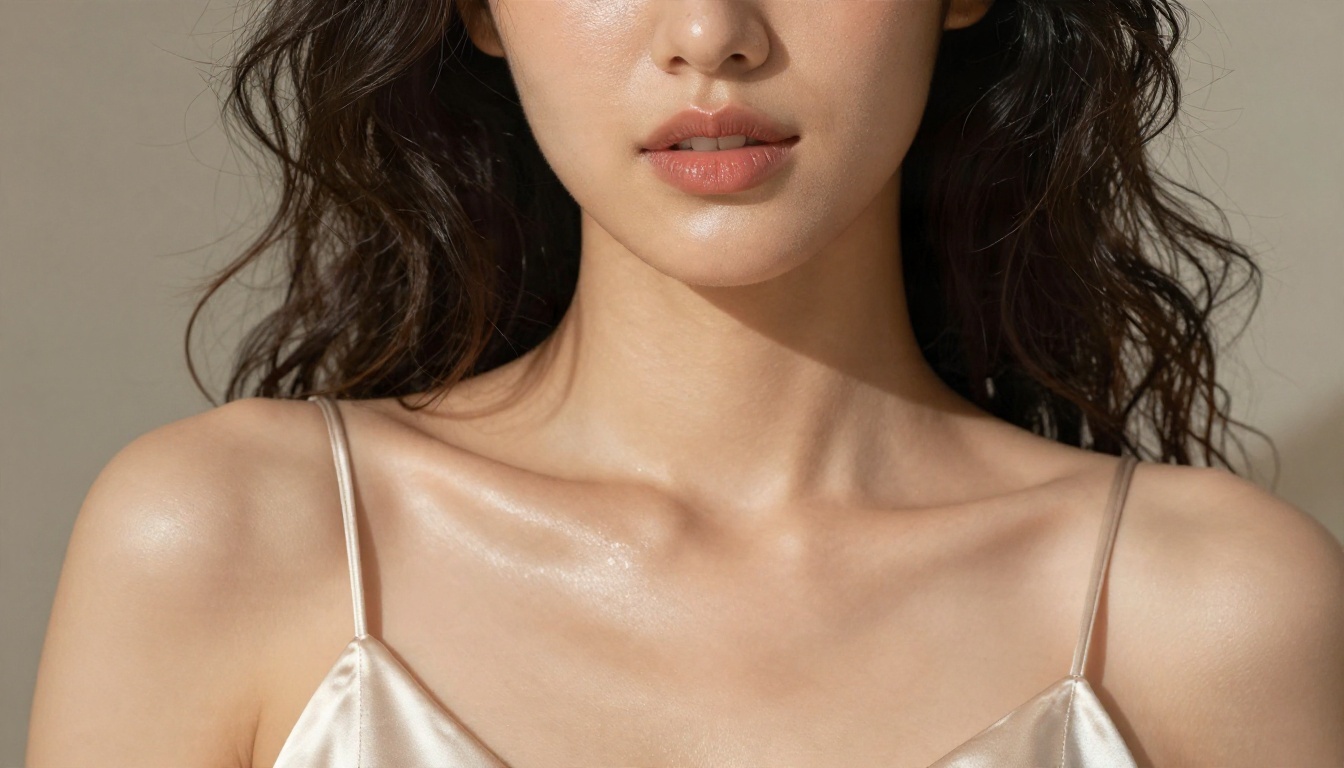
- Strong: "woman in black silk slip dress on a linen bed, morning window light from the left, 85mm lens at f/1.8, shallow depth of field, Kodak Portra 400 film grain, visible skin texture"
Light does most of the work
A single soft window light from one side beats any "ultra detailed" keyword. Name the direction, the softness and the time of day. Golden hour, overcast morning and warm lamp light each produce a very different mood.
Negative prompts
On SD 1.5 and SDXL checkpoints, a short negative prompt helps: extra fingers, distorted hands, blurry, watermark, text, cropped. Keep it short. Long negative lists often flatten the image. Flux style checkpoints ignore negatives, so describe what you want instead.
Skin and texture words
Terms such as natural pores, fine peach fuzz, subtle freckles and film grain push a checkpoint away from the smooth, airbrushed look. Do not stack them all at once. Pick two or three and see what changes.
Where Civitai Gets Frustrating
The gallery is great. The workflow around it can be rough.
Hardware and storage
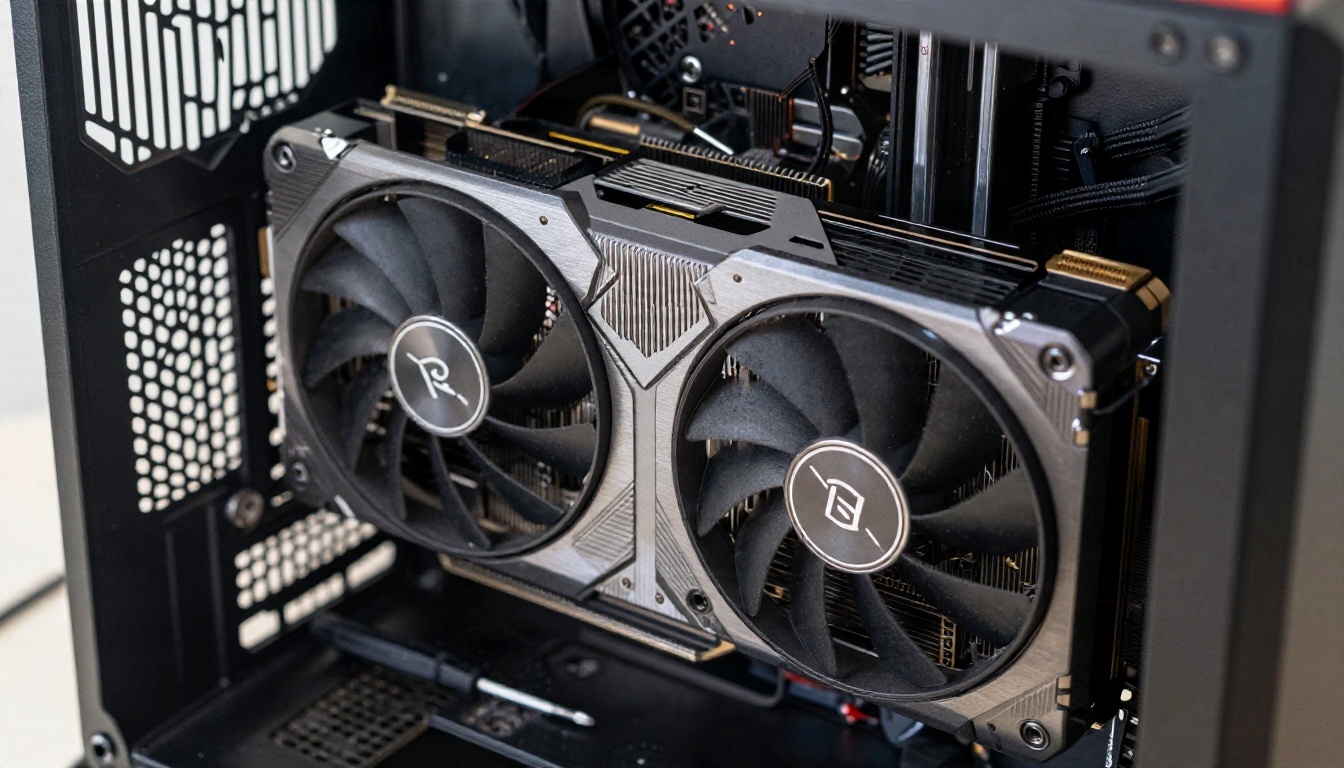
A single SDXL checkpoint is around 6 GB, and Flux based files can be much larger. Add a few LoRAs, a UI such as ComfyUI or Automatic1111, and a folder of outputs, and your drive fills quickly. Without a recent GPU, generating a single image can take minutes.
Setup time
Before your first picture you may spend an evening installing Python, drivers, a UI, extensions and the right VAE. Then a model update breaks something. For someone who just wants a good glamour portrait, that is a lot of friction.
Policy risk
Your favorite checkpoint, LoRA or even your own uploaded images can be removed with little warning. If your workflow lives entirely on one platform's rules, you are exposed.
Inconsistent quality
A gallery sample was usually picked from many attempts. When you copy the settings and get something worse, the difference is often the missing LoRA, a different seed, or an upscaling step that was not listed.
Online Alternatives That Skip the Setup
If your goal is the picture and not the tinkering, an online generator can give you photographic glamour in seconds, with no downloads and no GPU. Picasso IA is built around exactly that workflow, with models tuned for tasteful adult content that stays non-explicit.
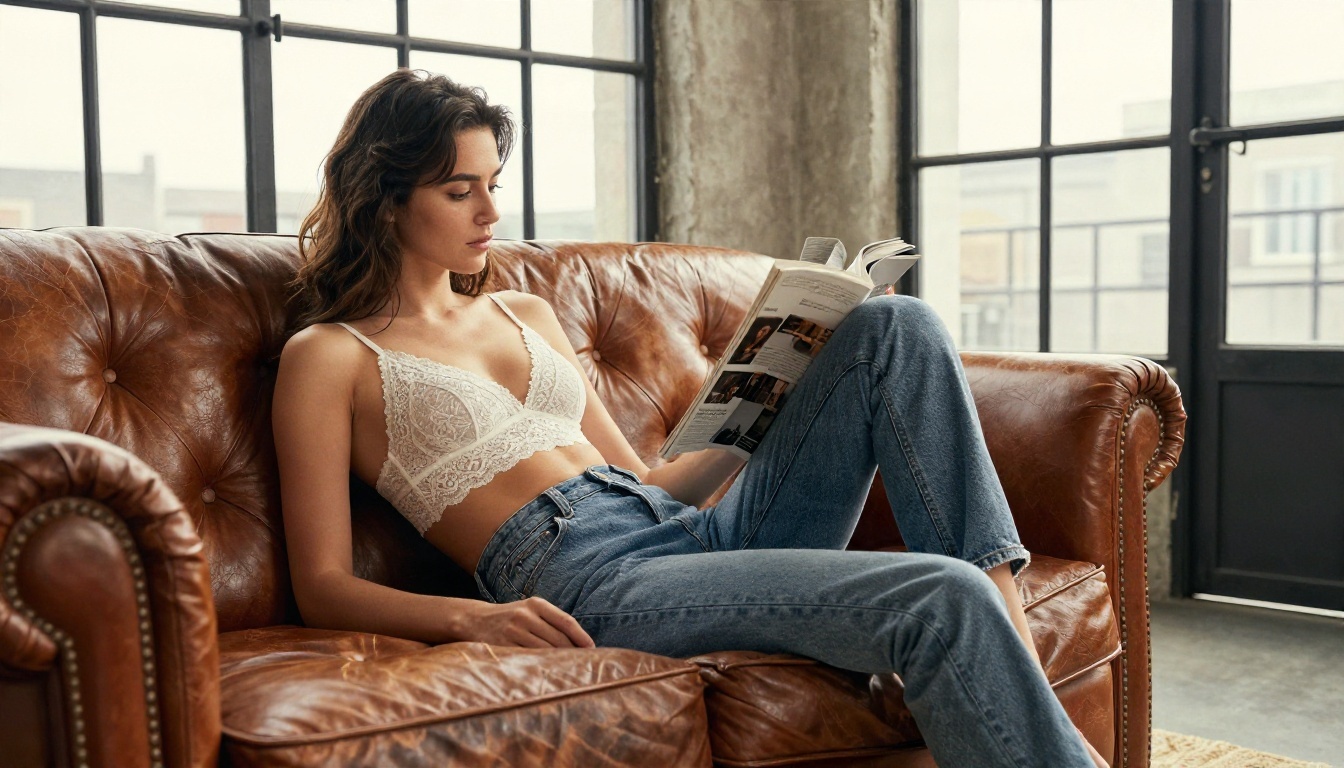
Here is the order I would try them in:
- Seedream 4.5: the first stop for photographic glamour. It handles skin, fabric and window light very well and follows long, camera style prompts closely.
- PicassoIA Image Editor Pro: unlimited generations, so you can iterate as often as you like without watching a credit counter. Useful for editing and refining an image after the first pass.
- Z Image Turbo: very fast sharp images, handy when you want to test ten prompt ideas in a few minutes.
- Flux 2 Klein 9B Base LoRA: if you like the LoRA workflow from Civitai, this one brings the same idea into a hosted setup.
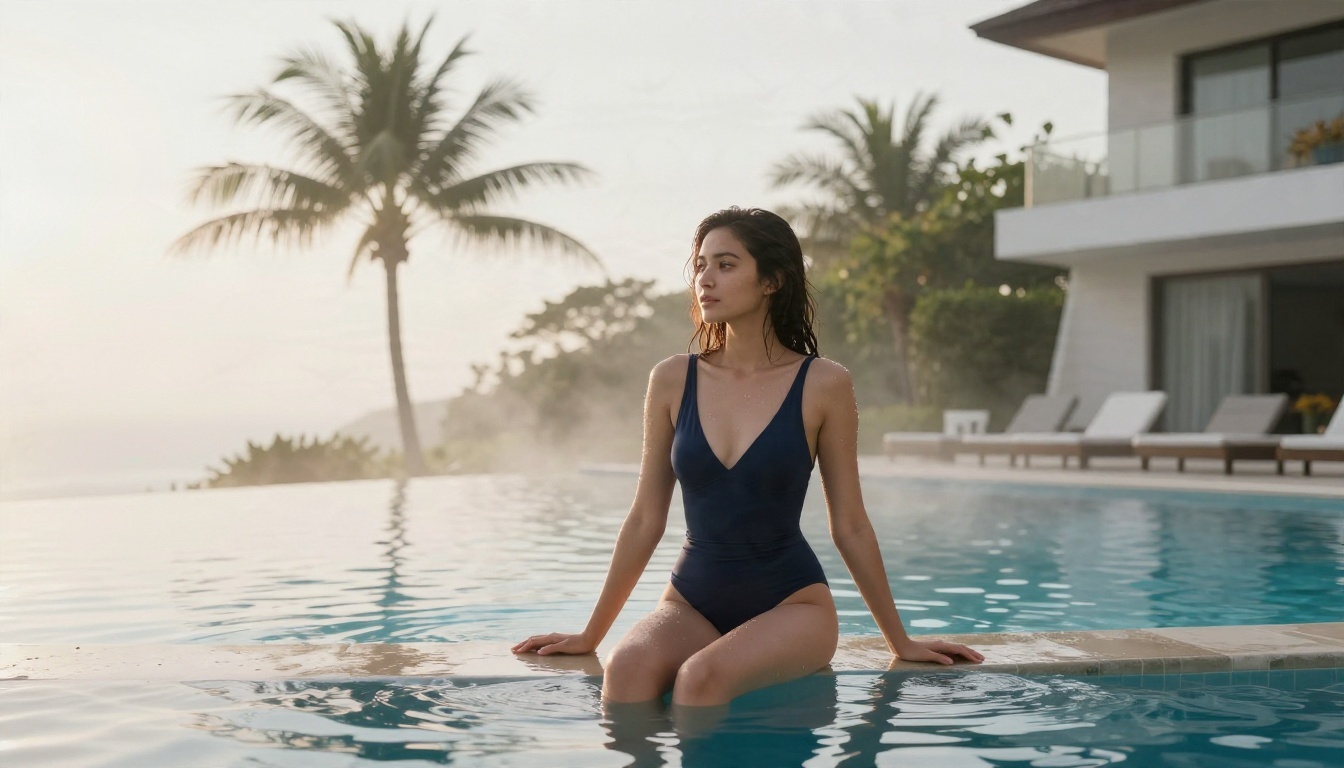
Local versus online
| Factor | Local Civitai workflow | Online generator |
|---|
| Setup time | Hours | None |
| Hardware | Strong GPU needed | Any browser |
| Cost | Hardware plus electricity | Per use or unlimited plans |
| Control | Total, down to every node | Prompt, size, reference image |
| Risk of removed models | Real | Not applicable |
| Speed per image | Seconds to minutes | Seconds |
Local still wins if you want custom trained LoRAs of your own character or full control over every parameter. Online wins on speed, simplicity and consistency.
How to Get Similar Results on PicassoIA
Civitai itself is a community site, not a model, so there is nothing to port over directly. What you can do is take the recipe from a gallery image and rebuild it in Seedream 4.5.
- Open the model page and choose text to image.
- Pick a gallery image you like and copy the idea, not the tags. Rewrite it as a full sentence: subject, clothing, location, light direction, lens, film look.
- Set the aspect ratio to 16:9 for landscape scenes or a portrait ratio for full length shots.
- Generate, then adjust one detail. Change the light, the lens or the location, not all three.
- Refine in PicassoIA Image Editor Pro to swap an outfit, fix a background or soften a shadow. Since generations are unlimited, you can iterate freely.
- Upscale if needed for print or large displays.
Parameter tips that carry over
- Camera language works better than quality keywords. "85mm f/1.8, soft window light from the left" beats "ultra realistic 8k masterpiece".
- Name materials: silk, linen, lace, knit. Fabric detail sells realism.
- Keep poses simple and describe one clear action, such as sitting on the edge of a bed or walking along a shoreline.
- Add one environment detail in the background, such as a vase, a mirror or a coffee cup. It grounds the scene.
💡 Tip: Keep prompts in a document with a short label for each. A small library of tested prompts replaces the "copy settings from the gallery" step and works across any model.
Keep it tasteful
Non-explicit glamour is not only safer for platform rules. It also tends to look better. Implied rather than shown, with good light and fabric, reads as editorial photography. You can browse more options on the all models page to find the style that fits your project.
Common Mistakes to Avoid
- Chasing every new checkpoint. Stick with one family long enough to know how it behaves.
- Overloading LoRAs. Two at moderate strength usually beats five at full strength.
- Ignoring native resolution. Generate at the recommended size, then upscale.
- Copying prompts without the model. A prompt written for one checkpoint can look wrong on another.
- Skipping the negative review. Read the comments on a model page for known issues before spending time.
- Trusting a single platform. Keep backups of settings and favorite outputs.
Quick Checklist Before You Generate
Run through this list and most bad results disappear:
- Is the checkpoint family right for photographic glamour?
- Are you near native resolution?
- Is CFG in a sane range for that family?
- Is the seed locked while you test?
- Does the prompt describe light, lens and location, not only the subject?
- Are you changing only one variable per run?
Try Your Own Photographic Glamour Today
The Civitai gallery taught a whole community how to read recipes. You do not need a heavy local setup to apply the lesson. Take a look at a few sample images, pull out the lighting and lens details you like, and write them as a single clear sentence.

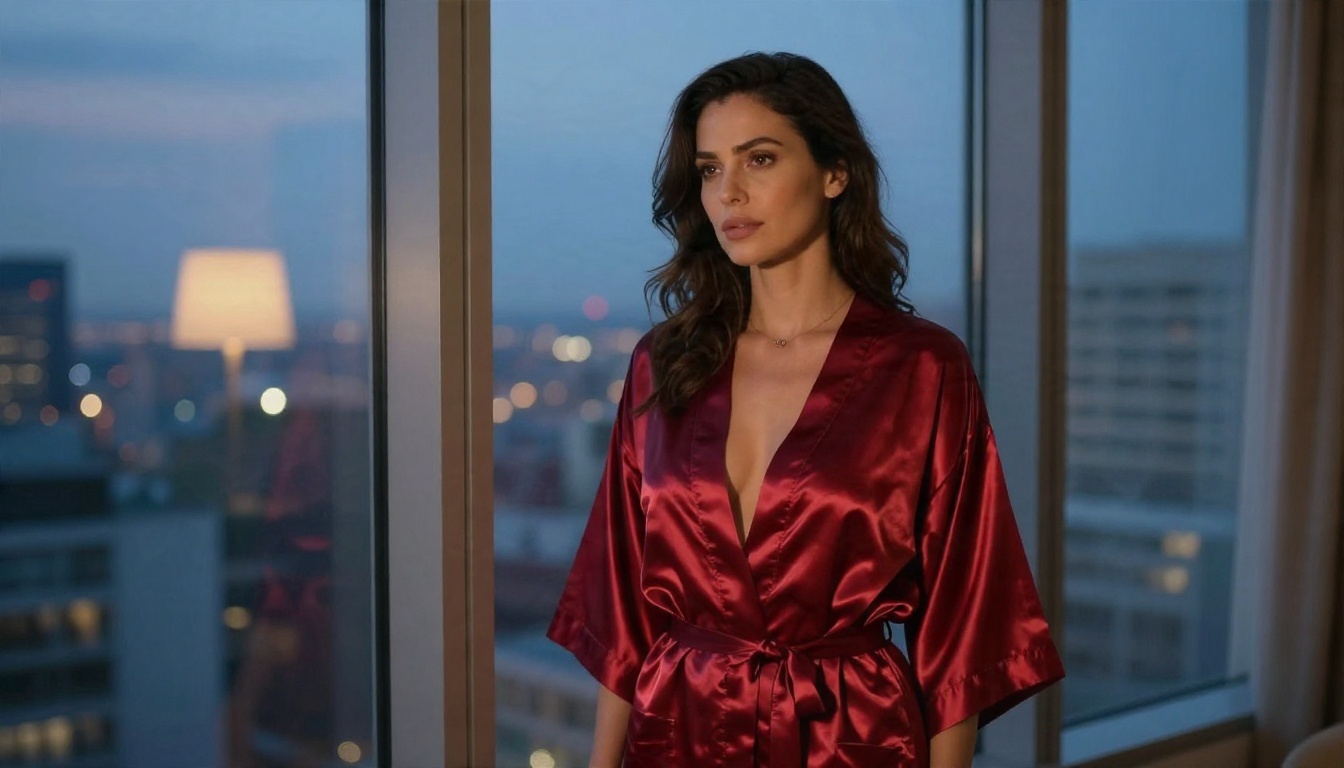
Then open Picasso IA, start with Seedream 4.5, and refine your favorite result in PicassoIA Image Editor Pro with unlimited generations. Try a bikini beach scene at golden hour, a silk robe by a dusk window, or a soft portrait in morning light, and see how quickly your own gallery grows. For more styles, browse every option on the all models page.


