Search for "Civitai Red models" and you will find a lot of confusion. Is it a new AI model? A separate website? A paid tier? The short answer: Civitai Red is a mature-content domain of the Civitai model hub, and the models people use there are community checkpoints and LoRAs, mostly built on Stable Diffusion, SDXL and Flux style architectures. Below you will find what that means in practice, photorealistic example results, prompt formulas you can copy, how online generation is priced, and free options that run in a browser with no install.
💡 Quick answer: Civitai Red is a place that hosts models. It is not one model. If you want the same kind of tasteful, photorealistic glamour results without hunting through thousands of uploads, a single strong generator like Seedream 4.5 gets you there in one prompt.
What Civitai Red Actually Is
Civitai started as a library where creators upload checkpoints, LoRAs, embeddings and sample images. In 2026 the platform split its experience into two domains. The main site became the mainstream, safe-for-work face of the service. Civitai Red became the domain where broader, mature content lives, for users who opt in.
Reports about the details differ, especially on payments, so treat the following as the general picture and check the current rules on the site itself before you spend anything:
- One account works across both domains.
- Mature images only appear on the Red domain, and only for people who turned the setting on.
- Generating mature images online requires a paid membership, while basic safe-for-work generation can use the platform's credit system.
It Is a Library, Not One Model
When people write "Civitai Red models," they usually mean the community uploads that show up in mature searches: realistic checkpoints, body and clothing LoRAs, pose helpers, and style tweaks. Each upload has its own author, license, trigger words and recommended settings. Quality varies a lot, which is why sample images and community ratings matter so much.
How Red Differs From the Main Site
The practical differences are small but real. The browsing feed is wider, the filters allow more glamour and boudoir content, and the on-site generator permits mature output for members. The tooling itself, meaning model pages, versions, prompts and metadata, works the same way on both domains.
Model Types You Will Meet
Before copying any prompt, it helps to know what you are loading. Most mature-friendly uploads fall into four groups.
| Type | What it does | Typical file size | Best use |
|---|
| Checkpoint | A full base model | 2 to 7 GB | Sets overall realism and style |
| LoRA | A small add-on | 20 to 300 MB | Adds a face, outfit, pose or lighting look |
| Embedding | A tiny text trigger | Under 1 MB | Nudges anatomy or style via prompt |
| Workflow | A saved node graph | Tiny | Repeats a full pipeline exactly |
Checkpoints Set the Baseline
A photorealistic checkpoint decides skin texture, lens feel and color science. A bad one gives waxy skin and plastic highlights no matter what you type. A good one gives pores, flyaway hair and believable fabric.
LoRAs Handle the Details
LoRAs are where most of the fun happens. One adds a film-photography look, another a specific swimwear cut, another a studio lighting setup. You stack two or three at low strength, usually between 0.4 and 0.8, so they blend instead of fighting each other.
💡 Tip: If your results look "burnt" or over-sharpened, your LoRA strength is probably too high. Drop it by 0.2 and try again.
Examples of Photorealistic Results
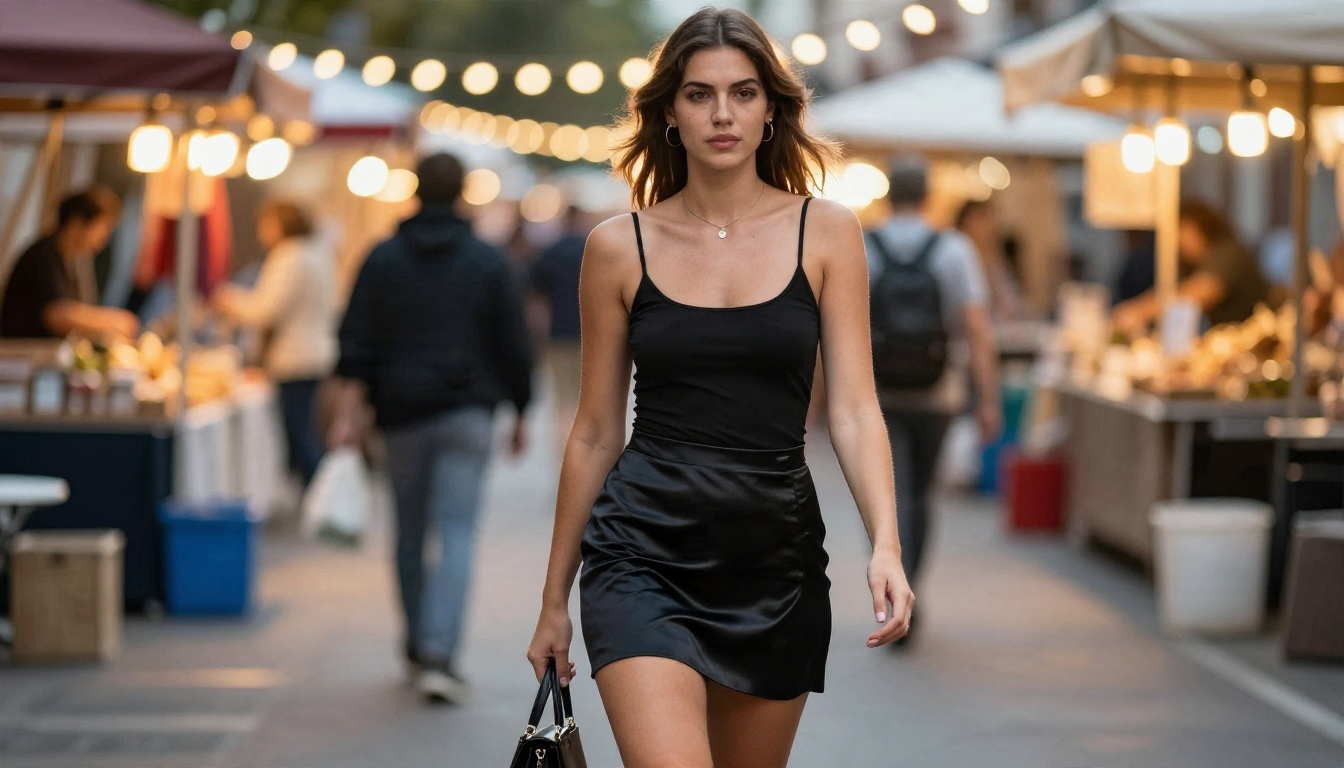
The images below show the style that realistic mature-friendly models aim for, kept tasteful and non-explicit. Each one was built from a prompt with a clear subject, a light source, a lens and a film stock.
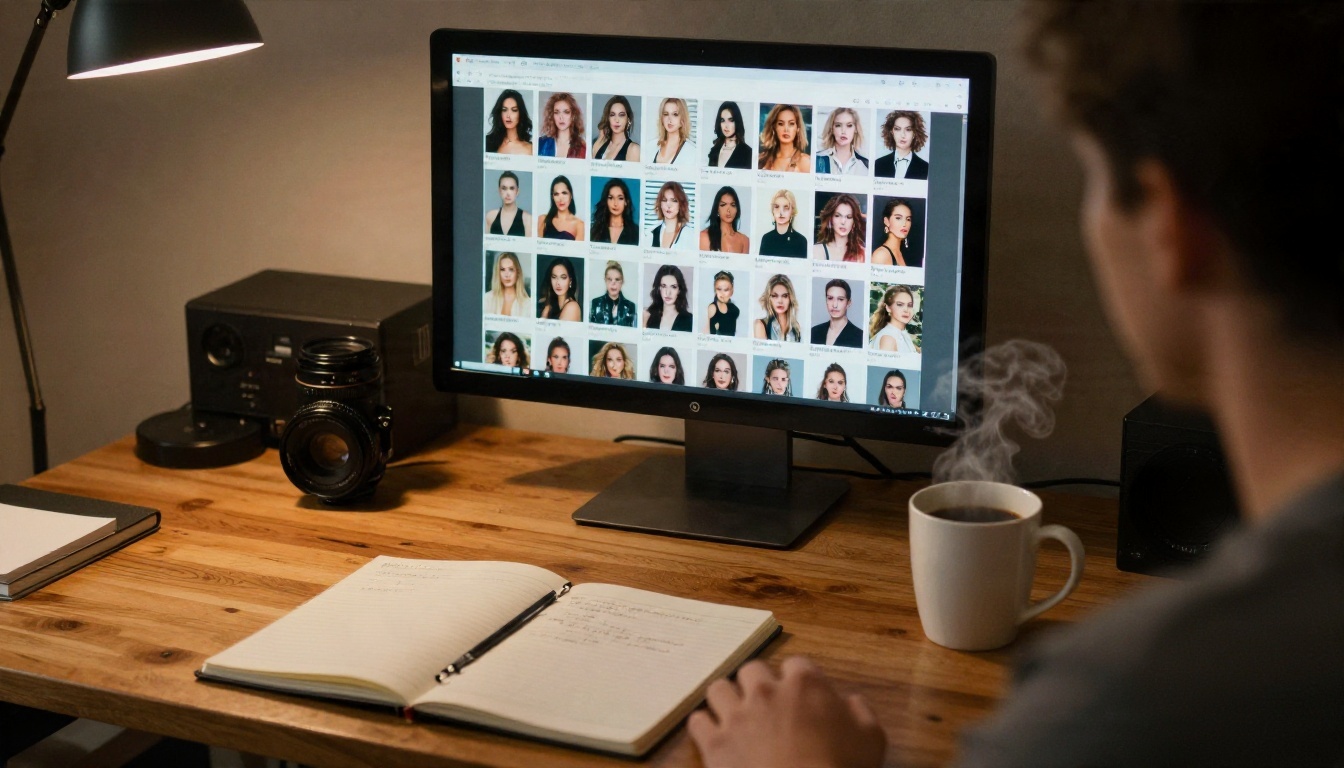
Browsing is half the work. Sample galleries tell you how a model really behaves.
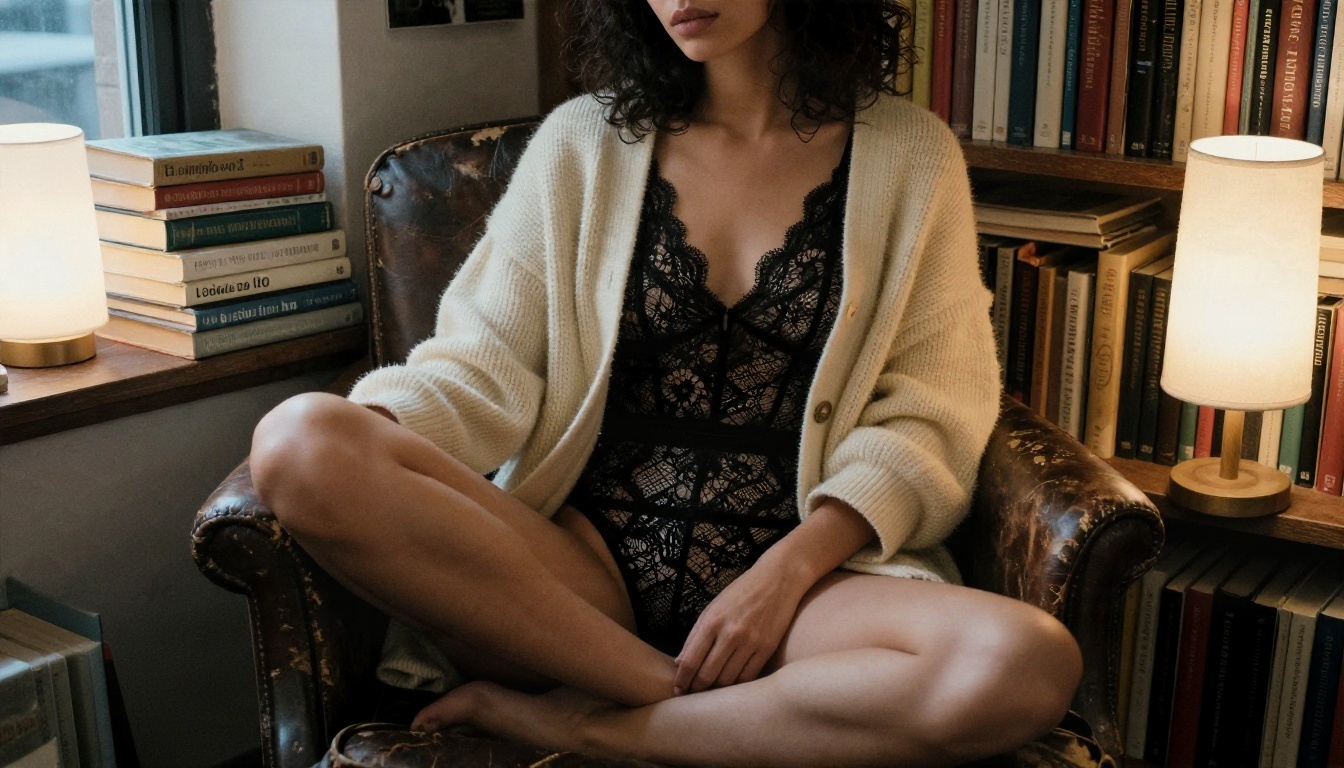
Studio and Loft Glamour
Indoor glamour lives or dies on window light. A single large source from the side, plus a bounce from a white surface, gives soft shadows and believable skin.
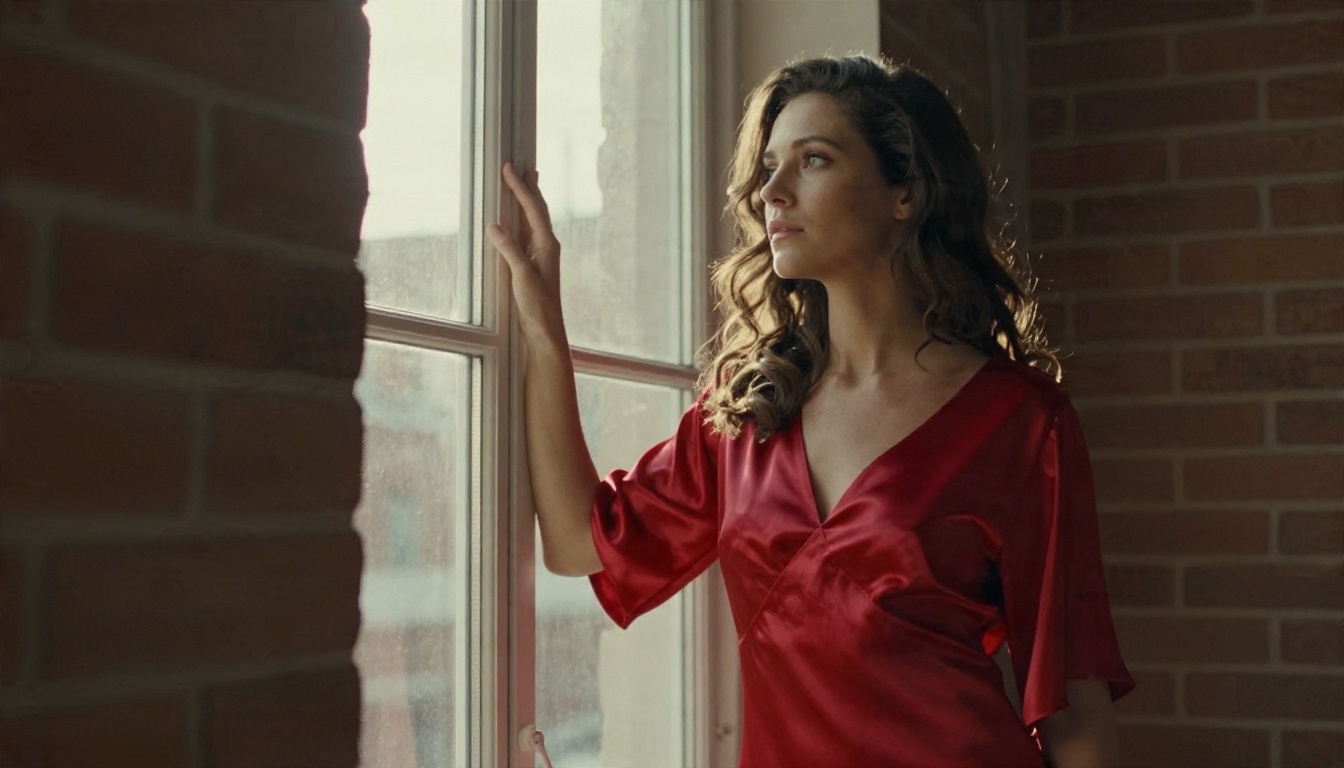
Prompt pattern used: low angle photograph, woman in red satin slip dress, tall loft window, backlight rim on hair, exposed brick, 50mm f/1.4, Kodak Portra 400 grain.
Beach and Pool Scenes
Outdoor swimwear shots are the most requested category. The trouble is harsh midday light. Fix it by asking for golden hour, a canopy or an overcast sky.
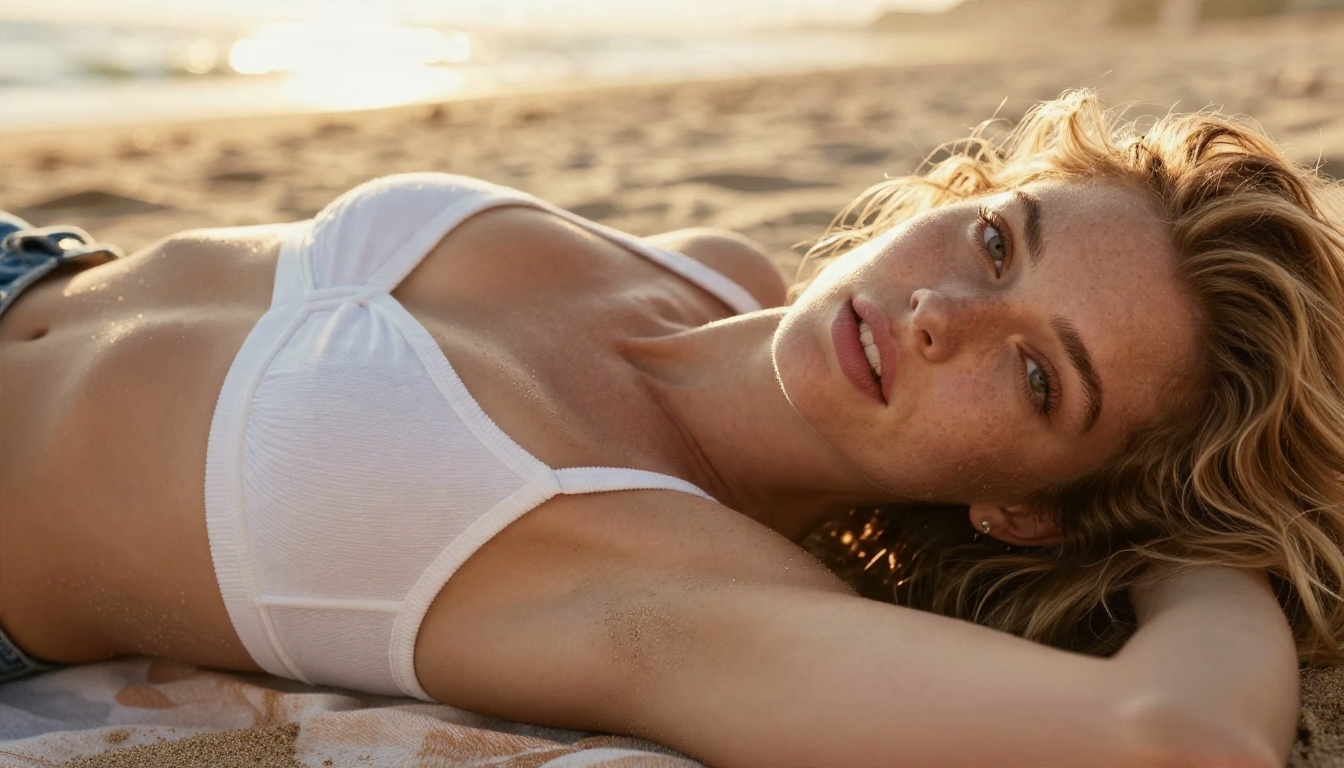
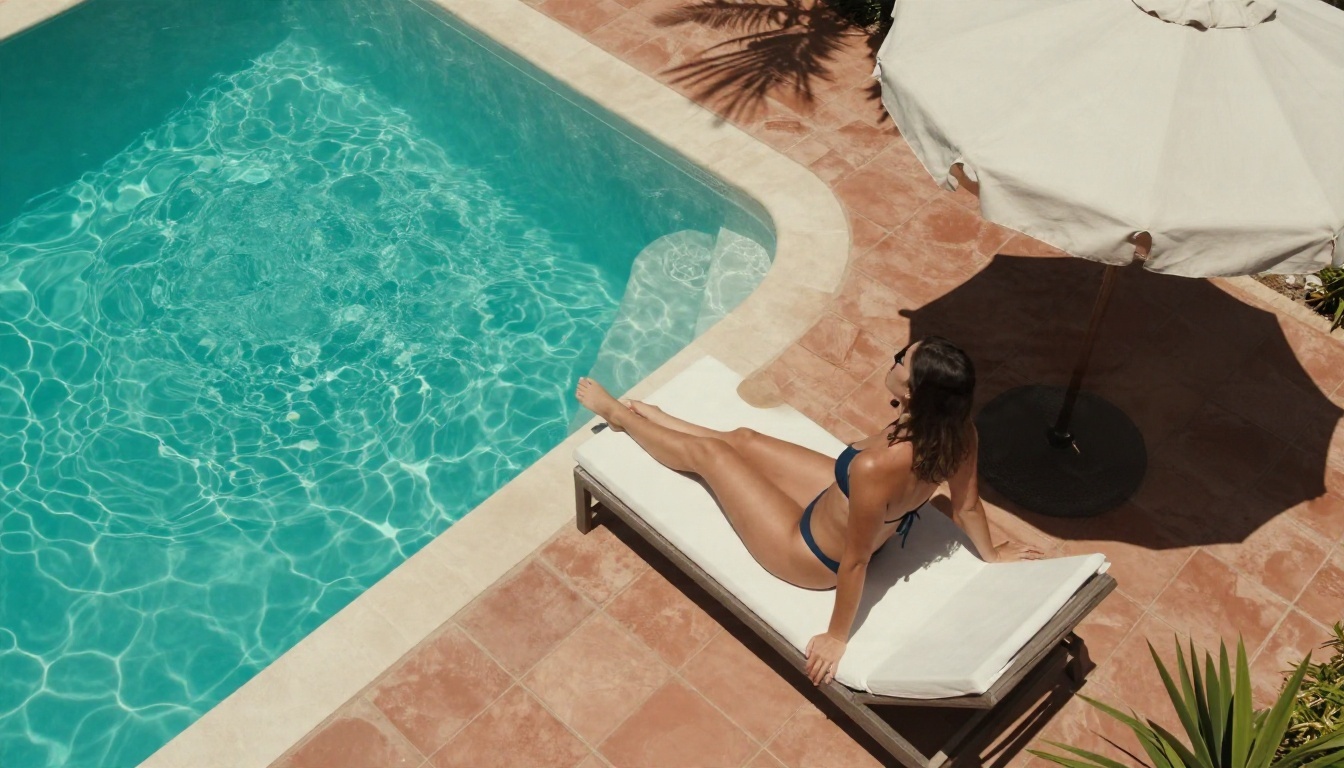
Notice the variety in angle: a tight close-up at eye level, then a wide aerial view. Changing distance and angle between shots keeps a set from looking repetitive.
Boudoir and Evening Looks
Boudoir styling works best with warm tungsten practicals mixed with cool window light. That contrast gives depth without any glow effects.
Prompts That Work Every Time
Great output rarely comes from a long list of random tags. It comes from a repeatable structure. Whether you use a Civitai checkpoint or any other photorealistic generator, this formula holds up.
The Five-Part Prompt Formula
- Subject and action: who is in the frame and what they are doing.
- Wardrobe and texture: fabric, sheen, skin detail.
- Environment: where the scene happens, with two or three concrete objects.
- Light: direction, softness and time of day.
- Camera: lens, aperture, angle and film stock.
Here is a full example you can adapt:
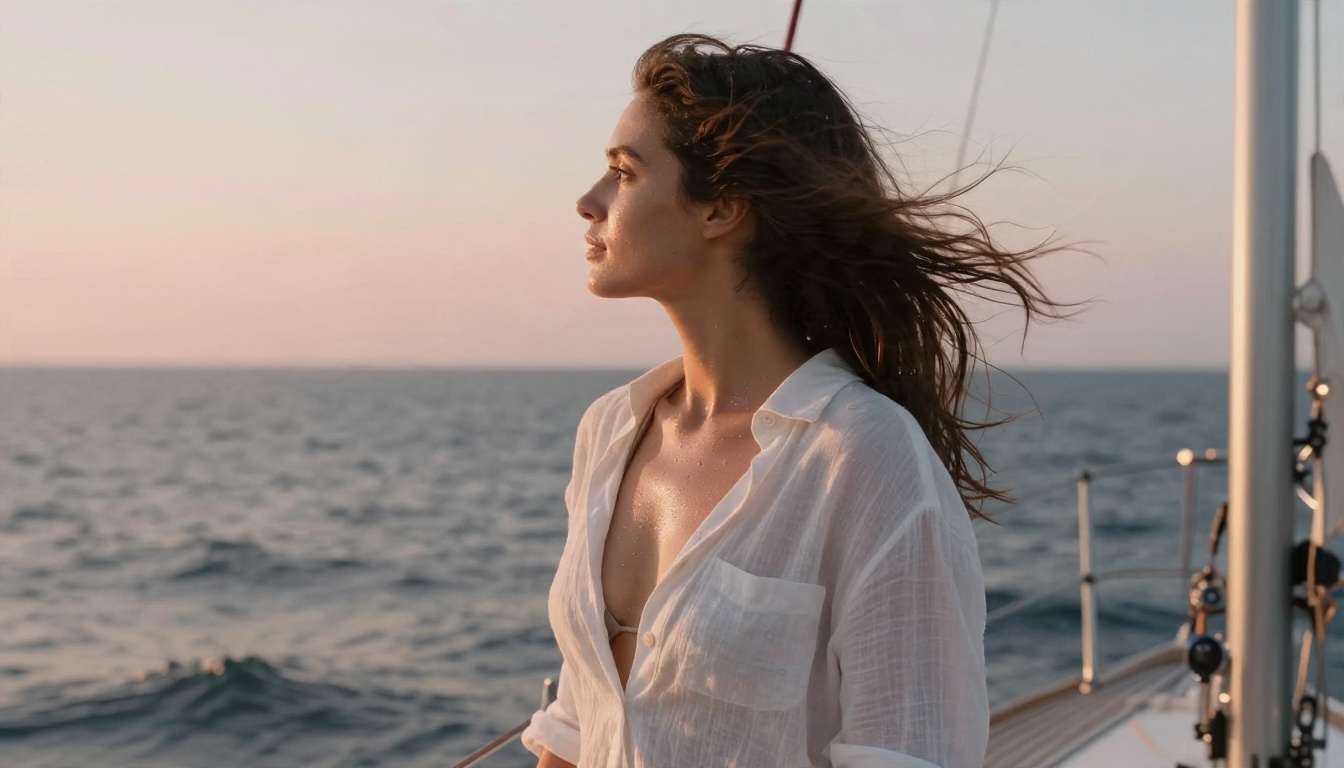
A woman in a white linen shirt open over a swimsuit stands at a sailboat railing at sunrise, wind moving her hair, wet teak deck and coiled rope in the foreground, soft pink and gold light from behind the horizon, 70mm f/2 lens, shallow depth of field, visible skin glow and salt spray, Kodak Portra 400 film grain, RAW photograph.
Keep a notebook of prompts that worked. Reusing a proven lighting and lens phrase saves hours.
Negative Prompt Habits
On checkpoints that support negative prompts, a short list beats a long one. Start with these and add only when you see a specific problem:
plastic skin, waxy, airbrushedextra fingers, deformed handsblurry, low resolution, watermarkcartoon, illustration, 3d render
Piling on 80 terms usually makes images flatter, not better.
Lighting and Lens Terms Worth Reusing
| Goal | Phrase to add |
|---|
| Soft skin | large window light from the left, white bounce fill |
| Depth | 85mm f/1.8, shallow depth of field, creamy bokeh |
| Film feel | Kodak Portra 400, subtle grain, slight halation |
| Warm mood | golden hour, low sun, rim light on hair |
| Realism | visible pores, fine peach fuzz, natural imperfections |
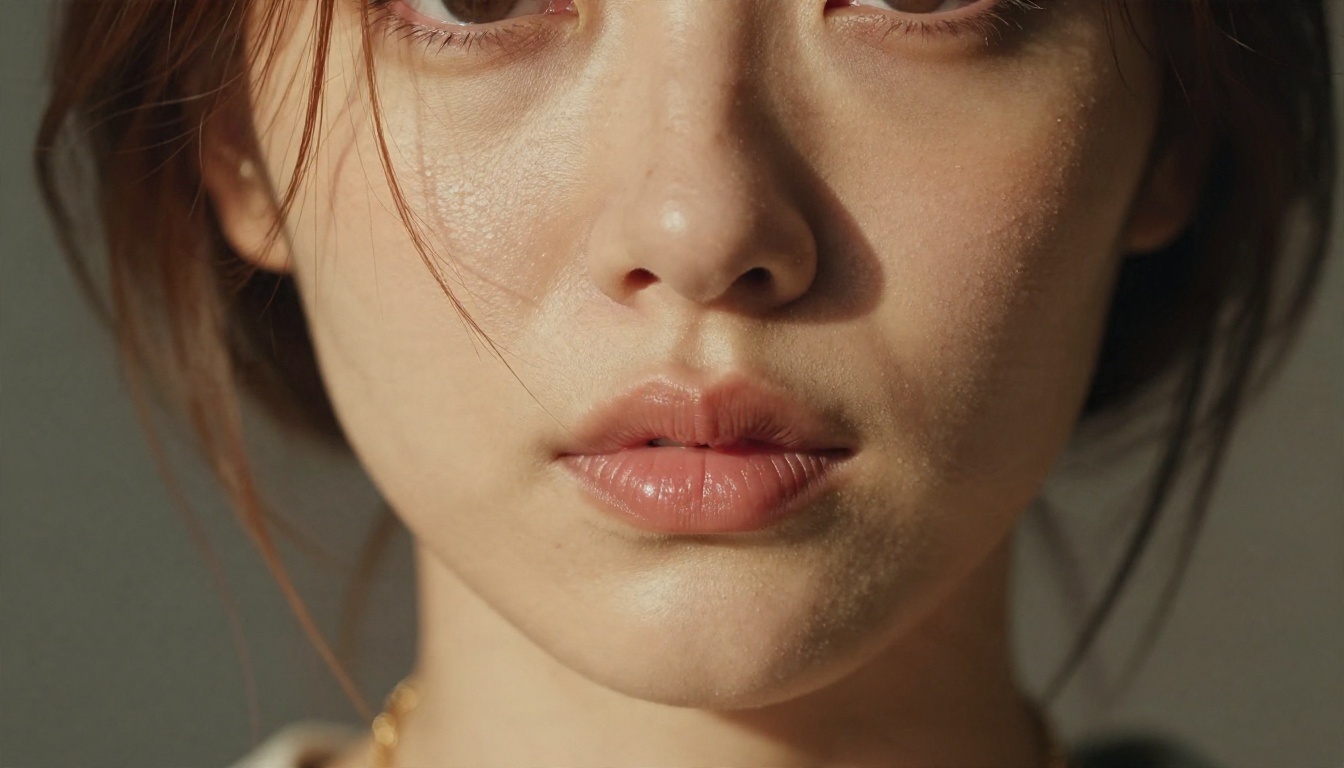
Texture is the tell. When pores, lashes and flyaway hairs look right, viewers believe the photo.
Using Civitai Red Models Online
You have two ways to run a community model: on the site's own generator, or on your own computer.
Online Generation on the Platform
The on-site generator lets you pick a checkpoint, add LoRAs, type a prompt and generate in seconds without owning a GPU. Safe-for-work generation runs on the platform's credit system. Mature generation is tied to a paid membership, and sources disagree on exactly how payment is handled, so read the current terms before you commit.
What to watch for online:
- Credits drain faster with high resolution and many LoRAs.
- Some checkpoints are marked as on-site only or early access.
- Licenses differ: a model can be free to run but restricted for commercial use.
Running Models Locally
The local route means downloading a checkpoint, installing an interface such as ComfyUI or Automatic1111, and having a GPU with roughly 8 to 12 GB of VRAM for SDXL-class models. It is free per image after setup, but setup takes time, and updating drivers, nodes and model versions is an ongoing chore.
💡 Reality check: Local is cheaper per image. Online is faster to start. If you only want a few good pictures a week, browser tools win on time.
Free Options That Actually Work
"Free" comes in three flavors, and each has limits.
| Option | Cost | Strength | Limit |
|---|
| Local install | Free after hardware | Full control | Setup time, GPU needed |
| Free credits on hubs | Free to start | Huge model choice | Credits run out |
| Browser generators | Free tiers or unlimited editing | No install, fast | Fewer community LoRAs |
For most people, the sweet spot is a browser generator with strong built-in realism. You skip checkpoint hunting, skip VRAM worries, and get consistent results. That is where PicassoIA fits.
How to Get Similar Results on PicassoIA
Civitai Red is not on PicassoIA, and it is a site rather than a model. For similar photorealistic glamour results today, start with Seedream 4.5. It follows long, detailed prompts closely, renders skin and fabric texture well, and outputs up to 4K.
Step by Step With Seedream 4.5
- Open the Seedream 4.5 page.
- Paste a five-part prompt: subject, wardrobe, environment, light, camera.
- Choose a 16:9 ratio for scenes or 3:4 for portraits.
- Generate, then change only one element at a time, such as the light direction or lens.
- Pick your favorite and refine it further in an editor.
Parameter Tips
- Be specific about light. "Soft window light from the left" beats "good lighting."
- Name a lens and film stock. 85mm f/1.8, Kodak Portra 400 pushes the result toward real photography.
- Keep wardrobe tasteful and concrete. Describe fabric, such as satin, lace or linen, and let texture carry the look.
- Iterate in small steps. Changing three things at once makes it impossible to see what helped.
Other Alternatives Worth Trying
If you want more control or a different feel, these are on PicassoIA and cover the same task:
If you want a look that is truly yours, the Qwen Image LoRA Trainer Legacy lets you train a custom style from your own reference photos.
Common Mistakes to Avoid
Whatever tool you pick, the same errors keep returning.
- Overloaded prompts. Fifty adjectives dilute the main idea. Keep to one clear scene.
- Ignoring light. Without a light direction, models default to flat, even illumination.
- Stacking too many LoRAs. Two or three at moderate strength is plenty.
- Skipping the license. Always check whether a model allows commercial use.
- Chasing explicit output. Tasteful, suggestive photography with strong light and styling looks better and travels further than anything crude.
Start Creating Your Own Images
You now have the full picture: Civitai Red is a library of community models, prompt structure matters more than prompt length, and a browser generator can give you polished photorealistic results without any setup.
The fastest way to see it for yourself is to take one of the example prompts above, paste it into Seedream 4.5, and change a single detail: the lens, the light or the outfit. Then polish your favorite in PicassoIA Image Editor Pro. Ten minutes of testing will teach you more than hours of scrolling model pages.
Ready for more choices? Browse every generator at picassoia.com/en/all-models and build your own set of photorealistic images today.


