Ready to paste ComfyUI prompts for glamour, swimwear and boudoir style photos, plus the uncensored checkpoints worth downloading, the sampler, CFG and step values that actually work, and free ways to run workflows online.
Most people who search for ComfyUI NSFW prompts are stuck on the same problem: the node graph loads, the checkpoint is downloaded, and the output is either blurred, bland or anatomically strange. The cause is almost never ComfyUI itself. It is the model you picked, the way the prompt is written, and three or four numbers inside the sampler node.
This article gives you copy-ready prompt examples for tasteful adult photography (swimwear, boudoir light, glamour portraits), a clear view of which uncensored models are worth the disk space, the exact settings to start from, and free ways to run everything if your graphics card is not up to it. Everything here stays suggestive and non-explicit, and every example assumes fictional adult subjects only.
What ComfyUI Actually Filters
ComfyUI is a local, node based interface. It has no built-in content filter and it does not call a moderation service. That is why people call it "uncensored". But that label is misleading, because the filtering happens somewhere else.
The Model Decides, Not the Interface
A checkpoint trained on cleaned data will struggle to draw skin, fabric tension or swimwear convincingly, no matter how you prompt it. A checkpoint trained or fine tuned on broader photographic data handles those things naturally. When your results look blurry or oddly covered, the checkpoint is the first suspect, not your node layout.
Where Hosted Services Add Filters
Online tools and API wrappers often add a safety layer before or after generation. You will see this as a blocked request or a black image. Running your own graph locally avoids it. Running through a hosted workflow runner depends on that runner's policy, which is worth checking before you build anything around it.
💡 Quick rule: if you get a blurred or black result with a locally installed ComfyUI, look at the checkpoint and any safety checker node inside the workflow you imported. Shared workflows sometimes include one.
Uncensored Models Worth Downloading
The model landscape moves quickly, and download pages are full of recycled merges. Instead of listing dozens of names, here is how to sort checkpoints by what they are good at.
SDXL Checkpoints for Photo Realism
SDXL based realism checkpoints remain the safest default. They run on 8 GB of video memory, they have the biggest library of LoRAs, and their behavior is predictable. Look for models whose preview images show real skin texture and film grain rather than smooth airbrushed faces. A realism tuned family such as RealVisXL v3.0 Turbo is a good yardstick for what "photographic" should look like.
Flux Style Checkpoints for Detail
Flux family models follow long, natural sentences much better than older architectures, and they draw hands and fabric more accurately. The cost is size: expect 12 GB or more of video memory for comfortable local use, or quantized versions if you have less. Uncensored community versions exist, but quality varies a lot, so test with a fixed seed before you commit to one.
Illustrated Bases, Briefly
Pony Diffusion and Illustrious derived checkpoints dominate stylized and anime output. They are not the right choice for photographic glamour because their prompt tags and training data lean toward illustration. If your goal is realistic images like the ones in this article, skip them.
Model type
Typical VRAM
Best for
Weak spot
SDXL realism checkpoint
8 GB
Portraits, swimwear, fast iteration
Hands in busy poses
Flux style checkpoint
12 GB or more
Long prompts, fabric and lighting
Slower, bigger files
Pony or Illustrious
8 GB
Stylized characters
Not photographic
Older Stable Diffusion 1.5 merges
4 GB
Low end hardware
Soft detail, odd faces
💡 Licensing note: every checkpoint has its own license. Read it before you publish or sell any output, and never generate images that resemble a real, identifiable person.
Prompt Examples You Can Copy
Good adult photography prompts read like a shot list from a photographer. They name the subject, the setting, the light, the lens and the film look. Here are five patterns that work across SDXL and Flux style models. Paste them into your positive CLIP Text Encode node and change one element at a time.
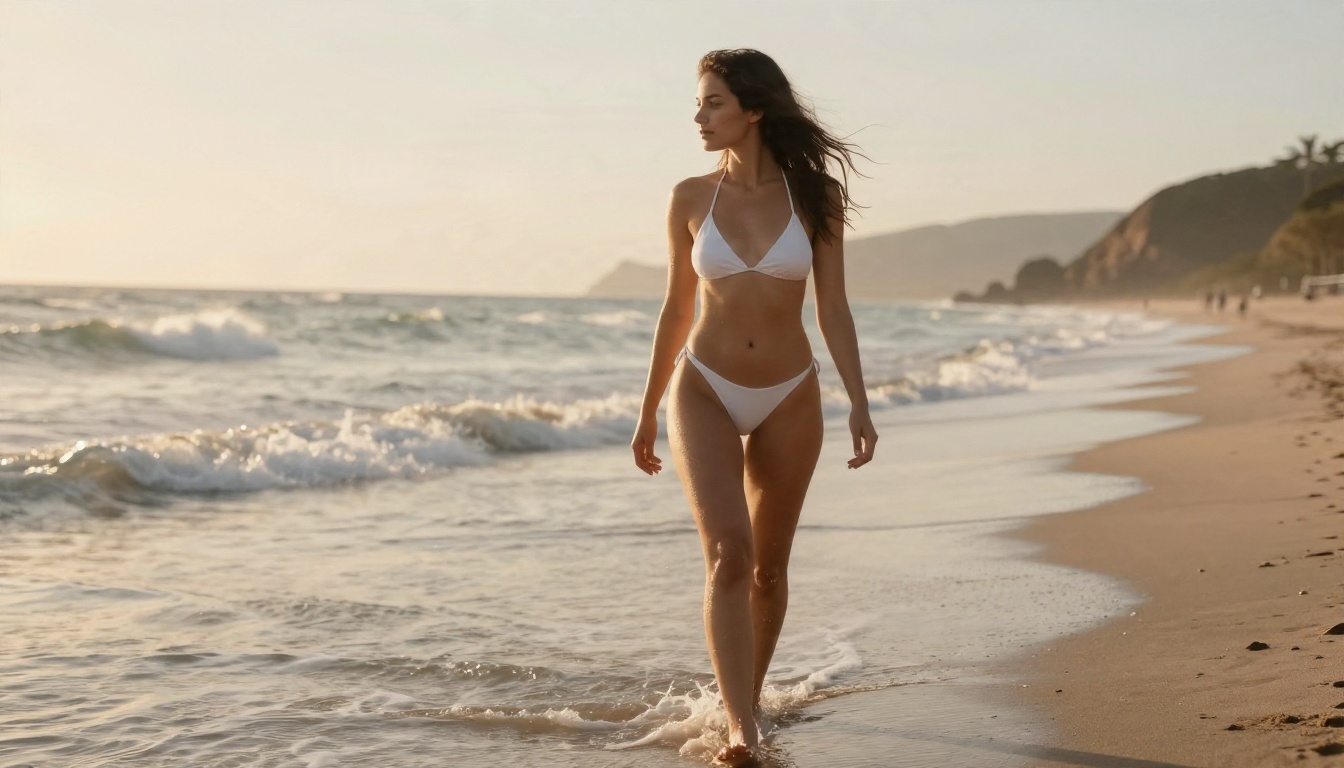
Beach Glamour at Golden Hour
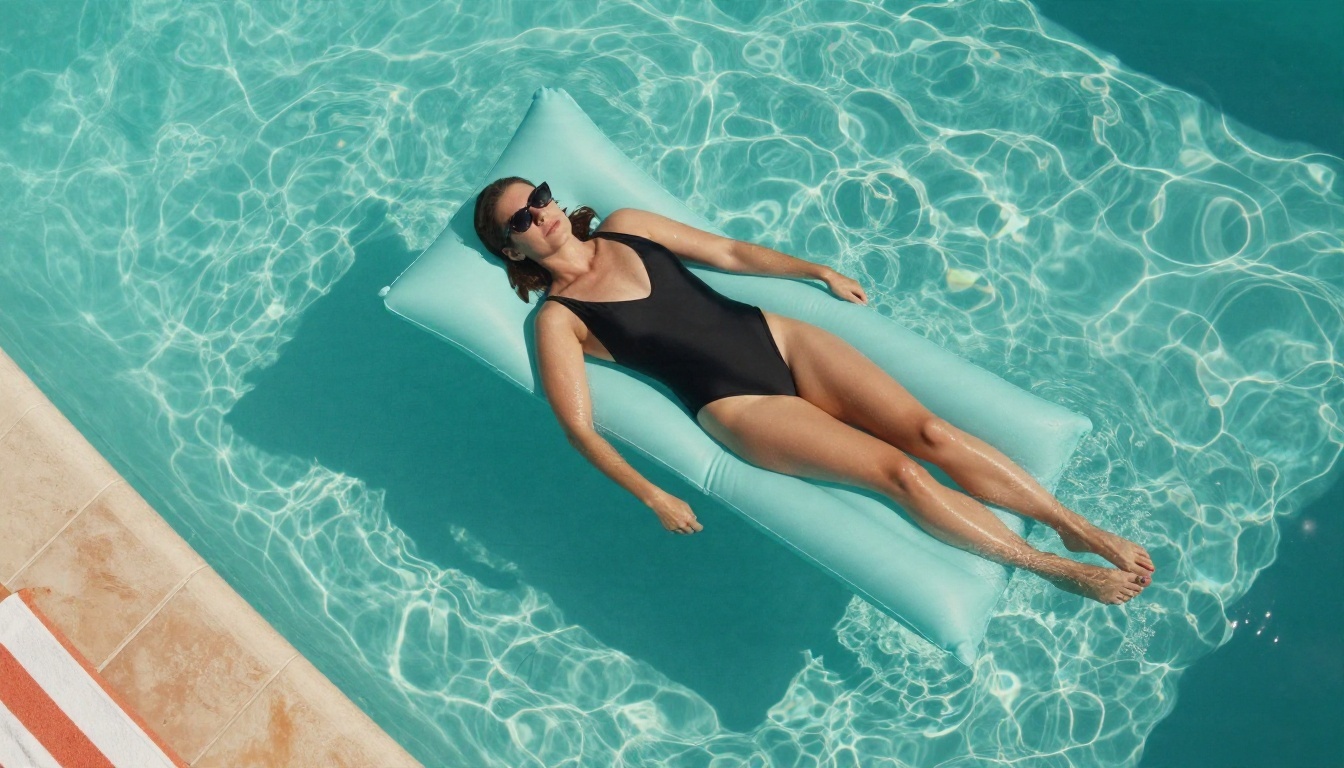
a woman in a white string bikini walking along a wet sandy shoreline at golden hour, hand brushing windswept hair from her face, foam around her ankles, warm low sun from the left, rim light on shoulders, natural skin sheen, 50mm f/2, shallow depth of field, Kodak Portra 400 film grain, raw photo
The trick here is the lighting phrase. "Warm low sun from the left" gives the model a direction, which prevents the flat, front lit look that screams AI.
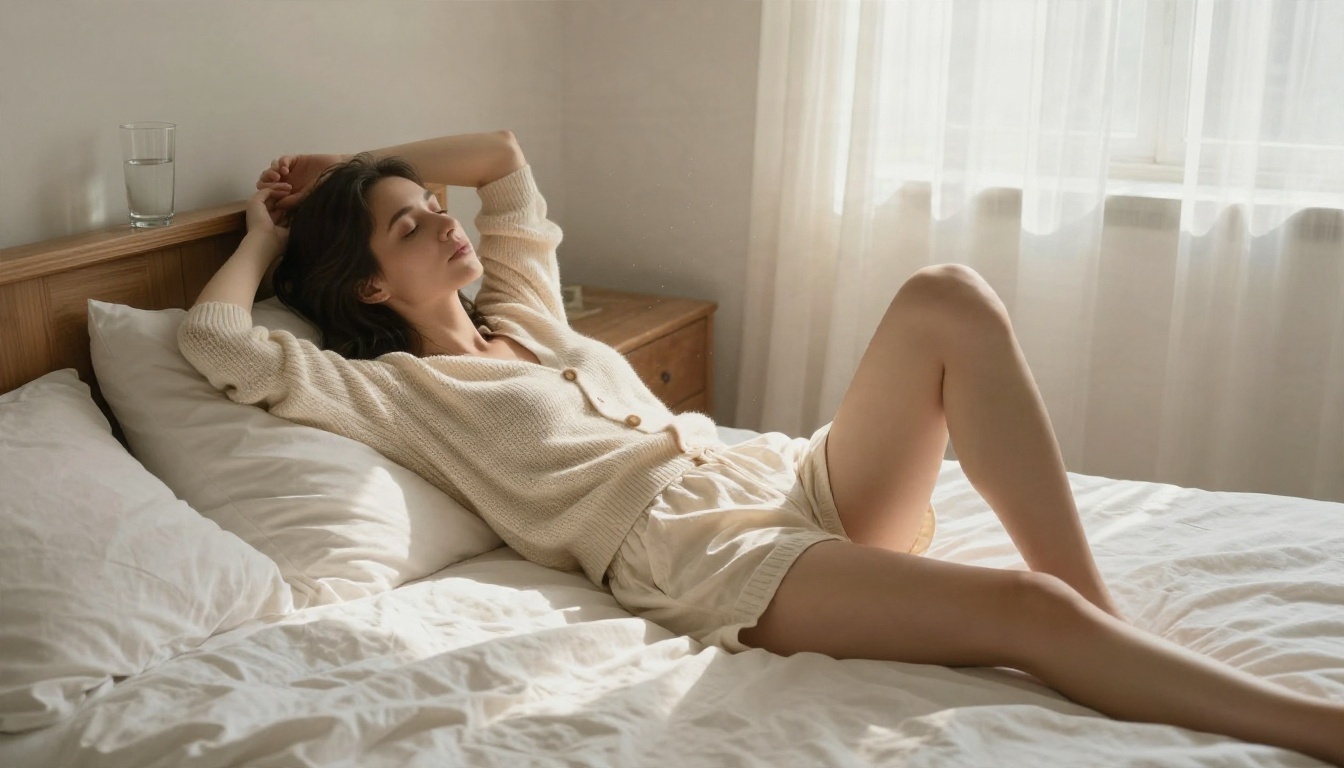
Soft Morning Boudoir Light
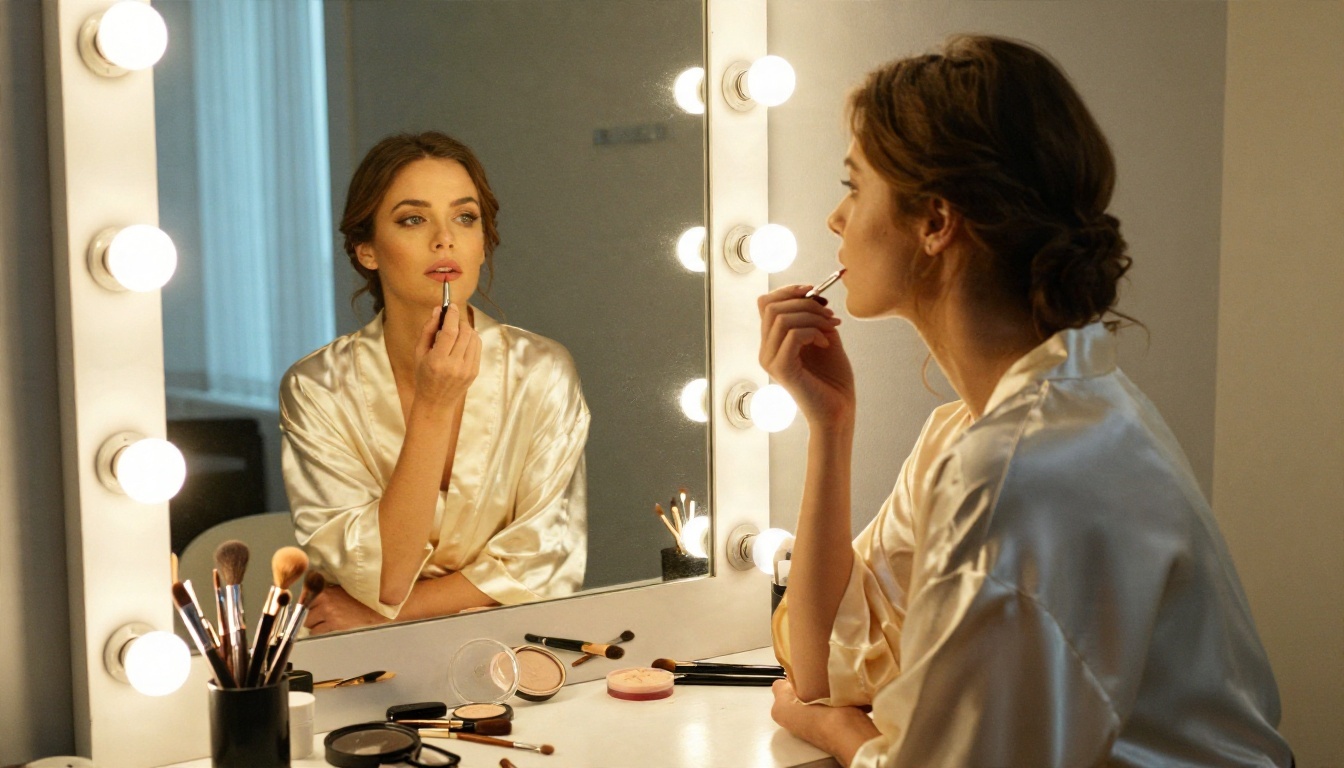
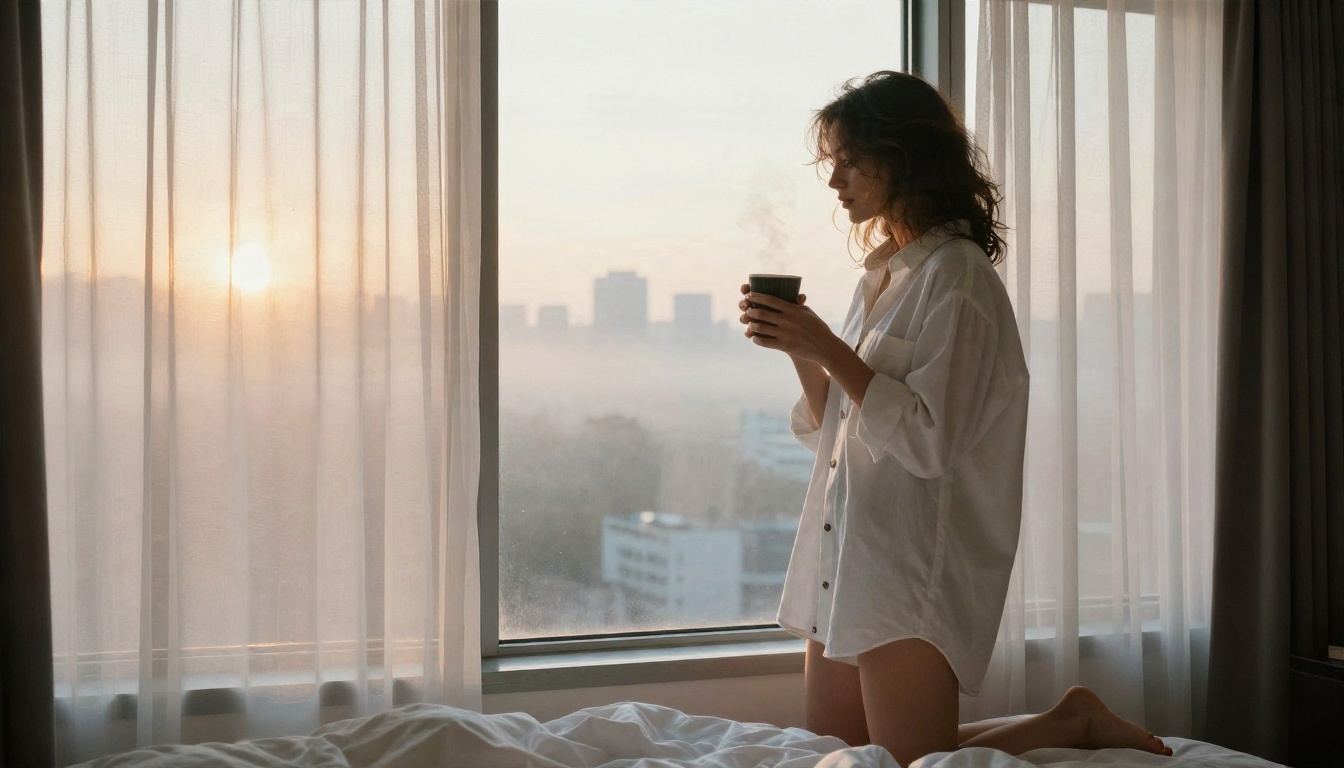
a woman lounging on rumpled white linen in a sunlit bedroom, sheer curtains diffusing window light from the right, dust motes in the air, pale plaster wall, 35mm f/2, slightly high angle, visible linen wrinkles, calm expression, film grain
Notice how the prompt describes fabric and light and nothing else. For a more suggestive tone, change the clothing description rather than adding explicit words. That keeps the result in tasteful territory and also tends to produce better composition.
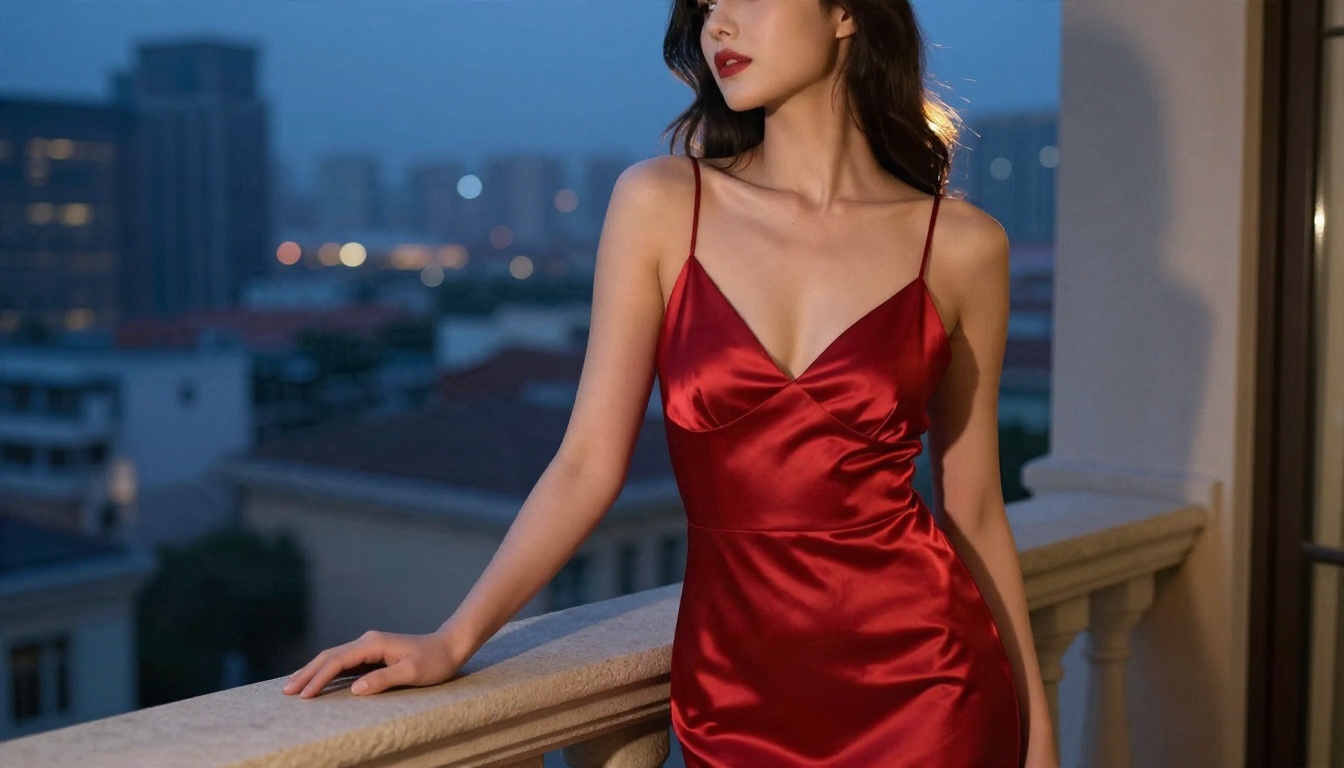
Evening Glamour With Practical Light
a woman in a fitted red satin evening gown on a hotel balcony at blue hour, hand on the stone railing, city rooftops softly blurred, warm tungsten glow from the open door behind her, 85mm f/1.8, slight low angle, satin folds with specular sheen
Mixing cool ambient light with one warm source gives depth. Models respond well to the word "practical" or to naming the actual light source.
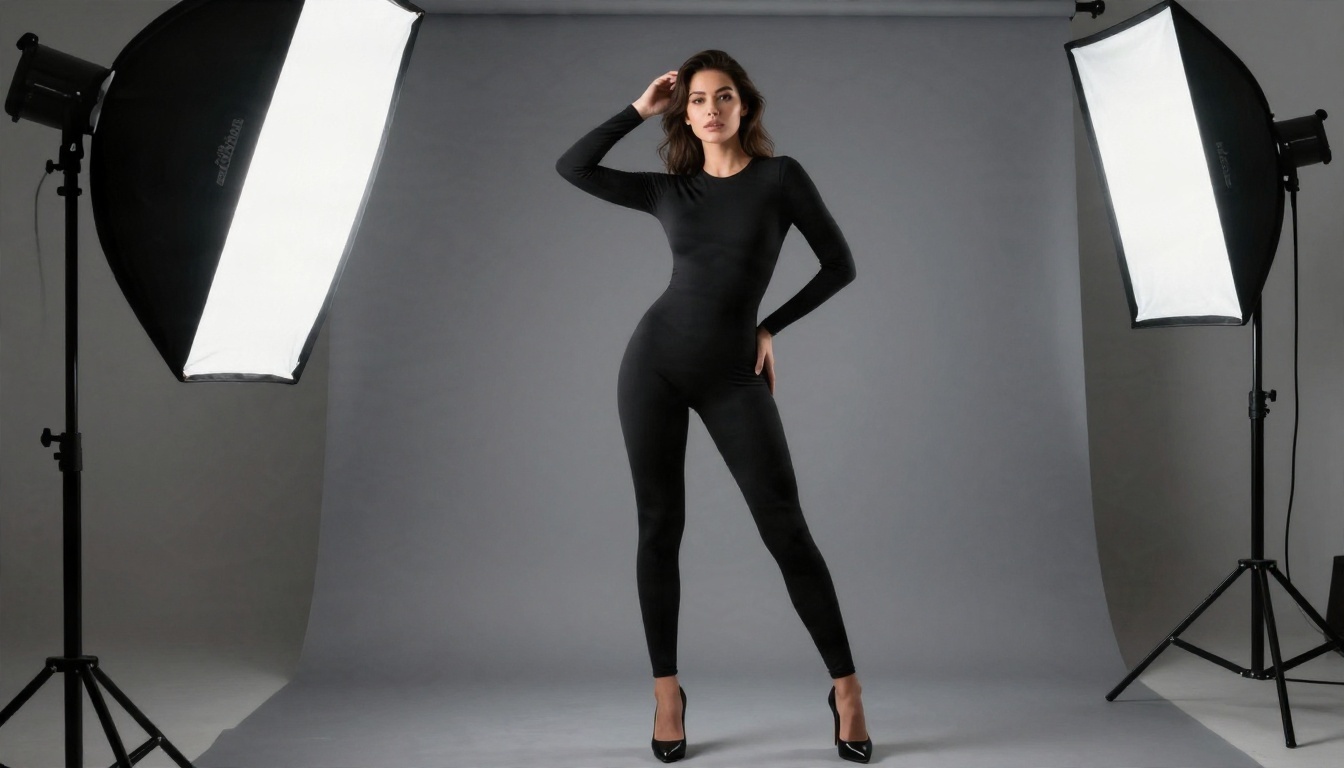
Studio Fashion Frame
full length studio fashion photograph of a woman in a black long sleeve bodysuit and heels against a seamless grey backdrop, large octabox softbox from the left, strip light rim from behind right, 70mm f/4, eye level, crisp skin detail, fabric stretch texture
Close Portrait With Skin Detail
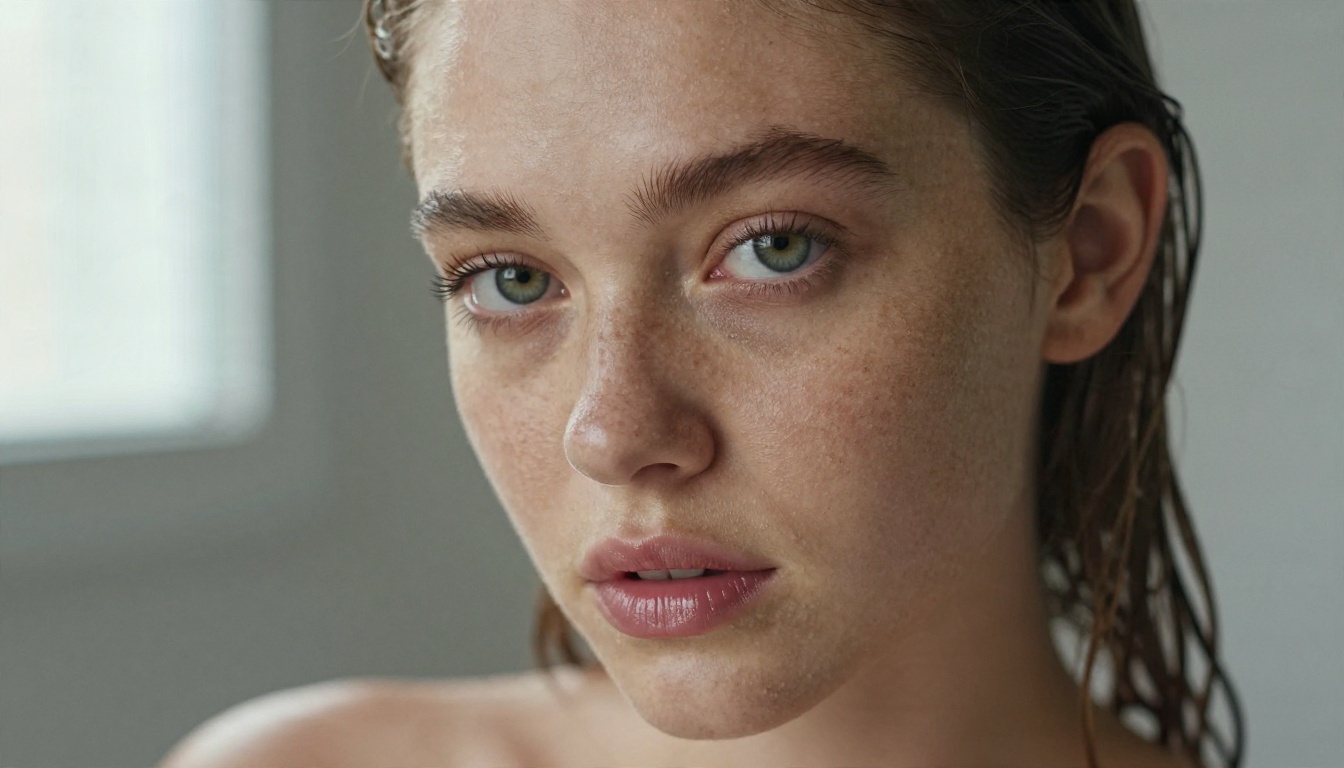
extreme close up beauty portrait of a young woman with light freckles, wet hair slicked back, glossy lips, soft north window light from the left, small reflector fill on the right, 100mm macro f/2.8, visible pores and peach fuzz, no retouching
The phrases "visible pores" and "no retouching" push the output away from plastic skin, which is the most common complaint about generated portraits.
💡 Prompt formula: subject and action, setting, light direction, camera angle and lens, texture words, film stock. Keep that order and your results become much more repeatable.
Settings That Change the Result
Settings advice online is all over the place, and recommended values for the same architecture can differ by several points. Treat the numbers below as starting points and check the model card of your specific checkpoint.
Sampler and Scheduler
For SDXL realism checkpoints, DPM++ 2M with the Karras scheduler is the reliable all rounder. Euler Ancestral gives livelier, less predictable variation when you want to explore compositions. For Flux style graphs, a common setup is the Euler sampler with the Simple scheduler.
CFG and Steps
Architecture
Sampler
Steps
CFG
SDXL realism
DPM++ 2M Karras
25 to 35
5 to 7
Stable Diffusion 1.5
DPM++ 2M Karras
25 to 30
7 to 9
Flux style
Euler, Simple
about 20
1.0 in the sampler
With Flux style workflows, guidance is set in a separate guidance node, often around 3.5, and the KSampler CFG stays near 1.0. Raising the KSampler value there tends to give oversaturated, burnt looking images.
Negative Prompt Basics
SDXL and older models benefit from a short negative prompt. Something like "bad anatomy, deformed hands, extra fingers, worst quality, low quality, blurry, watermark" is enough. Do not paste a 200 word negative block from a forum. It often reduces detail without fixing anything. Flux style models usually do not use a negative prompt at all.
LoRA Strength
Start LoRAs at 0.7 and adjust in steps of 0.1. Above 1.0 you will usually see distorted faces and burned contrast. If two LoRAs fight each other, lower both to 0.5 and raise one at a time.
Mistakes That Waste Hours
Changing five things per run. Fix the seed, change one value, compare.
Skipping the resolution rule. Generate at the model's native size (about 1024 pixels on the long side for SDXL), then upscale.
Stacking quality tags. Ten repeated "best quality, ultra detailed" tags add noise, not detail.
Ignoring VRAM warnings. Out of memory errors lead to silent fallback and slow generation.
Free Options Without a GPU
Not everyone has a 12 GB graphics card, and cloud notebooks come with their own time limits and policies. Here are the realistic routes.
Local with low VRAM. ComfyUI runs on 6 to 8 GB with SDXL, and quantized models reduce the footprint further. It is free after you own the hardware, and it gives you full control.
Free online runners. Several sites offer limited daily credits. Expect queues, resolution caps and content rules that differ from site to site.
Upload your graph to a hosted runner. If you already have a workflow you like, you can run the exact JSON online instead of installing anything. That is the case for the next section.
How to Use Any ComfyUI Workflow on PicassoIA
If you built or downloaded a graph and do not want to keep your own machine busy, Any ComfyUI Workflow lets you paste the JSON and generate images online. It supports multi node and ControlNet style graphs, and you pick the output format and quality.
Export correctly. In ComfyUI, use Save (API format), not the regular save. The runner needs the API version of the workflow.
Paste your JSON. Put the exported text (or a URL to it) in the workflow_json field.
Add inputs if needed. For image to image graphs, upload the input file or replace the file nodes with URLs inside the JSON.
Set output. Choose WebP, JPG or PNG. Output quality defaults to 95, which is a good balance.
Leave seeds on random. The randomise_seeds option is on by default, so every run gives a new result. Turn it off when you want to compare one setting at a time.
Reset the cache when results look stale. The force_reset_cache option clears old node outputs.
💡 Tip: keep node counts low and use models the runner already has available. Graphs that call for custom checkpoints on your disk will not find them online.
Faster Alternatives for Adult Content
A node graph is powerful, but it is also slow to set up. If you mostly want attractive, tasteful results fast, these models on PicassoIA skip the setup. They are listed in the order I would try them.
Seedream 4.5. The first stop. It produces sharp 2K and 4K images, handles skin, fabric and lighting very well, and accepts reference images. There is also an option to relax input moderation to block only illegal content, so use it responsibly. Use the prompt patterns above directly, set the aspect ratio to 16:9 and start with 2K.
PicassoIA Image Editor Pro. Unlimited generations and edits, which makes it the best place to iterate on one look until it is right.
Qwen Image 3. Strong photographic realism and long prompt following, with a Pro version for more detail.
Z Image Turbo. Very fast, a good choice for rapid drafts of a composition.
💡 Workflow suggestion: draft with a prompt from this article in Seedream 4.5, then refine details in the Image Editor Pro. You get a photographic result without a single node.
Make Your Own Images Today
You now have the three things that decide results in ComfyUI: a model matched to your goal, prompts built like a photographer's shot list, and sampler values that give you a stable baseline. Pick one of the prompt examples above, keep the seed fixed, and change a single element per run, whether that is the light direction, the lens or the clothing description.
If you would rather skip installation and node wiring, open Seedream 4.5 or the PicassoIA Image Editor Pro and paste a prompt from this page. Already have a graph of your own? Run it through Any ComfyUI Workflow. To compare more image models side by side, browse everything at picassoia.com/en/all-models, and keep every project to fictional adults and tasteful, non-explicit results.