Search for Comfy UI uncensored and you will find two kinds of pages: tutorials that promise a five-minute setup, and forum threads where people have been fighting a red error box for three hours. Both are telling the truth. ComfyUI is a brilliant, flexible, node-based engine for image generation, and it ships with no content filter at all. It is also a tool that expects you to be part electrician, part file manager, and part patient detective.
This article sorts out what "uncensored" actually means in ComfyUI, which model families people load into it, which free options are real, and where an easier online route makes more sense. Everything here stays on the tasteful side: glamour, swimwear, portraits, and photoreal lifestyle imagery, never explicit material.
💡 Quick answer: ComfyUI itself is free and has no built-in filter. The effort is in the hardware, the checkpoints, and the workflow wiring. If you only want good photoreal images, an online model is faster.
What Uncensored Really Means in ComfyUI
No Filter by Default
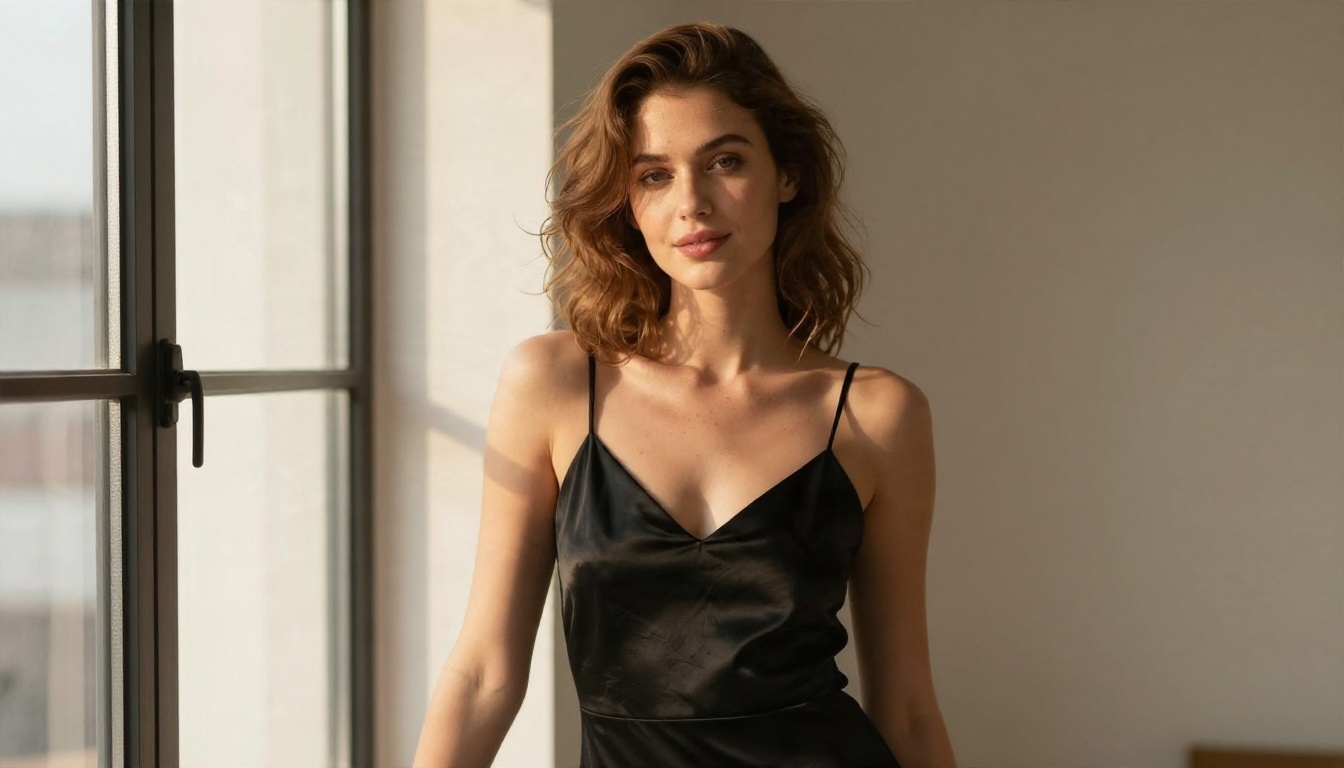
ComfyUI is a graph editor. You drag nodes onto a canvas, connect a checkpoint loader to a prompt encoder, route that into a sampler, and decode the result into pixels. Nothing in that chain judges your prompt. There is no moderation layer, no "NSFW mode" toggle, and no account that can be flagged.
That is why people call it uncensored. The software is neutral. What you get depends almost entirely on the checkpoint (the trained model file) you load.
Where Limits Still Come From
Even without a filter in the app, limits show up in other places:
- The model itself. Some base releases are trained with filtered data or ship with a safety checker, so adult-leaning prompts produce blurry, clothed, or off-target results.
- Community fine-tunes. Many checkpoints on the big model-sharing sites are retrained to loosen those limits, which is the whole reason the "uncensored" label exists.
- Your own responsibility. No filter means no safety net. Local generation puts the rules on you.
💡 If a base model "refuses" by producing mush, the fix is almost never a magic setting. It is a different checkpoint.
Best Uncensored Models to Load
Nobody can name one winner, because the right file depends on your graphics card and on what you want to make. Here are the families that come up again and again.
SDXL Photoreal Checkpoints
The SDXL family is the workhorse for realistic people. Fine-tunes such as RealVisXL are popular because they produce believable skin, natural light, and clean hands without a lot of prompt fuss. Expect to want around 12 GB of VRAM for a comfortable experience, although smaller cards can squeeze by with tweaks.
If you want to try SDXL-style speed without any install, SDXL Lightning 4Step is an online option that returns images in a handful of sampling steps, and SDXL Multi Controlnet LoRA adds pose and structure control.
Flux and GGUF Builds
The Flux family gives the most natural lighting and anatomy of the local options, but the files are heavy. Many home users run GGUF quantized builds (the Q4 to Q8 range) to fit them into mid-range cards, trading a little fidelity for a lot of memory savings. Base Flux releases have been reported to ship with safety behavior, so people look for community variants when they want looser output.
For a hosted Flux-family option that supports custom styles, Flux 2 Klein 9B Base LoRA is available without touching a checkpoint folder.
Older SD 1.5 Favorites
SD 1.5 checkpoints still circulate because they run on tiny cards (around 4 GB minimum, 6 GB more comfortably) and because their LoRA ecosystem is enormous. The ceiling for realism is lower, but the barrier to entry is too. For a lifelike hosted equivalent, Realistic Vision v5.1 gives you that classic photographic look in a browser.
A fourth lane exists for anime and illustration: Illustrious XL checkpoints dominate there, though they fall outside the photoreal focus of this article.
| Model family | Typical VRAM (rough) | Realism | Setup effort |
|---|
| SD 1.5 fine-tunes | 4 to 6 GB | Moderate | Low |
| SDXL photoreal (RealVisXL type) | 8 to 12 GB or more | High | Medium |
| Flux GGUF builds | 8 to 16 GB | Very high | High |
| Illustrious XL (anime) | 8 to 12 GB | Stylized | Medium |
💡 VRAM figures vary between sources and depend on resolution, batch size, and extra nodes. Treat the table as a starting estimate, not a promise.
Free Options That Actually Work
Free Local Install
The honest free route is a local install. ComfyUI is open source, the portable Windows build unzips into a folder, and checkpoints are free to download. You pay in other currencies:
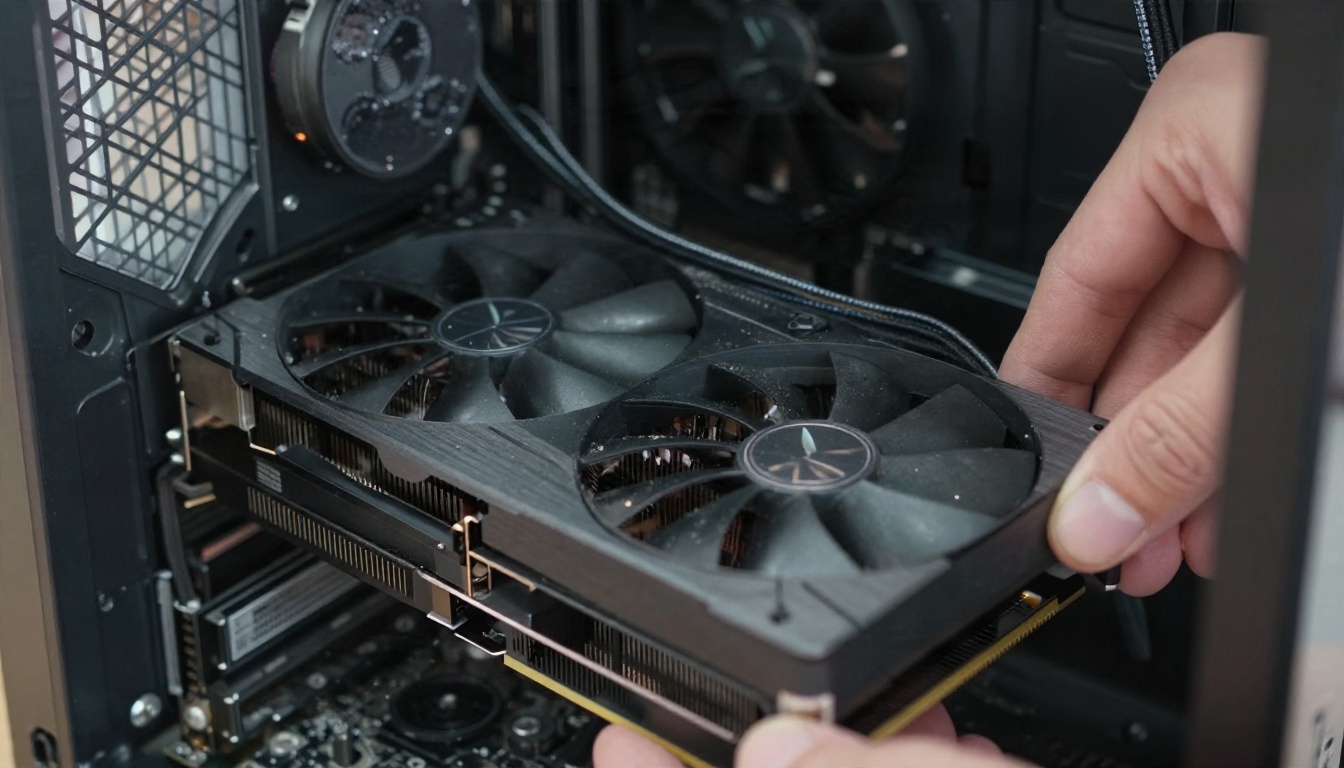
- Hardware. A recent NVIDIA card with plenty of VRAM is the practical minimum for SDXL and Flux.
- Disk space. Plan for 50 GB or more for the install plus a few checkpoints. Model libraries balloon fast.
- Time. Expect an evening for the first working workflow and a weekend for a good one.
Drop a .safetensors file into the checkpoints folder, restart, select it in the loader node, and you are generating. That really is the whole loop once everything is installed.
Free Online Tiers
If your graphics card is weak, free online generators fill the gap. Quality and rules vary a lot between them, and many cap daily generations or watermark the output. The better ones let you run photoreal models in a browser tab with no install, which is the whole appeal for people who just want the image.
A middle path also exists. Any ComfyUI Workflow lets you upload a workflow exported in API format and run it online, with controls for output format, quality, and seed. It is a way to keep a graph you already built without owning the GPU that runs it.
Why Local Setups Get Painful
Hardware Reality Check
VRAM is the wall everyone hits. A model that does not fit gets offloaded to system memory and slows to a crawl, or crashes outright. Upgrading a card to run one checkpoint family is a real expense, and the requirements keep climbing as new models arrive.
Node Spaghetti and Broken Workflows
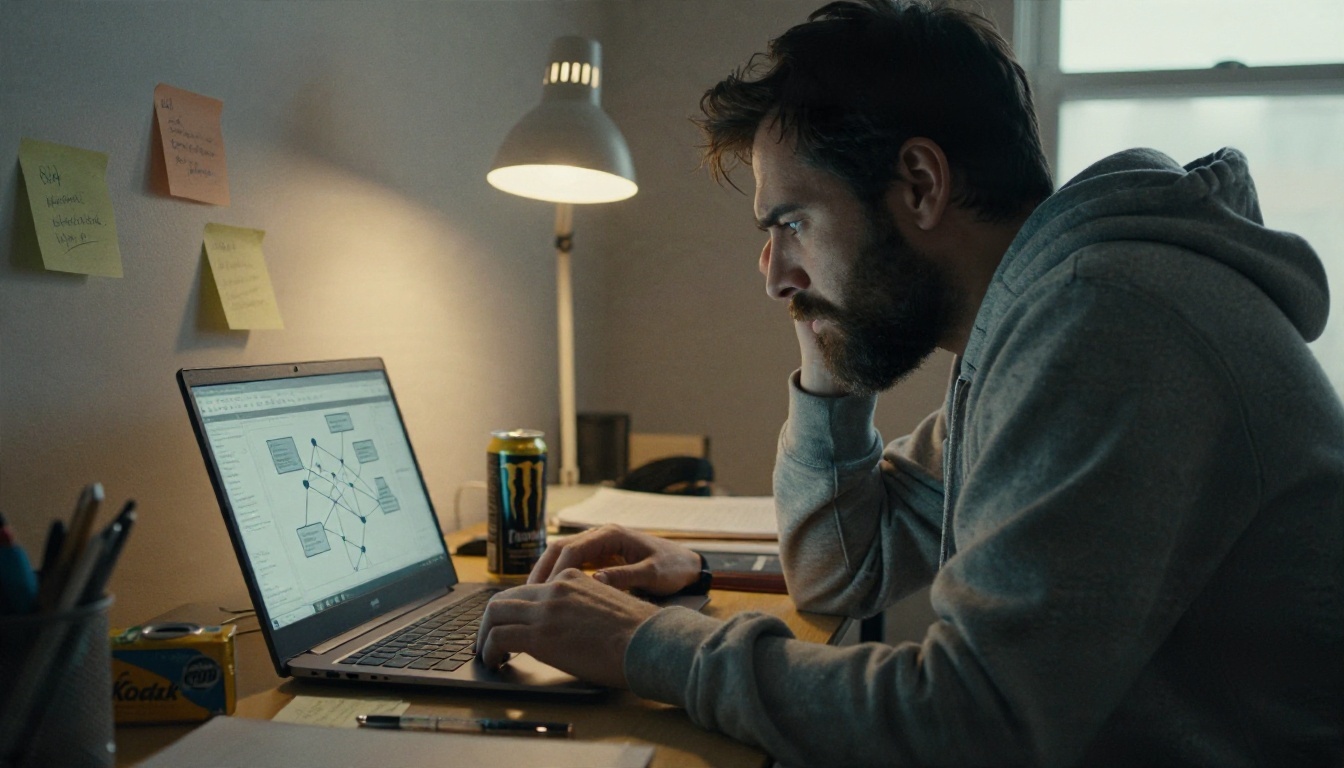
A shared workflow looks great in a screenshot. Load it and you meet red nodes, missing custom packages, version conflicts, and a model path that does not exist on your machine. Fixing one broken node often reveals the next.
Download Safety Basics
Checkpoints come from community sites, and not every file is trustworthy. A few habits help:
- Prefer
.safetensors files. Avoid .ckpt files from sources you cannot vouch for, since that older format can carry executable code.
- Read the license on each checkpoint. Terms differ, and some restrict commercial use.
- Keep custom nodes to a minimum and install them only from authors with a track record.
Easier Online Alternatives Worth Trying
If the goal is a beautiful, photoreal, non-explicit image rather than a hobby in graph wiring, an online model removes the whole stack. PicassoIA focuses on tasteful content such as swimwear, glamour, and portrait photography, and it handles the hardware for you.
Seedream 4.5 First
Seedream 4.5 is the model to open first. It is built for sharp, high-resolution output, handles skin texture and fabric convincingly, and follows long prompts well. For glamour portraits, beach scenes, and lifestyle shots, it gets you a usable image on the first or second try, with no VRAM math.
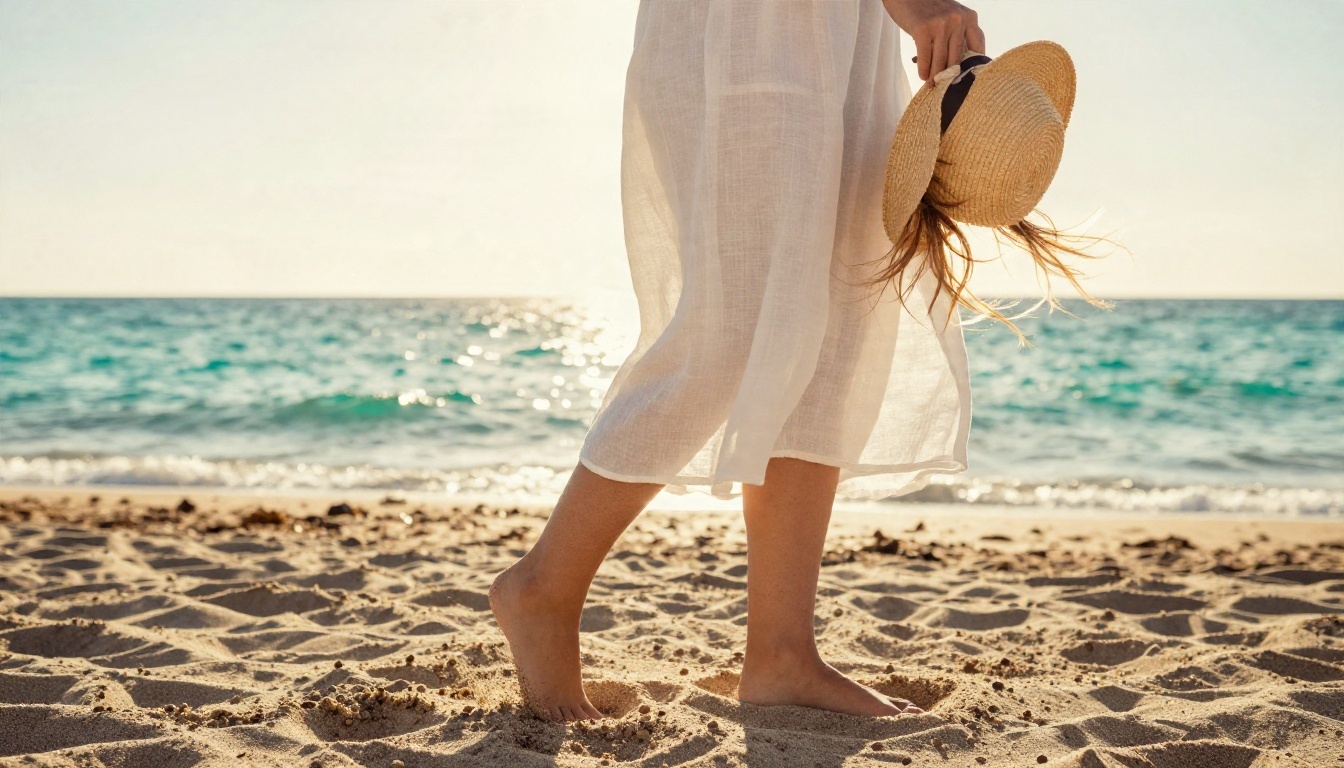
Image Editor Pro for Edits
PicassoIA Image Editor Pro is the second stop. It offers unlimited generations, which matters when you are iterating on outfits, lighting, or poses and do not want to count credits. It works as both a generator and an editor, so you can change a detail without redoing the whole picture.

Other Models Worth a Look
ComfyUI is not on PicassoIA as an app. If you want something close to the control it gives you, Any ComfyUI Workflow is the nearest match, and the models above give you the output without the plumbing.
How to Get Similar Results on PicassoIA
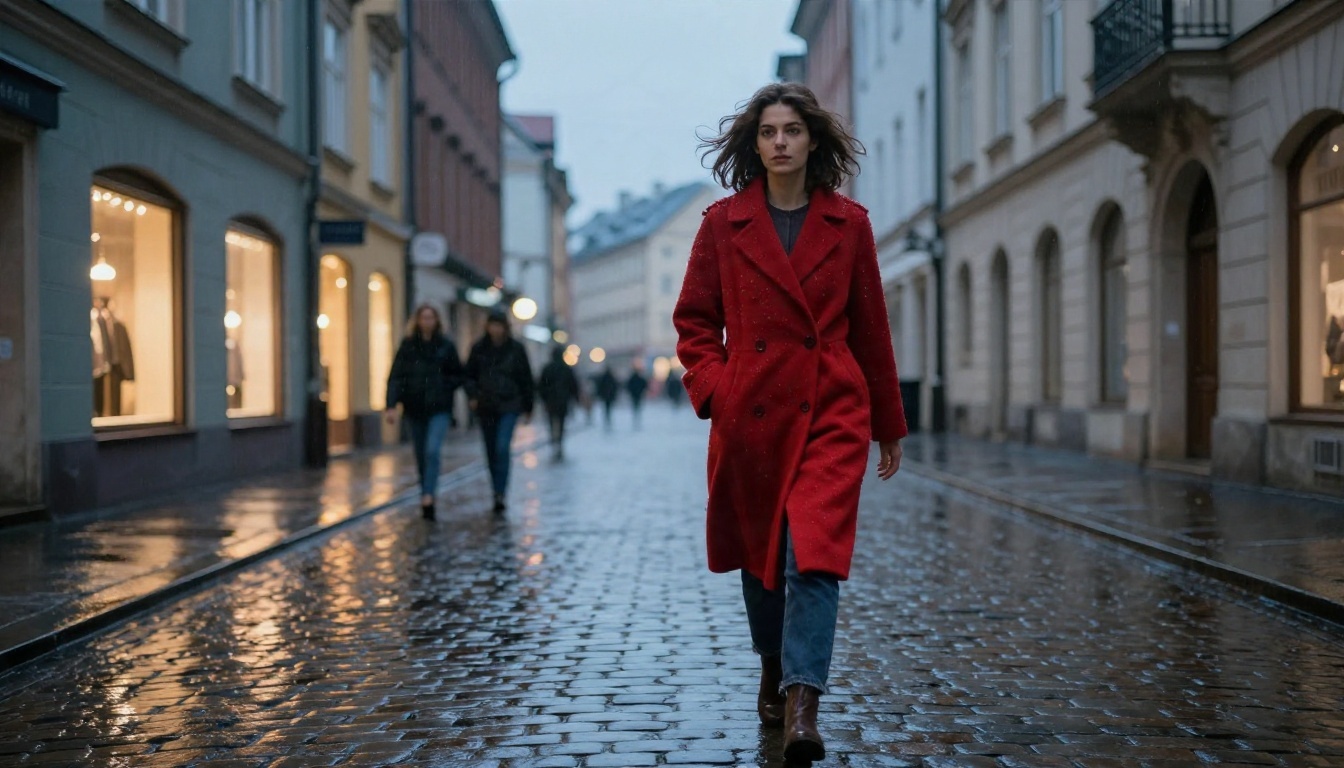
Here is how to get the polished, photoreal look that people chase in ComfyUI using Seedream 4.5 instead.
Step by Step
- Open the model page. Go to the Seedream 4.5 page on PicassoIA.
- Write a subject-first prompt. Start with who is in the frame and what they are doing, then the setting.
- Add light and lens. Phrases like "golden hour light from the left" and "85mm lens, shallow depth of field" steer the look far more than adjectives like "beautiful."
- Describe texture. Mention skin pores, linen weave, satin sheen, or wet stone. Texture words are what push an image from "AI-looking" to photographic.
- Pick the aspect ratio. Choose 16:9 for scenes, 3:4 or 2:3 for portraits.
- Generate, then refine. Change one thing per run, such as the light or the outfit, so you can tell what caused the difference.
- Move to Image Editor Pro for tweaks. Take your best frame into Image Editor Pro to adjust details without limits on attempts.
💡 Keep prompts to tasteful and non-explicit content. That is the focus of PicassoIA, and it is also what produces the cleanest photographic results.

Prompt Habits for Photoreal Output
These habits work in ComfyUI and in any hosted model. They are the difference between a plastic face and a believable one.
| Habit | Weak prompt | Stronger prompt |
|---|
| Specific light | "good lighting" | "soft window light from the left, gentle rim light on the shoulder" |
| Lens detail | "high quality photo" | "85mm lens at f/1.8, shallow depth of field" |
| Skin realism | "perfect skin" | "natural skin texture, fine pores, faint freckles" |
| Fabric | "nice dress" | "black satin slip dress with soft sheen" |
| Mood | "sexy" | "confident gaze, relaxed shoulders, warm golden hour glow" |
| Film look | "cinematic" | "Kodak Portra 400 color palette, subtle film grain" |
Three more habits pay off quickly:
- Vary the camera angle. Low angle, side profile, and over-the-shoulder shots look more editorial than another straight-on portrait.
- Keep backgrounds simple. Busy scenes invite artifacts. A window, a terrace, or a plain wall holds up better.
- Avoid text in the frame. Signs and labels are where generated images give themselves away.
A Few Rules Worth Following
No filter means no safety net, so set your own. Only depict adults. Never use a real person's likeness without consent. Do not pass off generated images as photographs of real events. And keep in mind that content rules differ between countries and platforms, so check where you plan to publish.
Make Your First Image Today
You do not need a 16 GB graphics card, a free weekend, or a folder of mismatched checkpoints to get a stunning photoreal image. ComfyUI is a great tool if you enjoy building graphs. If you would rather skip the wiring, an online model gets you from idea to finished picture in a minute or two.
Open Seedream 4.5, write a prompt with a real light source and a lens, and see what comes back. Then take it to PicassoIA Image Editor Pro and keep refining with unlimited generations. When you want more variety, browse everything at picassoia.com/en/all-models.

Pick a scene you have been imagining, a sunrise terrace, a rainy street, a poolside afternoon, and put it into Picasso IA now. The first draft takes minutes, and the second one will be better.


