You downloaded ComfyUI, spent an evening fixing a Python error, watched a 12 GB checkpoint crawl onto your drive, and then got an out-of-memory message on the very first run. That is the usual story behind the search for ComfyUI AI porn setups, and it is why so many people now look for a browser tab that does the same job with zero installation. This article walks through the free online alternatives, the prompts that actually work, and one route that lets you keep your existing ComfyUI workflow and run it in the cloud.
A quick note on scope: everything here is about adult, suggestive, non-explicit imagery of fictional adults: glamour, boudoir, swimwear and editorial looks. All the images in this article were generated that way, and the prompts below follow the same tasteful line.
💡 Quick answer: If you want the fastest route, open Seedream 4.5 for text-to-image, or PicassoIA Image Editor Pro for unlimited generations. If you already own a workflow, run it with Any ComfyUI Workflow instead of installing anything.
Why People Leave Local ComfyUI
ComfyUI is a powerful node-based tool, and nobody is arguing otherwise. It gives you total control over samplers, LoRAs, ControlNet and upscaling. The problem is not the software. The problem is everything you need around it before you can press "Queue Prompt".
The Hardware Wall
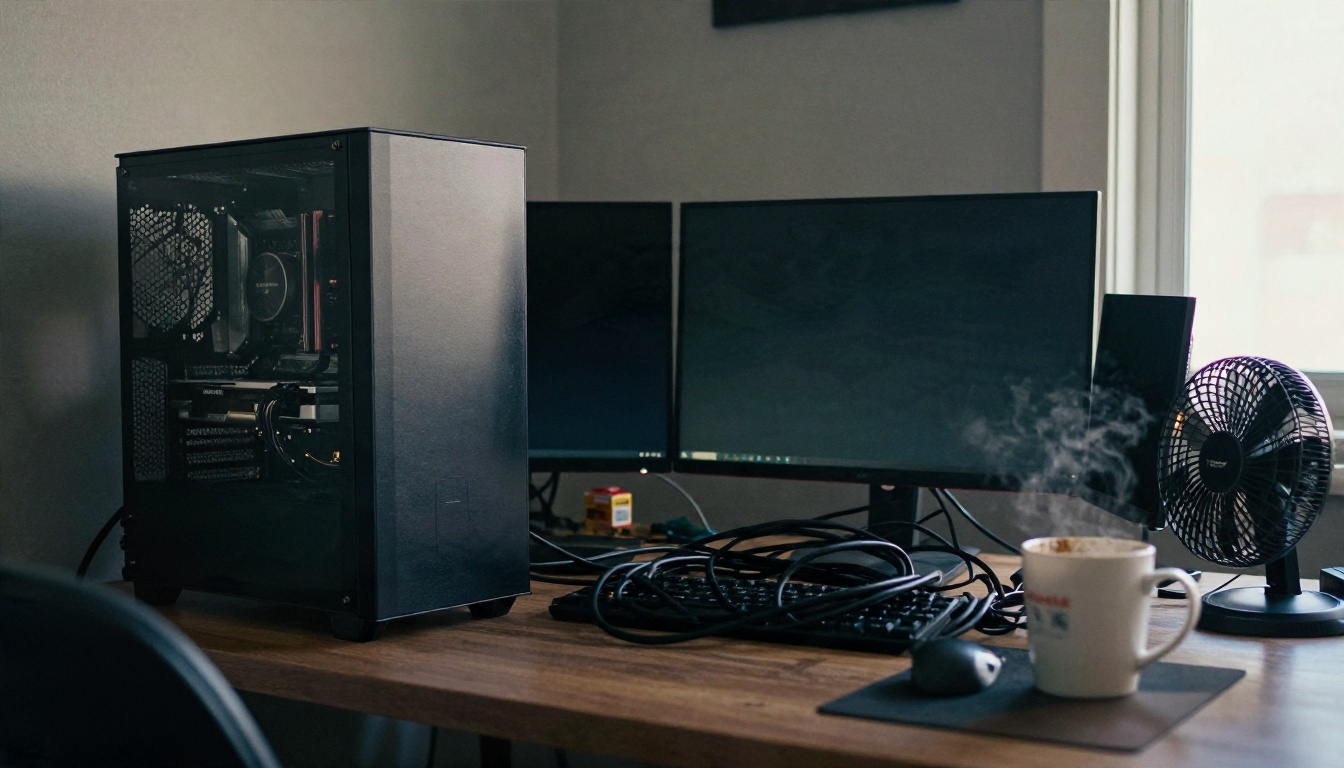
Modern image models are heavy. A photorealistic checkpoint can need 12 to 24 GB of VRAM at comfortable resolutions, and the bigger models want even more. If you have an older laptop, a Mac without a dedicated GPU, or a mid-range card with 8 GB, you will hit one of these walls quickly:
- Out-of-memory errors at 1024 px or above
- Slow generations measured in minutes, not seconds
- Fans at full speed and a machine you cannot use for anything else
- Disk space swallowed by checkpoints, VAEs, LoRAs and ControlNet models
Node Spaghetti and Broken Updates
A good workflow is a graph with 30, 50, sometimes 100 nodes. Download someone else's workflow and you get red boxes, missing custom nodes and version mismatches. One update to a custom node pack can break a pipeline that worked yesterday. For hobbyists who only want a handful of good glamour portraits, this maintenance is the real cost.
What Online Tools Fix
Online generators move the heavy lifting to remote GPUs. You type a prompt, press a button, and get an image in seconds. There is no Python, no CUDA version to match and no folder of models to babysit. The trade-off is less low-level control, which is why hosted workflow runners also exist, and we will get to those.
Free Online Options Compared
The online market splits into three groups. Each suits a different kind of user.
| Option type | Best for | Install needed | Control level | Typical cost model |
|---|
| Hosted ComfyUI (Comfy Cloud, RunComfy, RunDiffusion) | People who love the node graph | None, but a session or subscription | Very high | Subscription or hourly GPU time |
| Workflow runner in a browser | People who already have a workflow JSON | None | High | Per run |
| Prompt-first image generators | People who just want results | None | Medium | Free tiers, credits or unlimited plans |
Hosted ComfyUI Services
Services such as Comfy Cloud, RunComfy and RunDiffusion rent you a GPU with ComfyUI preinstalled. Published price comparisons put subscriptions at around the $20 per month mark, while hourly sessions are often quoted at roughly $0.50 to $2.00 per hour. Figures change often, so check the current numbers yourself. You still deal with the node graph, which is great if you enjoy it and tiring if you do not.
Browser Generators
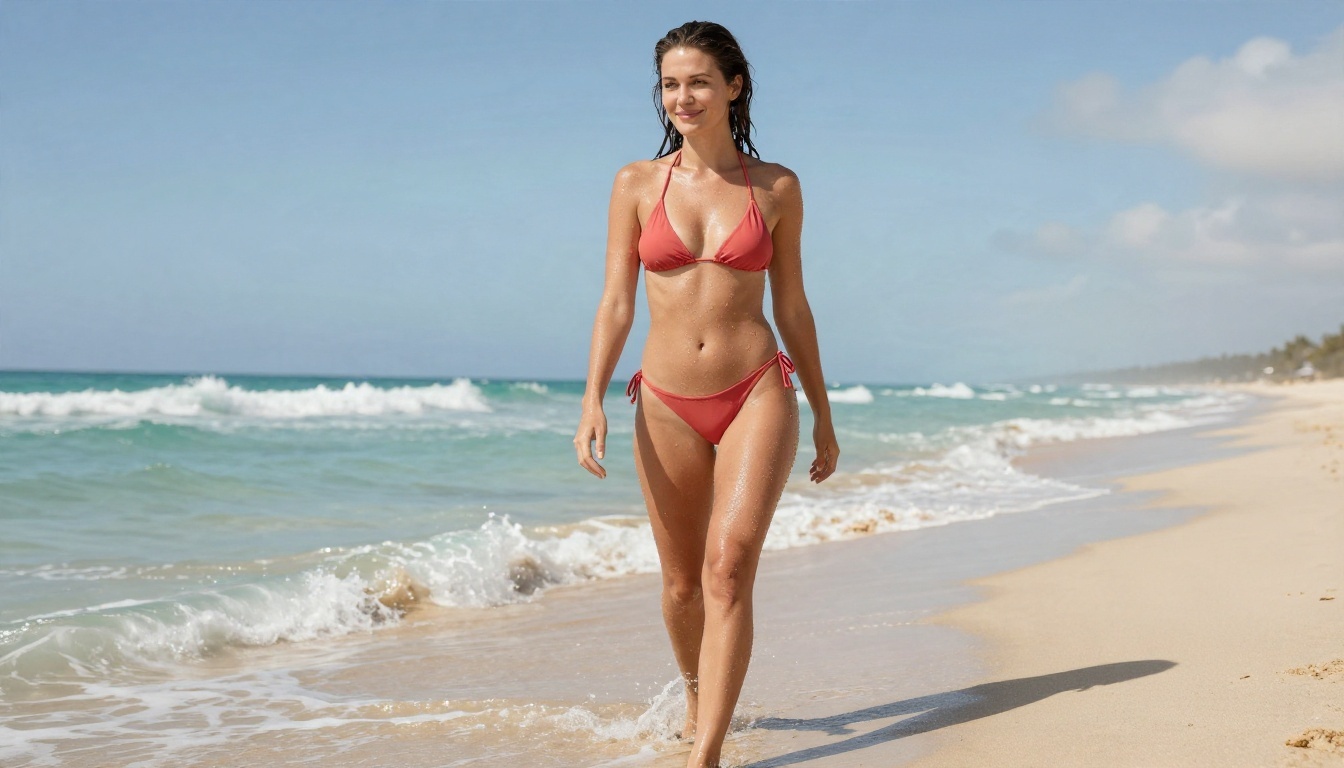
Prompt-first generators skip the graph completely. You write a description, pick an aspect ratio and generate. This is where most casual users end up, because the result is the same kind of photorealistic portrait without the engineering.
Content Policy Reality
Here is the part most listicles skip. Many mainstream online generators block adult content outright, and some hosted ComfyUI platforms restrict what you can run through their servers. Policies differ from service to service and change over time. Read the content policy before you pay for anything, and do not assume that "it runs ComfyUI" means "it allows anything".
💡 Tip: Models differ here too. Some current models filter adult prompts aggressively, while others handle swimwear, lingerie-style and glamour scenes without fuss. Pick your model for the content you actually want to make.
Best PicassoIA Picks, In Order
If your goal is attractive, suggestive adult imagery without a local install, these are the models worth trying, in the order I would use them.
Seedream 4.5 First
Seedream 4.5 is the model I reach for first. It produces sharp, high-resolution images, handles skin texture and fabric very well, and follows long, descriptive prompts closely. For glamour, swimwear and boudoir lighting it is the strongest starting point in the lineup.

Image Editor Pro for Unlimited Runs
PicassoIA Image Editor Pro is the practical choice when you want to iterate without watching a credit counter. Generations are unlimited, which matters because good portraits usually take 5 to 15 attempts. It also works well for editing: change an outfit, shift the background, fix lighting on a picture you already like.
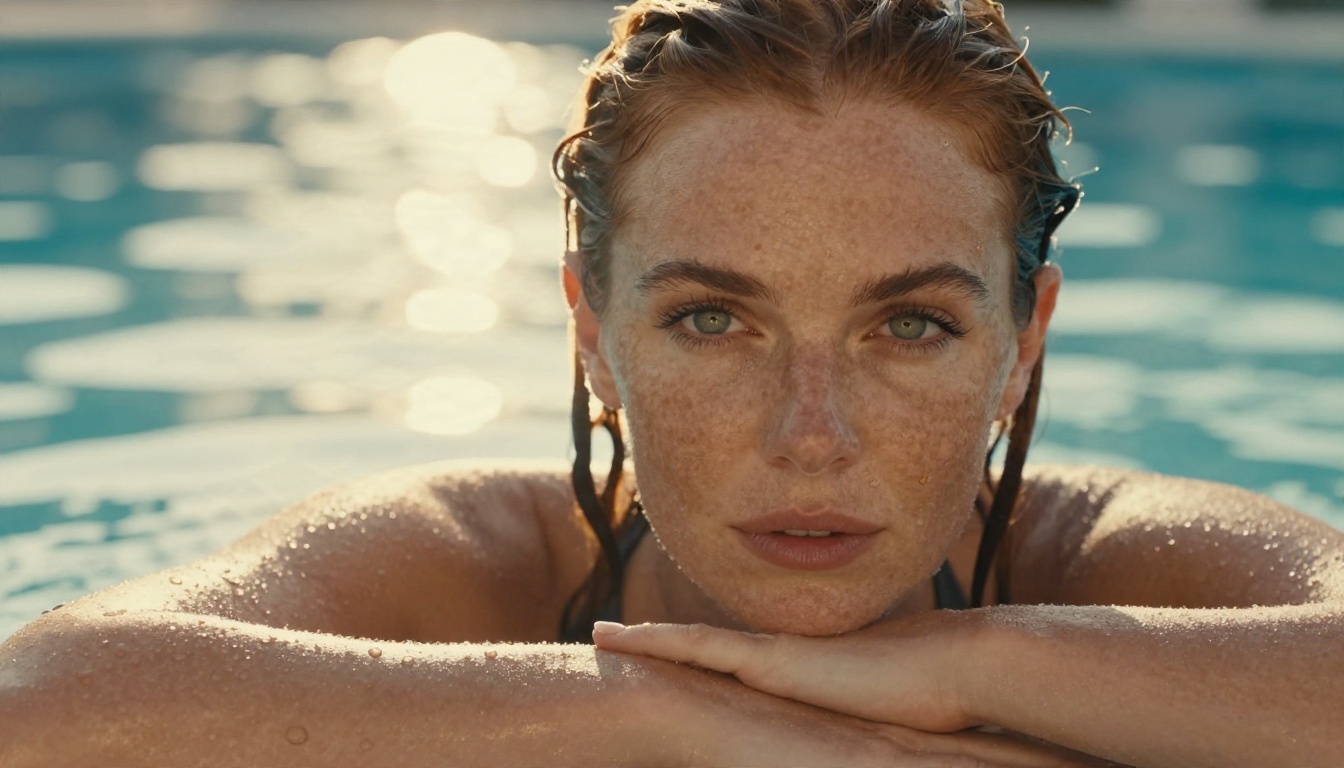
Z Image Turbo, Flux Dev and Realistic Vision
For speed and variety, round out your toolbox with these three:
Qwen Image 3 Pro for Detail
Qwen Image 3 Pro is a good option when you need busy scenes with lots of small details: jewelry, patterned fabric, interior props. If you like LoRA-style customization, also look at Flux Dev LoRA and Flux 2 Klein 9B Base LoRA, which bring some of the ComfyUI-style customization into a simple form.
How to Use Any ComfyUI Workflow on PicassoIA
ComfyUI itself is a piece of software you install, so it has no page here. But if you already built or downloaded a workflow, there is a model made for exactly that situation: Any ComfyUI Workflow. You paste in the exported JSON, and the pipeline runs remotely in your browser. No GPU, no environment setup.

Export Your Workflow in API Format
This is the step people miss. The model needs the API version of your workflow, not the regular save file.
- Open your workflow in ComfyUI (a local copy, or one from a friend).
- Enable dev mode options in the settings if the API export button is hidden.
- Choose Save (API format) and keep the JSON file.
- Check that every checkpoint and LoRA your graph calls for is one the runner can load. Custom files that are not available remotely will make the run fail.
Run It Step by Step
- Open the Any ComfyUI Workflow page.
- Paste your workflow JSON (or a URL to it) into the workflow_json field.
- If your graph uses a reference image, video or zip file, upload it as the input file. You can also put direct URLs inside the JSON.
- Pick an output format: WebP, JPG or PNG.
- Set output quality. The default is 95 on a 0 to 100 scale.
- Leave randomise seeds on if you want a new result each time. Turn it off when you want to reproduce a result exactly.
- Run it and download your files.
Tune Output Settings
| Setting | Default | When to change it |
|---|
| output_format | webp | Use PNG for editing, JPG for quick sharing |
| output_quality | 95 | Lower it for lighter files, keep 95 to 100 for portraits |
| randomise_seeds | on | Turn off to reproduce one exact image |
| force_reset_cache | off | Turn on if results look stale after an edit |
| return_temp_files | off | Turn on to debug ControlNet preprocessing |
💡 Reality check: What the workflow produces depends on the checkpoint and nodes inside it, so content rules for the final image depend on what you load. For simple glamour work without any graph, the prompt-first models above are much quicker.
Prompts That Work Without ComfyUI
You do not need a 60-node graph to get a polished portrait. A good prompt carries most of the weight.
A Simple Prompt Formula
Use this order and you will rarely go wrong:
Subject and pose + outfit + setting + light direction + camera and lens + texture and grain
Be specific about the light (for example "soft window light from the left") and mention real photographic details like "85mm f/1.8" and "Kodak Portra 400 grain". Models respond well to this language because it matches how photos are described online.
Boudoir and Morning Light
An adult woman in a black satin slip dress sitting on the edge of a bed with white linen sheets, one knee drawn up, hair loosely pinned, gazing out of a window. Soft diffused morning light from the left through sheer curtains, 85mm f/1.8, realistic skin texture and satin sheen, subtle film grain, Kodak Portra 400.
Why it works: the fabric and the light do the "suggestive" work, so the picture stays tasteful and the model gets clear lighting instructions.
Swimwear and Golden Hour
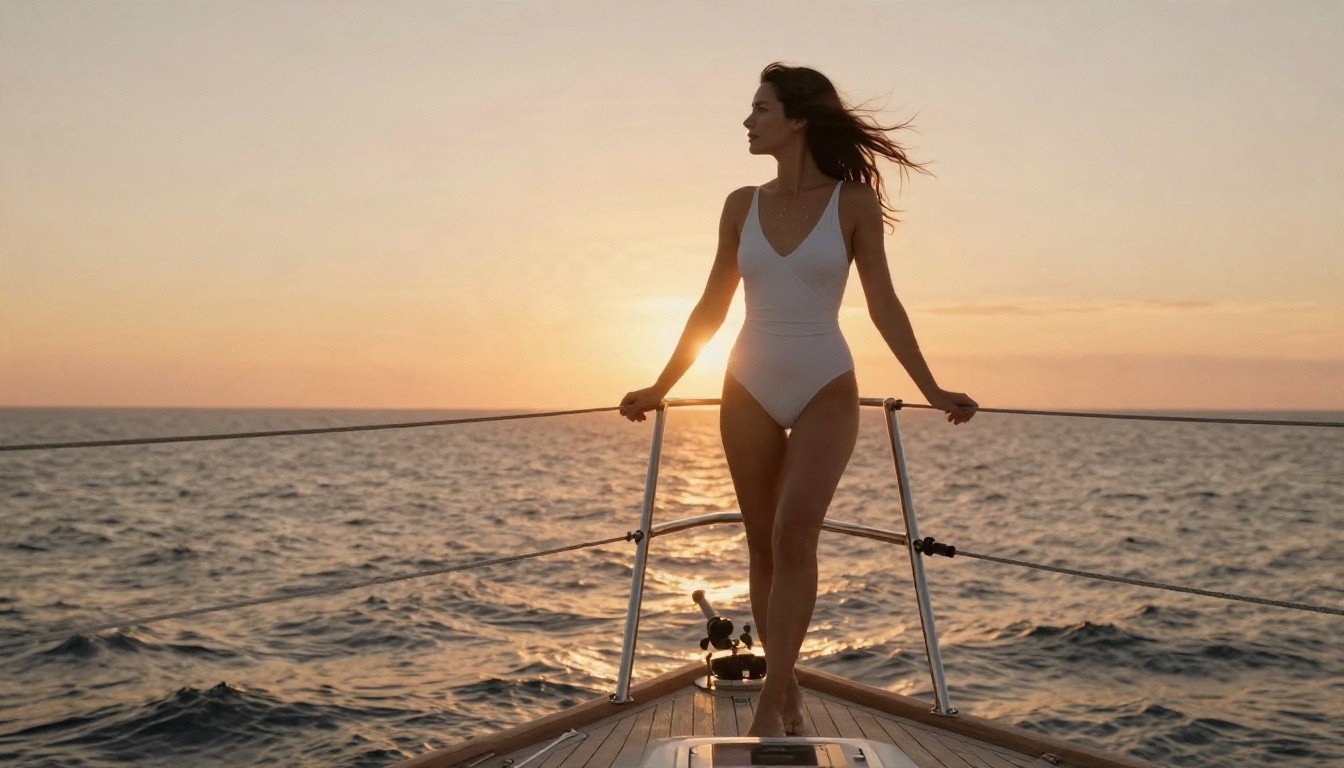
Wide shot of an adult woman in a white one-piece swimsuit on the deck of a sailing yacht at sunset, hands on the rope rail, hair blowing in the wind, calm orange sea behind her. Warm backlight with golden rim glow, 24mm f/2.8, slightly low angle, teak deck grain, Kodak Portra 400.
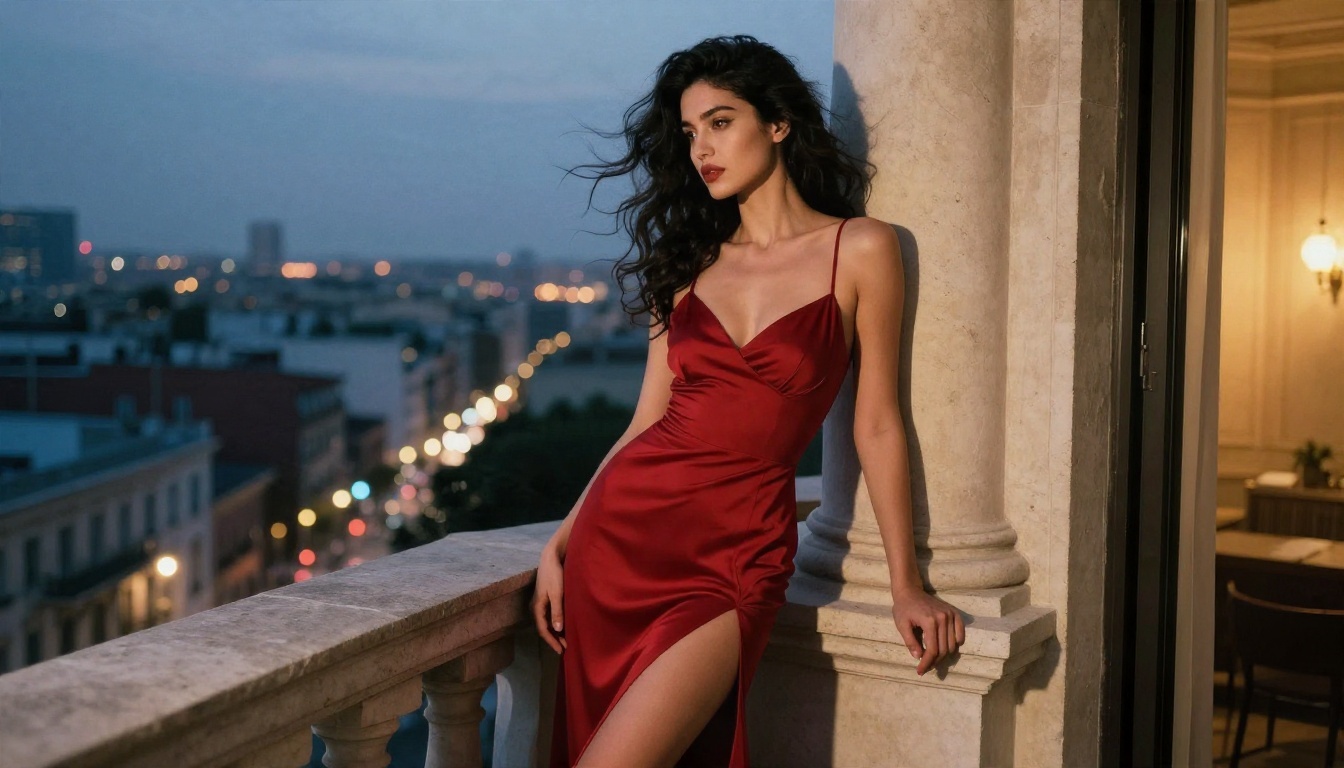
Evening Glamour
Full-length photograph of an adult woman in a fitted deep red evening dress with a high leg slit, leaning on a stone balcony railing at dusk, wind moving her dark curls, soft city lights in the distance. Blue-hour light mixed with warm amber glow from a doorway, 50mm f/1.4, silk folds, soft film grain.
Relaxed Hotel Morning
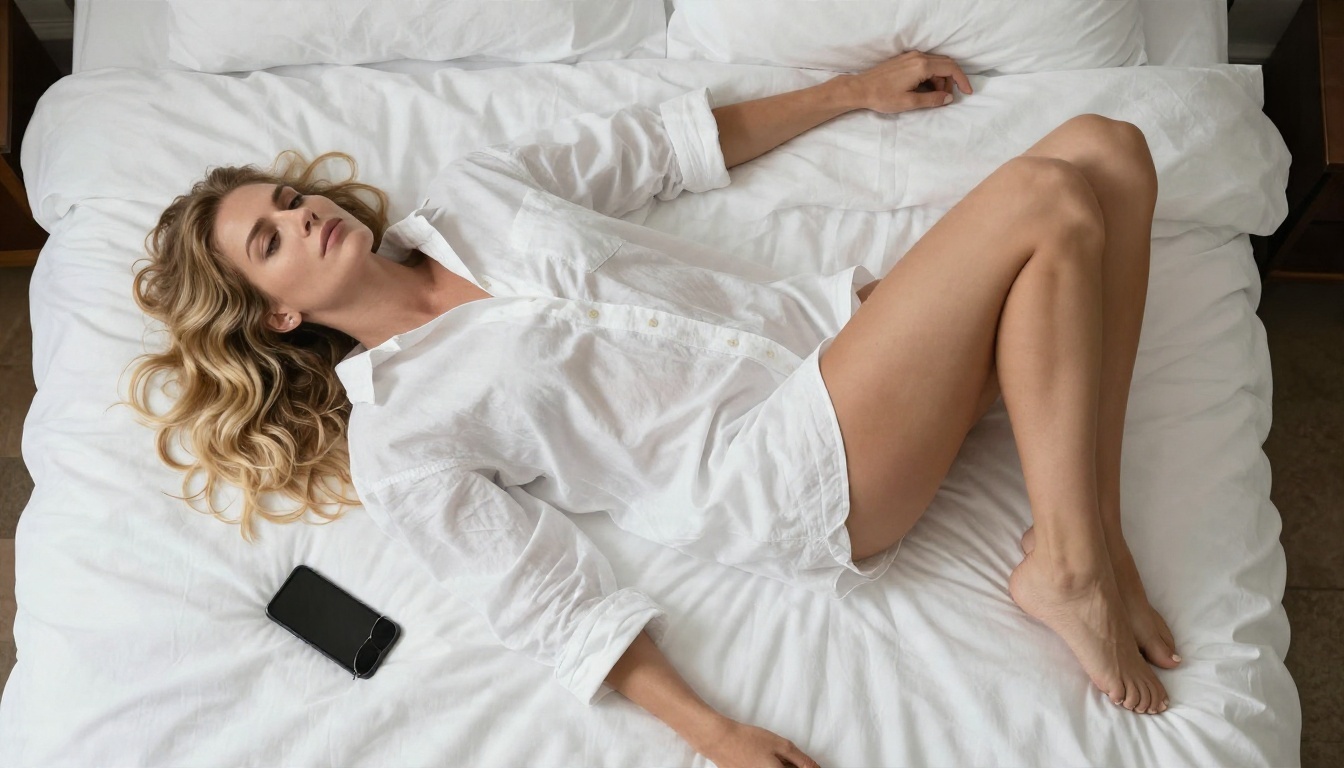
Overhead photograph looking straight down at an adult woman lying on a white hotel bed wearing an oversized white button-up shirt, legs crossed at the ankles, blonde hair across a pillow, phone and sunglasses on the sheet. Soft daylight from a window at the top of the frame, 35mm f/2.8, crisp cotton weave.
Studio Editorial
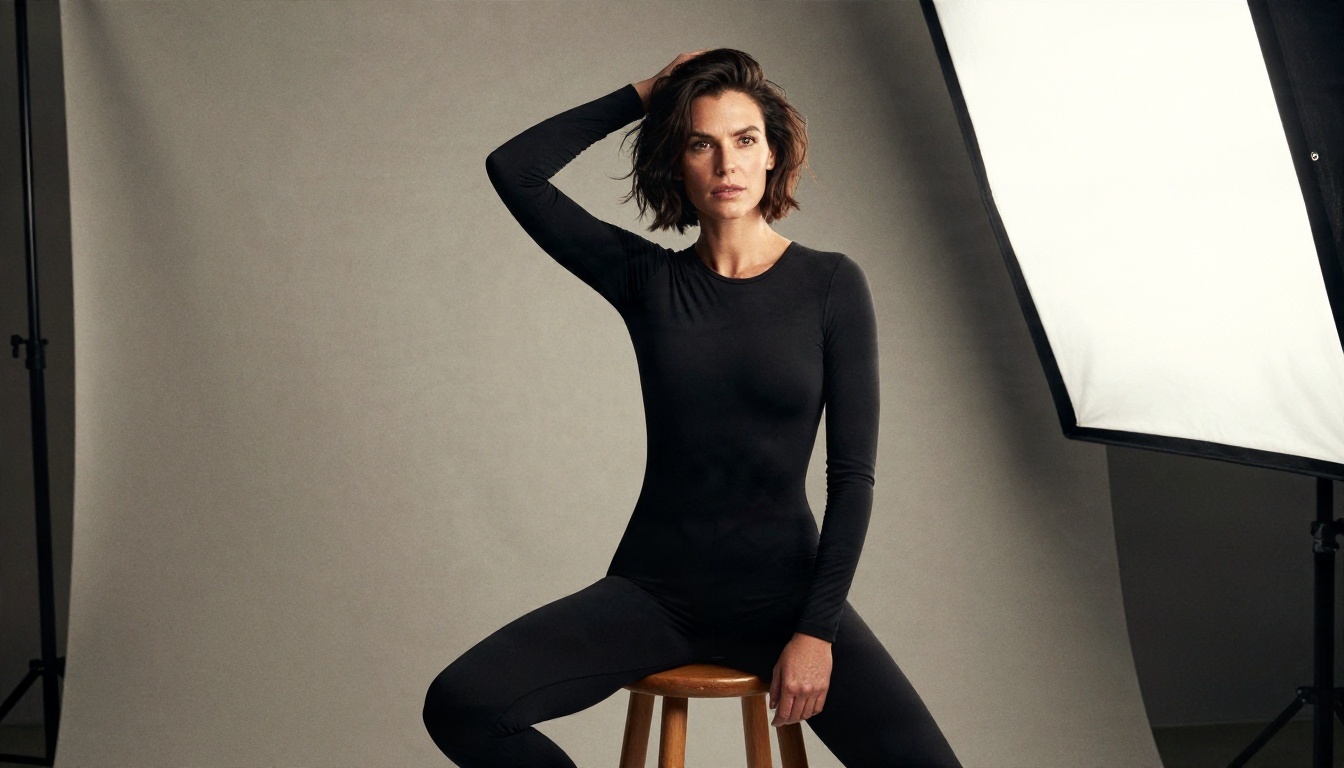
Studio fashion photograph of an adult woman in a black long-sleeve bodysuit on a wooden stool against a seamless warm grey backdrop, one hand through short dark bob hair, confident look. Soft key light from the right with gentle falloff, 85mm f/2, matte fabric texture, visible skin pores, light grain.
💡 Variation trick: Change only one thing per run: the outfit, the lens or the light direction. You will see exactly what each change does, and you will build your own prompt library much faster.
Mistakes That Waste Credits
Writing Vague Prompts
"Hot girl on a beach" gives random, flat results. Name the pose, the light, the lens and the film look. Add at least five concrete details.
Mixing Too Many Styles
Combining "film photo", "studio", "cinematic" and "glossy magazine" in one prompt confuses the output. Pick one look and commit.
Ignoring the Edit Step
Rarely is the first image the best. Use PicassoIA Image Editor Pro to tweak a good image rather than rerolling from scratch. Changing a background or an outfit on a picture you already like is quicker than hunting for a lucky seed.
Forgetting Resolution
If your image looks soft, generate at a higher resolution from the start or use a super resolution tool afterwards. A sharp 4K base from Seedream 4.5 holds up better than a small image stretched later.
Staying Responsible With Adult Content
Adult image tools come with real responsibilities, and these rules are worth following every time:
- Fictional adults only. Describe adult characters. Never create content involving minors, in any form.
- No real people. Do not generate suggestive images that use the likeness of a real person without their clear consent. That includes celebrities, coworkers and ex-partners.
- Label AI content when you publish it, and respect the rules of the platform you post on.
- Check your local laws. Rules on adult and synthetic content differ from country to country.
- Keep it tasteful if you plan to share. Non-explicit glamour is accepted far more widely than anything graphic.
Try It Yourself
You do not have to choose between "buy a new GPU" and "give up". Open Seedream 4.5, paste one of the prompts above, and see a photorealistic result in seconds. When you want unlimited retries and quick edits, switch to PicassoIA Image Editor Pro. If you have a ComfyUI workflow you love, drop its API JSON into Any ComfyUI Workflow and run it from any browser.
Experiment with light, lens and fabric words, save the prompts that work, and build your own style one run at a time. For the full catalog of image models, browse picassoia.com/en/all-models and start creating your own images on Picasso IA today.


