You found a LoRA that looks perfect in the preview gallery. You download it, drop it into your ComfyUI folder, hit queue, and get a smeared mess or a black square. Sound familiar? Nearly every person who tries ComfyUI NSFW LoRAs hits this wall in the first week, and the cause is almost never the LoRA itself. It is usually a mismatch between the LoRA, the base model, and the strength you picked.
This article sorts out the whole picture. You will see what these files do, which ones deserve a spot in your folder, where free downloads actually live, how to wire them into a workflow, and what to do when you would rather skip the local setup and generate polished, adult-oriented glamour images in a browser. Everything here stays on the tasteful side: swimwear, boudoir, and editorial looks, never explicit material.
What NSFW LoRAs Actually Do
LoRA in plain terms
A LoRA (low-rank adaptation) is a small add-on file that nudges a big image model toward a look, a pose style, a clothing type, or a face. Instead of retraining a multi-gigabyte checkpoint, someone trains a file that is often between 20 MB and 300 MB. You load it on top of your base model and dial its influence up or down with a strength number.
For adult-themed glamour work, LoRAs usually do one of four jobs:
- Anatomy and pose help: better hands, natural body proportions, believable seated and reclining poses.
- Clothing and fabric: lingerie lace, satin robes, bikinis, wet-look fabric, sheer layers.
- Photographic style: film grain, flash photography, boudoir lighting, magazine retouching.
- Skin and detail: pores, freckles, sheen, hair strands, fewer plastic-looking faces.
Why ComfyUI users love them
ComfyUI is a node-based interface, so every step of generation is a visible box you can rewire. That makes LoRAs easy to stack, swap, and compare side by side. You can chain a realism LoRA, a lighting LoRA, and a clothing LoRA in one graph, change each strength independently, and save the whole thing as a reusable workflow.
The trade-off is effort. You manage model folders, node versions, VRAM limits, and file formats yourself. That freedom is exactly why people search for picks and shortcuts.
💡 Quick truth: a LoRA never makes a weak base model strong. It steers a model that already has the right foundations. Start with a good checkpoint, then add LoRAs sparingly.
Match the Base Model First
This is the single most common source of broken results. LoRAs are trained against one specific architecture, and they only behave on that architecture.
SDXL, Pony and Illustrious
SDXL, Pony, and Illustrious look similar in a model folder, but they are different ecosystems. A LoRA trained on Pony V6 will not behave correctly on an Illustrious checkpoint, and the reverse is also true. Most download pages label the base model clearly. Read that label before you click the download button.
Illustrious fine-tunes are popular right now for stylized work, and Pony still has a loyal following. Both lean toward anime and illustrated styles, so for photoreal glamour you will often get better results from Flux-family or realism-focused SDXL checkpoints.
Flux and newer architectures
Flux LoRAs are a separate family again. Loading an SDXL LoRA into a Flux workflow can produce corrupted output or a plain black image. The same goes for newer open models such as Flux.2 and Z-Image: each one wants LoRAs trained for it specifically.
Flux-based LoRAs tend to shine for photographic skin, natural light, and believable fabric. They also tend to be larger and more demanding on VRAM, which matters if you run a mid-range graphics card.
| Base model family | Best for | Typical LoRA size | VRAM comfort zone | Compatible with SDXL LoRAs? |
|---|
| SD 1.5 | Older realism checkpoints, low hardware | 10 to 150 MB | 4 to 6 GB | No |
| SDXL | Realism fine-tunes, flexible styles | 50 to 300 MB | 8 to 12 GB | Yes |
| Pony | Stylized and anime looks, strong tag control | 50 to 250 MB | 8 to 12 GB | No |
| Illustrious | Stylized, detailed illustration | 50 to 250 MB | 8 to 12 GB | No |
| Flux | Photographic skin and lighting | 100 to 700 MB | 12 GB and up | No |
Best Picks by Style
Rankings change weekly, and download counts on community sites can be misleading, so treat any "top 10" list as a starting point. What matters more is the category of LoRA you pick. Here is how to think about each one.
Photoreal realism LoRAs
If you want images that look like a real photoshoot, choose LoRAs that push natural skin, soft lighting, and film-like color instead of heavy stylization. Look for names and descriptions that mention "realism," "analog," "film," or "amateur photo." These usually pair best with a Flux checkpoint or a realism-tuned SDXL model.
Good signs on a download page: sample images with imperfect, believable skin, varied lighting, and non-posed expressions. Bad signs: every preview has the same face and the same plastic gloss.
Glamour and lingerie style LoRAs
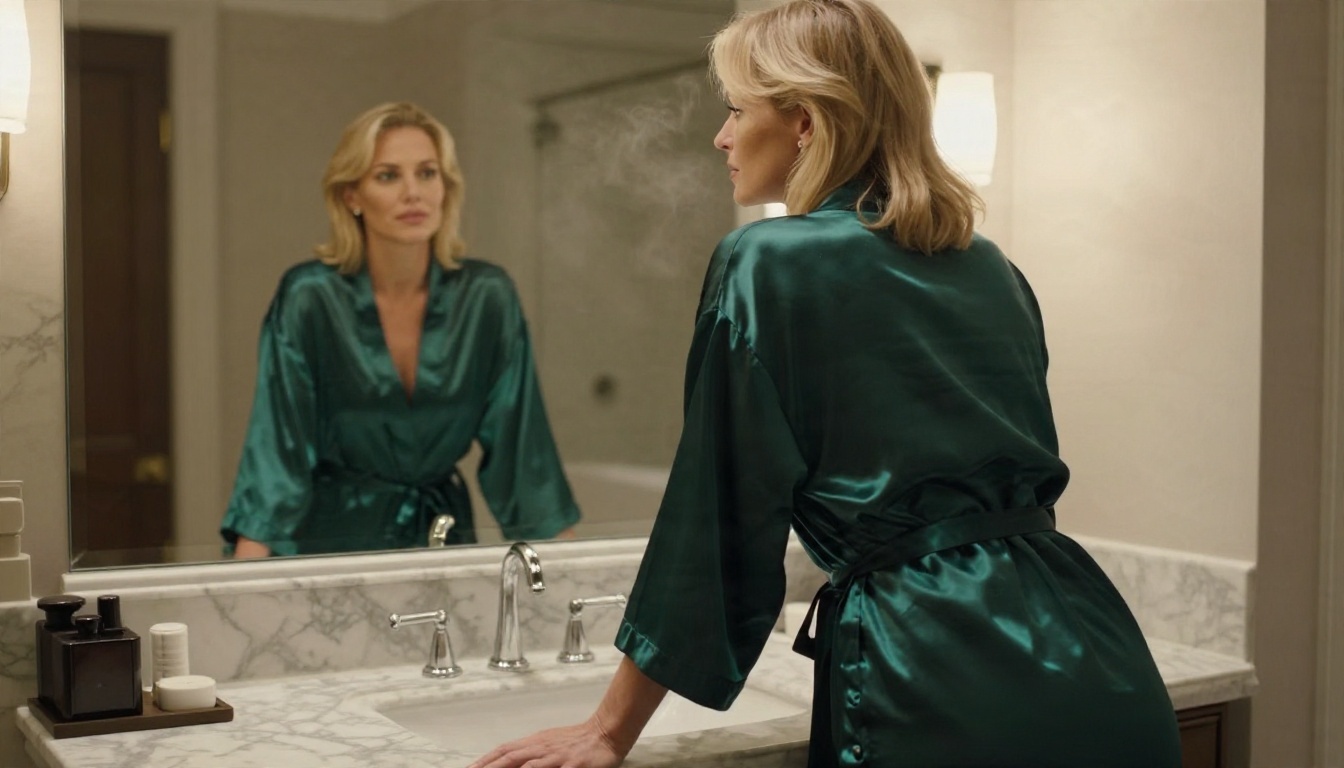
Style LoRAs for boudoir, swimwear, and editorial looks help with fabric behavior: how satin folds, how lace catches light, how a wet bikini clings. They also help with pose variety so every image does not look like the same stock stance.
For stylized output on Pony or Illustrious, there are widely used western-style LoRAs built for those ecosystems, often with separate versions per base model. Always grab the version that matches yours.
Detail and skin texture helpers
Detail LoRAs sharpen micro-texture: fine pores, tiny hairs, eyelashes, and fabric weave. They work best at low strength, because pushing them too far gives skin a gritty, over-sharpened look. Think of them as seasoning, not the main ingredient.
💡 Pro habit: keep a small "detail" LoRA at 0.3 to 0.5 and let your main style LoRA carry the look at 0.6 to 0.8.
Where Free Downloads Live
Civitai and Hugging Face
The two biggest sources for free LoRA files are Civitai and Hugging Face. Civitai has the largest gallery, with filters for base model, tags, and sample images, which makes it the easiest place to compare options. Hugging Face hosts many research and creator releases, often with cleaner documentation but fewer previews.
Recent activity on the community sites shows how fast the scene moves: a large majority of new uploads in a recent month targeted Illustrious and newer anime-focused bases. That means photoreal LoRAs are a smaller slice of the catalog, so it pays to filter carefully rather than scroll the default feed.
Safe download habits
Free does not always mean harmless. A few habits protect your machine and your accounts:
- Prefer .safetensors files. Older pickle-based formats can carry executable code.
- Check the base model label and the recommended strength before you download.
- Read the comments. Users quickly flag broken files, wrong labels, or misleading previews.
- Keep trigger words. Many LoRAs only activate when a specific word appears in your prompt.
- Stay on lawful ground. Only depict adults, never real people without their consent, and follow the license on each file.
Loading LoRAs in ComfyUI
The basic node chain
The simplest working graph has five pieces:
- A checkpoint loader that loads your base model.
- A LoRA loader node connected to both the model and the text encoder outputs.
- A text prompt node for positive and negative prompts.
- A sampler with steps, CFG, and seed.
- A decode and save node that turns the latent into a picture.
Drop your LoRA file into the loras folder, refresh the interface, and pick it from the loader's dropdown. If it does not show up, the file is in the wrong folder or the page needs a refresh.
Strength and stacking settings
Most LoRAs look best between 0.5 and 0.9. Going above 1.0 often burns the image with oversaturated color and warped anatomy. When you stack more than one, reduce each to keep the total influence reasonable.
| Setup | Style LoRA | Detail LoRA | Clothing LoRA | Result |
|---|
| Single LoRA | 0.8 | none | none | Clean and predictable |
| Two LoRAs | 0.7 | 0.4 | none | Sharper skin, stable style |
| Three LoRAs | 0.6 | 0.3 | 0.5 | Rich, but needs careful prompts |
| Overstacked | 1.0 | 0.8 | 0.9 | Burned color, odd anatomy |
Common mistakes
- Wrong architecture. An SDXL file in a Flux graph is the classic black-image cause.
- Missing trigger word. The LoRA loads but does nothing visible.
- Too many LoRAs. Styles fight each other and faces drift.
- Low-resolution base. The LoRA cannot invent detail the sampler never rendered.
- Ignoring the seed. Change one setting at a time and keep the seed fixed to see what each change really does.
The Hidden Cost of Local Setups
Free LoRAs are not free in time. A realistic local workflow asks you for a capable GPU, tens of gigabytes of storage, regular node updates, and patience when a custom node breaks after an update. A single afternoon of troubleshooting can eat the time you meant to spend creating.
Here is a fair comparison:
| Factor | Local ComfyUI with LoRAs | Online generator |
|---|
| Hardware | 12 GB or more VRAM recommended for Flux | Any phone or laptop |
| Setup time | Hours to days | Seconds |
| Model updates | Manual downloads | Handled for you |
| Breakage risk | Custom nodes, version conflicts | Low |
| Fine control | Very high, node by node | Prompt and settings based |
| Cost | Hardware and electricity | Per-use or unlimited plans |
If you love tinkering, keep your local setup. If you mostly want great images, an online route gets you there faster.
How to Get Similar Results on PicassoIA
ComfyUI itself and community LoRA files are not part of PicassoIA, and this article does not suggest otherwise. What PicassoIA does offer are strong image models that already deliver the photoreal glamour look people chase with LoRA stacks, without any node wiring.
Start with Seedream 4.5
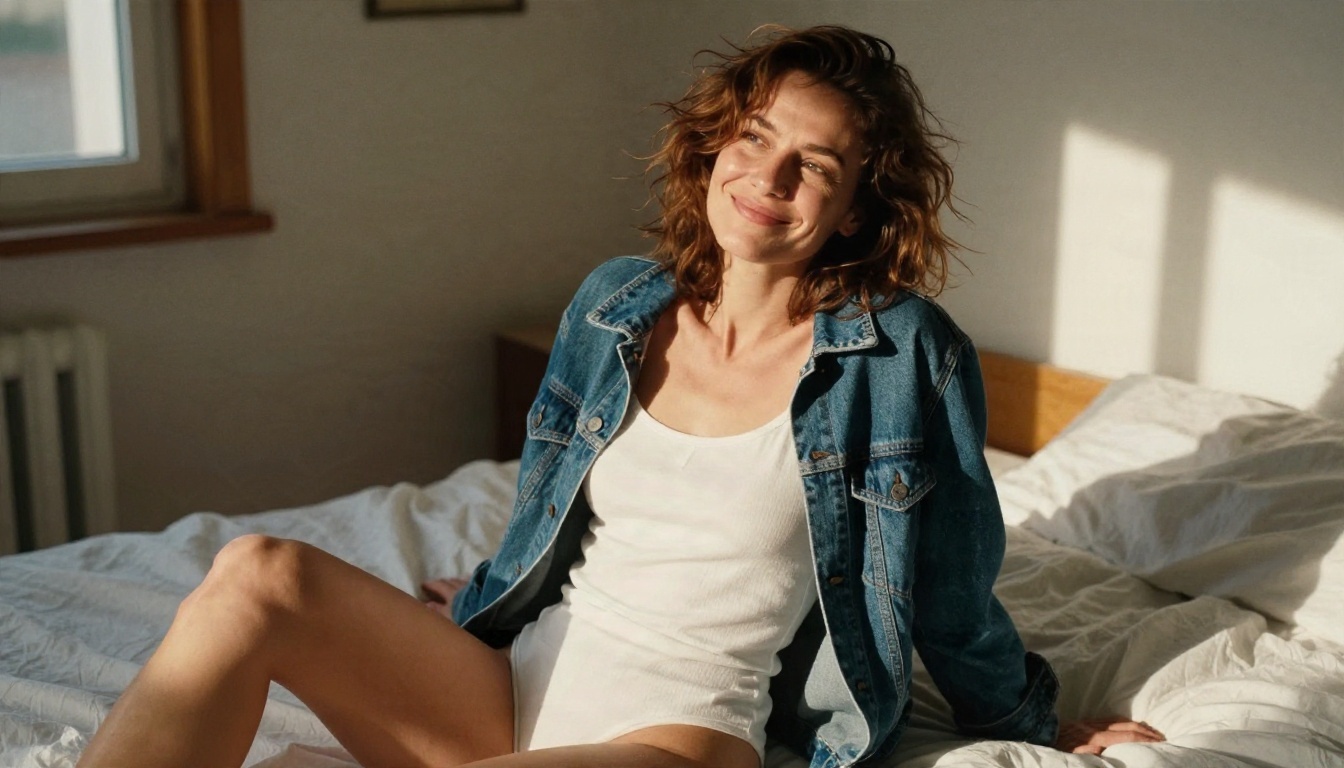
Seedream 4.5 is the first model to try for adult-oriented glamour. It renders believable skin, natural fabric behavior, and cinematic lighting straight from a text prompt, which replaces most of what realism, lighting, and clothing LoRAs do in a local graph.
- Open the model page and write a prompt in plain English.
- Describe the subject, outfit, setting, light direction, lens, and film look in one paragraph.
- Keep it tasteful: swimwear, boudoir, editorial fashion.
- Generate, then tweak one detail at a time, such as the lighting or the lens.
- Save your favorites and iterate on the best one.
A prompt structure that works well:
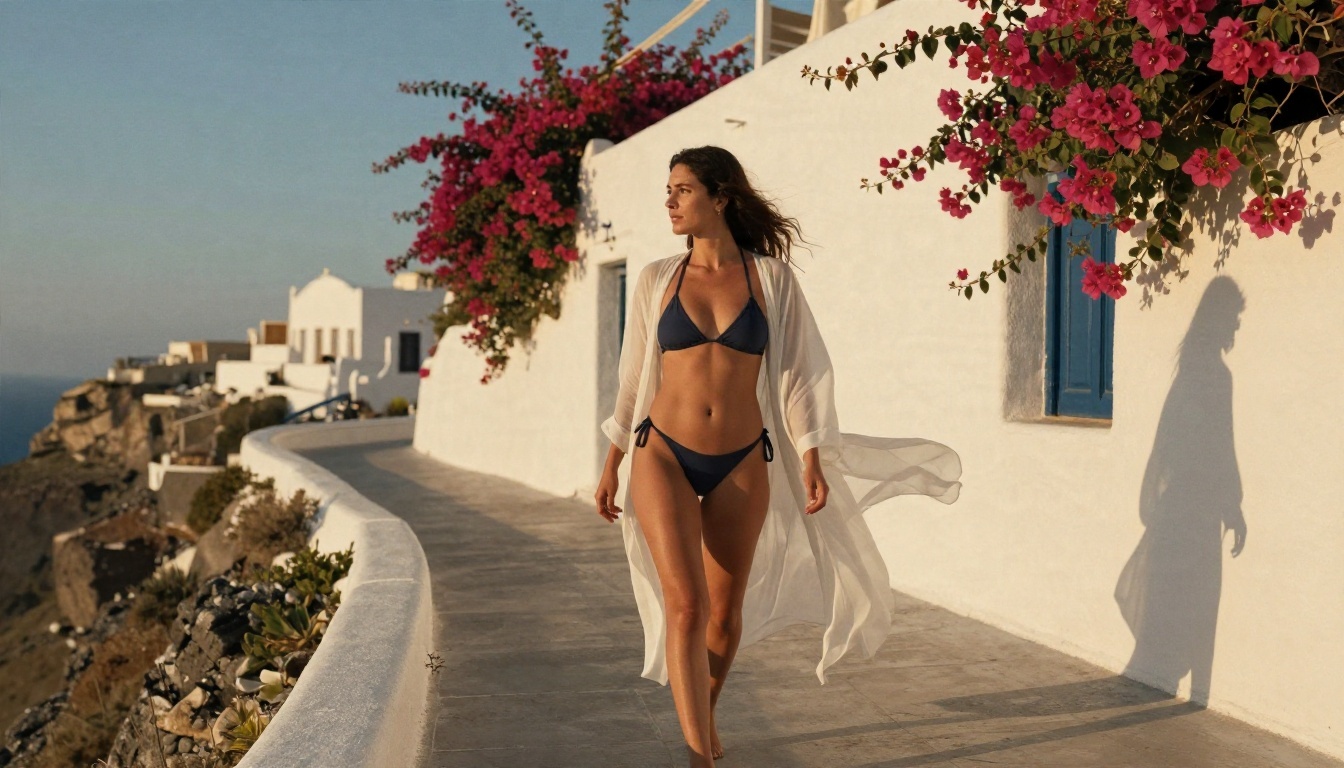
Adult woman in a white sheer cover-up over a navy bikini, Mediterranean terrace at sunset, warm backlight from behind, 70mm f/2.8, natural skin texture, Kodak Portra 400 film grain.
Edit freely with Image Editor Pro
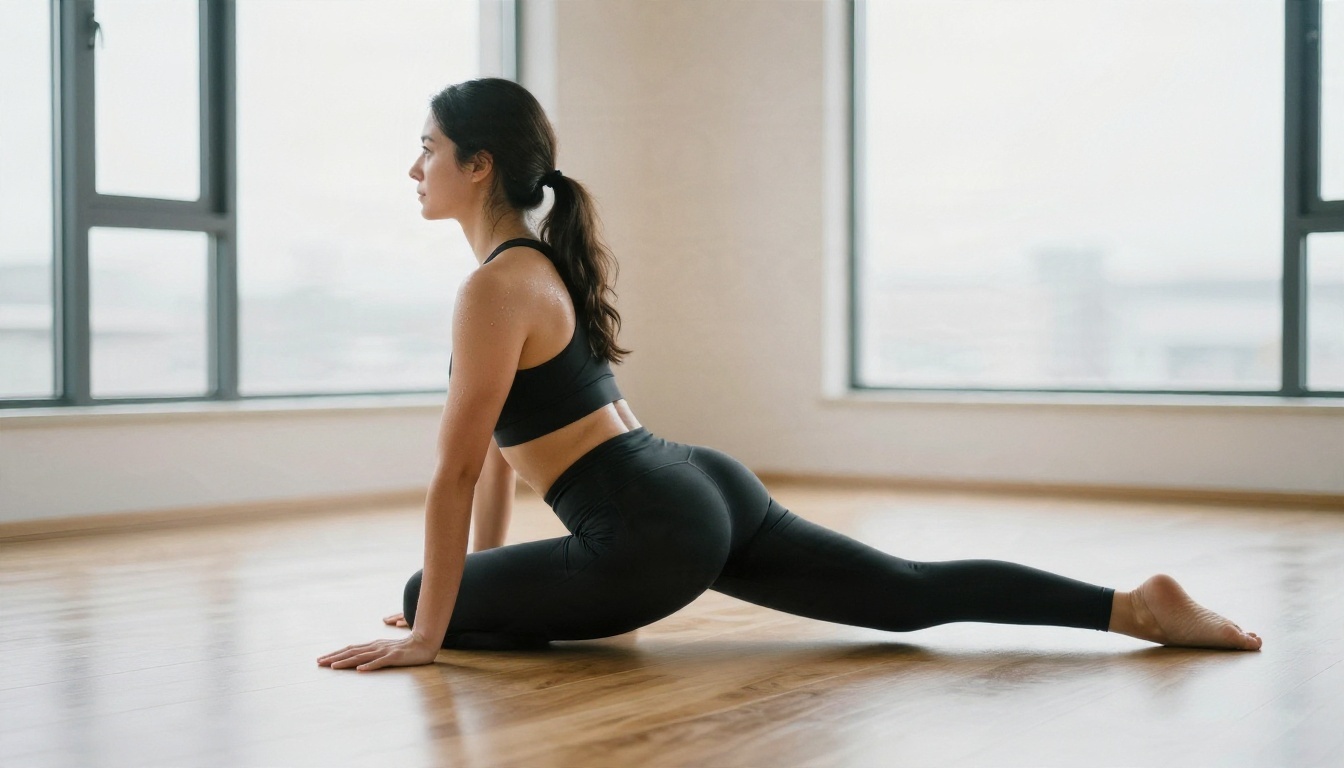
PicassoIA Image Editor Pro is the second stop, and it is a strong fit when you want many attempts. It offers unlimited generations, so you can refine outfits, backgrounds, and mood again and again without watching a counter. That freedom replaces the trial-and-error loop of swapping LoRAs and strengths.
Use it to:
- Change the outfit or color of a piece of clothing.
- Move the same look to a new location.
- Adjust lighting and atmosphere on an image you already like.
- Clean up small flaws without starting over.
Other models worth a try
Different models have different personalities, so it helps to test a few with the same prompt:
💡 Speed tip: run a quick draft in Z Image Turbo, then move the best concept to Seedream 4.5 for the final render.
Prompts That Replace LoRAs
Much of what a LoRA adds can be written directly into the prompt. Try these building blocks and mix them:
- Lighting: "soft window light from the left," "golden hour backlight," "warm candle glow from below."
- Skin: "fine pores, subtle freckles, natural sheen, no airbrushing."
- Camera: "85mm f/1.4, shallow depth of field," "35mm candid, slight tilt."
- Film: "Kodak Portra 400, soft grain, gentle halation."
- Fabric: "satin with specular highlights," "lace with visible thread detail."
Variety matters as much as detail. Change the angle, the distance, and the setting between images, and your set will feel like a real shoot instead of ten copies of one frame.
Start Making Your Own Images
You now have the full picture. LoRAs are powerful, but only when the base model matches, the strength stays reasonable, and your hardware keeps up. If that sounds like a weekend project, keep your ComfyUI setup for deep tinkering. If you simply want gorgeous, photoreal glamour images today, skip the troubleshooting.
Open Seedream 4.5, write one detailed paragraph about your subject, outfit, light, and lens, and generate your first image in seconds. Then move to PicassoIA Image Editor Pro to refine it with unlimited attempts. When you want to compare more options, browse every model at picassoia.com/en/all-models and run the same prompt through a few of them. Experiment, keep the looks you love, and build your own style, no node graph required.


