Most AI image sites refuse a prompt the moment it mentions lingerie, a bikini or anything close to adult glamour. That is why so many people end up in ComfyUI: a free, node based app that runs on your own computer, where you pick the model and nobody pre screens your prompt. The catch is real, though. You need a decent graphics card, a few gigabytes of downloads, and some patience with settings. This article lays out the free models people actually use, the prompt structure that gives clean photoreal results, the sampler settings worth copying, and a quicker online route for anyone who would rather skip the install.
💡 Quick answer: For a local setup, start with an SDXL based photoreal checkpoint if you have 8 GB of VRAM, or Flux Dev if you have 12 GB or more. If you want results today with no install, use Seedream 4.5 or PicassoIA Image Editor Pro in your browser.
What ComfyUI Uncensored Really Means
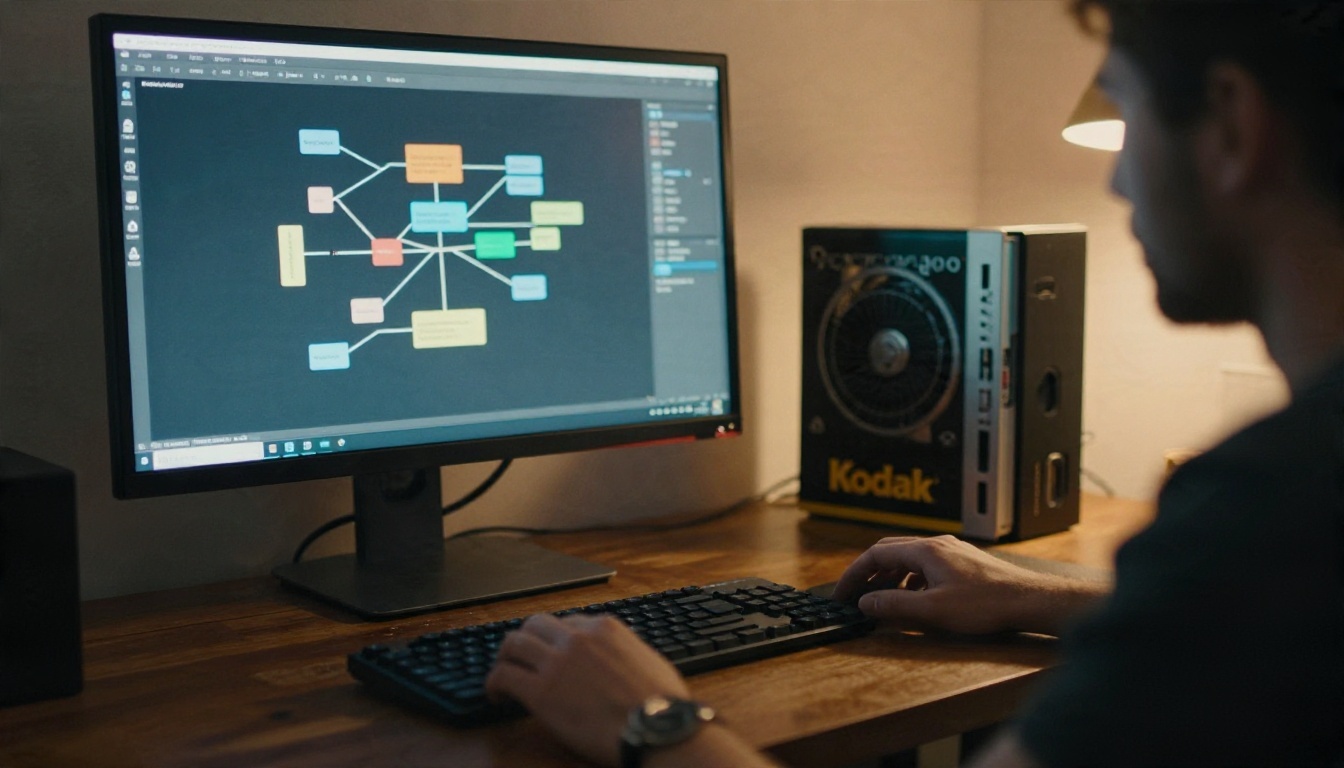
"Uncensored" gets thrown around loosely, so it helps to pin it down before you download anything. ComfyUI itself is only the interface. It has no content filter of its own. What decides how permissive your results are is the model file you load into it, plus any optional LoRAs you stack on top.
Local Models vs Hosted Filters
Hosted generators run a moderation layer in front of the model. A prompt gets scanned, and the output may get scanned again. Locally, you load a checkpoint and press the button. Nothing is sent anywhere, and no third party reviews the result.
That freedom has a price tag measured in effort:
- You download and store multi gigabyte model files.
- You wire nodes together or import someone else's workflow.
- You troubleshoot Python, drivers and memory errors yourself.
- You take full responsibility for what you create (more on that near the end).
Why People Pick ComfyUI
Three reasons come up again and again. Control: every step of the pipeline is a visible node, so you can swap the sampler, add a LoRA or insert an upscaler. Cost: the software is free, and so are many community models. Privacy: your prompts and outputs stay on your drive.
💡 Reality check: "Uncensored" does not mean "anything goes." Adult themed glamour, swimwear and boudoir style portraits are one thing. Explicit content, real people's likeness without consent, and anything involving minors are another, and they are off the table here.
Free Models Worth Downloading
Model choice shapes everything: anatomy, skin texture, how well the model follows long prompts, and how much VRAM you burn. Here are the families that dominate local setups right now. Community reports say all three have large ecosystems of fine tunes and LoRAs, but check each model's license and file layout on its official page before you download.
| Model family | Typical VRAM | Strength | Weak spot |
|---|
| SDXL and Pony style checkpoints | 6 to 8 GB | Huge library of LoRAs, fast | Hands and text need fixing |
| Flux Dev | 12 GB or more (less with GGUF) | Best realism and prompt following | Slower, fewer adult LoRAs |
| Z-Image Turbo | 8 to 12 GB | Very quick, sharp skin | Younger ecosystem |
SDXL and Pony Style Checkpoints
SDXL remains the safe pick for modest hardware. The community has produced thousands of fine tunes, and photoreal ones such as RealVisXL are popular for portraits. If you want to see how a photoreal SDXL checkpoint behaves before installing anything, try RealVisXL v3.0 Turbo online. For pose and structure control, SDXL Multi ControlNet LoRA shows what layered ControlNet can do.
Pony style checkpoints (SDXL derivatives trained on a very large tagged dataset) respond to tag style prompts rather than flowing sentences. They are flexible but often lean toward stylized output, so look for the photoreal merges if realism is your goal.
Flux Dev and Its LoRAs
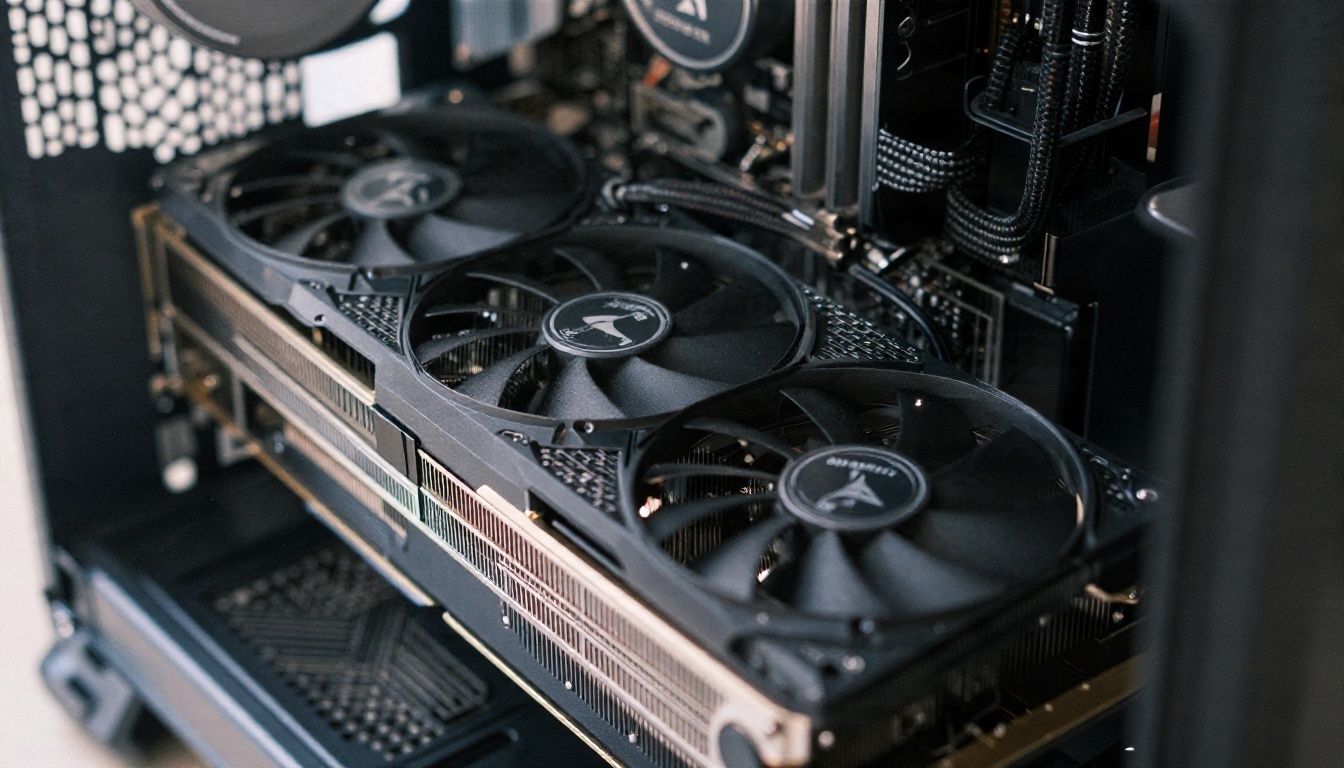
Flux Dev is the realism benchmark for open weights. It reads natural language prompts well and handles hands better than SDXL. Locally, people pair it with community LoRAs for specific looks. You can test the LoRA workflow online with Flux Dev LoRA or the lighter Flux 2 Klein 9B Base LoRA. Mind the license: Flux Dev is released for non commercial use, so read the terms if you plan to sell anything.
Z-Image Turbo for Speed
Z-Image, from Alibaba's Tongyi Lab, gained a following in 2026 for sharp detail at very low step counts. Several local guides describe it as loosely filtered, but those claims come mostly from vendor blogs, so treat them as unconfirmed and test it yourself. If you want a fast feel for the model, Z Image Turbo is available to try in the browser. Locally it needs a separate text encoder and VAE, so read the file layout carefully.
Hardware and Install Basics
You do not need a monster rig, but you do need a recent NVIDIA card for the smoothest experience. AMD and Apple Silicon work with extra steps.
VRAM Needs
- 6 to 8 GB: SDXL at 1024 pixels works. Flux needs quantized (GGUF) files and some patience.
- 12 GB: Flux Dev runs comfortably at 1024 pixels with lower precision.
- 16 to 24 GB: Everything runs, including upscaling passes and stacked LoRAs.
System RAM matters too. Sixteen gigabytes is the floor, thirty two is far more comfortable when swapping large checkpoints.
Folder Setup That Works
After installing ComfyUI, the model files go in predictable places:
- Checkpoints (SDXL, Pony merges) go in
models/checkpoints.
- LoRAs go in
models/loras.
- VAE files go in
models/vae.
- Flux and Z-Image components (diffusion model, text encoders, VAE) each go in their own folder, as listed on the model page.
- Restart ComfyUI so it refreshes the model lists.
💡 Tip: Load the default workflow first and get one clean image out of it. Only then start importing complicated community workflows. Nine out of ten errors come from missing nodes or a wrong file in the wrong folder.
Prompts That Actually Work
A permissive model does not rescue a vague prompt. Photoreal glamour lives or dies on lighting, lens and fabric detail.
A Prompt Formula
Use this order, which works across SDXL, Flux and Z-Image:
Subject and pose + clothing and fabric + setting + light direction + lens + texture and film look
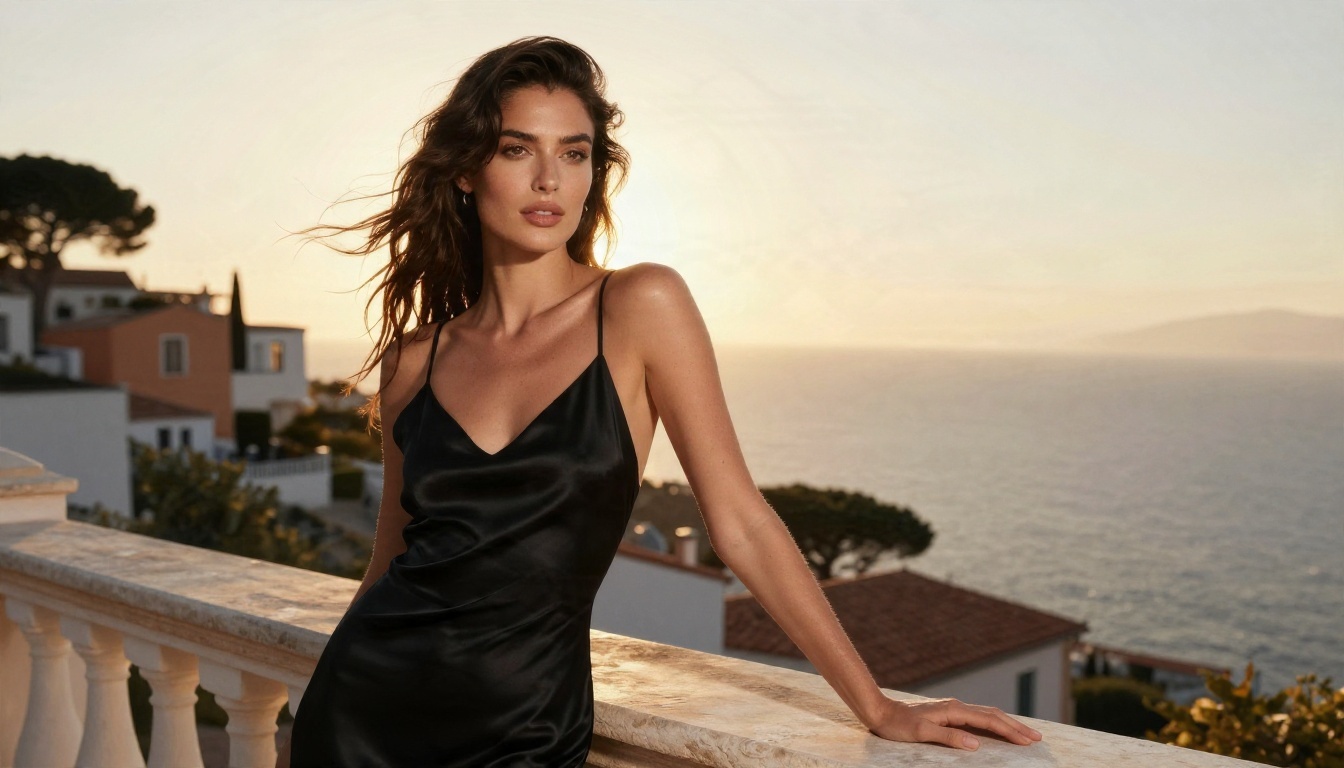
Here is a working example for a glamour portrait:
A woman in a black silk slip dress standing on a Mediterranean villa balcony, one hand on a white stone railing, wind moving her dark hair, golden hour backlight with soft rim glow, 85mm f/1.8 lens, low angle, natural skin pores, silk sheen, Kodak Portra 400 film grain.
Notice what is missing: no stack of quality tags like "masterpiece, best quality, 8k, ultra detailed." Flux and Z-Image barely need them, and on SDXL they often make skin look plastic.
Negative Prompts
Negative prompts apply to SDXL and Pony style models. Flux Dev and Z-Image Turbo run with CFG near 1 to 4, so they mostly ignore them. For SDXL, this short list does the job:
- blurry, lowres, plastic skin, extra fingers, deformed hands, bad anatomy, watermark, text, cartoon, illustration
Keep it short. A negative prompt of fifty words fights your positive prompt and flattens the result.
Examples by Theme
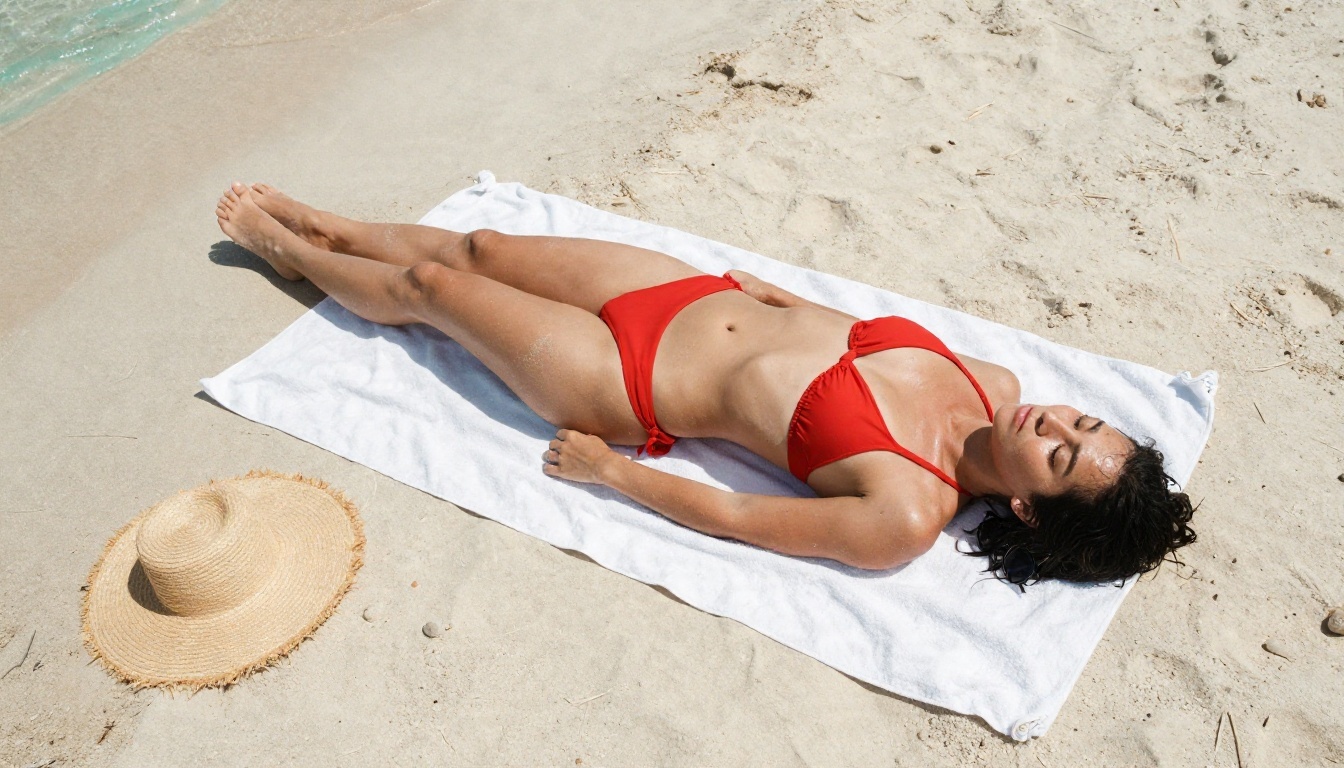
Swap the middle of the formula to change the theme:
- Beach: top down aerial view, woman in a red bikini on a white towel, straw hat and sunglasses, turquoise water at the frame edge, harsh midday sun, 24mm lens, visible sand grain.
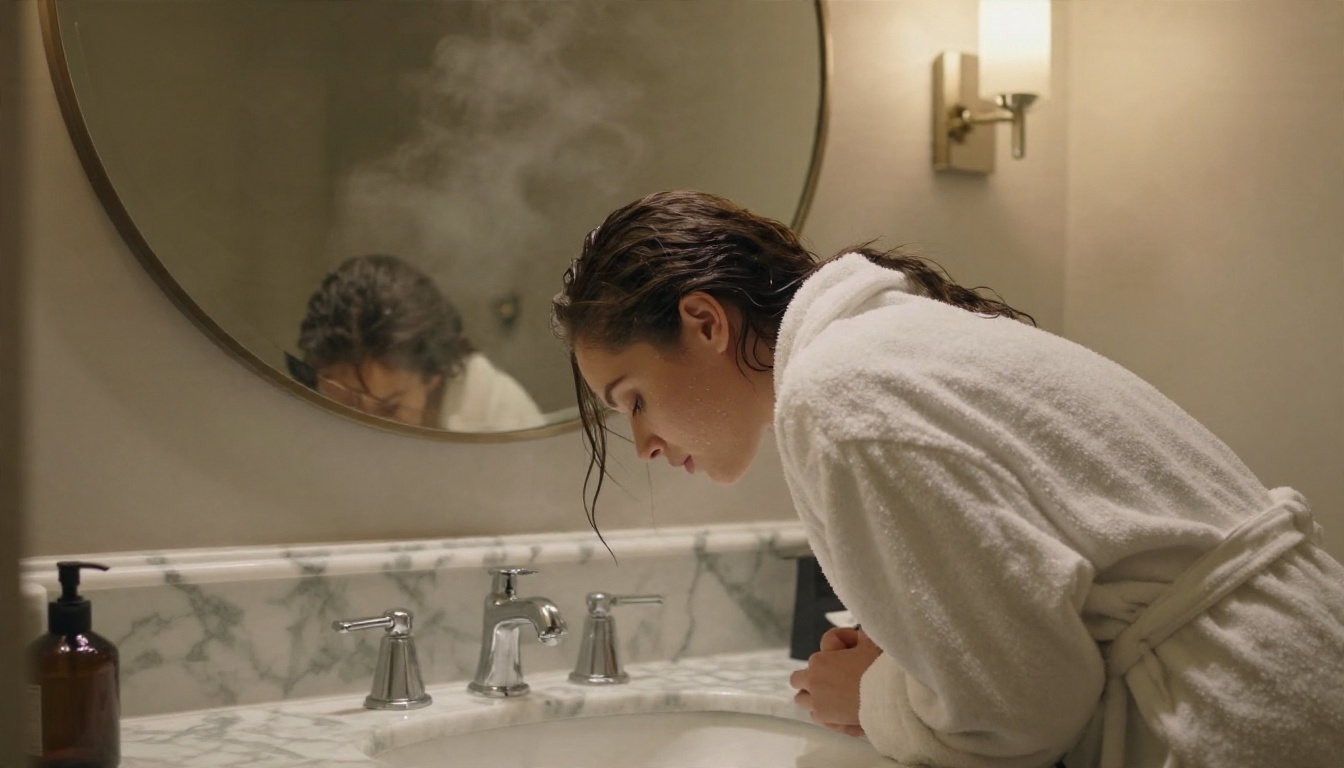
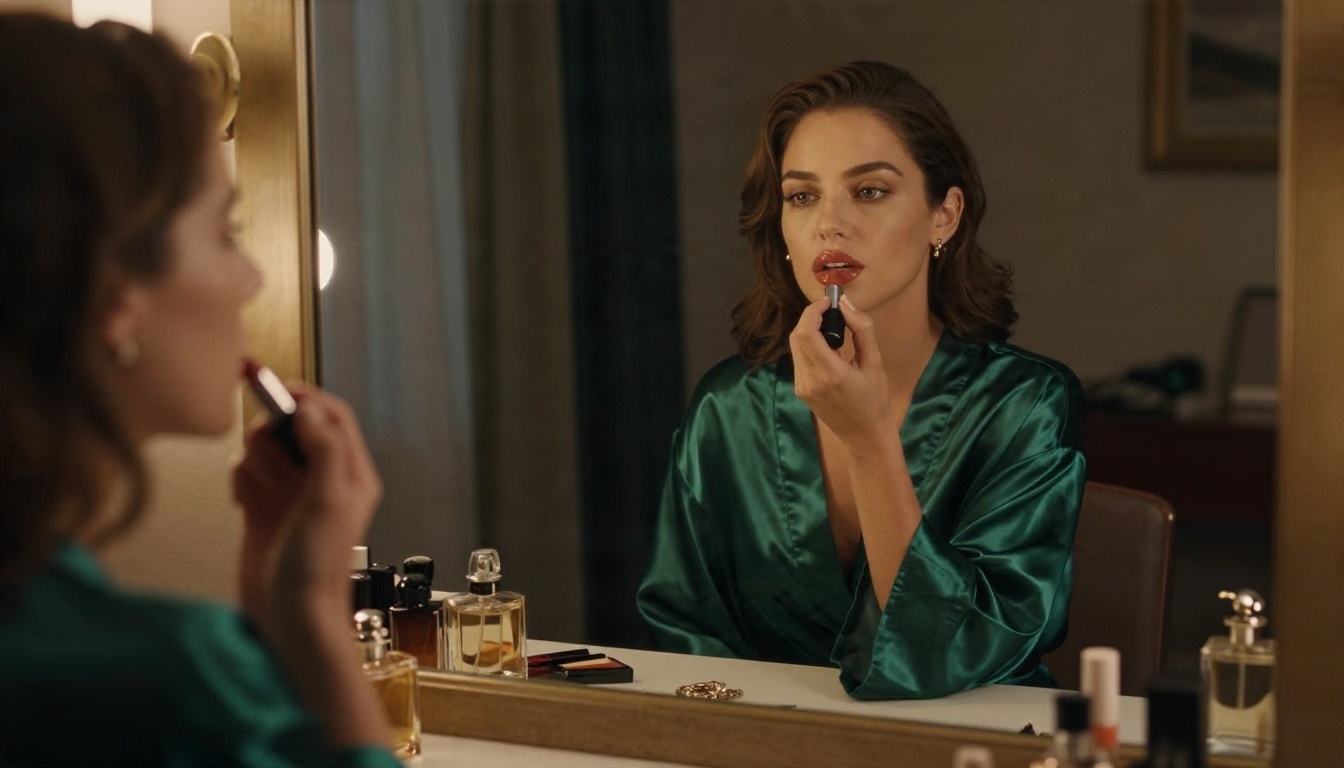
- Hotel: woman in a white terry bathrobe at a marble vanity, steam on a round mirror, warm sconce light from the right, 50mm f/1.4, water droplets on skin.
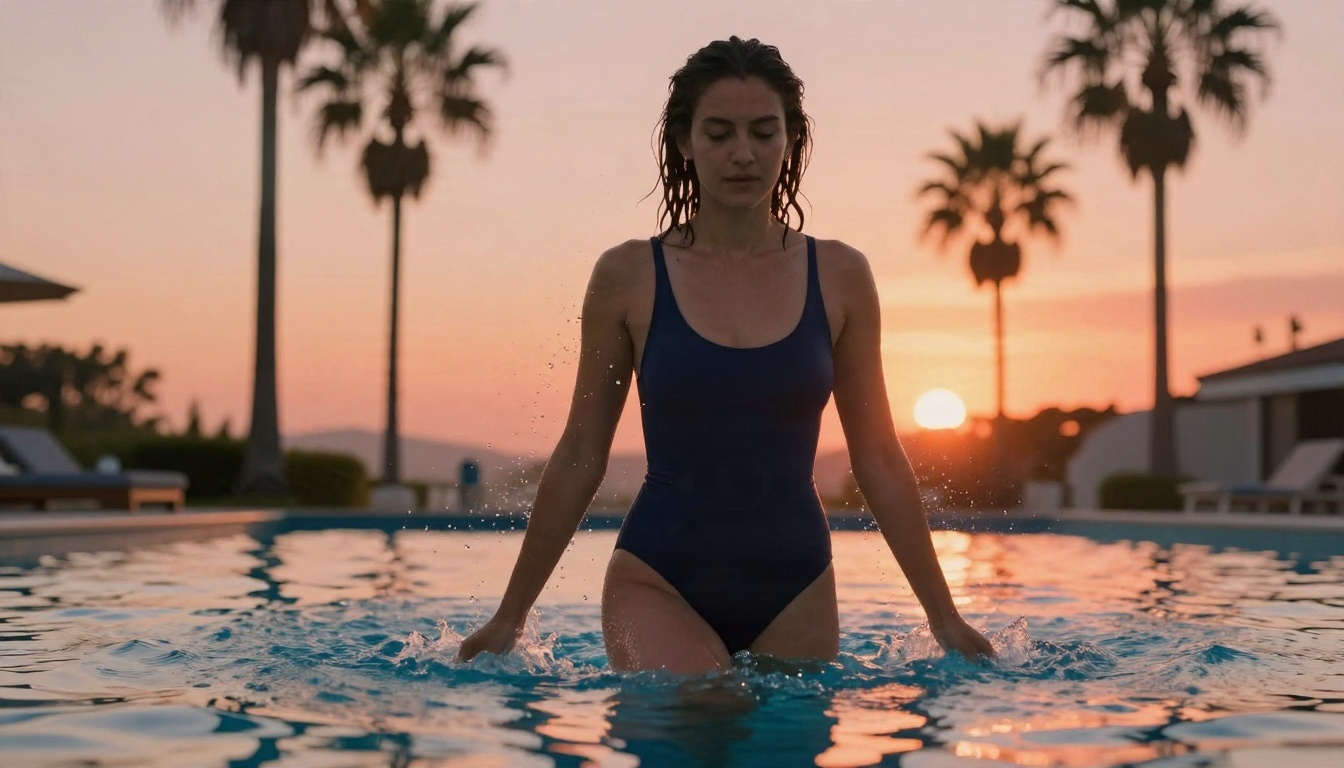
- Pool: low angle, woman in a navy one piece stepping out of an infinity pool, sunset backlight, droplets frozen mid air, 35mm f/2.
Settings That Make a Difference
Wrong settings are the number one reason a good model produces mushy, over baked or glossy images. These starting points work for most people. Treat them as baselines and adjust one value at a time.
| Setting | SDXL photoreal | Flux Dev | Z-Image Turbo |
|---|
| Resolution | 1024 x 1024 or 1216 x 832 | 1024 x 1024 or 1344 x 768 | 1024 x 1024 |
| Steps | 25 to 30 | 20 to 30 | 8 |
| CFG / guidance | 5 to 7 | 3.5 | 1 |
| Sampler | DPM++ 2M Karras | Euler with simple scheduler | Euler |
| LoRA strength | 0.6 to 0.9 | 0.7 to 1.0 | 0.6 to 0.8 |
Sampler, Steps and CFG
CFG controls how hard the model obeys your prompt. Too high and you get burnt colors and crunchy edges. Too low and it ignores half your instructions. On SDXL, going from 7 down to 5 often fixes harsh skin in one move. More steps do not always help: beyond roughly thirty, most samplers only repeat the same image with minor drift.
Fixing Bad Hands and Faces
Hands remain the weak spot, especially on SDXL. Three fixes work in ComfyUI:
- Face detailer pass: a second, low denoise pass (0.3 to 0.4) over the detected face.
- Inpaint the hand: mask it, lower denoise to about 0.5 and rerun with a short prompt like "relaxed hand, five fingers."
- Upscale last: generate at base resolution, then upscale with a tile based model. Upscaling first multiplies errors.
The Online Option Without Installing
Local setups reward tinkerers. If you just want a good image in under a minute, the install can feel like a chore: model downloads, node errors, driver updates, a laptop fan at full blast. That is where a hosted generator earns its place.
Why Skip the Local Setup
- No hardware wall. A laptop with integrated graphics works fine.
- Speed. Images arrive in seconds instead of minutes.
- Quality out of the box. You skip the sampler and CFG tuning entirely.
- Less breakage. No dependency conflicts after an update.
You trade away node level control, but for portraits, swimwear shoots, boudoir style glamour and lifestyle scenes, that control is rarely needed.
How to Generate with Seedream 4.5 on PicassoIA
Seedream 4.5 is the strongest starting point for photoreal glamour. It produces sharp 4K output with natural skin and believable fabric, and it handles long, detailed prompts well. Here is the quick path:
- Open the Seedream 4.5 page on PicassoIA.
- Paste a prompt built with the formula above: subject, clothing, setting, light, lens, texture.
- Choose a 16:9 ratio for scenic shots or a taller ratio for full length portraits.
- Generate, then compare two or three variations before changing anything.
- If one detail is off, such as a strap, a background object or a color, send the image to the editor instead of rerolling.
💡 Prompt tip: Describe light and fabric in one short phrase each. "Warm sconce light from the right, soft cotton terry" beats a paragraph of adjectives.
Edit and Fix Without Limits
PicassoIA Image Editor Pro is built for the second half of the job: fixing and refining. It offers unlimited generations, which matters when you iterate. Use it to swap an outfit color, change a background, tidy a hand or adjust the lighting mood, all with plain language instructions. It replaces the face detailer and inpainting nodes you would otherwise wire up by hand in ComfyUI.
More Models to Try
If you want to compare looks the way you would compare checkpoints locally, these are the next stops:
You can browse the full catalog at picassoia.com/en/all-models.
Responsible Use Rules
Fewer filters means more responsibility on your side. A few lines that should never be crossed, whichever route you pick:
- Adults only. Every character must be clearly an adult. No exceptions, no gray areas.
- No real people without consent. Do not prompt for a celebrity, an ex or a coworker. Likeness misuse harms real people and can be illegal in many places.
- Check licenses. Some models restrict commercial use. Read before you sell prints or run ads.
- Label AI work. Many platforms require disclosure of AI generated images.
- Keep it tasteful where you publish. Social platforms and ad networks enforce their own rules regardless of how the image was made.
The most useful habit is simple: aim for beautiful and suggestive, not explicit. Photoreal glamour, swimwear, boudoir style portraits and fashion editorials look better, travel further on social media and cause fewer account problems than anything pushed to the extreme.
Make Your Own Images Today
If you enjoy tinkering, ComfyUI is a rewarding hobby. Install it, grab one SDXL checkpoint and one Flux file, and spend a weekend getting the default workflow dialed in. If you would rather spend that weekend actually making images, open Seedream 4.5 on PicassoIA, paste one of the prompts from this article, and see what comes back in a few seconds. Then take your favorite result into PicassoIA Image Editor Pro to adjust the outfit, light or background with unlimited generations.
Try the same prompt on three different models, change one detail at a time, and keep notes on what works. That is the fastest way to build your own prompt library, whether it ends up in ComfyUI or in your browser. The full model list is waiting at picassoia.com/en/all-models.


