Most people who try NSFW image generation hit the same wall within ten minutes. The first result looks like plastic, the second has six fingers, and the third gets blocked before it renders. Flux changed a lot of that, because it follows long, natural-language prompts better than older models and renders skin, fabric and light with far less of the usual "AI shine." But Flux is a family of models, not one button, and the model you pick matters more than any prompt trick.
This article shows how to create suggestive, glamour-style Flux images (bikinis, lingerie-inspired fashion, silk, golden-hour skin) that look like real photography. Everything here stays on the tasteful side of the line: beautiful, attractive, never pornographic. You'll get the best models in order, prompts you can copy, the settings that change results, and the free routes that work without a credit card.
What NSFW Flux Actually Means
"NSFW" is a wide label. On most platforms it covers everything from a swimsuit shoot to content nobody should publish. For this article it means non-explicit adult aesthetics: the kind of imagery you would find in a swimwear campaign, a boudoir photo book or a fashion magazine summer issue.
Suggestive Versus Explicit
The difference is practical, not just moral. Suggestive images survive on almost every platform, sell well as wallpapers, social posts and print, and are far easier to generate cleanly. Explicit prompts trigger filters, produce more anatomy errors and leave you with images you can't legally or safely share in many places.
💡 Rule of thumb: if the image would pass in a lingerie catalogue, it's a good target. Aim for mood, light and styling instead of shock value.
Why Flux Suits Glamour Work
Flux models handle three things that glamour photography depends on: long prompt comprehension, believable skin texture and clean lighting physics. Older diffusion models needed a wall of comma-separated tags. Flux responds to a paragraph written like a photographer's shot list, which is exactly how you describe a glamour scene.
Best Models for NSFW Flux Images
Not every Flux variant is equal for this kind of work, and honestly, Flux is not always the first model to reach for. Here is the order I'd use, from the most reliable for adult-leaning glamour to the most specialized.
Seedream 4.5 Comes First
Seedream 4.5 is where I start for adult-leaning glamour. It outputs up to 4K, renders fabric folds and wet skin cleanly, and it is notably more permissive than most mainstream generators for swimwear, lingerie-style and boudoir prompts. If your goal is a polished, magazine-quality result in one or two tries, this is the shortest path.
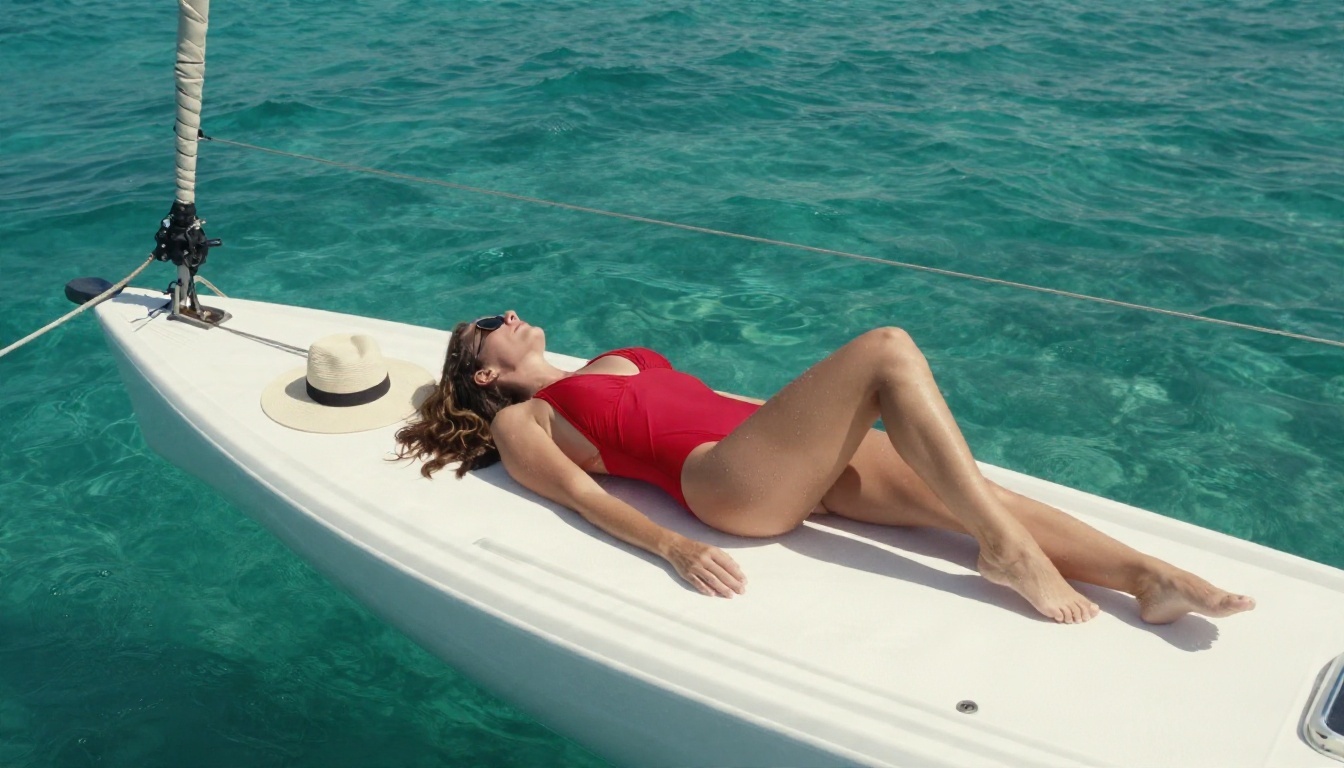
Image Editor Pro Has No Meter
PicassoIA Image Editor Pro matters for a different reason: it is unlimited. Glamour work is iterative. You rarely nail the pose, the light and the outfit in a single render, so a tool that doesn't charge per attempt changes how you work. You can generate, edit the outfit, change the background, tweak the colour grade and try again without watching a credit counter.
Flux Dev and Flux Krea Dev
Flux Dev is the benchmark for prompt-faithful photorealism. Give it a detailed paragraph and it follows lens, light and wardrobe instructions closely. Flux Krea Dev was tuned to remove the glossy, over-smoothed look, which is exactly the problem in skin-heavy shots. If your Flux Dev portraits feel waxy, switch to Krea Dev before you touch anything else.
Flux 1.1 Pro Ultra for Print
Flux 1.1 Pro Ultra generates around 4 megapixels natively. That headroom is useful for posters, large wall prints and crops. If you want a finetuned look, Flux 1.1 Pro Ultra Finetuned lets you push a consistent style across a whole series.
💡 Note on moderation: every hosted platform applies its own content rules, and rules change. Treat any promise of "no limits" with suspicion, and judge a tool by what it produces for tasteful prompts like the ones below.
Prompts That Actually Work
A good glamour prompt reads like a shot list. It names the subject and pose, then the setting, then the light, then the camera. Skip the keyword soup.
The Five-Part Prompt Formula
- Subject and pose: age (always an adult), hair, wardrobe, what she is doing.
- Environment: specific, physical, with two or three props.
- Lighting: direction, time of day, quality (soft, hard, rim).
- Camera: lens, aperture, angle, distance.
- Texture and film: skin detail, fabric, grain, colour palette.
Here is that formula in a real prompt:
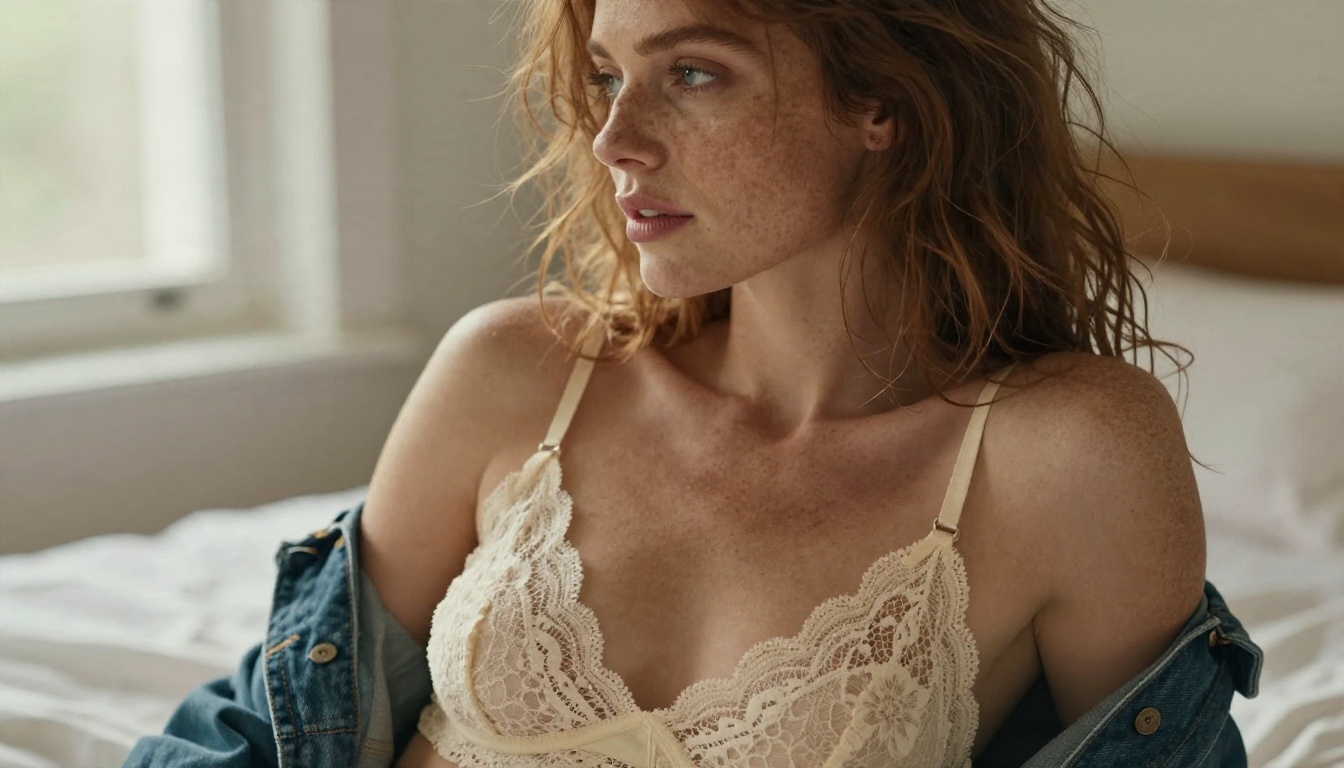
An adult woman in her late twenties with freckled skin and tousled auburn hair, wearing a cream lace bralette under an unbuttoned denim jacket, glancing over her shoulder in a sunlit bedroom with white linen sheets. Soft window light from the left, 85mm f/1.8 shallow depth of field, visible skin pores, Kodak Portra 400 film grain, warm natural tones, raw photograph.
Prompts to Copy and Adjust
Replace the bracketed pieces and keep the structure.
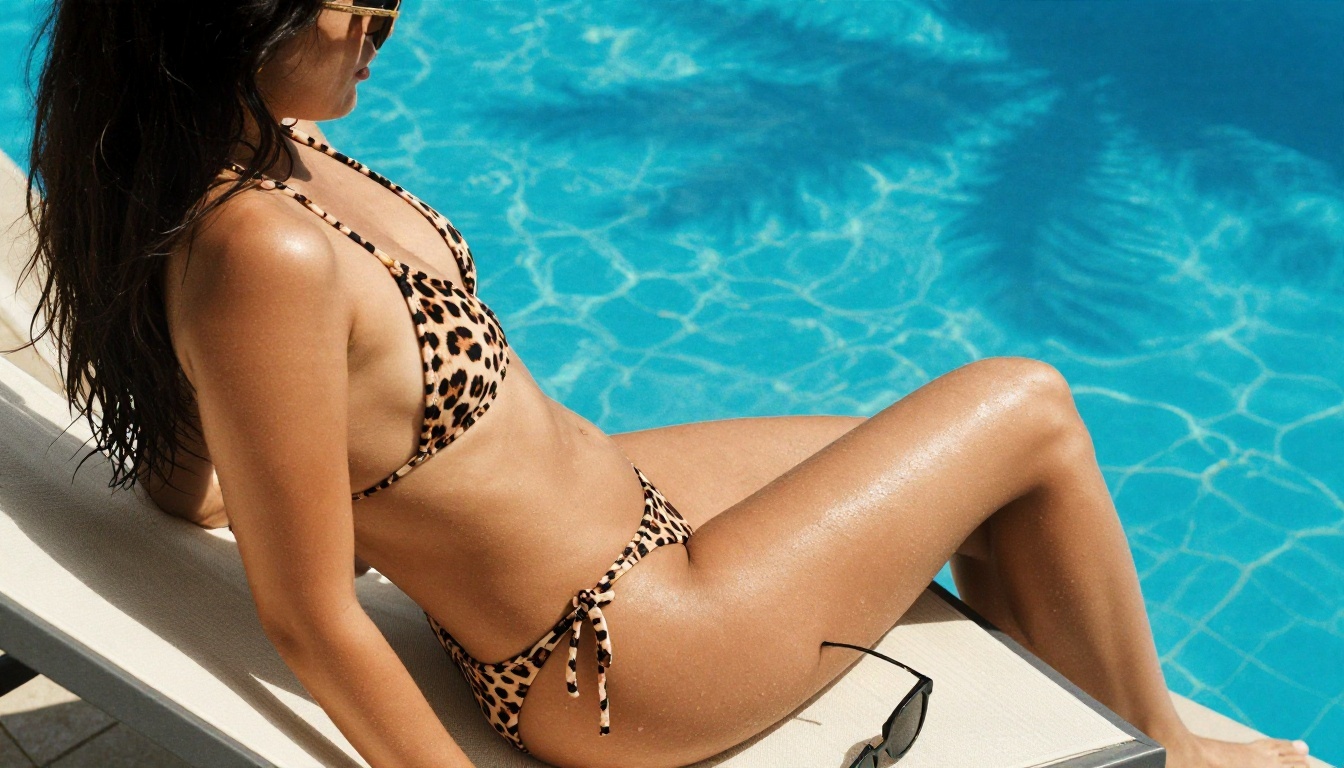
- Poolside: An adult woman in a [leopard print / white / black] bikini on a poolside lounger, partially turned from camera, holding sunglasses. Vivid blue water, palm shadows, strong late-morning sun from upper right, 50mm f/2.8, wet tile texture, sunscreen sheen on skin, Kodak Portra 400 grain.
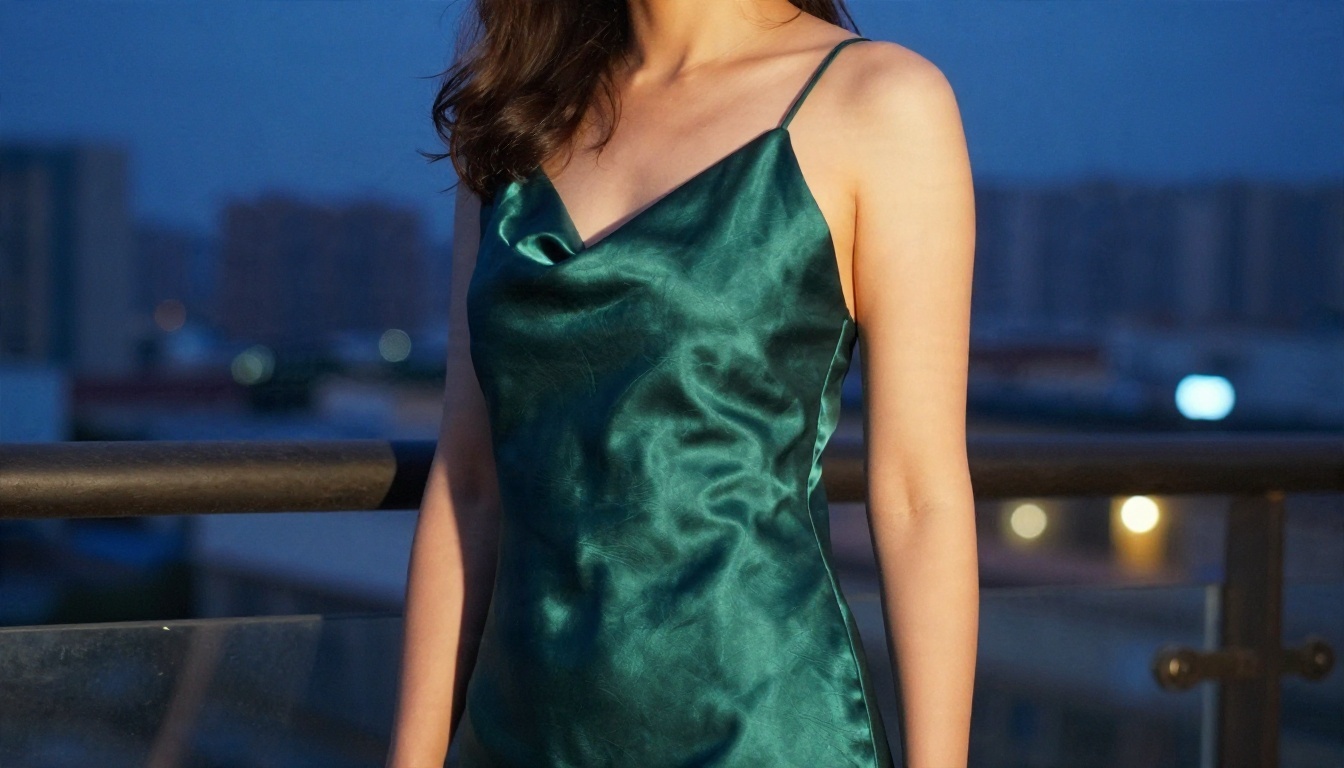
- Hotel balcony: An adult woman in a satin emerald slip dress on a hotel balcony at blue hour, city lights blurred behind her, warm lamp light from camera right, 50mm f/1.4, low angle, fabric sheen and wrinkles, fine skin texture.
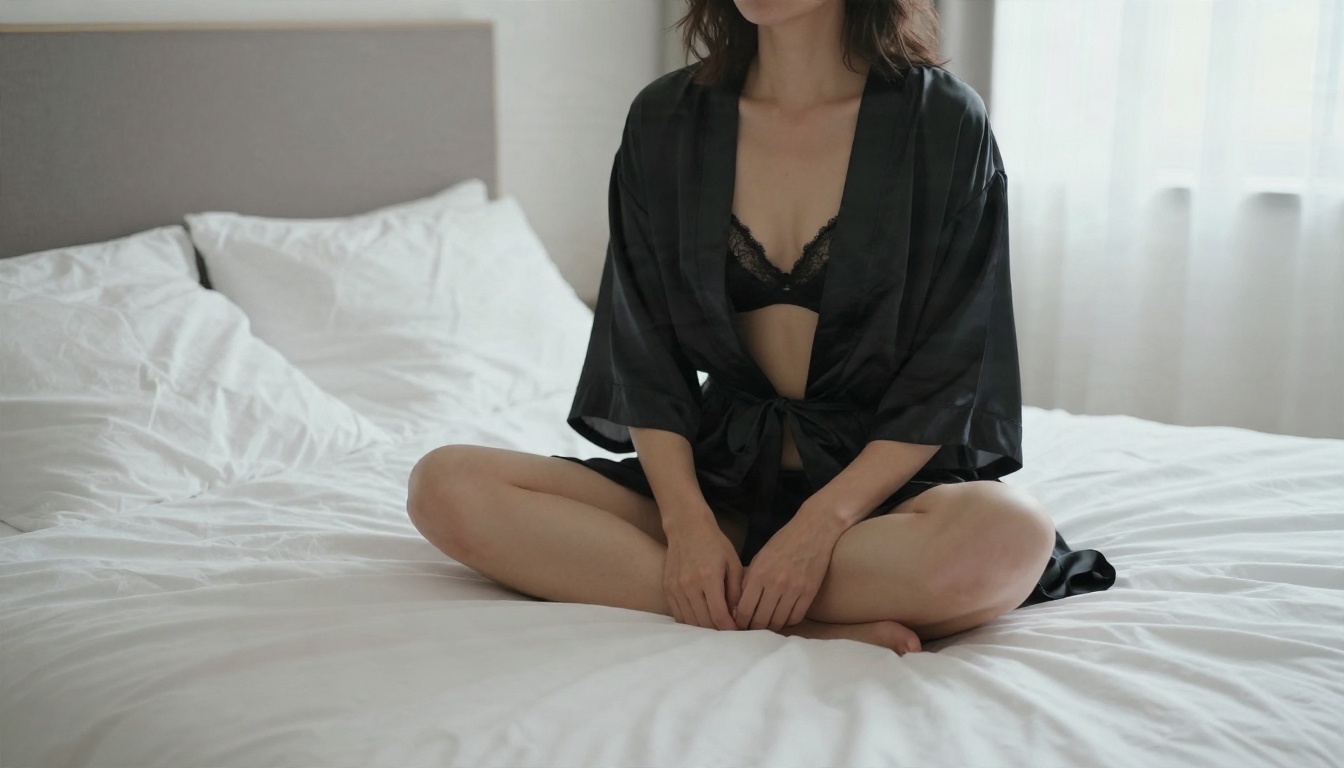
- Morning bedroom: An adult woman sitting cross-legged on a rumpled white bed in a black lingerie set with a silk robe, soft light through sheer curtains from the right, coffee tray beside her, 70mm f/2, cotton and silk textures.
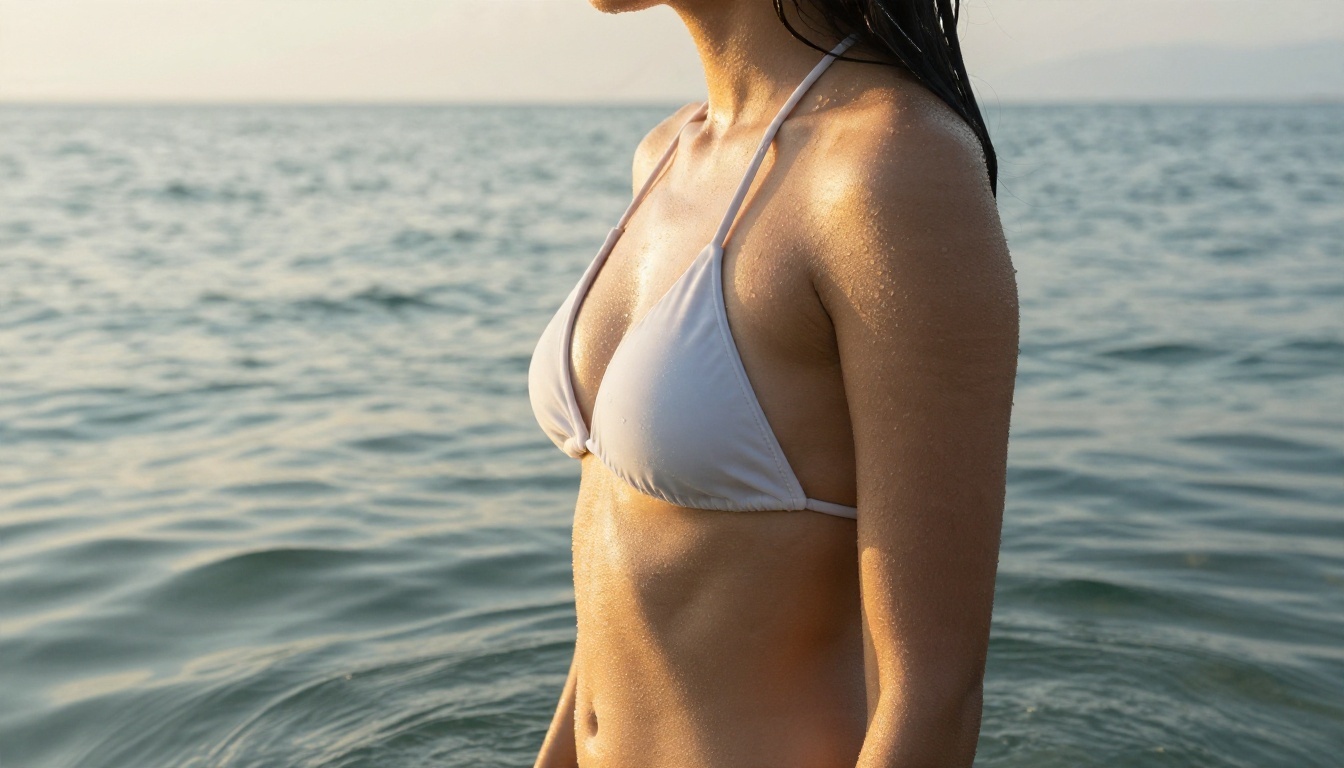
- Beach sunrise: Side profile of an adult woman in a white triangle bikini top, wet hair slicked back, waist-deep in clear ocean at sunrise, water droplets on shoulders, low golden backlight, 135mm f/2.
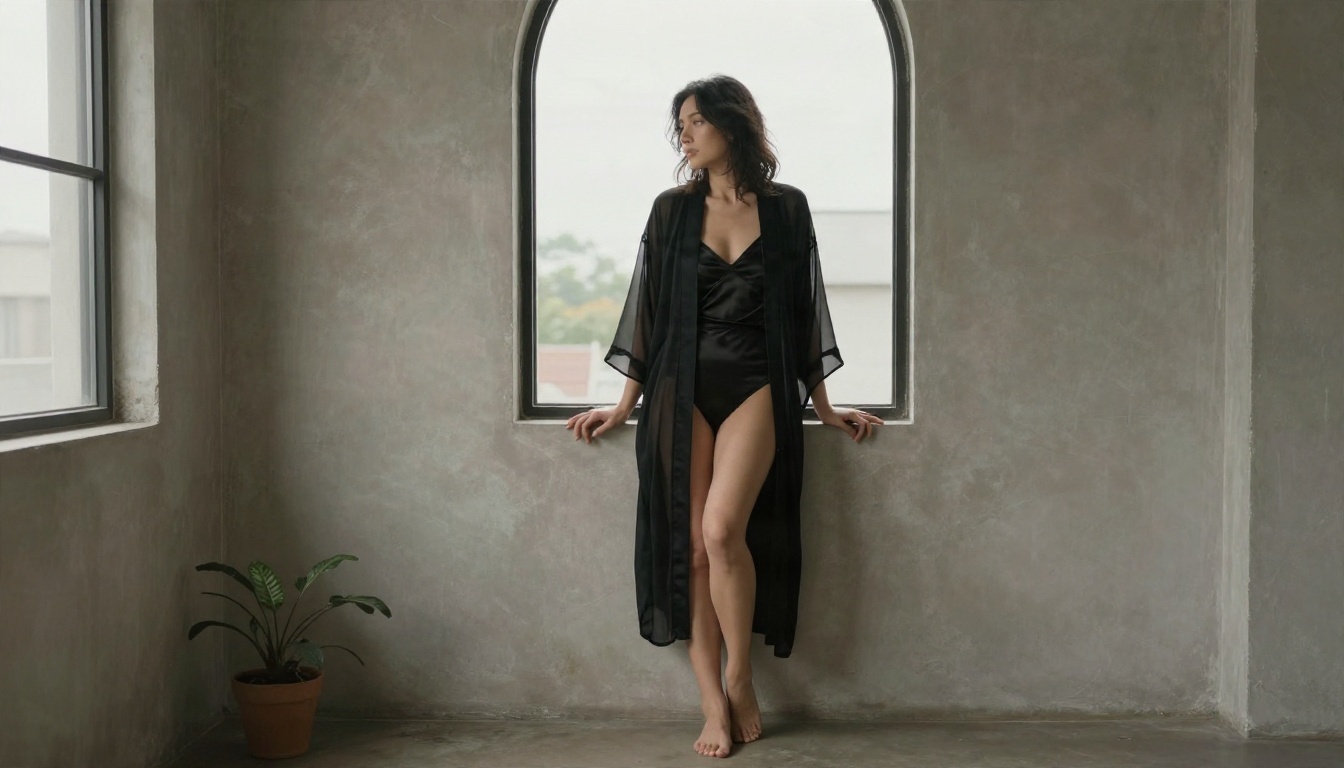
- Loft studio: Full-length shot of an adult woman in a sheer black kimono robe over a silk bodysuit leaning against an arched window, soft overcast daylight from the left, concrete floor and plants, 35mm f/2.
Negative Wording Without a Negative Box
Flux doesn't use a classic negative prompt the way Stable Diffusion did, so you steer by describing what you want instead. Instead of "no extra fingers," write "hands with five natural fingers resting on the sheet." Instead of "not plastic," write "visible pores, fine freckles, faint skin sheen, natural imperfections." Positive phrasing works noticeably better than a list of bans.
Lighting Does Most of the Work
Two portraits with the same model and same outfit can look like a snapshot or a magazine page. The difference is light.
| Light | Effect | Prompt phrase |
|---|
| Golden hour backlight | Warm rim on hair and shoulders | "low golden sun from behind, rim light on hair" |
| Window side light | Soft shaping, gentle shadows | "soft window light from the left" |
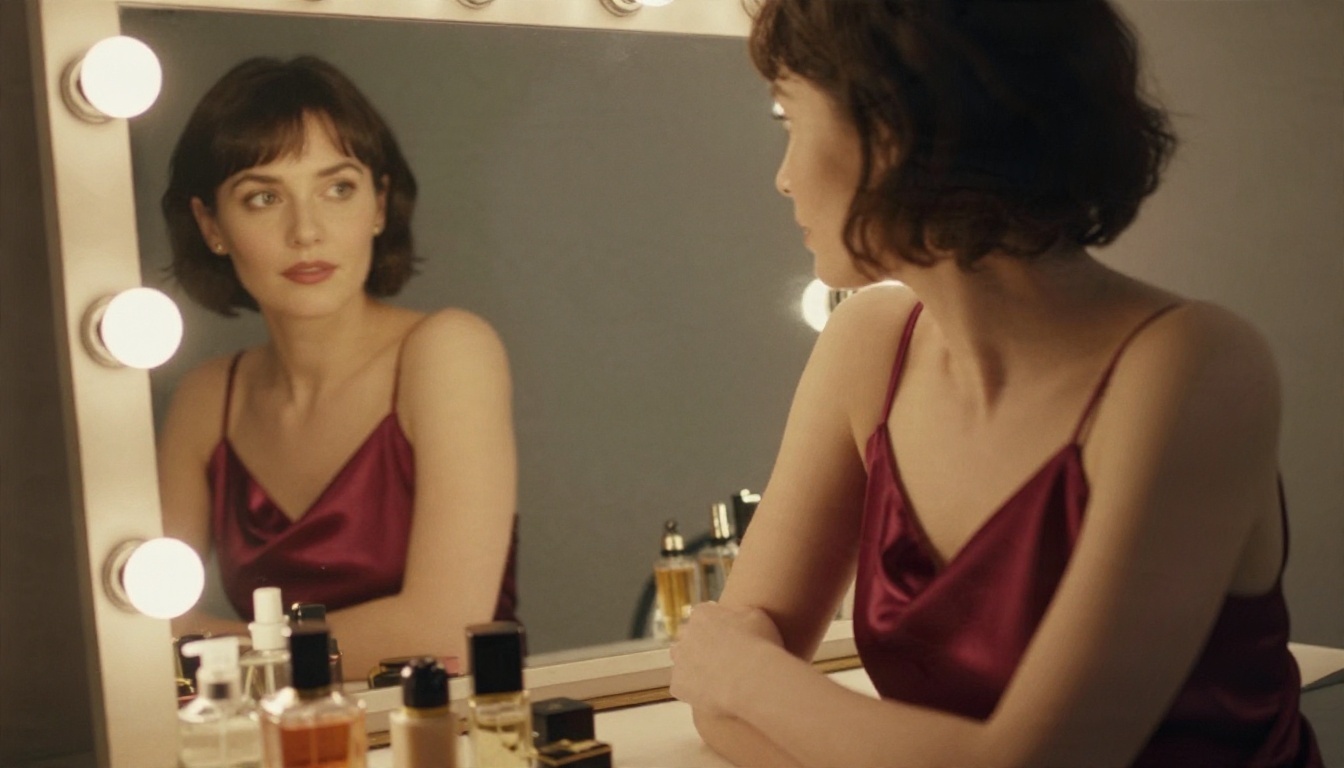
| Tungsten bulbs | Warm, intimate, vintage | "warm tungsten glow, mirror bulbs" |
| Overcast daylight | Even, airy, editorial | "soft overcast daylight, no hard shadows" |
| Blue hour | Cool ambient with warm accents | "blue hour, warm lamp light spilling from the room" |
Pick One Light Source
A common mistake is stacking three lighting instructions in one prompt: "neon, golden hour, studio flash." The model averages them into muddy light. Choose one main source and optionally one subtle fill.
Name the Lens
Lens words shape the whole image. 85mm compresses features flatteringly for portraits. 35mm adds environment and context. 135mm gives a heavily compressed, dreamy look at distance. 24mm from above gives an aerial, editorial feel. Naming the lens and aperture also pushes Flux toward photographic rather than illustrated output.
Settings That Change Results
Prompts get the attention, but a few sliders decide whether the output is crisp or mushy.
Guidance and Steps
For Flux Dev, a guidance scale around 3 to 4 is the sweet spot for photoreal portraits. Push it above 5 and skin starts to look oversaturated and plastic. For steps, 25 to 30 is plenty. Going past 40 rarely improves anything and slows every render. Distilled variants like Flux Schnell need only a handful of steps, which makes them good for fast concept testing before you commit to a slower final render.
Aspect Ratio and Seeds
Use 16:9 for landscape scenes like beaches and terraces, 3:4 or 2:3 for full-length fashion poses, and 1:1 for social posts. When you land on a composition you like, lock the seed and change only one word at a time (outfit colour, time of day). That is how you build a consistent series instead of rolling the dice every time.
💡 Workflow tip: draft with Flux Schnell, pick the best composition, then re-run the same prompt and seed on Flux Dev or Seedream 4.5 for the final.
How to Use Flux Dev on PicassoIA
Flux Dev is on PicassoIA, and it is a solid choice when you want tight prompt control. Here is the exact routine.
Step by Step
- Open the Flux Dev model page.
- Paste a five-part prompt (subject, environment, light, camera, texture).
- Set the aspect ratio that matches your scene, such as 16:9 for landscapes.
- Set guidance to roughly 3.5 and steps to roughly 28.
- Generate, then review skin, hands and fabric.
- Change one variable and regenerate, keeping the same seed.
- For a final pass, move the best result to Seedream 4.5 or Image Editor Pro for outfit tweaks and polish.
Parameter Tips That Save Time
- Keep prompts between 60 and 150 words. Shorter loses detail, longer starts to contradict itself.
- Put the subject first. Flux weights the start of a prompt more heavily.
- Use one outfit, one location, one light. Variety belongs between images, not inside one.
- If a result is close but not right, edit it instead of regenerating from scratch.
Free Options and Real Limits
"Free" comes in three flavours: free tiers on hosted tools, open weights you run locally, and unlimited plans. Each has trade-offs.
Free Tiers and Unlimited Plans
Free tiers on hosted tools give you a limited number of generations, which is fine for testing a prompt style. For ongoing work, an unlimited tool like PicassoIA Image Editor Pro removes the pressure. You also get a faster loop, since you never hesitate before hitting generate.
Running Open Weights Locally
Flux Dev and Flux Schnell have open weights, so you can run them on your own GPU. That costs nothing per image, but you need a strong graphics card, patience for setup and some comfort with troubleshooting. For most people, hosted generation is faster to a good result than a weekend of installing software.
LoRAs for Custom Looks
A LoRA is a small add-on that nudges a base model toward a style: film stock, wardrobe aesthetics, lighting mood. Flux Dev LoRA, Flux Schnell LoRA and Flux 2 Klein 9B Base LoRA all let you load one. Use them for a consistent photographic style across a series, and always choose LoRAs made for photography, not heavy stylization.
💡 Important: only generate fictional adult characters. Never create images that imitate a real person without consent, and never depict anyone who looks underage. That line is not negotiable.
Fixing Common Problems
Even good prompts misfire. These are the three failures I see most often and how to fix each.
Plastic or Waxy Skin
Cause: high guidance, "perfect skin" wording or a smoothing-heavy model. Fix: drop guidance to about 3, replace "flawless skin" with "visible pores, fine freckles, subtle sheen," and try Flux Krea Dev. Adding "Kodak Portra 400, fine film grain" also breaks up that airbrushed surface.
Hands and Fabric Errors
Hands are still the weak spot. Give them a job: "fingers resting on a coffee cup," "hand holding sunglasses." A hand with a purpose renders better than a hand floating in space. For fabric, name the material (satin, lace, silk, linen) and describe how it behaves ("silk catching the light, soft folds at the hip").
Blocked or Diluted Results
If a prompt gets blocked, don't keep rewording the same request. Step back and describe a scene and mood instead of a body. "Sunlit bedroom, silk robe, morning coffee" produces a better image and passes cleaner than any anatomy-focused phrasing. If one model keeps refusing tasteful prompts, switch to Seedream 4.5 or Image Editor Pro, which are friendlier to glamour content.
💡 Polish step: run a good result through an editing model to adjust colour, swap a background or fix a small detail. Flux Kontext Fast is useful for quick edits when you want to keep the subject the same.
Start Creating Your Own
You now have the full routine: pick the model (Seedream 4.5 first, Image Editor Pro when you want unlimited tries, Flux Dev or Flux Krea Dev for prompt-faithful photorealism), write a five-part prompt, set guidance near 3.5, lock a seed and iterate one variable at a time.
The fastest way to improve is to run it. Take one of the prompts above, paste it into Seedream 4.5 or PicassoIA Image Editor Pro, then change the outfit, the light and the lens. Ten minutes of experiments will teach you more than any list of tips.
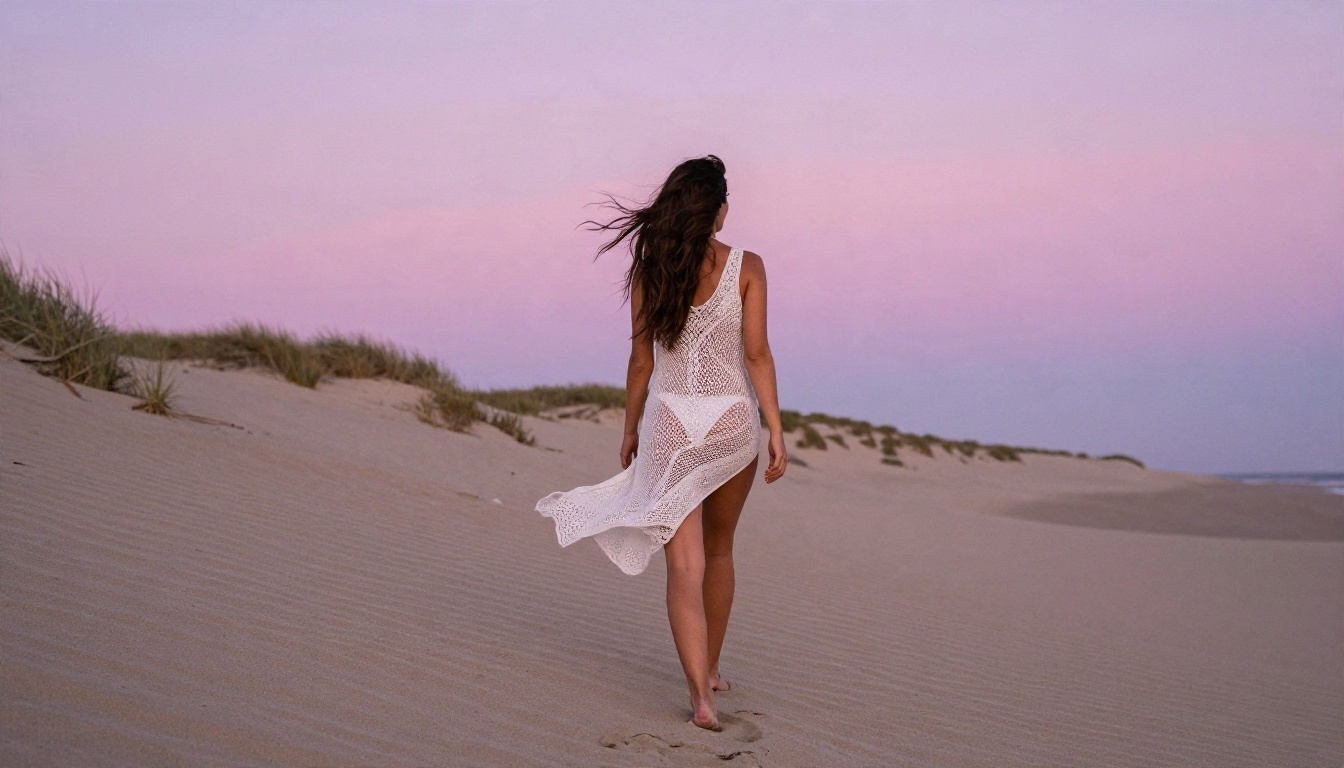
Want to compare more options before you pick a favourite? Browse every available model at picassoia.com/en/all-models and run the same prompt through three of them side by side. The differences in skin, light and mood are easier to see than to describe.


