You typed a prompt into Crepal, asked for a woman in a bikini on a beach or a moody boudoir portrait, and got a refusal, a blurred preview, or nothing at all. So you came here with a simple question: does Crepal allow NSFW content, or not? The short answer is that it depends on which page of the internet you read, and that is exactly the problem. This article lays out what is actually known, what is only marketing language, how the free plan limits you, and where to go if you want to create tasteful adult-leaning images without fighting a filter every five minutes.

The Short Answer
Crepal is an AI creative platform that bundles planning, image generation, and video generation in one workspace. It is built around an assistant that helps you turn an idea into finished visuals. That design explains a lot about its NSFW stance: it is positioned as a polished, brand-safe production tool, not as an open adult content generator.
Here is the honest summary of what public material says:
- Some pages describe the service as a free image and video generator where adult content is allowed within clear boundaries.
- Other pages describe it as a tool built for safe-for-work creation, and as a policy-safe planner rather than a generator for explicit or sexual material.
- Nobody publishes a clean list of exactly what is blocked and what passes.
💡 Reality check: when a platform's own pages contradict each other, assume the stricter reading. If you plan a project around "NSFW allowed", you can lose hours of work to a refusal.
So the practical answer: do not expect Crepal to behave like an uncensored generator. Expect fashion, swimwear, and portrait work to be hit and miss, and expect anything explicit to be refused.
What the Rules Seem to Say
Because there is no single rulebook, it helps to read the policy language the way a moderation team would. Platforms of this kind usually sort requests into three buckets.
Allowed in most cases
Portraits, fashion shots, lifestyle photography, fitness imagery, and general beauty content. A woman in a summer dress or a man in swim trunks on a beach rarely triggers anything.
Gray area
Swimwear close-ups, lingerie campaigns, suggestive poses, artistic implied nudity. This is where results change from one day to the next, because the filter reacts to wording, framing, and sometimes to the output image itself.
Blocked
Explicit sexual acts, pornographic framing, minors in any suggestive context (a hard line everywhere, and it should be), non-consensual content, and real people depicted in sexual scenarios.

The gray area is the one that matters to most readers. If your goal is glamour, boudoir, or bikini photography, you are living right in that middle bucket, and a cautious platform will treat it with suspicion.
How the Filters Behave
Filters on creative platforms normally work in two stages, and Crepal appears to follow the same pattern.
Prompt screening
Your text is scanned before generation. Certain words, even harmless ones in context, can stop a request. This is the stage where "bikini" might pass but "wet see-through bikini" would not.
Output screening
After the image or clip is created, a classifier checks the result. If it scores high for nudity or suggestive content, you may get a blurred frame, a replacement, or an error message. This second stage is the frustrating one, because you can spend credits and still receive nothing usable.
Common signs you hit the filter
| Symptom | Likely cause |
|---|
| Instant refusal message | Prompt screening flagged a word or phrase |
| Blurred or swapped result | Output classifier scored the image as suggestive |
| Generic "something went wrong" | Silent moderation, often on video clips |
| Result looks oddly modest | The system rewrote or softened your prompt |
| Credits spent, no image | Output blocked after generation |
💡 Tip: if you keep seeing silent failures, the cause is rarely your internet connection. It is usually moderation, and rewording will not fix a filter that is set conservatively on purpose.
Free Limits and Credits
Money matters here, because every blocked generation can cost you something.
Based on what is publicly described, the free plan gives you a monthly allowance of roughly 200 credits, and paid tiers start around 10 dollars per month, promising faster speed, more advanced models, and in some plans unlimited generations. Pricing changes often, so treat these numbers as a snapshot and check the pricing page before you commit.
What 200 credits really buys
Images cost less than video, and higher resolutions or premium models cost more. A rough mental model:
| Task | Relative credit cost | What it means for you |
|---|
| Standard image | Low | Dozens of attempts per month |
| High resolution image | Medium | A handful of keepers |
| Short video clip | High | A few clips, then you are done |
| Failed or blocked output | Sometimes still charged | The real risk for gray area prompts |
The hidden cost of experimenting
Glamour and swimwear work needs iteration. You rarely get the lighting, pose, and fabric right on the first try. On a strict platform, each iteration carries the added risk of a moderation hit. That is why free allowances feel smaller for adult-leaning creators than for people making product mockups.
It is easy to be annoyed at a filter, but the reasons behind it are practical.
- Payment processors restrict adult content, so platforms that depend on card payments stay cautious.
- App stores and ad networks do the same.
- Brand customers want to know their campaigns will never sit next to something explicit.
- Legal exposure around deepfakes and non-consensual imagery has grown a lot.
None of that is a judgment on you. It is a business reality. A platform built as a general production workspace has little reason to take on adult content risk, so the filter stays tight even when a handful of marketing pages say otherwise.
Tasteful NSFW Without the Friction
There is a big difference between explicit and suggestive. Most people searching this topic are not after pornography. They want swimwear campaigns, boudoir portraits, fashion editorials with attitude, glamour photography with implied nudity, the sort of images you see in a magazine. That is a legitimate creative category, and it deserves tools that do not treat every satin robe as a threat.
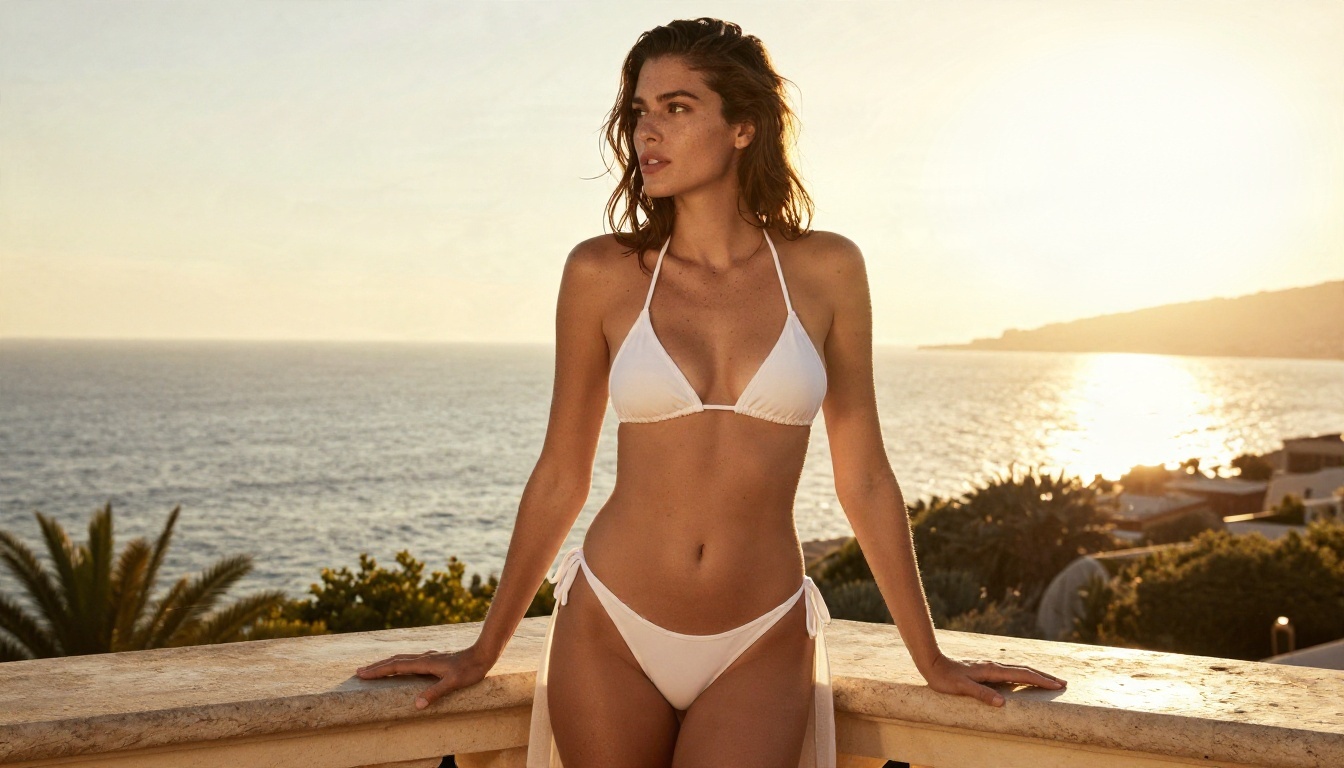
Crepal is not on PicassoIA, and nothing here suggests it is. If you want a workflow where suggestive, attractive imagery is part of the plan from the start, these are the options that are on PicassoIA today.
1. Seedream 4.5
Seedream 4.5 is the first model to try. It produces sharp, photorealistic images up to 4K, handles skin texture and fabric very well, and gives glamour, swimwear, and boudoir prompts the freedom they need. It is quick, and the results look like real photography rather than plastic AI skin.
2. PicassoIA Image Editor Pro
PicassoIA Image Editor Pro is the one for unlimited generations. If you have ever watched a credit counter drop while a filter ate your result, this is the relief. You can generate, adjust, regenerate, and edit existing photos without counting each attempt, which is exactly how glamour work should feel.
3. Qwen Image 3 Pro
Qwen Image 3 Pro is a strong photorealistic option, with good prompt following when you describe a pose, wardrobe, and scene in detail.
4. Flux 2 Klein 9B Base LoRA
Flux 2 Klein 9B Base LoRA is useful when you want a styled look and consistent fashion aesthetics across a series.
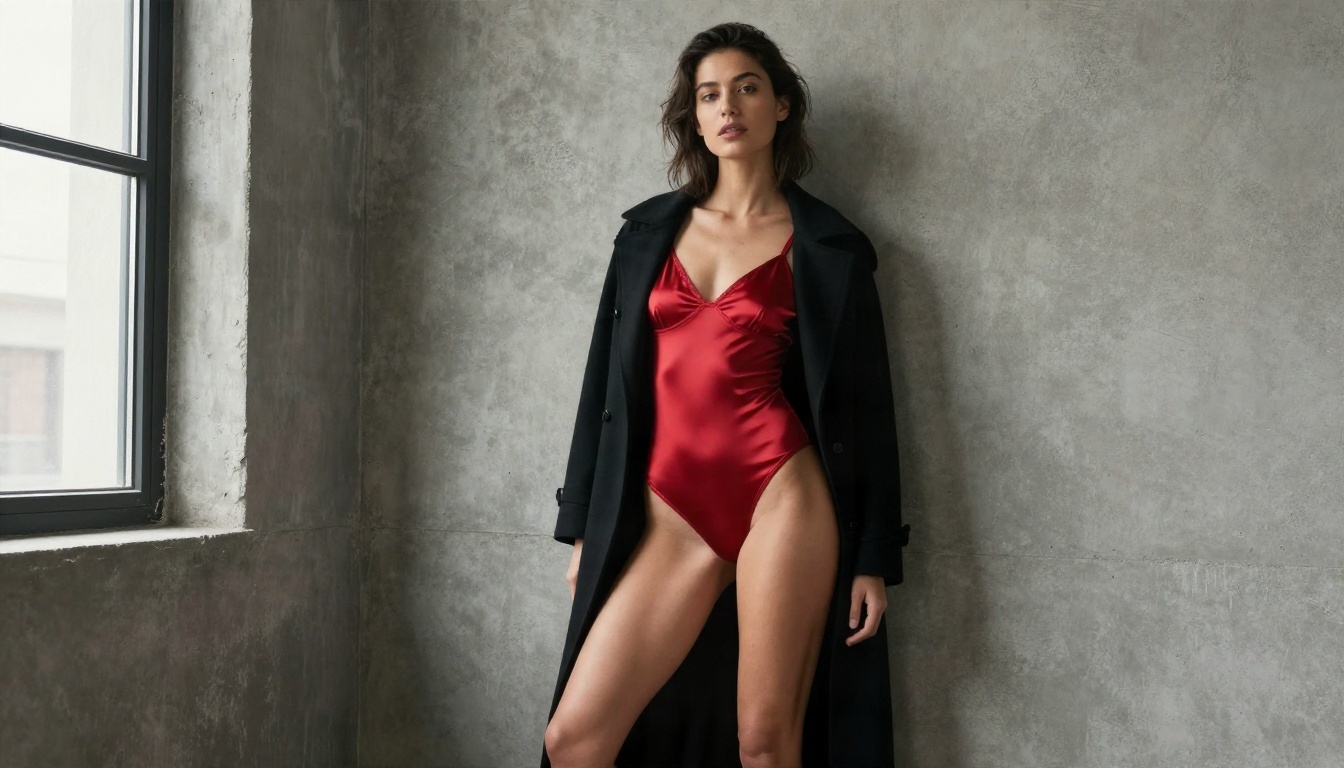
Crepal vs the Alternatives
Here is how the situation looks side by side. The Crepal column reflects public descriptions and the general pattern of cautious platforms, not a lab test.
| Factor | Crepal | Seedream 4.5 on PicassoIA | Image Editor Pro on PicassoIA |
|---|
| Adult content stance | Mixed messaging, leans safe-for-work | Built for photorealistic glamour | Built for unlimited editing and generation |
| Swimwear and boudoir | Hit and miss | Handled well | Handled well |
| Free allowance | About 200 credits a month | Generous for testing | Unlimited generations |
| Risk of paying for a blocked result | Present | Low | Low |
| Best for | Planned, brand-safe workflows | Sharp photoreal portraits | High volume iteration and photo edits |
💡 Rule of thumb: use a brand-safe planning tool for corporate content, and use a permissive image model when the subject is glamour, swimwear, or boudoir.
How to Get Similar Results on PicassoIA
Since Crepal itself is not available on PicassoIA, here is how to reach the same goal, a polished image from a text idea, using Seedream 4.5.
Step 1: Open the model page
Go to the Seedream 4.5 page and sign in. You will see a prompt box and a few settings.
Step 2: Write a photographer's prompt
Describe the shot the way you would brief a photographer. Include the subject, wardrobe, location, light direction, lens, and film look. For example:
"A woman in an emerald swimsuit standing in a shallow infinity pool at sunrise, water droplets on her skin, soft golden light from the right, 24mm lens, low angle, Kodak Portra 400 grain, natural skin texture."
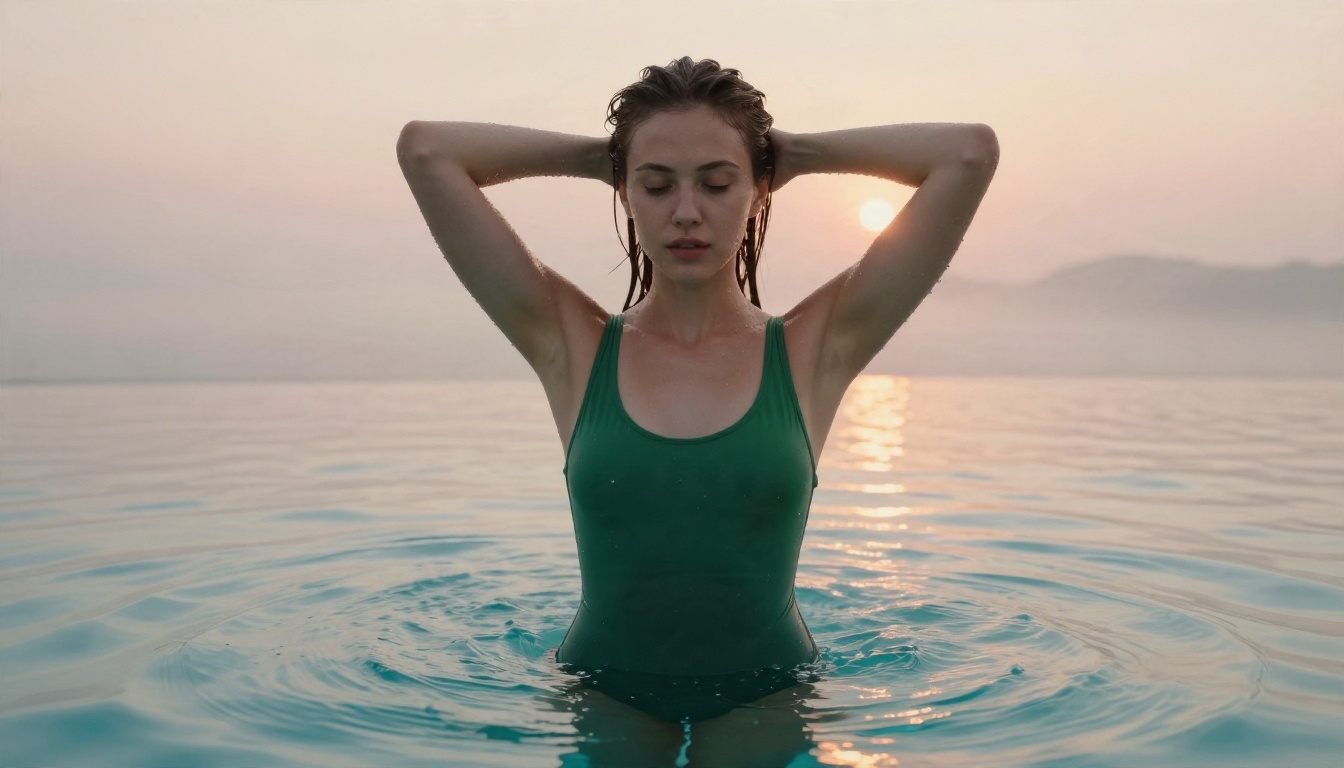
Step 3: Pick the right settings
- Aspect ratio: 16:9 for banners and wide editorials, 3:4 or 2:3 for portraits.
- Resolution: start lower for drafts, then render the final at the highest quality.
- Prompt length: 40 to 80 words usually beats one short line.
Step 4: Iterate on one variable at a time
Change only the lighting, then only the pose, then only the wardrobe. This is how you reach the exact look without losing what already works.
Step 5: Refine in Image Editor Pro
Take your favorite result into PicassoIA Image Editor Pro to adjust details, fix small flaws, change clothing, or swap the background, with no generation counter ticking down.
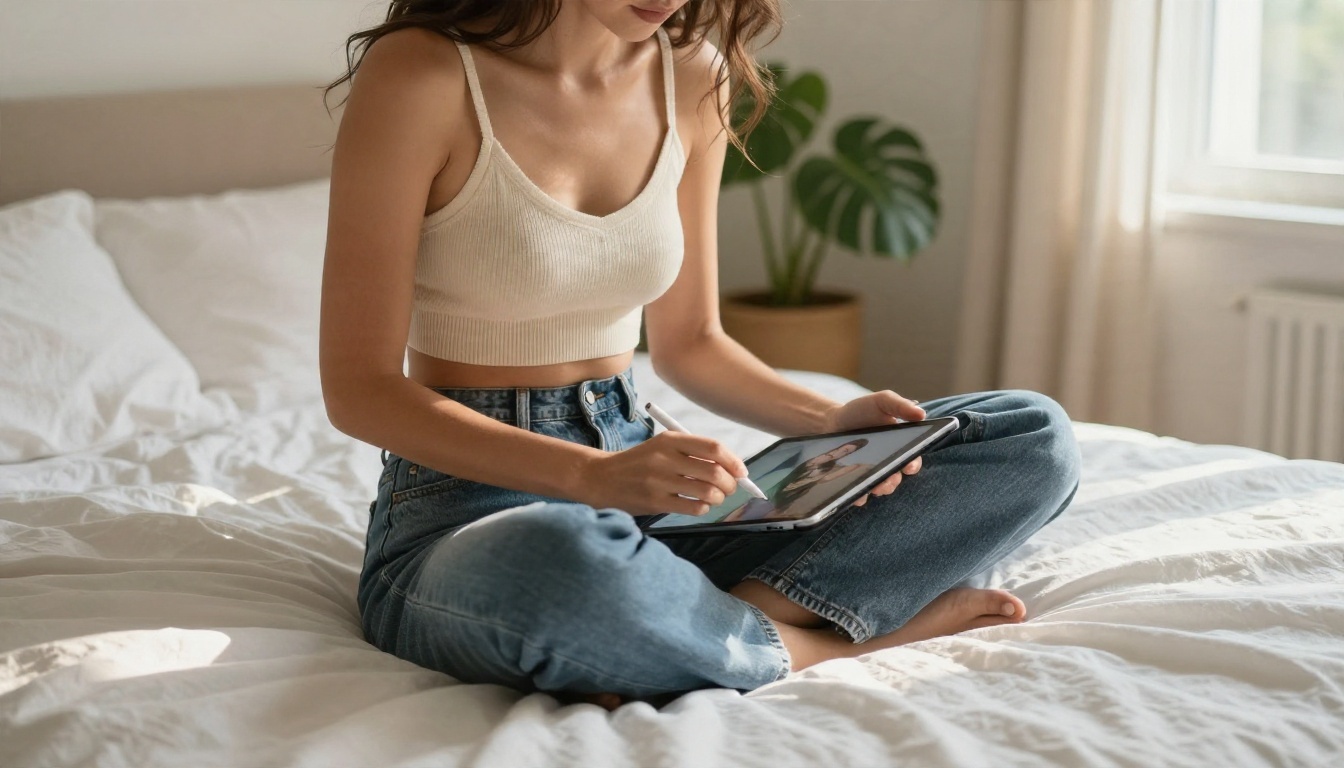
Prompt Tips That Work Anywhere
Whatever platform you pick, the quality of your prompt decides most of the outcome. These habits help on every tool.
- Lead with the subject and action. "A woman adjusting her sleeve" beats "beautiful girl".
- Name the light. "Soft window light from the left" gives shape and mood that "good lighting" never will.
- Specify the lens. An 85mm f/1.8 lens gives flattering compression and a blurred background.
- Mention texture. Skin pores, satin sheen, wet stone, linen folds. Texture is what makes an image feel photographed.
- Name a film stock. Kodak Portra 400 gives warm, natural skin tones.
- Avoid piling on adjectives. Ten vague words dilute the image. Three precise details sharpen it.
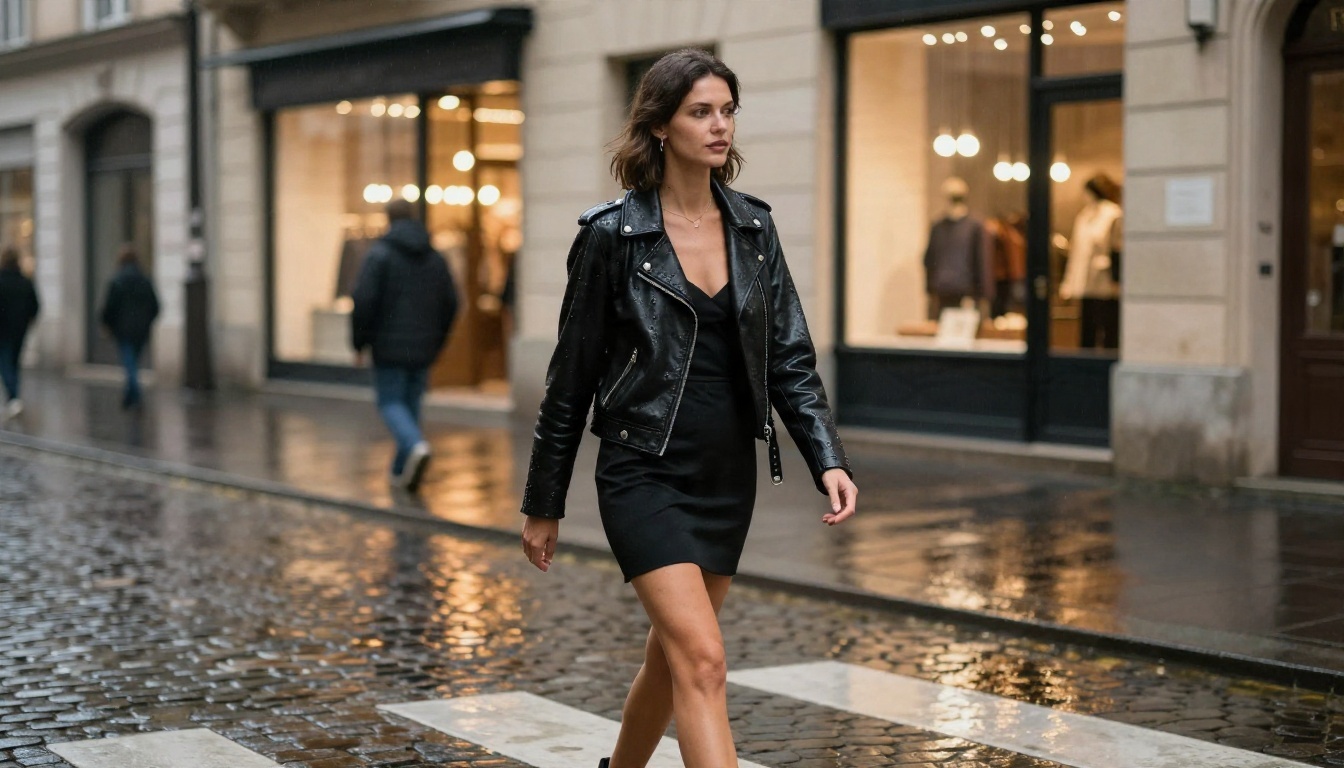
💡 Keep it tasteful: suggestive does not need to mean explicit. Implied, elegant framing looks better, passes more checks, and ages well in a portfolio.
What About Video?
Video is where filters tend to be strictest, because a moving clip is harder to moderate and carries more risk. If you plan to animate a glamour still, expect tighter rules almost anywhere. On PicassoIA, you can try Wan 3 for cinematic motion or LTX 2.5 Fast when you want quick turnaround. A good habit is to build the still first with Seedream 4.5, confirm the look, and only then think about motion.
Common Mistakes to Avoid
- Trusting one marketing page. Read the terms of service, not the landing page.
- Burning credits on gray area prompts before testing a small, safe version first.
- Rewriting the same prompt ten times when the filter is the problem, not the wording.
- Ignoring the usage terms for commercial work. Free plans and paid plans often have different rights.
- Using real people's likeness without permission. It is both an ethical line and, increasingly, a legal one.
Try It Yourself
If Crepal left you with refusals and a shrinking credit counter, the fix is simple: switch to a tool that is built for the look you want. Start with Seedream 4.5 for sharp photoreal glamour, then move to PicassoIA Image Editor Pro for unlimited iteration and edits. Write a detailed prompt, pick your light, and see what happens in the first few minutes.
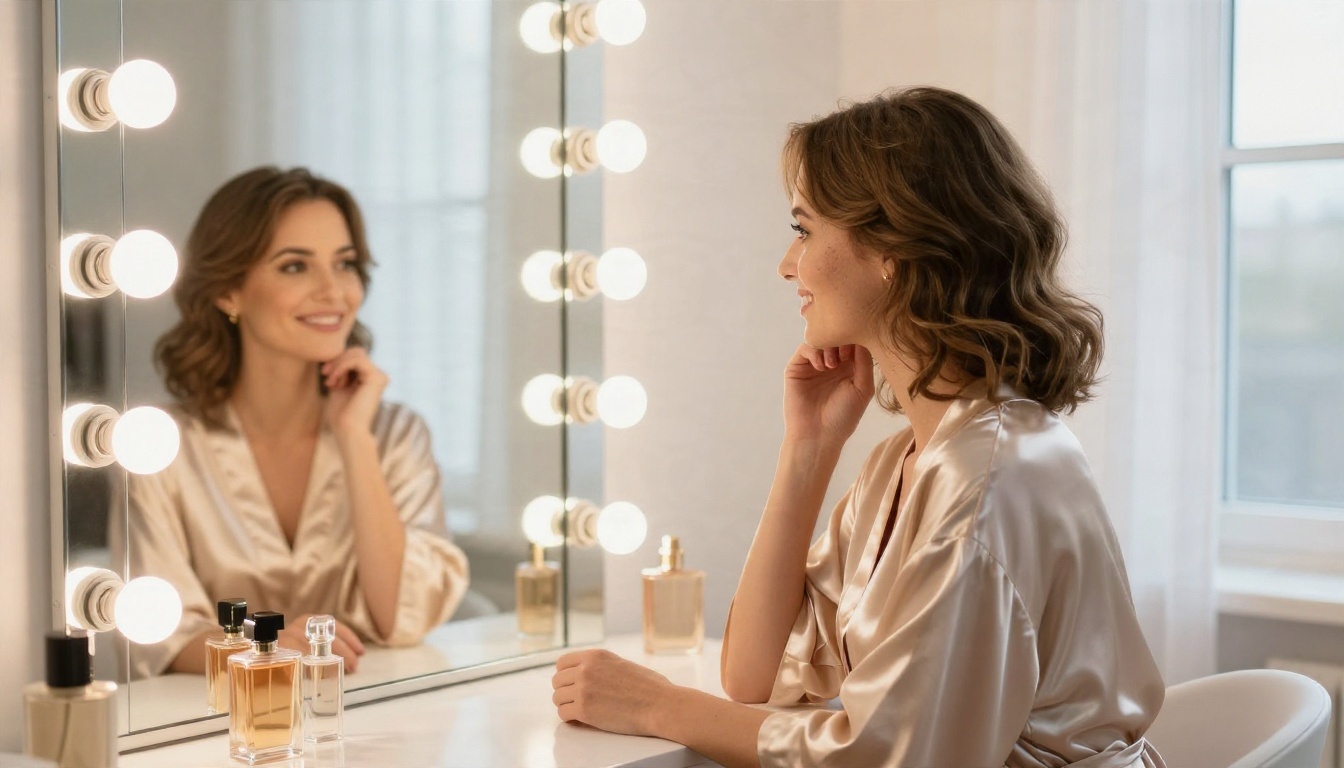
There are dozens more models waiting, from portrait specialists to video tools and upscalers. Browse the full list at picassoia.com/en/all-models, pick one, and create your own set of images today.


