You opened Grok, went looking for the Spicy toggle, and it was not there. Maybe it was greyed out. Maybe it asked for a subscription. Maybe the output came back so tame it could have run in a family magazine. So, does Grok still have Spicy Mode? The short version: the feature is not gone in a clean, announced way, but it has been squeezed so hard that for most people it behaves as if it were deleted.
I spent time going through what has been reported, and the picture is messy. Some sources say xAI removed adult image settings entirely after the backlash in January 2026. Others say the option survives on mobile for paying users in certain regions. Below you will find what we can say with confidence, why your toggle probably disappeared, and what to use instead if what you want is glamour, swimwear and boudoir style photos that look like real photography.
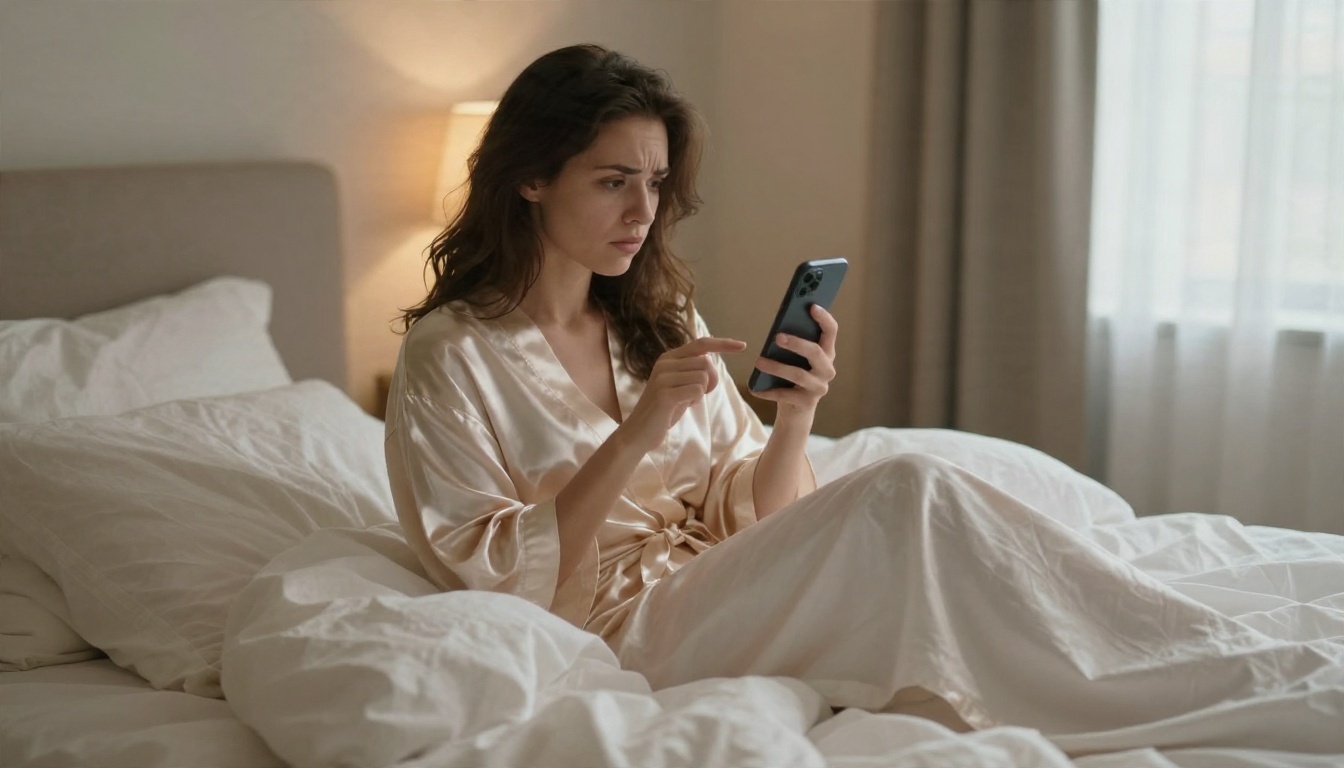
The Short Answer: Is It Gone?
💡 Quick verdict: Spicy Mode is heavily restricted and, for a large share of users, effectively unavailable. Whether it is fully deleted or only hidden depends on your region, platform and account type, and there is no public promise from xAI that every user can reach it.
What Spicy Mode Was
Spicy Mode arrived around August 2025 inside Grok Imagine, the image and short video generator built into the Grok app. Alongside presets like Normal and Fun, it let users produce more suggestive, sensual content from a text prompt or from an uploaded picture. It got attention fast, for good reasons and bad ones: the outputs were bolder than what most mainstream tools allowed, and the guardrails around real people were thin at first.
That second point matters. Once reports spread about sexualized images of real individuals, the feature stopped being a quirky differentiator and became a liability.
What Changed in 2026
Starting in late 2025, users noticed things breaking. Videos generated from uploaded photos stopped coming out as expected. Clips began to zoom in awkwardly or drift away from the subject. Then, in January 2026, a wave of public criticism over explicit AI imagery pushed xAI to restrict image generation much more aggressively.
Since then, the story has been a steady tightening:
- Paywalling: more of the image tools moved behind paid tiers.
- Platform limits: the web and desktop toggle disappeared in most regions, while some reports claim a mobile version lingers.
- Regional blocks: access depends on where you live and the local rules there.
- Filtering: results were pushed toward a near PG standard, even when the toggle was visible.
Gone or Just Hidden?
Honestly, both descriptions are partly right. Different write-ups reach different conclusions, and xAI has not published a clear changelog that says "Spicy Mode is retired." So the most accurate framing is this:
| Question | Best available answer |
|---|
| Is there an official, universal Spicy Mode in 2026? | No public guarantee of one |
| Did it launch in Grok Imagine in 2025? | Yes, around August 2025 |
| Was it restricted after January 2026? | Yes, heavily |
| Is it still visible for some paying mobile users? | Reported by some sources, unconfirmed by others |
| Is it visible on web and desktop? | Missing for most people |
| Can you count on it for a project? | No |
If you are building a workflow, a content calendar or a portfolio around a toggle that may vanish tomorrow, that is a risky base. That is the real reason to look at alternatives.
Why You Cannot See It
If the option is missing on your screen, there is usually a boring explanation before there is a dramatic one.
Region and Platform Limits
The most common cause is simply where you are and what you are using. Several reports describe the toggle being removed from the web and desktop versions in most countries. If you are logged in on a laptop, you may never see it, even on an account that technically has the feature on the phone app. Some regions have also been blocked entirely because of local regulation on sexual content and synthetic imagery.
Paywalls and Account Tiers
The second cause is the subscription tier. Free accounts have seen the image tools trimmed first. Even on paid plans, features have moved between tiers more than once, so a screenshot from three months ago may show something that does not exist for you now.
Stricter Filters on Uploads
The third cause is the one people notice in the results rather than the menus. Uploading a photo of a person and asking for a suggestive version is exactly where the filters became strictest. If you see refusals, blur, forced zoom or oddly stiff clips, that is the moderation layer doing its job, not a bug in your prompt.
How to Check Your Own Account
Before you give up on it, run this short check. It takes about five minutes.
- Update the app. Old builds show old menus, and new builds hide removed features.
- Open the Imagine section on your phone rather than on the web. If you only checked the browser, that is not a fair test.
- Look at your subscription tier. Note which plan you have and compare it with what the app says each plan includes.
- Check your region. If you are travelling or using a VPN, the app may follow your detected location.
- Test with a non suggestive prompt first. If basic generation works but the toggle is missing, the feature is not offered to you.
- Read the in app settings and policy page. That is the one place that reflects your account today.
💡 Tip: Do not try to bypass regional or account limits with workarounds. You risk a ban, and the results still go through the same filters. A different tool is the cleaner fix.
If after all that you still have nothing, treat the feature as unavailable and move on to something that you control.
Best Alternatives on PicassoIA
Grok's Spicy Mode itself is not something you can use on PicassoIA, and it would be wrong to suggest otherwise. What you can do is reach the same creative result, which is polished, attractive, photorealistic glamour imagery, with models that were built for image quality and that are not tied to a single app toggle. For this kind of work, these are the ones I would start with, in this order.
Seedream 4.5 First
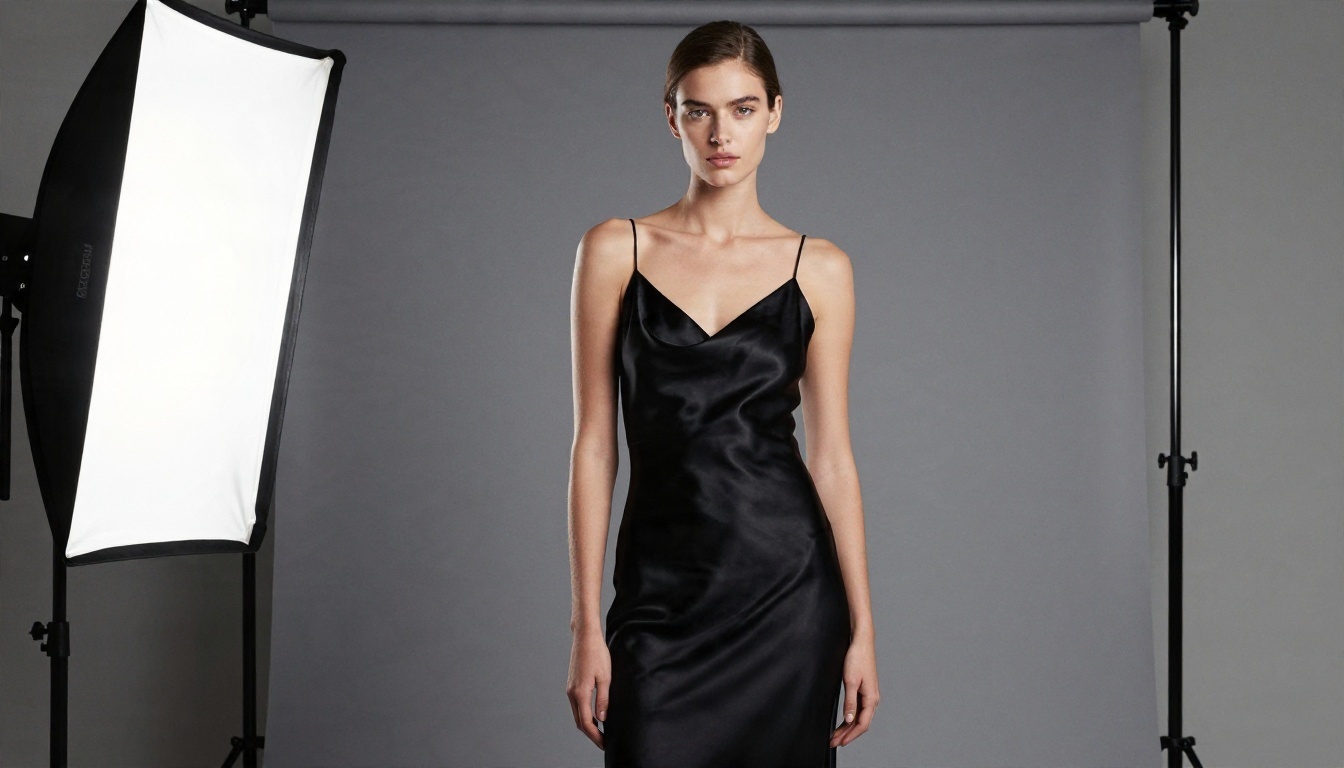
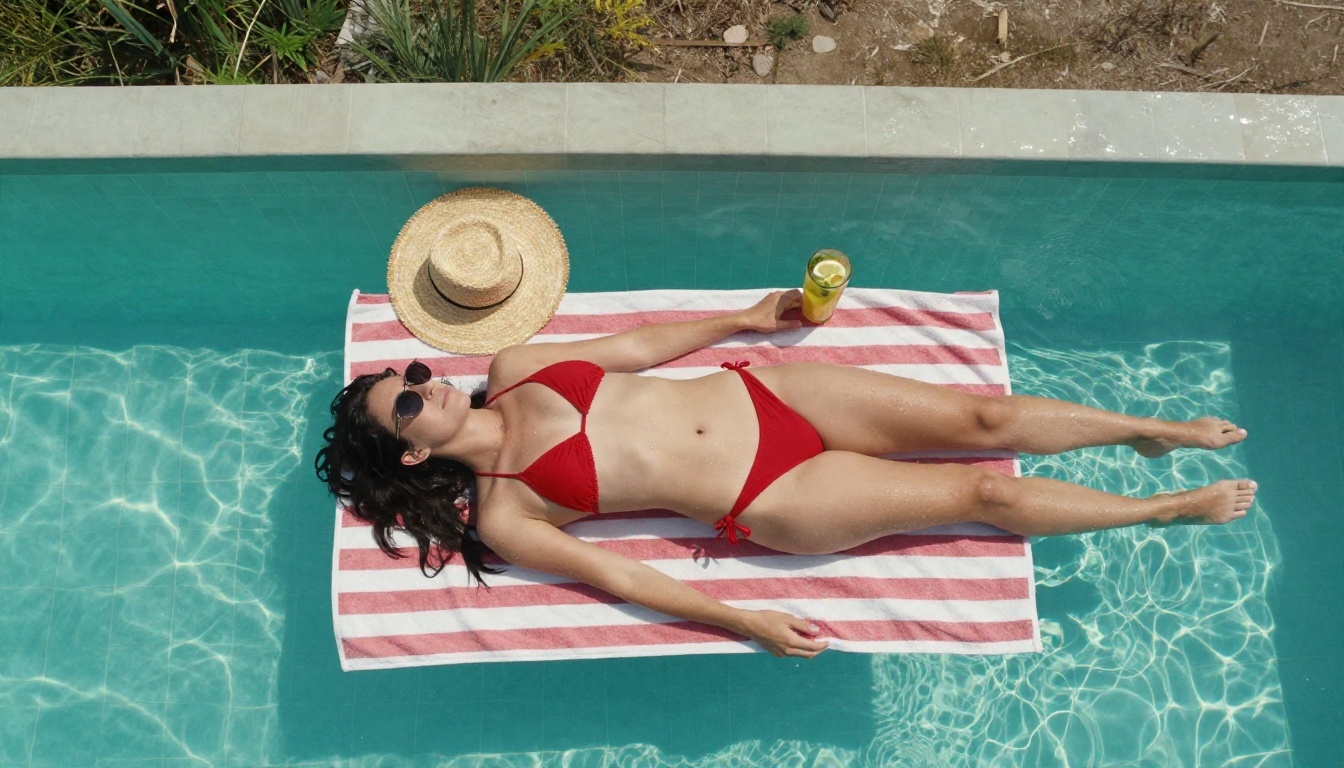
Seedream 4.5 is my first pick. It produces sharp, high resolution images with believable skin, fabric and light, which is exactly what swimwear, silk, lace and boudoir portraits depend on. It follows long, detailed prompts well, so a sentence about window light from the left and an 85mm lens actually changes the picture. It is fast, and it is comfortable with adult leaning but non explicit themes such as bikinis, lingerie style fashion and sensual portraits.
PicassoIA Image Editor Pro
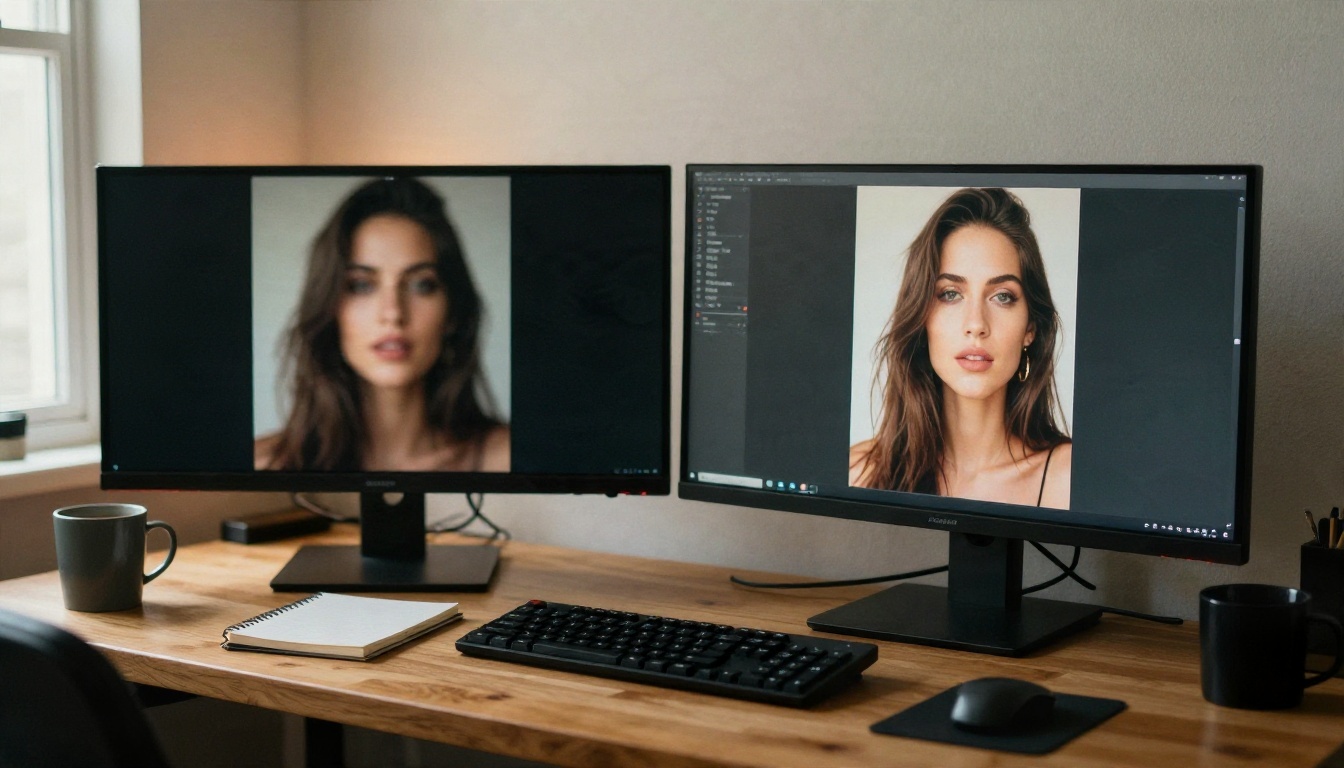
PicassoIA Image Editor Pro is the second stop. Its biggest advantage is unlimited generations, so you can iterate as many times as you like without watching a credit counter. It is built for editing as much as creating: change an outfit, adjust a pose, fix lighting or swap a background on a photo you already like. For people who left Grok because the results kept being refused or watered down, the freedom to try again and again is the real value.
Flux 2 Klein 9B LoRA
Flux 2 Klein 9B Base LoRA is useful when you want a particular look: a film stock feel, a certain styling, or a consistent character across a series. It rewards precise prompts and gives clean, natural results.
P Image Edit for Fast Fixes
P Image Edit is the quick one. It edits photos in about a second, which makes it perfect for small corrections: a different dress colour, softer shadows, a cleaner background. Use it as the finishing step after your main render.
How to Get Similar Results on PicassoIA
Here is the workflow I use with Seedream 4.5 when I want the kind of suggestive, magazine style photo people used to chase in Spicy Mode, but sharper and under my own control.
Step by Step
- Open the Seedream 4.5 page on PicassoIA.
- Write your prompt in the text box. Start with the subject and outfit, then add the setting.
- Add the light: direction, time of day and quality (soft window light, golden hour backlight, hard noon sun).
- Add the camera: lens, aperture and angle, for example "85mm f/1.8, three quarter angle, chest height."
- Set the aspect ratio. Use 16:9 for banners and covers, 3:4 or 2:3 for portraits.
- Generate, then pick the best frame.
- Send the winner to PicassoIA Image Editor Pro to adjust the outfit, background or mood, and use as many retries as you want.
- Finish with P Image Edit for small fixes.
Prompt Formula
The structure that gives me the most reliable results is:
[Subject and pose] + [outfit and fabric] + [environment] + [light direction and quality] + [lens and angle] + [texture details]
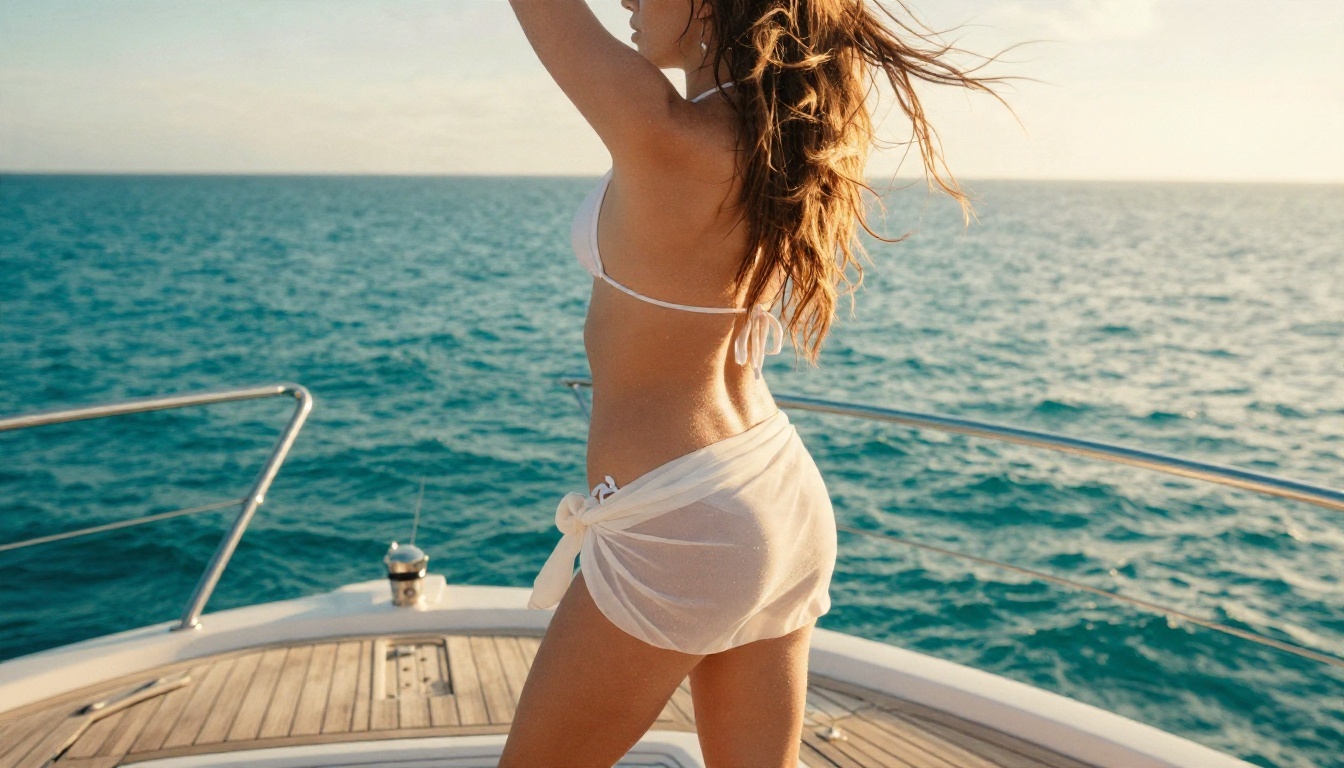
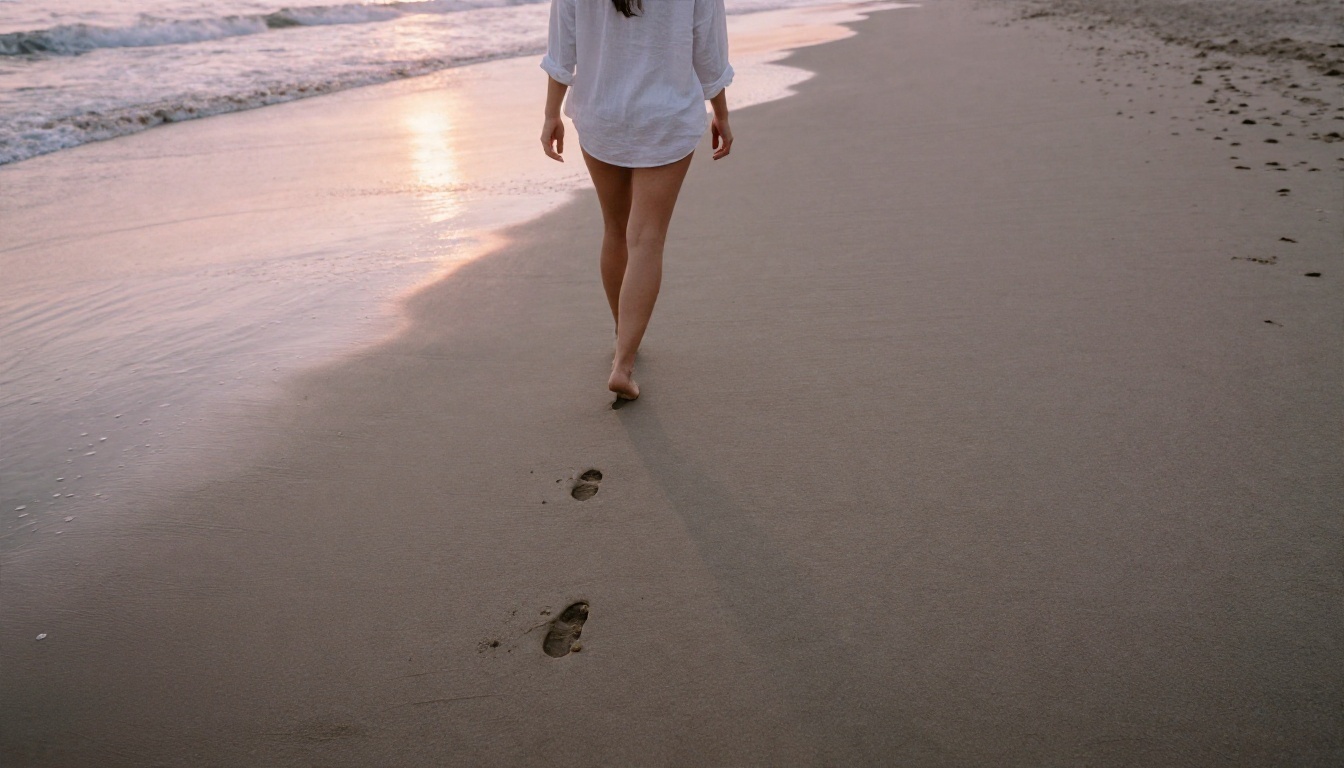
A working example: a woman in a white string bikini and sheer sarong standing on a sun bleached teak yacht deck at golden hour, wind in her hair, turquoise sea behind, warm backlight from the right, 35mm f/2 low angle, droplets of sea spray on tanned skin, fine film grain, Kodak Portra 400 look.
Parameter Tips
- Be specific about texture. Words like satin sheen, linen weave, freckles and pores push the model toward real photography and away from a plastic look.
- Name one light source. Two competing directions confuse the result.
- Keep it tasteful. Suggestive and attractive works well. Explicit prompts are neither the goal nor what these models are for.
- Vary the angle. Low angle, aerial and close up each give a different mood for the same scene.
- Write the lens. A mention of 50mm, 85mm or 35mm changes perspective and depth of field.
💡 Pro move: Generate three versions of the same scene with different light, such as morning window, golden hour and soft overcast. Pick the best one, then edit it rather than starting from zero.
Grok Imagine Models on PicassoIA
There is one point that can cause confusion, so let me be direct. PicassoIA does list some models from the Grok Imagine family: Grok Imagine Image 2, Grok Imagine Image Quality and Grok Imagine Video 1.5. They are separate models with their own rules. They are not a Spicy Mode switch, and you should not expect them to behave like the app's old toggle.
Image 2 and Video 1.5
If you like the Grok look for general imagery, Grok Imagine Image 2 is a solid 2K option, and Grok Imagine Video 1.5 turns a still into a short clip with audio. For fast video from an image you already like, LTX 2.5 Fast is another quick choice. Use them for scenery, fashion and lifestyle scenes, and keep Seedream 4.5 and Image Editor Pro for the glamour work described above.
Common Mistakes to Avoid
After watching a lot of people struggle with this, the same problems keep appearing.
- Blaming the prompt for a policy block. If a platform refuses a request, rewording it 20 times rarely helps. Switch tools instead.
- Trusting old tutorials. Many guides were written in 2025 and describe menus that no longer exist.
- Using photos of real people without permission. This is where moderation is strictest and where the real world harm sits. Create original characters instead.
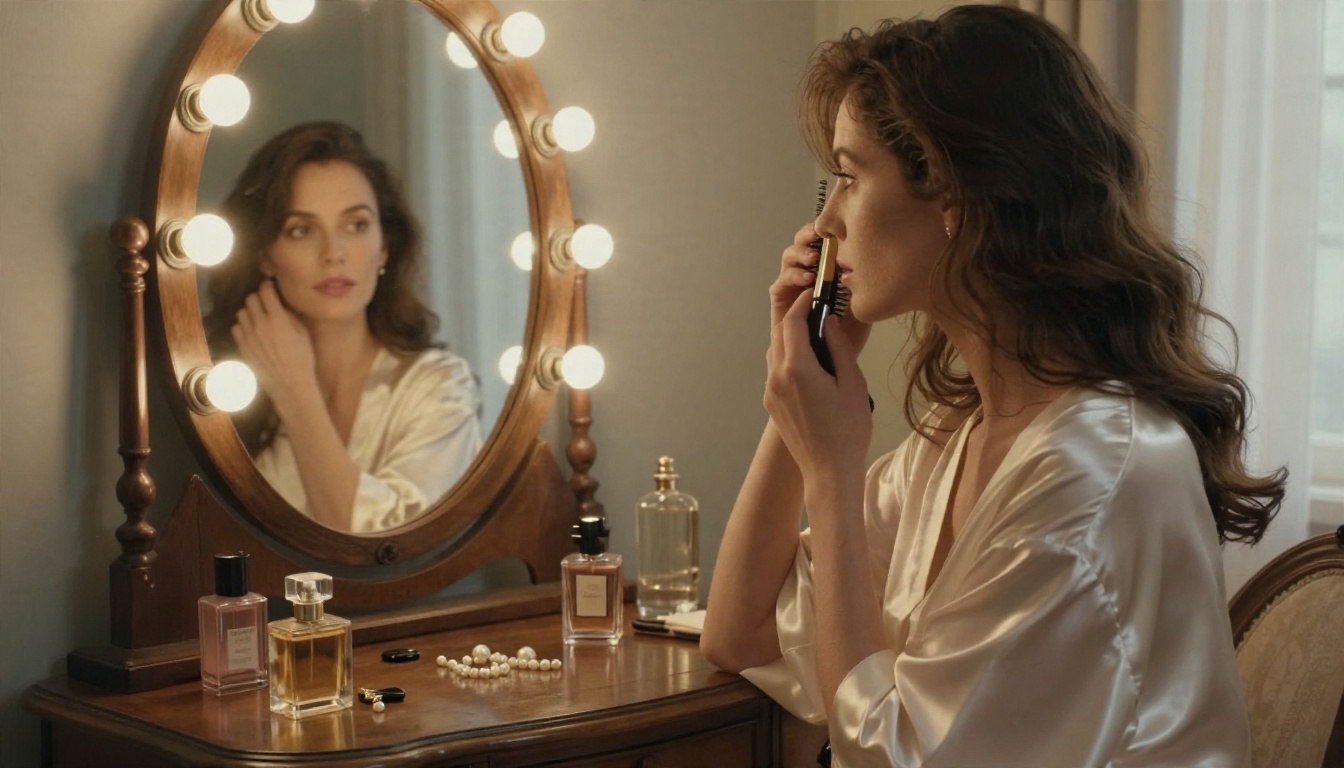
- Prompting for the effect, not the photo. Writing "spicy" gives vague results. Writing "silk robe, morning window light, 85mm f/1.8" gives a clear picture.
- Skipping the edit step. The first render is rarely the best. A quick pass in an editor makes a huge difference.
- Ignoring resolution. Start at a high resolution so you can crop without losing detail.
Your Turn to Create
Grok's Spicy Mode may come back, stay hidden or disappear for good. You do not need to wait for the answer. The tools that matter for glamour, swimwear and boudoir photography are available on PicassoIA right now, and you decide what to make with them.
Here is a simple plan for today:
- Open Seedream 4.5 and generate three scenes: a yacht deck at golden hour, a satin robe by a window, and a pool from above.
- Take your favourite into PicassoIA Image Editor Pro and push it further with unlimited retries.
- Polish the details in P Image Edit.
- If you want a series with a consistent look, try Flux 2 Klein 9B Base LoRA.
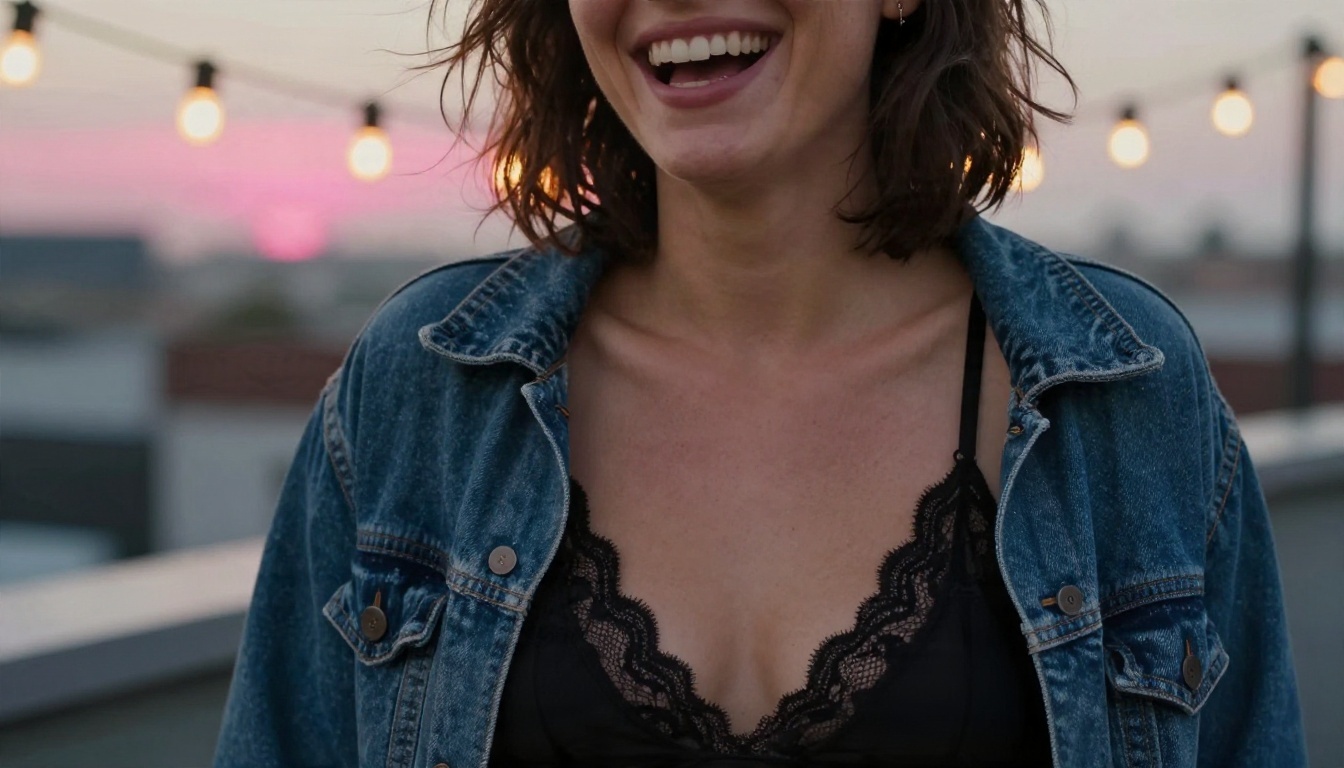
Open Picasso IA, type your first prompt, and see how far a well written paragraph of light, lens and texture can take you. For every model on the platform, including video, editing and upscaling tools, browse picassoia.com/en/all-models and pick the one that fits your next idea.


