You type a prompt for a moody boudoir portrait, hit generate, and get a blurred tile or a polite refusal. If that sounds familiar, you probably searched for Open Art NSFW rules and found a pile of vague answers. This article gives you a straight one. We look at what OpenArt tends to allow, where its limits sit, why filters sometimes block harmless requests, and which free alternatives give you more room for glamour, swimwear and artistic portraits. Everything here stays on the tasteful side: suggestive and beautiful, never explicit.
The Short Answer
No, OpenArt is not built as an NSFW platform. It is a mainstream, hosted AI image service, and like most services of that type it applies moderation to what you can create and share. Explicit sexual content is the clear no-go zone. Suggestive but non-explicit work, such as fashion, swimwear and portrait photography, is a grayer area where results depend on the model you pick, the wording of your prompt and the filter's mood that day.
💡 Worth knowing: When I researched this topic, I could not find a dedicated, public NSFW policy page for OpenArt. Its public terms set an 18+ age requirement, but they do not spell out a detailed adult content rulebook. So treat any site that claims to know the exact line with caution, and check the current terms yourself before you rely on them.
Here is the quick version in a table.
| Content type | Typical outcome on a mainstream platform like OpenArt |
|---|
| Fashion, swimwear, beach portraits | Often passes, sometimes flagged |
| Lingerie and boudoir styling | Hit or miss, depends on wording |
| Artistic nudity | Usually blocked or blurred |
| Explicit sexual content | Blocked |
| Real people in sexual scenes | Blocked, and a serious abuse risk |
| Anything involving minors | Always blocked, no exceptions |
What OpenArt Actually Allows
Platforms like this make money by being usable for everyone: hobbyists, designers, marketers and students. That means the default setting is cautious. Adult material creates payment processor trouble, app store trouble and legal trouble, so most hosted generators draw a firm line around anything explicit.
Where the Line Sits
In practice, mainstream generators sort requests into three buckets:
- Safe: landscapes, products, portraits in everyday clothing, fashion shoots.
- Borderline: swimwear, lingerie, glamour poses, shirtless or partially covered subjects.
- Blocked: explicit nudity, sexual acts, fetish content, graphic material.
The borderline bucket is where users get frustrated. A bikini photo on a beach is ordinary in any magazine, yet an automated filter may flag it because of skin area, pose or a single word in the prompt.
Why Filters Exist
Filters are not only about taste. They protect the platform from three real problems: non-consensual imagery of real people, content involving minors, and legal exposure in dozens of countries at once. A service that serves a global audience tends to pick the strictest common denominator. That is annoying if you are an adult creator working on legitimate glamour art, but it explains why a platform would rather over-block than under-block.
What Gets Blocked Most
From what users report across hosted generators, these triggers cause the most trouble:
- Words that read as explicit, even when used innocently.
- Prompts that combine nudity words with realistic photography styles.
- Requests that name a real celebrity or public figure.
- Very young-looking subjects, even if the prompt says adult.
- Image-to-image edits that try to remove clothing.
Rules and Limits in Practice
Knowing the written rules is only half of it. The other half is how the filter behaves when you press the button.
Prompt Filters Versus Output Filters
There are usually two layers. The prompt filter reads your text and rejects it before any image is made. The output filter looks at the finished picture and blurs or hides it if it seems to cross a line. The second layer is the one that causes the most confusion, because your prompt was fine and the result still disappeared. Output filters judge pixels, not intent, so a glamour portrait with a lot of visible skin may get caught even when nothing in it is explicit.
Real People and Minors
This part is not negotiable on any serious platform, and it should not be. Sexual imagery of real people made without their consent is harmful, and in many places it is illegal. Anything that sexualizes minors is illegal everywhere and never acceptable. If a tool lets you do either, that is a red flag about the tool, not a feature. Everything in this article assumes fictional, adult subjects and tasteful results.
Account and Age Rules
OpenArt's public terms require users to be at least 18. That is a baseline, not a permission slip for adult content. Being an adult user does not mean the platform will generate adult material for you. Also check how your account tier, shared galleries and public posting interact with the rules, because content that is fine in a private generation may break the rules once you publish it.
Why Users Look for Alternatives
Most people who search for Open Art NSFW rules are not trying to break anything. They want a swimwear campaign, a boudoir style portrait, a fashion editorial or a glamour character sheet. The friction comes from two places.
False Positives
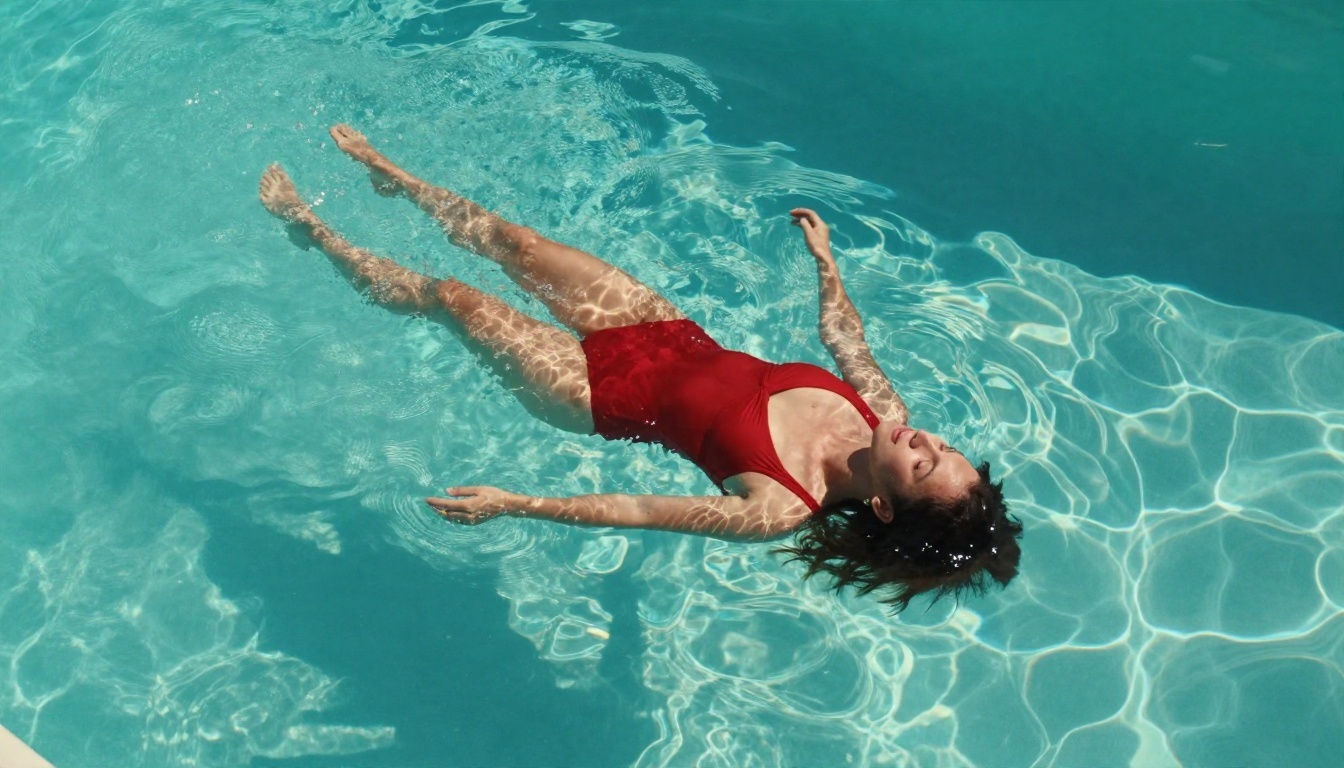
A filter does not read context. It sees patterns. So a request for "a woman in a red swimsuit by the pool" can trigger the same alarm as something far more explicit, simply because of how the image scores. Creators lose credits, time and momentum when this happens, and rewording the prompt over and over feels like arguing with a vending machine.
Credit Costs
Hosted generators often run on credits. Every blocked or unusable result still costs something in time, and sometimes in credits too. If you iterate 30 times to get one clean glamour shot, a cheap plan stops being cheap. That is why unlimited generations matter so much to people who work in this genre: iteration is the whole process.
Free Alternatives With Fewer Limits
If you want room to work on suggestive, glamour and artistic adult imagery, these are the options I would start with. They are all on PicassoIA, and they are listed in the order I would try them.
Seedream 4.5 First
Seedream 4.5 is my first pick. It produces sharp, photorealistic images up to 4K, handles skin texture, fabric and lighting well, and gives you much more freedom for glamour, swimwear and boudoir styles than a typical hosted filter. It follows long, detailed prompts closely, which matters when you want a specific lens, light direction and mood. Speed is also good, so iterating is painless.
PicassoIA Image Editor Pro
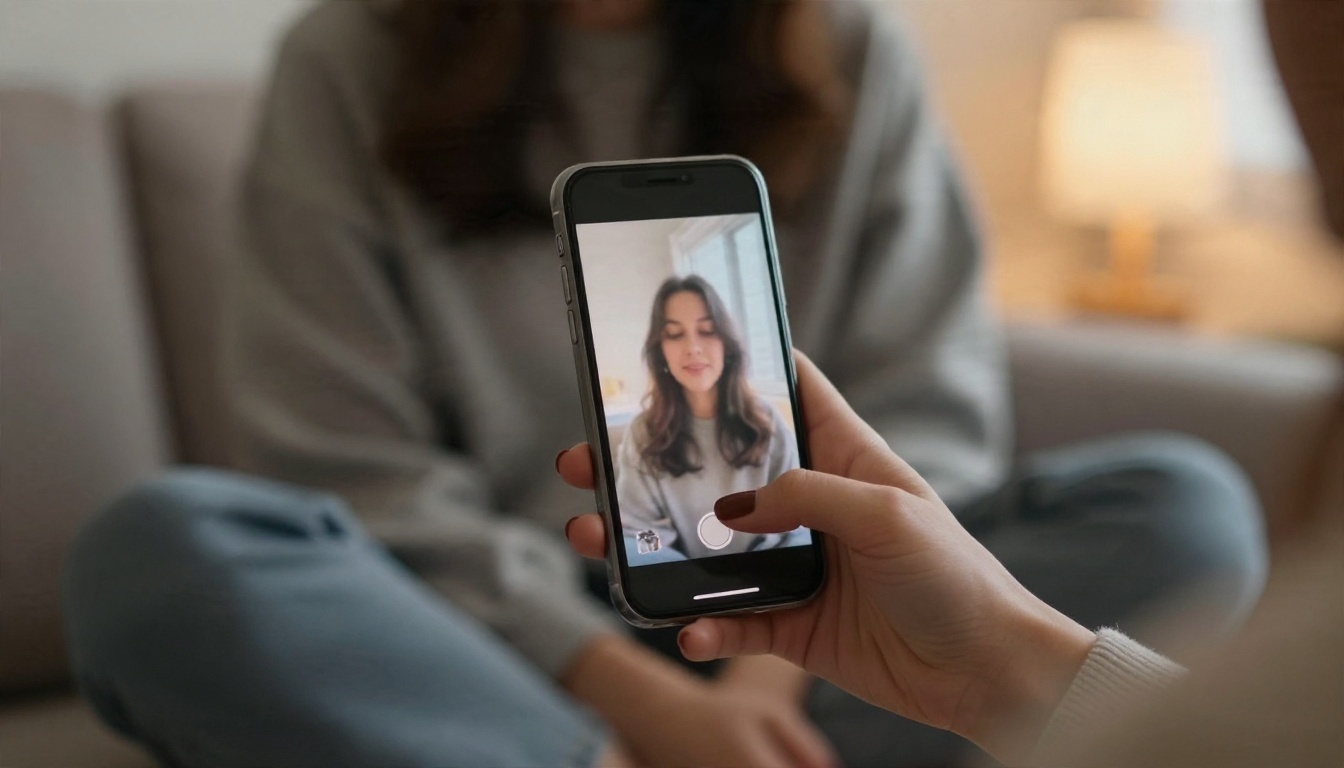
PicassoIA Image Editor Pro is the one to use when you want to keep going without counting. It offers unlimited generations, so you can try a dozen versions of the same pose, change the outfit, shift the lighting or fix a hand without watching a credit meter. It also works as an editor: upload a photo or an earlier render and refine it with plain language.
Flux Dev and Realistic Vision
Flux Dev is a strong photorealistic generator with good anatomy and natural lighting. It is a solid second opinion when Seedream gives you a look you do not love. Realistic Vision v5.1 is an older but loved model for lifelike human portraits, with a slightly softer, film like feel that suits boudoir and glamour sets.
Z Image Turbo for Speed
Z Image Turbo is built for speed. Use it to test ideas fast, pick the composition you like, then rebuild the best one in Seedream 4.5 for the final render. SDXL Lightning 4Step works the same way for quick drafts.
💡 Reality check: Fewer limits does not mean no limits. Keep your work fictional, adult and non-explicit. Explicit pornography, real person deepfakes and anything involving minors are off the table, wherever you create.
How to Use Seedream 4.5 on PicassoIA
Here is the workflow I use for a suggestive but tasteful glamour portrait.
- Open the model page. Go to Seedream 4.5 on PicassoIA and open the generator.
- Write a long prompt. Aim for 50 to 80 words. Describe the subject, pose, setting, light direction, lens and texture.
- Pick 16:9 for scenes, 3:4 for portraits. Wide frames suit pools, beaches and yachts. Tall frames suit vanity and boudoir portraits.
- Choose the highest resolution you need. Start low for drafts, then raise it for the final.
- Generate, compare, adjust. Change one thing at a time: the light, the lens or the outfit.
- Polish in Image Editor Pro. Take your favorite result into PicassoIA Image Editor Pro for unlimited touch ups.
Parameter tips that make a visible difference:
- Use photographic language: "85mm f/1.8", "soft window light from the left", "Kodak Portra 400 grain".
- Name surface textures: "visible pores", "satin sheen", "coarse linen weave".
- Keep the mood in words like "editorial", "tasteful", "warm", "confident".
- Add "adult woman" or "adult man" and an age range to keep subjects clearly grown up.
Prompts That Work for Glamour
The best glamour images come from prompts that read like a photographer's shot list, not a list of body parts. That also keeps you well away from filter triggers on any platform.
Structure of a Strong Prompt
Use this order and you will get consistent results:
- Subject and pose: "adult woman reclining on a daybed, one arm behind her head".
- Wardrobe: "black silk two piece swimsuit", "emerald lace set with a long cardigan".
- Environment: "private villa terrace, turquoise pool, terracotta tiles".
- Lighting: "golden hour backlight from camera left, soft bounce from the right".
- Camera: "85mm f/1.8, shallow depth of field, eye level".
- Texture and film: "visible pores, fabric sheen, Kodak Portra 400 grain".
Lighting and Lens Words
Light does more for a glamour image than any outfit. A few combinations to try:
- Golden hour backlight for warm rim glow on hair and shoulders.
- Window light from one side for soft, sculpted portraits.
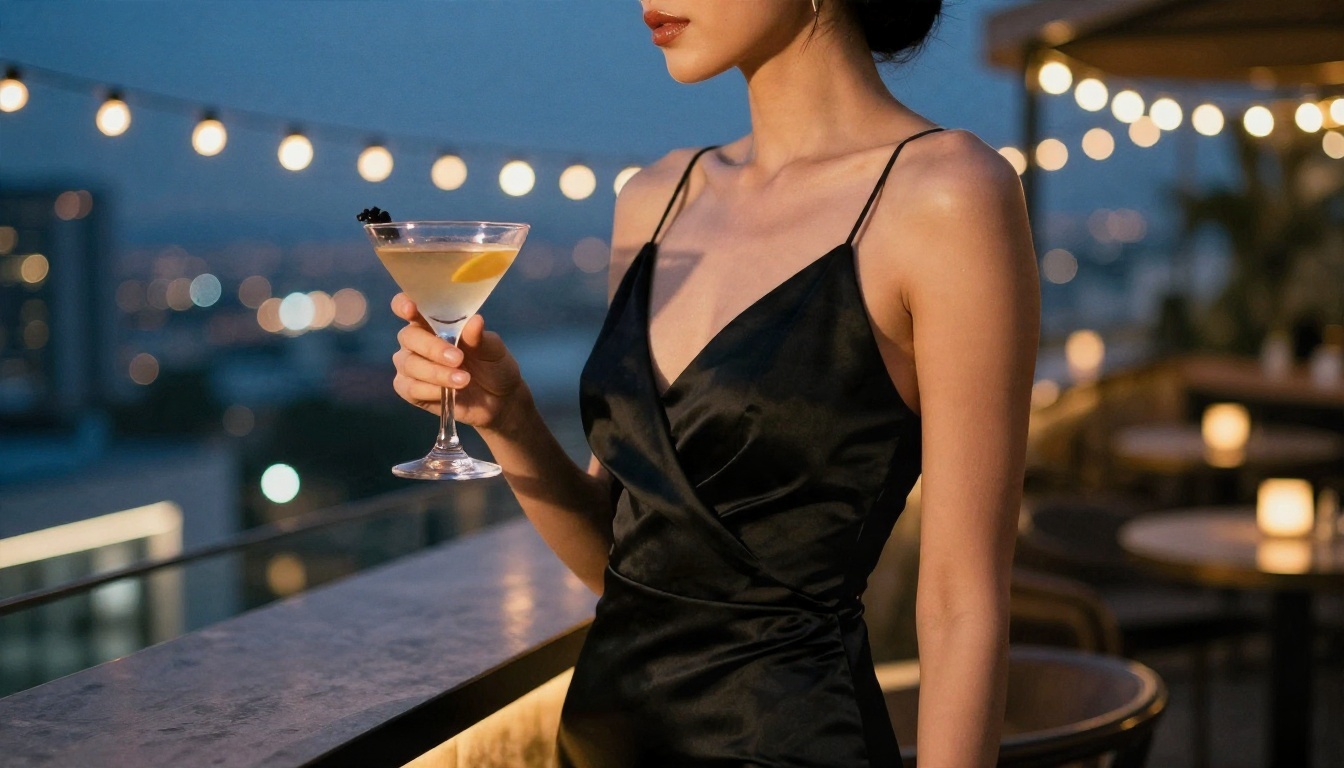
- Blue hour with string lights for nightlife and rooftop scenes.
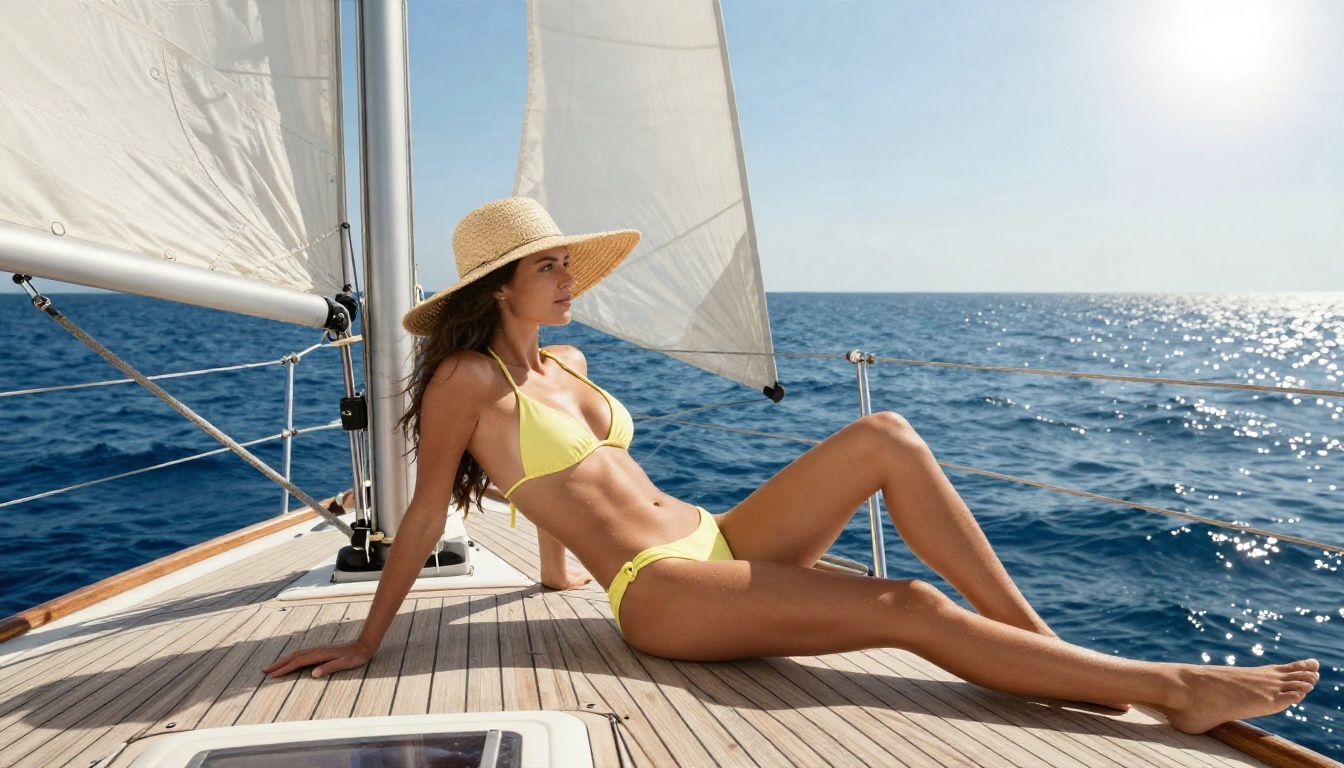
- Harsh midday sun from above for pool and beach energy with sharp shadows.
For lenses, 85mm and 105mm give flattering compression for portraits. A 24mm or 28mm gives you wide, environmental shots, like a yacht deck or a beach walk.
Mistakes to Avoid
- Stacking adjectives like "sexy, hot, seductive" instead of describing light and pose.
- Skipping the camera details, which leaves the model guessing and often gives flat results.
- Asking for too many things at once. One subject, one setting, one mood.
- Naming real people. It is risky, unfair to them and blocked almost everywhere.
Staying on the Right Side
Tasteful adult imagery has a long tradition in photography, from fashion magazines to fine art portraiture. It works because it suggests more than it shows. That is also the best strategy for AI work. A strong picture is about light, confidence and composition, and it holds up when you post it anywhere.
A few habits keep you out of trouble:
- Keep subjects fictional and clearly adult.
- Skip explicit content. It limits where you can share, sell or publish.
- Check platform rules before posting. What is fine in a private render may not be fine on a social network or marketplace.
- Label AI work honestly when you share it, especially if it looks like a real photograph.
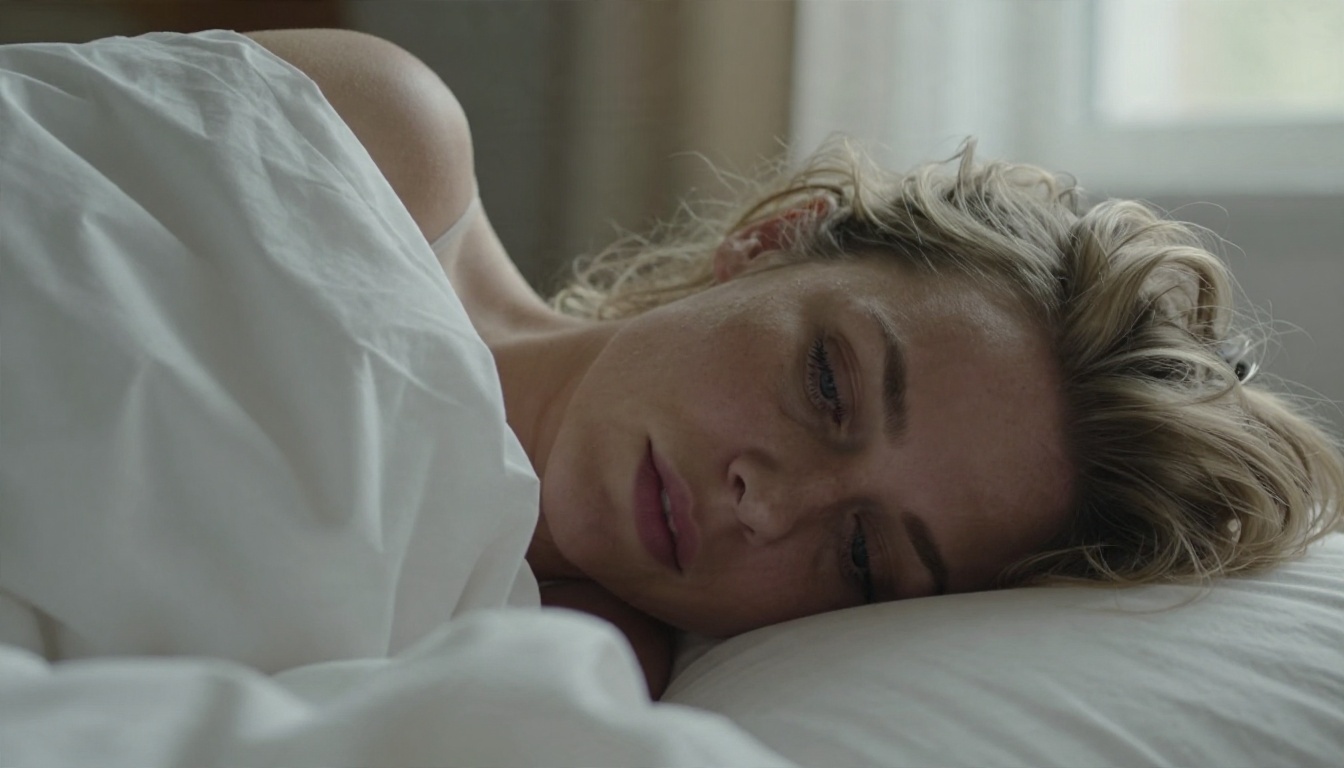
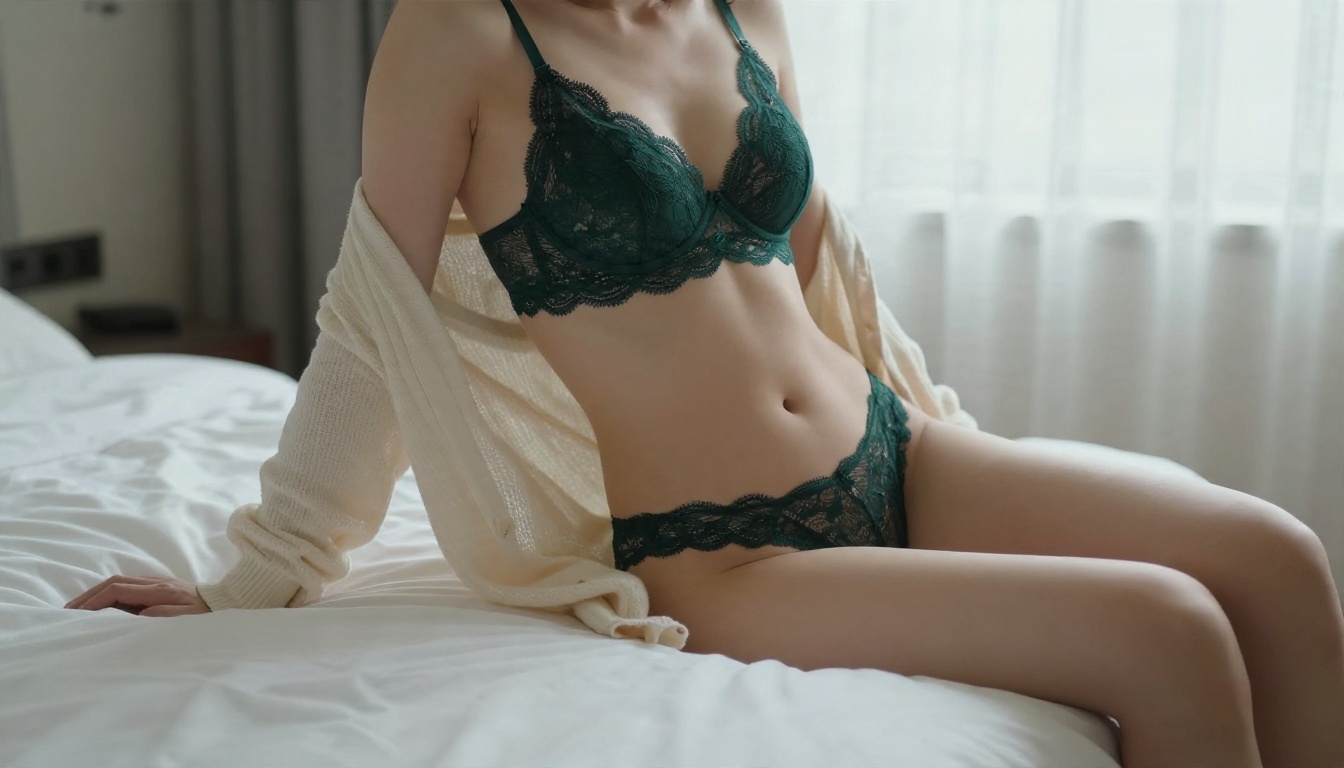
Some of the strongest work in this genre uses a quiet, intimate frame like the one above: a bedsheet, dawn light, a long lens and nothing explicit at all. That restraint is what makes a portrait feel artistic instead of crude.
Frequently Asked Questions
Can I generate swimwear on OpenArt?
Often yes, but results vary by model and prompt. A bikini on a beach usually passes, while tighter, more revealing prompts are more likely to be flagged or blurred.
Will rewording my prompt get around the filter?
Sometimes, but it is a frustrating loop. Output filters judge the finished picture, so a clean prompt can still produce a blocked result. A tool with fewer limits saves you that fight.
Is there a free option with unlimited generations?
Yes. PicassoIA Image Editor Pro offers unlimited generations, and Seedream 4.5 gives you top quality for final renders.
Are policies likely to change?
They can, and platforms update terms without much notice. Check the current rules on any service before you build a workflow around it.
Start Creating Your Own Images
OpenArt is a capable tool for general AI art, but it is not the place to expect freedom for adult or glamour work. If your goal is swimwear campaigns, boudoir portraits or artistic character shoots, pick a tool with room to iterate.
Start with Seedream 4.5 for your first sharp render, move into PicassoIA Image Editor Pro for unlimited iteration and edits, and test other looks with Flux Dev, Realistic Vision v5.1 and Z Image Turbo. Copy a prompt from this article, change the outfit or the light, and see what you get in a few seconds. For every other option, browse the full list at picassoia.com/en/all-models and build your own set of favorites.