Not everyone wants to be the face of their own channel, and honestly, you don't need to be. Some of the most-watched videos on YouTube, TikTok and Instagram show a landscape, a pair of hands, a screen recording or a stack of animated-looking clips, with a calm voice telling the story. Faceless video AI takes that format and removes most of the work: you write or generate a script, an AI voice reads it, and AI video models produce the footage. This article compares the free makers, the best generators, the voice tools and the free alternatives, so you can pick a setup and publish your first video this week.
What Faceless Video AI Really Means

"Faceless" does not mean low effort or anonymous slop. It means the creator is not the visual subject. The viewer watches footage, graphics, text or hands doing something, and the value comes from the story, the topic and the pacing. Think of documentary channels, finance explainers, meditation clips, recipe videos, history stories and product walkthroughs.
AI changed two things about this format. First, footage is no longer limited by stock libraries. A text-to-video model can produce the exact shot you imagined, such as a fog-covered valley at dawn or a slow push-in on a vintage typewriter. Second, voiceover no longer needs a microphone and a quiet room. A text-to-speech model can read your script in a natural tone, in dozens of languages.
Three Formats That Work
Most successful faceless channels fall into one of three buckets:
- Narrated stories: AI-generated or stock footage under a voiceover. Good for history, true crime, mythology and finance.
- Visual loops and mood content: relaxing scenery, ambient music, study sessions and sleep videos with little or no narration.
- Tutorials and screen content: screen captures, slides and hands-only demonstrations with a synthetic or recorded voice.
Who Uses It
Solo creators who dislike being on camera, small businesses without a video team, educators who record lessons in bulk, and marketers testing ten ad angles before spending a cent on production. If that sounds like you, the setup below will feel familiar.
Free Faceless Video Makers Worth Trying
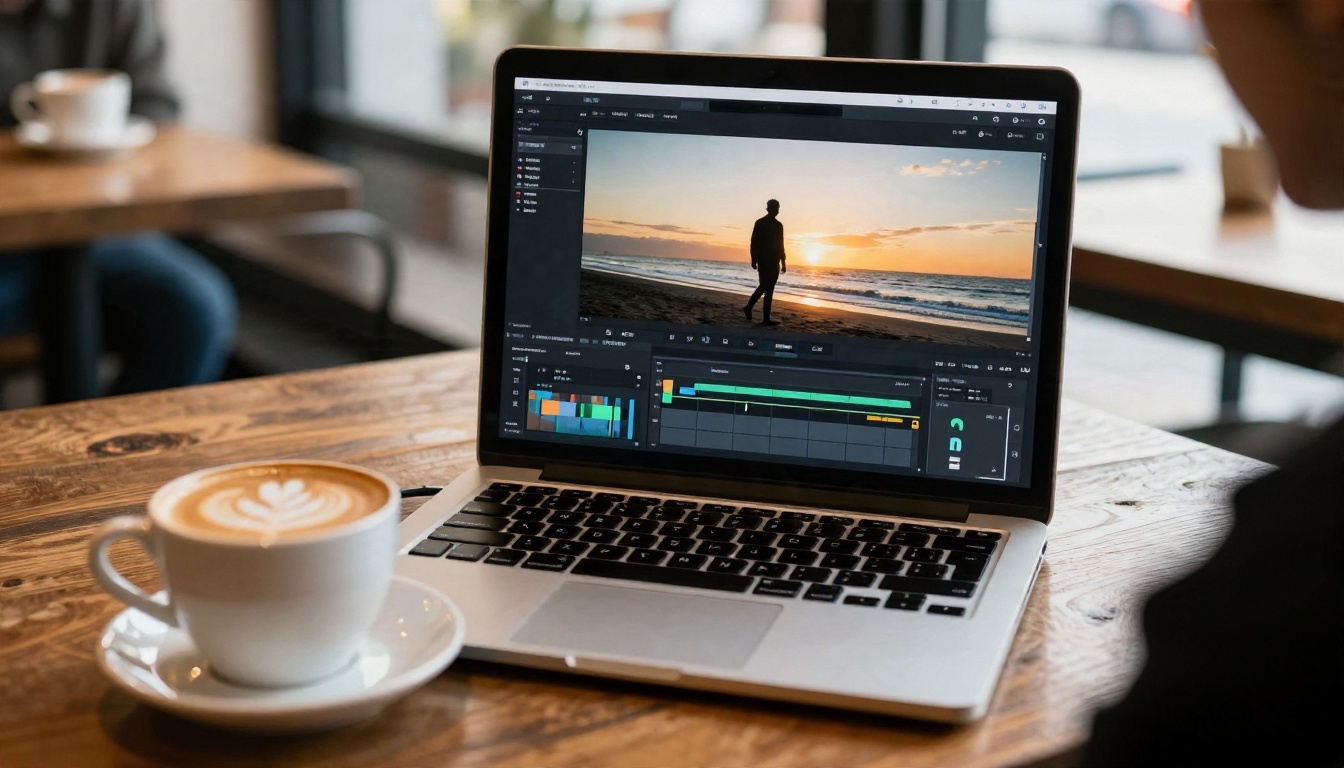
Search for a free faceless video maker and you will find dozens of tools. The honest summary from comparing the roundups: almost every tool is free to start and limited at volume. Free plans usually restrict export length, add a watermark, cap you at a handful of videos per month, or hand you trial credits that expire.
Template and Script Based Tools
Tools such as InVideo AI, Pictory, Fliki and Synthesia turn a script or article into a video by matching text to stock clips, adding captions and attaching a voice. They are fast, and the output is easy to recognize as templated. Free tiers tend to allow only a few short videos a month, so they work best for testing a concept rather than running a channel.
Editors With Auto Captions
Canva and CapCut sit in a different group. They are general editors with captioning, templates and basic AI helpers, and their free plans are generous compared with specialized tools. If you already have clips and a voiceover, these are often the cheapest way to assemble the final cut.
What Free Tiers Usually Hide
💡 Check four things before committing to any free plan: watermark on export, maximum resolution, commercial use rights, and whether the credits renew monthly or disappear after a trial.
Pricing changes constantly, so verify the current limits on each tool's own site rather than trusting a roundup from last quarter.
Best AI Video Generators for Faceless Clips
Template tools stitch together existing footage. AI video generators create new footage from text or from a still image, which is why serious faceless channels lean on them for unique visuals. Here are the models worth knowing, all available on PicassoIA.
Seedance 2.5 Lite for Free Volume
Seedance 2.5 Lite is listed as a free and unlimited generator with clips up to 10 seconds, which makes it the natural starting point when you need many shots and do not want to count credits. Its bigger sibling, Seedance 2.5, stretches to 30-second videos, handy for longer single-take scenes. For a lighter option with native audio, there is also Seedance 2.0 Mini.
Kling v3 for Cinematic Motion
Kling v3 Video is a strong pick for smooth camera movement and believable physics. If your channel needs a recurring character that moves the way you describe, Kling v3 Motion Control animates a character from a reference, and Kling v3 Omni Video pushes to 1080p from text.
Veo, Sora and Wan for Variety
Veo 3.1 Fast and Veo 3.1 Lite generate video with native audio, so ambient sound arrives with the clip. Sora 2 and Sora 2 Pro are useful for story-heavy scenes with synced sound. For quick iteration, Wan 2.5 T2V Fast and LTX 2.5 Fast return results in seconds.
Quick Comparison
💡 Tip: Generate 5 to 8 short clips per scene and keep the best. Throwaway generations are cheap, and picking the winner is where quality comes from.
Voiceovers Without Showing Your Face
A faceless video lives or dies on its voice. A flat, robotic read makes viewers leave in the first five seconds. A warm, well-paced one makes mediocre footage feel intentional.
Picking a Voice That Fits
Match the voice to the topic. A history channel needs weight and a slower pace. A product video wants friendly and clear. A sleep channel needs soft and steady. PicassoIA's text-to-speech models give you plenty of room to test:
Music and Dubbing
Background music sets the pace. Music composes a track from a text prompt, so you avoid licensing headaches for a quiet piano bed or a slow ambient pulse. Once a video performs, Dubbing translates it into 90+ languages, which multiplies reach from one piece of work.
💡 Voice tip: Write for the ear. Short sentences, one idea each, and read the script aloud before generating. If you run out of breath, so does the AI.
A Simple Workflow That Ships Videos
Tools matter less than process. Here is the sequence that works for most faceless formats.
Script and Storyboard
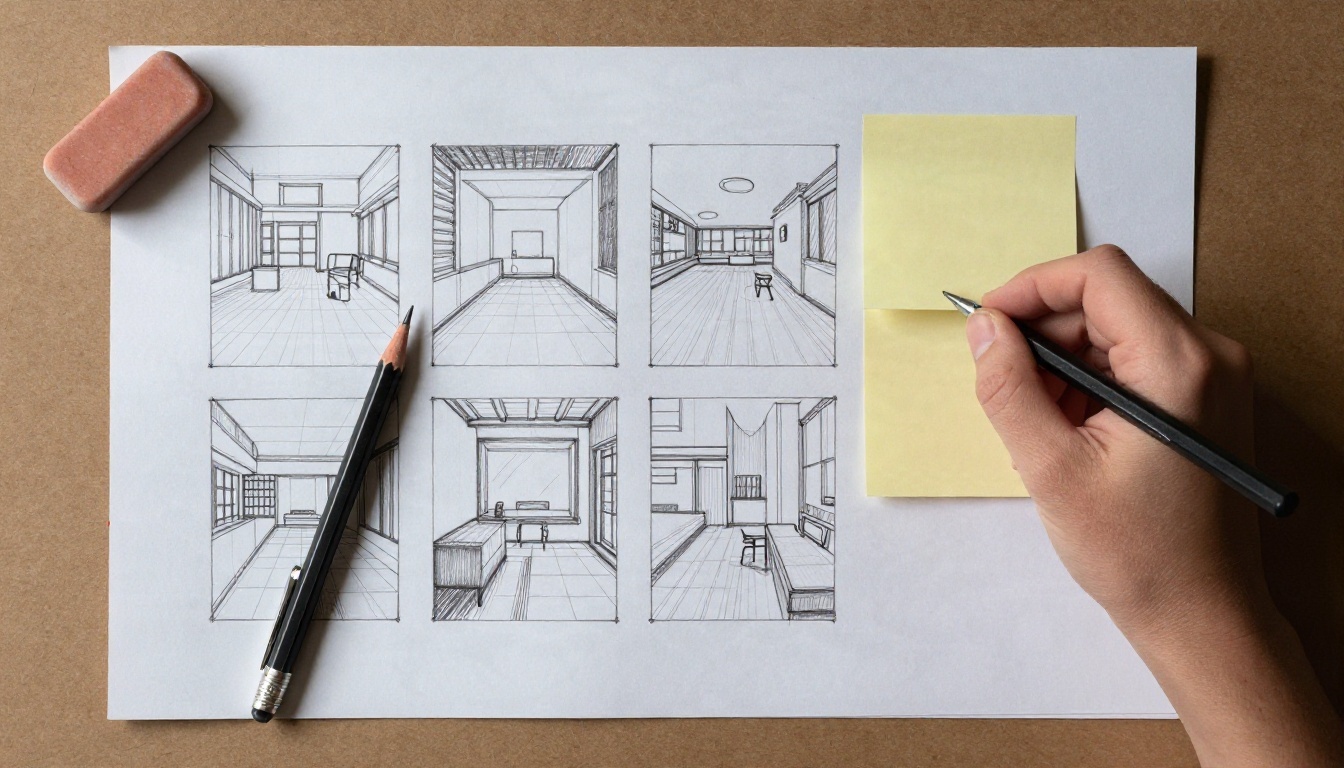
Start with one sentence: what does the viewer get from this video? Then write a script of 150 to 250 words for a 60-to-90-second video, and split it into six to ten shots. For each shot, write one line describing what the viewer sees. A rough storyboard on paper is fine. This is the step most beginners skip, and it is why their videos feel random.
Generate Visuals and Voice
For each shot, write a prompt that names the subject, the camera move, the light and the mood. If you want visual consistency across a channel, generate a still first with an image model such as Seedream 4.5, then animate that still with an image-to-video model like Wan 2.5 I2V Fast. The same starting look keeps your clips from feeling like they came from ten different channels.
If you have your own reference images, video or audio, PicassoIA Reference To Video builds a video around them, which is useful for brand-consistent content.
A solid prompt pattern:
- Subject: "an old lighthouse on a rocky coast"
- Motion: "slow push-in, waves rolling below"
- Light: "soft overcast morning, cool tones"
- Style: "photorealistic, natural film grain"
Assemble and Add Captions
Drop the clips and voiceover into any free editor, cut on the beat of the narration, and add captions. Most viewers watch with the sound off at least part of the time, so captions are not optional. Keep cuts every 3 to 5 seconds to hold attention, and end on a clear line that tells viewers what to do next.
Paid faceless suites are convenient, but you can build the same pipeline for close to nothing.
Free Generation on PicassoIA
A pay-per-seat faceless video app bundles script, voice, footage and editing into one subscription. You can unbundle that stack. Use Seedance 2.5 Lite for free, unlimited clips of up to 10 seconds, a text-to-speech model for the narration, a free editor such as CapCut for assembly, and you have a working faceless studio without a monthly bill. You can browse every option at picassoia.com/en/all-models.
Hands-Only Filming
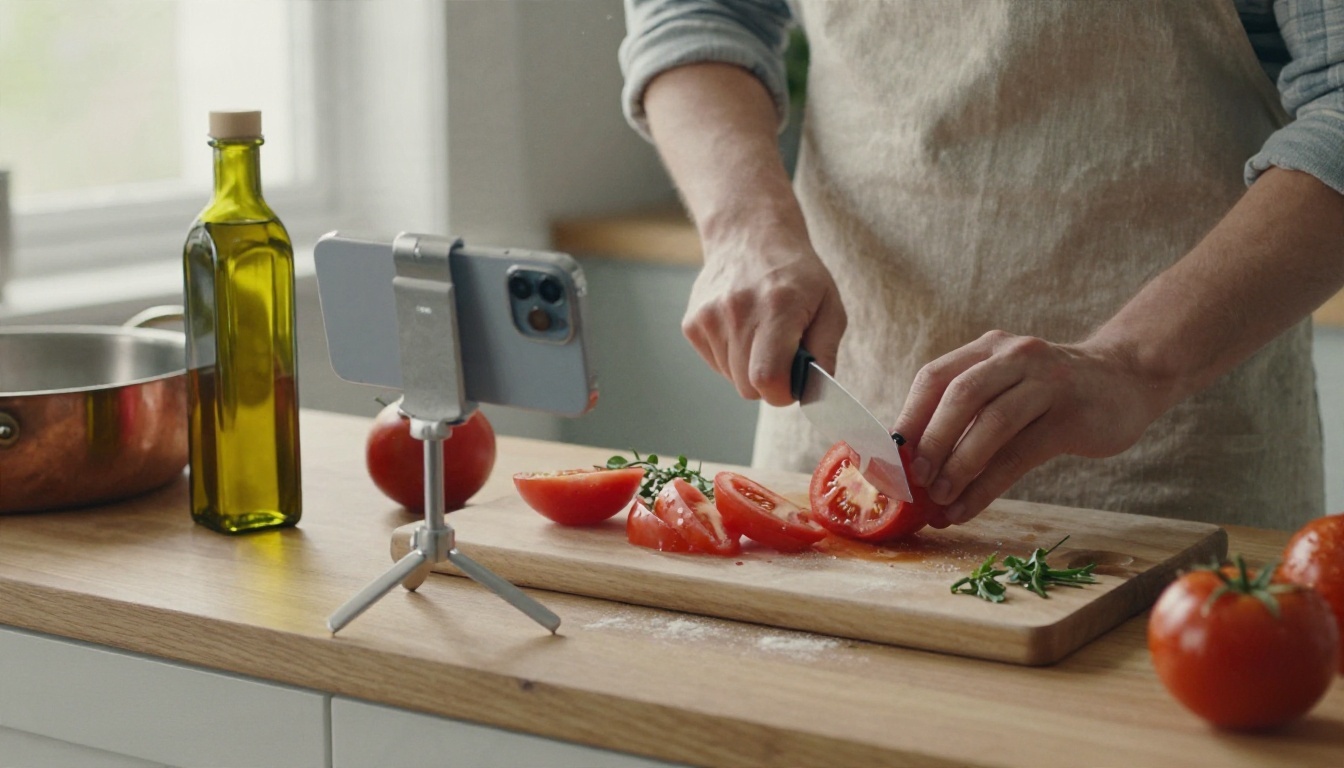
Not every faceless video needs AI footage. A phone on a cheap tripod pointed at a desk, a kitchen counter or a workbench gives you real footage with no face on screen. Hands, tools, ingredients and finished products make for some of the most satisfying content online. Pair it with an AI voiceover when you do not want to record narration, and the whole production fits on one table.
Mixed Footage
The best-looking faceless videos blend sources: AI-generated establishing shots, real hands-on footage for detail, a screen capture where the topic needs it. Mixing keeps the pacing varied, and it hides the telltale sameness that single-source AI videos can have.
Mistakes That Kill Faceless Channels
Most failed faceless channels fail the same way. Here are the patterns to avoid.
Weak Scripts Hidden Behind Pretty Clips
Great visuals do not save a boring script. If the first 10 seconds do not promise something specific, viewers scroll. Open with the most interesting claim, not a greeting.
Robotic Reads and No Pacing
A flat voice at a constant speed drains attention. Add pauses, vary sentence length, and test two or three voices on the same paragraph before choosing one. The difference between the best and worst voice for your topic is bigger than you expect.
Inconsistent Visual Style
If clip one looks like a film still and clip two looks like a cartoon, viewers feel the mismatch even if they cannot name it. Pick one look, such as photorealistic with natural light, and write that into every prompt.
Ignoring Platform Rules
Platforms increasingly ask creators to label realistic AI content, and reused or mass-produced videos can lose monetization. Add original scripting, your own point of view and real value to every upload, and check each platform's current policy before you scale.
💡 Rule of thumb: If a video could have been made by anyone typing the same one-line prompt, it needs more of you in it: a stronger angle, better research, a sharper script.
Make Your First Faceless Video Today

You do not need a camera, a studio or a big budget. You need a topic you can talk about for 60 seconds, a script that gets to the point, six to ten good clips and a voice that fits. Here is a plan for the next hour:
- Write a 150-word script on a subject you know.
- Split it into eight shots and write one prompt per shot.
- Generate the clips with Seedance 2.5 Lite or Kling v3 Video.
- Record the narration with Speech 2.8 HD or ElevenLabs V3.
- Add a music bed, captions and post it.
Then repeat, and keep what the audience responds to. Open PicassoIA, pick a video model, paste your first shot prompt and see what comes back. Your first clip is a few minutes away, and every video after that gets faster. You can see the full catalog of image, video, voice and music models at picassoia.com/en/all-models.


