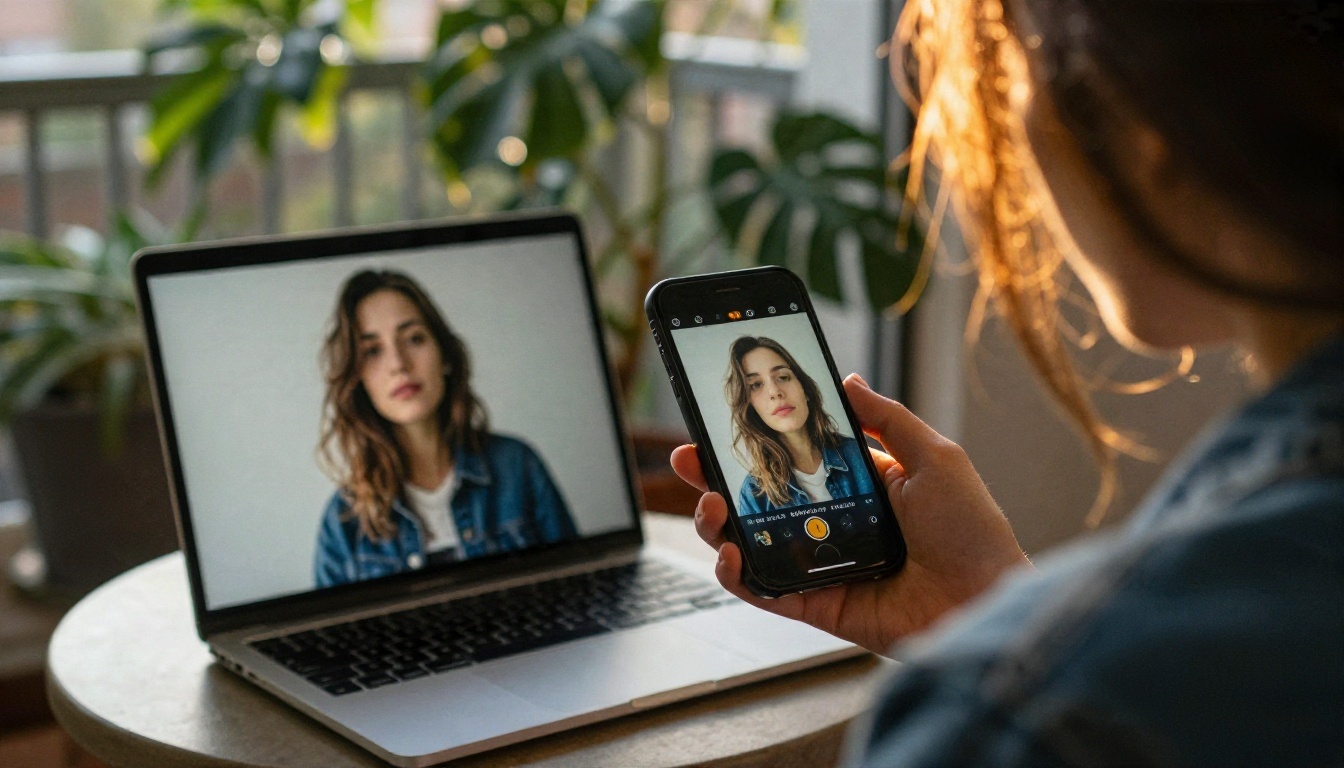
You upload a still photo, type a sentence about motion, and a few seconds later the photo is breathing: hair moves, clouds drift, the camera pushes in. That is the promise behind Fal AI image to video, and it is the reason so many creators and developers end up on the platform. The catch is that "free" is a slippery word there, the billing is per second of footage, and the settings you choose decide whether a clip looks cinematic or melted.
This article lays out what Fal AI actually is, what free access realistically looks like, how the cost adds up, which settings move the needle, and which alternatives you can open and use today.

💡 Quick take: Fal AI is a hosting platform for many generative models, not a single video model. Free access is limited to promotional credits, so for unlimited experimenting you will want a second option on hand.
What Fal AI Image to Video Actually Is
A Platform, Not One Model
Fal AI is a cloud service that hosts generative models behind a fast API and a web playground. When people search for "Fal AI image to video," they usually mean one of two things: the hosted image-to-video endpoints from several labs, or the playground where you can paste an image URL and test a prompt without writing code.
That distinction matters. Quality, length, resolution and price change from endpoint to endpoint. A premium cinematic model can cost several times more per second than a lightweight open-weight one. So "Fal AI" tells you where the model runs, not how good the clip will be.
Fal AI is a separate company and product, and it is not on PicassoIA. Everything in this article about Fal AI is written from public information, and the tools I recommend as alternatives are the ones you can use on PicassoIA right now.
Who Gets the Most Out of It
Fal AI is built for people who want to call a model from code: app developers, automation builders, and teams who need to generate thousands of clips inside a product. If you are a solo creator who wants to animate a handful of photos, the API-first design is more machinery than you need.
Free Options: What You Really Get
Searches for "free" next to Fal AI image to video are common, so let's be direct about what exists.
Signup Credits
Reviewers report that new accounts can receive promotional credits, but the amount is not clearly published and different sources give different expiry windows. Treat any specific number you read online with caution. Credits are also tied to the same per-second rates as paid use, so a small balance disappears fast when you are testing prompts.
New accounts have also been reported to start with a low concurrency limit, around two requests at a time. That is fine for testing, but it slows down any batch work.
Open Weights You Run Yourself
Some image-to-video models are released with open weights, which means you can download them and run them on your own hardware at no per-clip charge. The trade-off is real:
- You need a capable GPU with plenty of VRAM.
- Setup, drivers and updates are your job.
- Rendering a 5-second clip can take minutes on consumer cards.
- You lose the polish of hosted, tuned pipelines.
For hobby projects with a strong machine, it is a legitimate free route. For anyone else, the time cost beats the money saved.
Free Tools on PicassoIA
If your goal is simply to animate photos without watching a credit meter, Picasso IA Video is the straightforward option. It is a free, unlimited video generator that accepts text or an input image, outputs a 5-second clip at 24 fps with synchronized audio, and lets you pick 480p or 720p. Seedance 2.5 Lite is another free and unlimited option, with clips up to 10 seconds.

The Real Cost of Per-Second Billing
Fal AI bills video models by the second of output. Public snapshots from November 2026 put the range roughly between $0.015 and $0.14 per second, depending on the model, with some premium endpoints such as Kling 2.5 Turbo Pro listed around $0.07 per second. Prices change often, so check the live model page before you budget.
Quick Cost Math
Here is what that looks like for a 5-second clip, using the low, middle and high ends of that range:
| Rate per second | Cost per 5-second clip | Cost for 50 test clips |
|---|
| $0.015 | $0.075 | $3.75 |
| $0.07 | $0.35 | $17.50 |
| $0.14 | $0.70 | $35.00 |
Those numbers look harmless until you remember how image-to-video really works. You rarely get the perfect clip on attempt one. Plan for 5 to 10 attempts per final clip while you refine the prompt and source image, and a single finished 5-second video can cost several dollars at premium rates.
💡 Budget trick: Test your prompt on a cheap or free model first. Once the motion is right, spend credits on a premium model for the final render only.
Settings That Change the Result
Whatever platform runs the model, the same handful of settings decides your output. These apply on Fal AI and on every alternative below.
The Source Image
The first frame is the single biggest factor. A sharp, well-lit image with a clear subject animates cleanly. A blurry, over-compressed or cluttered image produces warped motion. Aim for:
- Resolution at or above the target video size.
- A single clear subject with room around it.
- Natural lighting with readable depth.
- No stray text, which tends to wobble in motion.
The Motion Prompt
Do not re-describe the image. The model can already see it. Describe what moves and how the camera behaves, in order: "The woman turns her head slowly toward the window, hair shifting in a light breeze, camera dollies in slightly, soft morning light." Cinematic, chronological sentences beat long lists of adjectives.
Duration and Resolution
Longer clips amplify drift: faces slowly change, objects morph. Most image-to-video models perform best at 5 seconds. Higher resolution costs more and renders slower, so prototype at 480p or 720p and only go higher for the final version.
| Setting | Safe starting value | When to change it |
|---|
| Duration | 5 seconds | Extend only after the motion looks stable |
| Resolution | 720p | Go to 1080p for final delivery |
| Aspect ratio | Match the image | Crop the source first instead of stretching |
| Seed | Fixed once you like a result | Change it to explore variations |
Seed and Negative Prompt
A fixed seed lets you reproduce a clip and change only one variable at a time, which is the fastest way to improve a prompt. A negative prompt, where the model supports one, helps suppress jitter, warping or unwanted text.
Alternatives Available on PicassoIA Today
Because Fal AI is not on PicassoIA, here are the image-to-video models you can use on PicassoIA for similar results, each with a clear strength.
| Model | Best for | Notes |
|---|
| Picasso IA Video | Free, unlimited testing | 5 seconds, 24 fps, audio, 480p or 720p |
| Wan 2.7 I2V | Precise control | First and last frame control, audio sync, up to 1080p |
| Kling v3 Video | Cinematic motion | Strong camera movement and realism |
| Seedance 2.5 Lite | Longer free clips | Up to 10 seconds, free and unlimited |
| Hailuo 2.3 Fast | Quick photo animation | Fast turnaround for portraits and product shots |
Picking by Task
If you also need other options, Veo 3.1 Lite adds native audio and is worth a test for dialogue-style scenes.
How to Get Similar Results on PicassoIA
Here is the workflow using Picasso IA Video, because it is free and unlimited and gives you an image-to-video result similar to what you would test on Fal AI.
Step by Step
- Open the model page. Go to Picasso IA Video.
- Upload your source image. This becomes the opening frame, and the clip inherits its aspect ratio.
- Write a motion prompt. Describe movement and camera in chronological order, for example: "A slow push-in as steam rises from the cup and curtains shift in a light breeze."
- Pick a resolution. Use 480p for fast tests and 720p for the final render.
- Leave aspect ratio on "match input image" so nothing gets stretched.
- Generate and review. Watch for face drift, flicker or warped edges.
- Adjust one variable and repeat. Change the prompt or the image, not both at once.
Parameter Tips
| Parameter | Recommendation |
|---|
| Prompt | One or two sentences about motion, not a description of the picture |
| Resolution | 480p for tests, 720p for the keeper |
| Seed | Set a value once a clip looks promising, so you can reproduce it |
| Save audio | Keep it on for synchronized sound, switch it off for silent clips |
When you need more control over the ending of a clip, switch to Wan 2.7 I2V, which accepts both a first and a last frame. If you want a still image to start from, you can also generate one first with a text-to-image model such as Qwen Image 3 and animate it right away.
Three Common Mistakes
Prompting the Image, Not the Motion
If your prompt says "a woman in a sweater at a desk," the model has nothing to animate. Tell it what changes: "She lifts the mug, looks toward the window, camera drifts right."
Using a Weak Source Photo
Soft focus, heavy compression, or a crowded frame will not improve in motion. It gets worse. Start from a clean, sharp image, and upscale it first if needed.
Burning Credits on Early Drafts
Premium per-second pricing punishes experimentation. Do your rough drafts on a free option, then spend on a high-end render once the prompt works. This single habit usually cuts the cost of a finished clip by more than half.
Fal AI vs Alternatives at a Glance
| Question | Fal AI | PicassoIA options |
|---|
| Access | API and web playground | Browser, no code needed |
| Free use | Limited promotional credits | Free and unlimited with Picasso IA Video and Seedance 2.5 Lite |
| Billing | Per second of video | Free tiers plus premium models |
| Best for | Developers integrating video into products | Creators who want to animate photos fast |
| Models | Many hosted endpoints | Wan, Kling, Seedance, Hailuo, Veo and more |
Fal AI makes sense when you are building a product and need an API. If you are creating clips yourself, a browser tool with free iteration is the faster, cheaper path.
Your Next Clip Starts Here
You now know what Fal AI image to video is, why free access is limited, how per-second billing adds up, and which settings decide the result. The fastest way to build intuition is to run a few clips yourself.
Take one sharp photo, open Picasso IA Video, and write a single sentence about how it should move. Run it at 480p, tweak the prompt, then render your best version at 720p. When you want longer clips, tighter frame control or a cinematic look, try Wan 2.7 I2V or Kling v3 Video with the same photo and compare.
You can browse every available option at picassoia.com/en/all-models. Start with one photo today and see how much a few seconds of motion can change it.